

How to Force Internet Explorer to Always Have the Menu Bar Turned On or Off by Default
InformationThis will show you how to enable or disable having the Menu bar to always be turned on or off by default in Internet Explorer for all users in Windows 7 and Vista. For example, if you force it always on, then it cannot be turned off using the normal method (Option Two at link). Same if you force it always off, then it cannot be turned on using the normal method (Option Two at link).
You will need to be logged in as an administrator to be able to do this tutorial.
NoteIf you just wanted to turn the Menu bar on or off in IE8 or IE9, then see the tutorial link below instead.
How to Turn the Menu Bar On or Off in Windows 7
EXAMPLE: Internet Explorer Menu Bar Always On or Off, and Default
NOTE: Notice that the Menu bar option is no longer available in the IE toolbar menu when you have it set to always be on or off.

OPTION ONEUsing a REG File Download
1. To Force Internet Explorer Menu Bar to be Always On
A) Click on the Download button below to download the file below.2. To Force Internet Explorer Menu Bar to be Always OffForce_IE_Menu_Bar_Always_On.regB) Go to step 4.
A) Click on the Download button below to download the file below.B) Go to step 4.3. To Allow Internet Explorer Menu Bar to be Turned On or Off by Users
NOTE: This is the default setting.
A) Click on the Download button below to download the file below.4. Click on Save, and save the .reg file to the desktop.
5. Right click on the downloaded .reg file and click on Merge.
6. Click on Run, Continue (UAC-Vista) or Yes (UAC-Windows 7), Yes, and OK when prompted.
7. Log off and log on, or restart the computer to apply.
8. When done, you can delete the downloaded .reg file if you like.
OPTION TWOThrough the Local Group Policy Editor
1. Open the all users, specific users or groups, or all users except administrators Local Group Policy Editor for how you want this policy applied.That's it,
2. In the left pane, click on to expand User Configuration, Administrative Templates, Windows Components, and Internet Explorer. (see screenshot below)
3. In the right pane, right click on Turn on menu bar by default and click on Edit. (see screenshot above)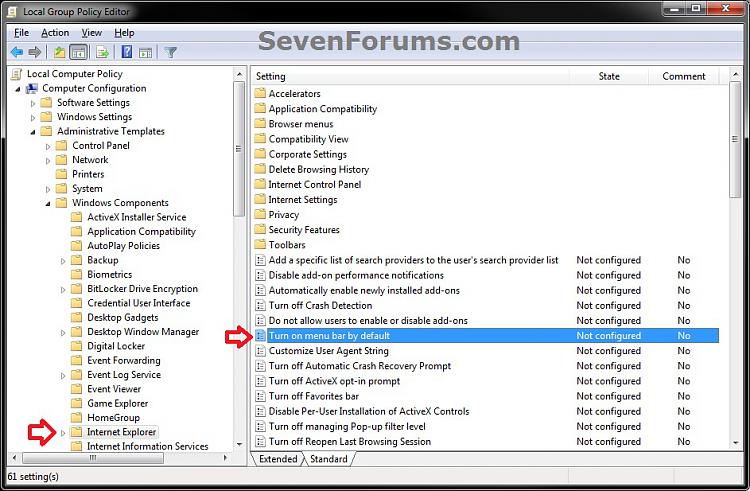
4. To Force Internet Explorer Menu Bar to be Always On
A) Select (dot) either Not Configured or Disabled. (see screenshot below step 7)5. To Force Internet Explorer Menu Bar to be Always Off
B) Go to step 7.
A) Select (dot) Disabled. (see screenshot below step 7)6. To Allow Internet Explorer Menu Bar to be Turned On or Off by Users
B) Go to step 7.
NOTE: This is the default setting.
A) Select (dot) Not Configured. (see screenshot below step 7)7. Click on OK. (see screenshot below)
8. Close the Local Group Policy Editor window.
9. If open, close and reopen Internet Explorer to apply.
Shawn
Related Tutorials
Internet Explorer - Turn Menu Bar Always On or Off
-
-
-
-
New #4
Thank you guys. Aaron and I ended up writing the same thing at the same time though, so some credit belongs to him as well. :)
-
-
New #6
This turned up first on a quick search. I hate it when Microsoft does this. I had IE8 show the menu by default (which could be achieved using the GUI), now the setting has gone to registry/group policy. I updated my domain policy with this setting, but it doesn't seem to be working by setting the relevant domain policy, I had to manually run the regfile.
In any case thanks very much, IE9 seems to be quite nice by the way, acid 3 score =95
-
New #7
You're welcome Sjaak,
Well, this is still a beta version, so hopefully Microsoft will add that option back when you right click on the toolbar. :)
-
New #8
Thank's Brink I prefer using the menu bar, Now I am trying to figure out how to show all text labels, show selective text, show icons only when Right clicking on the menu bar & was availible under customize in IE 8
PS: I also found some hepful tips in other threads yesterday - example, Beautyoftheweb thread, A IE 9 beta tut section would be a good Idea if there is a need for itLast edited by IownAmoneyPit; 16 Sep 2010 at 13:36.
-
New #9
Brink, this was one of the 1st things I noticed about IE9 when I opened it up. I hit the Alt key and it popped up. It is staying there everytime I open and close my browser???? I didn't even do your great tutorial, makes no sense to me

Internet Explorer - Turn Menu Bar Always On or Off
How to Force Internet Explorer to Always Have the Menu Bar Turned On or Off by DefaultPublished by Brink


 Quote
Quote
Related Discussions