

How to Change Default User Folder Icons in Windows 7 and Windows 8
InformationThis will show you how to change the default folder icon with the icon of your choice for all of your personal User folder icons to display with it in both the Start Menu and C:\Users\(user-name) locations in Windows 7 and Windows 8.
TipIf you would prefer to use the Vista user folder icons instead, then see Everlong's post for how. :)
EXAMPLE: Default Personal User Folders Icons
OPTION ONETo Change the User Name Profile Folder Icon
1. Open the change Desktop Icon Settings window. (See screenshot below)2. In the lower box, click/tap on your User Name folder to highlight it in blue. (See screenshot above)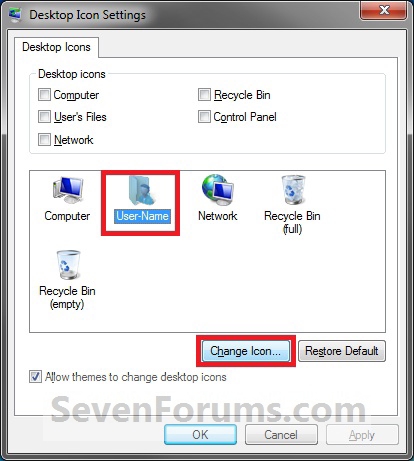
3. Click/tap on the Change Icon button. (See screenshot above)
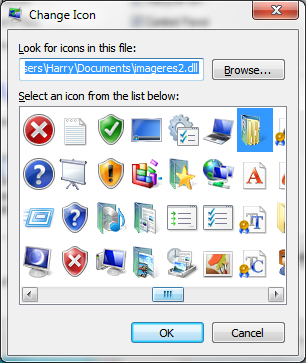
4. Click/tap on the Browse button and navigate to the folder location of were the icon that you want to use for this user folder is at. (See screenshot below)5. Select the icon in the lower window box, and click/tap on OK. (See highlighted in blue icon in the screenshot above)
6. Click/tap on OK. (See screenshot below step 1)
TipIf you want to restore the default User Name folder icon, then see OPTION ONE at this link:
How to Restore Default User Folder Icons in Windows 7 and Windows 8
OPTION TWOTo Change User Folders Icons
NoteThis option will be for all of the user folders in the C:\Users\(user-name) folder except the User Name folder itself (OPTION ONE).TipTo be able to change the Contacts and/or Desktop user folder icon, you can click on the Download button below to download the .reg files that enable the Customize tab in these user folders Properties page. After you download the .reg file, double click on it to merge it. You can then follow the steps in this OPTION below to change the icon.
You must be logged in as an administrator to be able to merge the REG files below.
- To Restore (remove Customize tab) Default Contacts User Folder
- To Enable (add Customize tab) Changing Contacts User Folder Icon
- To Restore (remove Customize tab) Default Desktop User Folder
- To Enable (add Customize tab) Changing Desktop User Folder Icon
1. Open the C:\Users\(user-name) folder.That's it,
WARNING: This must be done at this location. It will not work by opening the user folder from the Start Menu location.2. Right click or swipe down on the user folder icon that you want to restore default, and click/tap on Properties. (See screenshot above)
3. Click/tap on the Customize tab, and click/tap on the Change Icon button. (See screenshot below)4. Click/tap on the Browse button and navigate to the folder location of were the icon that you want to use for this user folder is at. (See screenshot below)5. Select the icon in the lower window box, and click/tap on OK. (See highlighted in blue icon in the screenshot above)
6. Click/tap on OK. (See screenshot below step 3)
TipIf you want to restore the default User folders icons, then see OPTION TWO at this link:
How to Restore Default User Folder Icons in Windows 7 and Windows 8
Shawn
Related Tutorials
- How to Restore Default User Folder Icons in Windows 7 and Windows 8
- How to Change a Library Icon in Windows 7
- How to Pin Your User Files Folder to the Windows 7 Taskbar
- How to Create Your Own Special User Folder
- How to Restore the Default Location of User Folders in Windows 7 and Windows 8
- How to Change the Default Location of User Folders in Windows 7 and Windows 8
- How to Change Windows 7 Default Control Panel Icons
- How to Change the Windows 7 Default Folder Icon
- How to Change Windows 7 Default Folder Icons using Resource Hacker
- How to Change the Open Folder Icon in Windows 7
- How to Change the Default Libraries Icon in Windows 7
- How to Add or Remove your User Folder from the Windows 7 Navigation Pane
- How to Change Windows 7 System Icons Using Resource Hacker
- How to Change the Default Location of a User Profile in Windows 7 and Vista
- How to Change the User Folder Name of a User Profile in Windows 7
User Folders - Change Default Icon
-
New #1
What is the best way to create a new custom icon for use in 7? I was using a really old crappy program to create them in XP but The program will no longer run in a modern OS such as vista and 7.
-
New #2
Hello Corpsecrank,
I have always like Axialis IconWorkshop. They have a trial period that you can use to create the Vista 256x256 type icon with.
Hope this helps,
Shawn
-
New #3
I had that but it never worked out quite how I wanted it to.
I am thinking about using visual studio to pack png images into a dll and then load that to choose my icons from. If I did I think I could simply make png images in photoshop and then pack them into the dll and windows should be able to load them from there just fine.
That's the theory I plan to test anyhow.
-
-
New #5
If it does I will be creating some common icon packs. I am a graphics designer so I will be all over the win7 customization scene when it gets a final release.
-
-
New #7
Yeah I got to thinking today and I think I may expand the existing system dll so that you can simply replace the default windows dll with the system icons and then upon changing icons you can choose the originals or hand pick from the customs I add to it.
I think that might be easier than adding a new dll to hunt for.
-
New #8
Use Vista Aero User Folders in Windows 7
I didn't like the Windows 7 user icon files, and prefer the Windows Vista ones, so thought I'd write a guide to how I changed them. You can't change the Contacts and Desktop user folder, but as I don't use these, I just set them to hidden instead.
Obtain a Windows Vista imageres.dll file by copying it from a Vista machine (Found in Windows>System32/SysWOW64). Place it in My Documents and rename it to something like imageres2.dll. (The file is too big to upload as an attachment).
- To change the desktop user icon, right click on desktop>Personalize>Change Desktop Icons and click your user icon and click the "Change Icon" button.
- At the top, it will have a field where you can browse for a source file. Browse to and select the imageres2.dll file. It will open all the Vista icons allowing you to select the Vista user folder.
- To customise the other folders, go to C:>User>Username (You can't edit user folder icons by just clicking your folder on desktop).
- Right click on all the folders and go to the customise tab and click "Change Icon". Search for the corresponding icon.
- Repeat this for all steps. Remember the Contacts and Desktop icon can't be changed, so I just set these to hidden as I don't use them.
- Once all the folders are changed, you can set the imageres2.dll file to hidden as well.
Last edited by Everlong; 03 Aug 2009 at 13:23.
-
New #9
I've loved it too, but it's kind of tough to get used to. If you want that useful square sheet pointing out each pixel, though, it's awesome! Right now I use Photoshop CS4 and save the icons I make in PNG format, making sure they're EXACTLY 256X256, then I head over to ConvertICO and upload the image to get it freely converted to an icon. I really love that website.
BTW great tutorial!
User Folders - Change Default Icon
How to Change Default User Folder Icons in Windows 7 and Windows 8Published by Brink


 Quote
Quote

Related Discussions