Windows 7 Forums


Windows 7: Network Connections - Create Shortcut


Network Connections - Create Shortcut

How to Create a "Network Connections" Shortcut in Windows 7 and Windows 8
Published 12 Sep 2009
Published by

Featured Tutorial

Microsoft Account "Two-step Verification" - Turn On or Off

How to Turn "Two-step Verification" On or Off for your Microsoft Account

Emergency Kit - save your files from a dead OS

How to Create and Use a Linux Mint Mate USB Flash Drive to Recover your Files

Windows 7 Installation - Transfer to a New Computer

How to Transfer your Complete Windows 7 Installation to a New Computer

Microsoft Account Display Name - Change

How to Change your Microsoft Account Display Name

Safe Internet Browsing

How to safely operate on the internet and stay free from malware infections

Search - Find More with Filters and Operators

How to Use Windows Search Filters and Operators to get better Search Results in Windows 7
How to Create a"Network Connections" Shortcut in Windows 7 and Windows 8

information   Information
This tutorial will show you how to create or download a Network Connections shortcut that opens directly to change adapter settings in the Network and Sharing Center in Windows 7 and Windows 8.

Note   Note
The Network Connections folder stores all of your network connections. A network connection is a set of information that enables your computer to connect to the Internet, a network, or another computer. When you install a network adapter in your computer, Windows creates a connection for it in the Network Connections folder. A local area connection is created for an Ethernet network adapter. A wireless network connection is created for a wireless network adapter.

In the Network Connections folder, you can select a connection and view status information, such as connection duration, speed, and amounts of data transmitted and received; and you can use any diagnostic tools available for a particular connection. Depending on the status of the connection, the icon changes appearance in the Network Connections folder.


EXAMPLE: Network Connections folder
NOTE: This is with two ethernet network adapters.
Network Connections - Create Shortcut-network_connections.jpg


OPTION ONE
To Download a "Network Connections" Shortcut
1. Click/tap on the download button below to download the file below.
Network_Connections.zip
download
2. Save the .zip file to the desktop.

3. Open the .zip file and extract the Network Connections shortcut to the desktop.

4. Right click or press and hold on the Network Connections shortcut, and click/tap on Properties, General tab, and on the Unblock button. (see screenshot below)
NOTE: If you do not have a Unblock button under the General tab, then the shortcut is already unblocked and you can continue on to step 5.
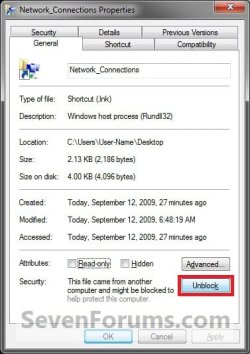
Network Connections - Create Shortcut-unblock.jpg
5. In Windows 7, you can now Pin to Taskbar or Pin to Start Menu, add to Quick Launch, assign a keyboard shortcut to it, or move this shortcut to where you like for easy use.

6. In Windows 8, you can Pin to Taskbar on desktop, Pin to Start screen, add to Quick Launch, assign a keyboard shortcut to it, or move this shortcut to where you like for easy use.

7. When done, you can delete the downloaded .zip file if you like.


OPTION TWO
To Manually Create a "Network Connections" Shortcut
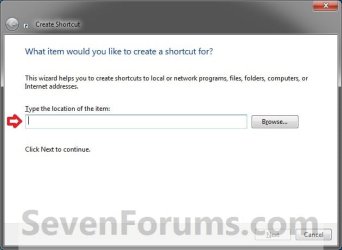
1. Right click or press and hold on a empty area on the desktop, and click/tap on New and Shortcut.

2. Copy and paste the location below into the location area, and click/tap on the Next button. (see screenshot below)
rundll32.exe shell32.dll,Control_RunDLL ncpa.cpl
Network Connections - Create Shortcut-step1.jpg
3. Type Network Connections for the name, and click/tap on the Finish button. (see screenshot below)
NOTE: You can name this anything you would like though.
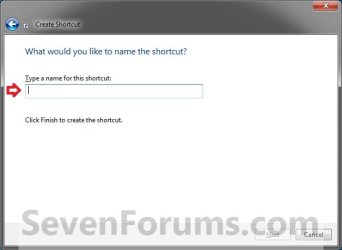
Network Connections - Create Shortcut-step2.jpg
4. Right click or press and hold on the new Network Connections shortcut on the Desktop, and click/tap on Properties.

5. Click/tap on the Shortcut tab, then click/tap on the Change Icon button. (see screenshot below)
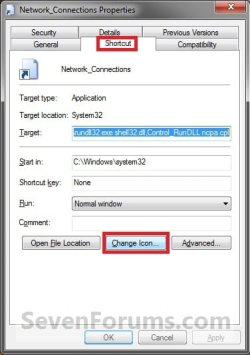
Network Connections - Create Shortcut-step3.jpg
6. In the line under "Look for icons in this file", copy and paste the path below and press Enter. (see screenshot below)
%SystemRoot%\System32\netshell.dll
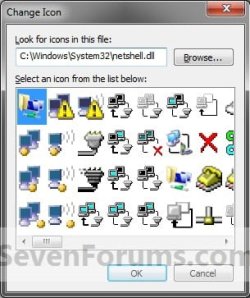
Network Connections - Create Shortcut-step4.jpg
7. Select the icon highlighted in blue above, and click/tap on OK. (see screenshot above)
NOTE: You can use any icon that you would like instead though.

8. Click/tap on OK. (see screenshot below)
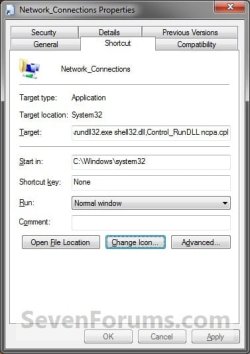
Network Connections - Create Shortcut-step5.jpg
9. In Windows 7, you can now Pin to Taskbar or Pin to Start Menu, add to Quick Launch, assign a keyboard shortcut to it, or move this shortcut to where you like for easy use.

10. In Windows 8, you can Pin to Taskbar on desktop, Pin to Start screen, add to Quick Launch, assign a keyboard shortcut to it, or move this shortcut to where you like for easy use.
That's it,
Shawn


Need more help? Try searching our extensive help and support site.
Loading
01 May 2011   #1
mikvialso

windows 7 professional x32
 
 
Thanks

Thanks, I was going crazy trying to set up a shortcut to the VPN connection I needed until I read your tutorial...had no problem with XP, but this is our first remote PC with Windows 7...Thanks again, MikeH

My System SpecsSystem Spec

01 May 2011   #2
Brink

64-bit Windows 7 Ultimate SP1 & Windows 8 Enterprise
Texas


You're most welcome Mike, and welcome to Seven Forums.
My System SpecsSystem Spec
20 May 2012   #3
Skylark

Windows 7 Home Premium 64 bit
 
 
Local Area Connection icon on the Windows 7 Task Bar

But, Brink, your final step is to imply that the created shortcut can be placed wherever one wishes. But this does not seem to be true.

I would like to place it ON the Task Bar.

But the closest position to the Task Bar that I can get the "Local Area Connection" icon to is inside the nest of Quick Launch, and that means that to Enable/Disable my Internet Connection I must first click on Quick Launch, to open the menu, then click on "Local Area Connection", and then click on Enable or Disable as the case may be.

I can't drag the "Local Area Connection" icon onto the Task Bar. And right-clicking on "Local Area Connection" does not offer the "Pin to Task Bar" option.

Is there a solution?
My System SpecsSystem Spec
.


20 May 2012   #4
Brink

64-bit Windows 7 Ultimate SP1 & Windows 8 Enterprise
Texas


Hello Skylark,

Yes, you should have a Pin to Start Menu and Pin to Taskbar option when you right click on the shortcut. Are they also missing from other shortcuts when you right click on them?

The tutorial below may be able to help restore these context menu items for you.

Pin to Taskbar and Pin to Start Menu Missing from Context Menu Fix

Hope this helps,
Shawn
My System SpecsSystem Spec
20 May 2012   #5
Skylark

Windows 7 Home Premium 64 bit


Thanks for the help, Shawn.

If I create a shortcut for any of my programs and then right-click on any one of those shortcuts, then "Pin to TaskBar" and "Pin to Start Menu" appear in the list, and by using both I have pinned things to both TaskBar and Start Menu.

However, the list that appears when I right-click on the "Local Area Connection" shortcut is a different list. It goes exactly as follows, from top to bottom:
Open File Location
Disable
Status
------------------
Restore Previous Versions
------------------
Send to
------------------
Cut
Copy
------------------
Create Shortcut
Delete
Rename
------------------
Sort by Name
Properties
Does this suggest any way of forcing the other list to be applied to the "Local Area Connections" shortcut?

It seems to me that Windows 7 analyses the nature of the object to which every shortcut points, and that it then gives you one menu for what it analyses as ordinary programs (of your own) and perhaps certain other executables, and that it gives you another menu for things which it perceives are a part of Windows 7 itself.

Thanks.
David.
My System SpecsSystem Spec
20 May 2012   #6
Brink

64-bit Windows 7 Ultimate SP1 & Windows 8 Enterprise
Texas


David,

Go ahead and use the tutorial above to see if it may help restore them. It's not going to hurt anything since it only restores the default registry entries for them. One may have been removed for this.
My System SpecsSystem Spec
20 May 2012   #7
Skylark

Windows 7 Home Premium 64 bit


Sorry, Shawn, I forgot to say before that (1) I already have a dozen items pinned to my TaskBar and a number of items pinned to my StartMenu, and that (2) I downloaded and ran the lnk registry option but it made no difference.
My System SpecsSystem Spec
20 May 2012   #8
Brink

64-bit Windows 7 Ultimate SP1 & Windows 8 Enterprise
Texas


David,

I'm not sure why you would have Pin to Start Menu and Pin to Taskbar in all your other shortcut context menus, and not this one. Do you have Classic Shell or something installed that may have altered/removed these context menu items?

If you have not already, did you try both options in the tutorial to see if one over the other may work instead for some odd reason?
My System SpecsSystem Spec
23 May 2012   #9
Skylark

Windows 7 Home Premium 64 bit


Hi Shawn. Thanks again for your help.

No, I don't have "Classic Shell" installed on my system, but when I set up the system I did strip it right back, getting rid of many of the "glamorous" aspects of Windows 7, like opting out of the Aero interface, and taking advantage of all the tweaks that Windows 7 offers so that the interface is much the same as the basic "Classic" look.

Perhaps this is responsible for removing from some of my right-click menus the "Pin to TaskBar" and "Pin to StartMenu" options?

Maybe I'll just put up with the extra click I have to "endure" by needing to visit the "Local Area Connection" shortcut that I've made on my desktop!

Regards,
David.
My System SpecsSystem Spec
Comment

 Network Connections - Create Shortcut problems?


Tutorial Tools


Similar help and support threads for: Network Connections - Create Shortcut
Windows 7 Tutorial Category
Network Map Shortcut - Create Tutorials
Internet Connections Troubleshoot Shortcut - Create Tutorials
Incoming Connections Troubleshoot Shortcut - Create Tutorials
Add Network Location Shortcut - Create Tutorials
RemoteApp and Desktop Connections Shortcut - Create Tutorials


All times are GMT -5. The time now is 08:33 PM.


Seven Forums Android App Seven Forums IOS App Follow us on Facebook

Windows 7 Forums is an independent web site and has not been authorized,
sponsored, or otherwise approved by Microsoft Corporation.
"Windows 7" and related materials are trademarks of Microsoft Corp.
© Designer Media Ltd
  

1 2 3 4 5 6 7 8 9 10 11 12 13 14 15 16 17 18 19 20 21 22 23 24 25 26 27 28 29 30 31 32