
How to Set CPU Priority Level for Applications and Processes in Windows 7
Information
Windows shares the processor time between all running processes based upon their priority. If a process has a higher priority, it gets more processor time compared to a process having a lower priority.
This tutorial will show you how to Set Priority of an application or process in Task Manager to have it run with a Realtime, High, Above Normal, Normal, Below Normal, or Low processor priority level in Windows 7 or Vista.
This tutorial will show you how to Set Priority of an application or process in Task Manager to have it run with a Realtime, High, Above Normal, Normal, Below Normal, or Low processor priority level in Windows 7 or Vista.
Note
The changes you make to the priority level of the current instance of an application or process are only temporary and not set permanently.
Once you close the application or restart your system, Windows forgets your custom priority and automatically assigns the default priority back to this process or application.
Once you close the application or restart your system, Windows forgets your custom priority and automatically assigns the default priority back to this process or application.
OPTION ONE
To Set CPU Priority of Process in Task Manager
1. Right click on a empty space on the taskbar and click on Task Manager, OR press CTRL+SHIFT+ESC.
2. If UAC Permission is Required for Application to "Run as administrator"
A) Click on the Processes tab in Task Manager, then click on the Show processes from all users button. (see screenshot below)

B) If prompted by UAC, then click on Yes (if administrator) or enter the administrator's password (if standard user).
C) Continue on to step 3 or 4.
3. To Set Priority Level for an Application
A) Click on the Applications tab, then right click on the application that you want to change the priority level of and click on Go to Process. (see screenshot below)
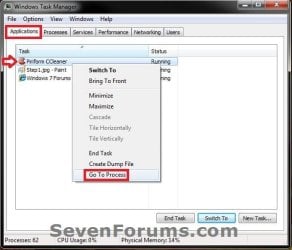
B) Continue on to step 4B.
4. To Set Priority Level for a Process
A) Click on the Processes tab. (see screenshot below)
TIP: It will make it easier to see what the priority levels of the listed processes are currently set as by adding the Base Priority column here.
B) Right click on the process that you want to change the priority level of, then select Set Priority and click on the priority level you want to select (dot) it. (see screenshot below)
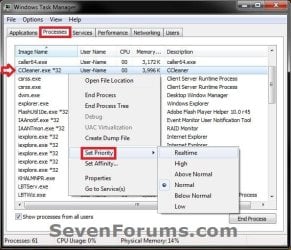
5. Click on Change Priority. (see screenshot below)
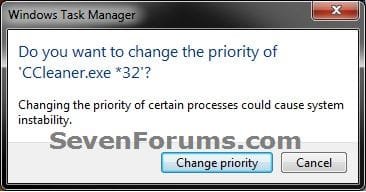
6. Repeat for any others you wish to change the priority level of.
7. When finished, close Task Manager.
OPTION TWO
To Run a Program with a Set CPU Priority in Command Prompt
1. Open a command prompt.
2. In the command prompt, type the command below, and press Enter. (see screenshot below)
cmd.exe /c start "Program Name" /priority "Full path of application file"
For example: I would type this command below exactly if I wanted to run Process Monitor using a high priority, and it's .exe file is located at "E:\Programs\Process Monitor 3.05\Procmon.exe".
cmd.exe /c start "Process Monitor" /High "E:\Programs\Process Monitor 3.05\Procmon.exe"
Note
Substitute Program Name in the command with the actual program's name within quotes.
Substitute Full path of application file in the command with the full path of the file within quotes.
Substitute priority in the command with the CPU priority level below you want the application file to run as.
Substitute Full path of application file in the command with the full path of the file within quotes.
Substitute priority in the command with the CPU priority level below you want the application file to run as.
- Realtime
- High
- AboveNormal
- Normal
- BelowNormal
- Low
That's it,
Shawn
Related Tutorials
- How to Create a Elevated Windows 7 Task Manager Shortcut
- How to Add or Remove "Run with Priority" to Context Menu of EXE Files in Windows
- How to Add or Remove Columns in Windows 7 Task Manager
- How to Set Processor Affinity to an Application in Windows 7
- How to Add or Remove "Run with CPU Affinity" to the Context Menu
- How to Adjust Processor Scheduling for Best Performance in Vista, Windows 7, and Windows 8
- How to Create a Shortcut to Run an Application with a Specific CPU Priority in Windows
Last edited:


