Advice/help with my backup strategy

So after looking into a bunch of different options I think I found a backup solution that I will go with. I think I am going to purchase Macrium Reflect (paid version) as it will give me the ability to do full, incremental and differential backups for imaging and data files. It has the ability to mount an image as a virtual drive either on my own computer through Macrium or on another computer. I like this feature as it ensures me that the image is good. It has the ability to create multiple backup schedules and keep logs of it as well (also allows you to schedule deletion of older backups). Overall, this program seems to be the most straight forward and easy to use while still providing all the features that I am looking for as well as not putting to much of a strain on my computer.

Two questions for anyone who is familiar with Macrium:

1- I currently have my external hard drive connected to my computer via a eSATA cable, will this be a problem?

2- From what I can tell you have the ability to schedule the deletion of older backups, however, do you the ability to keep certain images or backups despite the deletion schedule?


In addition to using Macrium I am going to take whs advice and create a partition for my data to go a long with my OS. I also want to try and implement pparks1 robocopy commands to make copies of my files that are not in a "backup container" in case it becomes corrupt. I think this will be a good start to my backup plan.

1. I don't think e-sata is a problem although I don't have that myself.

2. If you want to keep a particular backup for a long period just create another with no space management and it will stay until you manually delete it. One of the great features of Macrium is that you can create as many mackup sets as you want.

A further piece of advice if you don't mind. Make sure you create and test that the recovery disk can see your backup drive. I have found the WinPE disk to be the most reliable.
 

My Computer My Computer

Computer type
Laptop
Computer Manufacturer/Model Number
Hewlett-Packard/G62-107SA Notebook
OS
Microsoft Windows 7 Home Premium 64-bit Service Pack 1
CPU
Intel(R) Core(TM) i3 CPU M 330 @ 2.13GHz
Motherboard
Hewlett-Packard 1425
Memory
8 GB DDR3
Graphics Card(s)
Intel(R) HD Graphics
Sound Card
Realtek High Definition Audio
Monitor(s) Displays
Builtin
Screen Resolution
1366 x 768 x 32 bits (4294967296 colors) @ 60 Hz
Hard Drives
250 GB SATA Hard Disk Drive 7200 rpm
2TB Seagate GoFlex USB 2 Drive
1TB Iomega Prestige USB 2 Drive
1.5TB Iomega Prestige USB 2 Drive (Samsung)
2TB WD MyBook Live NAS.
Mouse
Logitech Anywhere MX
Internet Speed
152 Mbs download 10 Mbs upload
Antivirus
Norton 360
Browser
Chrome
So after looking into a bunch of different options I think I found a backup solution that I will go with. I think I am going to purchase Macrium Reflect (paid version) as it will give me the ability to do full, incremental and differential backups for imaging and data files. It has the ability to mount an image as a virtual drive either on my own computer through Macrium or on another computer. I like this feature as it ensures me that the image is good. It has the ability to create multiple backup schedules and keep logs of it as well (also allows you to schedule deletion of older backups). Overall, this program seems to be the most straight forward and easy to use while still providing all the features that I am looking for as well as not putting to much of a strain on my computer.

Two questions for anyone who is familiar with Macrium:

1- I currently have my external hard drive connected to my computer via a eSATA cable, will this be a problem?

2- From what I can tell you have the ability to schedule the deletion of older backups, however, do you the ability to keep certain images or backups despite the deletion schedule?


In addition to using Macrium I am going to take whs advice and create a partition for my data to go a long with my OS. I also want to try and implement pparks1 robocopy commands to make copies of my files that are not in a "backup container" in case it becomes corrupt. I think this will be a good start to my backup plan.

1. I have never used eSata myself, but I have seen other people confirm that it works. But you better try this out on a little test partition.
I have tried USB3 and that did not work. It work for the backups, but the problem is the recovery with the Linux recovery disk. But if you use the pro version, you can use the BartPE disk and I am sure there will be no problems.

2. For that case I suggest you move the images you want to keep to another folder/partition/disk. That is possible with Macrium - you can start a recovery from anywhere.
 

My Computer My Computer

Computer Manufacturer/Model Number
HP, Dell, Gateway, Toshiba - 4 laptops and 2 desktops
OS
Vista, Windows7, Mint Mate, Zorin, Windows 8
CPU
from 1.6GHz Duo to i7
Monitor(s) Displays
2x HP w2207
Hard Drives
5x HDD, 7x SSD, 12x Externals
Keyboard
with trackball - no mices
Mouse
Trackball mice
Internet Speed
DSL 6000
I use eSATA for most of my backups and it's no issue at all.
 

My Computer My Computer

Computer Manufacturer/Model Number
Self-Built in July 2009
OS
Windows 7 Ultimate x64
CPU
Intel Q9550 2.83Ghz OC'd to 3.40Ghz
Motherboard
Gigabyte GA-EP45-UD3R rev. 1.1, F12 BIOS
Memory
8GB G.Skill PI DDR2-800, 4-4-4-12 timings
Graphics Card(s)
EVGA 1280MB Nvidia GeForce GTX570
Sound Card
Realtek ALC899A 8 channel onboard audio
Monitor(s) Displays
23" Acer x233H
Screen Resolution
1920x1080
Hard Drives
Intel X25-M 80GB Gen 2 SSD
Western Digital 1TB Caviar Black, 32MB cache. WD1001FALS
PSU
Corsair 620HX modular
Case
Antec P182
Cooling
stock
Keyboard
ABS M1 Mechanical
Mouse
Logitech G9 Laser Mouse
Internet Speed
15/2 cable modem
Other Info
Windows and Linux enthusiast. Logitech G35 Headset.
A further piece of advice if you don't mind. Make sure you create and test that the recovery disk can see your backup drive. I have found the WinPE disk to be the most reliable.


I got this response from Macrium via email regarding the eSATA.

"Macrium Reflect will work with your eSata drive in Windows, you may require additional drivers in the WinpE rescue environment. We recommend booting into the WinPE environment to ensure it can be accessed. "

Looks like you guys know what you are talking about, lol. What is the difference between the Linux and WinPE recovery disk? I thought the WinPE disk was supposed to be used for older versions of Windows like XP.

Once I get squared away I will probably create both recovery disks to see how they work. I can load the recovery disk to ensure that it works and recognizes the images without making any changes to my system correct?
 

My Computer My Computer

Computer Manufacturer/Model Number
Dell XPS 8100
OS
Windows 7 64 bit
CPU
Intel Core i5 650
Memory
6 GB RAM
I needed nothing else with my Dell E6400 latitude with built-in eSATA when using Macrium. I just booted from their standard rescue media in the free version and it saw my eSATA enclosure and drive.
 

My Computer My Computer

Computer Manufacturer/Model Number
Self-Built in July 2009
OS
Windows 7 Ultimate x64
CPU
Intel Q9550 2.83Ghz OC'd to 3.40Ghz
Motherboard
Gigabyte GA-EP45-UD3R rev. 1.1, F12 BIOS
Memory
8GB G.Skill PI DDR2-800, 4-4-4-12 timings
Graphics Card(s)
EVGA 1280MB Nvidia GeForce GTX570
Sound Card
Realtek ALC899A 8 channel onboard audio
Monitor(s) Displays
23" Acer x233H
Screen Resolution
1920x1080
Hard Drives
Intel X25-M 80GB Gen 2 SSD
Western Digital 1TB Caviar Black, 32MB cache. WD1001FALS
PSU
Corsair 620HX modular
Case
Antec P182
Cooling
stock
Keyboard
ABS M1 Mechanical
Mouse
Logitech G9 Laser Mouse
Internet Speed
15/2 cable modem
Other Info
Windows and Linux enthusiast. Logitech G35 Headset.

My Computer My Computer

Computer type
Laptop
Computer Manufacturer/Model Number
Hewlett-Packard/G62-107SA Notebook
OS
Microsoft Windows 7 Home Premium 64-bit Service Pack 1
CPU
Intel(R) Core(TM) i3 CPU M 330 @ 2.13GHz
Motherboard
Hewlett-Packard 1425
Memory
8 GB DDR3
Graphics Card(s)
Intel(R) HD Graphics
Sound Card
Realtek High Definition Audio
Monitor(s) Displays
Builtin
Screen Resolution
1366 x 768 x 32 bits (4294967296 colors) @ 60 Hz
Hard Drives
250 GB SATA Hard Disk Drive 7200 rpm
2TB Seagate GoFlex USB 2 Drive
1TB Iomega Prestige USB 2 Drive
1.5TB Iomega Prestige USB 2 Drive (Samsung)
2TB WD MyBook Live NAS.
Mouse
Logitech Anywhere MX
Internet Speed
152 Mbs download 10 Mbs upload
Antivirus
Norton 360
Browser
Chrome
WinPE is a Windows based CD and the other one is Linux based. I never used the WinPE version because I always stuck with the free Macrium. But you do have more function in the WinPE. Ask SIW2, he is the expert for WinPE and he can also tell you how to add all kinds of bells and whistles to it.
 

My Computer My Computer

Computer Manufacturer/Model Number
HP, Dell, Gateway, Toshiba - 4 laptops and 2 desktops
OS
Vista, Windows7, Mint Mate, Zorin, Windows 8
CPU
from 1.6GHz Duo to i7
Monitor(s) Displays
2x HP w2207
Hard Drives
5x HDD, 7x SSD, 12x Externals
Keyboard
with trackball - no mices
Mouse
Trackball mice
Internet Speed
DSL 6000
Yes you can do that. A better approach may be to create a small 100MB test partition., Put some files in it, back it up then make some changes and see if you can restore it.

This tutorial shows how.http://www.sevenforums.com/tutorials/73828-imaging-free-macrium.html?filter[2]=Backup%20Restore
You are right. That is what I always recommend. Here is a little guideline I made for the students in my computer club:

Imaging test

1. Shrink 2GBs from C and define a logical drive (partition) - let's call it Y
2. Move some files (any files) into Y - I always also move the sample picture folder in (you'll see why)
3. Define a test folder on your external backup disk - call it Mtest
4. Make an image of Y to Mtest - requires that you make a new definition
5. Delete a couple of pictures from the sample picture folder on Y (I always use the 2 animals)
6. Reboot and tap (ESC, F2 or whatever it is on your system) to get into the BIOS boot sequence
7. Set your boot sequence to CD/DVD reader
8. Put in the Macrium recovery CD and let it run, then hit Enter
9. Now you are in the recovery wizard, set it to Mtest where it says "Locate Image" and to Y where it says "Choose partition to overwrite with the image data".

Note: the partition letters may not be the same as on your system. Macrium uses its own lettering. Best is to go by the size of the partitions and open it with the little + in the front.
10. Watch out when it asks whether to replace the Master Boot Record - say no.

11. When you have to specify whether the partition is “active”, “primary” or “logical” – take “logical”.
12. When you get the little window saying "Your computer will now reboot", you have to hit "Cancel" (on the bottom) to get it to reboot. That's a little strange way to end the session, but that's the way it is.
13. Check whether the 2 animals in the sample picture folder are back. That shows you that the recovery worked.

When you have done these steps, you did the whole cycle and have learned

1. That your recovery disc works
2. How to recover
3. That you are not the dummy you thought you were

Now you can delete the little 2GB partition and add the space back to the originating partition.


If you are not familiar with the creation and deletion of partitions, watch this tutorial: http://www.sevenforums.com/tutorials/72427-data-partition.html
 

My Computer My Computer

Computer Manufacturer/Model Number
HP, Dell, Gateway, Toshiba - 4 laptops and 2 desktops
OS
Vista, Windows7, Mint Mate, Zorin, Windows 8
CPU
from 1.6GHz Duo to i7
Monitor(s) Displays
2x HP w2207
Hard Drives
5x HDD, 7x SSD, 12x Externals
Keyboard
with trackball - no mices
Mouse
Trackball mice
Internet Speed
DSL 6000
Great robocopy tutorial pparks. Im going to experiement with this myself as I have never used it and find it quite interesting.

But I am curious about one thing.

Lets say you delete something accidently, or it gets over-written with a updated version. Lets also say, for the sake of argument, you run the back up with out realizing it at the time.

Unless I missunderstand, RoboCopy will mirror the source, removing that file or updating it to the changed version to match the source, correct?

How can you retrieve the said file?

For example, I use differential backups w/Acronis for my documents. So in case like this, I can always go back a few days or a week to retrieve a deleted or previous version of a file.

The chance of this may be slim, but I was just curious as to how the RoboCopy method can cope with such a situation.

Thanks :)
 

My Computer My Computer

Computer Manufacturer/Model Number
Custom (Self Build)
OS
Windows 7 Home Premium 64bit
CPU
Intel Core i7 2700k
Motherboard
eVGA P67 SLI
Memory
8GB Mushkin Redline Ridgebacks @1866
Graphics Card(s)
EVGA GTX570 SC
Sound Card
XiFi Titanium HD
Monitor(s) Displays
LG W2453V
Screen Resolution
1920x1080
Hard Drives
Intel 320 80GB -- Intel X25-V 40GB --WD Black 1TB x2 -- WD Blue 640GB
PSU
Seasonic x750
Case
Corsair 600T SE White
Cooling
eVGA Superclocked CPU Cooler
Keyboard
Saitek Cyborg
Antivirus
Kaspersky
Browser
IE
Other Info
LG BD/DVD
Lets say you delete something accidently, or it gets over-written with a updated version. Lets also say, for the sake of argument, you run the back up with out realizing it at the time.

Unless I missunderstand, RoboCopy will mirror the source, removing that file or updating it to the changed version to match the source, correct?
Yes, that is exactly how it would work. You aren't missing anything. With robocopy, it will always mirror whatever the source is with the destination.


How can you retrieve the said file?
You would need multiple copies of the file backed up. In my case, I use 2 different external hard drives and keep 1 offsite. So, if I screwed up something, then overwrote it unknowingly and then realized after the first external drive was written with a new sync...I would have to rely on the second drive.

For example, I use differential backups w/Acronis for my documents. So in case like this, I can always go back a few days or a week to retrieve a deleted or previous version of a file.
Yes, other backup solutions offer multiple point in time copies of something. Depending upon the type of user that you are, this may be a better solution. It's something that I simply haven't needed over the years.

I just like the raw simplicity of the files being in their natural native format on the external drive and the fact that my backups complete in seconds, since 99.9% of the files don't change regularly. Unlike a backup application, i don't have to be concerned with having the latest "full backup" and any incremental backups which all are used together to put the data back together. With my backups, if a file is corrupt, I might lose the 1 file. With backup apps, if the incremental backup itself is corrupt, I might lose everything stored within it.

At home, i keep all of my data on a dedicated file server box. Inside of that physical box, I have a second hard drive that is synchronized every 4 hours to the first. Then, I attach 2 different external hard drives on a regular basis and synchronize to them. Therefore, I have...more or less....4 copies of the same file at different points in time (1 on the source right now, 1 on the backup drive potentially 4 hours behind...1 on my external drive about a month old...1 on my other external drive....maybe another month old). That's always covered my needs.
 

My Computer My Computer

Computer Manufacturer/Model Number
Self-Built in July 2009
OS
Windows 7 Ultimate x64
CPU
Intel Q9550 2.83Ghz OC'd to 3.40Ghz
Motherboard
Gigabyte GA-EP45-UD3R rev. 1.1, F12 BIOS
Memory
8GB G.Skill PI DDR2-800, 4-4-4-12 timings
Graphics Card(s)
EVGA 1280MB Nvidia GeForce GTX570
Sound Card
Realtek ALC899A 8 channel onboard audio
Monitor(s) Displays
23" Acer x233H
Screen Resolution
1920x1080
Hard Drives
Intel X25-M 80GB Gen 2 SSD
Western Digital 1TB Caviar Black, 32MB cache. WD1001FALS
PSU
Corsair 620HX modular
Case
Antec P182
Cooling
stock
Keyboard
ABS M1 Mechanical
Mouse
Logitech G9 Laser Mouse
Internet Speed
15/2 cable modem
Other Info
Windows and Linux enthusiast. Logitech G35 Headset.
Makes sense, thanks for explaining. :)

I do like the simplicity of this method.
 

My Computer My Computer

Computer Manufacturer/Model Number
Custom (Self Build)
OS
Windows 7 Home Premium 64bit
CPU
Intel Core i7 2700k
Motherboard
eVGA P67 SLI
Memory
8GB Mushkin Redline Ridgebacks @1866
Graphics Card(s)
EVGA GTX570 SC
Sound Card
XiFi Titanium HD
Monitor(s) Displays
LG W2453V
Screen Resolution
1920x1080
Hard Drives
Intel 320 80GB -- Intel X25-V 40GB --WD Black 1TB x2 -- WD Blue 640GB
PSU
Seasonic x750
Case
Corsair 600T SE White
Cooling
eVGA Superclocked CPU Cooler
Keyboard
Saitek Cyborg
Antivirus
Kaspersky
Browser
IE
Other Info
LG BD/DVD
pparks1

I was able to successfully copy folders to a backup folder thanks to your tutorial. However, I wanted to know if it is possible to copy just one file in a folder over to backup destination. The reason I ask is because I have two very important excel files that I work on constantly (both of which are in separate folders on my C drive), and I would like to copy just those two files to a back up whenever I finish using them by simply running the command.

Also is it possible to run this command to backup to my dropbox account?

This way whenever I finish using these files I can run a command to back up to my external drive (will probably just back up all my data) and also run a command to backup to my dropbox account. Right now I save the files to my c drive and then have to copy and paste them in my dropbox folder.

In case you do not know what dropbox is - it is a free online storage account, where I drop files in a certain folder on my computer and it is then saved on the cloud and I can access it from my phone, ipad or a computer anywhere with internet.

Thanks
 

My Computer My Computer

Computer Manufacturer/Model Number
Dell XPS 8100
OS
Windows 7 64 bit
CPU
Intel Core i5 650
Memory
6 GB RAM
I was able to successfully copy folders to a backup folder thanks to your tutorial. However, I wanted to know if it is possible to copy just one file in a folder over to backup destination.
Yes, when you specify the source, just include the name of the file, such as C:\datafiles\importantfile.xls.
Also is it possible to run this command to backup to my dropbox account?
Yes, because I think that dropbox ends up as a folder on your hard drive like C:\users\profile\My Dropbox. So, you would just use that as the destination for your backup.
 

My Computer My Computer

Computer Manufacturer/Model Number
Self-Built in July 2009
OS
Windows 7 Ultimate x64
CPU
Intel Q9550 2.83Ghz OC'd to 3.40Ghz
Motherboard
Gigabyte GA-EP45-UD3R rev. 1.1, F12 BIOS
Memory
8GB G.Skill PI DDR2-800, 4-4-4-12 timings
Graphics Card(s)
EVGA 1280MB Nvidia GeForce GTX570
Sound Card
Realtek ALC899A 8 channel onboard audio
Monitor(s) Displays
23" Acer x233H
Screen Resolution
1920x1080
Hard Drives
Intel X25-M 80GB Gen 2 SSD
Western Digital 1TB Caviar Black, 32MB cache. WD1001FALS
PSU
Corsair 620HX modular
Case
Antec P182
Cooling
stock
Keyboard
ABS M1 Mechanical
Mouse
Logitech G9 Laser Mouse
Internet Speed
15/2 cable modem
Other Info
Windows and Linux enthusiast. Logitech G35 Headset.
whs

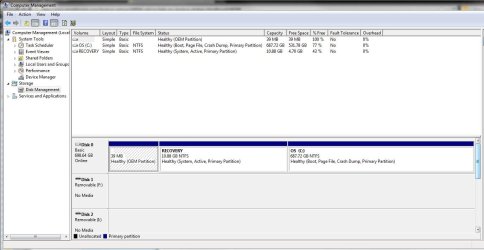
Thanks for the detailed instructions for testing an image - I will definitely do that before I create an image. I plan on taking your advice and creating a partition for my data and calling it my "D" drive. The question I have is once I am ready to image my hard drive (C drive and D drive) do I also make images of "RECOVERY" and "39 MB Healthy (OEM Partition)"? If so do I include the C drive, "RECOVERY" and "39 MB Healthy (OEM Partition)" in one image (if thats even possible) or separate?

I included a picture of my current drive setup again...
 

Attachments

  • Capture.JPG
    Capture.JPG
    84.6 KB · Views: 2

My Computer My Computer

Computer Manufacturer/Model Number
Dell XPS 8100
OS
Windows 7 64 bit
CPU
Intel Core i5 650
Memory
6 GB RAM
I do the System and C: partitions as one backup to keep them in sync. and Recovery and an HP Tools partition as another because they don't change but there is no problem doing them as one backup if you chose.
 

My Computer My Computer

Computer type
Laptop
Computer Manufacturer/Model Number
Hewlett-Packard/G62-107SA Notebook
OS
Microsoft Windows 7 Home Premium 64-bit Service Pack 1
CPU
Intel(R) Core(TM) i3 CPU M 330 @ 2.13GHz
Motherboard
Hewlett-Packard 1425
Memory
8 GB DDR3
Graphics Card(s)
Intel(R) HD Graphics
Sound Card
Realtek High Definition Audio
Monitor(s) Displays
Builtin
Screen Resolution
1366 x 768 x 32 bits (4294967296 colors) @ 60 Hz
Hard Drives
250 GB SATA Hard Disk Drive 7200 rpm
2TB Seagate GoFlex USB 2 Drive
1TB Iomega Prestige USB 2 Drive
1.5TB Iomega Prestige USB 2 Drive (Samsung)
2TB WD MyBook Live NAS.
Mouse
Logitech Anywhere MX
Internet Speed
152 Mbs download 10 Mbs upload
Antivirus
Norton 360
Browser
Chrome
I was able to successfully copy folders to a backup folder thanks to your tutorial. However, I wanted to know if it is possible to copy just one file in a folder over to backup destination.
Yes, when you specify the source, just include the name of the file, such as C:\datafiles\importantfile.xls.
Also is it possible to run this command to backup to my dropbox account?
Yes, because I think that dropbox ends up as a folder on your hard drive like C:\users\profile\My Dropbox. So, you would just use that as the destination for your backup.

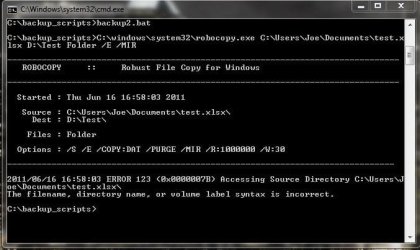
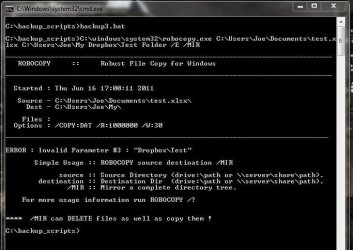
I tried to just added the file name at the end when I was messing around with the commands and I also tried dropbox as the destination folder - I got errors for both.

1st attachment shows error of trying to put a file into a folder on my D drive

2nd attachment shows error of trying to put file in folder in dropbox

Can you figure out what I am doing wrong?

backup2.JPG

backup3.JPG
 

My Computer My Computer

Computer Manufacturer/Model Number
Dell XPS 8100
OS
Windows 7 64 bit
CPU
Intel Core i5 650
Memory
6 GB RAM
The question I have is once I am ready to image my hard drive (C drive and D drive) do I also make images of "RECOVERY" and "39 MB Healthy (OEM Partition)"? If so do I include the C drive, "RECOVERY" and "39 MB Healthy (OEM Partition)" in one image (if thats even possible) or separate?
1. The 39MB partition I would not image on a regular basis - maybe once just to have it. That is most likely the tools partition for the BIOS tools.

2. In your case, the recovery partition is iffy because it contains the bootmgr. That I would also image once. Make sure you do not declare the C partition as active when you restore the image of C. Also do not replace the MBR.

Maybe at one point in time you want to fix the C partition so that it is active and deactivate the recovery partition. For guidance I suggest you start a different thread.

3. You can image several partitions in one shot. That does not mean that you have to restore them all together. In your case though, I would suggest that you create one definition where you image the 39MB partition and the recovery partition together - and stick those into a seperate folder.
Then make another definition (which creates an XML file) for the C partition and stick those images into another folder. If you want to schedule the imaging of the C partition, right click on that XML file (in the Macrium control window) and go to "Schedule".
If you ever want to delete the definitions, do not do it in the Macrium control window but in Documents > Reflect. That is a better way.
 

My Computer My Computer

Computer Manufacturer/Model Number
HP, Dell, Gateway, Toshiba - 4 laptops and 2 desktops
OS
Vista, Windows7, Mint Mate, Zorin, Windows 8
CPU
from 1.6GHz Duo to i7
Monitor(s) Displays
2x HP w2207
Hard Drives
5x HDD, 7x SSD, 12x Externals
Keyboard
with trackball - no mices
Mouse
Trackball mice
Internet Speed
DSL 6000
Thanks whs - I am creating a new thread to help with my C partition in Hardware & Devices, "Help with Partitioning My Hard Drive"

Your help is appreciated
 

My Computer My Computer

Computer Manufacturer/Model Number
Dell XPS 8100
OS
Windows 7 64 bit
CPU
Intel Core i5 650
Memory
6 GB RAM
I tried to just added the file name at the end when I was messing around with the commands and I also tried dropbox as the destination folder - I got errors for both.

Sorry about that, i gave you the wrong syntax for the commands with a specified file. When you want to do a particular file with robocopy, you have to do it this way

Code:
C:\windows\system32\robocopy.exe C:\data E:\backups\data  filename.xlsx

I had to read the help file for robocopy to figure this out. robocopy /? at the command line.

I'm unsure if I would just run robocopy to backup 1 specific file. I would much rather backup all of the files in a particular location on a frequent basis, and since it (robocopy) will only get the changes..it should be super fast.
 

My Computer My Computer

Computer Manufacturer/Model Number
Self-Built in July 2009
OS
Windows 7 Ultimate x64
CPU
Intel Q9550 2.83Ghz OC'd to 3.40Ghz
Motherboard
Gigabyte GA-EP45-UD3R rev. 1.1, F12 BIOS
Memory
8GB G.Skill PI DDR2-800, 4-4-4-12 timings
Graphics Card(s)
EVGA 1280MB Nvidia GeForce GTX570
Sound Card
Realtek ALC899A 8 channel onboard audio
Monitor(s) Displays
23" Acer x233H
Screen Resolution
1920x1080
Hard Drives
Intel X25-M 80GB Gen 2 SSD
Western Digital 1TB Caviar Black, 32MB cache. WD1001FALS
PSU
Corsair 620HX modular
Case
Antec P182
Cooling
stock
Keyboard
ABS M1 Mechanical
Mouse
Logitech G9 Laser Mouse
Internet Speed
15/2 cable modem
Other Info
Windows and Linux enthusiast. Logitech G35 Headset.
Back
Top