Thanks for the screenshot. You were almost there.
Please right-click on that same IE shortcut...
...and select
Properties from the context menu.
(Select Properties via a regular left click.)
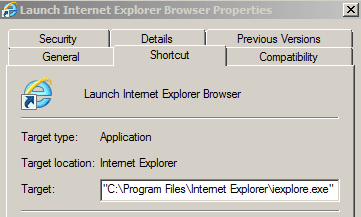
That should bring up a window that looks a bit like this:
The screenshot shown above is just the top part of the window that you should see.
The field named
Target: should contain info like this:
"C:\Program Files\Internet Explorer\iexplore.exe"
If there is
info after the iexplorer.exe part, then that can take you to a website.
"C:\Program Files\Internet Explorer\iexplore.exe"
http://www.sevenforums.com
That is what
GokAy was asking you to check in
post #9.
Remove any
info that might be after the iexplorer.exe part.
Please check the shortcut that is pinned to the Task Bar too.
Doing that takes a few more clicks:
Right click on the pinned shortcut...
...and then right click on Internet Explorer as shown below.

When you right click on Internet Explorer...
...that should bring up another context menu.
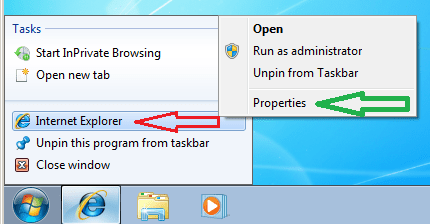
Please select
Properties from that context menu.
(Select Properties via a regular left click.)
You should now see a window that looks a bit like the first screenshot in this post.
Remove any
info that might be after the iexplorer.exe part.
As a sidebar: please consider using Microsoft's Paint to save your screenshots.
Click on the
Start button and type
Paint in the field labeled
Search programs and files.
Once the shortcut for
Paint appears, please click on it.
These next steps, you will probably only need to do once:
Click on (and hold) the lower right corner of the whiteboard area.
Drag that corner diagonally until the whiteboard area is small.
Close MS Paint.
(Select
Don't Save.)
The next time that you wish to post a screenshot, you can...
...press the
Prnt Scrn button*
...open
Paint
...press
Ctrl +
V to paste the image in
...save the file
...and attach that file to a post.
*pressing that button puts an image of the desktop in the Windows clipboard. If you only want the window of interest to be saved, press
Alt +
Prnt Scrn. That will place an image of the active window into the Windows clipboard.
If you want the attached images in your post to be in the middle what you write (instead of being at the end of the post), then follow steps 10, 11 and 12 in
this tutorial.