
You are using an out of date browser. It may not display this or other websites correctly.
You should upgrade or use an alternative browser.
You should upgrade or use an alternative browser.
Solved Terrible Lag at Startup
- Thread starter Injust
- Start date

Carl Lawrence
Little Helper
Do you have any programs running in the background?
My Computer
- Computer Manufacturer/Model Number
- Advent
- OS
- Dual-boot: Windows 7 HP 32-bit SP1 & Windows XP Pro 32-bit SP2.
- CPU
- AMD Phenom X4 9550 2.8Ghz
- Motherboard
- FOXCONN A6VMX (Socket 940)
- Memory
- 4.0GB RAM
- Graphics Card(s)
- 256MB On-board ATI Radeon X1200 Series
- Sound Card
- UnKnown
- Monitor(s) Displays
- 19" TFT Mointor
- Screen Resolution
- 1400 by 900
- Hard Drives
- 500GB Western Digital WDC
- Keyboard
- HP Keyboard
- Internet Speed
- Dial-up via Mobile phone (Three)
- Other Info
- 80GB External Hard-drive.
Also I have an old Windows XP Laptop for backup/occasional use etc.

- Local time
- 3:41 AM
- Messages
- 50,634
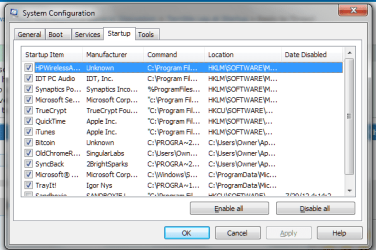
Uncheck everything in msconfig>Startup and >Services (after hiding all MS services) except your AV and stickies/gadgets if you use them. Reboot to see if the problem persists. You only need the AV to start with Win7 - all others are freeloaders on your RAM/CPU and spy on you.
If that doesn't help much then work through the other Troubleshooting Steps for Windows 7
If that doesn't help much then work through the other Troubleshooting Steps for Windows 7

Injust,
Glad to see the fillled out specs which helped me to eliminate some possibilities.
If you are
for testing purposes, disable, disconnect or whatever and then power on your computer. Is the problem gone?
If the problem is not gone, then restore and:
For testing purposes, turn off your anti-malware software. Is the problem gone?
If not then,
please attach the file that this script will put on your desktop please.
# **********************INSTRUCTIONS**************************
# STEP 1 ** RUN POWERSHELL AS ADMINISTRATOR ******************
# ************************************************************
#
# WIN key | type POWERSHELL | do NOT hit ENTER |
# in the PROGRAMS list, right-click on WINDOWS POWERSHELL |
# choose "Run as administrator" |
# Click on the YES button (if such appears)
#
# WIN key = key with Microsoft log on top
#
# for the guru:
# WIN | type POWERSHELL | CTRL+SHIFT+ENTER key combo | ALT+Y keycombo
# ************************************************************
# STEP 2 ** COPY AND PASTE ***********************************
# ************************************************************
#
# COPY the script using CTRL+C,
# COPY every line of script down thru both EXIT statements
#
# PASTE into Powershell
#----Right-Click at the PowerShell Prompt
#----(Ctrl+V does not work)
#
# Start copying with first script line without a # at start of the line
# Note: Actually, you can paste the entire file if you rather
#-------Lines starting with a # are ignored by PowerShell
# ************************************************************
# STEP 3 ** SCRIPT OUTPUT & SCRIPT PURPOSE *******************
# ************************************************************
# --The script output and purpose is given at the very front of the script
#
# --The script output and purpose is given at the very front of the script
#
# ************************************************************
# ***************** NOTE - POWERSHELL VERSION*****************
# if you receive this error msg:
#--The system can not find the path specified
# you may need to update your PowerShell
# you must be using Powershell 2.0 or later.
#
# To determine your Powershell version:
#---Run PowerShell
#---enter $host.version
#---you should see at least:
# Major Minor Build Revision
# ----- ----- ----- --------
# 2......0......-1.....-1
#
# If you do not see the above, update your Vista/Win 7.
# ************************************************************
# *************** NOTE - EXECUTION POLICY*********************
# If you haven't set the execution policy, you may need to:
#---Run PowerShell
#---enter SET-EXECUTIONPOLICY -EXECUTIONPOLICY REMOTESIGNED
# ************************************************************
Glad to see the fillled out specs which helped me to eliminate some possibilities.
If you are
- automatically connecting to a router,
- to a network of any kind, including a home network,
- or to the internet
for testing purposes, disable, disconnect or whatever and then power on your computer. Is the problem gone?
If the problem is not gone, then restore and:
For testing purposes, turn off your anti-malware software. Is the problem gone?
If not then,
please attach the file that this script will put on your desktop please.
# **********************INSTRUCTIONS**************************
# STEP 1 ** RUN POWERSHELL AS ADMINISTRATOR ******************
# ************************************************************
#
# WIN key | type POWERSHELL | do NOT hit ENTER |
# in the PROGRAMS list, right-click on WINDOWS POWERSHELL |
# choose "Run as administrator" |
# Click on the YES button (if such appears)
#
# WIN key = key with Microsoft log on top
#
# for the guru:
# WIN | type POWERSHELL | CTRL+SHIFT+ENTER key combo | ALT+Y keycombo
# ************************************************************
# STEP 2 ** COPY AND PASTE ***********************************
# ************************************************************
#
# COPY the script using CTRL+C,
# COPY every line of script down thru both EXIT statements
#
# PASTE into Powershell
#----Right-Click at the PowerShell Prompt
#----(Ctrl+V does not work)
#
# Start copying with first script line without a # at start of the line
# Note: Actually, you can paste the entire file if you rather
#-------Lines starting with a # are ignored by PowerShell
# ************************************************************
# STEP 3 ** SCRIPT OUTPUT & SCRIPT PURPOSE *******************
# ************************************************************
# --The script output and purpose is given at the very front of the script
#
# --The script output and purpose is given at the very front of the script
#
# ************************************************************
# ***************** NOTE - POWERSHELL VERSION*****************
# if you receive this error msg:
#--The system can not find the path specified
# you may need to update your PowerShell
# you must be using Powershell 2.0 or later.
#
# To determine your Powershell version:
#---Run PowerShell
#---enter $host.version
#---you should see at least:
# Major Minor Build Revision
# ----- ----- ----- --------
# 2......0......-1.....-1
#
# If you do not see the above, update your Vista/Win 7.
# ************************************************************
# *************** NOTE - EXECUTION POLICY*********************
# If you haven't set the execution policy, you may need to:
#---Run PowerShell
#---enter SET-EXECUTIONPOLICY -EXECUTIONPOLICY REMOTESIGNED
# ************************************************************
PHP:
# ******************************************************************
# List of Start Up programs, Installed Programs, and Scheduled Tasks
#
# Puts StartPgms.TXT on your Desktop
# ******************************************************************

$b = gp HKLM:\Software\Microsoft\Windows\CurrentVersion\Run | FL *
$c = gp HKCU:\Software\Microsoft\Windows\CurrentVersion\Run | fl *
$d = gp HKLM:\Software\Microsoft\Windows\CurrentVersion\Uninstall\* |
Select DisplayName, DisplayVersion, Publisher, InstallDate |
where {($_.Publisher -ne "Microsoft") -AND ($_.Publisher -ne "Microsoft Corporation")} | sort DisplayName | ft -auto -wrap
$q = schtasks.exe /query /V /FO CSV | ConvertFrom-Csv
$r = $q | where {(($_.taskname) | split-path ) -eq "\"} | select taskname, "Scheduled Task State", "Task To Run" |
sort -property @{Expression="Scheduled Task State";Descending=$true}, @{Expression="taskname";Descending=$false}
for ($i= 0; $i -lt $r.count; $i++) {
$r[$i]."Task To Run"  = Split-path $r[$i]."Task To Run";
$w = ($r[$i].taskname).substring(1)
$r[$i].taskname = $w
}
$s = $r | select taskname, "Scheduled Task State" | ft -auto
$t = $r | select "Task To Run" | ft
$b + $c + $d + $s + $t > $env:userprofile\desktop\StartPgms.TXT

EXIT
EXIT
My Computer
- Computer Manufacturer/Model Number
- Toshiba Satellite S875D-S7239 laptop
- OS
- MS Windows 7 Ultimate SP1 64-bit
- CPU
- AMD A10-4600M
- Motherboard
- AMD Pumori (Socket FT1)
- Memory
- 6.00 GB Dual-Channel DDR3 @ 798MHz (11-11-12-28)
- Graphics Card(s)
- AMD Radeon HD 7660G
- Sound Card
- High Definition Audio Device
- Monitor(s) Displays
- Generic PnP Monitor (1600x900@60Hz)
- Screen Resolution
- 1600x900@60Hz
- Hard Drives
- SSD 119GB Corsair CSSD-V128GB2 ATA Device
- Keyboard
- Standard PS/2 Keyboard
- Mouse
- HP Wireless Optical Mobile Mouse Model FHA-3410
- Internet Speed
- What the local pub, local coffee shop offers.
- Other Info
- Optical Drive:MATSHITA BD-CMB UJ160B ATA Device
Also have an Asus ha1002xp netbook with Win 7 Ultimate installed.
WIN | type MSCONFIG | ENTER | STARTUP tab |
Uncheck ALL except for:
REBOOT!
You have just told Win 7 to not run unchecked programs at start up time.
You have not disabled the programs. They will be run when needed.
This step alone may solve your problem.
WIN = key with the Microsoft logo on top
Uncheck ALL except for:
PHP:
SynTPEnh            : C:\Program Files\Synaptics\SynTP\SynTPEnh.exe
MSC                 : "c:\Program Files\Microsoft Security Client\msseces.exe" -hide -runkey
REBOOT!
You have just told Win 7 to not run unchecked programs at start up time.
You have not disabled the programs. They will be run when needed.
This step alone may solve your problem.
WIN = key with the Microsoft logo on top
My Computer
- Computer Manufacturer/Model Number
- Toshiba Satellite S875D-S7239 laptop
- OS
- MS Windows 7 Ultimate SP1 64-bit
- CPU
- AMD A10-4600M
- Motherboard
- AMD Pumori (Socket FT1)
- Memory
- 6.00 GB Dual-Channel DDR3 @ 798MHz (11-11-12-28)
- Graphics Card(s)
- AMD Radeon HD 7660G
- Sound Card
- High Definition Audio Device
- Monitor(s) Displays
- Generic PnP Monitor (1600x900@60Hz)
- Screen Resolution
- 1600x900@60Hz
- Hard Drives
- SSD 119GB Corsair CSSD-V128GB2 ATA Device
- Keyboard
- Standard PS/2 Keyboard
- Mouse
- HP Wireless Optical Mobile Mouse Model FHA-3410
- Internet Speed
- What the local pub, local coffee shop offers.
- Other Info
- Optical Drive:MATSHITA BD-CMB UJ160B ATA Device
Also have an Asus ha1002xp netbook with Win 7 Ultimate installed.
CCLEANER | TOOLS icon | STARTUP tab | SCHEDULED TASKS tab |
Use DISABLE button to disable ALL except for:
Close CCleaner.
REBOOT!
You have not disabled any programs. You have disabled the scheduled running.
Later, after your system is running smoothly, you may reenable desired programs.
Use DISABLE button to disable ALL except for:
PHP:
GoogleUpdateTaskMachineUA
GoogleUpdateTaskUserS-1-5-21-2499844963-2981187053-2189547800-1001Core
GoogleUpdateTaskUserS-1-5-21-2499844963-2981187053-2189547800-1001UA
Close CCleaner.
REBOOT!
You have not disabled any programs. You have disabled the scheduled running.
Later, after your system is running smoothly, you may reenable desired programs.
My Computer
- Computer Manufacturer/Model Number
- Toshiba Satellite S875D-S7239 laptop
- OS
- MS Windows 7 Ultimate SP1 64-bit
- CPU
- AMD A10-4600M
- Motherboard
- AMD Pumori (Socket FT1)
- Memory
- 6.00 GB Dual-Channel DDR3 @ 798MHz (11-11-12-28)
- Graphics Card(s)
- AMD Radeon HD 7660G
- Sound Card
- High Definition Audio Device
- Monitor(s) Displays
- Generic PnP Monitor (1600x900@60Hz)
- Screen Resolution
- 1600x900@60Hz
- Hard Drives
- SSD 119GB Corsair CSSD-V128GB2 ATA Device
- Keyboard
- Standard PS/2 Keyboard
- Mouse
- HP Wireless Optical Mobile Mouse Model FHA-3410
- Internet Speed
- What the local pub, local coffee shop offers.
- Other Info
- Optical Drive:MATSHITA BD-CMB UJ160B ATA Device
Also have an Asus ha1002xp netbook with Win 7 Ultimate installed.

Did you run a full anti virus scan and then download and run a full scan with Malwarebytes. If they are negative did you try to run in safe mode and see if the problem continues?
My Computer
- Computer type
- PC/Desktop
- Computer Manufacturer/Model Number
- Dell XPS 420
- OS
- Windows 10, Home Clean Install
- CPU
- Intel Core2 processsor Q8200(2.33Ghz 1333FSB) Quad Core Tech
- Motherboard
- Dell
- Memory
- 6 gb
- Graphics Card(s)
- ATI Radeon 256MB HD3650
- Sound Card
- Intergrated 7.1 Channel Audio
- Monitor(s) Displays
- Dell SP2009W 20"
- Hard Drives
- 640 GB Serial ATA Hard drive
- Cooling
- Fan
- Keyboard
- Dell USB Keyboard
- Mouse
- Dell Premium Optical USB
- Internet Speed
- DSL 2.85
UNINSTALL
REBOOT
If after following these steps, you still have problems then I will have further recommendations
PHP:
BonJourREBOOT
If after following these steps, you still have problems then I will have further recommendations
My Computer
- Computer Manufacturer/Model Number
- Toshiba Satellite S875D-S7239 laptop
- OS
- MS Windows 7 Ultimate SP1 64-bit
- CPU
- AMD A10-4600M
- Motherboard
- AMD Pumori (Socket FT1)
- Memory
- 6.00 GB Dual-Channel DDR3 @ 798MHz (11-11-12-28)
- Graphics Card(s)
- AMD Radeon HD 7660G
- Sound Card
- High Definition Audio Device
- Monitor(s) Displays
- Generic PnP Monitor (1600x900@60Hz)
- Screen Resolution
- 1600x900@60Hz
- Hard Drives
- SSD 119GB Corsair CSSD-V128GB2 ATA Device
- Keyboard
- Standard PS/2 Keyboard
- Mouse
- HP Wireless Optical Mobile Mouse Model FHA-3410
- Internet Speed
- What the local pub, local coffee shop offers.
- Other Info
- Optical Drive:MATSHITA BD-CMB UJ160B ATA Device
Also have an Asus ha1002xp netbook with Win 7 Ultimate installed.
Did you run a full anti virus scan and then download and run a full scan with Malwarebytes. If they are negative did you try to run in safe mode and see if the problem continues?
Yup, did that long time ago.
My Computer
- OS
- N/A

1. Run that script again and attach the results so that I can see the present startup-related info.
2. Download, run autoruns as administrator, save, zip up the file you saved, and attach to next post.
Now explanation to #2.
Autoruns for Windows
Run Autoruns and after Autoruns finishes populating the results, then:
from the top menu bar of Autoruns:
FILE | choose Save | SAVE button
Zip up the resulting autoruns.arn file.
Attach the zip file to your next post.
Do NOT make any changes while in Autoruns. Leave everything there as you found it.
2. Download, run autoruns as administrator, save, zip up the file you saved, and attach to next post.
Now explanation to #2.
Autoruns for Windows
Run Autoruns and after Autoruns finishes populating the results, then:
from the top menu bar of Autoruns:
FILE | choose Save | SAVE button
Zip up the resulting autoruns.arn file.
Attach the zip file to your next post.
Do NOT make any changes while in Autoruns. Leave everything there as you found it.
My Computer
- Computer Manufacturer/Model Number
- Toshiba Satellite S875D-S7239 laptop
- OS
- MS Windows 7 Ultimate SP1 64-bit
- CPU
- AMD A10-4600M
- Motherboard
- AMD Pumori (Socket FT1)
- Memory
- 6.00 GB Dual-Channel DDR3 @ 798MHz (11-11-12-28)
- Graphics Card(s)
- AMD Radeon HD 7660G
- Sound Card
- High Definition Audio Device
- Monitor(s) Displays
- Generic PnP Monitor (1600x900@60Hz)
- Screen Resolution
- 1600x900@60Hz
- Hard Drives
- SSD 119GB Corsair CSSD-V128GB2 ATA Device
- Keyboard
- Standard PS/2 Keyboard
- Mouse
- HP Wireless Optical Mobile Mouse Model FHA-3410
- Internet Speed
- What the local pub, local coffee shop offers.
- Other Info
- Optical Drive:MATSHITA BD-CMB UJ160B ATA Device
Also have an Asus ha1002xp netbook with Win 7 Ultimate installed.
In Task Scheduler,
Disable: MirageAgent
Disable: MirageAgent
My Computer
- Computer Manufacturer/Model Number
- Toshiba Satellite S875D-S7239 laptop
- OS
- MS Windows 7 Ultimate SP1 64-bit
- CPU
- AMD A10-4600M
- Motherboard
- AMD Pumori (Socket FT1)
- Memory
- 6.00 GB Dual-Channel DDR3 @ 798MHz (11-11-12-28)
- Graphics Card(s)
- AMD Radeon HD 7660G
- Sound Card
- High Definition Audio Device
- Monitor(s) Displays
- Generic PnP Monitor (1600x900@60Hz)
- Screen Resolution
- 1600x900@60Hz
- Hard Drives
- SSD 119GB Corsair CSSD-V128GB2 ATA Device
- Keyboard
- Standard PS/2 Keyboard
- Mouse
- HP Wireless Optical Mobile Mouse Model FHA-3410
- Internet Speed
- What the local pub, local coffee shop offers.
- Other Info
- Optical Drive:MATSHITA BD-CMB UJ160B ATA Device
Also have an Asus ha1002xp netbook with Win 7 Ultimate installed.
Similar threads
- Replies
- 0
- Views
- 280

- Replies
- 0
- Views
- 3K