Partition or Volume - Extend

How to Extend a Partition or Volume in Windows 7

   Information
This will show you how to extend a hard disk partition or volume into a empty unallocated space on the same hard disk to make it larger using Disk Management or Diskpart in Windows 7.
   Warning
You must be logged on in an administrator account to do this tutorial.

If you disable the Disk Defragmenter service, then you will get the error below when you try to do anything in Disk Management. If you get this error, then make sure that the Disk Defragmenter service is set to only Manual.
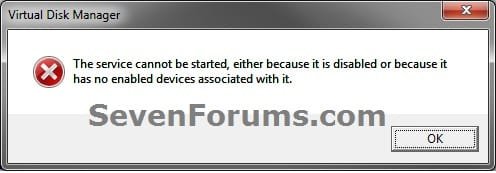
Error.jpg


OPTION ONE

Using Disk Management


1. If you have not already, you will first need to delete the partition or volume that you want to extend into to make it unallocated space.

2. Open the Control Panel (icons view), and click on the Administrative Tools icon. then close the Control Panel window.

3. Click on Computer Management in Administrative Tools, then close the Administrative Tools window.

4. In the left pane under Storage, click on Disk Management. (See screenshot below)
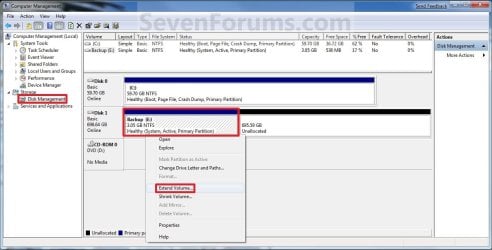
Extend_Step1.jpg
5. In the middle pane, right click on the partition or volume directly adjacent (left) of the unallocated space that you want to extend into, and click on Extend Volume. (See screenshot above)

6. Click on the Next button. (See screenshot below)
Extend_Step2.jpg
7. Type in how many MB (1 GB = 1024 MB) you want to use from the unallocated space to extend the selected partition (step 5) into, then click on the Next button. (See screenshot below)
NOTE: If you want to use all of the unallocated space to extend into, then type in the maximum available space shown for the unallocated space.
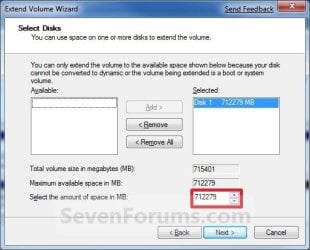
Extend_Step3.jpg
8. Click on the Finish button. (See screenshot below)
Extend_Step4.jpg
9. The partition or volume has now been extended into the assigned unallocted space (step 7). (See screenshot below)
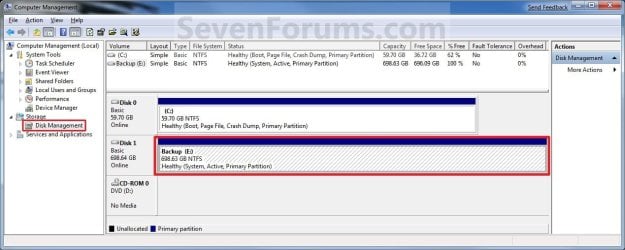
Extend_Step5.jpg
10. Close the Computer Management window. (See screenshot above)


OPTION TWO

Using Diskpart in a Elevated Command Prompt


1. If you have not already, you will first need to delete the partition or volume that you want to extend into to make it unallocated space.

2. Open a elevated command prompt, or a command prompt at boot.

3. In the elevated command prompt, type diskpart and press Enter. (See screenshot below)
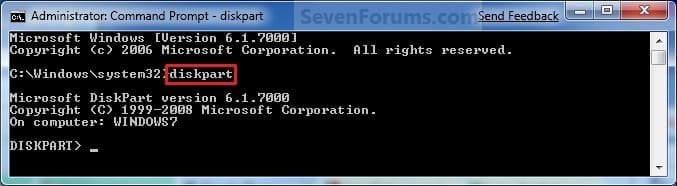
CMD_Extend_Step1.jpg
4. In the elevated command prompt, type list disk and press Enter. (See screenshot below)
NOTE: This is to help you ID the disk that has Free space that you want to extend into, and to see the disk size to make it easier to ID it's volume number in step 5. For example, Disk 1.
CMD_Extend_Step2.jpg
5. In the elevated command prompt, type list volume and press Enter. (See screenshot below)
NOTE: Look for the volume number that has the same Size as from the size in step 4 minus the Free space. For example, Volume 2.
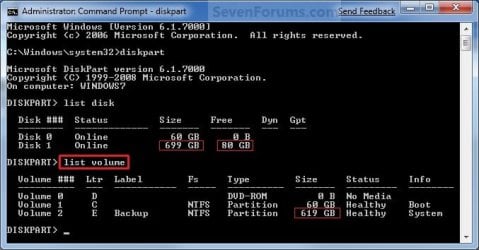
CMD_Extend_Step3.jpg
6. In the elevated command prompt, type select volume # and press Enter. (See screenshot below)
NOTE: You would substitute # for the volume number listed that you want to extend. For example, I want to extend the listed volume 2 since, so I would type select volume 2 and press Enter.
CMD_Extend_Step4.jpg
7. To Extend into All of the Unallocated Space
A) In the elevated command prompt, type extend and press Enter. (See screenshot below)
NOTE: The unallocated space will be removed and added completely to the selected partiton or volume (step 6).
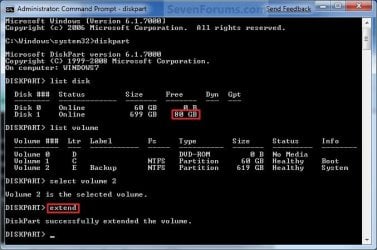
CMD_Extend_Step5.jpg
B) Go to step 9.
8. To Extend into the Unallocated Space by a Specified Size
A) In the elevated command prompt, type extend size=(# in MB) and press Enter.
NOTE: You would substitute (# in MB) for how many MB (1 GB = 1024 MB) you want to use of the unallocated space (free space shown in step 4) to be extended into. For example, if I only wanted to extend into 5 GB of the unallocated space, then I would type extend size=5120 and press Enter.
9. In the elevated command prompt, type exit and press Enter. (See screenshot below)
CMD_Extend_Step6.jpg
10. Close the elevated command prompt.

11. The selected partition or volume (step 6) has now been extended into the unallocated space to make it larger.
NOTE: If you did step 8 instead of 7, then you can use the rest of the unallocated space to create a new partition with if you like.
That's it,
Shawn


Last edited:
It not a problem Lub. I understand. :)

At step 8 in STEP ONE of the tutorial below, you should have the option of where you want to save the transfer files to. You might create a new folder on your desktop, and select it to transfer the files into to make it easier to locate.

In step 4 of STEP TWO in the same tutorial below, you should see what to look for in the recovery partition to delete. It will be the "Windows Easy Tranfer....." file.

http://www.sevenforums.com/tutorials/11470-windows-easy-transfer-transfer-computers.html
 

My Computer My Computer

At a glance

64-bit Windows 11 Pro for WorkstationsIntel i7-8700K OC'd to 5 GHz64 GB (4x16GB) G.SKILL TridentZ RGB DDR4 3600...ASUS ROG-STRIX-GTX1080TI-O11G-GAMING
Computer type
PC/Desktop
Computer Manufacturer/Model Number
Self built custom
OS
64-bit Windows 11 Pro for Workstations
CPU
Intel i7-8700K OC'd to 5 GHz
Motherboard
ASUS ROG Maximus XI Formula Z390
Memory
64 GB (4x16GB) G.SKILL TridentZ RGB DDR4 3600 MHz
Graphics Card(s)
ASUS ROG-STRIX-GTX1080TI-O11G-GAMING
Sound Card
Integrated
Monitor(s) Displays
2 x Samsung Odyssey G7 27"
Screen Resolution
2560x1440
Hard Drives
1TB Samsung 990 PRO M.2,
4TB Samsung 990 PRO PRO M.2,
TerraMaster F8 SSD Plus NAS
PSU
Seasonic Prime Titanium 850W
Case
Thermaltake Core P3
Cooling
Corsair Hydro H115i
Keyboard
Logitech wireless K800
Mouse
Logitech MX Master 4
Internet Speed
2 Gb/s Download and 100 Mb/s Upload
Antivirus
Malwarebyte Anti-Malware Premium
Browser
Google Chrome
Other Info
Logitech Z625 speaker system,
Logitech BRIO 4K Pro webcam,
HP Color LaserJet Pro MFP M477fdn,
APC SMART-UPS RT 1000 XL - SURT1000XLI,
Galaxy S23 Plus phone
It not a problem Lub. I understand. :)

At step 8 in STEP ONE of the tutorial below, you should have the option of where you want to save the transfer files to. You might create a new folder on your desktop, and select it to transfer the files into to make it easier to locate.

In step 4 of STEP TWO in the same tutorial below, you should see what to look for in the recovery partition to delete. It will be the "Windows Easy Tranfer....." file.

http://www.sevenforums.com/tutorials/11470-windows-easy-transfer-transfer-computers.html


Shawn,

Thanks for your info last night.... I tried to get access to the Partition and I couldn't for the life of me.... But I did manage to get the files transfered again.... The username files transfered ok the first time, but the Shared Item's fils didn't... So I transfered hem over again and it worked.... I know dealing with the partition is risky, but, since i couldn't access the files or drive and feared i didn't transfer all the required docs..... I used partition wizard to shrink the main hdd and extend the recovery drive.... Pretty good software too....

Any way, all went through, I'm happy with the outcome and believe the recovery disk is still in as good a shape as it was when first got :).... Thanks for all the help, and I doubt this is the last you'll hear from me....
 

My Computer My Computer

At a glance

Windows 7Home Premium 32bit
OS
Windows 7Home Premium 32bit
You're most welcome Lub. I'm happy to hear that all went well. :)
 

My Computer My Computer

At a glance

64-bit Windows 11 Pro for WorkstationsIntel i7-8700K OC'd to 5 GHz64 GB (4x16GB) G.SKILL TridentZ RGB DDR4 3600...ASUS ROG-STRIX-GTX1080TI-O11G-GAMING
Computer type
PC/Desktop
Computer Manufacturer/Model Number
Self built custom
OS
64-bit Windows 11 Pro for Workstations
CPU
Intel i7-8700K OC'd to 5 GHz
Motherboard
ASUS ROG Maximus XI Formula Z390
Memory
64 GB (4x16GB) G.SKILL TridentZ RGB DDR4 3600 MHz
Graphics Card(s)
ASUS ROG-STRIX-GTX1080TI-O11G-GAMING
Sound Card
Integrated
Monitor(s) Displays
2 x Samsung Odyssey G7 27"
Screen Resolution
2560x1440
Hard Drives
1TB Samsung 990 PRO M.2,
4TB Samsung 990 PRO PRO M.2,
TerraMaster F8 SSD Plus NAS
PSU
Seasonic Prime Titanium 850W
Case
Thermaltake Core P3
Cooling
Corsair Hydro H115i
Keyboard
Logitech wireless K800
Mouse
Logitech MX Master 4
Internet Speed
2 Gb/s Download and 100 Mb/s Upload
Antivirus
Malwarebyte Anti-Malware Premium
Browser
Google Chrome
Other Info
Logitech Z625 speaker system,
Logitech BRIO 4K Pro webcam,
HP Color LaserJet Pro MFP M477fdn,
APC SMART-UPS RT 1000 XL - SURT1000XLI,
Galaxy S23 Plus phone
Hi Guys,

Like Chan i was following the article using Method 2 as i wanted to further extend a partition. I hit the same problem "The size of the extent is less than the minimum"... Brilliant!

However looking at the comments i can't see an explanation as to why Method 2 isn't working? Any ideas guys, does it or does it not work with Windows 7 64Bit?

Anyways i downloaded Partition Wizard as recommended by Dave and once again I hit a Snag. Do i need the "Merge" option?

2 More quick Q's...

1) If it is the Merge feature I need any ideas why it won't let me select the Unallocated Space on the (What to Merge) page? On the previous step (What to Expand) page i was able to select this partition without problems.

2) Also at bottom of the (What to Merge) page it says "Specify A Folder Name to Keep Content of The Selected Partition". Is this going to replace the name of the partition I'm merging with the Unallocated Space?

Any help appreciated.

Thanks
Ian
 

My Computer My Computer

At a glance

Windows 7 64bit
OS
Windows 7 64bit
Hello Ian, and welcome to Seven Forums.

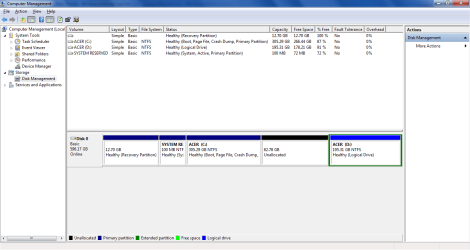
Before we can offer any advice, could you post a screenshot of you Disk Management (diskmgmt.msc)showing all of your drives layout and let us know what drive letter you are wanting to extend?
 

My Computer My Computer

At a glance

64-bit Windows 11 Pro for WorkstationsIntel i7-8700K OC'd to 5 GHz64 GB (4x16GB) G.SKILL TridentZ RGB DDR4 3600...ASUS ROG-STRIX-GTX1080TI-O11G-GAMING
Computer type
PC/Desktop
Computer Manufacturer/Model Number
Self built custom
OS
64-bit Windows 11 Pro for Workstations
CPU
Intel i7-8700K OC'd to 5 GHz
Motherboard
ASUS ROG Maximus XI Formula Z390
Memory
64 GB (4x16GB) G.SKILL TridentZ RGB DDR4 3600 MHz
Graphics Card(s)
ASUS ROG-STRIX-GTX1080TI-O11G-GAMING
Sound Card
Integrated
Monitor(s) Displays
2 x Samsung Odyssey G7 27"
Screen Resolution
2560x1440
Hard Drives
1TB Samsung 990 PRO M.2,
4TB Samsung 990 PRO PRO M.2,
TerraMaster F8 SSD Plus NAS
PSU
Seasonic Prime Titanium 850W
Case
Thermaltake Core P3
Cooling
Corsair Hydro H115i
Keyboard
Logitech wireless K800
Mouse
Logitech MX Master 4
Internet Speed
2 Gb/s Download and 100 Mb/s Upload
Antivirus
Malwarebyte Anti-Malware Premium
Browser
Google Chrome
Other Info
Logitech Z625 speaker system,
Logitech BRIO 4K Pro webcam,
HP Color LaserJet Pro MFP M477fdn,
APC SMART-UPS RT 1000 XL - SURT1000XLI,
Galaxy S23 Plus phone
Guys, appreciate if any of you can help me on this issue.

I just bought my lappy with a 640GB. I created a partition (D:) of ~200GB. However, i would like to allocate another ~80GB to D:.

I shrinked ~80GB from C: and it's now unallocated. But when i tried to extend D:, the option was gray.

Pls help/
 

Attachments

  • PrintScr.png
    PrintScr.png
    28.5 KB · Views: 176

My Computer My Computer

At a glance

Windows 7 Home Premium 64i5-5404Gb
Computer Manufacturer/Model Number
Acer 3820T
OS
Windows 7 Home Premium 64
CPU
i5-540
Memory
4Gb
Hello Bennygan, and welcome to Seven Forums.

Since the unallocated space is to the left of the partition that you wanted to extend into it, you will need to use a free program like Partition Wizard home edition to extend D: into the unallocated space instead. Disk Management will not be able to.

Hope this helps,
Shawn
 
Last edited:

My Computer My Computer

At a glance

64-bit Windows 11 Pro for WorkstationsIntel i7-8700K OC'd to 5 GHz64 GB (4x16GB) G.SKILL TridentZ RGB DDR4 3600...ASUS ROG-STRIX-GTX1080TI-O11G-GAMING
Computer type
PC/Desktop
Computer Manufacturer/Model Number
Self built custom
OS
64-bit Windows 11 Pro for Workstations
CPU
Intel i7-8700K OC'd to 5 GHz
Motherboard
ASUS ROG Maximus XI Formula Z390
Memory
64 GB (4x16GB) G.SKILL TridentZ RGB DDR4 3600 MHz
Graphics Card(s)
ASUS ROG-STRIX-GTX1080TI-O11G-GAMING
Sound Card
Integrated
Monitor(s) Displays
2 x Samsung Odyssey G7 27"
Screen Resolution
2560x1440
Hard Drives
1TB Samsung 990 PRO M.2,
4TB Samsung 990 PRO PRO M.2,
TerraMaster F8 SSD Plus NAS
PSU
Seasonic Prime Titanium 850W
Case
Thermaltake Core P3
Cooling
Corsair Hydro H115i
Keyboard
Logitech wireless K800
Mouse
Logitech MX Master 4
Internet Speed
2 Gb/s Download and 100 Mb/s Upload
Antivirus
Malwarebyte Anti-Malware Premium
Browser
Google Chrome
Other Info
Logitech Z625 speaker system,
Logitech BRIO 4K Pro webcam,
HP Color LaserJet Pro MFP M477fdn,
APC SMART-UPS RT 1000 XL - SURT1000XLI,
Galaxy S23 Plus phone
Hello Bennygan, and welcome to Seven Forums.

Since the unallocated space is to the left of the partition that you wanted to extend into it, you will need to use a free program like Partition Wizard home editionto extend D: into the unallocated space instead. Disk Management will not be able to.

Hope this helps,
Shawn

Thanks for the reply Shawn.
Will read through the forum how to use Partition Wizard.

Cheers
 

My Computer My Computer

At a glance

Windows 7 Home Premium 64i5-5404Gb
Computer Manufacturer/Model Number
Acer 3820T
OS
Windows 7 Home Premium 64
CPU
i5-540
Memory
4Gb
Hello Bennygan, and welcome to Seven Forums.

Since the unallocated space is to the left of the partition that you wanted to extend into it, you will need to use a free program like Partition Wizard home editionto extend D: into the unallocated space instead. Disk Management will not be able to.

Hope this helps,
Shawn

Thanks for the reply Shawn.
Will read through the forum how to use Partition Wizard.

Cheers


Just like to say thanks again Shawn. Used Partition Wizard and it worked like a charm. :party:
 

My Computer My Computer

At a glance

Windows 7 Home Premium 64i5-5404Gb
Computer Manufacturer/Model Number
Acer 3820T
OS
Windows 7 Home Premium 64
CPU
i5-540
Memory
4Gb
You're most welcome Bennygan. I'm happy to hear that you got it sorted. :)
 

My Computer My Computer

At a glance

64-bit Windows 11 Pro for WorkstationsIntel i7-8700K OC'd to 5 GHz64 GB (4x16GB) G.SKILL TridentZ RGB DDR4 3600...ASUS ROG-STRIX-GTX1080TI-O11G-GAMING
Computer type
PC/Desktop
Computer Manufacturer/Model Number
Self built custom
OS
64-bit Windows 11 Pro for Workstations
CPU
Intel i7-8700K OC'd to 5 GHz
Motherboard
ASUS ROG Maximus XI Formula Z390
Memory
64 GB (4x16GB) G.SKILL TridentZ RGB DDR4 3600 MHz
Graphics Card(s)
ASUS ROG-STRIX-GTX1080TI-O11G-GAMING
Sound Card
Integrated
Monitor(s) Displays
2 x Samsung Odyssey G7 27"
Screen Resolution
2560x1440
Hard Drives
1TB Samsung 990 PRO M.2,
4TB Samsung 990 PRO PRO M.2,
TerraMaster F8 SSD Plus NAS
PSU
Seasonic Prime Titanium 850W
Case
Thermaltake Core P3
Cooling
Corsair Hydro H115i
Keyboard
Logitech wireless K800
Mouse
Logitech MX Master 4
Internet Speed
2 Gb/s Download and 100 Mb/s Upload
Antivirus
Malwarebyte Anti-Malware Premium
Browser
Google Chrome
Other Info
Logitech Z625 speaker system,
Logitech BRIO 4K Pro webcam,
HP Color LaserJet Pro MFP M477fdn,
APC SMART-UPS RT 1000 XL - SURT1000XLI,
Galaxy S23 Plus phone
Hi Brink,
Thank you for the tutorial at the start. It answers quite a few questions.

I have had experience working with XP alone.

I just received laptop with windows home 7 premium, 320GB HD. It is an acer with only one drive, :C. Your tutorial makes it amply clear how to make another partition D. Further I have two quick questions

1. How could I go on to make multiple partitions like E, F, G, H? Can I follow the same ‘shrink volume’ technique elaborated in your tutorial? Is creating multiple partitions possible using disk management tool?

2. If the window 7 has to be reloaded again, can it be loaded onto a harddisk with multiple partitions, or does it require that there should be only one drive?

3. It is said, that the windows 7 creates a system partition and keeps it hidden from the user. If I create a rescue disk would the system partition still be required?

4. Does creating partitions ensure long-life of the hard-disk?

Please, do answer the above queries, whenever you get time.

Regards and thanks again for helping out.

Dawnz
 

My Computer My Computer

At a glance

Windows 7 Home premium 64bit
OS
Windows 7 Home premium 64bit
Hello Dawnz, and welcome to Seven Forums.

It depends on how Acer has your HDD setup already. Could you post a screenshot of your Disk Management with it showing your complete drive layout?

Having multiple partitions has practically no affect on the life of the HDD than if it only had one partition.
 

My Computer My Computer

At a glance

64-bit Windows 11 Pro for WorkstationsIntel i7-8700K OC'd to 5 GHz64 GB (4x16GB) G.SKILL TridentZ RGB DDR4 3600...ASUS ROG-STRIX-GTX1080TI-O11G-GAMING
Computer type
PC/Desktop
Computer Manufacturer/Model Number
Self built custom
OS
64-bit Windows 11 Pro for Workstations
CPU
Intel i7-8700K OC'd to 5 GHz
Motherboard
ASUS ROG Maximus XI Formula Z390
Memory
64 GB (4x16GB) G.SKILL TridentZ RGB DDR4 3600 MHz
Graphics Card(s)
ASUS ROG-STRIX-GTX1080TI-O11G-GAMING
Sound Card
Integrated
Monitor(s) Displays
2 x Samsung Odyssey G7 27"
Screen Resolution
2560x1440
Hard Drives
1TB Samsung 990 PRO M.2,
4TB Samsung 990 PRO PRO M.2,
TerraMaster F8 SSD Plus NAS
PSU
Seasonic Prime Titanium 850W
Case
Thermaltake Core P3
Cooling
Corsair Hydro H115i
Keyboard
Logitech wireless K800
Mouse
Logitech MX Master 4
Internet Speed
2 Gb/s Download and 100 Mb/s Upload
Antivirus
Malwarebyte Anti-Malware Premium
Browser
Google Chrome
Other Info
Logitech Z625 speaker system,
Logitech BRIO 4K Pro webcam,
HP Color LaserJet Pro MFP M477fdn,
APC SMART-UPS RT 1000 XL - SURT1000XLI,
Galaxy S23 Plus phone
Hello Dawnz, and welcome to Seven Forums.

It depends on how Acer has your HDD setup already. Could you post a screenshot of your Disk Management with it showing your complete drive layout?

Having multiple partitions has practically no affect on the life of the HDD than if it only had one partition.

Many thanks Brink for the quick response.

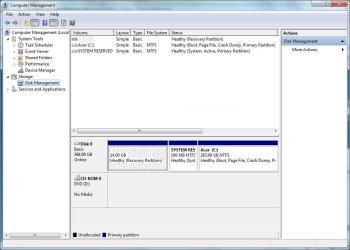
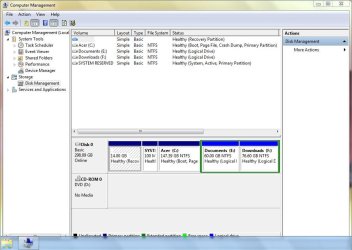
Sure here is the screenshot like you asked.

Capture.JPG


Does a multiple partitioned HDD affect the life of a processor or RAM. Please excuse my ignorance,:( but have heard that the smaller the room (Volume) the easier to find and sort items.
Regards, and Thanks,

Dawnz
 

My Computer My Computer

At a glance

Windows 7 Home premium 64bit
OS
Windows 7 Home premium 64bit
Let me help you.

1. You can create 24 additional partition (because then you run out of lettwers - and A, B are resertved). Just make sure your nect partition is NOT a primary (because you already have 3 primaries and 4 is the maximum) but an extended partition (a container). Under that you create the additional logical ones. When you use disk management, that will be the normal course of action.

2. There is no effect on loading the OS, the life of the disk (maybe a tiny advantage for multiple partitions), absolutely no effect on RAM, etc.

3. Even once you created your recovery disk, I would keep the recovery partition. You never know whether the DVDs you burnt are going to work and reinstalling from the recovery partition is a bit easier.
 

My Computer My Computer

At a glance

Vista, Windows7, Mint Mate, Zorin, Windows 8from 1.6GHz Duo to i7
Computer Manufacturer/Model Number
HP, Dell, Gateway, Toshiba - 4 laptops and 2 desktops
OS
Vista, Windows7, Mint Mate, Zorin, Windows 8
CPU
from 1.6GHz Duo to i7
Monitor(s) Displays
2x HP w2207
Hard Drives
5x HDD, 7x SSD, 12x Externals
Keyboard
with trackball - no mices
Mouse
Trackball mice
Internet Speed
DSL 6000
Thank you WHS. :)
 

My Computer My Computer

At a glance

64-bit Windows 11 Pro for WorkstationsIntel i7-8700K OC'd to 5 GHz64 GB (4x16GB) G.SKILL TridentZ RGB DDR4 3600...ASUS ROG-STRIX-GTX1080TI-O11G-GAMING
Computer type
PC/Desktop
Computer Manufacturer/Model Number
Self built custom
OS
64-bit Windows 11 Pro for Workstations
CPU
Intel i7-8700K OC'd to 5 GHz
Motherboard
ASUS ROG Maximus XI Formula Z390
Memory
64 GB (4x16GB) G.SKILL TridentZ RGB DDR4 3600 MHz
Graphics Card(s)
ASUS ROG-STRIX-GTX1080TI-O11G-GAMING
Sound Card
Integrated
Monitor(s) Displays
2 x Samsung Odyssey G7 27"
Screen Resolution
2560x1440
Hard Drives
1TB Samsung 990 PRO M.2,
4TB Samsung 990 PRO PRO M.2,
TerraMaster F8 SSD Plus NAS
PSU
Seasonic Prime Titanium 850W
Case
Thermaltake Core P3
Cooling
Corsair Hydro H115i
Keyboard
Logitech wireless K800
Mouse
Logitech MX Master 4
Internet Speed
2 Gb/s Download and 100 Mb/s Upload
Antivirus
Malwarebyte Anti-Malware Premium
Browser
Google Chrome
Other Info
Logitech Z625 speaker system,
Logitech BRIO 4K Pro webcam,
HP Color LaserJet Pro MFP M477fdn,
APC SMART-UPS RT 1000 XL - SURT1000XLI,
Galaxy S23 Plus phone
No problem Shawn.
 

My Computer My Computer

At a glance

Vista, Windows7, Mint Mate, Zorin, Windows 8from 1.6GHz Duo to i7
Computer Manufacturer/Model Number
HP, Dell, Gateway, Toshiba - 4 laptops and 2 desktops
OS
Vista, Windows7, Mint Mate, Zorin, Windows 8
CPU
from 1.6GHz Duo to i7
Monitor(s) Displays
2x HP w2207
Hard Drives
5x HDD, 7x SSD, 12x Externals
Keyboard
with trackball - no mices
Mouse
Trackball mice
Internet Speed
DSL 6000
Thank You for replying WHS, Brink.:)

Went through your tutorial again. ALSO saw the video tutorial by WHS. So this is what I will do. Please affirm if the steps below are correct.

1. Will Shrink Drive C: ( 283.99 GB = 283.99 * 1024 = 290805.76 ) and set up a new simple drive D. since I want only 60 GB in C drive , 290805.76 – 61440 = 229365.76 will be allocated to D.

2. From this D volume, I would further shrink to create a new volume E. The space in D is intended to be 60 GB, hence 229365.76 – 61440 =167925.76 will be allocated for E

3. Further from E, shrink and simple drive creation for F volume. The space intended for E is 60 GB. Hence the space left for F is 167925.76 – 61440 = 106485.76

4. E will be further shrinked and a new volume created called G. The space allocated for G will be 106485.76 – 61440 = 45045.76 (approx 43 GB)

This way there will be Three Primary Drive (C + system reserved + recovery), and other logical drives like D, E, F and G.

Please advice if the above logic is correct? Are the numbers right? Can I get the desired volumes D , E, F, G, following the above steps?

Thank you for your patience,

Dawnz
 

My Computer My Computer

At a glance

Windows 7 Home premium 64bit
OS
Windows 7 Home premium 64bit
I would not do this "waterfall" approach. Just shrink C and then use as much as you need from the freespace for each new partition. You may, however, run into a little problem - Disk management probably will not let you shrink C down to 60GBs (because of the MFT sitting in the middle of the partition). In that case, use this program. If you have further questions, post back.

Generally we advise to backup the partition you manipulate. In this case this is a bit more complex because it is the system partition. But you could at least make an image to an external drive. I would use free Paragon because that would allow to restore the system in a smaller partition (which a lot of the free imaging programs cannot do). Note: This is just an extra security measure - one never knows what can happen.
 

My Computer My Computer

At a glance

Vista, Windows7, Mint Mate, Zorin, Windows 8from 1.6GHz Duo to i7
Computer Manufacturer/Model Number
HP, Dell, Gateway, Toshiba - 4 laptops and 2 desktops
OS
Vista, Windows7, Mint Mate, Zorin, Windows 8
CPU
from 1.6GHz Duo to i7
Monitor(s) Displays
2x HP w2207
Hard Drives
5x HDD, 7x SSD, 12x Externals
Keyboard
with trackball - no mices
Mouse
Trackball mice
Internet Speed
DSL 6000
Just be aware if you need to do a factory recovery I think you will probably get back your original partition structure.
Recovery from images will avoid this.
 

My Computer My Computer

At a glance

Windows 7x64 Home Premium SP1Intel i7 2600kG.Skill Ripjaws (DDR3-1600) 2x4GBNvidia GeForce GTS 450; Intel HD Graphics 300...
Computer type
PC/Desktop
Computer Manufacturer/Model Number
Own build
OS
Windows 7x64 Home Premium SP1
CPU
Intel i7 2600k
Motherboard
ASUS P8Z68 Deluxe
Memory
G.Skill Ripjaws (DDR3-1600) 2x4GB
Graphics Card(s)
Nvidia GeForce GTS 450; Intel HD Graphics 3000(GT2+)
Monitor(s) Displays
Dell Ultrasharp IPS panel U2311H, Samsung SyncMaster P2350
Screen Resolution
1920x1080
Hard Drives
Samsung 850 Pro SSD 256GB, Samsung SSD 840 120GB, Seagates 1TB Barracuda ST31000528AS x2
PSU
Seasonic M12II 520W
Case
Lian Li Lancool PC-K60
Cooling
Case: 1x120mm, 3x140mm CPU: Hyper 212+
Keyboard
Logitech MK520 (wireless)
Mouse
Logitech MK520
Internet Speed
6-7 Mbps
Antivirus
Norton Security Premium, Malwarebytes on 2 (MSE on 3rd PC)
Browser
FireFox
Other Info
Audio: Logitech Z523 2.1
Thank you!
Brink, WHS, & Mjf

Just finished doing the partitions.

first created a recovery set of 4 DVDs. Then followed the tutorial here:

1. Shrink a Volume tutorial:
http://www.sevenforums.com/tutorials/2672-partition-volume-shrink.html


and followed it with...

2. Create a Partition tutorial:
http://www.sevenforums.com/tutorials/2674-partition-volume-create-new.html

Must say these tutorial by Brink are the most easy to understand and they are all that is required for the question asked. Kudos for the time and concern spent making these tutorials! I am sure there are many more like these; would want to explore more. Thank you WHS, for the video tutorial; it goes further to tell the viewers how to extend a volume too.

Regarding the partition this is what I did:

1. Shrinked C: ( it would only allow 135 GB to be used)

2. Out of this unallocated 135 GB, created a simple volume E: (D letter was not in option) with 61440 MB (60 GB)

3. Rest 76.60 GB showed up as 'free space'. Created a simple volume F: out of this 'Free space'

And like WHS answered, that creating multiple partitions doesn't affect performance or HDD life, I found it convenient to keep only two more partitions other than C.

Here is the screenshot:

Capture.JPG

Many Thanks,

Dawnz
 
Last edited:

My Computer My Computer

At a glance

Windows 7 Home premium 64bit
OS
Windows 7 Home premium 64bit
Back
Top