
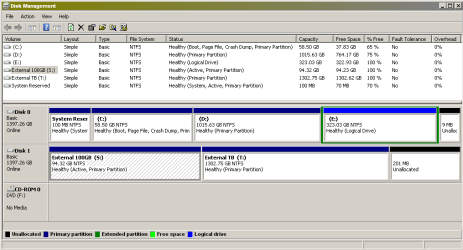
Disk Management display of partitions...

Lykho

New member
Member
VIP
Local time
12:21 AM
Messages
115
Location
New Zealand
this is just a trivial/idle query...

why does Disk Management identify logical drives as being "primary" partitions? apparently I have three "primary" partitions on the internal, and having tried to create an extended partition for my new external instead have ended up with two primary partitions...apparently.

have I done something wrong?

edit: oh, and can I somehow obtain the option to make it FAT32, not just NTFS or exFAT?
 

Attachments
  • extpartdone.png
    extpartdone.png
    13.6 KB · Views: 73
Last edited:

My Computer My Computer

At a glance

Windows 7 Home Premium 32bitAMD Athlon II X2 250 Processor 3.00 GHz2Gb DDR2onboard
Computer type
PC/Desktop
Computer Manufacturer/Model Number
custom
OS
Windows 7 Home Premium 32bit
CPU
AMD Athlon II X2 250 Processor 3.00 GHz
Motherboard
Gigabyte
Memory
2Gb DDR2
Graphics Card(s)
onboard
Sound Card
onboard
Monitor(s) Displays
Viewsonic VA2448m-LED 23.6" LED
Screen Resolution
1920 x 1080
Hard Drives
internal: 1.5 TB Samsung Spinpoint
external: Samsung 2TB USB3.0; 1.5TB Samsung G3 Station
PSU
350w
Case
CoolerMaster
Keyboard
Microsoft Desktop 800
Mouse
Microsoft Desktop 800
Internet Speed
1Mbps
Antivirus
MSE
Browser
Firefox
Other Info
3.4 rating on the "Windows Experience Index"
Well, you have a somewhat strange setup there. Your "S" partition on Disk1 ended up to be an "active" partition. Do you have an OS installed there? - which I doubt because it is an external. If not, you should make it inactive. Your boot partition is the small 100MB partition on Disk0. Do not touch that unless you do not want to boot any more - LOL.

On Disk0 you have 3 primaries and one extended/logical (the latter was apparently defined by you). That is OK. You can now define more logical drives on Disk0.

The first 3 partitions on Disk0 come from your manufacturer. They always make those primaries although it would only be required for the active (the 100MB) partition and maybe the recovery partition. No idea why they also make C active whilst they have a seperate boot partition. Maybe out of tradition.

For manipulating the disks, I recommend this program - especially the bootable CD version. You can do more with it than with Disk Management.
 

My Computer My Computer

At a glance

Vista, Windows7, Mint Mate, Zorin, Windows 8from 1.6GHz Duo to i7
Computer Manufacturer/Model Number
HP, Dell, Gateway, Toshiba - 4 laptops and 2 desktops
OS
Vista, Windows7, Mint Mate, Zorin, Windows 8
CPU
from 1.6GHz Duo to i7
Monitor(s) Displays
2x HP w2207
Hard Drives
5x HDD, 7x SSD, 12x Externals
Keyboard
with trackball - no mices
Mouse
Trackball mice
Internet Speed
DSL 6000
Well, you have a somewhat strange setup there. Your "S" partition on Disk1 ended up to be an "active" partition. Do you have an OS installed there? - which I doubt because it is an external. If not, you should make it inactive. Your boot partition is the small 100MB partition on Disk0. Do not touch that unless you do not want to boot any more - LOL.

Disk 1 (the external) was originally (from the box) one volume--FAT32, primary, and active. (it came with the drivers and other onboard software (SecretZoneSetup, AutoBackupSetup, so maybe that's why it was active?).

Disk Manager seems to by default decide to make one active. I had no idea what it meant or if it mattered.

and I had no intention of messing with Disk 0 -- I had thought it was fine. I asked someone else to set it up for me, with a primary and two logicals. I don't know what those tiny system partitions are all about, I'd never seen them before (since only the three desired partitions show up on My Computer).

On Disk0 you have 3 primaries and one extended/logical (the latter was apparently defined by you). That is OK. You can now define more logical drives on Disk0.

do I need to?
the main reason I have three partitions is because I want the data safe/separate from the O/S.
Is the distinction between C and D not such a setup (both being primary, rather than one primary and the other extended like E is)?

For manipulating the disks, I recommend this program - especially the bootable CD version. You can do more with it than with Disk Management.

thanks. I hadn't been given any recommendations of what third party partitioning program was appropriate for Win7.
 

My Computer My Computer

At a glance

Windows 7 Home Premium 32bitAMD Athlon II X2 250 Processor 3.00 GHz2Gb DDR2onboard
Computer type
PC/Desktop
Computer Manufacturer/Model Number
custom
OS
Windows 7 Home Premium 32bit
CPU
AMD Athlon II X2 250 Processor 3.00 GHz
Motherboard
Gigabyte
Memory
2Gb DDR2
Graphics Card(s)
onboard
Sound Card
onboard
Monitor(s) Displays
Viewsonic VA2448m-LED 23.6" LED
Screen Resolution
1920 x 1080
Hard Drives
internal: 1.5 TB Samsung Spinpoint
external: Samsung 2TB USB3.0; 1.5TB Samsung G3 Station
PSU
350w
Case
CoolerMaster
Keyboard
Microsoft Desktop 800
Mouse
Microsoft Desktop 800
Internet Speed
1Mbps
Antivirus
MSE
Browser
Firefox
Other Info
3.4 rating on the "Windows Experience Index"
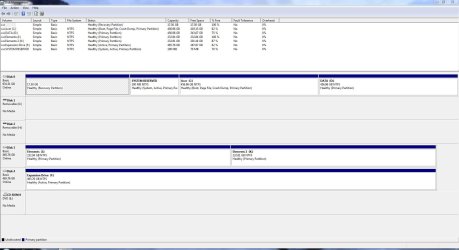
Here is a screenshot of my PC with 2 external HDD attached.
I,K are a WD. F is a Seagate and note it is active. I've been curious but too lazy to figure out why. The fact that the boot disk 0 has the correct first active partition is all that matters.
 

Attachments

  • disks.JPG
    disks.JPG
    143.5 KB · Views: 28
Last edited:

My Computer My Computer

At a glance

Windows 7x64 Home Premium SP1Intel i7 2600kG.Skill Ripjaws (DDR3-1600) 2x4GBNvidia GeForce GTS 450; Intel HD Graphics 300...
Computer type
PC/Desktop
Computer Manufacturer/Model Number
Own build
OS
Windows 7x64 Home Premium SP1
CPU
Intel i7 2600k
Motherboard
ASUS P8Z68 Deluxe
Memory
G.Skill Ripjaws (DDR3-1600) 2x4GB
Graphics Card(s)
Nvidia GeForce GTS 450; Intel HD Graphics 3000(GT2+)
Monitor(s) Displays
Dell Ultrasharp IPS panel U2311H, Samsung SyncMaster P2350
Screen Resolution
1920x1080
Hard Drives
Samsung 850 Pro SSD 256GB, Samsung SSD 840 120GB, Seagates 1TB Barracuda ST31000528AS x2
PSU
Seasonic M12II 520W
Case
Lian Li Lancool PC-K60
Cooling
Case: 1x120mm, 3x140mm CPU: Hyper 212+
Keyboard
Logitech MK520 (wireless)
Mouse
Logitech MK520
Internet Speed
6-7 Mbps
Antivirus
Norton Security Premium, Malwarebytes on 2 (MSE on 3rd PC)
Browser
FireFox
Other Info
Audio: Logitech Z523 2.1
1. The tiny partition is something new that they introduced with Win7 as boot (active) partition. You cannot see it in "Computer" because it has no drive letter - and that is OK. There are certain advantage to have a seperate boot partition (e.g. for double booting) but there are also a few complications (e.g. with imaging).

2. You do not "need to" create more partitions on Disk0 - but you have the option.

3. A seperate data partition is a great idea. Here is a little tutorial I made: http://www.sevenforums.com/tutorials/72427-data-partition.html Skip the shrinking and partition creation part because you already have a partition.
 

My Computer My Computer

At a glance

Vista, Windows7, Mint Mate, Zorin, Windows 8from 1.6GHz Duo to i7
Computer Manufacturer/Model Number
HP, Dell, Gateway, Toshiba - 4 laptops and 2 desktops
OS
Vista, Windows7, Mint Mate, Zorin, Windows 8
CPU
from 1.6GHz Duo to i7
Monitor(s) Displays
2x HP w2207
Hard Drives
5x HDD, 7x SSD, 12x Externals
Keyboard
with trackball - no mices
Mouse
Trackball mice
Internet Speed
DSL 6000
Back
Top