Connect Win 7 to Win XP

charris120

New member
Local time
6:37 PM
Messages
5
Hello,

I am trying to connect my Windows 7 laptop to my Windows XP desktop. I am doing this so that I may receive internet on my XP. However I am not able to.

I am using wireless internet on my Windows 7 laptop and it connects fine. I am using a crossover cable to connect to the XP..the XP recognizes it when its plugged in, however I get the "Limited or no connectivity".

When I click on repair it says i need to renew my IP address.. I have tried /release and /renew. Release worked but renew didnt..it said "Service provider could not be loaded" and that makes sense.

The DNS Client is Automatic and it is started.

They are both set to obtain the IP address automatically.

I am just not sure what I can do to get this to work. Thanks for reading, and thanks for your time!
-Cody
 

My Computer My Computer

OS
Windows 7 64 bit
The only thing I can think of is to check to make sure that you bridged your wireless and wired connections. I'm sure you already have, but I've never had a problem doing this so can't think of anything else off the top of my head.
 

My Computer My Computer

Computer type
Laptop
Computer Manufacturer/Model Number
Toshiba P775-S7100
OS
Windows 7 Professional SP1 64-bit
CPU
Intel Core i5-2450M @2.5 GHz
Memory
6 GB DDR3 1333MHz
Graphics Card(s)
Intel HD 3000
Monitor(s) Displays
Built-in 17.3" LED; 22" Insignia NS-L22Q-10A
Screen Resolution
1600x900; 1360x768
Hard Drives
750 GB Hitachi
1TB Seagate FreeAgent External
Internet Speed
Verizon DSL Speed(Down/Up): 3360 Kbps / 800 Kbps
Antivirus
MSE and MBAM Pro
Browser
IE10
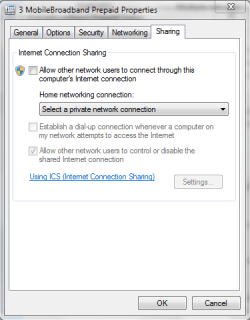
have you selected the "allow other network users to connect through this network" option on the XP box from the internet connection, then select the network card that connects to the two computers in the dropdown box?
 

Attachments

  • Capture.PNG
    Capture.PNG
    13.3 KB · Views: 6

My Computer My Computer

Computer Manufacturer/Model Number
HP dv6519tx
OS
Windows 7 Ultimate x64
CPU
1.80 GHz Intel Core 2 Duo processor T7100
Memory
3 gig ddr2
Graphics Card(s)
NVIDIA GeForce 8400M GS
Sound Card
Realtek High Definition Audio
Monitor(s) Displays
15.4” WXGA High Definition BrightView Widescreen
Screen Resolution
1280 x 800
Hard Drives
Hitachi 320 GB (5400 rpm)
PSU
90 W AC Power Adapter
Cooling
Kitchen plate under the lappy
Keyboard
101 key compatible
Mouse
Touch Pad with On/Off button and dedicated vertical Scroll
Internet Speed
Three Wireless internet prepaid using E160G USB dongle
Hmm, actually I'm not exactly sure how to bridge the connections. haha (I'm new to Networking)

And to Pusspa, I do have it selected, however I do not have the drop box on mine..
 

My Computer My Computer

OS
Windows 7 64 bit
Go to network and sharing center in control panel on the Windows 7 machine. Click Change adapter settings. If the two network adapters are next to each other, highlight them, and if there is something inbetween, use ctrl+left click to select both. Right click one of them and click "Add to bridge".
 

My Computer My Computer

Computer type
Laptop
Computer Manufacturer/Model Number
Toshiba P775-S7100
OS
Windows 7 Professional SP1 64-bit
CPU
Intel Core i5-2450M @2.5 GHz
Memory
6 GB DDR3 1333MHz
Graphics Card(s)
Intel HD 3000
Monitor(s) Displays
Built-in 17.3" LED; 22" Insignia NS-L22Q-10A
Screen Resolution
1600x900; 1360x768
Hard Drives
750 GB Hitachi
1TB Seagate FreeAgent External
Internet Speed
Verizon DSL Speed(Down/Up): 3360 Kbps / 800 Kbps
Antivirus
MSE and MBAM Pro
Browser
IE10
Go to network and sharing center in control panel on the Windows 7 machine. Click Change adapter settings. If the two network adapters are next to each other, highlight them, and if there is something inbetween, use ctrl+left click to select both. Right click one of them and click "Add to bridge".

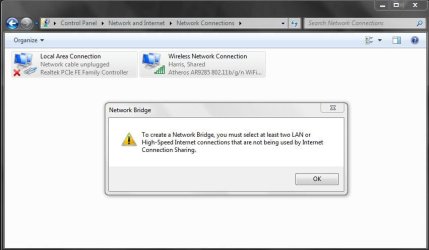
ok, thats what I was trying to do...but it tells me I have to have 2 LAN or Internet connections that are not being used by the Internet connection Sharing. So should I create a new network?

Thanks for answering by the way...I'm struggling with this haha.
 

My Computer My Computer

OS
Windows 7 64 bit
Go to network and sharing center in control panel on the Windows 7 machine. Click Change adapter settings. If the two network adapters are next to each other, highlight them, and if there is something inbetween, use ctrl+left click to select both. Right click one of them and click "Add to bridge".

ok, thats what I was trying to do...but it tells me I have to have 2 LAN or Internet connections that are not being used by the Internet connection Sharing. So should I create a new network?

Thanks for answering by the way...I'm struggling with this haha.
Can you post a screen cap of the message? Its almost 11PM (23:00) here so I might not reply again until tomorrow morning.
 

My Computer My Computer

Computer type
Laptop
Computer Manufacturer/Model Number
Toshiba P775-S7100
OS
Windows 7 Professional SP1 64-bit
CPU
Intel Core i5-2450M @2.5 GHz
Memory
6 GB DDR3 1333MHz
Graphics Card(s)
Intel HD 3000
Monitor(s) Displays
Built-in 17.3" LED; 22" Insignia NS-L22Q-10A
Screen Resolution
1600x900; 1360x768
Hard Drives
750 GB Hitachi
1TB Seagate FreeAgent External
Internet Speed
Verizon DSL Speed(Down/Up): 3360 Kbps / 800 Kbps
Antivirus
MSE and MBAM Pro
Browser
IE10
Go to network and sharing center in control panel on the Windows 7 machine. Click Change adapter settings. If the two network adapters are next to each other, highlight them, and if there is something inbetween, use ctrl+left click to select both. Right click one of them and click "Add to bridge".

ok, thats what I was trying to do...but it tells me I have to have 2 LAN or Internet connections that are not being used by the Internet connection Sharing. So should I create a new network?

Thanks for answering by the way...I'm struggling with this haha.
Can you post a screen cap of the message? Its almost 11PM (23:00) here so I might not reply again until tomorrow morning.

Its alright if you don't respond. But here is a screen

Capture.JPG
 

My Computer My Computer

OS
Windows 7 64 bit
i am quite sure that you do not need to bridge the connections in win7, though i do realise i read your original post incorrectly and thought it was the XP box that had the connection. Also, your snip shows the LAN not connected, was that just when you took the snip or does it always say not connected?
 

My Computer My Computer

Computer Manufacturer/Model Number
HP dv6519tx
OS
Windows 7 Ultimate x64
CPU
1.80 GHz Intel Core 2 Duo processor T7100
Memory
3 gig ddr2
Graphics Card(s)
NVIDIA GeForce 8400M GS
Sound Card
Realtek High Definition Audio
Monitor(s) Displays
15.4” WXGA High Definition BrightView Widescreen
Screen Resolution
1280 x 800
Hard Drives
Hitachi 320 GB (5400 rpm)
PSU
90 W AC Power Adapter
Cooling
Kitchen plate under the lappy
Keyboard
101 key compatible
Mouse
Touch Pad with On/Off button and dedicated vertical Scroll
Internet Speed
Three Wireless internet prepaid using E160G USB dongle
i am quite sure that you do not need to bridge the connections in win7, though i do realise i read your original post incorrectly and thought it was the XP box that had the connection. Also, your snip shows the LAN not connected, was that just when you took the snip or does it always say not connected?

um.. every time I have tried it, It has always given me this message. I hope that answers your question, and thanks so much!
 

My Computer My Computer

OS
Windows 7 64 bit
I also wonder if the cable is currently unplugged based on what the screen cap shows. For now I would turn off in
ternet connection sharing for both connections. Right click the connection, select properties, go to the sharing tab, and uncheck the top box. Then bridge the connections and see if the works.

The way you have been trying to do it is one method of doing this, but I have always done it using the method I have doscribed.
 

My Computer My Computer

Computer type
Laptop
Computer Manufacturer/Model Number
Toshiba P775-S7100
OS
Windows 7 Professional SP1 64-bit
CPU
Intel Core i5-2450M @2.5 GHz
Memory
6 GB DDR3 1333MHz
Graphics Card(s)
Intel HD 3000
Monitor(s) Displays
Built-in 17.3" LED; 22" Insignia NS-L22Q-10A
Screen Resolution
1600x900; 1360x768
Hard Drives
750 GB Hitachi
1TB Seagate FreeAgent External
Internet Speed
Verizon DSL Speed(Down/Up): 3360 Kbps / 800 Kbps
Antivirus
MSE and MBAM Pro
Browser
IE10
Back
Top