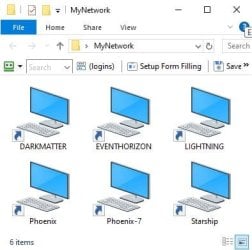
I have several computers which are a mix of Windows XP, 7, 10 & 11. I can access the shared folders on all of them. Here are some setups for a couple of computers with Windows 7 & 10.
Computer #1: Phoenix-7 (Windows 7 Pro)
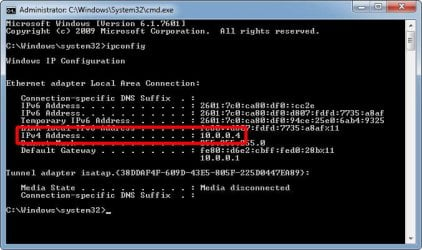
1. To find IP address:
1a. Open Command Prompt (Admin)
1b. Type:
ipconfig
1c. In this example, IP address is
10.0.0.4
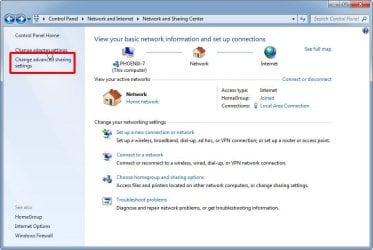
2. Network sharing options
2a. Open
Control Panel
2b. Select
Network and Internet
2c. Select
Network and Sharing Center
2d. Select
Change advanced sharing settings
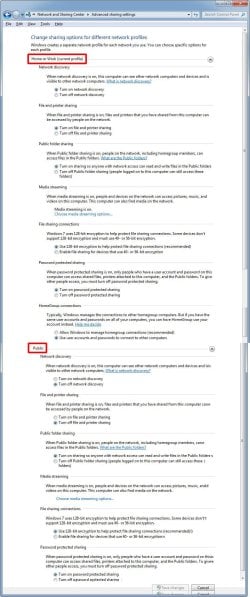
3.Sharing Options
3a.Home or Work (current profile)
*
Turn on network discovery
*
Turn on file and printer sharing
*
Turn on sharing so anyone with network access can read and write files...
*
Turn on password protected sharing
* Use user accounts and passwords to connect to other computers
3b. In Public select
*
Turn off network discovery
*
Turn off file and printer sharing
*
Turn on sharing so anyone with network access can read or write files in the Public folders
*
Turn on password protected sharing
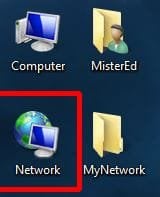
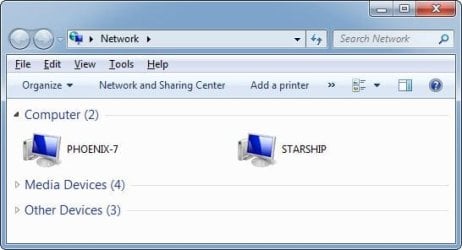
4. Double-click on Network to view network computers
5a. The Windows 7 computer
Phoenix-7 and the Windows 11 computer
Starship are shown
.
5b. The Windows 10 computer
Lightning and the Windows 11 computer
DarkMatter are not shown.
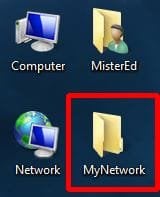
6. To get around this I have created a folder on the desktop called
My Network.
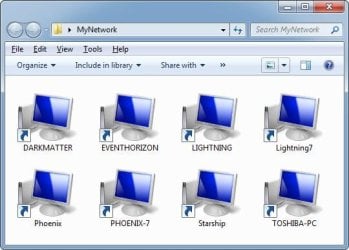
7a. In this folder I have created shortcuts to all the network computers
7b. Clicking on these shortcuts always work even when a computer does not show up in Network.
 Computer #2: Lightning (Windows 10 Pro)
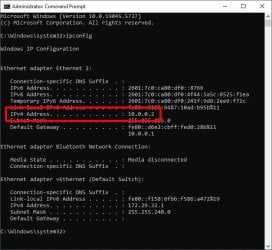
1. To find IP address:
1a. Open Command Prompt (Admin)
1b. Type:
ipconfig
1c. In this example, IP address is
10.0.0.2
2. Network sharing options
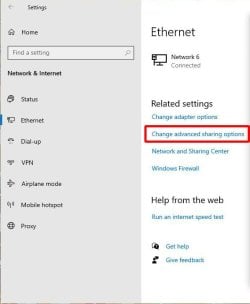
2a. Open Settings
2b. Select
Network & Internet
2c. Select
Change advanced sharing options
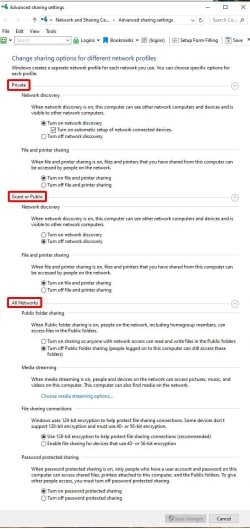
3.Sharing Options
3a. In
Private select
*
Turn on network discovery
*
Turn on file and printer sharing
3b. In
Guest or Public select
*
Turn off network discovery
*
Turn on file and printer sharing
3b. In
All Networks select
*
Turn off public folder sharing file
*
Turn on password protected sharing
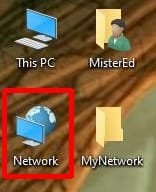
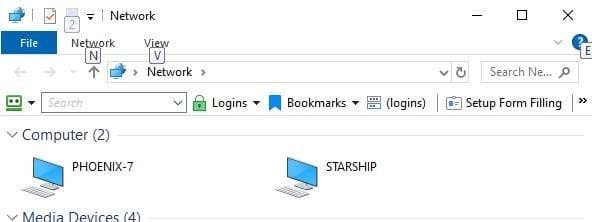
4. Double-click on
Network to view network computers
5a. The Windows 7 computer
Phoenix-7 and the Windows 11 computer
Starship are shown
.
5b. The Windows 10 computer
Lightning and the Windows 11 computer
DarkMatter are not shown.
6. To get around this I have created a folder on the desktop called
My Network.
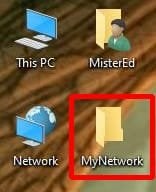
7a. In this folder I have created shortcuts to all the network computers
7b. Clicking on these shortcuts always work even when a computer does not show up in Network.