Solved Repartitioning drive in Windows7

ArpitRaj

New member
Local time
3:38 AM
Messages
20
I want to know how to partition/re-partition a drive to install Linux. I have the following queries :

1. Windows is installed on C:, how should I repartition it without losing any data ie removing Windows and reinstalling it. Ex: C: is of size 75 GB and has 40 GB free space... so how to create a partition from the remaining 35 of 40 GB.

2. D: is a normal data drive, how should I repartition it without losing any data.Ex: D: is of size 200 GB and has 100 GB free space... so how to create a partition from the remaining 75 of 100 GB.

Is partitioning done using some software or window commands. Kindly give info on software name, download and stepwise how to.

Awaiting your reply.

OS: Win7 Ultimate 64-bit
RAM: 2GB

Regards
Arpit
 

My Computer My Computer

OS
Windows 7 Ultimate 64-bit
CPU
Intel Core 2 Quad CPU Q9400 2.66GHz
Motherboard
Intel DG45
Memory
2 GB DDR
Graphics Card(s)
None
Sound Card
Intel HD Audio HDMI
Monitor(s) Displays
Generic Non-PnP Monitor 17'' CRT
Hard Drives
500 GB SATA
Case
ATX
You usually don't need any additional tools to make more partitions.

Go to your start menu.

Type "disk management" into the box. That will bring up the disk management window showing your existing partition setup.

Post a screen capture of what you see there so we can better help you.
 

My Computer My Computer

Computer type
PC/Desktop
Computer Manufacturer/Model Number
Ignatz Special; 4 speed manual gearbox; factory air conditioning; one of one
OS
Windows 7 Home Premium SP1, 64-bit
CPU
Intel Skylake i5-6600K, not overclocked
Motherboard
AsRock Z170M Extreme 4, micro ATX
Memory
8 GB HyperX DDR4-2666 (2 x 4 GB)
Graphics Card(s)
none; graphics are integrated on CPU
Sound Card
onboard: Realtek ALC1150; external: USB Behringer UF0-202
Monitor(s) Displays
Dell S2340M 23 inch IPS
Screen Resolution
1600 x 900
Hard Drives
System: Crucial MX100 series SSD, 128 GB;
Data: Samsung Spinpoint 103SJ, 1 TB;
Backup: WD Caviar Green WD30EZRX-00D8PB0, 3 TB
PSU
Rosewill SilentNight 500 watt fanless, semi-modular
Case
Antec Solo II
Cooling
Noctua NH-U12S; Noctua F12 intake, Noctua S12A exhaust
Keyboard
Microsoft 200 6JH-00001 USB
Mouse
Dell or Microsoft optical wired; USB
Antivirus
Microsoft Security Essentials and Malwarebytes Premium
Browser
Pale Moon
Other Info
All fans PWM; speeds at idle: CPU circa 500 rpm; intake circa 600 rpm; exhaust circa 600 rpm; CPU temps 27 idle and 47 C load in a warm room (27 C/81 F) when running Intel Extreme Tuning Utility stress test.
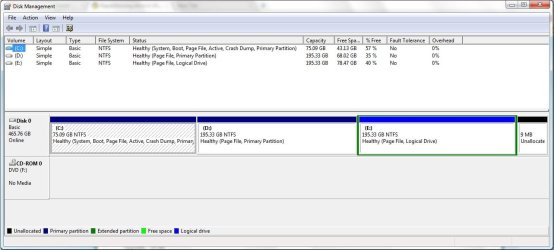
I have attached the screen shot...
 

Attachments

  • Disk.jpg
    Disk.jpg
    72.7 KB · Views: 64

My Computer My Computer

OS
Windows 7 Ultimate 64-bit
CPU
Intel Core 2 Quad CPU Q9400 2.66GHz
Motherboard
Intel DG45
Memory
2 GB DDR
Graphics Card(s)
None
Sound Card
Intel HD Audio HDMI
Monitor(s) Displays
Generic Non-PnP Monitor 17'' CRT
Hard Drives
500 GB SATA
Case
ATX
On an ordinary primary partition such as your C or D, you could just right click it in Disk Management and "shrink volume".

The shrunken amount would then become "unallocated space" and you could then partition that unallocated space, making a new partition for your Linux.

I don't see anything about your screen cap that says you can't do that, but wait for another opinion.

Your E partition is an extended partition, not a primary partition. I'm not sure how easily it is to manipulate extended partitions with Windows built in tools. Wait for the opinion of others.

If you could shrink the extended partition, the shrunken space could probably be combined with that unallocated 9 MB you have at the far right which is currently wasted.

I think when you shrink a partition, the generated unallocated space does not go to the far right in the screen cap--it goes immediately to the right of the partition you just shrunk. So if you shrunk C, the unallocated space would show up between C and D, not after E. I'm going from memory here.

But it looks OK to me assuming you are willing to give up the space on C or D.
 

My Computer My Computer

Computer type
PC/Desktop
Computer Manufacturer/Model Number
Ignatz Special; 4 speed manual gearbox; factory air conditioning; one of one
OS
Windows 7 Home Premium SP1, 64-bit
CPU
Intel Skylake i5-6600K, not overclocked
Motherboard
AsRock Z170M Extreme 4, micro ATX
Memory
8 GB HyperX DDR4-2666 (2 x 4 GB)
Graphics Card(s)
none; graphics are integrated on CPU
Sound Card
onboard: Realtek ALC1150; external: USB Behringer UF0-202
Monitor(s) Displays
Dell S2340M 23 inch IPS
Screen Resolution
1600 x 900
Hard Drives
System: Crucial MX100 series SSD, 128 GB;
Data: Samsung Spinpoint 103SJ, 1 TB;
Backup: WD Caviar Green WD30EZRX-00D8PB0, 3 TB
PSU
Rosewill SilentNight 500 watt fanless, semi-modular
Case
Antec Solo II
Cooling
Noctua NH-U12S; Noctua F12 intake, Noctua S12A exhaust
Keyboard
Microsoft 200 6JH-00001 USB
Mouse
Dell or Microsoft optical wired; USB
Antivirus
Microsoft Security Essentials and Malwarebytes Premium
Browser
Pale Moon
Other Info
All fans PWM; speeds at idle: CPU circa 500 rpm; intake circa 600 rpm; exhaust circa 600 rpm; CPU temps 27 idle and 47 C load in a warm room (27 C/81 F) when running Intel Extreme Tuning Utility stress test.
BEFORE you shrink any partition, defrag first. Reboot a time or two after you shrink and let Windows run a disk check also.

I''m wondering if you have anything on your E drive. If not, you could use that space for Linux.

Once you have the space freed for your Linux install, let it do its own partitioning / formatting for its space.

Just curious; what distro ??
 

My Computer My Computer

Computer Manufacturer/Model Number
Dell Optiplex
OS
Windows 7 Professional 64 bit
Memory
4096
He has 43 gigs free on C and 68 free on D.

Should be more than enough. How many gigs is a typical Linux install nowadays?
 

My Computer My Computer

Computer type
PC/Desktop
Computer Manufacturer/Model Number
Ignatz Special; 4 speed manual gearbox; factory air conditioning; one of one
OS
Windows 7 Home Premium SP1, 64-bit
CPU
Intel Skylake i5-6600K, not overclocked
Motherboard
AsRock Z170M Extreme 4, micro ATX
Memory
8 GB HyperX DDR4-2666 (2 x 4 GB)
Graphics Card(s)
none; graphics are integrated on CPU
Sound Card
onboard: Realtek ALC1150; external: USB Behringer UF0-202
Monitor(s) Displays
Dell S2340M 23 inch IPS
Screen Resolution
1600 x 900
Hard Drives
System: Crucial MX100 series SSD, 128 GB;
Data: Samsung Spinpoint 103SJ, 1 TB;
Backup: WD Caviar Green WD30EZRX-00D8PB0, 3 TB
PSU
Rosewill SilentNight 500 watt fanless, semi-modular
Case
Antec Solo II
Cooling
Noctua NH-U12S; Noctua F12 intake, Noctua S12A exhaust
Keyboard
Microsoft 200 6JH-00001 USB
Mouse
Dell or Microsoft optical wired; USB
Antivirus
Microsoft Security Essentials and Malwarebytes Premium
Browser
Pale Moon
Other Info
All fans PWM; speeds at idle: CPU circa 500 rpm; intake circa 600 rpm; exhaust circa 600 rpm; CPU temps 27 idle and 47 C load in a warm room (27 C/81 F) when running Intel Extreme Tuning Utility stress test.
How many gigs is a typical Linux install nowadays?

I can't really say what "typical" would be, but I'm using a little less than 32 gigs and I've got mine pretty well loaded including two VMs.

Ubuntu 10.04 if you're curious.
 

My Computer My Computer

Computer Manufacturer/Model Number
Dell Optiplex
OS
Windows 7 Professional 64 bit
Memory
4096
On an ordinary primary partition such as your C or D, you could just right click it in Disk Management and "shrink volume".

The shrunken amount would then become "unallocated space" and you could then partition that unallocated space, making a new partition for your Linux.

I don't see anything about your screen cap that says you can't do that, but wait for another opinion.

Your E partition is an extended partition, not a primary partition. I'm not sure how easily it is to manipulate extended partitions with Windows built in tools. Wait for the opinion of others.

If you could shrink the extended partition, the shrunken space could probably be combined with that unallocated 9 MB you have at the far right which is currently wasted.

I think when you shrink a partition, the generated unallocated space does not go to the far right in the screen cap--it goes immediately to the right of the partition you just shrunk. So if you shrunk C, the unallocated space would show up between C and D, not after E. I'm going from memory here.

But it looks OK to me assuming you are willing to give up the space on C or D.

From what u told... I have the following queries :

1. When I press right click on C: in disk mgmt and click "shrink volume", what value should I enter so as to get a new partition of size 35GB (is it 35*1024MB ?).

2. When I press right click on E: in disk mgmt and click "shrink volume", what value should I enter so as to include the unallocated partition of size 9MB.
 

My Computer My Computer

OS
Windows 7 Ultimate 64-bit
CPU
Intel Core 2 Quad CPU Q9400 2.66GHz
Motherboard
Intel DG45
Memory
2 GB DDR
Graphics Card(s)
None
Sound Card
Intel HD Audio HDMI
Monitor(s) Displays
Generic Non-PnP Monitor 17'' CRT
Hard Drives
500 GB SATA
Case
ATX
You use the up/down arrow to the right of the “enter the amount of space to shrink in MB” to control it. The amount originally shown in this window is the MAXIMUM you could shrink the volume.

As you move the number down, the window below that will rise. This number is the size the existing partition will be after you chop some off to make unallocated space.

I wouldn’t agonize over getting an exact number.

So, if you want to generate 10 GB of unallocated space, you would use the down arrow until it went down to about 10000 (that is 10000 MB, which is 10 GB).

I’m not sure if Windows uses 1000 or 1024 to make the calculation. That’s why I said not to agonize over an exact value.

If you chop anything off E, it would just make that 9 MB space grow larger. But I’m not sure how “shrink volume” works on an extended partition like E.

First thing—you have to decide which partition to shrink and how big you want the new partition to be. If you choose to shrink D, then I wouldn’t concern myself with E. The 9 MB is a very small bit of waste.
 

My Computer My Computer

Computer type
PC/Desktop
Computer Manufacturer/Model Number
Ignatz Special; 4 speed manual gearbox; factory air conditioning; one of one
OS
Windows 7 Home Premium SP1, 64-bit
CPU
Intel Skylake i5-6600K, not overclocked
Motherboard
AsRock Z170M Extreme 4, micro ATX
Memory
8 GB HyperX DDR4-2666 (2 x 4 GB)
Graphics Card(s)
none; graphics are integrated on CPU
Sound Card
onboard: Realtek ALC1150; external: USB Behringer UF0-202
Monitor(s) Displays
Dell S2340M 23 inch IPS
Screen Resolution
1600 x 900
Hard Drives
System: Crucial MX100 series SSD, 128 GB;
Data: Samsung Spinpoint 103SJ, 1 TB;
Backup: WD Caviar Green WD30EZRX-00D8PB0, 3 TB
PSU
Rosewill SilentNight 500 watt fanless, semi-modular
Case
Antec Solo II
Cooling
Noctua NH-U12S; Noctua F12 intake, Noctua S12A exhaust
Keyboard
Microsoft 200 6JH-00001 USB
Mouse
Dell or Microsoft optical wired; USB
Antivirus
Microsoft Security Essentials and Malwarebytes Premium
Browser
Pale Moon
Other Info
All fans PWM; speeds at idle: CPU circa 500 rpm; intake circa 600 rpm; exhaust circa 600 rpm; CPU temps 27 idle and 47 C load in a warm room (27 C/81 F) when running Intel Extreme Tuning Utility stress test.
1. When I press right click on C: in disk mgmt and click "shrink volume", what value should I enter so as to get a new partition of size 35GB (is it 35*1024MB ?).

2. When I press right click on E: in disk mgmt and click "shrink volume", what value should I enter so as to include the unallocated partition of size 9MB.

1) Yes that formula is correct.

2) Rightclick to Extend Logical partition into the Unallocated Space first - no need to enter anything just keep clicking Next. Then rightclick>Shrink Volume to Create a new Logical sub-partition of desired size.
 
1. Is there any way to merge the partitioned/repartioned drives?
2. Will there be any loss of data? If I am merging 2 drives (cut out from the same drive previously), will the data of both drives be lost or just one or none?
 

My Computer My Computer

OS
Windows 7 Ultimate 64-bit
CPU
Intel Core 2 Quad CPU Q9400 2.66GHz
Motherboard
Intel DG45
Memory
2 GB DDR
Graphics Card(s)
None
Sound Card
Intel HD Audio HDMI
Monitor(s) Displays
Generic Non-PnP Monitor 17'' CRT
Hard Drives
500 GB SATA
Case
ATX
You want to merge D and E to save room for a new Linux partition?


Backup data for E.

In Disk Mgmt rightclick E to Delete Logical partition(s). Then if necessary rightclick E again to Delete Logical volume until it changes from Free Space with green border to Unallocated Space.

Next rightclick D to Extend partition into unallocated space. Input the size so it leaves space for your desired size Linux partition. Then Create New partition for Linux which Disk Mgmt will make Logical.

Edit: If you now want to keep D and E but add another Logical for Linux then follow BFK's steps below using PW CD.
 
Last edited:
I want to take about 25 GB each from D and E and then merge them together for installing Linux...ie about 50 GB of space.Then I will have 50 GB each for Win and Linux... this is what I am looking for.
How can I do this with no loss of data and without affecting windows installation? I have backups of C: and D: in E: and have Partition Wizard S/W.

Also...all Linux files have to be in native drive ... can it not access files(docs,mp3,video) from other drives because of different file systems?

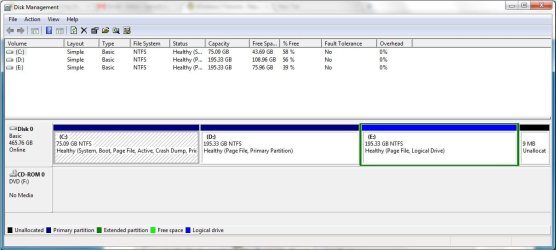
I have attached the new image showing disk partitions.
 

Attachments

  • Disk.jpg
    Disk.jpg
    66.1 KB · Views: 6

My Computer My Computer

OS
Windows 7 Ultimate 64-bit
CPU
Intel Core 2 Quad CPU Q9400 2.66GHz
Motherboard
Intel DG45
Memory
2 GB DDR
Graphics Card(s)
None
Sound Card
Intel HD Audio HDMI
Monitor(s) Displays
Generic Non-PnP Monitor 17'' CRT
Hard Drives
500 GB SATA
Case
ATX
Hello.


Everything you want to do can be done with the Partition Wizard boot disk.

The first thing I would do is extend E: into the 9MB unallocated space to its right.

Then I would convert E: to a Primary partition, Option Four in this tutorial at the link below.

Then "Move/Resize" the right of D: and the left of E: to create unallocated space that can then be used to install Linux; you can get ideas on how to do all this in this same tutorial.

Partition Wizard : Use the Bootable CD


Keep in mind there is a MBR partition limit imposed by Windows, of either 4 Primary partitions or 3 Primary and 1 Extended partition, inside the Extended there can be as many Logical drives as there are available drive letters.
 

My Computer My Computer

Computer Manufacturer/Model Number
* BFK Customs *
OS
W 7 64-bit Ultimate
CPU
Intel Q9550 Yorkfield
Motherboard
ASUS P5Q Pro
Memory
8GB Dominator 8500C5D
Graphics Card(s)
ATI : XFX 5870
Sound Card
Realtek HD Audio 7-1
Monitor(s) Displays
1x 47" LCD HDMI & 3x 26" LCD HDMI
Screen Resolution
1920x1080P & 1920x1200
Hard Drives
1x 80GB Intel X25-M G2 SSD : 1x 500GB & 1x 640GB WD Caviar Black(s)
PSU
Corsair 620HX
Case
Cooler Master RC-690
Cooling
Tuniq Tower 120, 2x 140mm and 3x 120mm case fans
Keyboard
Microsoft 500
Mouse
Razer Diamondback 3G
Internet Speed
14 Mb/s
Other Info
1x Koutech 3Gb/s SATA HDD Hot Swap Rack
... can it not access files(docs,mp3,video) from other drives because of different file systems?

Linux will have no trouble reading and writing to your NTFS partitions. Windows on the other hand will not be able to read the partition that Linux is on.

<disclaimer>
I have heard of a program that runs under Windows that allows it to read Linux file systems, but I don't hear good things about it. I have never used it personally, so I can't say first hand how or if it works.
</disclaimer>
 

My Computer My Computer

Computer Manufacturer/Model Number
Dell Optiplex
OS
Windows 7 Professional 64 bit
Memory
4096
thanks all...helped me a lot
 

My Computer My Computer

OS
Windows 7 Ultimate 64-bit
CPU
Intel Core 2 Quad CPU Q9400 2.66GHz
Motherboard
Intel DG45
Memory
2 GB DDR
Graphics Card(s)
None
Sound Card
Intel HD Audio HDMI
Monitor(s) Displays
Generic Non-PnP Monitor 17'' CRT
Hard Drives
500 GB SATA
Case
ATX

My Computer My Computer

Computer Manufacturer/Model Number
* BFK Customs *
OS
W 7 64-bit Ultimate
CPU
Intel Q9550 Yorkfield
Motherboard
ASUS P5Q Pro
Memory
8GB Dominator 8500C5D
Graphics Card(s)
ATI : XFX 5870
Sound Card
Realtek HD Audio 7-1
Monitor(s) Displays
1x 47" LCD HDMI & 3x 26" LCD HDMI
Screen Resolution
1920x1080P & 1920x1200
Hard Drives
1x 80GB Intel X25-M G2 SSD : 1x 500GB & 1x 640GB WD Caviar Black(s)
PSU
Corsair 620HX
Case
Cooler Master RC-690
Cooling
Tuniq Tower 120, 2x 140mm and 3x 120mm case fans
Keyboard
Microsoft 500
Mouse
Razer Diamondback 3G
Internet Speed
14 Mb/s
Other Info
1x Koutech 3Gb/s SATA HDD Hot Swap Rack
reduced c,d,e drives and squeezed out a drive of abt 50 GB for Linux using Partition Wizard... thnx
 

My Computer My Computer

OS
Windows 7 Ultimate 64-bit
CPU
Intel Core 2 Quad CPU Q9400 2.66GHz
Motherboard
Intel DG45
Memory
2 GB DDR
Graphics Card(s)
None
Sound Card
Intel HD Audio HDMI
Monitor(s) Displays
Generic Non-PnP Monitor 17'' CRT
Hard Drives
500 GB SATA
Case
ATX
You're welcoma and thanks for the update.
 

My Computer My Computer

Computer Manufacturer/Model Number
* BFK Customs *
OS
W 7 64-bit Ultimate
CPU
Intel Q9550 Yorkfield
Motherboard
ASUS P5Q Pro
Memory
8GB Dominator 8500C5D
Graphics Card(s)
ATI : XFX 5870
Sound Card
Realtek HD Audio 7-1
Monitor(s) Displays
1x 47" LCD HDMI & 3x 26" LCD HDMI
Screen Resolution
1920x1080P & 1920x1200
Hard Drives
1x 80GB Intel X25-M G2 SSD : 1x 500GB & 1x 640GB WD Caviar Black(s)
PSU
Corsair 620HX
Case
Cooler Master RC-690
Cooling
Tuniq Tower 120, 2x 140mm and 3x 120mm case fans
Keyboard
Microsoft 500
Mouse
Razer Diamondback 3G
Internet Speed
14 Mb/s
Other Info
1x Koutech 3Gb/s SATA HDD Hot Swap Rack
Back
Top