
How to Add "Select all" to the Context Menu in Windows 7
Information
By default in Windows 7, you have to either click on Edit (Menu bar) and Select all, or press CTRL+A to select all items in a Windows Explorer window.
This will show you how to add Select all to the context menu of a file, folder, drive, desktop, and library to be able to easily select all items in a Windows Explorer window in Windows 7.
You must be logged in as an administrator to be able to do this tutorial.
This will show you how to add Select all to the context menu of a file, folder, drive, desktop, and library to be able to easily select all items in a Windows Explorer window in Windows 7.
You must be logged in as an administrator to be able to do this tutorial.
Warning
Do not use this in Vista since Vista does not have libraries. Use the tutorial below for Vista instead:
How to Add "Select all" to the Context Menu in Vista
How to Add "Select all" to the Context Menu in Vista
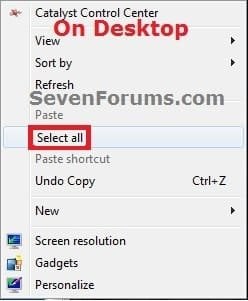
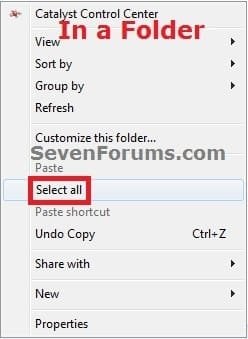
EXAMPLE: "Select all" added to context menu
NOTE: You would right click on a file, folder, drive, or on empty area on the desktop, in a folder window, or in a library window to see these.

OPTION ONE
To Add "Select all" to Context Menu
1. Click on the Download button below to download the .reg file below, and save it to your desktop.
Add_Select_all.reg
Download
2. Right click on the downloaded .reg file and click on Merge.
3. Click on Run, Yes (UAC), Yes, and OK when prompted.
4. Select all has now been added to the context menu in Windows 7.
5. If you like, you can now delete the downloaded .reg file.
OPTION TWO
To Remove "Select all" from Context Menu
NOTE: This is the default setting.
1. Click on the Download button below to download the .reg file below, and save it to your desktop.
Remove_Select_all.reg
Download
2. Right click on the downloaded .reg file and click on Merge.
3. Click on Run, Yes (UAC), Yes, and OK when prompted.
4. Select all has now been removed from the context menu in Windows 7.
5. If you like, you can now delete the downloaded .reg file.
That's it,
Shawn
Attachments
Last edited:


