
Games Explorer Folder - Add Games To

How to Add Games to Games Explorer Folder in Vista, Windows 7, and Windows 8


"So you add a game into Games Explorer Folder and realize that the game has no
cover, no rating, no info... Well, this tutorial will show you
how to add all that missing information."​


First things First.
  • Adding a shortcut into Game Explorer Folder (GEF):

  • Copy the main executable, then right click and select paste shortcut.

  • Or Just Drag n Drop a shortcut of the game.
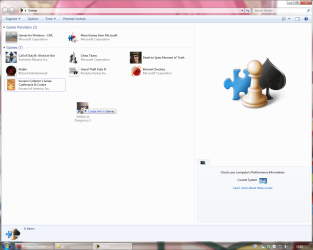
gft1.png
Use a shortcut, never use the main executable.

  • Using the Registry Editor (REd):

  • Hit the Start Orb and type regedit in the search box, an UAC prompt will ask you to authorize access by clicking Continue.

  • The Files you will need:

Download


  • Inside is the GameUXLegacyGDFs.txt file, Just save it for later use.

The Tutorial:


This tutorial subdivides in Semi-Automatic for games already in the database which the GEF doesn't recognize automatically and manual for the ones not included in the database.​

   Note
Always remember to close GEF every time you need to edit the values in the REd, otherwise the game shortcut will be deleted.


Let's Begin...


  • Semi-Automatic
Microsoft has added various old games to be recognized automatically by the GEF using a file called GameUXLegacyGDFs.dll but some of them need a little extra work to show-up.

Step 1: Add a shortcut into the GEF and then close it.

Step 2: Extract and then open the file GameUXLegacyGDFs.txt from the downloadable file.​

  • Hit Ctrl+F to bring the search option in Notepad.
  • Type just a part of the game's name.
It is very important to search only a part of the name otherwise you will cannot find any game. (e.g. if i want to find Hidden & Dangerous 2, i just type hidden in the search box).

  • Hit "Find Next" button 'till you find the game your looking for.
If you cannot find the game please refer to Manual part of this tutorial.
Step 3: Open the REd and navigate to this location.
HKEY_LOCAL_MACHINE\SOFTWARE\Microsoft\Windows\CurrentVersion\GameUX
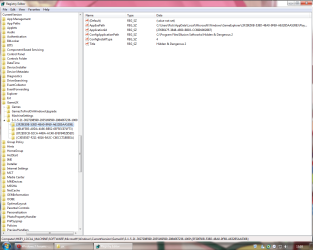
gft3.png
The KEY name might be different from yours.

Step 4: Once you find the KEY that belongs to your game, edit as follow:

  • In AppExePath put the location of your game executable.
(e.g. C:\Program Files\Illusion Softworks\Hidden & Dangerous 2\hd2.exe).

  • In ApplicationId put the xxx value you found in *GameDefinitiongameID="xxx", on the GameUXLegacyGDFs.txt file.
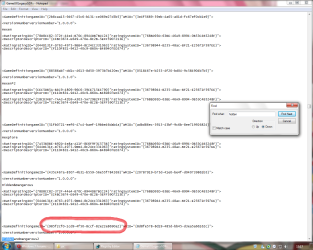
gft4.png
Add just the value between commas.

  • In ConfigInstallType replace the value to 3.
  • Delete the Title String.
  • Add a new String (Right-click>New>String Value) and name it ConfigGDFBinaryPath, then in the value data space put C:\Windows\system32\GameUXLegacyGDFs.dll
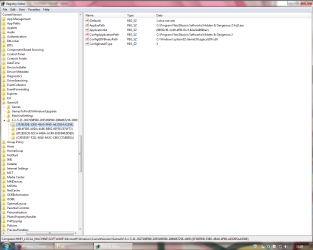
gft6.png
It should be look like this.
Step 5: Close the REd and open GEF, wait 'till windows updates the game info.
gft7.png

  • Manual
If you can't find the game your looking for in GameUXLegacyGDFs.txt, you still can use another already in the file and edit its values.
Step 1: Go to All Game Guide to search your game.
gft9.png
Save the cover image for later use.
Step 2: Now go to Entertainment Software Rating Board and find a game with similar rating.
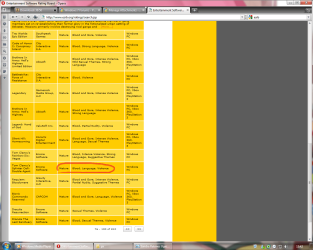
gft10.png
Step 3: Now lets find out if its listed on the GameUXLegacyGDFs.txt file, if not keep searching on the ESRB page.
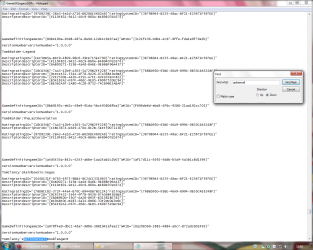
gft11.png
Step 4: Open the REd and navigate to this location.
HKEY_LOCAL_MACHINE\SOFTWARE\Microsoft\Windows\CurrentVersion\GameUX

gft3.png

The KEY name might be different from yours.


Step 5: Once you find the KEY that belongs to your game, edit as follow:


  • In AppExePath put the location of your game executable.
(e.g. C:\Program Files\Illusion Softworks\Hidden & Dangerous 2\hd2.exe).

  • In ApplicationId put the xxx value you found in *GameDefinitiongameID="xxx", on the GameUXLegacyGDFs.txt file.
gft4.png
Add just the value between commas.

  • In ConfigInstallType replace the value to 3.
  • Delete the Title String.
  • Add a new String (Right-click>New>String Value) and name it ConfigGDFBinaryPath, then in the value data space put C:\Windows\system32\GameUXLegacyGDFs.dll
gft6.png
It should be look like this.
Step 6: Open GEF and wait to update the info.
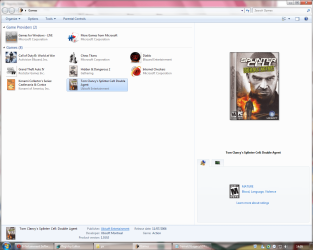
gft12.png
Step 7: Update the REd by hitting the F5 key and replace the info as necessary.
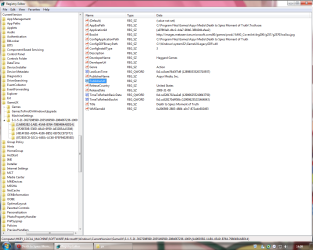
gft13.png
This is just the basic info only, you can fill the blank spaces if you like.
Step 8: Now copy and paste this values and put them like so:

  • in TimeToRefreshBasicData: b357951d59359b57 (Hexadecimal)
  • in TimeToRefreshBoxArt: 855c358859359b57 (Hexadecimal)
The given values should stop reverting the game to its defaults every once in awhile.
Step 9: Now navigate to this location and paste the image your game will use as a cover.
C:\Users\%username%\AppData\Local\Microsoft\Windows\GameExplorer\GamesBoxArt
The AppData folder is hidden by default you can learn how to unhide it in this tutorial.
Step 10: Change the name of the image with the one we're replacing.


  • If you wanna use another type of image you need to edit the last part of the BoxArt String to the kind of file you wanna use.
(e.g. ...//images.../g21004lorom.jpg) JPG/PNG/BMP.

  • Or if you want to use an icon instead, just edit:
AppExePath put the location of the icon.
BoxArt leave it blank.

gft14.png

Step 11: Now open the GEF and your game should display with the new info on it.
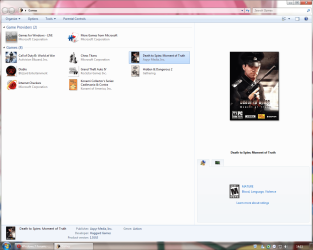
gft15.png
BTW, if you think is too much work for you, just take a look at this tutorial Games Explorer - Edit all credits to Darkness Warrior '96.


That's all for now...
Rjck.


Attachments

Last edited by a moderator:
Dang. let me do some searchin' bud...
 

My Computer

Computer type
PC/Desktop
OS
Windows 7 Ultimate x64
CPU
Intel Core i5-2500K @4.5Ghz
Motherboard
Asus Maximus V GENE
Memory
x2 Kingston KHX1600C9D3/4G
Graphics Card(s)
NVIDIA GeForce GTS 250 - 1024MB
Sound Card
SupremeFX III built-in 8-Channel High Definition Audio
Monitor(s) Displays
Samsung Syncmaster P2270
Screen Resolution
1920x1080
Hard Drives
x1 Seagate Barracuda ST3160811AS
x2 Seagate Barracuda ST380817AS
PSU
Corsair TX750
Case
Cooler Master HAF 922 Side Window Model
Cooling
Stock Intel Cooler + Tuniq TX2
Keyboard
Dell SK-8135
Mouse
Logitech G5
Internet Speed
2 Mbps
Other Info
x2 Xbox 360 Wireless Controller for Windows
Logitech Z-5550
Sennheiser HD555
HI Rjck I'm having problems with Windows 7 sp1 Games Explorer. When I first ran it, it scanned and installed all my games, but for some reason it hasn't updated any of the boxart. It worked before upgrading to sp1, so I'm clueless as to why it isn't updating. i've tried everything inlcuding adding boxart manually using your guides, but it still isn't working. I would appreciate any help you could offer. I reinstalled, but I'm getting the same problem. Is there some bug in SP1 that's stopping it from updating or could it be something to do with IE9.

Thanks! :)
 

My Computer

OS
Windows XP, Vista X64
have you checked the game explorer options?
Make sure you have selected "Download art and information about installed games"
hope that helps!!!
 

My Computer

Computer type
PC/Desktop
OS
Windows 7 Ultimate x64
CPU
Intel Core i5-2500K @4.5Ghz
Motherboard
Asus Maximus V GENE
Memory
x2 Kingston KHX1600C9D3/4G
Graphics Card(s)
NVIDIA GeForce GTS 250 - 1024MB
Sound Card
SupremeFX III built-in 8-Channel High Definition Audio
Monitor(s) Displays
Samsung Syncmaster P2270
Screen Resolution
1920x1080
Hard Drives
x1 Seagate Barracuda ST3160811AS
x2 Seagate Barracuda ST380817AS
PSU
Corsair TX750
Case
Cooler Master HAF 922 Side Window Model
Cooling
Stock Intel Cooler + Tuniq TX2
Keyboard
Dell SK-8135
Mouse
Logitech G5
Internet Speed
2 Mbps
Other Info
x2 Xbox 360 Wireless Controller for Windows
Logitech Z-5550
Sennheiser HD555
Not updating

It might be a Windows 7 Ultimate Service Pack 1 bug. Mine is not updating properly either. Games like Hellgate and Crysis which were written with Games Explorer in mind work fine in here. But older games like Tiger Woods 2005, Quake 3 Arena just appear with a basic icon in Games Explorer after being installed but nothing else downloads. No downloading of box art, description etc, thnakfully this guide helps and by adding a BoxArt string can get the image. But despite the application id and it also being present in the GameUXLegacyGDFs notepad file it doesn't download any info/ar on it's own (unlike my older Vista laptop). I have to manually add it all via regedit. Bit pants really.
 

My Computer

Computer type
Laptop
Computer Manufacturer/Model Number
Alienware M17RX3
OS
Windows 7 Ultimate 64 bit
CPU
Sandybridge 2820 QM 2.3 ghz
Memory
8 gb
Graphics Card(s)
AMD Radeon 6970m
Sound Card
Integrated
Monitor(s) Displays
Laptop 17"
Screen Resolution
1980x1080
Hard Drives
750 gb mechanical (7,200RPM) Seagate Momentous paired with OCZ Synapse 128 gb SSD cache drive
Internet Speed
55 mbits download, 12 mbits download
Antivirus
Microsoft Security Essentials
Browser
IE11, Mozilla
Yeah, I checked all the options. I even tried editing the registry settings to make it rescan, but it just won't download boxart. It's no big loss. I'll just use Stardock Object Dock instead.
 

My Computer

OS
Windows XP, Vista X64
Box Art and info

Yeah, it's just flakey on Windows 7. Shame really. Can work round but editing the registry takes alot of time?

Incidentally what string do you have to put in to make the 'Publisher' come up in the Games Explorer?
 

My Computer

Computer type
Laptop
Computer Manufacturer/Model Number
Alienware M17RX3
OS
Windows 7 Ultimate 64 bit
CPU
Sandybridge 2820 QM 2.3 ghz
Memory
8 gb
Graphics Card(s)
AMD Radeon 6970m
Sound Card
Integrated
Monitor(s) Displays
Laptop 17"
Screen Resolution
1980x1080
Hard Drives
750 gb mechanical (7,200RPM) Seagate Momentous paired with OCZ Synapse 128 gb SSD cache drive
Internet Speed
55 mbits download, 12 mbits download
Antivirus
Microsoft Security Essentials
Browser
IE11, Mozilla
What's the string for adding boxart and how do you know what the right boxart string is for each game, considering you can't directly access the MS server used for boxart. I tried using game explorer manager 1.1.3, but there's no tutorial with it, so I ain't got a clue how it works.

Download it and see if anyone can get it working. It might make things a lot easier.

http://www.techpowerup.com/forums/attachment.php?attachmentid=40213&d=1295291148

Here's another that easy to use, but there's one major problem. The game's won't launch when you click on the boxart. :cry:

http://www.extensiblesoft.com/gamex/GameExplorerManager10beta6.zip
 

My Computer

OS
Windows XP, Vista X64
BoxArt

You just add string 'BoxArt'. Then what I did was google an image for the game that I wanted and saved it in C:\BoxArt folder I created. Then edited the BoxArt string to point to C:\BoxArt\(name of image).jpg

I just need to know what the publisher string should be?
 

My Computer

Computer type
Laptop
Computer Manufacturer/Model Number
Alienware M17RX3
OS
Windows 7 Ultimate 64 bit
CPU
Sandybridge 2820 QM 2.3 ghz
Memory
8 gb
Graphics Card(s)
AMD Radeon 6970m
Sound Card
Integrated
Monitor(s) Displays
Laptop 17"
Screen Resolution
1980x1080
Hard Drives
750 gb mechanical (7,200RPM) Seagate Momentous paired with OCZ Synapse 128 gb SSD cache drive
Internet Speed
55 mbits download, 12 mbits download
Antivirus
Microsoft Security Essentials
Browser
IE11, Mozilla
Well I've sussed out how to add boxart pretty easily using the two editors I posted earlier. For some reason even though the boxart showed up in game explorer, there wasn't any option to select play or you couldn't click on the image to launch the game. This is easily rectified by copying the string folder from:

C:\Users\yourname\AppData\Local\Microsoft\Windows\GameExplorer
to
C:\ProgramData\Microsoft\Windows\GameExplorer

This worked for me and now it so easy and quick to add boxart.


If you don't know what the game id is, then use the other util to get it. Under EntryID. Then there should be a folder of same name and just copy it over and hopefully it should work.
 

My Computer

OS
Windows XP, Vista X64
Has Windows 7 64 bit Service Pack 1 bodged this

Hi Rjck,

Looks like myself and Kindred both have the same problem. Any game not automatically updating Games Explorer with rating etc, ie. older games is not downloading any informations, art, various fields at all. All that is getting added to the Games Explorer is a shortcut to the icon. Using your semi manual and manual methods doesn't work. I am guessing Windows 7 64 bit service pack 1 has killed this functionality? Anyone else getting the same. I can't comment pre-service pack 1 because I ran all the windows updates as soon as I got my computer.

Newer games such as Crysis, Hellgate populate it just fine. It's just the older games. On my other vista machine the games explorer works fine with these older games, for the most part auto downloading the art/info.

Many thanks,
Wayne
 

My Computer

Computer type
Laptop
Computer Manufacturer/Model Number
Alienware M17RX3
OS
Windows 7 Ultimate 64 bit
CPU
Sandybridge 2820 QM 2.3 ghz
Memory
8 gb
Graphics Card(s)
AMD Radeon 6970m
Sound Card
Integrated
Monitor(s) Displays
Laptop 17"
Screen Resolution
1980x1080
Hard Drives
750 gb mechanical (7,200RPM) Seagate Momentous paired with OCZ Synapse 128 gb SSD cache drive
Internet Speed
55 mbits download, 12 mbits download
Antivirus
Microsoft Security Essentials
Browser
IE11, Mozilla
mmm... sorry to hear that... unfortunate i've installed windows 7 32bit and all seems fine in this version... which games are trying to add, maybe i can help you...
 

My Computer

Computer type
PC/Desktop
OS
Windows 7 Ultimate x64
CPU
Intel Core i5-2500K @4.5Ghz
Motherboard
Asus Maximus V GENE
Memory
x2 Kingston KHX1600C9D3/4G
Graphics Card(s)
NVIDIA GeForce GTS 250 - 1024MB
Sound Card
SupremeFX III built-in 8-Channel High Definition Audio
Monitor(s) Displays
Samsung Syncmaster P2270
Screen Resolution
1920x1080
Hard Drives
x1 Seagate Barracuda ST3160811AS
x2 Seagate Barracuda ST380817AS
PSU
Corsair TX750
Case
Cooler Master HAF 922 Side Window Model
Cooling
Stock Intel Cooler + Tuniq TX2
Keyboard
Dell SK-8135
Mouse
Logitech G5
Internet Speed
2 Mbps
Other Info
x2 Xbox 360 Wireless Controller for Windows
Logitech Z-5550
Sennheiser HD555
I've only tried a few but they do all have application id's in your txt file. Not sure if 32 bit / 64 bit is responsible. I believe Service Pack 1 is the culprit - do you have SP1 installed? Just seems strange that myself and Kindred both have SP1 on 64-bit and get same problem.

Games that have populated correctly on the Games Explorer are:

Football Manager 2010
Crysis
Hellgate: London

These were all released after Vista intro'd the Game Explorer which I guess is why they populate ok.

Older games that are not showing up correctly in Games Explorer and require complete manual editing of the registry are:

Doom 3
Tiger Woods 2005
Quake III Arena
Left 4 Dead

On my Vista Laptop the information for these 'older' games does download into Games Explorer fine with all the art/details (only ratings missing but seeing as they are pre-vista releases that's to be expected). Windows 7 does not even though they have application id's. Shame really as 90% of my games are older titles so I guess will be doing a lot of editing. Convinced it's a Service Pack 1 bug. Maybe computers that come SP1 pre-installed won't have this problem but I did mine through the dreaded Windows Update service!

Despite all this, your excellent guide has helped no end. Without it I wouldn't of been able to manually fix as I been able to do.
 

My Computer

Computer type
Laptop
Computer Manufacturer/Model Number
Alienware M17RX3
OS
Windows 7 Ultimate 64 bit
CPU
Sandybridge 2820 QM 2.3 ghz
Memory
8 gb
Graphics Card(s)
AMD Radeon 6970m
Sound Card
Integrated
Monitor(s) Displays
Laptop 17"
Screen Resolution
1980x1080
Hard Drives
750 gb mechanical (7,200RPM) Seagate Momentous paired with OCZ Synapse 128 gb SSD cache drive
Internet Speed
55 mbits download, 12 mbits download
Antivirus
Microsoft Security Essentials
Browser
IE11, Mozilla
yep, ive sp1... i got some of those games... ill give it a try after college and ill post the screenshots... glad to hear the guide help you.. but dont worry ill find a way to fix this sooner or later... ;)
 

My Computer

Computer type
PC/Desktop
OS
Windows 7 Ultimate x64
CPU
Intel Core i5-2500K @4.5Ghz
Motherboard
Asus Maximus V GENE
Memory
x2 Kingston KHX1600C9D3/4G
Graphics Card(s)
NVIDIA GeForce GTS 250 - 1024MB
Sound Card
SupremeFX III built-in 8-Channel High Definition Audio
Monitor(s) Displays
Samsung Syncmaster P2270
Screen Resolution
1920x1080
Hard Drives
x1 Seagate Barracuda ST3160811AS
x2 Seagate Barracuda ST380817AS
PSU
Corsair TX750
Case
Cooler Master HAF 922 Side Window Model
Cooling
Stock Intel Cooler + Tuniq TX2
Keyboard
Dell SK-8135
Mouse
Logitech G5
Internet Speed
2 Mbps
Other Info
x2 Xbox 360 Wireless Controller for Windows
Logitech Z-5550
Sennheiser HD555
Thank you!

Yes, I'd be very interested to see how your registry looks on one of the games listed. Sounds like it's not entirely SP1 issue then if you have it installed. Maybe a combo of 64-bit and SP1. I'm no expert but 64-bit does have possible differences. I did notice the the Gamelegacy.dll resides in a folder called C:\windows\sysWOW64 aswell as C:\windows\system32. May or may not relate to the problem but I did edit the GDFBinarypath to point at the sysWOW64 folder to test if that worked - it didn't!

Thanks,
Wayne
 

My Computer

Computer type
Laptop
Computer Manufacturer/Model Number
Alienware M17RX3
OS
Windows 7 Ultimate 64 bit
CPU
Sandybridge 2820 QM 2.3 ghz
Memory
8 gb
Graphics Card(s)
AMD Radeon 6970m
Sound Card
Integrated
Monitor(s) Displays
Laptop 17"
Screen Resolution
1980x1080
Hard Drives
750 gb mechanical (7,200RPM) Seagate Momentous paired with OCZ Synapse 128 gb SSD cache drive
Internet Speed
55 mbits download, 12 mbits download
Antivirus
Microsoft Security Essentials
Browser
IE11, Mozilla
Weird, came in last night. Ran some windows updates that had come through. Looked in Games Explorer and it looks like it finally downloaded info on the games such as Doom 3, Quake 3 and Tiger Woods 2005. Not sure if it had been seriously delayed or the updates had helped. Box art didn't update but I guess that's because I already set my own up. In regedit their is now a URL in the boxart string. Odd behaviour, I wonder if my next 'older' game I install will update the Games Explorer properly?
 

My Computer

Computer type
Laptop
Computer Manufacturer/Model Number
Alienware M17RX3
OS
Windows 7 Ultimate 64 bit
CPU
Sandybridge 2820 QM 2.3 ghz
Memory
8 gb
Graphics Card(s)
AMD Radeon 6970m
Sound Card
Integrated
Monitor(s) Displays
Laptop 17"
Screen Resolution
1980x1080
Hard Drives
750 gb mechanical (7,200RPM) Seagate Momentous paired with OCZ Synapse 128 gb SSD cache drive
Internet Speed
55 mbits download, 12 mbits download
Antivirus
Microsoft Security Essentials
Browser
IE11, Mozilla
Hi guys, and thanks for this guide Rjck :D

I don't care about the cover or rating, etc, I only have the icons visible in large mode, all the other menus are unticked.
All I want is to be able to customize the icons in my game folder, so that they all look nice in large mode, as currently most of them are ugly stretched tiny icons :mad:

I've been googling all over the place, and i've been unable to customize my game icons, until I tried going to:

HKEY_LOCAL_MACHINE\SOFTWARE\Microsoft\Windows\CurrentVersion\GameUX

...found my games, and tried these two things:

ConfigInstallType replace the value to 3.

AppExePath put the location of the icon.
Which works... the tiny icon is replaced with my nice new big icon.... but the game doesn't work any more :(
If I leave ConfigInstallType = 4 then the game still works, but then the icon is the standard one :confused:

Anyone know what I'm doing wrong? :o


My Computer

OS
windows xp pro sp2, windows 7 Ultimate x32
Hi guys, and thanks for this guide Rjck :D

I don't care about the cover or rating, etc, I only have the icons visible in large mode, all the other menus are unticked.
All I want is to be able to customize the icons in my game folder, so that they all look nice in large mode, as currently most of them are ugly stretched tiny icons :mad:

I've been googling all over the place, and i've been unable to customize my game icons, until I tried going to:

HKEY_LOCAL_MACHINE\SOFTWARE\Microsoft\Windows\CurrentVersion\GameUX

...found my games, and tried these two things:

ConfigInstallType replace the value to 3.

AppExePath put the location of the icon.
Which works... the tiny icon is replaced with my nice new big icon.... but the game doesn't work any more :(
If I leave ConfigInstallType = 4 then the game still works, but then the icon is the standard one :confused:

Anyone know what I'm doing wrong? :o

What I do is this:
Right click the exe of the game I want to add, and choose Paste Shortcut in game Explorer.

I then follow the steps in this tutorial, and in cases where the game is not in the list, I just use Half Life as the game.

At this point the game will be added and work, but (if you choose something differnt such as Half Life) it will be listed in Explorer as such.

I then modify all the strings in the registry, (Title, Publisher etc to match the game I added.

Then, download a copy of the boxart from somewhere on the web, and just crop it and resize to 500x500 (or however you want to do it), and replace it with the one that was downloaded,renaming it the same as the downloaded one.

I also add the string for updating boxart, so that it will not overwrite my custom ones.

Ive not had any issues doing it this way, and everything works perfect. I actually add some in this manner that are added and work, just so all the cover art matches up and looks neater.


For your issue, it may lie in the play shortcut, thats located at Users/username/Local/AppData/Microsoft/Windows/game Explorer

The game folder here will be named the same as it is in the registry (the string of numbers)
Inside, go to Playtasks/ o

Copy a new shortcut of your game exe there, and rename it Play (deleteing the old one.


It may be easier to just delete the non-working shortcuts and start over.
I usually just change the Config type to 3, and change the Application ID number to something in that list.
I do not mess with the AppEXEpath doing in this way, and have had no issues thus far.
 

My Computer

Computer Manufacturer/Model Number
Custom (Self Build)
OS
Windows 7 Home Premium 64bit
CPU
Intel Core i7 2700k
Motherboard
eVGA P67 SLI
Memory
8GB Mushkin Redline Ridgebacks @1866
Graphics Card(s)
EVGA GTX570 SC
Sound Card
XiFi Titanium HD
Monitor(s) Displays
LG W2453V
Screen Resolution
1920x1080
Hard Drives
Intel 320 80GB -- Intel X25-V 40GB --WD Black 1TB x2 -- WD Blue 640GB
PSU
Seasonic x750
Case
Corsair 600T SE White
Cooling
eVGA Superclocked CPU Cooler
Keyboard
Saitek Cyborg
Antivirus
Kaspersky
Browser
IE
Other Info
LG BD/DVD
Hi I have problem about running game. I added MW2 to GE and I follow your step but I can't run game it say "Could not load locailzation.txt Please make sure Modern Warfare 2 is run from the correct folder" I tied to run game in Game directory and it run normaly

Hope someone help :)

Thank

PS. sorry for bad Eng.
 

My Computer

Computer type
PC/Desktop
OS
Windows 7 Ultimate x64
CPU
Intel i3 540 3.08Ghz
Motherboard
Asus P7P55 LX
Memory
4 GB
Graphics Card(s)
GTS 450
Screen Resolution
1280*1024
Keyboard
Razer Lycosa
Mouse
Razer Deathadder (2013)
Internet Speed
Cable 15 Mb
Antivirus
Kaspersky Internet Security
Browser
Chrome
Other Info
Lumia 520 w/ WP 8 :3
An easier way to add your own boxart is to use the two utilities I posted earlier.

Addboxart
http://www.techpowerup.com/forums/attachment.php?attachmentid=40213&d=1295291148

Use to get EntryID
http://www.extensiblesoft.com/gamex/GameExplorerManager10beta6.zip

For some reason even though the boxart shows up in game explorer, there wasn't any option to select play or you couldn't click on the image to launch the game. This is easily rectified by copying the string folder from:

C:\Users\yourname\AppData\Local\Microsoft\Windows\GameExplorer
to
C:\ProgramData\Microsoft\Windows\GameExplorer

This worked for me and now it so easy and quick to add boxart.

If you don't know what the game id is, then use the other util to get it. Under EntryID. Then there should be a folder of same name and just copy it over and hopefully it should work. :D

No need to mess about with the registry.
 

My Computer

OS
Windows XP, Vista X64
Back
Top