Hello,
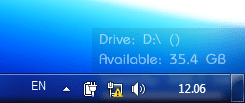
I set the language bar on my taskbar. But sometimes, when I move to it, it's gone (EN, JP, CH, etc. isn't there) until I click the taskbar or after a second. The taskbar is set to auto-hide, which may be causing it. So, I'm wondering if
a) there's any way to keep it shown on the taskbar without taking out the auto-hide (if that's causing it), OR
b) there's a way/option to toggle the "detached" language bar's always on top and lock position (which were the reasons I set it on the taskbar), and possibly change is appearance (to match the taskbar, desktop, etc.).
Also, I might as well ask here as well. I created another user account on my computer. However, whenever I log on to it, it opens up C:\Windows\system in explorer, like it's set to open at start-up (which I don't recall setting). I checked msconfig's start-up tab and even scanned it. Found nothing.
I set the language bar on my taskbar. But sometimes, when I move to it, it's gone (EN, JP, CH, etc. isn't there) until I click the taskbar or after a second. The taskbar is set to auto-hide, which may be causing it. So, I'm wondering if
a) there's any way to keep it shown on the taskbar without taking out the auto-hide (if that's causing it), OR
b) there's a way/option to toggle the "detached" language bar's always on top and lock position (which were the reasons I set it on the taskbar), and possibly change is appearance (to match the taskbar, desktop, etc.).
Also, I might as well ask here as well. I created another user account on my computer. However, whenever I log on to it, it opens up C:\Windows\system in explorer, like it's set to open at start-up (which I don't recall setting). I checked msconfig's start-up tab and even scanned it. Found nothing.
My Computer
At a glance
Windows 7 Ultimate x64 (main), Windows 8 Cons...
- Computer Manufacturer/Model Number
- ASUS K42JK
- OS
- Windows 7 Ultimate x64 (main), Windows 8 Consumer Preview x64