Dual Boot Installation with Windows 7 and XP

How to Setup a Dual Boot Installation with Windows 7 and XP


   Information
This will show you how to install Windows 7 and XP to dual boot with when you already have either Windows 7 or XP installed first.
   Note
With a dual boot installaton, you will have two operating systems (OS) installed. When you start the computer, you will have the choice to choose which OS you would like to start up to. This method is the easiest way of doing a dual boot with these two operating systems.
   Tip
When dual booting with another OS (ex: Vista or XP), you may not always have that OS partition show up in Computer with a driver letter in Windows 7. If this happens, then you will just need to add a drive letter to the OS (ex: Vista or XP) partition in Windows 7 Disk Management for it to show up in Computer with a driver letter.
   Warning
To stop XP from deleting your Windows 7 System Restore Points everytime XP is started, then see System Restore Points - Stop XP Dual Boot Delete to hide Windows 7 from XP.

Windows 7 Minimum Hardware Requirements


NOTE: For more information on this, see: Windows 7 system requirements
  • 1 GHz 32-bit or 64-bit processor
  • 1 GB RAM for 32-bit Windows 7 OR 2 GB RAM for 64-bit Windows 7
  • 16 GB available disk space 32-bit Windows 7 OR 20 GB for 64-bit Windows 7
  • Support for DirectX 9 graphics with 128 MB memory (in order to enable Aero theme)
  • DVD-R/W Drive
  • Internet or phone access to activate Windows 7.
Windows XP Minimum Hardware Requirements

NOTE: For more information on this, see: System requirements for Windows XP operating systems
  • PC with 300 megahertz (MHz) or higher processor clock speed recommended; 233-MHz minimum required;* Intel Pentium/Celeron family, AMD K6/Athlon/Duron family, or compatible processor recommended
  • 128 megabytes (MB) of RAM or higher recommended (64 MB minimum supported; may limit performance and some features)
  • 1.5 gigabyte (GB) of available hard disk space.*
  • Super VGA (800 × 600) or higher resolution video adapter and monitor
  • CD-ROM or DVD drive
  • Keyboard and Microsoft Mouse or compatible pointing device
EXAMPLE: Windows Boot Manager
NOTE: This is the boot screen where you select what operating system that you would like to start. By default, you have 30 seconds to choose another operating system before the default operating system will start automatically.
Example.jpg


OPTION ONE

When XP is Installed First


NOTE: If you have a RAID setup, you will need to have the Windows 7 RAID drivers on a USB flash drive available to select and load while installing Windows 7.
1. Do step 2 or 3 below for where you wanted to install Windows 7 at.

2. To Create a New Partition from the XP Hard Disk Drive
A) With your Windows 7 installation disc boot into the Command Prompt from the System Recovery Options screen.
NOTE: Make sure that the CD/DVD drive is selected first in the boot order in the BIOS.

B) In the command prompt, select and shrink the XP volume by how many MB (1024 MB = 1 GB) you want to have for this Windows 7 partition. (See screenshot below)
NOTE: You would do steps 2 to 9 in METHOD TWO at that link. Windows 7 will need a minimum of 16 GB (16384 MB).

XP-W7_1.jpg
C) Click on the X at the top right corner to close the command prompt. (See screenshot above)

D) Click on the X at the top right corner to close System Recovery Options. (See screenshot below)
XP-W7_2.jpg
E) Go to step 4.
3. To Use a Separate Hard Disk Drive than the XP Drive
A) Boot from your Windows 7 installation disc.
NOTE: Make sure that the CD/DVD drive is selected first in the boot order in the BIOS.
4. Click on the Install now button. (See screenshot below)

XP-W7_3.jpg
5. When you get to this point, select the partition (step 2) or hard drive to install Windows 7 on. (See screenshot below)

XP-W7_4.jpg
6. Finish installing Windows 7.
NOTE: You would start at step 9 in that link to finish installing Windows 7.

7. When finished, restart the computer to have the option to boot from XP (Earlier Verision of Windows) or Windows 7. (See screenshot below)

   Note
If you are only booting into Windows 7 and do not have XP listed in the Windows Boot Manager, then you can install only EasyBCD (step 8 Option Two below) to add XP (or Windows 7) while started in Windows 7 the same way to the boot list.

Example.jpg


OPTION TWO

When Windows 7 is Installed First


   Warning

1. To Create a New Partition from the Windows 7 Hard Disk Drive
NOTE: If you want to install XP on a separate internal hard drive instead, then skip this step and go to step 2.
A) In Windows 7, select and shrink the Windows 7 volume in Disk Management by how many MB (1024 MB = 1 GB) you want to have for this XP partition. (See screenshots below)
NOTE: You would do all of Method One at that link.

W7-XP-1.jpg

W7-XP-2.jpg

W7-XP-3.jpg
2. Insert your XP installation disc, then restart the computer and press any key to boot from it when prompted. (See screenshot below)
NOTE: Make sure that the CD/DVD drive is selected first in the boot order in the BIOS.

Step1.jpg
3. From XP Setup, Press Enter. (See screenshot below)


   Warning

W7-XP-4.jpg
4. Press F8. (See screenshot below)
NOTE: On some multimedia keyboards, you may need to press the F-Lock or Function key before pressing F8.
W7-XP-5.jpg
5. Select the partition (step 1) or hard drive that you want to install XP on using the arrow keys and press Enter.

W7-XP-6.jpg
6. Finish installing XP.


   Tip
If you get Error loading Operating System after XP restarts:
  • Using your Windows 7 installation disc, boot to the command prompt at startup.
  • Type in these comands below, and press enter after each one.
    • bootrec /FixMbr
    • bootrec /FixBoot
    • bootrec /RebuildBcd
  • Exit the command prompt and restart the computer.
  • At this point, Windows 7 should boot up the same way before trying to install XP.
  • Continue to step 8 below and run EasyBCD from Windows 7 instead.

7. In XP, download and install .Net Framework 2.0 (32-bit) version or .Net Framework 2.0 (64-bit) version first, and EasyBCD (free version) for your 32-bit (x86) or 64-bit (x86) XP.
NOTE: In XP, Net Framework is required to be installed to run EasyBCD. After you click on Register (at bottom of link) for the free EasyBCD, registration is not required to download it.

8. Run EasyBCD (free version).
NOTE: This is required to repair the Windows 7 boot file and add XP to the Windows Boot Manager list.

9. On the left side of EasyBCD, click on the Add New Entry button. (See screenshot below)
A) In the top section under Operating Systems, click on the Windows tab. (See screenshot below)
B) To the right of Type, select Windows NT/2k/XP/2k3 from the drop down menu. (See screenshot below)
:warn:WARNING: Be sure to leave the Automatically detect correct drive box checked.

C) To the right of Name, you can leave the default Microsoft Windows XP as the name to be displayed in the Windows Boot Manager, or you can type whatever name you would like to have instead. (See screenshot below)
D) Click on the Add Entry button. (See screenshot below)
W7-XP-7.jpg
10. On the left side of EasyBCD, click on the BCD Deployment button, select (dot) the Install the Windows Vista/7 bootloader to the MBR option, and click on the Write MBR button. (See screenshot below)

W7-XP-9.jpg
11. Close EasyBCD.

12. Restart the computer to have the option to boot from Microsoft Windows XP or Windows 7. (See screenshot below)

Example2.jpg
   Tip
If Windows 7 will not start up when selected, then use your Windows 7 installation DVD to do a Startup Repair.

That's it,
Shawn


Last edited:
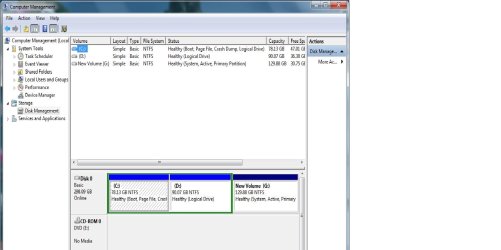
Ok, here i m sending my disk management drive map...

I have windows XP in D (from windows 7)

I have windows 7 in C, Windows XP in D and my G drive is used just as a storage. This view is from windows7. But from windows XP, current G was C, D was E and C was D.
 

Attachments

  • disk management.jpg
    disk management.jpg
    165 KB · Views: 168
Last edited by a moderator:

My Computer

Computer Manufacturer/Model Number
Acer
OS
Windows 7 Ultimate (32bit) and Windows XP pro SP3
CPU
Dual Core
Motherboard
Asus
Memory
2 GB
I have windows XP in D (from windows 7)


The Extended partition / Logical drives may be causing issues;


Let's see if this helps and it can't hurt.

Do at least 3 separate startup repairs with a PC restart between each startup repair to see if it will correct for this and be sure to post back with any further questions you may have and to keep us informed.

Have a look at this tutorial at the link below.


How to Run a Startup Repair in Windows 7


My Computer

Computer Manufacturer/Model Number
* BFK Customs *
OS
W 7 64-bit Ultimate
CPU
Intel Q9550 Yorkfield
Motherboard
ASUS P5Q Pro
Memory
8GB Dominator 8500C5D
Graphics Card(s)
ATI : XFX 5870
Sound Card
Realtek HD Audio 7-1
Monitor(s) Displays
1x 47" LCD HDMI & 3x 26" LCD HDMI
Screen Resolution
1920x1080P & 1920x1200
Hard Drives
1x 80GB Intel X25-M G2 SSD : 1x 500GB & 1x 640GB WD Caviar Black(s)
PSU
Corsair 620HX
Case
Cooler Master RC-690
Cooling
Tuniq Tower 120, 2x 140mm and 3x 120mm case fans
Keyboard
Microsoft 500
Mouse
Razer Diamondback 3G
Internet Speed
14 Mb/s
Other Info
1x Koutech 3Gb/s SATA HDD Hot Swap Rack
I have windows XP in D (from windows 7)


The Extended partition / Logical drives may be causing issues;


Let's see if this helps and it can't hurt.

Do at least 3 separate startup repairs with a PC restart between each startup repair to see if it will correct for this and be sure to post back with any further questions you may have and to keep us informed.

Have a look at this tutorial at the link below.


How to Run a Startup Repair in Windows 7

I did as u suggested, but no result. My earlier version of windows i.e. windows XP is still not booting (starting)... What else should I do. Plz suggest..Thanks
 

My Computer

Computer Manufacturer/Model Number
Acer
OS
Windows 7 Ultimate (32bit) and Windows XP pro SP3
CPU
Dual Core
Motherboard
Asus
Memory
2 GB
Did it boot/start correctly at one time before?
 

My Computer

Computer Manufacturer/Model Number
* BFK Customs *
OS
W 7 64-bit Ultimate
CPU
Intel Q9550 Yorkfield
Motherboard
ASUS P5Q Pro
Memory
8GB Dominator 8500C5D
Graphics Card(s)
ATI : XFX 5870
Sound Card
Realtek HD Audio 7-1
Monitor(s) Displays
1x 47" LCD HDMI & 3x 26" LCD HDMI
Screen Resolution
1920x1080P & 1920x1200
Hard Drives
1x 80GB Intel X25-M G2 SSD : 1x 500GB & 1x 640GB WD Caviar Black(s)
PSU
Corsair 620HX
Case
Cooler Master RC-690
Cooling
Tuniq Tower 120, 2x 140mm and 3x 120mm case fans
Keyboard
Microsoft 500
Mouse
Razer Diamondback 3G
Internet Speed
14 Mb/s
Other Info
1x Koutech 3Gb/s SATA HDD Hot Swap Rack
yes....after installing windows7 i tried once or twice..the xp booted ok. So i was assured that there would be no problem with my earlier version of windows and didnt open it for a few days...but when i tried yesterday, it didnt boot.
 

My Computer

Computer Manufacturer/Model Number
Acer
OS
Windows 7 Ultimate (32bit) and Windows XP pro SP3
CPU
Dual Core
Motherboard
Asus
Memory
2 GB
Here's what I suggest, convert the Windows 7 Logical drive to a Primary partition so it can host the Windows "System" boot files; start by having a look at this link and the second post down to see what I'm referring to (posts # 16 & 18) and feel free to ask any questions you need to clarify.


First download the Partition Wizard Bootable Disk (PWBD) ISO file to the desktop, be sure to get the PWBD and not the installed version; scroll down to see the download link for the Bootable CD ISO file at this link below.
Partition Wizard Free Bootable CD

Then use ImgBurn to burn the ISO to a CD, at no greater than 4x speed with a verify; it was designed for use and works best from a CD rather than a DVD; then boot the created CD to make the changes, it doesn't take any input from the user to setup, just relax and let it load.
ImgBurn Free ISO Burning Software
 

My Computer

Computer Manufacturer/Model Number
* BFK Customs *
OS
W 7 64-bit Ultimate
CPU
Intel Q9550 Yorkfield
Motherboard
ASUS P5Q Pro
Memory
8GB Dominator 8500C5D
Graphics Card(s)
ATI : XFX 5870
Sound Card
Realtek HD Audio 7-1
Monitor(s) Displays
1x 47" LCD HDMI & 3x 26" LCD HDMI
Screen Resolution
1920x1080P & 1920x1200
Hard Drives
1x 80GB Intel X25-M G2 SSD : 1x 500GB & 1x 640GB WD Caviar Black(s)
PSU
Corsair 620HX
Case
Cooler Master RC-690
Cooling
Tuniq Tower 120, 2x 140mm and 3x 120mm case fans
Keyboard
Microsoft 500
Mouse
Razer Diamondback 3G
Internet Speed
14 Mb/s
Other Info
1x Koutech 3Gb/s SATA HDD Hot Swap Rack
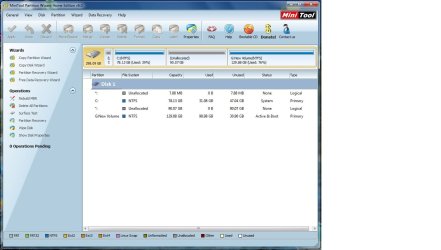
I did as suggested but my problem is still not solved. 1 more thing..from the partion wizerd my 'D' drive (the XP partiion) shows unalocated and totally blank but from disk management of windows7 it shows as logical drive with all the files intact in it...Could this be of any problem?
 

My Computer

Computer Manufacturer/Model Number
Acer
OS
Windows 7 Ultimate (32bit) and Windows XP pro SP3
CPU
Dual Core
Motherboard
Asus
Memory
2 GB
I did as suggested but my problem is still not solved. 1 more thing..from the partion wizerd my 'D' drive (the XP partiion) shows unalocated and totally blank but from disk management of windows7 it shows as logical drive with all the files intact in it...Could this be of any problem?

Hello again, please post snips of both current Windows disk management and Partition Wizard, you can use the installed version of PW for this.


Partition Wizard Free Home Edition


My Computer

Computer Manufacturer/Model Number
* BFK Customs *
OS
W 7 64-bit Ultimate
CPU
Intel Q9550 Yorkfield
Motherboard
ASUS P5Q Pro
Memory
8GB Dominator 8500C5D
Graphics Card(s)
ATI : XFX 5870
Sound Card
Realtek HD Audio 7-1
Monitor(s) Displays
1x 47" LCD HDMI & 3x 26" LCD HDMI
Screen Resolution
1920x1080P & 1920x1200
Hard Drives
1x 80GB Intel X25-M G2 SSD : 1x 500GB & 1x 640GB WD Caviar Black(s)
PSU
Corsair 620HX
Case
Cooler Master RC-690
Cooling
Tuniq Tower 120, 2x 140mm and 3x 120mm case fans
Keyboard
Microsoft 500
Mouse
Razer Diamondback 3G
Internet Speed
14 Mb/s
Other Info
1x Koutech 3Gb/s SATA HDD Hot Swap Rack
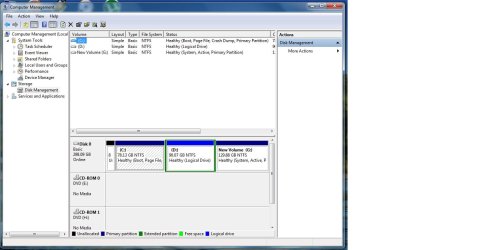
Hello, here i m sending the two snips...I would also like to inform u that I tried to find how it look with paragon partition manager too. There it seems ok, just like what I see from windows disk management map...

I think this would help u understand my problem. I just dont want to reinstall my XP but want it to back in work..thanks in advance.
 

Attachments

  • Disk Map1.jpg
    Disk Map1.jpg
    195 KB · Views: 149
  • Disk map2.jpg
    Disk map2.jpg
    168.9 KB · Views: 134
Last edited by a moderator:

My Computer

Computer Manufacturer/Model Number
Acer
OS
Windows 7 Ultimate (32bit) and Windows XP pro SP3
CPU
Dual Core
Motherboard
Asus
Memory
2 GB
Because the Disk Mgmt window was not maximized first the listings showing sizes are cut off so that we cannot see if XP still exists. Also when Disk Mgmt shows an anomaly it is best to cross-check it with PW bootable CD.

I would convert the XP partition to Primary then repair it so its boot files are correctly written to it, then follow Steps 17-12 in Method Two of this tutorial to add XP to Win7 Dual Boot.

Boot the XP CD to run a Repair Install as shown in this tutorial so we can see if it finds an intact installation to Repair: XP Repair Install
 
Hello,

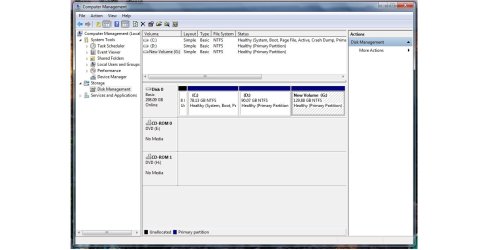
I have managed to make my C drive mark as active and convert it into a system drive (Current Disk Management Map/snip is uploaded with it). Now my C drive is system with windows 7 installed, D is primary with Windows Xp installed and G is also primary with no O.S. installed. Can I change D now into logical Drive (It was my system drive initially)

Now coming back to my old problem. My Windows XP is no booting. In the boot manager the option is there but when I try to boot, it restarts to the same screen. I dont want to reinstall or repair it..so plze help me so that I can use both Windows7 and XP. Thanks.
 

Attachments

  • Disk managemeng3.jpg
    Disk managemeng3.jpg
    167.9 KB · Views: 390

My Computer

Computer Manufacturer/Model Number
Acer
OS
Windows 7 Ultimate (32bit) and Windows XP pro SP3
CPU
Dual Core
Motherboard
Asus
Memory
2 GB
In disk management right click the D: and click open and post a snip of the contents.
 

My Computer

Computer Manufacturer/Model Number
* BFK Customs *
OS
W 7 64-bit Ultimate
CPU
Intel Q9550 Yorkfield
Motherboard
ASUS P5Q Pro
Memory
8GB Dominator 8500C5D
Graphics Card(s)
ATI : XFX 5870
Sound Card
Realtek HD Audio 7-1
Monitor(s) Displays
1x 47" LCD HDMI & 3x 26" LCD HDMI
Screen Resolution
1920x1080P & 1920x1200
Hard Drives
1x 80GB Intel X25-M G2 SSD : 1x 500GB & 1x 640GB WD Caviar Black(s)
PSU
Corsair 620HX
Case
Cooler Master RC-690
Cooling
Tuniq Tower 120, 2x 140mm and 3x 120mm case fans
Keyboard
Microsoft 500
Mouse
Razer Diamondback 3G
Internet Speed
14 Mb/s
Other Info
1x Koutech 3Gb/s SATA HDD Hot Swap Rack
Ok...here is the contents of the 'D' ....
 

Attachments

  • D Contents.png
    D Contents.png
    233.5 KB · Views: 389

My Computer

Computer Manufacturer/Model Number
Acer
OS
Windows 7 Ultimate (32bit) and Windows XP pro SP3
CPU
Dual Core
Motherboard
Asus
Memory
2 GB

My Computer

Computer Manufacturer/Model Number
* BFK Customs *
OS
W 7 64-bit Ultimate
CPU
Intel Q9550 Yorkfield
Motherboard
ASUS P5Q Pro
Memory
8GB Dominator 8500C5D
Graphics Card(s)
ATI : XFX 5870
Sound Card
Realtek HD Audio 7-1
Monitor(s) Displays
1x 47" LCD HDMI & 3x 26" LCD HDMI
Screen Resolution
1920x1080P & 1920x1200
Hard Drives
1x 80GB Intel X25-M G2 SSD : 1x 500GB & 1x 640GB WD Caviar Black(s)
PSU
Corsair 620HX
Case
Cooler Master RC-690
Cooling
Tuniq Tower 120, 2x 140mm and 3x 120mm case fans
Keyboard
Microsoft 500
Mouse
Razer Diamondback 3G
Internet Speed
14 Mb/s
Other Info
1x Koutech 3Gb/s SATA HDD Hot Swap Rack
You can try installing EasyBCD 2.02 to Win7 to delete XP listing, then Add it again.

If Xp still won't boot then it has become corrupted and you'll need to run an XP Repair Install to correctly write the System boot files to D which cannot exist on the existing Logical partition.

You will know if you have an intact XP installation if it will run the Repair Install following the steps given in the tutorial I posted above.

If so, after Repair install add Win7 from XP following Steps 7-12 in Method Two of tutorial.
 
First of all, thanks for the tutorial. Really nice and complete :)

Secondly, I have this configuration on my machine, and I'd like to know where should I make the XXgb partition for installing Windows XP (I'm on Windows 7 right now).
The Disk 1 is a SSD disk, from where Windows 7 boots. The other ones are SATA drivers...
Disk 2 and Disk 3 are currently used for files storage

t5n6g3.png


My question is, should I create a partition (let's say 20gb) on the C:\ SSD drive, or should I make it anywhere else?

Thank you again
 

My Computer

OS
Windows 7
I'd unplug the other HD's, set Disk2 as first HD to boot in BIOS setup after DVD drive, then boot XP CD to full format a Primary Partition for install.

If XP CD doesn't see the SATA drive you'll need to add the SATA controller drivers:
SATA Drivers - Load in Windows XP Setup on Dual Boot
SATA Drivers - Slipstream into Windows XP CD

Once XP is installed, plug back in the other HD's, set preferrred OS as first HD to boot in BIOS setup, then boot the other OS when needed by using the one time BIOS Boot Menu key to trigger it's HD to boot.
 
You have green Free Space which indicates the former presence of a Logical Extended partition on Disk2. You should be able to format a Primary partition on it with XP CD by Creating a New Partition of desired size to full Format. If not, follow these steps to wipe the HD first: SSD - HDD Optimize for Windows Reinstallation
 
Changing drive letter for XP OR hiding the XP partition for Win7 runni

I installed Windows 7 standalone on new HD . No issues, went fine

Place power cable in PC back on the previous HD that had Windows XP installed. SEt it to HD boot priority 2 in Bios. new HD with Win 7 is the First disk in priority

Start PC, Windows 7 comes up and loads.

using EasyBCD, I add the entry for Win XP. Autodetect

Reboot, and now I have dual boot dialog screen, with Windows XP. Success.

Can boot into Windows 7 and it is seen in Win7 as the C:drive parition. Win7 still running too, I see the D: drive partition is the WinXP partition

All is well. When I boot into Windows 7 from Dual Boot screen, the WinXP partition is seen as C: while the XP is running. And the Win7 is seen as D:

So what's the problem... my data drive for everything, including My Documents has been on a D: partition. So, all drive paths for everything in the previous WinXP installation point to D: for data.

This means that the XP will never work correctly. And I could not now install any software to access data on a :
D: partition

The Best Solution would be to change a Drive Letter on the WinXP partition to Z:

I know that if an original install was done this way, Windows would still see it as C; when it booted up and all is well, BUT I've never done this with Win7 dual boot.

Can anyone comment please? Once I change the drive letter in XP it could cause havoc. Even with ghost image backups it could be a mess.

If anyone has knowledge or experience, it would save me a Ship Load of time.

Thanks very much

J Gregory
 

My Computer

OS
Windows 7 32
Back
Top