Is it worth creating XP mode in windows 7

From your post, it seems that I do not need to buy a new XP CD but download and instal Microsoft XP Mode file. That is great. Then, how to suppress the command to type in product # of XP CD?
You can "only" download and install Windows XP Mode if you own Windows 7 Professional, Windows 7 Enterprise or Windows 7 Ultimate. You said previously that your computer had Windows 7 Home Premium, and that doesn't entitle you to use XP Mode. If you have one of the required OS's, when you install Windows XP Mode it simply will NOT prompt you for a key.

Secondly, I have VMWare player 3.1.1 and 4.02 files. You recommended to install 3.5.x version. I was not successful to locate the v. 3.5.x version. Do you know where to download from?
My apologies, I screwed up. The version I meant was 3.1.5...not 3.5 at all.
 

My Computer My Computer

At a glance

Windows 7 Ultimate x64Intel Q9550 2.83Ghz OC'd to 3.40Ghz8GB G.Skill PI DDR2-800, 4-4-4-12 timingsEVGA 1280MB Nvidia GeForce GTX570
Computer Manufacturer/Model Number
Self-Built in July 2009
OS
Windows 7 Ultimate x64
CPU
Intel Q9550 2.83Ghz OC'd to 3.40Ghz
Motherboard
Gigabyte GA-EP45-UD3R rev. 1.1, F12 BIOS
Memory
8GB G.Skill PI DDR2-800, 4-4-4-12 timings
Graphics Card(s)
EVGA 1280MB Nvidia GeForce GTX570
Sound Card
Realtek ALC899A 8 channel onboard audio
Monitor(s) Displays
23" Acer x233H
Screen Resolution
1920x1080
Hard Drives
Intel X25-M 80GB Gen 2 SSD
Western Digital 1TB Caviar Black, 32MB cache. WD1001FALS
PSU
Corsair 620HX modular
Case
Antec P182
Cooling
stock
Keyboard
ABS M1 Mechanical
Mouse
Logitech G9 Laser Mouse
Internet Speed
15/2 cable modem
Other Info
Windows and Linux enthusiast. Logitech G35 Headset.
From your post, it seems that I do not need to buy a new XP CD but download and instal Microsoft XP Mode file. That is great. Then, how to suppress the command to type in product # of XP CD?
You can "only" download and install Windows XP Mode if you own Windows 7 Professional, Windows 7 Enterprise or Windows 7 Ultimate. You said previously that your computer had Windows 7 Home Premium, and that doesn't entitle you to use XP Mode. If you have one of the required OS's, when you install Windows XP Mode it simply will NOT prompt you for a key.

Secondly, I have VMWare player 3.1.1 and 4.02 files. You recommended to install 3.5.x version. I was not successful to locate the v. 3.5.x version. Do you know where to download from?
My apologies, I screwed up. The version I meant was 3.1.5...not 3.5 at all.

I would like to repeat again here. It was true my office computer runs Win7 Home Premium but I recently purchased win7 Pro OEM from Newegg and installed. Now, the office computer run windows 7 pro.

Monday, I will try to install XP Mode (downloaded from Microsoft site) and then v. 3.1.5 VMWare player (I found it and downloaded this morning). I would like to see whether installing VMWare player asks to prompt key or not. I am now learning how to do with virtual system.

Initially, I was following this website as a reference to create XP mode (Create an XP Mode for Windows 7 Home Versions & Vista - How-To Geek). That instruction described to use WinXP CD and VMWare player (no description about the use of Microsoft XP Mode and Virtual PC. That's why I was planning to buy XP Pro OEM CD. It now seems that I do not need to buy it even with VMWare player.
 

My Computer My Computer

At a glance

Windows 7
OS
Windows 7
XP Mode is a freebie from Microsoft for people who have Windows 7 Professional and upwards.

Whether you install it under Microsoft's Virtual PC or VMware Player you will not be asked for a product key nor will you be asked to activate it.

As long as the host system is legal and above board XP Mode will install OK.
 

My Computer My Computer

At a glance

Windows 7 Ultimate SP1 64-BitIntel Core i7 870 @ 2.93GHz8Gb Dual-Channel DDR3 @ 664MHznVidia GeForce GTX 460 1024MB dedicated RAM
Computer Manufacturer/Model Number
HP Pavilion Elite 495UK
OS
Windows 7 Ultimate SP1 64-Bit
CPU
Intel Core i7 870 @ 2.93GHz
Motherboard
MSI 2A9C (CPU1)
Memory
8Gb Dual-Channel DDR3 @ 664MHz
Graphics Card(s)
nVidia GeForce GTX 460 1024MB dedicated RAM
Sound Card
Realtek HD Audio
Monitor(s) Displays
HP2310i
Screen Resolution
1920 x 1080
Hard Drives
1x1954GB Hitachi HDS22020ALA 330 (RAID), 1x1954GB Hitachi External for backup and storage
PSU
460W
Case
HP Elite
Cooling
Air cooled
Keyboard
Logitech K750 solar-powered keyboard
Mouse
Logitech Wireless M180 mouse
Internet Speed
2Mb
Other Info
Pure Avanti Flow Internet Radio with iPod Dock, 64Gb iPod, HP USB Speakers, Sony MDR-V500 Headphones, Sony Vaio F-Series Laptop
XP Mode is a freebie from Microsoft for people who have Windows 7 Professional and upwards.

Whether you install it under Microsoft's Virtual PC or VMware Player you will not be asked for a product key nor will you be asked to activate it.

As long as the host system is legal and above board XP Mode will install OK.
I let you know how it goes next Monday.

BTW, it seems that you are using XP mode heavily. I am curisous what are you using mainly for. I would like to learn about the main application of XP mode.
 

My Computer My Computer

At a glance

Windows 7
OS
Windows 7
Whether you install it under Microsoft's Virtual PC or VMware Player you will not be asked for a product key nor will you be asked to activate it.
Hi, I read this post again.
Should I install XP Mode after installing VMWare player? For the combination of XP mode and Virtual PC, XP mode was installed prior to installing Virtual PC. I am confused. Could you please clarify it?
 

My Computer My Computer

At a glance

Windows 7
OS
Windows 7

My Computer My Computer

At a glance

Windows 7 Ultimate SP1 64-BitIntel Core i7 870 @ 2.93GHz8Gb Dual-Channel DDR3 @ 664MHznVidia GeForce GTX 460 1024MB dedicated RAM
Computer Manufacturer/Model Number
HP Pavilion Elite 495UK
OS
Windows 7 Ultimate SP1 64-Bit
CPU
Intel Core i7 870 @ 2.93GHz
Motherboard
MSI 2A9C (CPU1)
Memory
8Gb Dual-Channel DDR3 @ 664MHz
Graphics Card(s)
nVidia GeForce GTX 460 1024MB dedicated RAM
Sound Card
Realtek HD Audio
Monitor(s) Displays
HP2310i
Screen Resolution
1920 x 1080
Hard Drives
1x1954GB Hitachi HDS22020ALA 330 (RAID), 1x1954GB Hitachi External for backup and storage
PSU
460W
Case
HP Elite
Cooling
Air cooled
Keyboard
Logitech K750 solar-powered keyboard
Mouse
Logitech Wireless M180 mouse
Internet Speed
2Mb
Other Info
Pure Avanti Flow Internet Radio with iPod Dock, 64Gb iPod, HP USB Speakers, Sony MDR-V500 Headphones, Sony Vaio F-Series Laptop
People tend to use it for older applications that won't run under Windows 7.

That is exactly what I want. A lot of date was encrypted using "CD Lock" program in Win XP and burnt DVD disks. CD Lock program for Windows 7 has not been yet released. That's why I want XP mode to decrypt the old data in Windows 7 machine.

My plan is to copy the CD Lock program into a flashdrive and install it in Windowx XP mode. I hope that data or programs in flashdrive are accessible to XP mode(note: XP mode installed in Virtual PC did not see a separate D-drive in the computer).
Then, I want to decrypt data in CD-Lock encrypted CD disks.
I hope this should work.

If it works, my question is how to export decrypted data from XP mode into windows 7?
 

My Computer My Computer

At a glance

Windows 7
OS
Windows 7
When a USB device is connected to host, XP Mode shows it in the Virtual PC USB menu. Those devices that can be automatically shared (integration must be enabled!) are shown as shared so you can access them from both host and guest. If the device is not shared, selecting it will attach it to XP Mode, and selecting again will release it and connect back to the host.

You can also select a shared device to attach it directly to XP Mode, in which case it is no longer usable from host.

XPMode_USB.png
  • Attach = Device connected to host, not available from XP Mode. Selecting device will attach it to XP Mode, after what device is no longer available from host
  • Release = Device connected to XP Mode, not available from host. Selecting device will attach it to host, after what device is no longer available from XP Mode
  • Shared = device available from host and XP Mode. Selecting device will attach it to XP Mode, after what device is no longer available from host
When integration is enabled you can move files back and forth between host and XP Mode quite easily. Just open one of the host's drives visible on XP Mode's My Computer view and copy / paste or drag and drop as you wish:

Host_drives_on XPMode.png


You could also see if this trick is something for you; moving XP Mode's My Documents folder to host let's you access your personal files stored on XP Mode even when XPMode is not running: http://www.sevenforums.com/virtualization/137514-change-my-documents-folder-xpmode.html#post1181192


Kari
 

My Computer My Computer

At a glance

Windows 10 Pro x64 EN-GB1.6 GHz Intel Core i7-720QM Processor6 GBATI Mobility Radeon HD 5850 Graphics
Computer type
Laptop
Computer Manufacturer/Model Number
HP ENVY 17-1150eg
OS
Windows 10 Pro x64 EN-GB
CPU
1.6 GHz Intel Core i7-720QM Processor
Memory
6 GB
Graphics Card(s)
ATI Mobility Radeon HD 5850 Graphics
Sound Card
Beats sound system with integrated subwoofer
Monitor(s) Displays
17" laptop display, 22" LED and 32" Full HD TV through HDMI
Screen Resolution
1600*900 (1), 1920*1080 (2&3)
Hard Drives
Internal: 2 x 500 GB SATA Hard Disk Drive 7200 rpm
External: 2TB for backups, 3TB USB3 network drive for media
Cooling
As Envy runs a bit warm, I have it on a Cooler Master pad
Keyboard
Logitech diNovo Media Desktop Laser (bluetooth)
Mouse
Logitech Performance Mouse MX
Internet Speed
50/10 Mbps VDSL
Antivirus
Windows Defender 4.3.9431.0
Browser
Maxthon 3.5.2., IE11
One important thing I forgot to mention and that is whichever virtual machine you use you'll need to go into the BIOS and enable hardware virtualization under the Power settings otherwise your virtual PC won't work.

Thank you for the information concerning the BIOS and virtual PC. However, several months ago I downloaded this software without making any changes to the BIOS. This is the first time that I have heard about it. However, all is well so I will leave it as it.

If it isnt't broken, don't fix it.
 

My Computer My Computer

At a glance

Win7 Ultimate x64Intel Core i7 950 (4x 3066 MHz with HT) Quad ...6GB DDR3 1333MhzNvidia GTS 450 (1024MB GDDR5 | DX 11)
Computer Manufacturer/Model Number
Deviantsystems
OS
Win7 Ultimate x64
CPU
Intel Core i7 950 (4x 3066 MHz with HT) Quad Core
Motherboard
Asus P6X58D-E
Memory
6GB DDR3 1333Mhz
Graphics Card(s)
Nvidia GTS 450 (1024MB GDDR5 | DX 11)
Sound Card
Intel HD Audio via Realtek ALC889 with 8-channel support
Monitor(s) Displays
Sony Bravia 32"
Screen Resolution
1080i, x1768x992
Hard Drives
2x WD 1TB 7200 RPM Sata
PSU
OCZ ModXStream Pro 600W 80+
Case
Lian Li PC-7FN
Cooling
Processor cooling: Scythe Big Shuriken SCBSK-1000
Keyboard
Microsoft Ergonomic
Mouse
Logitec Trackball
One important thing I forgot to mention and that is whichever virtual machine you use you'll need to go into the BIOS and enable hardware virtualization under the Power settings otherwise your virtual PC won't work.

Thank you for the information concerning the BIOS and virtual PC. However, several months ago I downloaded this software without making any changes to the BIOS. This is the first time that I have heard about it. However, all is well so I will leave it as it.

If it isnt't broken, don't fix it.

I'll agree with that sentiment, but I'm intrigued as to why it should be the case.

However, there's no point in looking for a problem that isn't there. :)
 

My Computer My Computer

At a glance

Windows 7 Ultimate SP1 64-BitIntel Core i7 870 @ 2.93GHz8Gb Dual-Channel DDR3 @ 664MHznVidia GeForce GTX 460 1024MB dedicated RAM
Computer Manufacturer/Model Number
HP Pavilion Elite 495UK
OS
Windows 7 Ultimate SP1 64-Bit
CPU
Intel Core i7 870 @ 2.93GHz
Motherboard
MSI 2A9C (CPU1)
Memory
8Gb Dual-Channel DDR3 @ 664MHz
Graphics Card(s)
nVidia GeForce GTX 460 1024MB dedicated RAM
Sound Card
Realtek HD Audio
Monitor(s) Displays
HP2310i
Screen Resolution
1920 x 1080
Hard Drives
1x1954GB Hitachi HDS22020ALA 330 (RAID), 1x1954GB Hitachi External for backup and storage
PSU
460W
Case
HP Elite
Cooling
Air cooled
Keyboard
Logitech K750 solar-powered keyboard
Mouse
Logitech Wireless M180 mouse
Internet Speed
2Mb
Other Info
Pure Avanti Flow Internet Radio with iPod Dock, 64Gb iPod, HP USB Speakers, Sony MDR-V500 Headphones, Sony Vaio F-Series Laptop
One important thing I forgot to mention and that is whichever virtual machine you use you'll need to go into the BIOS and enable hardware virtualization under the Power settings otherwise your virtual PC won't work.

Thank you for the information concerning the BIOS and virtual PC. However, several months ago I downloaded this software without making any changes to the BIOS. This is the first time that I have heard about it. However, all is well so I will leave it as it.

If it isnt't broken, don't fix it.

I'll agree with that sentiment, but I'm intrigued as to why it should be the case.

However, there's no point in looking for a problem that isn't there. :)

It may be that HAV was already enabled in your BIOS which may have been why you didn't need to make any changes. However, you can run XP Mode without enabling HAV by installing a Hotfix but it will work better with it enabled. See this link: Windows Virtual PC: Configure BIOS

I have installed XP Mode on older machines that didn't have HAV and XP Mode worked fine.
 

My Computer My Computer

At a glance

W10 Pro desktop, W11 laptop, W11 Pro tablet (...3.7Ghz 8700K i7, i7-11800H, i7-1065G716G desktop, 16G laptop, 4G tabletAMD Radeon RX580, RTX 3060, Intel Iris Plus
Computer type
PC/Desktop
Computer Manufacturer/Model Number
Home Built desktop, Dell G15 5511 Gaming laptop,MS Surface Pro 7 tablet
OS
W10 Pro desktop, W11 laptop, W11 Pro tablet (all 64-bit)
CPU
3.7Ghz 8700K i7, i7-11800H, i7-1065G7
Motherboard
ASUS TUF Z370-Pro Gaming in desktop
Memory
16G desktop, 16G laptop, 4G tablet
Graphics Card(s)
AMD Radeon RX580, RTX 3060, Intel Iris Plus
Sound Card
High Definition Audio (Built-in to mobo)
Monitor(s) Displays
Samsung U32J59 32" (2x), 15.6", 12"
Screen Resolution
3840x2160, 3840x2160, 1920x1080, 2160x1440
Hard Drives
500G SSD for OS; 2T, 10T & 15T HDDs for Data on Desktop, 1TB SSD laptop, 128G SSD tablet.
PSU
Corsair CX 750M
Case
Antec 100
Cooling
CM 212+
Keyboard
IBM Model M - used continuously since 1986
Mouse
Microsoft Pro IntelliMouse
Internet Speed
400M down 8M up
Antivirus
Windows Defender
Browser
FireFox
Other Info
Built my first computer (8Mhz 8088cpu, 640K RAM, 20MB HDD, 2 360K floppy drives) in 1985 and have been building them for myself, relatives and friends ever since.
Should I install XP Mode after installing VMWare player? For the combination of XP mode and Virtual PC, XP mode was installed prior to installing Virtual PC. I am confused. Could you please clarify it?

No, you should download and install XP Mode 1st. Don't run the virtual machine or do anything with it after install.

Then, download and install VMWare Player. If you are using 3.1...Just go into VMWare Player, click on File and choose Import XP Mode.

If you decide to go with VMWare Player 4.x, you must also download and install the VMWare Converter 5.0 standalone product, choose the server/client advanced option. Once installed, simply fire up VMWare Player 4.x, click on File and choose Import XP Mode.

Once you have done the steps above, with VMWare Player open, you will have an XP Mode entry, click on it and choose start virtual machine. It will boot, go through an automated mini setup and bring you to a desktop. No keys or activation required.
 

My Computer My Computer

At a glance

Windows 7 Ultimate x64Intel Q9550 2.83Ghz OC'd to 3.40Ghz8GB G.Skill PI DDR2-800, 4-4-4-12 timingsEVGA 1280MB Nvidia GeForce GTX570
Computer Manufacturer/Model Number
Self-Built in July 2009
OS
Windows 7 Ultimate x64
CPU
Intel Q9550 2.83Ghz OC'd to 3.40Ghz
Motherboard
Gigabyte GA-EP45-UD3R rev. 1.1, F12 BIOS
Memory
8GB G.Skill PI DDR2-800, 4-4-4-12 timings
Graphics Card(s)
EVGA 1280MB Nvidia GeForce GTX570
Sound Card
Realtek ALC899A 8 channel onboard audio
Monitor(s) Displays
23" Acer x233H
Screen Resolution
1920x1080
Hard Drives
Intel X25-M 80GB Gen 2 SSD
Western Digital 1TB Caviar Black, 32MB cache. WD1001FALS
PSU
Corsair 620HX modular
Case
Antec P182
Cooling
stock
Keyboard
ABS M1 Mechanical
Mouse
Logitech G9 Laser Mouse
Internet Speed
15/2 cable modem
Other Info
Windows and Linux enthusiast. Logitech G35 Headset.
Thank you for the information concerning the BIOS and virtual PC. However, several months ago I downloaded this software without making any changes to the BIOS. This is the first time that I have heard about it. However, all is well so I will leave it as it.

If it isnt't broken, don't fix it.

I'll agree with that sentiment, but I'm intrigued as to why it should be the case.

However, there's no point in looking for a problem that isn't there. :)

It may be that HAV was already enabled in your BIOS which may have been why you didn't need to make any changes. However, you can run XP Mode without enabling HAV by installing a Hotfix but it will work better with it enabled. See this link: Windows Virtual PC: Configure BIOS

I have installed XP Mode on older machines that didn't have HAV and XP Mode worked fine.

After reading your post and the post of strolin I opened Windows XP Mode and downloaded the new version of CC Cleaner; I also watched the 3 mintue Sky News report, and downloaded a pdf from a website. My reasonable assumption, then, is that all is well.

However, I did install a stand-alone version of MS Word two weeks ago, activated it via MS online and it seems to have disappeared. It is not among the software listed on Add/Remove and CC Cleaner also does not list it. But maybe that has nothing to do with the subject at hand.
 

My Computer My Computer

At a glance

Win7 Ultimate x64Intel Core i7 950 (4x 3066 MHz with HT) Quad ...6GB DDR3 1333MhzNvidia GTS 450 (1024MB GDDR5 | DX 11)
Computer Manufacturer/Model Number
Deviantsystems
OS
Win7 Ultimate x64
CPU
Intel Core i7 950 (4x 3066 MHz with HT) Quad Core
Motherboard
Asus P6X58D-E
Memory
6GB DDR3 1333Mhz
Graphics Card(s)
Nvidia GTS 450 (1024MB GDDR5 | DX 11)
Sound Card
Intel HD Audio via Realtek ALC889 with 8-channel support
Monitor(s) Displays
Sony Bravia 32"
Screen Resolution
1080i, x1768x992
Hard Drives
2x WD 1TB 7200 RPM Sata
PSU
OCZ ModXStream Pro 600W 80+
Case
Lian Li PC-7FN
Cooling
Processor cooling: Scythe Big Shuriken SCBSK-1000
Keyboard
Microsoft Ergonomic
Mouse
Logitec Trackball
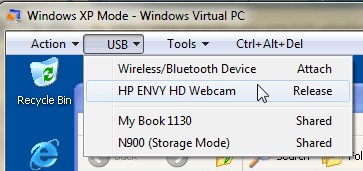
When a USB device is connected to host, XP Mode shows it in the Virtual PC USB menu. Those devices that can be automatically shared (integration must be enabled!) are shown as shared so you can access them from both host and guest. If the device is not shared, selecting it will attach it to XP Mode, and selecting again will release it and connect back to the host.

You can also select a shared device to attach it directly to XP Mode, in which case it is no longer usable from host.


View attachment 195628
  • Attach = Device connected to host, not available from XP Mode. Selecting device will attach it to XP Mode, after what device is no longer available from host
  • Release = Device connected to XP Mode, not available from host. Selecting device will attach it to host, after what device is no longer available from XP Mode
  • Shared = device available from host and XP Mode. Selecting device will attach it to XP Mode, after what device is no longer available from host
When integration is enabled you can move files back and forth between host and XP Mode quite easily. Just open one of the host's drives visible on XP Mode's My Computer view and copy / paste or drag and drop as you wish:

View attachment 195627


You could also see if this trick is something for you; moving XP Mode's My Documents folder to host let's you access your personal files stored on XP Mode even when XPMode is not running: http://www.sevenforums.com/virtualization/137514-change-my-documents-folder-xpmode.html#post1181192


Kari

Kari, Thank you for the important info. It is Sunday morning now in the US. Monday, I will check it out when I go to my office. Since your diagram is from your Virtual PC setup. Right now, that is the way my office computer was set up last Friday (I am planning to try to set up VMWare player after trying out Virtual PC system).

I have a question for you. With my setup with Virtual PC, I was not able access to a separate D-drive (1 TB) or My Documents (of Win 7). How can I make both of them shared by both XP mode and Win 7?
 

My Computer My Computer

At a glance

Windows 7
OS
Windows 7
Kari, Thank you for the important info. It is Sunday morning now in the US. Monday, I will check it out when I go to my office. Since your diagram is from your Virtual PC setup. Right now, that is the way my office computer was set up last Friday (I am planning to try to set up VMWare player after trying out Virtual PC system).

OK, for XP Mode imported to VMWare Player, here's how I am doing it:

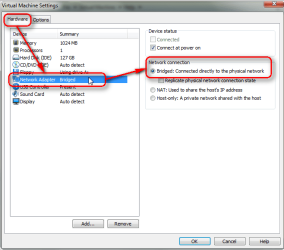
First, after importing XP Mode and its initial boot, shut it down and go to virtual machine settings. Set network mode to Bridged (default is NAT) to allow direct networking between host and guest:

VMWare_5.png

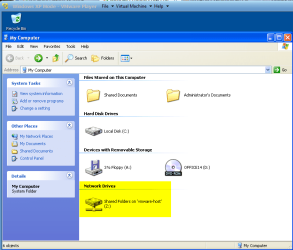
Then set up shared folders as you wish. Check Always enabled and Map as network drive. Here I have shared my userprofile folder on host:

VMWare_3.png

When vm has then started, the shared folder can be seen as a mapped network drive:

VMWare_4.png

Launch vm. VMWare checks which external devices are available to be attached to guest and shows you a list:

VMWare_6.PNG

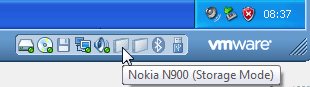
VMWare Player's notification area shows you all connected external devices. Mouse over shows the name of the device, green dot on device icon shows it is attached to guest:

VMWare_1.png

Right click device, for instance your USB stick needed to copy your encryption application to XP Mode to attach it to guest. Notice that this also releases device from host:

VMWare_2.png


I have a question for you. With my setup with Virtual PC, I was not able access to a separate D-drive (1 TB) or My Documents (of Win 7). How can I make both of them shared by both XP mode and Win 7?
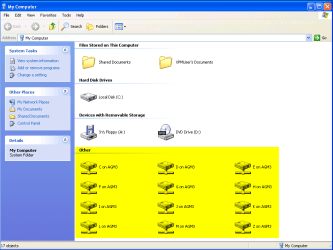
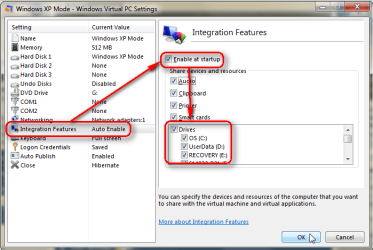
Simply go to XP Mode settings. Integration must be enabled, so set automatic integration on and select host drives to be shared:

XPMode_Shared.PNG

After this you can see and access all drives on host directly on XP Mode's explorer, as here I have highlighted my host machine's drives which are visible and accesible from XP Mode:

195627-worth-creating-xp-mode-windows-7-host_drives_on-xpmode.png


If your host is set up using default folder locations, browse to your documents on host by opening Host C: > Users > Your Username > Documents from XP Mode's My Computer.

Kari
 

My Computer My Computer

At a glance

Windows 10 Pro x64 EN-GB1.6 GHz Intel Core i7-720QM Processor6 GBATI Mobility Radeon HD 5850 Graphics
Computer type
Laptop
Computer Manufacturer/Model Number
HP ENVY 17-1150eg
OS
Windows 10 Pro x64 EN-GB
CPU
1.6 GHz Intel Core i7-720QM Processor
Memory
6 GB
Graphics Card(s)
ATI Mobility Radeon HD 5850 Graphics
Sound Card
Beats sound system with integrated subwoofer
Monitor(s) Displays
17" laptop display, 22" LED and 32" Full HD TV through HDMI
Screen Resolution
1600*900 (1), 1920*1080 (2&3)
Hard Drives
Internal: 2 x 500 GB SATA Hard Disk Drive 7200 rpm
External: 2TB for backups, 3TB USB3 network drive for media
Cooling
As Envy runs a bit warm, I have it on a Cooler Master pad
Keyboard
Logitech diNovo Media Desktop Laser (bluetooth)
Mouse
Logitech Performance Mouse MX
Internet Speed
50/10 Mbps VDSL
Antivirus
Windows Defender 4.3.9431.0
Browser
Maxthon 3.5.2., IE11
Thanks Kari. Things are now clear.
I really appreciate your reply post.
 

My Computer My Computer

At a glance

Windows 7
OS
Windows 7
When I checked my office computer, XP Mode (with Virtual PC) seems to be working.

Then, I freshly started to install XP Mode + VMWare 3.1.5. Shared folders was ENABLED without any hitch.
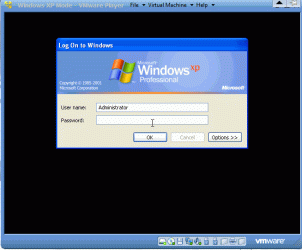
When I started VMW player, it prompted to type in user name and password. That is where I am now.
When XP mode and VMW plaer were installed, I did not bother username and password. That's the way I have been doing on all of my computers.

Is there a way to bypass the username and password bottleneck?
Otherwise, I got to start over again from the scratch.
 

Attachments

  • VMW04.gif
    VMW04.gif
    20.9 KB · Views: 7

My Computer My Computer

At a glance

Windows 7
OS
Windows 7
This should help: Install and use Windows XP Mode in Windows 7

And this one: Run XP Mode in VMware Workstation or Player with Activation Intact « My Digital Life

Do bear in mind that XP Mode is no good for early graphic-intensive programs such as Adobe Photoshop 7, but for legacy applications such as Quicken 2000 or Microsoft Office 97 it is fine.

People tend to use it for older applications that won't run under Windows 7.

Hi there
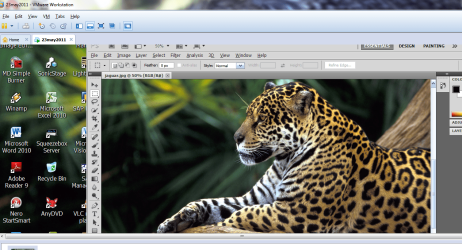
I'm running most of the Adobe CS5 suite (inc Photoshop) very successfully on a Virtual W2K3 Server running on vmware workstation 8.0. Host machine is W7 X-64 Ultimate 8 GB RAM, W2K3 server VM running fine with 2 GB RAM. No probs whatsoever with CS5.

Screenshot enc

(Note I'm not authoring DVD's or creating multi-media content on the VM - mainly STILL Photography / Imaging).

These days if your HOST machine has even a half way decent processor and a proper amount of RAM (cheap these days) most VM's will perform absolutely adequately -- even when running programs like Photoshop.

I'm running some of these on a Server since I'm licensed for several users on the server rather than have to install and license the products separately on a small number of PC's. A server in some instances is a better way of managing multiple software usages rather than separate installs -- each person / organisation needs to do the cost comparison themselves however.

A larger corporation would tend to run some of this stuff on a dedicated virtual server using something like ESXi - but the W3K3 Virtual server system is fine for our modest needs.

What tends to kill VM's really fast are ABOVE ALL - A LACK OF RAM, and then poorly performing disk drives.

Cheers
jimbo
 

Attachments

  • photoshop.png
    photoshop.png
    324 KB · Views: 5

My Computer My Computer

At a glance

Linux CENTOS 7 / various Windows OS'es and se...Intel i7 Intel i58GB, 16GBOn Motherboard
Computer type
PC/Desktop
Computer Manufacturer/Model Number
Custom built, several laptops HP/ASUS
OS
Linux CENTOS 7 / various Windows OS'es and servers
CPU
Intel i7 Intel i5
Memory
8GB, 16GB
Graphics Card(s)
On Motherboard
Sound Card
Realtek HD audio
Monitor(s) Displays
Apple Cinema display, Samsung LCD
Screen Resolution
1920 X 1080
Hard Drives
4 X 1TB SATA
Mouse
Toshiba wireless laser
Internet Speed
> 20MB up
Thanks for that Jimbo.

As a matter of interest, how much better is WMWare Workstation 8 than the free VMWare Player?
 

My Computer My Computer

At a glance

Windows 7 Ultimate SP1 64-BitIntel Core i7 870 @ 2.93GHz8Gb Dual-Channel DDR3 @ 664MHznVidia GeForce GTX 460 1024MB dedicated RAM
Computer Manufacturer/Model Number
HP Pavilion Elite 495UK
OS
Windows 7 Ultimate SP1 64-Bit
CPU
Intel Core i7 870 @ 2.93GHz
Motherboard
MSI 2A9C (CPU1)
Memory
8Gb Dual-Channel DDR3 @ 664MHz
Graphics Card(s)
nVidia GeForce GTX 460 1024MB dedicated RAM
Sound Card
Realtek HD Audio
Monitor(s) Displays
HP2310i
Screen Resolution
1920 x 1080
Hard Drives
1x1954GB Hitachi HDS22020ALA 330 (RAID), 1x1954GB Hitachi External for backup and storage
PSU
460W
Case
HP Elite
Cooling
Air cooled
Keyboard
Logitech K750 solar-powered keyboard
Mouse
Logitech Wireless M180 mouse
Internet Speed
2Mb
Other Info
Pure Avanti Flow Internet Radio with iPod Dock, 64Gb iPod, HP USB Speakers, Sony MDR-V500 Headphones, Sony Vaio F-Series Laptop
Hi there
I don't think there is a lot of difference in performance if you just want to run a virtual machine -- however if you want to things like "Clone" them, take "snapshots" of a VM's state, run them in "Non change mode" i.e you run the VM as normal but changes at the end of your session are "rolled back" -- i.e the Virtual machine is left in the original state --- great for training exercises where you can "refresh" the virtual machine for each new student, run the VM's "in teams" or run the vmware program "in server mode" which means the VM can run in the background and a user can log on to it Without having to have an account on the HOST machine then the workstation version is more appropriate.

The workstation version is designed more as a developer tool, the player designed for someone who just wants to run a basic virtual machine. Now vmware player can CREATE VM's too it's a lot more useful. Ptrevious releases of vmware player wouild only allow you to power on EXISTING VM's (although using a bit of a laborious getaround with a program known as QMEU you could create a vm).

This explains a bit more

VMFAQ.com / Knowledgebase / What is the difference between Workstation, Player and Server?

Cheers
jimbo
 

My Computer My Computer

At a glance

Linux CENTOS 7 / various Windows OS'es and se...Intel i7 Intel i58GB, 16GBOn Motherboard
Computer type
PC/Desktop
Computer Manufacturer/Model Number
Custom built, several laptops HP/ASUS
OS
Linux CENTOS 7 / various Windows OS'es and servers
CPU
Intel i7 Intel i5
Memory
8GB, 16GB
Graphics Card(s)
On Motherboard
Sound Card
Realtek HD audio
Monitor(s) Displays
Apple Cinema display, Samsung LCD
Screen Resolution
1920 X 1080
Hard Drives
4 X 1TB SATA
Mouse
Toshiba wireless laser
Internet Speed
> 20MB up
Back
Top