Windows 7 Installation - Transfer to a New Computer

How to Transfer your Complete Windows 7 Installation to New Computer

To start, a warning from Microsoft:

   Note
Important

You must use the Sysprep /generalize command to generalize a complete Windows installation before you can use the installation for deployment to a new computer, whether you use imaging, hard disk duplication, or another method. Moving or copying a Windows image to a different computer without running the Sysprep /generalize command is not supported.

This tutorial will show you how to do the transfer.

   Information
Windows 7 System Preparation Tool is a powerful, native Windows tool. When for instance used in so called Audit Mode, it let's you to freely configure Windows 7 to be then deployed to other computers as hardware independent image.

In this tutorial we use System Preparation Tool (sysprep) to prepare your Windows 7 installation to be moved to a new computer, keeping all your installed applications, program settings and user profiles. You can use this method for instance when you have bought a new PC and want to transfer your existing setup completely, without need to reinstall everything, or when you want to make major hardware changes like change the motherboard or GPU, which would usually cause Windows to stop booting normally.

   Warning
Using this method causes Windows 7 to lose all activation information, and it needs to be reactivated afterwards. If your Windows 7 is an OEM version, you might not be able to reactivate it, at least not without phone activation option.

I do not recommend to use this method on RAID systems. All experiments on RAID I know have failed.

With the speed of today's hardware evolution, most of us geeks are upgrading the hardware more often than operating system. Upgrading hardware can be painfully slow process if we need to reinstall the operating system and all our installed applications, plus transfer program settings and user profiles.

Using sysprep makes this easy. Changing the motherboard, or for instance an old ATI GPU to a new nVidia GPU quite often causes Windows 7 not to be able to boot anymore. This fact is usually accepted by the user, who then reinstalls the OS and all applications and transfers user profiles from a backup location.

Same thing when buying a new computer with completely different hardware setup compared to the old one, or trying to restore a system image to different hardware setup. Normally this would include a complete reinstallation of Windows 7 and all applications.

Why not use sysprep to avoid reinstalling? Here are the different scenarios where you can use it.


   Warning

An upgraded Windows cannot be sysprepped. As this method is based in sysprepping, this tutorial is valid only for Windows setups which have not been upgraded.

This means that if you have for instance in-place upgraded Vista to Seven, or using Anytime Upgrade upgraded for instance a Home Premium to Ultimate, you cannot sysprep and this tutorial cannot be used in your case.

Notice that a repair install is also an upgrade install, so if you have ever done a repair install (= in-place upgrade to same edition), you cannot sysprep.


PLEASE DO NOT FORGET TO CREATE A SYSTEM IMAGE BEFORE PROCEEDING!​


As you can read on this thread, on rare occasions this method does not work. If this happens, you can always restore your system using your backup image.

Backup Complete Computer - Create an Image Backup
System Image Recovery

IE10 Users: Please read this article first: Sysprep Fatal Error With IE 10 (FIX) | System Administration


METHOD ONE

Changing hardware components but keeping old hard disk(s)


Use this method if you:
- Change other hardware components but keep your old HD containing Windows 7
- Move the HD containing Windows 7 to another computer
  1. Before installing new hardware, boot Windows 7 normally
  2. Disconnect all external hardware except mouse, keyboard and main display. If your system folders are located only on C: drive, disconnect all other hard disks except that containing the C:. In case of relocated system folders, for instance the profile folder Users located in another drive and other system folders on C:, first move the relocated system folders back to C: then disconnect all other drives. Reboot after this
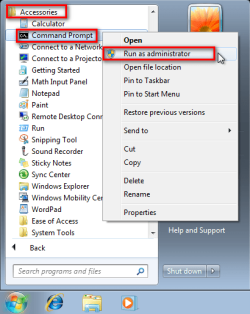
  3. Run Command Prompt as administrator
    .
    Audit_1.png
    .
  4. Type to Command Prompt: %windir%\System32\Sysprep\Sysprep.exe, and hit Enter
    .
    sysprep_start.png
    .
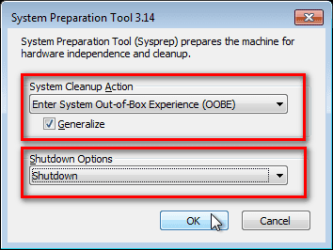
  5. In sysprep dialog that opens, choose System Cleanup Action as Enter System Out-of-Box-Experience (OOBE), select Generalize, select Shutdown Options Shutdown. Click OK
    .
    Sysprep_Run_and_generalize.png
    .
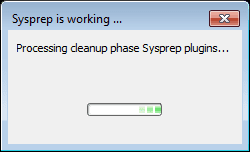
  6. Sysprep generalizes now your Windows 7 setup and shuts down your computer. Do not run any other programs during this phase!
    .
    Sysprep_Run_and_generalize_2.png
    .
    Sysprep_Run_and_generalize_3.png
    .
  7. Switch the main power of your PC off and install the new hardware OR dismount the hard disk(s) and mount it (them) to a new computer
  8. Boot the PC from sysprep generalized hard disk. You will notice Windows booting as if it was the first boot after installation, installing default drivers and updating registry. One or two reboots are needed, depending on your system specifications
    .

    Sysprep_Reinstalling_devices.png
    .
    Sysprep_Registry_settings.png
    .
    Sysprep_Reboot_needed.png
    .
  9. When Windows finally boots up, you will need to enter all information as if this really was a new, fresh installation
    .
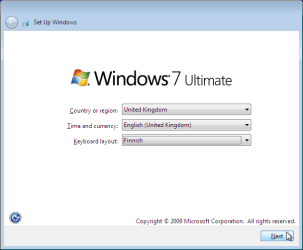
    Sysprep_First_boot_2.png
    .
  10. Because your old user profiles already exist, Windows does not accept your normal username, but instead you have to create a new temporary user. I use username Test for this purpose
    .
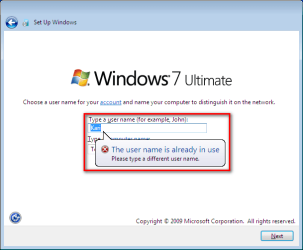
    Sysprep_First_boot_3.png
    .
  11. When login screen appears, choose your old user account to login
    .

    Sysprep_First_boot_5.png
    .
  12. Windows boots now to default OOBE first boot desktop, with default 800*600 resolution and default theme. All your installed applications are there, as well as your old user profiles and folders. Windows has installed the default drivers for your setup, you can update them if needed
    .
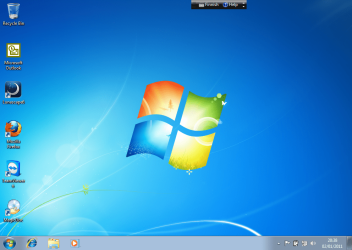
    Sysprep_First_boot_6.png
    .
  13. Go to Control Panel > User Accounts and delete the temporary user account (in this case Test) that you just created


METHOD TWO

Change the hard disk(s) or move Windows 7 setup to a new computer using third party imaging software

Use this method if you:
- Replace the HD containing Windows 7 on your old computer
- Move Windows 7 to a new HD on another computer
  1. Follow steps 1 through 5 above (method 1)
  2. Boot PC with an imaging CD/DVD (Paragon, Macrium etc.). See Macrium Reflect Free:at our sister site TenForums.com: Backup and Restore with Macrium Reflect Windows 10 Backup Restore Tutorials . Also see this post for a practical tip to create a Macrium system image.
  3. Create an image of your system
  4. Turn PC off, change the hard disk(s) and reboot with imaging application, restoring the image OR boot the new computer with imaging software and restore the image
  5. Continue from step 7 above (method 1)

This procedure is failsafe, and works every time. There is nothing to worry, but of course it is recommended to make a backup before trying this. I have even used this method when some serious driver issues caused the PC to constantly crash (BSOD), to reset all drivers to Windows defaults and then reinstalling them one by one to find the culprit.

   Note
What does Sysprep generalizing do to my Windows 7 setup?
  • All system specific information is removed or uninstalled
  • Security ID (SID) of your hardware setup is reseted
  • All system restore points are deleted
  • All event logs are deleted
  • All personalization is removed (taskbar, toolbars, folder options, start orb etc.)
  • Built-in administrator account is disabled (if it was enabled) and needs to be re-enabled after the transfer if needed

What happens when booting first time after sysprep generalizing?
  • First boot configuration is run
  • New SID is created
  • Re-arm counter is reseted if not already re-armed three times
  • Windows 7 is booted using first boot default drivers and settings


I have tested all above mentioned methods with all versions of Windows 7, from Starter to Enterprise. It works every time, with one exception: for reasons unknown to me, sysprep seems sometimes dislike Windows Media Player networking service, which is by default started every time Windows 7 starts. In about every third time I've done this, I've got an error message when trying to generalize:
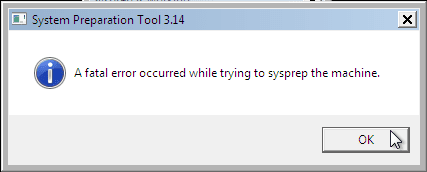
Sysprep_Fatal_Error.png

However, this is not a big problem. You just need to stop the WMP networking service, and run sysprep with generalize option again. You can stop the service in question by typing net stop WMPNetworkSvc to command prompt, and hitting Enter:

Sysprep_Stop_WMP_service.png

If you have any questions, do not hesitate to ask.

Happy computing!

Kari

EDIT: A Useful tip from xxxwea, as later confirmed by Victor:
Kari, just a suggestion.

You might note in the tutorial that if on first booting Windows can't finish configuring, a reboot into safe mode, then a normal reboot will allow it to finish successfully.

This has happened to me both times I used a sysprepped system drive in a new computer. I found the answer to this problem buried deep in this thread the first time I ran into it, and the same thing happened yesterday on a different computer.

It's a seemingly very silly solution, but it works. I do believe many people have abandoned their sysprep work when they encounter the problem.

I think the solution deserves more visibility.
 
Last edited:
You need to run command prompt as administrator. It can be found on Start Menu > All Programs > Accessories, then right click Command Prompt and run as administrator.

You could not stop that service because command prompt was not run as administrator.

If sysprep does not run, nothing will happen. reboot and you are good to go.

Kari
 

My Computer My Computer

At a glance

Windows 10 Pro x64 EN-GB1.6 GHz Intel Core i7-720QM Processor6 GBATI Mobility Radeon HD 5850 Graphics
Computer type
Laptop
Computer Manufacturer/Model Number
HP ENVY 17-1150eg
OS
Windows 10 Pro x64 EN-GB
CPU
1.6 GHz Intel Core i7-720QM Processor
Memory
6 GB
Graphics Card(s)
ATI Mobility Radeon HD 5850 Graphics
Sound Card
Beats sound system with integrated subwoofer
Monitor(s) Displays
17" laptop display, 22" LED and 32" Full HD TV through HDMI
Screen Resolution
1600*900 (1), 1920*1080 (2&3)
Hard Drives
Internal: 2 x 500 GB SATA Hard Disk Drive 7200 rpm
External: 2TB for backups, 3TB USB3 network drive for media
Cooling
As Envy runs a bit warm, I have it on a Cooler Master pad
Keyboard
Logitech diNovo Media Desktop Laser (bluetooth)
Mouse
Logitech Performance Mouse MX
Internet Speed
50/10 Mbps VDSL
Antivirus
Windows Defender 4.3.9431.0
Browser
Maxthon 3.5.2., IE11
Wow! Put my new PC together. Stuck in my syspreped hdd and bingo! Up comes my old windows. Thanks so much guys for the great tutorial!
 

My Computer My Computer

At a glance

win 7 64 bit
OS
win 7 64 bit
Good to hear you got it working.

Kari
 

My Computer My Computer

At a glance

Windows 10 Pro x64 EN-GB1.6 GHz Intel Core i7-720QM Processor6 GBATI Mobility Radeon HD 5850 Graphics
Computer type
Laptop
Computer Manufacturer/Model Number
HP ENVY 17-1150eg
OS
Windows 10 Pro x64 EN-GB
CPU
1.6 GHz Intel Core i7-720QM Processor
Memory
6 GB
Graphics Card(s)
ATI Mobility Radeon HD 5850 Graphics
Sound Card
Beats sound system with integrated subwoofer
Monitor(s) Displays
17" laptop display, 22" LED and 32" Full HD TV through HDMI
Screen Resolution
1600*900 (1), 1920*1080 (2&3)
Hard Drives
Internal: 2 x 500 GB SATA Hard Disk Drive 7200 rpm
External: 2TB for backups, 3TB USB3 network drive for media
Cooling
As Envy runs a bit warm, I have it on a Cooler Master pad
Keyboard
Logitech diNovo Media Desktop Laser (bluetooth)
Mouse
Logitech Performance Mouse MX
Internet Speed
50/10 Mbps VDSL
Antivirus
Windows Defender 4.3.9431.0
Browser
Maxthon 3.5.2., IE11
Kari,

Thank you for a very informative post.

I have a question for you:

I have used the backup and recovery in windows 7 to create an image that I used to image several other computers with the same hardware specs as the original pc.

The image I made was a computer in a workgroup.

After I imaged the rest of the computers, then I will join them to a domain.

The computers will connects to a kms server for widonws 7 and office.

So my question is would I still need to run sysprep? What would be the issues if I don't?

Our SCCM server went down and I need to deploy several computers down quick! I have one new imaged pc and I used it to make an image from backup and recovery.

Your reply is greatly appreciated!

Regards,

NickLulu
 

My Computer My Computer

At a glance

Windows 7 Ultimate x64
OS
Windows 7 Ultimate x64
When it comes to "Domain SID", the Domain SID is recomputed each time a computer enters a domain. Thus, all the "post-cloning operations" that are based on "leave the domain and then rejoin the domain" will actually cause a re-creation of the Domain SID for the computer that joins the domain.
In other words, duplicated SIDs are usually not a problem with Microsoft Windows systems
 

My Computer My Computer

At a glance

Microsoft Windows 7 Home Premium 64-bits 7601...Intel(R) Core(TM) i3 CPU M 370 @ 2.40GHz4,00 GBATI Mobility Radeon HD 5400 Series
Computer type
Laptop
Computer Manufacturer/Model Number
ACER ASPIRE 5742G
OS
Microsoft Windows 7 Home Premium 64-bits 7601 Multiprocessor Free Service Pack 1
CPU
Intel(R) Core(TM) i3 CPU M 370 @ 2.40GHz
Motherboard
Acer Aspire 5742G
Memory
4,00 GB
Graphics Card(s)
ATI Mobility Radeon HD 5400 Series
Sound Card
(1) AMD High Definition Audio Device (2) Realtek High Defi
Screen Resolution
1366 x 768 x 32 bits (4294967296 colors) @ 60 Hz
Hard Drives
WDC WD5000BEVT-22ZAT0
@NickLulu: Do not sysprep your image.

No reason for me to say anything more, Kaktussoft already told it. Only posting to thank Kaktussoft of a good answer :)

Kari
 

My Computer My Computer

At a glance

Windows 10 Pro x64 EN-GB1.6 GHz Intel Core i7-720QM Processor6 GBATI Mobility Radeon HD 5850 Graphics
Computer type
Laptop
Computer Manufacturer/Model Number
HP ENVY 17-1150eg
OS
Windows 10 Pro x64 EN-GB
CPU
1.6 GHz Intel Core i7-720QM Processor
Memory
6 GB
Graphics Card(s)
ATI Mobility Radeon HD 5850 Graphics
Sound Card
Beats sound system with integrated subwoofer
Monitor(s) Displays
17" laptop display, 22" LED and 32" Full HD TV through HDMI
Screen Resolution
1600*900 (1), 1920*1080 (2&3)
Hard Drives
Internal: 2 x 500 GB SATA Hard Disk Drive 7200 rpm
External: 2TB for backups, 3TB USB3 network drive for media
Cooling
As Envy runs a bit warm, I have it on a Cooler Master pad
Keyboard
Logitech diNovo Media Desktop Laser (bluetooth)
Mouse
Logitech Performance Mouse MX
Internet Speed
50/10 Mbps VDSL
Antivirus
Windows Defender 4.3.9431.0
Browser
Maxthon 3.5.2., IE11
Thanks for the info guys!

Unfortunately, I "might" have an issue with the KMS server not couting my license correctly: http://support.microsoft.com/kb/929829

I would need to check if the CMID are the same, if not I'm golden.

I really appreciate your help and this posting. I know you said that this was mostly for end users and not IT professionals, but you posting also help us in the Enterprise environment.

Cheers!

NickLulu
 

My Computer My Computer

At a glance

Windows 7 Ultimate x64
OS
Windows 7 Ultimate x64
Ok parts from the Egg on the way to upgrade my aging 6600 quad core. Going with the x79 platform and the 2d gen Hex core Intel processor. Also a SDD, new case, Quad Channel RAM, cooler, beefier Platinum cert PSU, blu ray burner etc on the way. In other words I am about upgrading everything but the graphics and sound cards and related sound stuff, mouse, monitors and keyboard.

So I got Acronis Home 12 to aid in moving windows 7 from my existing Hard disk and onto the SDD and into a different hardware environment. But from reading the Acronis manual and this tutorila I will say I am confused. Acronis says something about syspart taking care of only certain plug and play drivers but not critical ones. They mention something about HAL and having the new MB and controller drivers available and using their add on plug in to migrate to a new system. This plug-in is currently free when obtained with Acronis Home 12. Problem is the instructions for this does not include a how to...just the theory and why behind it.

I'm just wondering if it's necessary. Or can i just get by with using syspart as described here ?

Also --as far as preparing the SDD--my existing computer Sata already is set to ACHI---so--I can just unplug an existing sata data HD, plug the SDD in, reboot so its recognized, then go to disk management and make it active and then perform the commands to align it correctly----or must that be done in the new computer somehow ? So many questions.

All parts but the CPU should arrive tomorrow and CPU on Thursday--I'm looking forward to getting started.
 

My Computer My Computer

At a glance

windows 7 Professional 64 BitI7-3930G.Skill 4X 4 GB DR3 240 pin 16GB totalEVGA 670
Computer Manufacturer/Model Number
Custom build; parts from the Egg
OS
windows 7 Professional 64 Bit
CPU
I7-3930
Motherboard
Asus P9X79 PRO
Memory
G.Skill 4X 4 GB DR3 240 pin 16GB total
Graphics Card(s)
EVGA 670
Sound Card
Energy Take 5, Sennheiser HD 205 phones, X-FI
Monitor(s) Displays
Hanns G 21.5" HH221 and Samsung 19" 940BW and Hannspree
Screen Resolution
2X 1920X1080 and 1X 1440X900
Hard Drives
3-- internal 250 GB WD; 1-- internal 1 TB Samsung ---plus 3 WD external HDs (sizes vary to 1.5 TB); Crucial M4 128GB SSD, 1 Pioneer BDR-207 Bluray writer;
and 1--LG Lightscribe DVD drive
PSU
1000 Watt XFX Pro Series
Case
Thermaltake Chaser
Cooling
Corsair H80
Keyboard
Logitech Wireless and backlit
Mouse
Logitech Rollerball
Other Info
79 " long desk from Ikea. Sauder 71 inch long "speaker" shelf.

Optical and analog outs to a Yamaha RX-V 650 driving Energy Take 5.1 speaker system. Technics TT. Realistic mixer. Senns cans.
This tutorial is about System Preparation Tool SysPrep, not SysPart which is completely different. Using SysPrep with generalize switch takes care of every hardware specific driver, replacing them with native, general Windows drivers. With this method and Acronis you are ready to go.

About your SSD, post your thoughts and questions on Hardware.

Kari
 

My Computer My Computer

At a glance

Windows 10 Pro x64 EN-GB1.6 GHz Intel Core i7-720QM Processor6 GBATI Mobility Radeon HD 5850 Graphics
Computer type
Laptop
Computer Manufacturer/Model Number
HP ENVY 17-1150eg
OS
Windows 10 Pro x64 EN-GB
CPU
1.6 GHz Intel Core i7-720QM Processor
Memory
6 GB
Graphics Card(s)
ATI Mobility Radeon HD 5850 Graphics
Sound Card
Beats sound system with integrated subwoofer
Monitor(s) Displays
17" laptop display, 22" LED and 32" Full HD TV through HDMI
Screen Resolution
1600*900 (1), 1920*1080 (2&3)
Hard Drives
Internal: 2 x 500 GB SATA Hard Disk Drive 7200 rpm
External: 2TB for backups, 3TB USB3 network drive for media
Cooling
As Envy runs a bit warm, I have it on a Cooler Master pad
Keyboard
Logitech diNovo Media Desktop Laser (bluetooth)
Mouse
Logitech Performance Mouse MX
Internet Speed
50/10 Mbps VDSL
Antivirus
Windows Defender 4.3.9431.0
Browser
Maxthon 3.5.2., IE11
Ok parts from the Egg on the way to upgrade my aging 6600 quad core. Going with the x79 platform and the 2d gen Hex core Intel processor. Also a SDD, new case, Quad Channel RAM, cooler, beefier Platinum cert PSU, blu ray burner etc on the way. In other words I am about upgrading everything but the graphics and sound cards and related sound stuff, mouse, monitors and keyboard.

So I got Acronis Home 12 to aid in moving windows 7 from my existing Hard disk and onto the SDD and into a different hardware environment. But from reading the Acronis manual and this tutorila I will say I am confused. Acronis says something about syspart taking care of only certain plug and play drivers but not critical ones. They mention something about HAL and having the new MB and controller drivers available and using their add on plug in to migrate to a new system. This plug-in is currently free when obtained with Acronis Home 12. Problem is the instructions for this does not include a how to...just the theory and why behind it.

I'm just wondering if it's necessary. Or can i just get by with using syspart as described here ?

Also --as far as preparing the SDD--my existing computer Sata already is set to ACHI---so--I can just unplug an existing sata data HD, plug the SDD in, reboot so its recognized, then go to disk management and make it active and then perform the commands to align it correctly----or must that be done in the new computer somehow ? So many questions.

All parts but the CPU should arrive tomorrow and CPU on Thursday--I'm looking forward to getting started.

step 1: Install all unnecessary drivers from "device management" and corresponding software. Don't reboot!
step 2: Install drivers for new Mainbord from DVD. Don't reboot!
step 3: upgrade special sata drivers from "device management" to "standard AHCI SATA 1.0 Serial ATA Controller". Don't reboot! This step is the most important
step 4: shutdown and power off
step 5: build new pc
step 6: put harddisk with win7 in new build pc
step 7: power on
 

My Computer My Computer

At a glance

Microsoft Windows 7 Home Premium 64-bits 7601...Intel(R) Core(TM) i3 CPU M 370 @ 2.40GHz4,00 GBATI Mobility Radeon HD 5400 Series
Computer type
Laptop
Computer Manufacturer/Model Number
ACER ASPIRE 5742G
OS
Microsoft Windows 7 Home Premium 64-bits 7601 Multiprocessor Free Service Pack 1
CPU
Intel(R) Core(TM) i3 CPU M 370 @ 2.40GHz
Motherboard
Acer Aspire 5742G
Memory
4,00 GB
Graphics Card(s)
ATI Mobility Radeon HD 5400 Series
Sound Card
(1) AMD High Definition Audio Device (2) Realtek High Defi
Screen Resolution
1366 x 768 x 32 bits (4294967296 colors) @ 60 Hz
Hard Drives
WDC WD5000BEVT-22ZAT0
ah sysprep is what I meant and searching further I found the KB article that explains step by step along with the statement that is not in the manial: sysprep and Acronis Univeral restore may be used together. Thanks !
 

My Computer My Computer

At a glance

windows 7 Professional 64 BitI7-3930G.Skill 4X 4 GB DR3 240 pin 16GB totalEVGA 670
Computer Manufacturer/Model Number
Custom build; parts from the Egg
OS
windows 7 Professional 64 Bit
CPU
I7-3930
Motherboard
Asus P9X79 PRO
Memory
G.Skill 4X 4 GB DR3 240 pin 16GB total
Graphics Card(s)
EVGA 670
Sound Card
Energy Take 5, Sennheiser HD 205 phones, X-FI
Monitor(s) Displays
Hanns G 21.5" HH221 and Samsung 19" 940BW and Hannspree
Screen Resolution
2X 1920X1080 and 1X 1440X900
Hard Drives
3-- internal 250 GB WD; 1-- internal 1 TB Samsung ---plus 3 WD external HDs (sizes vary to 1.5 TB); Crucial M4 128GB SSD, 1 Pioneer BDR-207 Bluray writer;
and 1--LG Lightscribe DVD drive
PSU
1000 Watt XFX Pro Series
Case
Thermaltake Chaser
Cooling
Corsair H80
Keyboard
Logitech Wireless and backlit
Mouse
Logitech Rollerball
Other Info
79 " long desk from Ikea. Sauder 71 inch long "speaker" shelf.

Optical and analog outs to a Yamaha RX-V 650 driving Energy Take 5.1 speaker system. Technics TT. Realistic mixer. Senns cans.
Sysprep worked but boot didn't

I have all the luck. I too am now in the reboot loop. I was able to sysprep per the instructions but am getting the "Windows could not finish configuring the system. To attempt to resume configuration, restart the computer." error message when putting the drive in the new computer. In a nutshell, I followed the steps until sysprep shut down my computer. (I am assuming that is what was suppose to happen since I selected "shutdown") I removed it without restarting in the old machine. I built the new machine with a new motherboard, processor, memory, my old video card, etc., in a new case. It started up just as everyone has described previously until it gets to the Starting Services then errors shortly thereafter.

I read posts of xml files I know nothing about as well as hot fixes. I don't know how I would get a hot fix on there now that I've run sysprep, but maybe there is a way.

I haven't given up hope yet. Has anyone figured out what causes this?

What think ye?
 

My Computer My Computer

At a glance

Windows 7 Home Preiumi7-2600K16GB Kingston ddr3GeForce 8600GT
Computer Manufacturer/Model Number
Homegrown
OS
Windows 7 Home Preium
CPU
i7-2600K
Motherboard
ASUS P8Z68-V Gen3
Memory
16GB Kingston ddr3
Graphics Card(s)
GeForce 8600GT
Hard Drives
Seagate 1.5 TB 7200 Barracuda
Hi Paul, welcome to the Seven Forums.

As far as I can see, you have two options:
- Boot the computer with Windows DVD, run system repair
or
- Restore the disk image you did before you started

System repair should do the trick. If not, and if you can not pinpoint what device / driver causes this, you'd better to restore the image and try another method.

Good luck.

Kari
 

My Computer My Computer

At a glance

Windows 10 Pro x64 EN-GB1.6 GHz Intel Core i7-720QM Processor6 GBATI Mobility Radeon HD 5850 Graphics
Computer type
Laptop
Computer Manufacturer/Model Number
HP ENVY 17-1150eg
OS
Windows 10 Pro x64 EN-GB
CPU
1.6 GHz Intel Core i7-720QM Processor
Memory
6 GB
Graphics Card(s)
ATI Mobility Radeon HD 5850 Graphics
Sound Card
Beats sound system with integrated subwoofer
Monitor(s) Displays
17" laptop display, 22" LED and 32" Full HD TV through HDMI
Screen Resolution
1600*900 (1), 1920*1080 (2&3)
Hard Drives
Internal: 2 x 500 GB SATA Hard Disk Drive 7200 rpm
External: 2TB for backups, 3TB USB3 network drive for media
Cooling
As Envy runs a bit warm, I have it on a Cooler Master pad
Keyboard
Logitech diNovo Media Desktop Laser (bluetooth)
Mouse
Logitech Performance Mouse MX
Internet Speed
50/10 Mbps VDSL
Antivirus
Windows Defender 4.3.9431.0
Browser
Maxthon 3.5.2., IE11
Thanks kari. I was afraid this would be the case. But I did have some luck as it were. I continued searching on other blogs and found this:

The problem seems to be the registy entries made by sysprep, which probably should have, but didnt, change at the first reboot.
To confirm, after a clean image capture with WDS and install, upon the first reboot the system will not go past the message:

"Windows could not finish configuring the system. To attempt to resume configuration, restart the computer."

THE SOLUTION THAT WORKED

1. When the error message appears, open up a command window with SHIFT + F11
2. open the REGEDIT
3. navigate to hklm\system\setup
4. change CmdLine to blank (no value entered) (was oobe\windeploy.exe)
5. change CreateNewQueueOnFirstBoot to 0 (was 1)
6. change OOBEInProgress to 0 (was 1) (i am guessing that might be AUDITInProgress if that was your sysprep choice)
7. change SetupPhase to 0 (was 4)
8. change SetupShutdownRequired to 0 (was 1)
9. change SetupType to 0 (was 2)
10. change SystemSetupInProgress to 0 (was1)

11. exit REGEDIT and reboot
It Worked!!!! You can't believe how relieved I was and it went right to my home home screen with all my icons and background intact but at a low screen resolution. I couldn't believe it at first because I put about 7 or 8 hours into it with most of that being trying to find a solution.

I only want to point out one observation with the above process and that is item number 5 did not exist in my hklm\system\setup folder so I revised the rest and voilà!!

I post this solution that may work for some others here and considering it only took about 10 minutes to make the changes, it is certainly worth the try if you're still stuck.

Thanks again Kari. Your tip sheet saved me massive amounts of heart ache.

Regards,
Paul
 

My Computer My Computer

At a glance

Windows 7 Home Preiumi7-2600K16GB Kingston ddr3GeForce 8600GT
Computer Manufacturer/Model Number
Homegrown
OS
Windows 7 Home Preium
CPU
i7-2600K
Motherboard
ASUS P8Z68-V Gen3
Memory
16GB Kingston ddr3
Graphics Card(s)
GeForce 8600GT
Hard Drives
Seagate 1.5 TB 7200 Barracuda
Thanks for sharing that tip, Paul. It will save a lot of headache :)

Kari
 

My Computer My Computer

At a glance

Windows 10 Pro x64 EN-GB1.6 GHz Intel Core i7-720QM Processor6 GBATI Mobility Radeon HD 5850 Graphics
Computer type
Laptop
Computer Manufacturer/Model Number
HP ENVY 17-1150eg
OS
Windows 10 Pro x64 EN-GB
CPU
1.6 GHz Intel Core i7-720QM Processor
Memory
6 GB
Graphics Card(s)
ATI Mobility Radeon HD 5850 Graphics
Sound Card
Beats sound system with integrated subwoofer
Monitor(s) Displays
17" laptop display, 22" LED and 32" Full HD TV through HDMI
Screen Resolution
1600*900 (1), 1920*1080 (2&3)
Hard Drives
Internal: 2 x 500 GB SATA Hard Disk Drive 7200 rpm
External: 2TB for backups, 3TB USB3 network drive for media
Cooling
As Envy runs a bit warm, I have it on a Cooler Master pad
Keyboard
Logitech diNovo Media Desktop Laser (bluetooth)
Mouse
Logitech Performance Mouse MX
Internet Speed
50/10 Mbps VDSL
Antivirus
Windows Defender 4.3.9431.0
Browser
Maxthon 3.5.2., IE11
Hello,

I want to upgrade from a nVidia i780 S775 chipset (QX9650) to an Intel P55-GD65 S1156 chipset (i7 860). I want to keep my Windows 7 Prof. installation with as much settings and programs as possible. I replace the motherboard, CPU and memmory. The rest stays active.

I've created a full system backup as described here: http://www.sevenforums.com/tutorials/663-backup-complete-computer-create-image-backup.html

Must I take extra steps coming from nVidia and going to Intel?
Could I choose for the simple standard drivers replacement (nvidia nforce Serial ATA to standard IDE) and go ahead or is the Sysprep method safer but give me more lost settings? Windows must be (re)activated with both, I know that.

Any help will be appreciated.

With Greetz..
 

My Computer My Computer

At a glance

Windows 7 professionalQX96502x 2GB DDR3MSI 560GTX
Computer Manufacturer/Model Number
€VGA 780i FTW
OS
Windows 7 professional
CPU
QX9650
Motherboard
NVIDIA nForce 780i SLI MCP
Memory
2x 2GB DDR3
Graphics Card(s)
MSI 560GTX
Sound Card
Onboard
Monitor(s) Displays
iiyama Prilite E2273HDS (2x)
I would go the sysprep generalize route, it takes care of every hardware dependent driver. You have the system image done, that's good; in worst case scenario you just need to restore image to old hardware and try another approach.

Kari
 

My Computer My Computer

At a glance

Windows 10 Pro x64 EN-GB1.6 GHz Intel Core i7-720QM Processor6 GBATI Mobility Radeon HD 5850 Graphics
Computer type
Laptop
Computer Manufacturer/Model Number
HP ENVY 17-1150eg
OS
Windows 10 Pro x64 EN-GB
CPU
1.6 GHz Intel Core i7-720QM Processor
Memory
6 GB
Graphics Card(s)
ATI Mobility Radeon HD 5850 Graphics
Sound Card
Beats sound system with integrated subwoofer
Monitor(s) Displays
17" laptop display, 22" LED and 32" Full HD TV through HDMI
Screen Resolution
1600*900 (1), 1920*1080 (2&3)
Hard Drives
Internal: 2 x 500 GB SATA Hard Disk Drive 7200 rpm
External: 2TB for backups, 3TB USB3 network drive for media
Cooling
As Envy runs a bit warm, I have it on a Cooler Master pad
Keyboard
Logitech diNovo Media Desktop Laser (bluetooth)
Mouse
Logitech Performance Mouse MX
Internet Speed
50/10 Mbps VDSL
Antivirus
Windows Defender 4.3.9431.0
Browser
Maxthon 3.5.2., IE11
Thank you Kari, I will go for the safe(r) way then. I will give feedback after the upgrade process, lets hope it will be from my "new" system ;)

With Greetz, Ad
 

My Computer My Computer

At a glance

Windows 7 professionalQX96502x 2GB DDR3MSI 560GTX
Computer Manufacturer/Model Number
€VGA 780i FTW
OS
Windows 7 professional
CPU
QX9650
Motherboard
NVIDIA nForce 780i SLI MCP
Memory
2x 2GB DDR3
Graphics Card(s)
MSI 560GTX
Sound Card
Onboard
Monitor(s) Displays
iiyama Prilite E2273HDS (2x)
Hello there Kari,

the first reply from my "new" system. All is well and activated, no errors after finishing Windows setup. Just a telephone call to reactivate Windows 7 Prof.

I should let you know that I first got a error when starting sysprep. The error that more users get in some circumstance; "sysprep cannot run on a computer that has been upgraded from a previous version".
That error is valid as my Windows 7 Prof. is an (unofficial) upgrade from a Windows Vista Ultimate installation (for keeping my old settings and programs, again). I disabled the error by the deletion of the upgrade key in the registry (Google is our friend).
Although I selected the "shutdown" option in sysprep, my system didn't shutoff after the completion of sysprep. I've checked all the active processes and saw nothing that indicated that sysprep was still running. So........, I shut the system down myself. Hope was high.

After that a Philips screwdriver (and my hands) did the rest :)

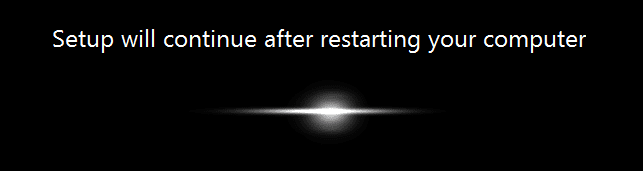
Starting the "new" hardware give me the screens you have put on the first page in a slightly different order, but he, what do I care, I'm happy :dinesh:

Thanks for the very useful information in this topic.

With kind greetings, Ad
 

My Computer My Computer

At a glance

Windows 7 professionalQX96502x 2GB DDR3MSI 560GTX
Computer Manufacturer/Model Number
€VGA 780i FTW
OS
Windows 7 professional
CPU
QX9650
Motherboard
NVIDIA nForce 780i SLI MCP
Memory
2x 2GB DDR3
Graphics Card(s)
MSI 560GTX
Sound Card
Onboard
Monitor(s) Displays
iiyama Prilite E2273HDS (2x)
Good to know it worked for you.

Kari
 

My Computer My Computer

At a glance

Windows 10 Pro x64 EN-GB1.6 GHz Intel Core i7-720QM Processor6 GBATI Mobility Radeon HD 5850 Graphics
Computer type
Laptop
Computer Manufacturer/Model Number
HP ENVY 17-1150eg
OS
Windows 10 Pro x64 EN-GB
CPU
1.6 GHz Intel Core i7-720QM Processor
Memory
6 GB
Graphics Card(s)
ATI Mobility Radeon HD 5850 Graphics
Sound Card
Beats sound system with integrated subwoofer
Monitor(s) Displays
17" laptop display, 22" LED and 32" Full HD TV through HDMI
Screen Resolution
1600*900 (1), 1920*1080 (2&3)
Hard Drives
Internal: 2 x 500 GB SATA Hard Disk Drive 7200 rpm
External: 2TB for backups, 3TB USB3 network drive for media
Cooling
As Envy runs a bit warm, I have it on a Cooler Master pad
Keyboard
Logitech diNovo Media Desktop Laser (bluetooth)
Mouse
Logitech Performance Mouse MX
Internet Speed
50/10 Mbps VDSL
Antivirus
Windows Defender 4.3.9431.0
Browser
Maxthon 3.5.2., IE11
Back
Top