memoman,
Go to another Win 7 64bit system. The win 7 does NOT need to be the same as yours, but must be 64 bit.
Make a System Repair Disc:
=========================================================
=========================================================
CREATE A SYSTEM REPAIR DISC
START | type
System Repair |
Enter key |
Create Disc button
Now you can boot from that CD and run System Repair
[FONT="]SYSTEM RECOVERY / REPAIR[/FONT]
[FONT="]
your computer[/FONT]
[FONT="]Power up [/FONT][FONT="]
your computer[/FONT]
[FONT="]SPACEBAR [/FONT][FONT="]
(Immediatelystart tapping)[/FONT]
[FONT="] [/FONT]
[FONT="]
After the dialog appears:[/FONT]
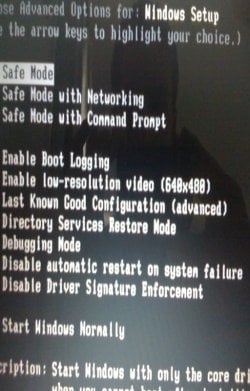
[FONT="]F8 key [/FONT][FONT="]
(selects Advanced Options)[/FONT]
[FONT="]Repair your Computer [/FONT][FONT="]
(near top of page)[/FONT]
[FONT="] [/FONT]
[FONT="]
When a dialog window appears:[/FONT]
[FONT="]
Select your language preference | [/FONT]
[FONT="]NEXT[/FONT]
[FONT="]Select your
user name and enter your
password | OK button[/FONT]
[FONT="] [/FONT]
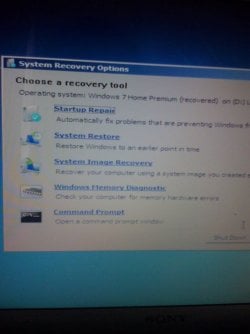
[FONT="]Select the desired repair option[/FONT][FONT="]
Startup Repair
System Restore
System Image Recovery
Windows Memory Diagnostic
Command Prompt[/FONT]
[FONT="] [/FONT]
[FONT="] [/FONT]
[FONT="]OPTION 2[/FONT][FONT="][/FONT]
[FONT="]VIA A WIN 7 DVD[/FONT]
[FONT="] [/FONT]
[FONT="]Insert
Win 7 DVD into the optical reader.[/FONT]
[FONT="] [/FONT]
[FONT="]Shutdown[/FONT][FONT="] your computer.[/FONT]
[FONT="]Power up [/FONT][FONT="]your computer.[/FONT]
[FONT="] [/FONT]
[FONT="]A dialog window will appear:[/FONT]
[FONT="]Select your Language Preference |
NEXT button[/FONT][FONT="][/FONT]
[FONT="] [/FONT]
[FONT="]Lower left you will have two choices:[/FONT]
[FONT="]What to know before installing Windows[/FONT]
[FONT="]Repair your Computer[/FONT]
[FONT="] [/FONT]
[FONT="]Click on
Repair your Computer[/FONT][FONT="][/FONT]
[FONT="] [/FONT]
[FONT="]Select your operating system
| NEXT button[/FONT][FONT="][/FONT]
[FONT="](If no operating system shown
| NEXT button)[/FONT]
[FONT="] [/FONT]
[FONT="]Select the desired repair option[/FONT][FONT="]
Startup Repair
System Restore
System Image Recovery
Windows Memory Diagnostic
Command Prompt[/FONT]
[FONT="] [/FONT]
[FONT="] [/FONT]
[FONT="]OPTION 3[/FONT]
[FONT="]VIA A SYSTEM REPAIR DISC[/FONT]
[FONT="] [/FONT]
[FONT="]Insert
Win 7 SYSTEM REPAIR DISC into the optical reader.[/FONT]
[FONT="] [/FONT]
[FONT="]Shutdown[/FONT][FONT="] your computer.[/FONT]
[FONT="]Power up [/FONT][FONT="]your computer.[/FONT]
[FONT="] [/FONT]
[FONT="]A dialog window will appear:[/FONT]
[FONT="]Select your Language Preference |
NEXT button[/FONT][FONT="][/FONT]
[FONT="] [/FONT]
[FONT="]Select desired operating system if more than 1 shown
|
Use recovery tools... Radio button
| NEXT button[/FONT]
[FONT="] [/FONT]
[FONT="]Select the desired repair option[/FONT][FONT="]
Startup Repair
System Restore
System Image Recovery
Windows Memory Diagnostic
Command Prompt[/FONT]
[FONT="] [/FONT]
[FONT="]===============================[/FONT]
[FONT="]===============================[/FONT]
[FONT="]For Startup Repair[/FONT][FONT="]
[/FONT][FONT="]1) [/FONT][FONT="]Click on
System Repair and run system repair[/FONT][FONT="]
[/FONT][FONT="]2) [/FONT]
[FONT="]Reboot[/FONT][FONT="]
[/FONT][FONT="]3) [/FONT][FONT="]Repeat this sequence
3 times[/FONT][FONT="]
[/FONT]
[FONT="] [/FONT]
[FONT="]===============================[/FONT]
[FONT="]===============================[/FONT]
[FONT="]For System Restore [/FONT][FONT="]
[/FONT]
[FONT="]Choose a different restore point[/FONT][FONT="] radio button
| NEXT
Show more restore points checkbox (lower left)
|
Highlight the desired restore point |
Scan for affected programs (lower right)
|
When you find a usable restore point, then
CLOSE | NEXT |
YES | Your computer will restart to finish the restore
|
After the computer has restarted,
FINISH
[/FONT][FONT="]
===============================[/FONT]
[FONT="]===============================[/FONT]
[FONT="]To restore your computer using an image you created using Win 7 Backup[/FONT][FONT="]
Click on
System Image Recovery[/FONT]
[FONT="] [/FONT]
[FONT="]===============================[/FONT]
[FONT="]===============================[/FONT]
[FONT="]NOTE: [/FONT]
[FONT="]
You may need to tell your computer to boot from [/FONT][FONT="]the optical drive.
Power Up your computer.[/FONT][FONT="]
Immediately start hitting the
F12 key
Choose
CD/DVD from the menu
If your computer doesn’t offer this capability, try tapping the
F2 key to get to the BIOS to change the boot order.[/FONT][FONT="][/FONT]
[FONT="]===============================[/FONT]
[FONT="]===============================[/FONT]