Repair Install

How to Do a Repair Install to Fix Windows 7


   Information
This will show you how to do a repair install (aka: in-place upgrade install) to fix your currently installed Windows 7 and preserve your user accounts, data, programs, and system drivers.
   Note
Do a Repair installation if:
  • A System Restore did not help fix your Windows 7.
  • There is no other easier option left that can fix your Windows 7.
  • You DO NOT want to do a Clean reinstall of Windows 7.
  • You DO want to preserve your user accounts, data, programs, and system drivers.
   Tip
ITEMS THAT WILL BE RESET TO DEFAULT OR AFFECTED:
  • Sounds
  • Services
  • Visual Effects Settings
  • Device Drivers - Be sure to have these handy to reinstall. They do not always remain after the repair (upgrade) install.
  • You may lose the ability to sign on to MSN Messenger, to solve this problem have a look at this thread Unable to sign in to WLM.
  • You may lose your custom themes due to not having permisions set on the old themes. Go to the hidden themes folder at C:/Users/(User-Name)/AppData/Local/Microsoft/Windows/Themes, then Take Ownership of the themes folder and you will now have all your themes back.
  • It has been reported that you may also lose your Media Center gadget after doing the repair install.
  • Windows Updates will need to be checked and reinstalled again.
   Warning

  • You can only do a repair install with the same edition Windows 7 installation disc for the same edition of Windows 7 that you have installed.
  • You cannot use a OEM Windows 7 "Factory" Restore/Recovery type of installation disc that came with or created from a store bought computer to do a repair install with. These can only be used do a clean install instead.
  • You can do a repair install on a factory OEM installation with the latest official Windows 7 with SP1 ISO file here: Microsoft: Windows 7 Direct Download Links, and use Windows 7 USB-DVD Download Tool to create a bootable DVD or USB flash drive with the ISO to do the repair install from within Windows 7.
  • You can use a retail OEM Windows 7 installation disc to do a repair install with.
  • You can use a retail (full or upgrade) Windows 7 installation disc to do a repair install with.
  • You cannot do a repair install with a System Repair Disc. A System Repair Disc is not a installation disc, and will only boot to the System Recovery Options screen.
  • If you have a 32-bit (x86) Windows 7 currently installed, then you must use a 32-bit Windows 7 installation disc to be able to do a repair install with.
  • If you have a 64-bit (x64) Windows 7 currently installed, then you must use a 64-bit Windows 7 installation disc to be able to do a repair install with.
  • You can use a retail Windows 7 SP1 installation disc (ex: Technet (available), MSDN (available), or retail (when available)) to do a repair install with on a currently installed Windows 7 SP1.
  • You can use a Windows 7 SP1 installation disc (ex: Technet (available), MSDN (available), or retail (when available)) to do a repair install with on a currently installed slipstream Windows 7 SP1.
  • You cannot use a slipstream Windows 7 installation disc to do a repair install with on a currently installed Windows 7 SP1.
  • You cannot use a slipstream Windows 7 installation disc to do a repair install with on a currently installed slipstream Windows 7 SP1.
  • You can only do a repair install from within Windows 7.
  • You cannot do a repair install at boot or in Safe Mode.
  • You must be logged into Windows 7 in a administrator account to be able to do a repair install.
  • You must have at least 8.87 GB + what is currently being used of free space (more if you have a larger installation) on the hard drive/partition Windows 7 is installed on to do a repair install.
  • If you changed the default location of a user account's profile folder, then you will need to change it back to the default C:\Users location first.
  • If you moved the default location of a user folder, then you will need to change it back to the default C:\Users\(user-name) location first.


Here's How:
NOTE: Be sure to back up anything that you do not want to lose first to be extra safe.1. Start Windows 7, and log on to an administrator account.

2. Disable any 3rd party firewall, antivirus, or other security program to avoid it from possibly preventing the repair in-place upgrade installation of Windows 7.

3. Do either step 4, step 5, or step 6 below depending if your retail Windows 7 installation ISO/DVD/USB has SP1 or not, and if your currently installed Windows 7 has SP1 installed or not.

4. Repair Installed Windows 7 SP1 using Windows 7 with SP1 ISO

   Note
If you do not have a Windows 7 with SP1 ISO, then you can download an official ISO with your retail product key from Microsoft at the link below.

:ar: Microsoft Software Recovery

You can also download the latest official Windows 7 SP1 Media Refresh (SP1 U) ISO file at the link below, but this link is not always available for download.

:ar: Microsoft: Windows 7 Direct Download Links

A) If you have not already, you will need to install a program like 7-Zip that supports extracting a ISO to a folder.

B) Using the program (ex: 7-Zip) from step 1, extract the Windows 7 SP1 ISO file to a folder on a partition or HDD other than the current Windows 7 partition. (see screenshot below)
NOTE: For example with 7-Zip, right click on ISO, click on 7-Zip, Extract files, browse button, select where you want to extract to, and click on OK twice.7-Zip.jpg
C) While in Windows 7 SP1, open the folder that you extracted the ISO into, and run the setup.exe file.

D) Go to step 7 below.
5. Repair Installed Windows 7 SP1 using Windows 7 with SP1 DVD/USB

   Note
If you do not have a Windows 7 with SP1 ISO, then you can download an official ISO with your retail product key from Microsoft at the link below.

:ar: http://www.microsoft.com/en-us/software-recovery

You can also download the latest official Windows 7 SP1 Media Refresh (SP1 U) ISO file at the link below, but this link is not always available for download.

:ar: Microsoft: Windows 7 Direct Download Links

Afterwards, you can use Windows 7 USB-DVD Download Tool to create a bootable DVD or USB flash drive with the ISO to do the repair install from within Windows 7 using this step.

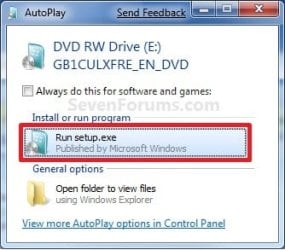
A) While in Windows 7 SP1, insert your retail Windows 7 SP1 installation DVD into the DVD drive, or connect your Windows 7 with SP1 installation USB thumb drive, and click on the Run setup.exe option in AutoPlay. (see screenshot below)
NOTE: If the AutoPlay window does not open, then open the drive folder in Computer and run the setup.exe file.AutoPlay.jpg
B) Go to Go to step 7 below.
6. Repair Installed Windows 7 without SP1 using Windows 7 without SP1 DVD/USB

   Note
If you do not have a Windows 7 without SP1 installation DVD/USB, then you can download the latest official Windows 7 Professional or Home Premium without SP1 ISO file here: Microsoft: Windows 7 Direct Download Links, and use Windows 7 USB-DVD Download Tool to create a bootable DVD or USB flash drive with the ISO to do the repair install from within Windows 7 using this step.

It is preferred to have SP1 installed on your PC and to use step 4 or step 5 above to do a repair install with instead though.

A) While in Windows 7 SP1 installed, insert your retail Windows 7 installation DVD into the DVD drive, or connect your Windows 7 installation USB thumb drive, and click on the Run setup.exe option in AutoPlay. (see screenshot below)
NOTE: If the AutoPlay window does not open, then open the drive folder in Computer and run the setup.exe file.AutoPlay.jpg
B) Go to Go to step 7 below.
7. If prompted by UAC, then click on Yes.

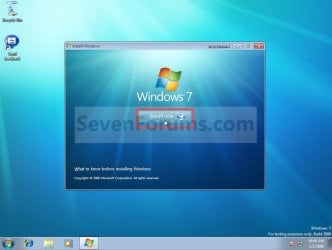
8. Click on the Install Now button to start the installation. (see screenshot below)Step1.jpg
9. If prompted, uncheck the I want to help make Windows installation better box (unless you would like to :) ), and click on the Go online to get the latest updates for installation option. (see screenshot below)Step2.jpg
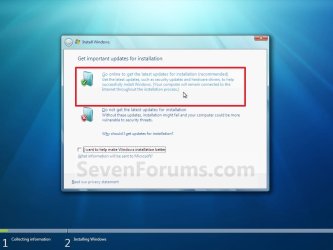
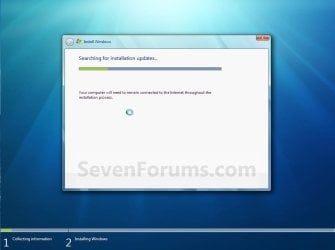
A) Windows 7 will now check online for and install any available installation updates. (see screenshots below)Step2A.jpg

Step2B.jpg

10. Check the I accept the license terms box, and click on Next. (see screenshot below)Step3.jpg
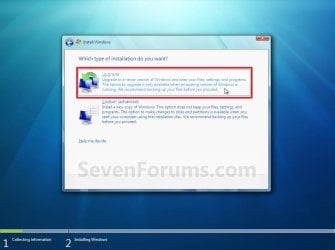
11. Click on the Upgrade option. (see screenshot below)Step4.jpg
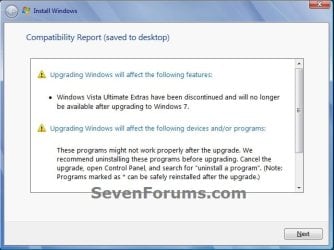
12. Windows will now check for any compatibility issues. If any are found like in the example below, click on the red X to cancel the repair install and close this "Install Windows" window, take care of any found issues (ex: uninstall any incompatible program), then restart the repair install process over again.Compatibility-Report.jpg
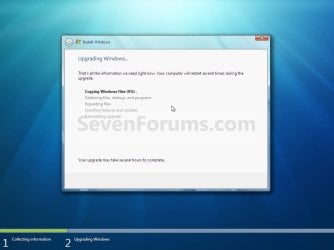
13. The installation of Windows 7 will now begin. (see screenshot below)
NOTE: During the installation process, your screen may flash and computer will restart a few times.Step5.jpg
14. After the final restart, you will see this screen for a moment. (see screenshot below)Step6.jpg
15. Type in your Windows 7 product key number. (see screenshot below step 16)

16. Uncheck the Automatically activate Windows when I'm online box unchecked, then click on the Next button. (see screenshot below)
NOTE: You can activate Windows 7 later after you make sure it is running properly. (see step 23 below)
If you chose to automatically activate Windows online when you set up your computer, automatic activation begins trying to activate your copy of Windows three days after you log on for the first time.Step7.jpg
17. Click on Use recommended settings. (see screenshot below)

:note: You will always be able to change your Windows Update settings at anytime in Windows 7.

Step8.jpg
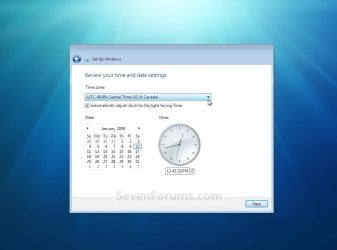
18. Select your time zone and set your time and date settings, then click on the Next button. (see screenshot below)Step9.jpg
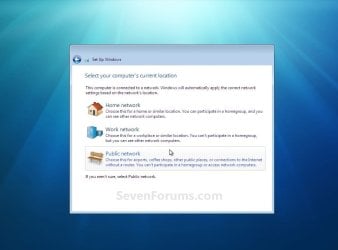
19. Click on the option for your computer's location to select the correct network location type settings to be applied for that location. (see screenshot below)
NOTE: It is best to select Public location for the best security.Step10.jpg
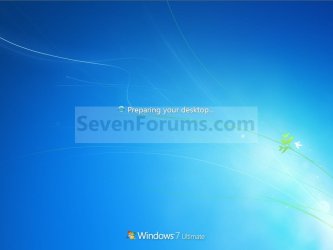
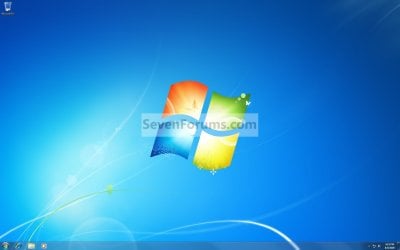
20. Windows 7 will now prepare your desktop to startup. (see screenshots below)Step11A.jpg

Desktop.jpg

21. If you used a DVD or USB to do the repair install with, then you can remove the DVD or USB when the repair install has successfully completed and you are logged in to Windows 7.

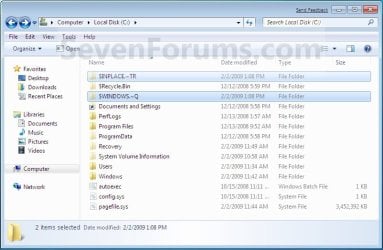
22. Check to see if you are missing any user files. If you are, then you can copy them from the C:\Windows.old or the hidden protected operating system C:\$INPLACE.~TR and C:\WINDOWS.~Q backup folders. (see screenshot below)Old_Install.jpg
23. If everything checks out in step 21, then you can run Disk Cleanup (step 5 at this link). You will need to click on the Clean up system files button first, and then could check the Files discarded by Windows upgrade, Previous Windows installations, and Windows upgrade log files boxes. (see screenshot below)
NOTE: This will delete the C:\Windows.old, C:\$INPLACE.~TR and C:\WINDOWS.~Q folders from step 21 above.Disk_Cleanup.jpg
24. Refresh your Windows Experience Index (WEI) score.

25. When finished, activate Windows 7, and make sure that your 3rd party security programs (if applicable) are enabled again.
That's it,
Shawn


Last edited:
Shawn,

You probably thought I'd abandoned you. Not so!! I was successful in getting the Repair Install to work. Thanks!!

But after all that, the problem I was chasing wasn't fixed. At least I have a clean computer now.

I stumbled into the root cause of my printer problem, and I fixed it. I could have fixed it without the Repair Install, but I'm happy to have learned that process for future applications.

The problem was that (somehow) TWO printer ports became assigned for the printer, both ports having the same name (Ex. USB001). I was able to delete both, re-install the printer drivers and, voila!, the printer worked. Whew!

Now all I have to do is recover from all the changes required for and as a result of the Repair Install. I can do it.

I appreciate your tutorial and the others I used in my quest.

Suggestion: You might want to reword Step 6.
Unless one takes alternative 1 or 2, the process WILL fail at Step 9. Apparently that's because the installed SP1 copy of Windows 7 is at a higher level than the original non-SP1 Windows 7 installation DVD. The upgrade process can't upgrade that which is already upgraded. I hope this helps someone else avoid the problem I encountered.

I'll be back when I have another problem -- or maybe even a contribution!!

Bill
 

My Computer

OS
Windows 7 Professional x64
That's great news Bill. I'm happy to hear that you got it all sorted out. I went ahead and removed the old step 6 option since it appears to no longer work anymore. Step 5 is the preferred and most common method anyway.
 

My Computer

Computer type
PC/Desktop
Computer Manufacturer/Model Number
Self built custom
OS
64-bit Windows 11 Pro for Workstations
CPU
Intel i7-8700K OC'd to 5 GHz
Motherboard
ASUS ROG Maximus XI Formula Z390
Memory
64 GB (4x16GB) G.SKILL TridentZ RGB DDR4 3600 MHz
Graphics Card(s)
ASUS ROG-STRIX-GTX1080TI-O11G-GAMING
Sound Card
Integrated
Monitor(s) Displays
2 x Samsung Odyssey G7 27"
Screen Resolution
2560x1440
Hard Drives
1TB Samsung 990 PRO M.2,
4TB Samsung 990 PRO PRO M.2,
TerraMaster F8 SSD Plus NAS
PSU
Seasonic Prime Titanium 850W
Case
Thermaltake Core P3
Cooling
Corsair Hydro H115i
Keyboard
Logitech wireless K800
Mouse
Logitech MX Master 4
Internet Speed
2 Gb/s Download and 100 Mb/s Upload
Antivirus
Malwarebyte Anti-Malware Premium
Browser
Google Chrome
Other Info
Logitech Z625 speaker system,
Logitech BRIO 4K Pro webcam,
HP Color LaserJet Pro MFP M477fdn,
APC SMART-UPS RT 1000 XL - SURT1000XLI,
Galaxy S23 Plus phone
Shawn,

At the beginning of your Repair Install process tutorial is a list of warnings. The last two are cautions about changed default locations for User Accounts. I can understand the need to have the Users' profile folder at the default location on the C: drive because that stuff is closely integrated with system and program operational information. In fact, I never move those files from C: for that reason.

But the rest of the files in the User Account folder are data, ideally separated from the operating system and application programs into another partition (dedicated to storing only data files) for lots of reasons. I'm talking about files such as Documents, Favorites, Contacts, Pictures, etc., etc.. What is the purpose of the warning on having those data files relocated from their default location on C:?

I agree that Windows will repair those user folders into their default location on C:, so those repaired folders will have to have their pointers restored to their non-default locations for access to their pre-repair data. But even if the repair process puts new files into those repaired folders, won't the location-moving process merely integrate the new files with those still located on the original data partition? [I guess I should try that, but you may already know the answer.]

I returned those folders, reluctantly, to their default locations on C: prior to the repair proces and then moved them back after completing the repair process because I didn't want to louse up the repair process and lose my time investment in it. Now that my crisis is over, I'm preparing in case such recovery is again needed by myself or others around me, so I am reviewing the repair process for efficiency and risk management. So help me understand that last item in your warnings list. please.

By the way, I made a backup of my entire system prior to runing the repair process, just in case something went awry. Good insurance!! It's too soon to be able to tell if I lost any data in the repair process, but I can get it back if some was lost.

Thanks again for a very fine job!

Bill
 

My Computer

OS
Windows 7 Professional x64
1st , thanks for the tutorial ..... got there eventually :) not sure what the problem was but I had to run the "upgrade" 4 times with various settings before it didnt restore itself to the Original Win7 64bit at the very last reboot , no error messages at all in the 1st 3 attempts , the last one I stopped the upgrade from downloading anything from M$oft and the Upgrade "took" .

After 60 plus updates from M$ everything seemed fine untill earlier i went to use
WinXp Mode and it was gone ?, no links on start menu etc , but the files were still where i had installed them but nothing would let me start XP Mode . It turns out XP Mode was still there but the Virtual PC wasn't , not sure why, so i reinstalled the Virtual PC , rebooted and Xp Mode was back and working agin with all my apps intact "phew" . So hopefully this is a warning for others with Xp Mode running.

Xp Mode files are here :
Download Windows XP Mode

thanks for the tut. :)

KB
 
Last edited:

My Computer

OS
64bit Pro
You're most welcome KB, and welcome to Seven Forums. :)
 

My Computer

Computer type
PC/Desktop
Computer Manufacturer/Model Number
Self built custom
OS
64-bit Windows 11 Pro for Workstations
CPU
Intel i7-8700K OC'd to 5 GHz
Motherboard
ASUS ROG Maximus XI Formula Z390
Memory
64 GB (4x16GB) G.SKILL TridentZ RGB DDR4 3600 MHz
Graphics Card(s)
ASUS ROG-STRIX-GTX1080TI-O11G-GAMING
Sound Card
Integrated
Monitor(s) Displays
2 x Samsung Odyssey G7 27"
Screen Resolution
2560x1440
Hard Drives
1TB Samsung 990 PRO M.2,
4TB Samsung 990 PRO PRO M.2,
TerraMaster F8 SSD Plus NAS
PSU
Seasonic Prime Titanium 850W
Case
Thermaltake Core P3
Cooling
Corsair Hydro H115i
Keyboard
Logitech wireless K800
Mouse
Logitech MX Master 4
Internet Speed
2 Gb/s Download and 100 Mb/s Upload
Antivirus
Malwarebyte Anti-Malware Premium
Browser
Google Chrome
Other Info
Logitech Z625 speaker system,
Logitech BRIO 4K Pro webcam,
HP Color LaserJet Pro MFP M477fdn,
APC SMART-UPS RT 1000 XL - SURT1000XLI,
Galaxy S23 Plus phone
Shawn,

At the beginning of your Repair Install process tutorial is a list of warnings. The last two are cautions about changed default locations for User Accounts. I can understand the need to have the Users' profile folder at the default location on the C: drive because that stuff is closely integrated with system and program operational information. In fact, I never move those files from C: for that reason.

But the rest of the files in the User Account folder are data, ideally separated from the operating system and application programs into another partition (dedicated to storing only data files) for lots of reasons. I'm talking about files such as Documents, Favorites, Contacts, Pictures, etc., etc.. What is the purpose of the warning on having those data files relocated from their default location on C:?

I agree that Windows will repair those user folders into their default location on C:, so those repaired folders will have to have their pointers restored to their non-default locations for access to their pre-repair data. But even if the repair process puts new files into those repaired folders, won't the location-moving process merely integrate the new files with those still located on the original data partition? [I guess I should try that, but you may already know the answer.]

I returned those folders, reluctantly, to their default locations on C: prior to the repair proces and then moved them back after completing the repair process because I didn't want to louse up the repair process and lose my time investment in it. Now that my crisis is over, I'm preparing in case such recovery is again needed by myself or others around me, so I am reviewing the repair process for efficiency and risk management. So help me understand that last item in your warnings list. please.

By the way, I made a backup of my entire system prior to runing the repair process, just in case something went awry. Good insurance!! It's too soon to be able to tell if I lost any data in the repair process, but I can get it back if some was lost.

Thanks again for a very fine job!

Bill

Hello Bill,

That's a smart decision to create a system image to be safe. You never know what monkey wrench may pop-up.

Anytime you move the location of either the user profile folder (user-name) or any of the user folders (Music, Pictures, etc...), you risk it not transferring over properly or not at all during the repair install and possibly causing a user profile error, or worse lost of data in the folders.

Instead of moving the locations of the folders, you might consider this below to be able to access the files from your libraries with the files actually located where you like instead. It's much easier to just include the folder again, than to try and fix a messed up moved user folder.
 

My Computer

Computer type
PC/Desktop
Computer Manufacturer/Model Number
Self built custom
OS
64-bit Windows 11 Pro for Workstations
CPU
Intel i7-8700K OC'd to 5 GHz
Motherboard
ASUS ROG Maximus XI Formula Z390
Memory
64 GB (4x16GB) G.SKILL TridentZ RGB DDR4 3600 MHz
Graphics Card(s)
ASUS ROG-STRIX-GTX1080TI-O11G-GAMING
Sound Card
Integrated
Monitor(s) Displays
2 x Samsung Odyssey G7 27"
Screen Resolution
2560x1440
Hard Drives
1TB Samsung 990 PRO M.2,
4TB Samsung 990 PRO PRO M.2,
TerraMaster F8 SSD Plus NAS
PSU
Seasonic Prime Titanium 850W
Case
Thermaltake Core P3
Cooling
Corsair Hydro H115i
Keyboard
Logitech wireless K800
Mouse
Logitech MX Master 4
Internet Speed
2 Gb/s Download and 100 Mb/s Upload
Antivirus
Malwarebyte Anti-Malware Premium
Browser
Google Chrome
Other Info
Logitech Z625 speaker system,
Logitech BRIO 4K Pro webcam,
HP Color LaserJet Pro MFP M477fdn,
APC SMART-UPS RT 1000 XL - SURT1000XLI,
Galaxy S23 Plus phone
Right! In other words, abandon the Win7 default data filing system altogether. I like that. In fact, that's what I did in earlier versions of Windows -- NOT use the My Documents folder at all. I used my own filing system as you are suggesting now.

Good call.
 

My Computer

OS
Windows 7 Professional x64
Well, you're still using the explorer file system, but just using libraries instead of trying to move the target locations of your user folder junction points. I'm glad it will work for you though. :)
 

My Computer

Computer type
PC/Desktop
Computer Manufacturer/Model Number
Self built custom
OS
64-bit Windows 11 Pro for Workstations
CPU
Intel i7-8700K OC'd to 5 GHz
Motherboard
ASUS ROG Maximus XI Formula Z390
Memory
64 GB (4x16GB) G.SKILL TridentZ RGB DDR4 3600 MHz
Graphics Card(s)
ASUS ROG-STRIX-GTX1080TI-O11G-GAMING
Sound Card
Integrated
Monitor(s) Displays
2 x Samsung Odyssey G7 27"
Screen Resolution
2560x1440
Hard Drives
1TB Samsung 990 PRO M.2,
4TB Samsung 990 PRO PRO M.2,
TerraMaster F8 SSD Plus NAS
PSU
Seasonic Prime Titanium 850W
Case
Thermaltake Core P3
Cooling
Corsair Hydro H115i
Keyboard
Logitech wireless K800
Mouse
Logitech MX Master 4
Internet Speed
2 Gb/s Download and 100 Mb/s Upload
Antivirus
Malwarebyte Anti-Malware Premium
Browser
Google Chrome
Other Info
Logitech Z625 speaker system,
Logitech BRIO 4K Pro webcam,
HP Color LaserJet Pro MFP M477fdn,
APC SMART-UPS RT 1000 XL - SURT1000XLI,
Galaxy S23 Plus phone
Error 0x8000ffff

Hello,I'm having a problem trying to repair windows with Sp1.At expanding files a get this error(see the pic).I have windows 7 Home premium x64,Pack 1.
Can someone help me?Note that my windows update don't work(that's why I want to repair windows).
Thanks to everyone. :)
 

Attachments

  • Untitled.png
    Untitled.png
    823.6 KB · Views: 172

My Computer

OS
Windows 7 Home Premium x64,Service Pack 1.

My Computer

Computer type
PC/Desktop
Computer Manufacturer/Model Number
Self built custom
OS
64-bit Windows 11 Pro for Workstations
CPU
Intel i7-8700K OC'd to 5 GHz
Motherboard
ASUS ROG Maximus XI Formula Z390
Memory
64 GB (4x16GB) G.SKILL TridentZ RGB DDR4 3600 MHz
Graphics Card(s)
ASUS ROG-STRIX-GTX1080TI-O11G-GAMING
Sound Card
Integrated
Monitor(s) Displays
2 x Samsung Odyssey G7 27"
Screen Resolution
2560x1440
Hard Drives
1TB Samsung 990 PRO M.2,
4TB Samsung 990 PRO PRO M.2,
TerraMaster F8 SSD Plus NAS
PSU
Seasonic Prime Titanium 850W
Case
Thermaltake Core P3
Cooling
Corsair Hydro H115i
Keyboard
Logitech wireless K800
Mouse
Logitech MX Master 4
Internet Speed
2 Gb/s Download and 100 Mb/s Upload
Antivirus
Malwarebyte Anti-Malware Premium
Browser
Google Chrome
Other Info
Logitech Z625 speaker system,
Logitech BRIO 4K Pro webcam,
HP Color LaserJet Pro MFP M477fdn,
APC SMART-UPS RT 1000 XL - SURT1000XLI,
Galaxy S23 Plus phone
Nice Tut!

I am slightly unclear about the warning.

Can a Windows 7 Pro x64 with SP1 disk be used to repair a Windows 7 Pro x64 installation where the SP1 update is failing as a way to bypass the SP1 installer's issue (can't uninstall a non-driver feature the isn't installed)

OR

should I be using a Windows 7 Pro x64 disk to try to resolve the cause of the SP1 installer's error, then retry the SP1 install?

I'm inclined to go for the silver bullet and use a W7Prox64 with SP1 iso from DigitalRiver if crossing sub-versions will not cause other issues.

Thanks for any insights.
 

My Computer

Computer Manufacturer/Model Number
HP 8710w Mobile Workstation
OS
Windows 7 Pro x64
Memory
4Gb
Graphics Card(s)
NVidia

My Computer

Computer type
PC/Desktop
Computer Manufacturer/Model Number
Self built custom
OS
64-bit Windows 11 Pro for Workstations
CPU
Intel i7-8700K OC'd to 5 GHz
Motherboard
ASUS ROG Maximus XI Formula Z390
Memory
64 GB (4x16GB) G.SKILL TridentZ RGB DDR4 3600 MHz
Graphics Card(s)
ASUS ROG-STRIX-GTX1080TI-O11G-GAMING
Sound Card
Integrated
Monitor(s) Displays
2 x Samsung Odyssey G7 27"
Screen Resolution
2560x1440
Hard Drives
1TB Samsung 990 PRO M.2,
4TB Samsung 990 PRO PRO M.2,
TerraMaster F8 SSD Plus NAS
PSU
Seasonic Prime Titanium 850W
Case
Thermaltake Core P3
Cooling
Corsair Hydro H115i
Keyboard
Logitech wireless K800
Mouse
Logitech MX Master 4
Internet Speed
2 Gb/s Download and 100 Mb/s Upload
Antivirus
Malwarebyte Anti-Malware Premium
Browser
Google Chrome
Other Info
Logitech Z625 speaker system,
Logitech BRIO 4K Pro webcam,
HP Color LaserJet Pro MFP M477fdn,
APC SMART-UPS RT 1000 XL - SURT1000XLI,
Galaxy S23 Plus phone
Thanks - I'm just anticipating that I have hit a dead end with the other thread - no news ideas being suggested.
I'll give it more time, but I'm guessing the two who have been helping are stumped and the thread is now so long, no one else is likely to look into it.

Greatly appreciate this forum and the incredible number of hours that you and others contribute!
 

My Computer

Computer Manufacturer/Model Number
HP 8710w Mobile Workstation
OS
Windows 7 Pro x64
Memory
4Gb
Graphics Card(s)
NVidia
Shawn -

From your comment, did you have any specific ideas on this "SP1 is unable to uninstall msoe.dll" thing or were you just making a general comment about avoiding a repair?

Can you add any suggestions on how I might avoid a repair to get SP1 to install?
I otherwise have an installation I am very happy with and don't want to mess it up.

Thanks in advance - thread link is above.
 

My Computer

Computer Manufacturer/Model Number
HP 8710w Mobile Workstation
OS
Windows 7 Pro x64
Memory
4Gb
Graphics Card(s)
NVidia
Sorry, but no. I was just suggesting that hopefully they may be able to come up with a solution in your original thread first. A repair install does not always help with SP1 issues. :(
 

My Computer

Computer type
PC/Desktop
Computer Manufacturer/Model Number
Self built custom
OS
64-bit Windows 11 Pro for Workstations
CPU
Intel i7-8700K OC'd to 5 GHz
Motherboard
ASUS ROG Maximus XI Formula Z390
Memory
64 GB (4x16GB) G.SKILL TridentZ RGB DDR4 3600 MHz
Graphics Card(s)
ASUS ROG-STRIX-GTX1080TI-O11G-GAMING
Sound Card
Integrated
Monitor(s) Displays
2 x Samsung Odyssey G7 27"
Screen Resolution
2560x1440
Hard Drives
1TB Samsung 990 PRO M.2,
4TB Samsung 990 PRO PRO M.2,
TerraMaster F8 SSD Plus NAS
PSU
Seasonic Prime Titanium 850W
Case
Thermaltake Core P3
Cooling
Corsair Hydro H115i
Keyboard
Logitech wireless K800
Mouse
Logitech MX Master 4
Internet Speed
2 Gb/s Download and 100 Mb/s Upload
Antivirus
Malwarebyte Anti-Malware Premium
Browser
Google Chrome
Other Info
Logitech Z625 speaker system,
Logitech BRIO 4K Pro webcam,
HP Color LaserJet Pro MFP M477fdn,
APC SMART-UPS RT 1000 XL - SURT1000XLI,
Galaxy S23 Plus phone
Issue solved - Thank you for encouraging perseverence.
 

My Computer

Computer Manufacturer/Model Number
HP 8710w Mobile Workstation
OS
Windows 7 Pro x64
Memory
4Gb
Graphics Card(s)
NVidia
That's great news Duke. I'm happy to hear it. :)
 

My Computer

Computer type
PC/Desktop
Computer Manufacturer/Model Number
Self built custom
OS
64-bit Windows 11 Pro for Workstations
CPU
Intel i7-8700K OC'd to 5 GHz
Motherboard
ASUS ROG Maximus XI Formula Z390
Memory
64 GB (4x16GB) G.SKILL TridentZ RGB DDR4 3600 MHz
Graphics Card(s)
ASUS ROG-STRIX-GTX1080TI-O11G-GAMING
Sound Card
Integrated
Monitor(s) Displays
2 x Samsung Odyssey G7 27"
Screen Resolution
2560x1440
Hard Drives
1TB Samsung 990 PRO M.2,
4TB Samsung 990 PRO PRO M.2,
TerraMaster F8 SSD Plus NAS
PSU
Seasonic Prime Titanium 850W
Case
Thermaltake Core P3
Cooling
Corsair Hydro H115i
Keyboard
Logitech wireless K800
Mouse
Logitech MX Master 4
Internet Speed
2 Gb/s Download and 100 Mb/s Upload
Antivirus
Malwarebyte Anti-Malware Premium
Browser
Google Chrome
Other Info
Logitech Z625 speaker system,
Logitech BRIO 4K Pro webcam,
HP Color LaserJet Pro MFP M477fdn,
APC SMART-UPS RT 1000 XL - SURT1000XLI,
Galaxy S23 Plus phone
Shawn, seems like a great tutorial. I was hoping it would help me but realized that from the tutorial that it wouldn't work for my situation. I can't get win7 to boot, I don't want to lose user data with a clean install. Not sure of the next step.
 

My Computer

OS
Win 7 64

My Computer

Computer type
PC/Desktop
Computer Manufacturer/Model Number
Self built custom
OS
64-bit Windows 11 Pro for Workstations
CPU
Intel i7-8700K OC'd to 5 GHz
Motherboard
ASUS ROG Maximus XI Formula Z390
Memory
64 GB (4x16GB) G.SKILL TridentZ RGB DDR4 3600 MHz
Graphics Card(s)
ASUS ROG-STRIX-GTX1080TI-O11G-GAMING
Sound Card
Integrated
Monitor(s) Displays
2 x Samsung Odyssey G7 27"
Screen Resolution
2560x1440
Hard Drives
1TB Samsung 990 PRO M.2,
4TB Samsung 990 PRO PRO M.2,
TerraMaster F8 SSD Plus NAS
PSU
Seasonic Prime Titanium 850W
Case
Thermaltake Core P3
Cooling
Corsair Hydro H115i
Keyboard
Logitech wireless K800
Mouse
Logitech MX Master 4
Internet Speed
2 Gb/s Download and 100 Mb/s Upload
Antivirus
Malwarebyte Anti-Malware Premium
Browser
Google Chrome
Other Info
Logitech Z625 speaker system,
Logitech BRIO 4K Pro webcam,
HP Color LaserJet Pro MFP M477fdn,
APC SMART-UPS RT 1000 XL - SURT1000XLI,
Galaxy S23 Plus phone
Sp1 DVD question

I'm about ready to do a repair install on my Windows 7 Pro.
I originally bought a download version of the Pro version and I can't remember if I ever slipstreamed SP 1 on it.
Help, please.

Pete
 

My Computer

Computer Manufacturer/Model Number
Home Built
OS
Windows 7 Professional
CPU
AMD 64 Athlon X2 Dual Core
Motherboard
Asus M3A
Memory
6 Gig
Graphics Card(s)
Nvidia GeForce 8800GTS
Hard Drives
500GB Seagate (2)
Other Info
Laptop is Gateway NV52 with Windows 7 Home Premium
Back
Top