Solved Redundant entries in the Windows Boot Manager

Metrik

New member
Local time
11:42 PM
Messages
10
I am having a problem with my dual boot setup. Despite only running two Win7 partitions, I have three options on the boot selection screen and two of them are redundant (the same). How do I get rid of one of them?

I have:

Windows 7
Windows 7 Ultimate N

Here's what it looks like from the Startup and Recovery window:
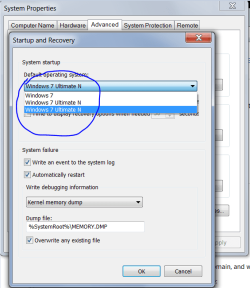
compmgmt03.PNG

I would like to safely remove one of the "Windows 7 Ultimate N" entries. I am ok using a command prompt and bcdedit or the like - I just don't want to break something.

I took some more screenshots of my setup to help troubleshoot:
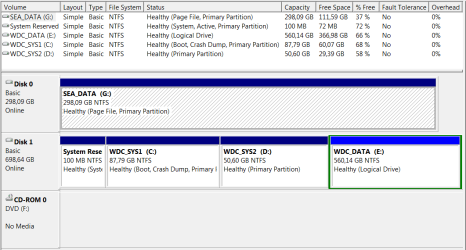
compmgmt01.PNG

compmgmt02.PNG

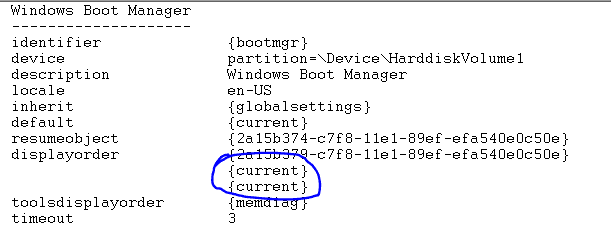
Here's the complete Windows Boot Manager config:

Windows Boot Manager
--------------------
identifier {bootmgr}
device partition=\Device\HarddiskVolume1
description Windows Boot Manager
locale en-US
inherit {globalsettings}
default {current}
resumeobject {2a15b374-c7f8-11e1-89ef-efa540e0c50e}
displayorder {2a15b379-c7f8-11e1-89ef-efa540e0c50e}
{current}
{current}
toolsdisplayorder {memdiag}
timeout 3

Windows Boot Loader
-------------------
identifier {2a15b379-c7f8-11e1-89ef-efa540e0c50e}
device partition=D:
path \Windows\system32\winload.exe
description Windows 7
locale en-US
inherit {bootloadersettings}
recoverysequence {2a15b37a-c7f8-11e1-89ef-efa540e0c50e}
recoveryenabled Yes
osdevice partition=D:
systemroot \Windows
resumeobject {2a15b378-c7f8-11e1-89ef-efa540e0c50e}
nx OptIn

Windows Boot Loader
-------------------
identifier {current}
device partition=C:
path \Windows\system32\winload.exe
description Windows 7 Ultimate N
locale en-US
inherit {bootloadersettings}
recoverysequence {2a15b376-c7f8-11e1-89ef-efa540e0c50e}
recoveryenabled Yes
osdevice partition=C:
systemroot \Windows
resumeobject {2a15b374-c7f8-11e1-89ef-efa540e0c50e}
nx OptIn
 

My Computer My Computer

OS
Windows 7 Ultimate x64
Boot into Ultimate NT and then from msconfig>Boot tab highlight and delete the unbooted Ultimate listing.

You can also do this in EasyBCD Edit OS Entry tab, as well as rename the remaining entries.

I would move the Paging file back to C by turning it off and then on again: Virtual Memory Paging File - Change - Vista Forums. It will force you to include Seagate in backup image otherwise.

If you need more space move data on E to the Seagate storage and resize C and/or D into deleted E space. Using Partition Wizard bootable CD you can resize each in either direction, or slide intact.

http://partitionwizard.com/video-help/moveresizepartition/moveresizepartition.htmlPartition Wizard Move/Resize Partition Video Help.
Partition or Volume - Delete
Partition or Volume - Extend
 
Boot into Ultimate NT and then from msconfig>Boot tab highlight and delete the unbooted Ultimate listing.

If I do this, both entries disappear simultaneously despite only selecting one entry.

You can also do this in EasyBCD Edit OS Entry tab, as well as rename the remaining entries.

I haven't tried this yet, but I will see if I can understand your advice and use EasyBCD.

I would move the Paging file back to C by turning it off and then on again: Virtual Memory Paging File - Change - Vista Forums. It will force you to include Seagate in backup image otherwise.

Thanks a lot for the tip. I hadn't thought of that :)
 

My Computer My Computer

OS
Windows 7 Ultimate x64

My Computer My Computer

Computer Manufacturer/Model Number
HP, Dell, Gateway, Toshiba - 4 laptops and 2 desktops
OS
Vista, Windows7, Mint Mate, Zorin, Windows 8
CPU
from 1.6GHz Duo to i7
Monitor(s) Displays
2x HP w2207
Hard Drives
5x HDD, 7x SSD, 12x Externals
Keyboard
with trackball - no mices
Mouse
Trackball mice
Internet Speed
DSL 6000
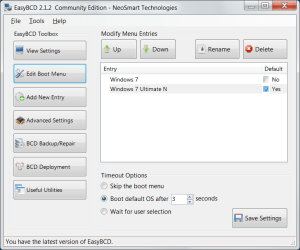
This is data from EasyBCD. I haven't changed anything yet. I find it disturbing that EasyBCD thinks there are only two entries.

bcd_view_settings.PNG

bcd_edit_boot_menu.PNG
 

My Computer My Computer

OS
Windows 7 Ultimate x64
There probably only are 2 real BCDs.
 

My Computer My Computer

Computer Manufacturer/Model Number
HP, Dell, Gateway, Toshiba - 4 laptops and 2 desktops
OS
Vista, Windows7, Mint Mate, Zorin, Windows 8
CPU
from 1.6GHz Duo to i7
Monitor(s) Displays
2x HP w2207
Hard Drives
5x HDD, 7x SSD, 12x Externals
Keyboard
with trackball - no mices
Mouse
Trackball mice
Internet Speed
DSL 6000
There probably only are 2 real BCDs.

This is what this whole thread is about - removing one of the redundant entries I am presented with at boot time :)

Windows 7
Windows 7 Ultimate N
 

My Computer My Computer

OS
Windows 7 Ultimate x64
Easy shows Win7 on F partition which isn't shown in your Disk Management screenshot.

If you're running Easy from Ultimate on C, then on Edit Boot Menu delete the incorrect listing for Win7 on F and add it by its correct name and drive letter on the Add New Entry tab, reboot.

If this fails to remove the ghost entry then run Startup Repair - Run 3 Separate Times
on Ultimate to rewrite the System boot files correctly. You can later edit out any "Recovered" label in Easy Edit tab.
 
Thanks to both of you guys, I managed to clean up the boot options by using EasyBCD. The ghost entry is now gone. When I used EasyBCD to edit all this, I ended up with a non-bootable system, but using my Win7 Ultimate installation disk (on a USB stick), I came through by letting it repair the system, followed by a rename of entries in EasyBCD.

Thanks again for your fast and friendly replies.
 

My Computer My Computer

OS
Windows 7 Ultimate x64
When I used EasyBCD to edit all this, I ended up with a non-bootable system, but using my Win7 Ultimate installation disk (on a USB stick), I came through by letting it repair the system, followed by a rename of entries in EasyBCD.
.

What other editing did you do in Easy, besides the recommendation to delete the incorrect listing and add it again?
 
What other editing did you do in Easy, besides the recommendation to delete the incorrect listing and add it again?

I am sorry, but it's difficult for me to describe exactly what I did. I tried to follow Step 3 in the guide linked by whs:


Step 3 makes Step 4 and 5 mandatory (if I understand the guide correctly) and I have a feeling that Step 4 makes my computer fail at boot-up - but doing a repair from my Win7 installation disk (USB) solved the issue.

I am sorry not to be able to reconstruct exactly what I did. I am fairly new to EasyBCD and I bet you could have done this the right way the first time.
 

My Computer My Computer

OS
Windows 7 Ultimate x64
I do not recommend moving the System Boot files using EasyBCD but instead following our oldest, most successful advice here to mark the target partition Active then run Startup Repair up to 3 separate times from DVD or REpair CD.

Among other things this assures that the Repair console is written to the F8 Advanced Boot Tools which is not achieved by using EasyBCD. Startup Repair takes a much more wholistic approach to scan and check that everything is correct before and after rewriting the System boot files.
 
...to mark the target partition Active then run Startup Repair up to 3 separate times from DVD or REpair CD.

Will it be OK to do this even after I have used EasyBCD to change things?

Do I use "Computer Management -> Disk Management" to mark the target partition active?

Isn't it true that after marking the target partition active, the computer will fail to boot - making the Startup Repair procedure mandatory? (I am asking this to mentally prepare myself for the job, so I know what will happen at the different stages).
 

My Computer My Computer

OS
Windows 7 Ultimate x64
It isn't necessary to repair it further if it's working correctly now. Are there other problems?

Post back a screenshot of your Disk Mgmt drive map and listings, using the Snipping Tool in Start menu.
 
No more problems so far

Capture.PNG
 

My Computer My Computer

OS
Windows 7 Ultimate x64
It shows the Paging file correctly moved back to C which is booted. Is D the other OS? Does it boot OK?
 
Yes and yes, Greg :) Everything is OK now, thanks again.
 

My Computer My Computer

OS
Windows 7 Ultimate x64
Great place here, thanks to guidance like yours.
 

My Computer My Computer

OS
Windows 7 Ultimate x64
Back
Top