Windows XP Mode - Install and Setup

How to Install and Setup Windows XP Mode in Windows 7


   Information
Windows XP Mode is 32-bit XP Pro SP3 virtual machine.

Windows XP Mode for Windows 7 makes it easy to install and run your applications for 32-bit Windows XP directly from your Windows 7 32-bit or 64-bit based PC. It utilizes virtualization technology such as Windows Virtual PC to provide a Virtual Windows XP environment for Windows 7. Windows XP Mode provides only Windows 7 Professional, Ultimate, or Enterprise users the flexibility to run many older productivity applications in a virtual Windows XP environment on a Windows 7-based PC.

UPDATE: Windows XP Mode now accessible to more PCs | Blogging Windows

   Note
Windows Virtual PC (step 1 below) is the latest Microsoft virtualization technology for Windows 7. It is the runtime engine for Windows XP Mode to provide a virtual Windows environment for Windows 7. With Windows Virtual PC, Windows XP mode applications can be seen and accessed from a Windows 7-based PC. For more detailed information about Windows Virtual PC, see Windows Virtual PC: Documentation

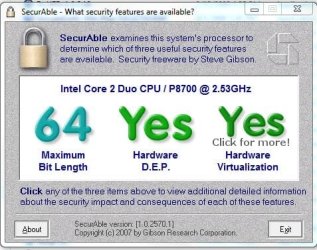
To find out whether your computer's CPU is capable of hardware-assisted virtualization. To check, download and run the Hardware-Assisted Virtualization Detection Tool.
  • If you receive the message “This computer is configured with hardware-assisted virtualization,” you can run Windows Virtual PC and Windows XP Mode. See the instructions below.
  • If you receive the error message "There is no hardware-assisted virtualization support in the system," your computer's CPU doesn't support hardware-assisted virtualization. You can still use Windows XP Mode by installing an update to Windows 7. See Why am I receiving errors about hardware-assisted virtualization (HAV) when I try to use Windows XP Mode and Windows Virtual PC?. Be aware that XP Mode will run much better if hardware-assisted virtualization can be enabled.
   Tip


   Warning
Windows Virtual PC Requirements:
  • 1 GHz 32-bit / 64-bit processor required
  • Memory (RAM)
    • 1.25 GB required, 2 GB memory recommended
  • Recommended 15 GB hard disk space per virtual Windows environment
  • Supported host (your computer) operating system:
    NOTE: Windows XP Mode can only be installed on Windows 7 Professional, Windows 7 Ultimate, and Windows 7 Enterprise.
    • Windows 7 Home Premium (32-bit or 64-bit)
    • Windows 7 Professional (32-bit and 64-bit)
    • Windows 7 Ultimate (32-bit and 64-bit)
    • Windows 7 Enterprise (32-bit and 64-bit)
  • Supported guest (virtual machine) 32-bit only operating system:
    • Windows XP
      • Virtual Applications feature is supported only on Windows XP Service Pack 3 (SP3) Professional
    • Windows Vista
      • Virtual Applications feature is supported only on Windows Vista Enterprise and Windows Vista Ultimate
    • Windows 7
      • Virtual Applications feature is supported only on Windows 7 Enterprise and Windows 7 Ultimate
EXAMPLE: Windows XP Mode
Example.jpg
Here's How:
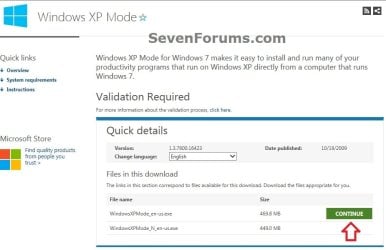
1. Go to the Windows XP Mode webpage, select your language, and click on the Continue button. (see screenshot below)
XP-Mode-1.jpg
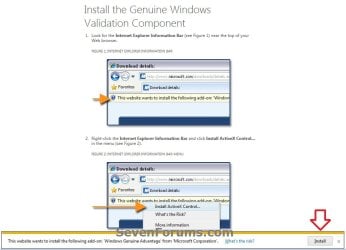
2. If you have not already, you will need to validate your Windows 7 first. Click on Install to install the Genuine Windows Validation Component, or follow on screen instructions. (see screenshot below)
NOTE: You will need to have Windows 7 activated and cookies enabled to be able to do this.
Validate-1.jpg
3. Download and Install Windows XP Mode
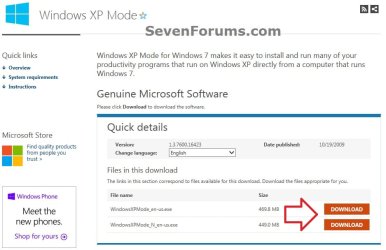
A) Select your language, and click on the Download button for the version (ex: WindowsXPMode_en-us.exe) you want to download. (see screenshot below)
NOTE: The "N" version of Windows XP is for the European version of Windows.
XP-Mode-2.jpg
B) Save the WindowsXPMode_en-us.exe file to your desktop.
C) Double click on the downloaded WindowsXPMode_en-us.exe installation file to start installing it.
NOTE: The part of the name in red will vary for you depending on what language you selected (step 1).

D) Click on the Next button. (see screenshot below)
NOTE: If you like, you could click on Browse and select another location to save the VHD file for XP Mode to instead of the default location in the screenshot below.
Install_VXP-1.jpg
E) Click on the Next button. (see screenshot below)
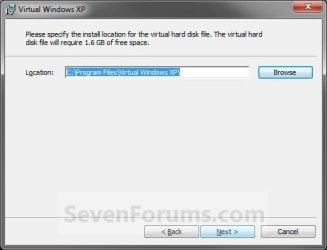
Install_VXP-UAC-2.jpg
F) If prompted by UAC, click on Yes.

G) When Windows XP Mode is finished installing, click on the Finish button. (See screenshot below)
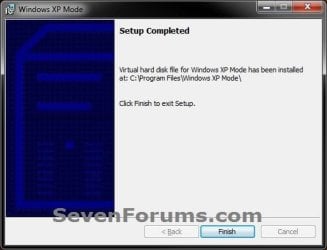
Install_VXP-3.jpg
4. Download and Install Windows Virtual PC
A) At the Windows Virtual PC webpage, select your language, and click on the Continue button. (see screenshot below)
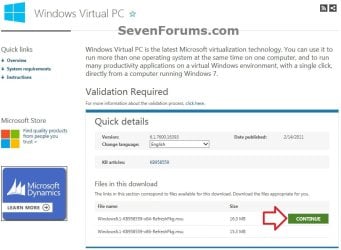
Windows_Virtual-PC-1.jpg
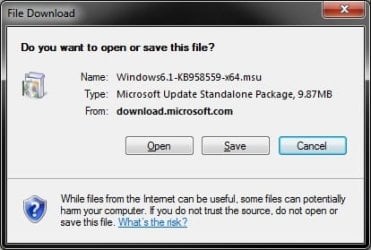
B) Select your language, and click on the Download button for either the Windows6.1-KB958559-x86-RefreshPkg.msu (32-bit) or Windows6.1-KB958559-x64-RefreshPkg.msu (64-bit) file for your same 32-bit or 64-bit Windows 7 version you have installed.

C) Save the Windows6.1-KB958559-x86-RefreshPkg.msu or Windows6.1-KB958559-x64-RefreshPkg.msu file to your desktop. (see screenshot below)
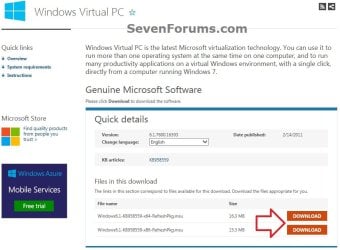
Windows_Virtual-PC-2.jpg
D) Double click on the downloaded Windows6.1-KB958559-x86-RefreshPkg.msu or Windows6.1-KB958559-x64-RefreshPkg.msu file to start installing it.

E) If prompted by UAC, click on Yes.
F) Click on Yes. (see screenshot below)
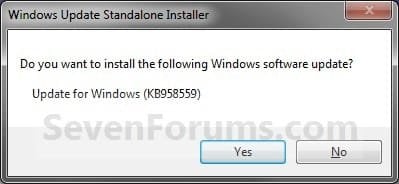
Install-1.jpg
G) Click on the I Accept button. (see screenshot below)
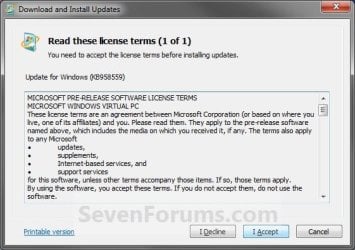
Install-2.jpg
H) When it is finished, click on the Restart Now button. (see screenshot below)
WARNING: This will restart your computer immediately. Be sure to save and close anything that you have open first.
Install-3.jpg
I) When the computer is finished restarting, continue on to step 6 below.
5. To Open and Run Windows XP Mode
A) Open the Start Menu, then click on All Programs, expand the Windows Virtual PC folder, and double click on the Windows XP Mode shortcut. (see screenshot below)
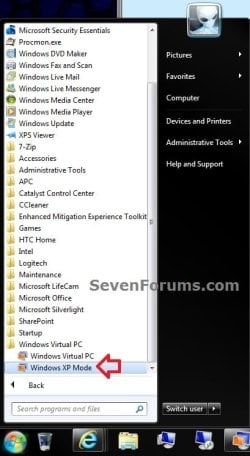
XP-1.jpg
6. Check the I accept box, then click on the Next button. (see screenshot below)
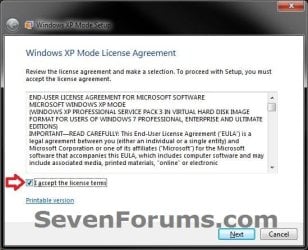
Step1B.jpg
7. Type in a password and type it in again to confirm it, then click on the Next button. (see screenshot below)
NOTE: If you would like to be logged on automatically whenever you open Windows XP Mode (step 5), then check the Remember credentials box.
XP-2.jpg
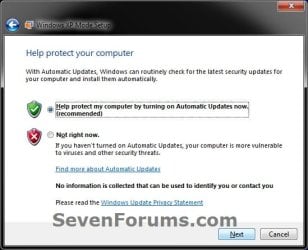
8. Select (dot) the Help protect my computer by turning on Automatic Updates now box, then click on the Next button. (see screenshot below)
XP-3.jpg
9. Click on the Start Setup button. (see screenshot below)
XP-4.jpg
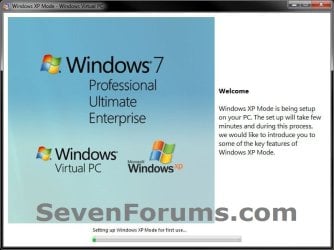
10. You will now see this for a few moments while Windows XP Mode is being setup. (see screeshot below)
Step4B.jpg
11. When setup is finished and you did not check the Remember credentials box in step 7 above, then you will need to enter your password entered and click on OK. If you did, then skip this and continue on to step 12. (see screenshot below)
XP-5.jpg
12. The Windows XP Mode - Windows Virtual PC window will now open. You are now in Windows XP Mode. (see screenshot below)
Example.jpg
13. Next, be sure to install Integration Components and enable Integration Features.
NOTE: Sometimes this will be enabled for you automatically during installation.

14. Set Windows XP Mode Settings
A) In the Windows XP Mode window, click on Tools (menu bar) and Settings. (see screenshot above)

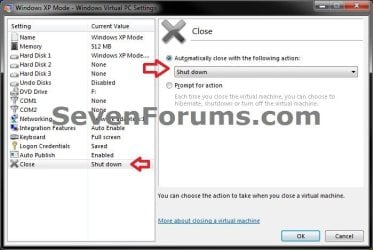
B) In the left pane, select Close/Shut Down. (see screenshot below)
Shut-Down.jpg
C) In the right pane, select (dot) Automatically close with the following action, then select Shut Down and click on OK. (see screenshot above)
15. To Close Windows XP Mode
A) Click on the X in the upper right corner of the Windows XP Mode window like you would any other window in Windows 7. (see screenshot below step 19)

OR

B) In the Windows XP Mode window, click on Action (menu bar) and Close. (see screenshot below step 16)
16. Installing a Program in Windows XP Mode
NOTE: You would install a program in Virtual Windows XP just like you would in Windows 7 with the same access to everything in Windows 7. For example, hard drives, DVD drives, USB drives, Windows 7 folders and files, etc.....
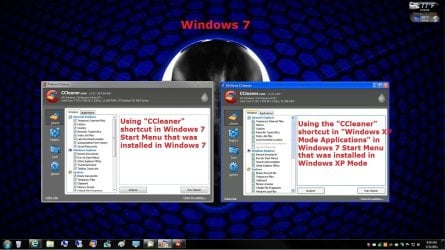
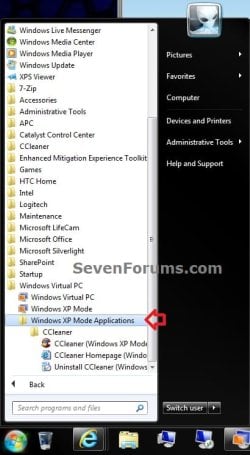
A) After you have installed any program (ex: CCleaner) in Windows XP Mode, you will notice that there will now also be a shortcut to it in the Windows 7 Start Menu in the Windows XP Mode Applications folder under Windows Virtual PC and Windows XP Mode. (see screenshot below)
NOTE: Double clicking on the program's shortcut (ex: CCleaner) in the Windows 7 Start Menu when Windows XP Mode is closed will open and run the program in Windows 7 but as if it you were running it in Windows XP Mode. You could also move or copy this Windows XP Mode Applications shortcut where you like in Windows 7 for easy use.
XP-6.jpg

Program_Example.jpg

That's it,
Shawn


Attachments

  • Virtual-PC_Save.jpg
    Virtual-PC_Save.jpg
    18.7 KB · Views: 2,157
Last edited:
Hi Brink


Thank you for taking time to help me.

I uninstalled XPmode rebooted and again I cannot install VPC 64bit.

I get this:


Double check to see if the Windows Update service is set to Started and Automatic.
 

My Computer

Computer type
PC/Desktop
Computer Manufacturer/Model Number
Self built custom
OS
64-bit Windows 11 Pro for Workstations
CPU
Intel i7-8700K OC'd to 5 GHz
Motherboard
ASUS ROG Maximus XI Formula Z390
Memory
64 GB (4x16GB) G.SKILL TridentZ RGB DDR4 3600 MHz
Graphics Card(s)
ASUS ROG-STRIX-GTX1080TI-O11G-GAMING
Sound Card
Integrated
Monitor(s) Displays
2 x Samsung Odyssey G7 27"
Screen Resolution
2560x1440
Hard Drives
1TB Samsung 990 PRO M.2,
4TB Samsung 990 PRO PRO M.2,
TerraMaster F8 SSD Plus NAS
PSU
Seasonic Prime Titanium 850W
Case
Thermaltake Core P3
Cooling
Corsair Hydro H115i
Keyboard
Logitech wireless K800
Mouse
Logitech MX Master 4
Internet Speed
2 Gb/s Download and 100 Mb/s Upload
Antivirus
Malwarebyte Anti-Malware Premium
Browser
Google Chrome
Other Info
Logitech Z625 speaker system,
Logitech BRIO 4K Pro webcam,
HP Color LaserJet Pro MFP M477fdn,
APC SMART-UPS RT 1000 XL - SURT1000XLI,
Galaxy S23 Plus phone
Hi
How can I enable virtualization on my laptop?
my laptop model is VGN-CS36GJ and can support virtualization technology.
in BIOS setting I just can set a password for my laptop and another option is for changing boot and no other option.
Thanks
Capture.JPG

Capture2.JPG

Capture22.JPG
 

My Computer

OS
Windows 7 Ultimate x64 (7600)
Hello Mohsen,

While in the BIOS, do you have other menu categories to select from. For example, "Advanced BIOS Features". In this menu, or one similar, there should be a Virtualization Technology option to select and enable. This is usually enabled by default though. If you have no such option, then I do not see how you will be able to manually enable it if it is not by default.

Hope this helps some,
Shawn
 

My Computer

Computer type
PC/Desktop
Computer Manufacturer/Model Number
Self built custom
OS
64-bit Windows 11 Pro for Workstations
CPU
Intel i7-8700K OC'd to 5 GHz
Motherboard
ASUS ROG Maximus XI Formula Z390
Memory
64 GB (4x16GB) G.SKILL TridentZ RGB DDR4 3600 MHz
Graphics Card(s)
ASUS ROG-STRIX-GTX1080TI-O11G-GAMING
Sound Card
Integrated
Monitor(s) Displays
2 x Samsung Odyssey G7 27"
Screen Resolution
2560x1440
Hard Drives
1TB Samsung 990 PRO M.2,
4TB Samsung 990 PRO PRO M.2,
TerraMaster F8 SSD Plus NAS
PSU
Seasonic Prime Titanium 850W
Case
Thermaltake Core P3
Cooling
Corsair Hydro H115i
Keyboard
Logitech wireless K800
Mouse
Logitech MX Master 4
Internet Speed
2 Gb/s Download and 100 Mb/s Upload
Antivirus
Malwarebyte Anti-Malware Premium
Browser
Google Chrome
Other Info
Logitech Z625 speaker system,
Logitech BRIO 4K Pro webcam,
HP Color LaserJet Pro MFP M477fdn,
APC SMART-UPS RT 1000 XL - SURT1000XLI,
Galaxy S23 Plus phone
It could be the model cpu you have as well for that model laptop. VGN-CS36GJ : VAIO CS : VAIO™ Notebook & Computer : Sony Singapore

When running the compatibility tool on an older 939 board with a 3800+ X2 model the exact same error message appeared since the pre Socket AM2 model cpus lack support for this.

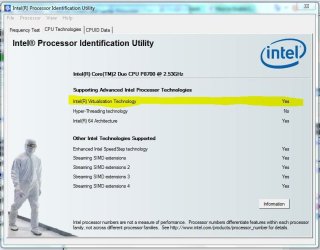
Intel has some dual and quad core models that still lack support. You need to run the Intel tool to see if that's the problem you have there. Intel® Processor Identification Utility - Intel® Processor Identification Utility support

I have a slight update to add in here. I knew I would come across two separate download pages for each item sooner or later besides the main page with both seen. The Virtual PC pade by itself is seen at http://www.microsoft.com/downloads/...FamilyID=4c3a0944-a2e6-4f01-9c57-5b55885875cc

For the separate XP mode download the alternate to the main page at the top of the guide here is found at http://www.microsoft.com/downloads/...ilyID=487f1e8b-f868-4c1e-a047-1b2306c0f592#tm

You still have to install the Virtual PC RC first and allow it to restart the system before creating a new vhd for the XP mode. Once you are back up following the restart you can install the XP mode right away but not run it until a vhd is created or simply wait until that is done first.

For exiting the XP mode you can also select the normal shutdown for Windows option for the XP mode itself or for a custom installation on the Virtual PC RC. That will prevent the F8 screen from appearing the next time you go to run the XP mode asking if you want to start Windows up normally. I've been finding this with the new XP mode RC as well as with the custom installations on vhds.
 
Last edited:

My Computers

System One System Two

  • Computer type
    PC/Desktop
    Computer Manufacturer/Model Number
    Custom builds = 2
    OS
    W7 Ultimate x64/W10 Pro x64/W11 Pro Triple Boot - Main PC W7 Remote PC Micro ATX W7 Pro x64/W11 Pro
    CPU
    AMD Phenom II X4 975 Deneb 3.6ghz - 965 2nd remote pc
    Motherboard
    Gigabyte GA-790XTA-UD4-Gigabyte GA-880GM-D2H remote pc
    Memory
    Kingston Hyper X DDR3 1600 1.5v 16gb - Hyper X Fury 8gb 2nd
    Graphics Card(s)
    MSI HD Radeon 5750 1gb - MSI HD Radeon 6450 on mini tower
    Sound Card
    Creative Labs X-Fi Xtreme Audio P - Realtek onooard 2nd case
    Monitor(s) Displays
    ASUS VW199T-P 19" HP 2082a Main-HP 2082a 20" remote pc
    Screen Resolution
    Asus 1440x900 - HP 1600x900
    Hard Drives
    WD Black 1TB HD per OS W7, W10, and pending W11 presently on 500gb OS Drive - Pending Triple 1TB HDs for Spanned Storage/backup volume
    Single 2TB external USB enclosure, single 1TB System 7 Host/Boot drive, Pending 8TB external HD for system image b
    PSU
    Corsair 750TX - primary / Corsair CX600 - second
    Case
    Antec 900-2 - SSD compatible / NZXT Vulcan mini tower
    Cooling
    Zalman CNPS9900A
    Keyboard
    AZIO L70 Backlit Letters Gaming - ONN Cordless/USB
    Mouse
    MSI DS200 Programmable, Logitech Cordless
    Internet Speed
    30mbps upgrade - primary hard wired - mini tower usb WiFi
    Antivirus
    GFI VIPRE Internet Security 2014 on W7 2016 beta on W10,
    Browser
    Cyberfox, WaterFox 64bit FF variants, FireFox x64, Pale Moon
    Other Info
    Accomdata fan cooled usb 2.0 PIDE/Sata II, III external enclosure.
    Sambient usb/eSata PATA/Sata II, III external enclosure.
  • Computer type
    PC/Desktop
    System Manufacturer/Model Number
    CUSTOM ASSEMBLY
    OS
    W7 Pro x64/W11 Pro
    CPU
    AMD Deneb 3.6ghz - 965
    Motherboard
    Gigabyte GA-880GM-D2H remote pc
    Memory
    Kingston Hyper X Fury 8gb
    Graphics Card(s)
    MSI HD Radeon 6450 DVI Output
    Sound Card
    Realtek onooard Creative or Other separate PENDING
    Monitor(s) Displays
    VIZIO 32" LCD TV Separate LCD Pending
    Screen Resolution
    1600x1080
    Hard Drives
    WD 500GB OS Host/Boot WD Green 1TB Storage/Backup
    PSU
    Corsair 600W - THERMALTAKE 600W spare case
    Case
    NZXT Vulcan mini tower
    Cooling
    Twin 120mm Top Fans - 240mm Side Cover
    Keyboard
    ONN Cordless/USB Logitech Cordless
    Mouse
    ONN USB/Cordless - Logitech Cordless
    Internet Speed
    DSL 5G
    Browser
    MS Edge, FireFox, WaterFox x64, FireFox Nightly
    Other Info
    OS Testing-Remote Access to Main TeamViewer
I cannot setup Windows XP Mode for some reason.
Here's the error I get:

4vk5cg.png


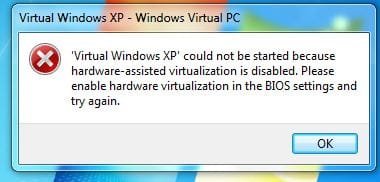
I downloaded the Virtual PC thing. However I thought it was a actaul program. But it is just an update. I installed the update, restarted, proceeded with starting the XPMode_enUS.exe file, etc, agreed to the Terms typed in my XP Mode PW, then got this error. I really have no idea what on my computer would be using virtualization.

I have AMD-V turned on in BIOS. And I doubled checked too just in case it got turned off. But no go. It's on. I have a Phenom II 720. I unlocked the 4th core, if you want detail. haha
 

My Computer

Computer Manufacturer/Model Number
Custom
OS
Windows 7 Ultimate x64
CPU
Phenom II X3 720 with 4th Core Unlocked
Motherboard
GA-MA770T-UD3P
Memory
4GB G.Skill DDR3-1333
Graphics Card(s)
EVGA GTX 260-216 (NVIDIA)
Sound Card
Onboard
Monitor(s) Displays
19" ASUS 1680x1050 + 32" VIZIO HDTV 1336x768
Screen Resolution
19" ASUS 1680x1050 + 32" VIZIO HDTV 1336x768
Hard Drives
1 Western Digital 640GB
2 Western Digital 1TB
PSU
Corsair 650W
Case
CM-690
Cooling
Fans
Internet Speed
22 Mbps down, 5 mbps up.
I cannot setup Windows XP Mode for some reason.
Here's the error I get:

4vk5cg.png


I downloaded the Virtual PC thing. However I thought it was a actaul program. But it is just an update. I installed the update, restarted, proceeded with starting the XPMode_enUS.exe file, etc, agreed to the Terms typed in my XP Mode PW, then got this error. I really have no idea what on my computer would be using virtualization.

I have AMD-V turned on in BIOS. And I doubled checked too just in case it got turned off. But no go. It's on. I have a Phenom II 720. I unlocked the 4th core, if you want detail. haha

restart and try to install XP mode again...;)
if this does not help then uninstall the update restart then reapply the update and XP mode...
 

My Computer

Computer Manufacturer/Model Number
Tx2500z Tablet Pc/Homemade Server
OS
Windows 7 Ult x64(x2), HomePrem x32(x4), Server 08 (+VM), 08 R2 (VM) , SuSe 11.2 (VM), XP 32 (VM)
CPU
Turion X2 ultra (oh well came with laptop)/P4 @3.2 (yes P4)
Motherboard
IDK HP Motherboard / Intel DG965SS
Memory
OCZ Dual Channel 4GB kit/ 1gb Dual Channel
Graphics Card(s)
HD 3200 graphics /GMA x3100 (yay for intergrated!!)
Sound Card
Realtek HD Audio(mic working, well sort of)/Siig IC-70012
Monitor(s) Displays
built-in Hp 12" laptop screen/ Acer 19"
Screen Resolution
1280x800 /1440x900
Cooling
All Air Cooled
Mouse
Logi MX Rev. /MS Wheel Optical 1.1A /Logitech Optical Mouse
Internet Speed
College baby but its still routed through vpn to 1536k...
Other Info
love my wacom pen and pressure sensitivity...
wished it worked in 7, SUSE for that matter though
restart and try to install XP mode again...;)
if this does not help then uninstall the update restart then reapply the update and XP mode...
Trying that right now. How do I uninstall an update on Win 7?
 

My Computer

Computer Manufacturer/Model Number
Custom
OS
Windows 7 Ultimate x64
CPU
Phenom II X3 720 with 4th Core Unlocked
Motherboard
GA-MA770T-UD3P
Memory
4GB G.Skill DDR3-1333
Graphics Card(s)
EVGA GTX 260-216 (NVIDIA)
Sound Card
Onboard
Monitor(s) Displays
19" ASUS 1680x1050 + 32" VIZIO HDTV 1336x768
Screen Resolution
19" ASUS 1680x1050 + 32" VIZIO HDTV 1336x768
Hard Drives
1 Western Digital 640GB
2 Western Digital 1TB
PSU
Corsair 650W
Case
CM-690
Cooling
Fans
Internet Speed
22 Mbps down, 5 mbps up.
Trying that right now. How do I uninstall an update on Win 7?

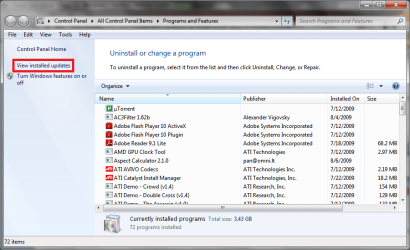
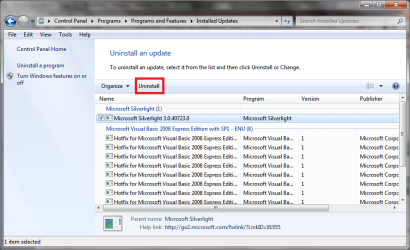
go to program and features in the control panel...
remove update.PNG

remove update1.PNG
and there you should see the update...:)
 

My Computer

Computer Manufacturer/Model Number
Tx2500z Tablet Pc/Homemade Server
OS
Windows 7 Ult x64(x2), HomePrem x32(x4), Server 08 (+VM), 08 R2 (VM) , SuSe 11.2 (VM), XP 32 (VM)
CPU
Turion X2 ultra (oh well came with laptop)/P4 @3.2 (yes P4)
Motherboard
IDK HP Motherboard / Intel DG965SS
Memory
OCZ Dual Channel 4GB kit/ 1gb Dual Channel
Graphics Card(s)
HD 3200 graphics /GMA x3100 (yay for intergrated!!)
Sound Card
Realtek HD Audio(mic working, well sort of)/Siig IC-70012
Monitor(s) Displays
built-in Hp 12" laptop screen/ Acer 19"
Screen Resolution
1280x800 /1440x900
Cooling
All Air Cooled
Mouse
Logi MX Rev. /MS Wheel Optical 1.1A /Logitech Optical Mouse
Internet Speed
College baby but its still routed through vpn to 1536k...
Other Info
love my wacom pen and pressure sensitivity...
wished it worked in 7, SUSE for that matter though

My Computer

Computer type
PC/Desktop
Computer Manufacturer/Model Number
Self built custom
OS
64-bit Windows 11 Pro for Workstations
CPU
Intel i7-8700K OC'd to 5 GHz
Motherboard
ASUS ROG Maximus XI Formula Z390
Memory
64 GB (4x16GB) G.SKILL TridentZ RGB DDR4 3600 MHz
Graphics Card(s)
ASUS ROG-STRIX-GTX1080TI-O11G-GAMING
Sound Card
Integrated
Monitor(s) Displays
2 x Samsung Odyssey G7 27"
Screen Resolution
2560x1440
Hard Drives
1TB Samsung 990 PRO M.2,
4TB Samsung 990 PRO PRO M.2,
TerraMaster F8 SSD Plus NAS
PSU
Seasonic Prime Titanium 850W
Case
Thermaltake Core P3
Cooling
Corsair Hydro H115i
Keyboard
Logitech wireless K800
Mouse
Logitech MX Master 4
Internet Speed
2 Gb/s Download and 100 Mb/s Upload
Antivirus
Malwarebyte Anti-Malware Premium
Browser
Google Chrome
Other Info
Logitech Z625 speaker system,
Logitech BRIO 4K Pro webcam,
HP Color LaserJet Pro MFP M477fdn,
APC SMART-UPS RT 1000 XL - SURT1000XLI,
Galaxy S23 Plus phone
Thank you Brink and darkassassin for your assistance. Very much appreciated. I'll see what removing this update does.

EDIT:

Okay.. so basically, I uninstalled the update - restarted - re-applied the update - restarted - no go.

I even uninstalled XP mode and re-installed it. Still getting the same darn error code.
 

My Computer

Computer Manufacturer/Model Number
Custom
OS
Windows 7 Ultimate x64
CPU
Phenom II X3 720 with 4th Core Unlocked
Motherboard
GA-MA770T-UD3P
Memory
4GB G.Skill DDR3-1333
Graphics Card(s)
EVGA GTX 260-216 (NVIDIA)
Sound Card
Onboard
Monitor(s) Displays
19" ASUS 1680x1050 + 32" VIZIO HDTV 1336x768
Screen Resolution
19" ASUS 1680x1050 + 32" VIZIO HDTV 1336x768
Hard Drives
1 Western Digital 640GB
2 Western Digital 1TB
PSU
Corsair 650W
Case
CM-690
Cooling
Fans
Internet Speed
22 Mbps down, 5 mbps up.
Hello Elition, have you checked to see if your cpu and bios support virtualization? Both Intel and AMD compatibility checking tools are on the link at the top of the guide here for verification.
 

My Computers

System One System Two

  • Computer type
    PC/Desktop
    Computer Manufacturer/Model Number
    Custom builds = 2
    OS
    W7 Ultimate x64/W10 Pro x64/W11 Pro Triple Boot - Main PC W7 Remote PC Micro ATX W7 Pro x64/W11 Pro
    CPU
    AMD Phenom II X4 975 Deneb 3.6ghz - 965 2nd remote pc
    Motherboard
    Gigabyte GA-790XTA-UD4-Gigabyte GA-880GM-D2H remote pc
    Memory
    Kingston Hyper X DDR3 1600 1.5v 16gb - Hyper X Fury 8gb 2nd
    Graphics Card(s)
    MSI HD Radeon 5750 1gb - MSI HD Radeon 6450 on mini tower
    Sound Card
    Creative Labs X-Fi Xtreme Audio P - Realtek onooard 2nd case
    Monitor(s) Displays
    ASUS VW199T-P 19" HP 2082a Main-HP 2082a 20" remote pc
    Screen Resolution
    Asus 1440x900 - HP 1600x900
    Hard Drives
    WD Black 1TB HD per OS W7, W10, and pending W11 presently on 500gb OS Drive - Pending Triple 1TB HDs for Spanned Storage/backup volume
    Single 2TB external USB enclosure, single 1TB System 7 Host/Boot drive, Pending 8TB external HD for system image b
    PSU
    Corsair 750TX - primary / Corsair CX600 - second
    Case
    Antec 900-2 - SSD compatible / NZXT Vulcan mini tower
    Cooling
    Zalman CNPS9900A
    Keyboard
    AZIO L70 Backlit Letters Gaming - ONN Cordless/USB
    Mouse
    MSI DS200 Programmable, Logitech Cordless
    Internet Speed
    30mbps upgrade - primary hard wired - mini tower usb WiFi
    Antivirus
    GFI VIPRE Internet Security 2014 on W7 2016 beta on W10,
    Browser
    Cyberfox, WaterFox 64bit FF variants, FireFox x64, Pale Moon
    Other Info
    Accomdata fan cooled usb 2.0 PIDE/Sata II, III external enclosure.
    Sambient usb/eSata PATA/Sata II, III external enclosure.
  • Computer type
    PC/Desktop
    System Manufacturer/Model Number
    CUSTOM ASSEMBLY
    OS
    W7 Pro x64/W11 Pro
    CPU
    AMD Deneb 3.6ghz - 965
    Motherboard
    Gigabyte GA-880GM-D2H remote pc
    Memory
    Kingston Hyper X Fury 8gb
    Graphics Card(s)
    MSI HD Radeon 6450 DVI Output
    Sound Card
    Realtek onooard Creative or Other separate PENDING
    Monitor(s) Displays
    VIZIO 32" LCD TV Separate LCD Pending
    Screen Resolution
    1600x1080
    Hard Drives
    WD 500GB OS Host/Boot WD Green 1TB Storage/Backup
    PSU
    Corsair 600W - THERMALTAKE 600W spare case
    Case
    NZXT Vulcan mini tower
    Cooling
    Twin 120mm Top Fans - 240mm Side Cover
    Keyboard
    ONN Cordless/USB Logitech Cordless
    Mouse
    ONN USB/Cordless - Logitech Cordless
    Internet Speed
    DSL 5G
    Browser
    MS Edge, FireFox, WaterFox x64, FireFox Nightly
    Other Info
    OS Testing-Remote Access to Main TeamViewer
Thank you Brink and darkassassin for your assistance. Very much appreciated. I'll see what removing this update does.

EDIT:

Okay.. so basically, I uninstalled the update - restarted - re-applied the update - restarted - no go.

I even uninstalled XP mode and re-installed it. Still getting the same darn error code.

Elition,

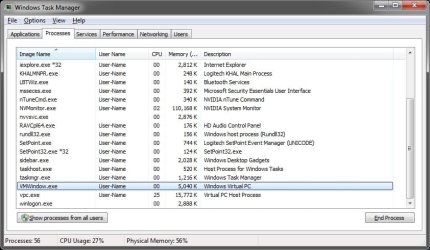
Before you do this, check in Task Manager to see if you have this process running. If you do, close (End Process) it before installing Windows XP Mode.

Task_Manager.jpg
 

My Computer

Computer type
PC/Desktop
Computer Manufacturer/Model Number
Self built custom
OS
64-bit Windows 11 Pro for Workstations
CPU
Intel i7-8700K OC'd to 5 GHz
Motherboard
ASUS ROG Maximus XI Formula Z390
Memory
64 GB (4x16GB) G.SKILL TridentZ RGB DDR4 3600 MHz
Graphics Card(s)
ASUS ROG-STRIX-GTX1080TI-O11G-GAMING
Sound Card
Integrated
Monitor(s) Displays
2 x Samsung Odyssey G7 27"
Screen Resolution
2560x1440
Hard Drives
1TB Samsung 990 PRO M.2,
4TB Samsung 990 PRO PRO M.2,
TerraMaster F8 SSD Plus NAS
PSU
Seasonic Prime Titanium 850W
Case
Thermaltake Core P3
Cooling
Corsair Hydro H115i
Keyboard
Logitech wireless K800
Mouse
Logitech MX Master 4
Internet Speed
2 Gb/s Download and 100 Mb/s Upload
Antivirus
Malwarebyte Anti-Malware Premium
Browser
Google Chrome
Other Info
Logitech Z625 speaker system,
Logitech BRIO 4K Pro webcam,
HP Color LaserJet Pro MFP M477fdn,
APC SMART-UPS RT 1000 XL - SURT1000XLI,
Galaxy S23 Plus phone
I've run into that or a similar error with another virtualization program due to a dual instance while you are running into installation problems with repeat attempts leaving another instance open. Once you end the process like Shawn indicated you may want to verify you can run the XP mode if you haven't already.

The updates will still go on but not run for that reason. Another thing that cause it to stall is installing the XP mode first before the Virtual PC goes on and you restart the system in order to have the installer configure the update.
 

My Computers

System One System Two

  • Computer type
    PC/Desktop
    Computer Manufacturer/Model Number
    Custom builds = 2
    OS
    W7 Ultimate x64/W10 Pro x64/W11 Pro Triple Boot - Main PC W7 Remote PC Micro ATX W7 Pro x64/W11 Pro
    CPU
    AMD Phenom II X4 975 Deneb 3.6ghz - 965 2nd remote pc
    Motherboard
    Gigabyte GA-790XTA-UD4-Gigabyte GA-880GM-D2H remote pc
    Memory
    Kingston Hyper X DDR3 1600 1.5v 16gb - Hyper X Fury 8gb 2nd
    Graphics Card(s)
    MSI HD Radeon 5750 1gb - MSI HD Radeon 6450 on mini tower
    Sound Card
    Creative Labs X-Fi Xtreme Audio P - Realtek onooard 2nd case
    Monitor(s) Displays
    ASUS VW199T-P 19" HP 2082a Main-HP 2082a 20" remote pc
    Screen Resolution
    Asus 1440x900 - HP 1600x900
    Hard Drives
    WD Black 1TB HD per OS W7, W10, and pending W11 presently on 500gb OS Drive - Pending Triple 1TB HDs for Spanned Storage/backup volume
    Single 2TB external USB enclosure, single 1TB System 7 Host/Boot drive, Pending 8TB external HD for system image b
    PSU
    Corsair 750TX - primary / Corsair CX600 - second
    Case
    Antec 900-2 - SSD compatible / NZXT Vulcan mini tower
    Cooling
    Zalman CNPS9900A
    Keyboard
    AZIO L70 Backlit Letters Gaming - ONN Cordless/USB
    Mouse
    MSI DS200 Programmable, Logitech Cordless
    Internet Speed
    30mbps upgrade - primary hard wired - mini tower usb WiFi
    Antivirus
    GFI VIPRE Internet Security 2014 on W7 2016 beta on W10,
    Browser
    Cyberfox, WaterFox 64bit FF variants, FireFox x64, Pale Moon
    Other Info
    Accomdata fan cooled usb 2.0 PIDE/Sata II, III external enclosure.
    Sambient usb/eSata PATA/Sata II, III external enclosure.
  • Computer type
    PC/Desktop
    System Manufacturer/Model Number
    CUSTOM ASSEMBLY
    OS
    W7 Pro x64/W11 Pro
    CPU
    AMD Deneb 3.6ghz - 965
    Motherboard
    Gigabyte GA-880GM-D2H remote pc
    Memory
    Kingston Hyper X Fury 8gb
    Graphics Card(s)
    MSI HD Radeon 6450 DVI Output
    Sound Card
    Realtek onooard Creative or Other separate PENDING
    Monitor(s) Displays
    VIZIO 32" LCD TV Separate LCD Pending
    Screen Resolution
    1600x1080
    Hard Drives
    WD 500GB OS Host/Boot WD Green 1TB Storage/Backup
    PSU
    Corsair 600W - THERMALTAKE 600W spare case
    Case
    NZXT Vulcan mini tower
    Cooling
    Twin 120mm Top Fans - 240mm Side Cover
    Keyboard
    ONN Cordless/USB Logitech Cordless
    Mouse
    ONN USB/Cordless - Logitech Cordless
    Internet Speed
    DSL 5G
    Browser
    MS Edge, FireFox, WaterFox x64, FireFox Nightly
    Other Info
    OS Testing-Remote Access to Main TeamViewer
Going to try both of you guys suggestions now. Thanks for the help.

EDIT: Alright, well I tried Night Hawk's suggestion about removing the update, then letting the installer configure it. All it did was say I didn't have the update and directed me to the website where I need to download it.

Next, I tried ending the Virtual PC Host then proceeding with installing Windows XP Mode, I got to the same spot as I had before, right when I clicked "setup" it gave me this error:

e7xwzq.png
 

My Computer

Computer Manufacturer/Model Number
Custom
OS
Windows 7 Ultimate x64
CPU
Phenom II X3 720 with 4th Core Unlocked
Motherboard
GA-MA770T-UD3P
Memory
4GB G.Skill DDR3-1333
Graphics Card(s)
EVGA GTX 260-216 (NVIDIA)
Sound Card
Onboard
Monitor(s) Displays
19" ASUS 1680x1050 + 32" VIZIO HDTV 1336x768
Screen Resolution
19" ASUS 1680x1050 + 32" VIZIO HDTV 1336x768
Hard Drives
1 Western Digital 640GB
2 Western Digital 1TB
PSU
Corsair 650W
Case
CM-690
Cooling
Fans
Internet Speed
22 Mbps down, 5 mbps up.
Hello Elition, have you checked to see if your cpu and bios support virtualization? Both Intel and AMD compatibility checking tools are on the link at the top of the guide here for verification.
Hello Night Hawk.

Yes, my CPU supports AMD-V. I really have no idea what else on my computer that would be using virtualization.

OTHER then XP Mode. This is a real bummer.
 

My Computer

Computer Manufacturer/Model Number
Custom
OS
Windows 7 Ultimate x64
CPU
Phenom II X3 720 with 4th Core Unlocked
Motherboard
GA-MA770T-UD3P
Memory
4GB G.Skill DDR3-1333
Graphics Card(s)
EVGA GTX 260-216 (NVIDIA)
Sound Card
Onboard
Monitor(s) Displays
19" ASUS 1680x1050 + 32" VIZIO HDTV 1336x768
Screen Resolution
19" ASUS 1680x1050 + 32" VIZIO HDTV 1336x768
Hard Drives
1 Western Digital 640GB
2 Western Digital 1TB
PSU
Corsair 650W
Case
CM-690
Cooling
Fans
Internet Speed
22 Mbps down, 5 mbps up.
Did you restart the system once the XP mode was reinstalled before trying to run it? Thinking back besides the other vm program the first attempt with the beta also saw the same or similar error where a restart of the system suddenly saw the XP mode come to life.

first of all here however look over the processes in the task manager like Shawn mentioned before to see if you have a second instance configured to run when Windows loads. You may end up unchecking the VPC or XP mode in the msconfig to see it work with a manual startup since you wouldn't have anything already loaded.
 

My Computers

System One System Two

  • Computer type
    PC/Desktop
    Computer Manufacturer/Model Number
    Custom builds = 2
    OS
    W7 Ultimate x64/W10 Pro x64/W11 Pro Triple Boot - Main PC W7 Remote PC Micro ATX W7 Pro x64/W11 Pro
    CPU
    AMD Phenom II X4 975 Deneb 3.6ghz - 965 2nd remote pc
    Motherboard
    Gigabyte GA-790XTA-UD4-Gigabyte GA-880GM-D2H remote pc
    Memory
    Kingston Hyper X DDR3 1600 1.5v 16gb - Hyper X Fury 8gb 2nd
    Graphics Card(s)
    MSI HD Radeon 5750 1gb - MSI HD Radeon 6450 on mini tower
    Sound Card
    Creative Labs X-Fi Xtreme Audio P - Realtek onooard 2nd case
    Monitor(s) Displays
    ASUS VW199T-P 19" HP 2082a Main-HP 2082a 20" remote pc
    Screen Resolution
    Asus 1440x900 - HP 1600x900
    Hard Drives
    WD Black 1TB HD per OS W7, W10, and pending W11 presently on 500gb OS Drive - Pending Triple 1TB HDs for Spanned Storage/backup volume
    Single 2TB external USB enclosure, single 1TB System 7 Host/Boot drive, Pending 8TB external HD for system image b
    PSU
    Corsair 750TX - primary / Corsair CX600 - second
    Case
    Antec 900-2 - SSD compatible / NZXT Vulcan mini tower
    Cooling
    Zalman CNPS9900A
    Keyboard
    AZIO L70 Backlit Letters Gaming - ONN Cordless/USB
    Mouse
    MSI DS200 Programmable, Logitech Cordless
    Internet Speed
    30mbps upgrade - primary hard wired - mini tower usb WiFi
    Antivirus
    GFI VIPRE Internet Security 2014 on W7 2016 beta on W10,
    Browser
    Cyberfox, WaterFox 64bit FF variants, FireFox x64, Pale Moon
    Other Info
    Accomdata fan cooled usb 2.0 PIDE/Sata II, III external enclosure.
    Sambient usb/eSata PATA/Sata II, III external enclosure.
  • Computer type
    PC/Desktop
    System Manufacturer/Model Number
    CUSTOM ASSEMBLY
    OS
    W7 Pro x64/W11 Pro
    CPU
    AMD Deneb 3.6ghz - 965
    Motherboard
    Gigabyte GA-880GM-D2H remote pc
    Memory
    Kingston Hyper X Fury 8gb
    Graphics Card(s)
    MSI HD Radeon 6450 DVI Output
    Sound Card
    Realtek onooard Creative or Other separate PENDING
    Monitor(s) Displays
    VIZIO 32" LCD TV Separate LCD Pending
    Screen Resolution
    1600x1080
    Hard Drives
    WD 500GB OS Host/Boot WD Green 1TB Storage/Backup
    PSU
    Corsair 600W - THERMALTAKE 600W spare case
    Case
    NZXT Vulcan mini tower
    Cooling
    Twin 120mm Top Fans - 240mm Side Cover
    Keyboard
    ONN Cordless/USB Logitech Cordless
    Mouse
    ONN USB/Cordless - Logitech Cordless
    Internet Speed
    DSL 5G
    Browser
    MS Edge, FireFox, WaterFox x64, FireFox Nightly
    Other Info
    OS Testing-Remote Access to Main TeamViewer
Did you restart the system once the XP mode was reinstalled before trying to run it? Thinking back besides the other vm program the first attempt with the beta also saw the same or similar error where a restart of the system suddenly saw the XP mode come to life.

first of all here however look over the processes in the task manager like Shawn mentioned before to see if you have a second instance configured to run when Windows loads. You may end up unchecking the VPC or XP mode in the msconfig to see it work with a manual startup since you wouldn't have anything already loaded.
I did restart. The update made me restart, actually.

I checked in msconfig and didn't see anything with virtual in it or something to do with xp mode. However, there is 1 thing in Services that is called "Virtual Disc". Should I disable
that?

EDIT: So I disabled it, and that did nothing. I continue to get the same error. uggg.

r7ndow.png
 

My Computer

Computer Manufacturer/Model Number
Custom
OS
Windows 7 Ultimate x64
CPU
Phenom II X3 720 with 4th Core Unlocked
Motherboard
GA-MA770T-UD3P
Memory
4GB G.Skill DDR3-1333
Graphics Card(s)
EVGA GTX 260-216 (NVIDIA)
Sound Card
Onboard
Monitor(s) Displays
19" ASUS 1680x1050 + 32" VIZIO HDTV 1336x768
Screen Resolution
19" ASUS 1680x1050 + 32" VIZIO HDTV 1336x768
Hard Drives
1 Western Digital 640GB
2 Western Digital 1TB
PSU
Corsair 650W
Case
CM-690
Cooling
Fans
Internet Speed
22 Mbps down, 5 mbps up.
No! You would need that available in order to run the XP mode.

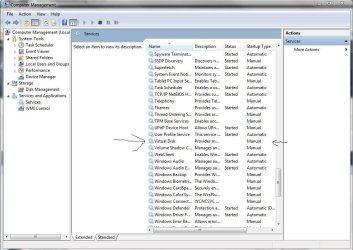
Take a close look at the "Control Panel>Administrative Tooks>Computer Managemt>Services + Applications>Services" section and scroll down to the Virtual Disk item you should be seeing there. You'll notice it should be seen as "manual" not automatic.

If you find that as automatic right click on the item there and select the manual option. That will prevent an automatic loading when Windows first starts up all services since that would cause a problem if everything went on as it should. The item in the services tab as well as the manual setting in the image there is seen with the XP mode in working order here for cross reference.
 

Attachments

  • Virtual Disk Services.jpg
    Virtual Disk Services.jpg
    97.2 KB · Views: 460

My Computers

System One System Two

  • Computer type
    PC/Desktop
    Computer Manufacturer/Model Number
    Custom builds = 2
    OS
    W7 Ultimate x64/W10 Pro x64/W11 Pro Triple Boot - Main PC W7 Remote PC Micro ATX W7 Pro x64/W11 Pro
    CPU
    AMD Phenom II X4 975 Deneb 3.6ghz - 965 2nd remote pc
    Motherboard
    Gigabyte GA-790XTA-UD4-Gigabyte GA-880GM-D2H remote pc
    Memory
    Kingston Hyper X DDR3 1600 1.5v 16gb - Hyper X Fury 8gb 2nd
    Graphics Card(s)
    MSI HD Radeon 5750 1gb - MSI HD Radeon 6450 on mini tower
    Sound Card
    Creative Labs X-Fi Xtreme Audio P - Realtek onooard 2nd case
    Monitor(s) Displays
    ASUS VW199T-P 19" HP 2082a Main-HP 2082a 20" remote pc
    Screen Resolution
    Asus 1440x900 - HP 1600x900
    Hard Drives
    WD Black 1TB HD per OS W7, W10, and pending W11 presently on 500gb OS Drive - Pending Triple 1TB HDs for Spanned Storage/backup volume
    Single 2TB external USB enclosure, single 1TB System 7 Host/Boot drive, Pending 8TB external HD for system image b
    PSU
    Corsair 750TX - primary / Corsair CX600 - second
    Case
    Antec 900-2 - SSD compatible / NZXT Vulcan mini tower
    Cooling
    Zalman CNPS9900A
    Keyboard
    AZIO L70 Backlit Letters Gaming - ONN Cordless/USB
    Mouse
    MSI DS200 Programmable, Logitech Cordless
    Internet Speed
    30mbps upgrade - primary hard wired - mini tower usb WiFi
    Antivirus
    GFI VIPRE Internet Security 2014 on W7 2016 beta on W10,
    Browser
    Cyberfox, WaterFox 64bit FF variants, FireFox x64, Pale Moon
    Other Info
    Accomdata fan cooled usb 2.0 PIDE/Sata II, III external enclosure.
    Sambient usb/eSata PATA/Sata II, III external enclosure.
  • Computer type
    PC/Desktop
    System Manufacturer/Model Number
    CUSTOM ASSEMBLY
    OS
    W7 Pro x64/W11 Pro
    CPU
    AMD Deneb 3.6ghz - 965
    Motherboard
    Gigabyte GA-880GM-D2H remote pc
    Memory
    Kingston Hyper X Fury 8gb
    Graphics Card(s)
    MSI HD Radeon 6450 DVI Output
    Sound Card
    Realtek onooard Creative or Other separate PENDING
    Monitor(s) Displays
    VIZIO 32" LCD TV Separate LCD Pending
    Screen Resolution
    1600x1080
    Hard Drives
    WD 500GB OS Host/Boot WD Green 1TB Storage/Backup
    PSU
    Corsair 600W - THERMALTAKE 600W spare case
    Case
    NZXT Vulcan mini tower
    Cooling
    Twin 120mm Top Fans - 240mm Side Cover
    Keyboard
    ONN Cordless/USB Logitech Cordless
    Mouse
    ONN USB/Cordless - Logitech Cordless
    Internet Speed
    DSL 5G
    Browser
    MS Edge, FireFox, WaterFox x64, FireFox Nightly
    Other Info
    OS Testing-Remote Access to Main TeamViewer
No! You would need that available in order to run the XP mode.

Take a close look at the "Control Panel>Administrative Tooks>Computer Managemt>Services + Applications>Services" section and scroll down to the Virtual Disk item you should be seeing there. You'll notice it should be seen as "manual" not automatic.

If you find that as automatic right click on the item there and select the manual option. That will prevent an automatic loading when Windows first starts up all services since that would cause a problem if everything went on as it should. The item in the services tab as well as the manual setting in the image there is seen with the XP mode in working order here for cross reference.

It is set at "manual".

68rm9w.jpg
 

My Computer

Computer Manufacturer/Model Number
Custom
OS
Windows 7 Ultimate x64
CPU
Phenom II X3 720 with 4th Core Unlocked
Motherboard
GA-MA770T-UD3P
Memory
4GB G.Skill DDR3-1333
Graphics Card(s)
EVGA GTX 260-216 (NVIDIA)
Sound Card
Onboard
Monitor(s) Displays
19" ASUS 1680x1050 + 32" VIZIO HDTV 1336x768
Screen Resolution
19" ASUS 1680x1050 + 32" VIZIO HDTV 1336x768
Hard Drives
1 Western Digital 640GB
2 Western Digital 1TB
PSU
Corsair 650W
Case
CM-690
Cooling
Fans
Internet Speed
22 Mbps down, 5 mbps up.
At least you can now rule out anything auto loading along with Windows. Unfortunately it may be with the present installation of 7 itself since you've already tried removing everything for a clean install of both the VPC and XP mode and still run into good one alright. Hopefully Shawn will have a few ideas on this.
 

My Computers

System One System Two

  • Computer type
    PC/Desktop
    Computer Manufacturer/Model Number
    Custom builds = 2
    OS
    W7 Ultimate x64/W10 Pro x64/W11 Pro Triple Boot - Main PC W7 Remote PC Micro ATX W7 Pro x64/W11 Pro
    CPU
    AMD Phenom II X4 975 Deneb 3.6ghz - 965 2nd remote pc
    Motherboard
    Gigabyte GA-790XTA-UD4-Gigabyte GA-880GM-D2H remote pc
    Memory
    Kingston Hyper X DDR3 1600 1.5v 16gb - Hyper X Fury 8gb 2nd
    Graphics Card(s)
    MSI HD Radeon 5750 1gb - MSI HD Radeon 6450 on mini tower
    Sound Card
    Creative Labs X-Fi Xtreme Audio P - Realtek onooard 2nd case
    Monitor(s) Displays
    ASUS VW199T-P 19" HP 2082a Main-HP 2082a 20" remote pc
    Screen Resolution
    Asus 1440x900 - HP 1600x900
    Hard Drives
    WD Black 1TB HD per OS W7, W10, and pending W11 presently on 500gb OS Drive - Pending Triple 1TB HDs for Spanned Storage/backup volume
    Single 2TB external USB enclosure, single 1TB System 7 Host/Boot drive, Pending 8TB external HD for system image b
    PSU
    Corsair 750TX - primary / Corsair CX600 - second
    Case
    Antec 900-2 - SSD compatible / NZXT Vulcan mini tower
    Cooling
    Zalman CNPS9900A
    Keyboard
    AZIO L70 Backlit Letters Gaming - ONN Cordless/USB
    Mouse
    MSI DS200 Programmable, Logitech Cordless
    Internet Speed
    30mbps upgrade - primary hard wired - mini tower usb WiFi
    Antivirus
    GFI VIPRE Internet Security 2014 on W7 2016 beta on W10,
    Browser
    Cyberfox, WaterFox 64bit FF variants, FireFox x64, Pale Moon
    Other Info
    Accomdata fan cooled usb 2.0 PIDE/Sata II, III external enclosure.
    Sambient usb/eSata PATA/Sata II, III external enclosure.
  • Computer type
    PC/Desktop
    System Manufacturer/Model Number
    CUSTOM ASSEMBLY
    OS
    W7 Pro x64/W11 Pro
    CPU
    AMD Deneb 3.6ghz - 965
    Motherboard
    Gigabyte GA-880GM-D2H remote pc
    Memory
    Kingston Hyper X Fury 8gb
    Graphics Card(s)
    MSI HD Radeon 6450 DVI Output
    Sound Card
    Realtek onooard Creative or Other separate PENDING
    Monitor(s) Displays
    VIZIO 32" LCD TV Separate LCD Pending
    Screen Resolution
    1600x1080
    Hard Drives
    WD 500GB OS Host/Boot WD Green 1TB Storage/Backup
    PSU
    Corsair 600W - THERMALTAKE 600W spare case
    Case
    NZXT Vulcan mini tower
    Cooling
    Twin 120mm Top Fans - 240mm Side Cover
    Keyboard
    ONN Cordless/USB Logitech Cordless
    Mouse
    ONN USB/Cordless - Logitech Cordless
    Internet Speed
    DSL 5G
    Browser
    MS Edge, FireFox, WaterFox x64, FireFox Nightly
    Other Info
    OS Testing-Remote Access to Main TeamViewer
Back
Top