
Information
No compatibility test run before the upgrade can be so reliable as a real test using your own hardware. How does Windows 10 run on my PC, does it find all drivers, does my software really work as expected? The answer to all these questions can best be found with using Windows 10 on the hardware it will be used if and when upgraded.
Microsoft offers an easy, totally risk free method to do exactly that without even installing Windows 10 by providing a pre-installed virtual hard disk (from here on: vhd) with Windows 10. Download the compressed ZIP file, extract it, attach VHD to your system in Disk Management and add it to boot menu. Simple and fast.
This tutorial and included video will give you step by step instructions. Time needed about two or three minutes, not counting the time needed for download and extracting the VHD. On my low end hardware with fast Internet I need 15 minutes for this process, over 12 minutes of that surfing the forums waiting the progressbar to get to 100%
Actual screenshot from my Windows 7 machine when Windows 10 VHD has been added to dual boot:

Microsoft offers an easy, totally risk free method to do exactly that without even installing Windows 10 by providing a pre-installed virtual hard disk (from here on: vhd) with Windows 10. Download the compressed ZIP file, extract it, attach VHD to your system in Disk Management and add it to boot menu. Simple and fast.
This tutorial and included video will give you step by step instructions. Time needed about two or three minutes, not counting the time needed for download and extracting the VHD. On my low end hardware with fast Internet I need 15 minutes for this process, over 12 minutes of that surfing the forums waiting the progressbar to get to 100%
Actual screenshot from my Windows 7 machine when Windows 10 VHD has been added to dual boot:
Tip
Some screenshots can be difficult to see on especially on smaller displays. You can click the screenshots to enlarge them.
Contents
Use links below to jump to any part of this tutorial, back button of your browser to return to this list.
Part One: Downloads
Part Two: Extract ZIP file
Part Three: Convert VMDK to VHD (Virtual Hard Disk format)
Part Four: Add VHD to Windows Boot Menu
Part Five: First boot to Windows 10
Part Six: Troubleshoot, edit Boot Menu
Part One: Downloads
Part Two: Extract ZIP file
Part Three: Convert VMDK to VHD (Virtual Hard Disk format)
Part Four: Add VHD to Windows Boot Menu
Part Five: First boot to Windows 10
Part Six: Troubleshoot, edit Boot Menu
First, a video showing the whole process:
(Sorry about the audio quality, doing these videos with ailing low end hardware. I hope video serves its purpose, though
 )
) Part One
Downloads
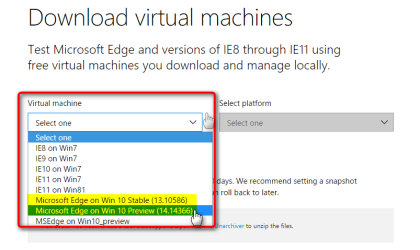
1.) Download a Windows 10 pre-installed virtual hard disk from Free Virtual Machines from IE8 to MS Edge - Microsoft Edge Development
Select your preferred Windows 10 build. Stable is the last build released to general public, at the time I'm writing this build 10586 from November 2015. Preview is a recent Windows Insider build, I recommend to use it because it gives you more perspective showing all the latest changes and features:
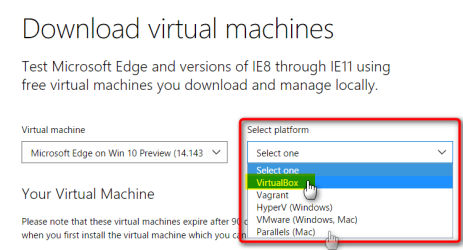
Select Platform as VirtualBox:
You can find the download link also on our sister site Ten Forums, with more information: Windows 10 virtual machines now available on Microsoft Edge Dev - Windows 10 Forums
2.) If you do not have Oracle VirtualBox installed, download and install it now from Oracle VM VirtualBox
Don't panic now! For this procedure you do not need any virtualization knowledge nor do you need to set up a virtual machine. We will need VirtualBox only for one single task later on, you can then uninstall it.
When installing VirtualBox, if you have no further use for it you don't need to install anything else than core application. You can exclude USB support, Networking and Python support modules:

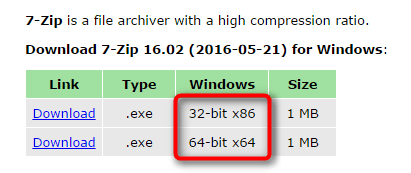
3.) Download and install 7-Zip from 7-Zip. As with VirtualBox we only need it for a single simple task, you can uninstall it when we are done
Be sure to select correct bit version:
Part Two
Extract ZIP file
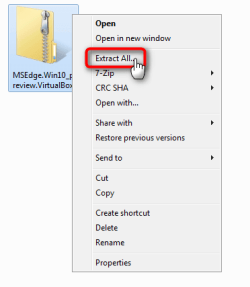
1.) When downloaded, right click the ZIP file and select Extract All:
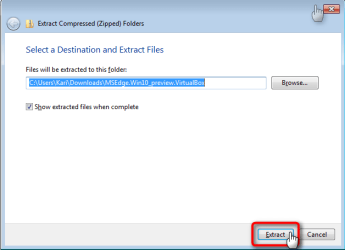
2.) Click Extract:
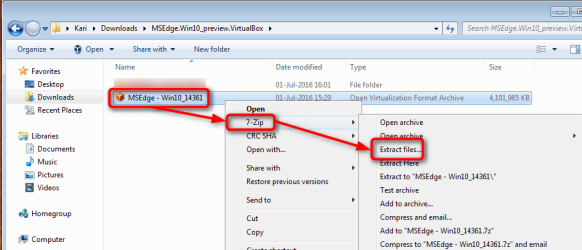
3.) Open the extracted folder, right click the OVA archive file (OVA = Open Virtualization Format Archive) MSEdge - Win10_XXXXX.ova, Select 7-Zip, select Extract files:
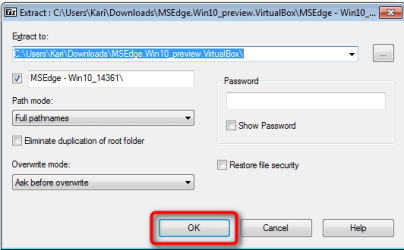
4.) Click OK:
5.) Again a new folder is created, this time to same folder containg the OVA file you just extracted with 7-Zip. Open the folder:

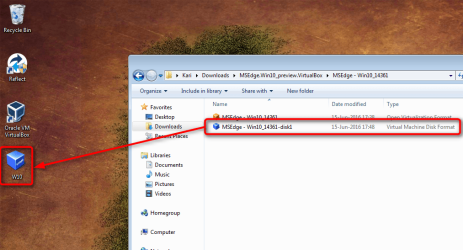
6.) Inside the folder you will find a just over 4 GB VMDK file (VMDK = Virtual Machine Disk Format) named as MSEdge - Win10_XXXXX-disk1.vmdk. Copy the file to your desktop, rename it to something simple. Do not change the file extension!
In this example I copied it and renamed as W10.vmdk:
Part Three
Convert VMDK to VHD (Virtual Hard Disk format)
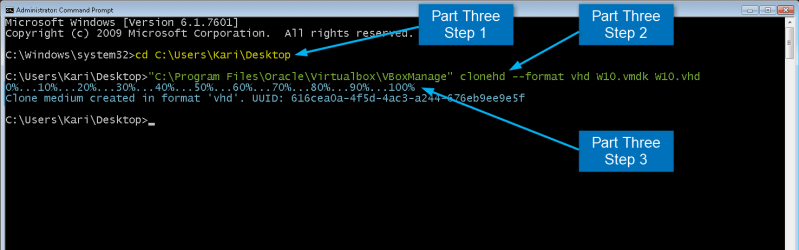
1.) Open an elevated (admin) Command Prompt, use CD command to jump to your desktop folder:
Code:
cd %userprofile%\Desktop
Note
If your username has spaces, put the desktop path in quotes:
cd "%userprofile%\desktop"
cd "%userprofile%\desktop"
2.) Give the following command exactly as told here, including the quotes:
Code:
"C:\Program Files\Oracle\Virtualbox\VBoxManage" clonehd --format VHD SourceFileName.vmdk TargetFileName.vhdIn my case now (see screenshot above in 2.6) my source file name is W10.vmdk, that's how I renamed the VMDK file when I copied it to desktop. I want the target VHD file be named as W10.vhd (I like short but informative file names
).In this example my command would be:
Code:
"C:\Program Files\Oracle\Virtualbox\VBoxManage" clonehd --format vhd [B][SIZE="4"][COLOR="DarkRed"]W10.vmdk[/COLOR][/SIZE][/B] [B][SIZE="4"][COLOR="DarkRed"]W10.vhd[/COLOR][/SIZE][/B]3.) The VMDK file will now be converted to a Windows 7 supported format, to a VHD file:

4.) When done you have both the source VMDK file and new target VHD file on desktop:
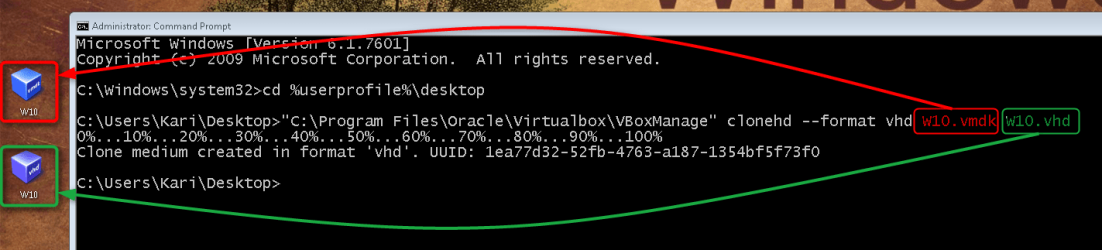
You can now uninstall VirtualBox and 7-Zip if you have no other use for them.
Part Four
Add VHD to Windows Boot Menu
Note
This trial VHD is so called dynamically expanding disk. Quote from Microsoft TechNet:
The maximum capacity of our dynamically expanding VHD file is 40 GB. If you have less free space on the disk where you have stored the VHD, it will give a BSOD when selected in Boot Menu.
Be sure that you have at least 40 GB free before proceeding.
A dynamically expanding virtual hard disk is one in which the size of the .vhd file grows as data is written to the virtual hard disk. This is the default type of virtual hard disk created by Virtual Server.
When you create a dynamically expanding virtual hard disk, you specify a maximum file size. This size restricts how large the disk can become. However, the initial size of the .vhd file is only about 3 MB. For example, if you create a 1-GB, dynamically expanding virtual hard disk, the initial size of the .vhd file will be about 3 MB. As a virtual machine uses the virtual hard disk, the size of the .vhd file grows to accommodate the new data. The size of any dynamically expanding disk only grows; it does not shrink, even when you delete data. You may be able to reduce the size of a dynamically expanding disk by compacting it. For more information, see Compacting dynamically expanding virtual hard disks.
The maximum capacity of our dynamically expanding VHD file is 40 GB. If you have less free space on the disk where you have stored the VHD, it will give a BSOD when selected in Boot Menu.
Be sure that you have at least 40 GB free before proceeding.
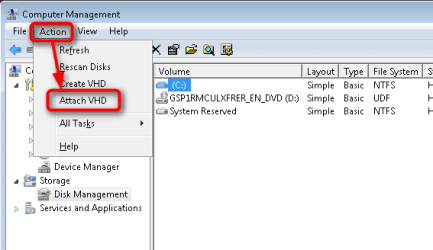
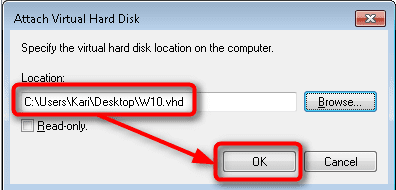
1.) Open Disk Management (right click Computer in Start Menu, select Manage, select Disk management on left pane). Open Action menu, select Attach VHD, browse to and select the VHD file we placed on desktop, click OK to attach it:
2.) The VHD will be added to your host system and is shown as any normal hard disk. Notice the drive letter it got and close Disk Management:

The VHD will be automatically detached by next shut down or restart
3.) Open an elevated (admin) Command Prompt, enter the following command replacing drive letter X: with the actual drive letter the VHD got:
Code:
bcdboot X:WindowsIn my example case now the VHD got drive ID E:, this being my command:
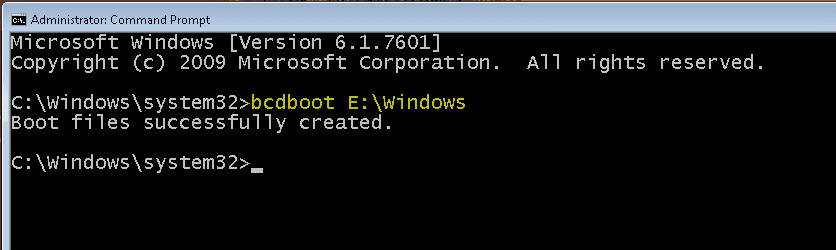
When Command Prompt tells you the boot files have been created, restart the computer to test Windows 10
Part Five
First boot to Windows 10
Note
Although your trial Windows 10 resides on a single VHD file stored on HDD of your Windows 7 host PC, it is a fully functional Windows 10 machine using your real physical hardware. Windows 10 is pretty good in finding all drivers for hardware it finds, most probably you will have no need to manually install any drivers.
From Windows 10 VHD when booted to it you have full access to your host disks and devices. You can for instance grab your favorite game installer from your Windows 7 disk and install it on Windows 10. You can also of course download and install anything you want to, be it from Windows Store or any other place. Install your preferred browser and media player, test & try
Everything you will download, install and change in Windows 10 will be stored to the VHD file and will be completely removed from your PC simply by deleting the VHD.
From Windows 10 VHD when booted to it you have full access to your host disks and devices. You can for instance grab your favorite game installer from your Windows 7 disk and install it on Windows 10. You can also of course download and install anything you want to, be it from Windows Store or any other place. Install your preferred browser and media player, test & try
Everything you will download, install and change in Windows 10 will be stored to the VHD file and will be completely removed from your PC simply by deleting the VHD.
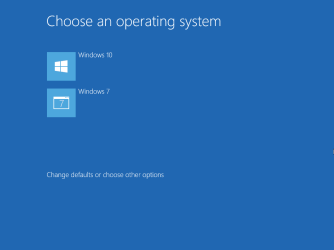
1.) When computer reboots you will see the boot menu. The last entry added to boot menu is the default OS which will be started if user makes no selection. In our case now the default OS is Windows 10:
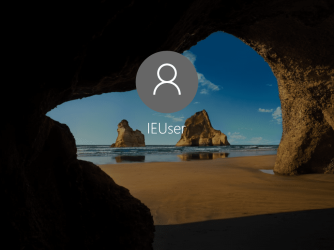
2.) Windows 10 signs you automatically in with preset local user account IEUser (uppercase I, E and U followed by lowercase s,e and r), password Passw0rd! (word Password written with uppercase P, all other letters lowercase, letter o replaced with digit 0, an exclamation point at the end):
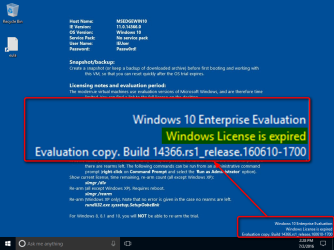
3.) It can take a few minutes before your 90 day trial license will be activated. Until that Windows tells you the license is expired and you cannot personalize it:
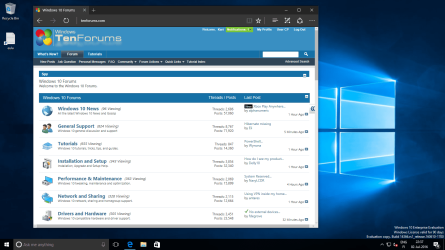
4.) Doing this now for the screenshots I took a few minute whisky break, coming back to PC it was activated and I could start personalizing (difference in times shown in Windows Clock is due previous screenshot showing the preset default US Pacific location and time, below screenshot showing my preferred modified local time):
5.) If you feel somewhat awkward and don't exactly know what to do next, take a look at these tutorials at our sister site Ten Forums to get started:
- Screen Resolution of Display - Change in Windows 10 - Windows 10 Forums
- Desktop Background - Change in Windows 10 - Windows 10 Forums
- User Account - Add in Windows 10 - Windows 10 Forums
- Account Type - Change in Windows 10 - Windows 10 Forums
- User Account - Delete in Windows 10 - Windows 10 Forums
- Account Picture - Change in Windows 10 - Windows 10 Forums
- Local Account - Switch to in Windows 10 - Windows 10 Forums
- Microsoft Account - Switch to in Windows 10 - Windows 10 Forums
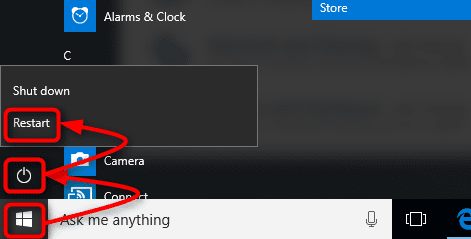
To restart, click the Start button, click Power button, select Restart:
Part Six
Troubleshoot, edit Boot Menu
Information
In case your boot menu will not let you start your chosen OS or you have any other boot issues, Macrium Recovery will save you. You can use it to resolve boot issues. I wholeheartedly recommend you to install it and do now steps 1 through 4 below. If something happens, you can then do steps 5 though 8 to reset the boot menu and boot normally to your original Windows 7.
You can also use it if you no longer want to dual boot to Windows 10 VHD. Reset the boot menu with Macrium, boot back to your original Windows 7 and delete the downloaded ZIP archive, folders and files extracted from it, and the VHD file we converted from the VMDK file.
Your PC will then have not even the smallest remnants of your Windows 10 trial
You can also use it if you no longer want to dual boot to Windows 10 VHD. Reset the boot menu with Macrium, boot back to your original Windows 7 and delete the downloaded ZIP archive, folders and files extracted from it, and the VHD file we converted from the VMDK file.
Your PC will then have not even the smallest remnants of your Windows 10 trial
1.) Download Macrium Reflect Free: Macrium Reflect Free
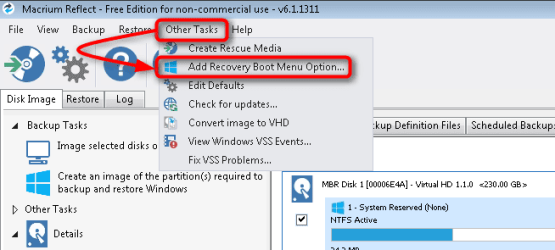
2.) When Macrium is installed, launch it. Open Other Tasks menu, select Add Recovery Boot Menu Option:
3.) Select either Windows PE 5 or 10, click OK, accept all defaults and let Macrium download the PE files:

4.) Notice that download is only needed first time you do this and takes a few minutes. Later on if you have removed Macrium Recovery from your boot menu you can add it fast with no additional downloads.
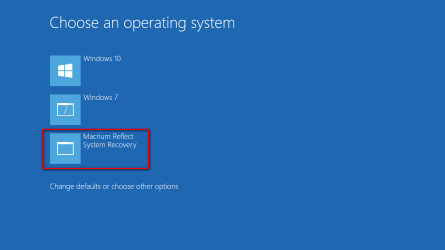
5.) If you have had any boot issues or want to stop dual booting and reset the boot menu, select Macrium from boot menu:
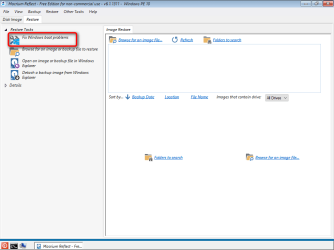
6.) select Fix Windows boot problems:
7.) Accept all defaults with Next, OK and Finish buttons, finally restart PC:

8.) The boot menu has been removed, your original Windows 7 OS will boot
9.) You can manually edit the boot menu in an elevated Command Prompt with command bcdedit. See these tutorials for bcdedit info:
10.) Here some bcdedit commands to get you started:
- bcdedit
- list all boot entries
- bcdedit /delete {Boot Entry Identifier}
- Removes the selected entry from Boot Menu
- bcdedit /set {Boot Entry Identifier} description "Any Name"
- Sets the name of selected entry in Boot Menu to your chosen one, instead of for instance having two entries named Windows 10, you can name them as Windows 10 Pro on HDD and Windows 10 Home on VHD
- New name (description) needs to be in quotes if it contains spaces
- bcdedit /default {Boot Entry Identifier}
- Sets the selected entry as default OS which will be automatically started when countdown reaches 0

Checking with plain bcdedit command I can see the name (description) has been changed:
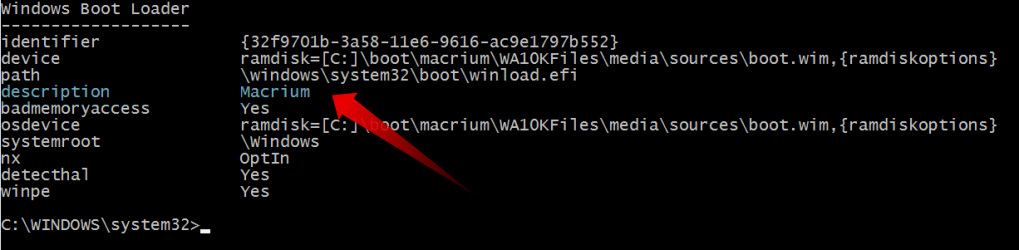
Notice that the identifier is a 128 bit (32 hexa digits) GUID, with two exceptions: the current OS, the one you are using at the moment is always identified as {current}, and the OS set to be default is identified as {default}. If {current} is also {default}, then all other entries except {current} have the 32 digit GUID.
That's it geeks! Please post all your questions and remarks in this thread, also let me know if you find any typos or errors in this tutorial.
Tip
Don't hesitate to join us at TenForums.com if you have any issues with your trial!
Kari
Attachments

Last edited:


