Shortcut Arrow - Change, Remove, or Restore

How to Change, Remove, or Restore the Shortcut Arrow Overlay Icon in Windows


   Information
This tutorial will show you how to change, remove, or restore the default shortcut arrow overlay on all shortcut icons in Vista, Windows 7, and Windows 8.

You must be logged in as an administrator to be able to do the steps in this tutorial.

   Warning
Removing the shortcut arrow will make it harder to tell which files are shortcuts or not.

You can still tell by right clicking or press and hold on the file, and click/tap on Properties to see if you have a Shortcut tab or not.


OPTION ONE

Change Shortcut Arrow using "Vista Shortcut Overlay Remover"


1. If you have not already, click/tap on the Download button below to download the Vista Shortcut Overlay Remover (Vista Shortcut Overlay Manager) program below for the 32-bit or 64-bit Windows you have installed. Save the .msi file to your desktop, and install it.
32-bit (x86) Windows

Download


64-bit (x64) Windows

Download


2. Double click/tap on the program's shortcut to run the program.

3. To Change, Restore, or Remove the Arrow for All Shortcuts
A) Select (dot) the arrow option you want for the shortcut arrow. (See screenshot below)
NOTE: If you selected Custom Arrow to change the shortcut arrow, then click on Select and navigate to and choose a ICO (icon) file you have downloaded to use as the shortcut arrow.
4. To Remove the "Shortcut" Name from All Shortcuts
NOTE: See also: http://www.sevenforums.com/tutorials/804-shortcut-extension-remove-restore.html
A) Check the box to also remove the - Shortcut name extension for new shortcuts that are created.
5. Click/tap on Apply.
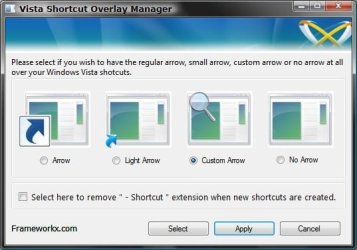
Frameworkx.jpg
6. Click/tap on Yes to log off to apply the changes. (See screenshot below)
NOTE: If you like, you could also just restart explorer instead to apply your changes.
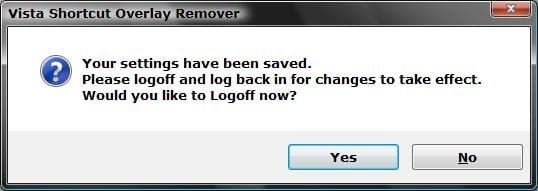
Logoff_Confirmation.jpg
7. Log back on and your done.


   Warning
If you used the Light Arrow or No Arrow option and uninstall "Vista Shortcut Overlay Remover", then they will be undone the next time you log off/on or restart the computer/explorer.

The Arrow (default) and Custom Arrow options will not be undone if you uninstall "Vista Shortcut Overlay Remover".


OPTION TWO

To Change Shortcut Arrow Overlay Icon in Registry Editor


1. Press the Windows + R keys to open the Run dialog, type regedit, and press Enter.

2. In regedit, navigate to the location below:
NOTE: If Shell Icons it is not in the left pane under Explorer, right click on Explorer, and click on New and Key. Type Shell Icons for the new keys's name, and press Enter.

Code:
HKEY_LOCAL_MACHINE\SOFTWARE\Microsoft\Windows\CurrentVersion\Explorer\Shell Icons

3. In the right pane of Shell Icons, right click on an empty area, and click/tap on New and String Value, and name it 29.

4. Double click/tap on the 29 sting value to modify it.

5. Type in the full path of your custom .ico file within quotes, OR copy and paste the path below for what overlay icon you would like to use, and click/tap on OK.
   Tip
If you like, you can download a transparent.ico file here to use instead.


(No arrow - Transparent) %windir%\System32\shell32.dll,-50

XP_Arrow.png (Classic) %windir%\System32\shell32.dll,-30

Arrow.png (Default) %windir%\System32\shell32.dll,-16769
6. Log off and on, or restart the computer to apply.


OPTION THREE

To Change Shortcut Arrow Overlay Icon using a REG File


NOTE: This option does the same thing as OPTION TWO above, but automatically for you using a .reg file.
1. Do step 2, 3, or 4 below for what you would like to do.

2. To Restore Default Shortcut Arrow Overlay Icon
NOTE: This is the default setting.
A) Click/tap on the Download button below to download the .reg file below, and go to step 5 below.

Arrow.png Default_Shortcut_Arrow.reg


Download


3. To Use Classic Shortcut Arrow Overlay Icon
A) Click/tap on the Download button below to download the .reg file below, and go to step 5 below.

XP_Arrow.png Classic_Shortcut_Arrow.reg


Download


4. To Have No Shortcut Arrow Overlay Icon
A) Click/tap on the Download button below to download the .reg file below, and go to step 5 below.

No_Shortcut_Arrow.reg


Download


5. Log off and log on, or restart the computer to apply.

6. You can now delete the downloaded .reg file if you like.
That's it,
Shawn


Attachments

Last edited:
Hello Ted,

All options work in Windows 8 as well. ;)
 

My Computer

Computer type
PC/Desktop
Computer Manufacturer/Model Number
Self built custom
OS
64-bit Windows 11 Pro for Workstations
CPU
Intel i7-8700K OC'd to 5 GHz
Motherboard
ASUS ROG Maximus XI Formula Z390
Memory
64 GB (4x16GB) G.SKILL TridentZ RGB DDR4 3600 MHz
Graphics Card(s)
ASUS ROG-STRIX-GTX1080TI-O11G-GAMING
Sound Card
Integrated
Monitor(s) Displays
2 x Samsung Odyssey G7 27"
Screen Resolution
2560x1440
Hard Drives
1TB Samsung 990 PRO M.2,
4TB Samsung 990 PRO PRO M.2,
TerraMaster F8 SSD Plus NAS
PSU
Seasonic Prime Titanium 850W
Case
Thermaltake Core P3
Cooling
Corsair Hydro H115i
Keyboard
Logitech wireless K800
Mouse
Logitech MX Master 4
Internet Speed
2 Gb/s Download and 100 Mb/s Upload
Antivirus
Malwarebyte Anti-Malware Premium
Browser
Google Chrome
Other Info
Logitech Z625 speaker system,
Logitech BRIO 4K Pro webcam,
HP Color LaserJet Pro MFP M477fdn,
APC SMART-UPS RT 1000 XL - SURT1000XLI,
Galaxy S23 Plus phone
shell number for no arrow

Hi,

The shell number for option two that will give you no arrow is 49.
That is the blank area in the icon list of the dll file.

To check that, pick any shortcut file on your desktop (any file you can change the icon will do actually), choose 'change icon and then browse to the shell32.dll and open. Counting from left and down the columns starting with 0, 29 (thus the shell32.dll,29 in the regedit option) comes to the tiny arrow. Continue to count until you get to a blank space (mine was 49, 50, 51, and 52). Any of the blank numbers will eliminate the arrow.

Option two works, no need to run programs or point to blank icos. You can back up the key by exporting it. I named mine 'no arrow.reg'. That way if I have to re-install down the line, I just merge the file and done!
 

My Computer

OS
win7 ultimate 64 bit
Just a quick thanks to Brink (and everyone else) for helping with the Windows 7 shortcut arrow. I found it to be one of the more annoying graphical changes from XP to Vista and Win 7. Three years posting support for this - that's dedication Brink. Thx again!
 

My Computer

OS
Windows 7 Ultimate X64
You're most welcome nineball, and welcome to Seven Forums. I'm glad that it was able to help. :)
 

My Computer

Computer type
PC/Desktop
Computer Manufacturer/Model Number
Self built custom
OS
64-bit Windows 11 Pro for Workstations
CPU
Intel i7-8700K OC'd to 5 GHz
Motherboard
ASUS ROG Maximus XI Formula Z390
Memory
64 GB (4x16GB) G.SKILL TridentZ RGB DDR4 3600 MHz
Graphics Card(s)
ASUS ROG-STRIX-GTX1080TI-O11G-GAMING
Sound Card
Integrated
Monitor(s) Displays
2 x Samsung Odyssey G7 27"
Screen Resolution
2560x1440
Hard Drives
1TB Samsung 990 PRO M.2,
4TB Samsung 990 PRO PRO M.2,
TerraMaster F8 SSD Plus NAS
PSU
Seasonic Prime Titanium 850W
Case
Thermaltake Core P3
Cooling
Corsair Hydro H115i
Keyboard
Logitech wireless K800
Mouse
Logitech MX Master 4
Internet Speed
2 Gb/s Download and 100 Mb/s Upload
Antivirus
Malwarebyte Anti-Malware Premium
Browser
Google Chrome
Other Info
Logitech Z625 speaker system,
Logitech BRIO 4K Pro webcam,
HP Color LaserJet Pro MFP M477fdn,
APC SMART-UPS RT 1000 XL - SURT1000XLI,
Galaxy S23 Plus phone
all or nothing - the arrow removal removes the image

Alas, neither approach worked for me!

The Vista Shortcut Manager (FxVisor64.msi) apparently expects Vista, not Win7, since it consistently fails when I try to commit (Apply) the selection. I get 'Unhandled exception... ...The system cannot find the file specified' That's too bad, because it looked like the better, more complete solution (since I also do not want the "Shortcut" extension to the name.

So, I tried Option 3 (since I've had very good luck to date with Registry modifiers downloaded from sevenforumns), but it not only eliminated the arrow, but it also replaced the image of the target folder/file with a generic icon (and this shortcut icon could not be modified with the RightClick->Properties interface).

Fortunately, the Default_LINK_(Shortcut).reg modifier did recover things for me.

This is the second win7 machine I've customized in about a year, and I am pretty sure that I found another way to eliminate the shortcut arrows the first time around (along with the "Shortcut" name extension). Any pointers would be appreciated! ... I will do some more searching on my own as well, of course.

Thanks!
 

My Computer

Computer Manufacturer/Model Number
Hewlett-Packard
OS
Windows 7 Professional
CPU
Intel Core i5
Motherboard
?
Memory
6G
Graphics Card(s)
?
Sound Card
?
Monitor(s) Displays
laptop
Hard Drives
600G
Hello Jdub,

Are you sure that you are using the correct 32-bit or 64-bit version of Vista Shortcut Manager for your same 32-bit or 64-bit Windows 7?
http://www.sevenforums.com/tutorials/515-system-type-32-bit-x86-64-bit-x64.html
If you have 32-bit Windows 7 installed, then you must use the 32-bit Vista Shortcut Manager (fxvisor32.msi).

If you have 64-bit Windows 7 installed, then you must use the 64-bit Vista Shortcut Manager (fxvisor64.msi).

Hope this helps,
Shawn
 

My Computer

Computer type
PC/Desktop
Computer Manufacturer/Model Number
Self built custom
OS
64-bit Windows 11 Pro for Workstations
CPU
Intel i7-8700K OC'd to 5 GHz
Motherboard
ASUS ROG Maximus XI Formula Z390
Memory
64 GB (4x16GB) G.SKILL TridentZ RGB DDR4 3600 MHz
Graphics Card(s)
ASUS ROG-STRIX-GTX1080TI-O11G-GAMING
Sound Card
Integrated
Monitor(s) Displays
2 x Samsung Odyssey G7 27"
Screen Resolution
2560x1440
Hard Drives
1TB Samsung 990 PRO M.2,
4TB Samsung 990 PRO PRO M.2,
TerraMaster F8 SSD Plus NAS
PSU
Seasonic Prime Titanium 850W
Case
Thermaltake Core P3
Cooling
Corsair Hydro H115i
Keyboard
Logitech wireless K800
Mouse
Logitech MX Master 4
Internet Speed
2 Gb/s Download and 100 Mb/s Upload
Antivirus
Malwarebyte Anti-Malware Premium
Browser
Google Chrome
Other Info
Logitech Z625 speaker system,
Logitech BRIO 4K Pro webcam,
HP Color LaserJet Pro MFP M477fdn,
APC SMART-UPS RT 1000 XL - SURT1000XLI,
Galaxy S23 Plus phone
They're baaaack!

Hi!

I need help with this... I have used this shortcut arrow fix (using a "light arrows" image I found online two years ago, in .ico format) in Windows 7 Pro x64, with no issues at all... it has always worked perfectly, and still does, on my desktop shortcuts.

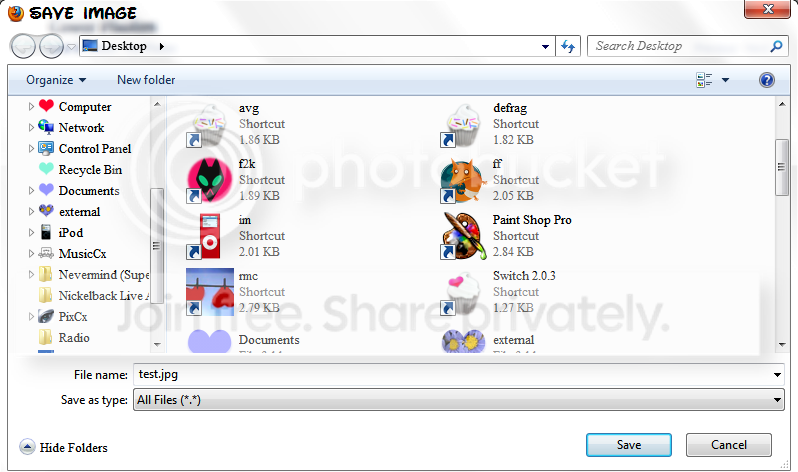
But recently, I've noticed that the default arrows appear now, whenever I attempt to save an image or document:

arrows.png


What have I done to cause the default arrows to show when saving something, and yet, the tiny arrows I chose still appear on my desktop shortcuts?

I have tried everything I can think of to fix this issue... help, please?

Thank you :)
 
Last edited by a moderator:

My Computer

OS
Windows 7 Professional x64
Hello CCx, and welcome to Seven Forums.

You might see if restoring the default shortcut arrow to reset it, then reapplying your custom one may help.

Hope this helps, :)
Shawn
 

My Computer

Computer type
PC/Desktop
Computer Manufacturer/Model Number
Self built custom
OS
64-bit Windows 11 Pro for Workstations
CPU
Intel i7-8700K OC'd to 5 GHz
Motherboard
ASUS ROG Maximus XI Formula Z390
Memory
64 GB (4x16GB) G.SKILL TridentZ RGB DDR4 3600 MHz
Graphics Card(s)
ASUS ROG-STRIX-GTX1080TI-O11G-GAMING
Sound Card
Integrated
Monitor(s) Displays
2 x Samsung Odyssey G7 27"
Screen Resolution
2560x1440
Hard Drives
1TB Samsung 990 PRO M.2,
4TB Samsung 990 PRO PRO M.2,
TerraMaster F8 SSD Plus NAS
PSU
Seasonic Prime Titanium 850W
Case
Thermaltake Core P3
Cooling
Corsair Hydro H115i
Keyboard
Logitech wireless K800
Mouse
Logitech MX Master 4
Internet Speed
2 Gb/s Download and 100 Mb/s Upload
Antivirus
Malwarebyte Anti-Malware Premium
Browser
Google Chrome
Other Info
Logitech Z625 speaker system,
Logitech BRIO 4K Pro webcam,
HP Color LaserJet Pro MFP M477fdn,
APC SMART-UPS RT 1000 XL - SURT1000XLI,
Galaxy S23 Plus phone
Hi Shawn... I tried that once, and it didn't make any difference. Now I CAN'T uninstall the custom overlay - it won't go away, in spite of several attempts to uninstall it. I've got a problem here, lol :)
 

My Computer

OS
Windows 7 Professional x64
I'm assuming that you already did step 3 in OPTION THREE, and checked OPTION TWO to delete the registry entry for the icon if there?

Did changing the icon using OPTION ONE not change it?
 

My Computer

Computer type
PC/Desktop
Computer Manufacturer/Model Number
Self built custom
OS
64-bit Windows 11 Pro for Workstations
CPU
Intel i7-8700K OC'd to 5 GHz
Motherboard
ASUS ROG Maximus XI Formula Z390
Memory
64 GB (4x16GB) G.SKILL TridentZ RGB DDR4 3600 MHz
Graphics Card(s)
ASUS ROG-STRIX-GTX1080TI-O11G-GAMING
Sound Card
Integrated
Monitor(s) Displays
2 x Samsung Odyssey G7 27"
Screen Resolution
2560x1440
Hard Drives
1TB Samsung 990 PRO M.2,
4TB Samsung 990 PRO PRO M.2,
TerraMaster F8 SSD Plus NAS
PSU
Seasonic Prime Titanium 850W
Case
Thermaltake Core P3
Cooling
Corsair Hydro H115i
Keyboard
Logitech wireless K800
Mouse
Logitech MX Master 4
Internet Speed
2 Gb/s Download and 100 Mb/s Upload
Antivirus
Malwarebyte Anti-Malware Premium
Browser
Google Chrome
Other Info
Logitech Z625 speaker system,
Logitech BRIO 4K Pro webcam,
HP Color LaserJet Pro MFP M477fdn,
APC SMART-UPS RT 1000 XL - SURT1000XLI,
Galaxy S23 Plus phone
I'm assuming that you already did step 3 in OPTION THREE, and checked OPTION TWO to delete the registry entry for the icon if there?

Did changing the icon using OPTION ONE not change it?

Okay, well Method 2 gave me this kinda action on my desktop:

arrows2.png


So what next?

:D

I should have noted that I have been using Option 1 for over two years (June 2010), with no problems at all... this issue just started a couple of weeks ago... I can't figure out what I might have done to cause this: Tiny arrows still on the desktop (as always), but default arrows when saving an image or document...
 
Last edited by a moderator:

My Computer

OS
Windows 7 Professional x64
Try step 3 in OPTION THREE. :)
 

My Computer

Computer type
PC/Desktop
Computer Manufacturer/Model Number
Self built custom
OS
64-bit Windows 11 Pro for Workstations
CPU
Intel i7-8700K OC'd to 5 GHz
Motherboard
ASUS ROG Maximus XI Formula Z390
Memory
64 GB (4x16GB) G.SKILL TridentZ RGB DDR4 3600 MHz
Graphics Card(s)
ASUS ROG-STRIX-GTX1080TI-O11G-GAMING
Sound Card
Integrated
Monitor(s) Displays
2 x Samsung Odyssey G7 27"
Screen Resolution
2560x1440
Hard Drives
1TB Samsung 990 PRO M.2,
4TB Samsung 990 PRO PRO M.2,
TerraMaster F8 SSD Plus NAS
PSU
Seasonic Prime Titanium 850W
Case
Thermaltake Core P3
Cooling
Corsair Hydro H115i
Keyboard
Logitech wireless K800
Mouse
Logitech MX Master 4
Internet Speed
2 Gb/s Download and 100 Mb/s Upload
Antivirus
Malwarebyte Anti-Malware Premium
Browser
Google Chrome
Other Info
Logitech Z625 speaker system,
Logitech BRIO 4K Pro webcam,
HP Color LaserJet Pro MFP M477fdn,
APC SMART-UPS RT 1000 XL - SURT1000XLI,
Galaxy S23 Plus phone
Instructions Please on how to work the "Custom" option inVista Overlay

Hello Please help!!!

I used the first choice "Vista Overlay Remover" and do not understand how to use the "Custom" option in the program to just remove the arrow from selected icons. When I use "No Arrow" it works but program icons in my folders turn black :(

Please give me step by step instructions how to use "Custom" and just remove arrow of icons of my choice OK?

Thank you and I look forward to a solution!!! :)

Best regards,

LoveSunrises
 

My Computer

OS
Windows 7 Professional x64

My Computer

Computer type
PC/Desktop
Computer Manufacturer/Model Number
Self built custom
OS
64-bit Windows 11 Pro for Workstations
CPU
Intel i7-8700K OC'd to 5 GHz
Motherboard
ASUS ROG Maximus XI Formula Z390
Memory
64 GB (4x16GB) G.SKILL TridentZ RGB DDR4 3600 MHz
Graphics Card(s)
ASUS ROG-STRIX-GTX1080TI-O11G-GAMING
Sound Card
Integrated
Monitor(s) Displays
2 x Samsung Odyssey G7 27"
Screen Resolution
2560x1440
Hard Drives
1TB Samsung 990 PRO M.2,
4TB Samsung 990 PRO PRO M.2,
TerraMaster F8 SSD Plus NAS
PSU
Seasonic Prime Titanium 850W
Case
Thermaltake Core P3
Cooling
Corsair Hydro H115i
Keyboard
Logitech wireless K800
Mouse
Logitech MX Master 4
Internet Speed
2 Gb/s Download and 100 Mb/s Upload
Antivirus
Malwarebyte Anti-Malware Premium
Browser
Google Chrome
Other Info
Logitech Z625 speaker system,
Logitech BRIO 4K Pro webcam,
HP Color LaserJet Pro MFP M477fdn,
APC SMART-UPS RT 1000 XL - SURT1000XLI,
Galaxy S23 Plus phone
Aww thank you dear Shawn but I did try option 3 and it also turned my icons in my folders black but the desktop icon arrows disappeared and the icon's looks stayed normal. I had to remove option 3 and once removed it changed my large arrow into something totally different :(

I reinstalled option 1 and just live with the small icon arrow

It is better than the large one now especially since option 3 change the original arrow look that came with Windows 7 Pro
 

My Computer

OS
Windows 7 Professional x64
Since you're using a custom icon, then you might also check to make sure it's unblocked at saved in a location that allows full access for everyone. In one of the "C:\Users\Public" folders is good.
 

My Computer

Computer type
PC/Desktop
Computer Manufacturer/Model Number
Self built custom
OS
64-bit Windows 11 Pro for Workstations
CPU
Intel i7-8700K OC'd to 5 GHz
Motherboard
ASUS ROG Maximus XI Formula Z390
Memory
64 GB (4x16GB) G.SKILL TridentZ RGB DDR4 3600 MHz
Graphics Card(s)
ASUS ROG-STRIX-GTX1080TI-O11G-GAMING
Sound Card
Integrated
Monitor(s) Displays
2 x Samsung Odyssey G7 27"
Screen Resolution
2560x1440
Hard Drives
1TB Samsung 990 PRO M.2,
4TB Samsung 990 PRO PRO M.2,
TerraMaster F8 SSD Plus NAS
PSU
Seasonic Prime Titanium 850W
Case
Thermaltake Core P3
Cooling
Corsair Hydro H115i
Keyboard
Logitech wireless K800
Mouse
Logitech MX Master 4
Internet Speed
2 Gb/s Download and 100 Mb/s Upload
Antivirus
Malwarebyte Anti-Malware Premium
Browser
Google Chrome
Other Info
Logitech Z625 speaker system,
Logitech BRIO 4K Pro webcam,
HP Color LaserJet Pro MFP M477fdn,
APC SMART-UPS RT 1000 XL - SURT1000XLI,
Galaxy S23 Plus phone

Re: Post # 186
and Post # 191

"Try step 3 in OPTION THREE.
smile.gif
"

Hi Shawn... I have completed Step3/Option3 and have the default icons back.

Now what do I do, reinstall your program to get my custom icon back?

And is there an ideal place to have my "light arrow.ico" located?

Why this worked for over two years and suddenly doesn't, baffles me...

:confused:
 

My Computer

OS
Windows 7 Professional x64
Hello Brink my original question was how to use the custom option in option 1 step by step to remove the arrow from just icons I wish to select without changing the look of the icon except just removing the arrow??? Hope everyone is having a good day/night
 

My Computer

OS
Windows 7 Professional x64
Re: Post # 186 and Post # 191

"Try step 3 in OPTION THREE.
smile.gif
"

Hi Shawn... I have completed Step3/Option3 and have the default icons back.

Now what do I do, reinstall your program to get my custom icon back?

And is there an ideal place to have my "light arrow.ico" located?

Why this worked for over two years and suddenly doesn't, baffles me...

:confused:

In one of the "C:\Users\Public" folders is good.

In addition, check to make sure that the file is unblocked.

You could use either the program in OPTION ONE, or manually in OPTION TWO. :)
 

My Computer

Computer type
PC/Desktop
Computer Manufacturer/Model Number
Self built custom
OS
64-bit Windows 11 Pro for Workstations
CPU
Intel i7-8700K OC'd to 5 GHz
Motherboard
ASUS ROG Maximus XI Formula Z390
Memory
64 GB (4x16GB) G.SKILL TridentZ RGB DDR4 3600 MHz
Graphics Card(s)
ASUS ROG-STRIX-GTX1080TI-O11G-GAMING
Sound Card
Integrated
Monitor(s) Displays
2 x Samsung Odyssey G7 27"
Screen Resolution
2560x1440
Hard Drives
1TB Samsung 990 PRO M.2,
4TB Samsung 990 PRO PRO M.2,
TerraMaster F8 SSD Plus NAS
PSU
Seasonic Prime Titanium 850W
Case
Thermaltake Core P3
Cooling
Corsair Hydro H115i
Keyboard
Logitech wireless K800
Mouse
Logitech MX Master 4
Internet Speed
2 Gb/s Download and 100 Mb/s Upload
Antivirus
Malwarebyte Anti-Malware Premium
Browser
Google Chrome
Other Info
Logitech Z625 speaker system,
Logitech BRIO 4K Pro webcam,
HP Color LaserJet Pro MFP M477fdn,
APC SMART-UPS RT 1000 XL - SURT1000XLI,
Galaxy S23 Plus phone
Hello Brink my original question was how to use the custom option in option 1 step by step to remove the arrow from just icons I wish to select without changing the look of the icon except just removing the arrow??? Hope everyone is having a good day/night

You would basically need to do what I posted above first to make sure the icon is squared away and will be usable.

Next, download and run the 64-bit Vista Shortcut Overlay Manager program. (step 1 and 2)

Next, you would do step 3 to select the "Custom arrow" option to select the .ico file, and follow the rest of the steps in the tutorial.

If you like, ZIP and upload the .ico file here, and I'll be happy to test it on my system to see if there may be something wrong with the icon.

Hope this help. :)
 

My Computer

Computer type
PC/Desktop
Computer Manufacturer/Model Number
Self built custom
OS
64-bit Windows 11 Pro for Workstations
CPU
Intel i7-8700K OC'd to 5 GHz
Motherboard
ASUS ROG Maximus XI Formula Z390
Memory
64 GB (4x16GB) G.SKILL TridentZ RGB DDR4 3600 MHz
Graphics Card(s)
ASUS ROG-STRIX-GTX1080TI-O11G-GAMING
Sound Card
Integrated
Monitor(s) Displays
2 x Samsung Odyssey G7 27"
Screen Resolution
2560x1440
Hard Drives
1TB Samsung 990 PRO M.2,
4TB Samsung 990 PRO PRO M.2,
TerraMaster F8 SSD Plus NAS
PSU
Seasonic Prime Titanium 850W
Case
Thermaltake Core P3
Cooling
Corsair Hydro H115i
Keyboard
Logitech wireless K800
Mouse
Logitech MX Master 4
Internet Speed
2 Gb/s Download and 100 Mb/s Upload
Antivirus
Malwarebyte Anti-Malware Premium
Browser
Google Chrome
Other Info
Logitech Z625 speaker system,
Logitech BRIO 4K Pro webcam,
HP Color LaserJet Pro MFP M477fdn,
APC SMART-UPS RT 1000 XL - SURT1000XLI,
Galaxy S23 Plus phone
Back
Top