Emergency Kit - save your files from a dead OS

How to Create and Use a Linux Mint Mate USB Flash Drive to Recover your Files


   Note
If you are in a hurry and don't want to read the whole saga, skip to point #2 and watch the videos. That will give you enough information to do the job.
The method proposed here is really extremely easy. Even someone with little computer experience should be able to deal with it.


   Information
I am now getting suggestions for additional use of Mint Mate on the USB flash drive. I will list those in random order as they come in. Feel free to make suggestions on the thread and I will include them.
  • It is a very safe environment to operate on the internet. Malware infections are quasi impossible and should they really happen you can recreate the flash drive very easily.
  • Very often it is difficult or impossible to delete files under Windows. With Mint Mate on the flash drive you have an easy tool to accomplish those deletions.
1. Introduction


A total OS crash is not uncommon and then the last resort is very often to reinstall the operating system. The users who made provisions for that case by separating their user data into a data partition, or making frequent images, can easily recover. However, there are many that did not take any precautions and are desperately trying to recover their user data which is sitting on the OS partition that is no more accessible.

The traditional advice is to salvage the data with a live Linux CD from Knoppix, Puppy, DSL or alike. That works fine if you are familiar with any of those programs or take the time to understand them. But they all have one thing in common - they are very Linux and somewhat alien for a Windows user.

One Linux distro which feels comfortable for a Windows user is Mint Mate. There is quasi no learning requirement because things work in a very similar way as they work in Windows. You can judge for yourself by watching the second video.

The emergency kit I propose consists of a persistent Mint Mate OS on a USB flash drive. That means that any setup or modification you make to Mint Mate on the flash drive will be preserved and you don't have to redo it the next time you boot from the flash drive. The setup of such a drive is extremely simple as you will see in the first video.


2. Preparation and Requirements

We will use Mint Mate 14 which is the latest version and can be download from here. The download will take some time because it is 966MB large. And if you want the latest Mint Mate 17, it can be downloaded from here. The characteristics are the same as for Mint Mate 14.

Note: I haven noticed that not all download sites give you the same edition. In fact the downloads from some sites don't work as described. I suggest you use the James Madison Univerity site because that one I know works correctly.

We will also download and save the Universal USB Installer from here. With this program we can create the Mint Mate flash drive very, very easily.

As last component we need an empty flash drive formatted in Fat32 of at least 2GB but bigger is better. I use a 16GB USB2 flash drive which works very well. A USB3 flash drive would be even better. My USB2 flash drive has a data transfer rate of 30MB/sec and an access time of 0.8ms as measured with HD Tune.


3. Installation of Mint Mate on the Flash Drive

I will explain the extremely easy installation process of Mint Mate with the Universal USB Installer in a short video. Depending on the speed of your USB flash drive, that should take between 10 and 20 minutes.


4. Recover files with the Mint Mate flash drive

Here again a short video is the easiest way to explain the recovery procedure. This video was taken with a program installed and running on the flash drive.

The Mint Mate on the flash drive is a fully operational operating system. Due to the persistent nature of the installation it can be setup, tuned, and tweaked like an operating system on a system disk and the settings will remain. I often use this Mint Mate flash drive to run a PC. It is a very safe and fast method to navigate on the internet. Another safe method is to run Mint Mate in a virtual partition.

In the next chapter you find tutorials that explain how to setup Mint Mate and how to install it in a virtual partition.


5. Setup of Mint Mate


These tutorials explain how to setup Mint Mate. The first 7 videos cover the following subjects
  • Basic setup after installation
  • Refining the Theme and Skin
  • Start Menu and Taskbar settings
  • Terminal window setup
  • Installing and uninstalling Programs
  • Screen Recording
  • Screenshots and snips
In addition, there is a link to a PDF with the topic : Installation of Mint Mate in VMware Player. This section contains a written tutorial and three videos.

If you are interested in the subject, download the control sheet (a PDF) from my Skydrive


Last edited:
Well done, Wolfgang.
 

My Computer

Computer type
Laptop
Computer Manufacturer/Model Number
HP ENVY 17-1150eg
OS
Windows 10 Pro x64 EN-GB
CPU
1.6 GHz Intel Core i7-720QM Processor
Memory
6 GB
Graphics Card(s)
ATI Mobility Radeon HD 5850 Graphics
Sound Card
Beats sound system with integrated subwoofer
Monitor(s) Displays
17" laptop display, 22" LED and 32" Full HD TV through HDMI
Screen Resolution
1600*900 (1), 1920*1080 (2&3)
Hard Drives
Internal: 2 x 500 GB SATA Hard Disk Drive 7200 rpm
External: 2TB for backups, 3TB USB3 network drive for media
Cooling
As Envy runs a bit warm, I have it on a Cooler Master pad
Keyboard
Logitech diNovo Media Desktop Laser (bluetooth)
Mouse
Logitech Performance Mouse MX
Internet Speed
50/10 Mbps VDSL
Antivirus
Windows Defender 4.3.9431.0
Browser
Maxthon 3.5.2., IE11
Thanks Kari. Running Mint Mate from the flash drive is really fun. I was surprised how fast it operates even from my normal USB2 stick. I could not use my one and only fast USB3 stick because that is occupied with Fedora. But the USB2 did a fine job (as you can see in the second video which was produced from the stick).
 

My Computer

Computer Manufacturer/Model Number
HP, Dell, Gateway, Toshiba - 4 laptops and 2 desktops
OS
Vista, Windows7, Mint Mate, Zorin, Windows 8
CPU
from 1.6GHz Duo to i7
Monitor(s) Displays
2x HP w2207
Hard Drives
5x HDD, 7x SSD, 12x Externals
Keyboard
with trackball - no mices
Mouse
Trackball mice
Internet Speed
DSL 6000
Well Done whs and Needed.
 

My Computer

Computer type
PC/Desktop
OS
Windows 7 Ultimate x64
  • Like
Reactions: whs

My Computer

Computer Manufacturer/Model Number
HP, Dell, Gateway, Toshiba - 4 laptops and 2 desktops
OS
Vista, Windows7, Mint Mate, Zorin, Windows 8
CPU
from 1.6GHz Duo to i7
Monitor(s) Displays
2x HP w2207
Hard Drives
5x HDD, 7x SSD, 12x Externals
Keyboard
with trackball - no mices
Mouse
Trackball mice
Internet Speed
DSL 6000
Nice one Wolfgang .... I was previously using Zorin awhile back you pointed out that Mint Mate was better so have switched to that ..... Still use Zorin on another system but i tend to agree with you ..... A big thanks for all your input on this subject.
 

My Computer

Computer Manufacturer/Model Number
W530-3630QM1
OS
windows 7 home 64bit
CPU
INTEL-CORE I7
Memory
16GB
Hard Drives
750GB
Browser
Chrome
Thanks Maxie. I have the same setup. I still use Zorin, mainly because it has the Wine as standard feature. In 64bit Mint Mate I have not yet been able to install Wine. They say that it is impossible. But it is not probalem in the 32bit Mint Mate (so they say). I will try that now.

I sometimes run my laptop now with the USB stick version. That is amazingly fast and a lot of fun. Even boot times are reaonable - about 40 seconds. Considering that this is only a USB2 stick, I find that acceptable.
 

My Computer

Computer Manufacturer/Model Number
HP, Dell, Gateway, Toshiba - 4 laptops and 2 desktops
OS
Vista, Windows7, Mint Mate, Zorin, Windows 8
CPU
from 1.6GHz Duo to i7
Monitor(s) Displays
2x HP w2207
Hard Drives
5x HDD, 7x SSD, 12x Externals
Keyboard
with trackball - no mices
Mouse
Trackball mice
Internet Speed
DSL 6000
I'm about ready to try this, looks great.

Just had a thought though. This would also be a good method to use to delete files or folders that are difficult to delete under Windows. Normally tell folks to use Puppy Linux but this looks better.

Might be good to add something about that to the tutorial.
 

My Computer

Computer type
PC/Desktop
Computer Manufacturer/Model Number
Lenovo IdeaCenter 450
OS
Windows 10 Pro X64
CPU
Intel Quad Core i7-4770 @ 3.4Ghz
Memory
16.0GB PC3-12800 DDR3 SDRAM 1600 MHz
Graphics Card(s)
Intel Integrated HD Graphics
Sound Card
Realtek HD Audio
Monitor(s) Displays
HP 22" LCD
Screen Resolution
1680 x 1050
Hard Drives
250GB Samsung EVO SATA-3 SSD
2TB Seagate ST2000DM001 SATA-2
1.5TB Seagate ST3150041AS SATA
Keyboard
Dell USB
Mouse
Lenovo USB
Internet Speed
Cable via Road Runner 3MB Upload, 30MB Download
Antivirus
Windows Defender, MBAM Pro, MBAE
Browser
Seamonkey
Other Info
UEFI/GPT
PLDS DVD-RW DH16AERSH
I'm about ready to try this, looks great.

Just had a thought though. This would also be a good method to use to delete files or folders that are difficult to delete under Windows. Normally tell folks to use Puppy Linux but this looks better.

Might be good to add something about that to the tutorial.
Good idea. Let me have a look where I can fumble that in. In fact I run my whole system sometimes from the stick. It's a lot of fun.
 

My Computer

Computer Manufacturer/Model Number
HP, Dell, Gateway, Toshiba - 4 laptops and 2 desktops
OS
Vista, Windows7, Mint Mate, Zorin, Windows 8
CPU
from 1.6GHz Duo to i7
Monitor(s) Displays
2x HP w2207
Hard Drives
5x HDD, 7x SSD, 12x Externals
Keyboard
with trackball - no mices
Mouse
Trackball mice
Internet Speed
DSL 6000
This is super. It's so Windows like any Windows user can navigate with it. Took me 30 minutes, start to finish to create the bootable flash drive, including download of Mint Mate 14.. I did need the latest Universal USB Installer 1.9.32 version as the older one I was using only supported up to Mint 13.

Booted in a minute or so with my USB 2.0 flash drive on my old Dell Precision 370 and I was able to navigate to any and all folders on my Win 8 Pro system, so deleting hard to remove files will be a piece of cake.

Thanks again for a great piece of work!
 

My Computer

Computer type
PC/Desktop
Computer Manufacturer/Model Number
Lenovo IdeaCenter 450
OS
Windows 10 Pro X64
CPU
Intel Quad Core i7-4770 @ 3.4Ghz
Memory
16.0GB PC3-12800 DDR3 SDRAM 1600 MHz
Graphics Card(s)
Intel Integrated HD Graphics
Sound Card
Realtek HD Audio
Monitor(s) Displays
HP 22" LCD
Screen Resolution
1680 x 1050
Hard Drives
250GB Samsung EVO SATA-3 SSD
2TB Seagate ST2000DM001 SATA-2
1.5TB Seagate ST3150041AS SATA
Keyboard
Dell USB
Mouse
Lenovo USB
Internet Speed
Cable via Road Runner 3MB Upload, 30MB Download
Antivirus
Windows Defender, MBAM Pro, MBAE
Browser
Seamonkey
Other Info
UEFI/GPT
PLDS DVD-RW DH16AERSH
Hi

Great tutorial

I created an 8 GB bootable USB stick as described and can now boot Mint Mate 14 on my Windows 7 laptop from the stick :)

However, I cannot access my Windows 7 drives - they are "not mounted". This is my first experience with Linux - so I am stuck! How do I "mount" the Windows drives?

Rgds Jan
 

My Computer

Computer type
Laptop
OS
Windows 7 Home Premium 64bit
Hi Jan,

This is really strange. They should automount which they do with my stick. Have a look at this - maybe you can make it work. Keep me updated because other people might run into the same problem.
 

My Computer

Computer Manufacturer/Model Number
HP, Dell, Gateway, Toshiba - 4 laptops and 2 desktops
OS
Vista, Windows7, Mint Mate, Zorin, Windows 8
CPU
from 1.6GHz Duo to i7
Monitor(s) Displays
2x HP w2207
Hard Drives
5x HDD, 7x SSD, 12x Externals
Keyboard
with trackball - no mices
Mouse
Trackball mice
Internet Speed
DSL 6000
Jan,

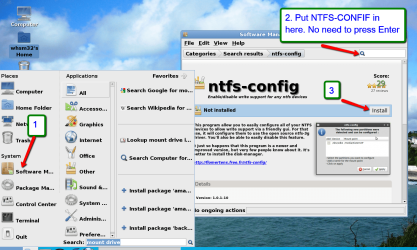
Regarding this NTFS-CONFIG, I made this little picture tutorial for you. This is after you click on 'Menu' (bottom left). Make sure you have an internet connection. The WiFi you can enable on the bottom right of the screen.
 

Attachments

  • 2013-04-25_1534.png
    2013-04-25_1534.png
    200.4 KB · Views: 286

My Computer

Computer Manufacturer/Model Number
HP, Dell, Gateway, Toshiba - 4 laptops and 2 desktops
OS
Vista, Windows7, Mint Mate, Zorin, Windows 8
CPU
from 1.6GHz Duo to i7
Monitor(s) Displays
2x HP w2207
Hard Drives
5x HDD, 7x SSD, 12x Externals
Keyboard
with trackball - no mices
Mouse
Trackball mice
Internet Speed
DSL 6000
Now things work

I installed NTFS-CONFIG, launched it, selected autoconfigure (read only) and was then able to browse my Windows drives. However I was not able to mount the USB stick to be used for the COPY/PASTE operations.

Then I googled a bit and found Linux Mint Forums • View topic - Unable to mount location . After having done as suggested by altair4:

1) Open Terminal
2) sudo mkdir /media/mint
3) sudo chown mint:mint /media/mint

things work :cool: (also between boots and with RW capability)

By the way, this Mint Mate 14 is very nice. Works much faster than my Windows 7 installation.

Rgds Jan
 
Last edited:

My Computer

Computer type
Laptop
OS
Windows 7 Home Premium 64bit
Hi Jan, I am so glad you could make it work. I think the problem was from the download location you chose.

I noticed that you do not get exactly the same version from different download sites. They work differently - in fact the .iso from one site did not work at all. The James Madison University download site is the one I used and that works. I have made a note of that in the tutorial.

And thank you for reporting back. You are one smart operator.
 

My Computer

Computer Manufacturer/Model Number
HP, Dell, Gateway, Toshiba - 4 laptops and 2 desktops
OS
Vista, Windows7, Mint Mate, Zorin, Windows 8
CPU
from 1.6GHz Duo to i7
Monitor(s) Displays
2x HP w2207
Hard Drives
5x HDD, 7x SSD, 12x Externals
Keyboard
with trackball - no mices
Mouse
Trackball mice
Internet Speed
DSL 6000
James Madison University is also where I downloaded mine from and it worked perfectly.
 

My Computer

Computer type
PC/Desktop
Computer Manufacturer/Model Number
Lenovo IdeaCenter 450
OS
Windows 10 Pro X64
CPU
Intel Quad Core i7-4770 @ 3.4Ghz
Memory
16.0GB PC3-12800 DDR3 SDRAM 1600 MHz
Graphics Card(s)
Intel Integrated HD Graphics
Sound Card
Realtek HD Audio
Monitor(s) Displays
HP 22" LCD
Screen Resolution
1680 x 1050
Hard Drives
250GB Samsung EVO SATA-3 SSD
2TB Seagate ST2000DM001 SATA-2
1.5TB Seagate ST3150041AS SATA
Keyboard
Dell USB
Mouse
Lenovo USB
Internet Speed
Cable via Road Runner 3MB Upload, 30MB Download
Antivirus
Windows Defender, MBAM Pro, MBAE
Browser
Seamonkey
Other Info
UEFI/GPT
PLDS DVD-RW DH16AERSH
Thanks Rich for letting me know.
 

My Computer

Computer Manufacturer/Model Number
HP, Dell, Gateway, Toshiba - 4 laptops and 2 desktops
OS
Vista, Windows7, Mint Mate, Zorin, Windows 8
CPU
from 1.6GHz Duo to i7
Monitor(s) Displays
2x HP w2207
Hard Drives
5x HDD, 7x SSD, 12x Externals
Keyboard
with trackball - no mices
Mouse
Trackball mice
Internet Speed
DSL 6000
I downloaded from the only danish site: Europe Denmark klid.dk - avoid that

Rgds Jan
 

My Computer

Computer type
Laptop
OS
Windows 7 Home Premium 64bit
Thanks Jan for warning us.
 

My Computer

Computer Manufacturer/Model Number
HP, Dell, Gateway, Toshiba - 4 laptops and 2 desktops
OS
Vista, Windows7, Mint Mate, Zorin, Windows 8
CPU
from 1.6GHz Duo to i7
Monitor(s) Displays
2x HP w2207
Hard Drives
5x HDD, 7x SSD, 12x Externals
Keyboard
with trackball - no mices
Mouse
Trackball mice
Internet Speed
DSL 6000
Thanks for the tutorial. This is all new to me but I managed to install it on my flash drive without any problems. Would have added to your reputation but the system will not allow owing to me giving you a rep point in the past. A bit silly that
 

My Computer

Computer Manufacturer/Model Number
dell/xps8300
OS
home premium 64 bit
CPU
3.30Ghz
Memory
8 gigs
Graphics Card(s)
NVIDIA Geforce GT 545
Sound Card
realtek onboard
Back
Top