Some House Cleaning after Switching OS drive to SSD

bostonhokie

New member
Local time
3:57 PM
Messages
12
Hello! New to this forum, but done my fair share of reading through everything this weekend! Looking forward to the help, thanks in advance!

So I recently built my first computer, with a 3TB HDD as my only drive. I haven't done much with it because I knew I was getting an SSD and didn't want too much of a headache switching to it as my OS drive, though it seems to be inevitable. I installed a few programs and started digitizing my blu ray collection. I just hooked up my SSD this weekend. Here was my process:

1. Disconnect HDD, Connect SSD (AHCI verified)
2. Clean install of Windows 7, drivers, updates, security
3. Reconnected HDD (both drives have bootable Windows 7 installs)
3. Transferred some data to the SSD and uninstalled all programs from the HDD

Herein lies my problem. It's a similar situation to this poster: http://www.sevenforums.com/installation-setup/219835-removing-win-7-hdd-after-clean-install-ssd.html though I'll try to do a better job explaining it.

Both of my drives have bootable versions of Windows 7 still. I'm prepared to commit to the SSD. I'm trying to do this as clean as possible, and I really have no need for keeping Windows on the HDD. I would just format the HDD, but I have around 900GB of video files I don't want to lose, and no drive large enough to store them on (I have a 500GB externall HDD as well). From what I read, simply deleting the Windows files is not sufficient. I believe the process I need to take is to partition my HDD, transfer the video files to that partition, and delete/format the rest? I just don't know the step by step on how to do that, although it sounds simple enough. Currently, my HDD is one large partition plus the 100mb reserve. Do I need to keep the reserve if my SSD also has a 100mb reserve?

In case that's not clear enough, my intent is to only have Windows on my SSD plus the programs I've installed already. I do not need anything on my HDD except for the 900GB of video files. Once my HDD is reformatted, I will go about determining what to have on my HDD vs SSD, but obviously the video files need to remain on the HDD. I can post screenshots if necessary, just let me know what you need to see. Thanks!!
 

My Computer My Computer

At a glance

Windows 7 Home Premium x64Intel i3-32252x4GB G.Skill Ripjaws
Computer type
PC/Desktop
Computer Manufacturer/Model Number
custom build
OS
Windows 7 Home Premium x64
CPU
Intel i3-3225
Motherboard
ASRock Z77 Pro4-M
Memory
2x4GB G.Skill Ripjaws
Hard Drives
3TB Seagate Barracuda HDD
120GB Samsung 840 SSD
Antivirus
MSE + MalwareBytes
Browser
Chome
You're correct that the best way is to move the files to another partition in order to correctly delete the OS and System Reserved partitions from Disk Mgmt on the HD. Then you can create a new partition in the space, or extend the old partition using Disk Mgmt (if to the right), or if to the left here's How to extend partition easily with Partition Wizard - video help.

This is not to say you cannot delete the OS piecemeal using a program like Unlocker for the Windows folder which may balk. The boot files are on System Reserved which can have its partition deleted. And the code which makes the HD bootable will remain inert in the boot sector until it is wiped anyway.
 
Last edited:
Hi Greg,

Do you have a typo in your response where you stated SSD, and it should be HD ?

You're correct that the best way is to move the files to another partition in order to correctly delete the OS and System Reserved partitions from Disk Mgmt on the SSD.
 

My Computer My Computer

At a glance

Multi-Boot W7_Pro_x64 W8.1_Pro_x64 W10_Pro_x6...AMD Athlon II x4 6206GB GSkill DDR2 800AMD 4670 GPU + AMD 4200 IGP
Computer type
PC/Desktop
Computer Manufacturer/Model Number
home built
OS
Multi-Boot W7_Pro_x64 W8.1_Pro_x64 W10_Pro_x64 +Linux_VMs +Chromium_VM
CPU
AMD Athlon II x4 620
Motherboard
Gigabyte GA-MA785G-UD3H
Memory
6GB GSkill DDR2 800
Graphics Card(s)
AMD 4670 GPU + AMD 4200 IGP
Sound Card
on board Realtek ALC889A
Monitor(s) Displays
RCA 40" LCD TV, Insignia 32" LCD TV, HP 15" LCD monitor
Screen Resolution
1680 x 1050
Hard Drives
OCZ Vertex 3 120GB,
Samsung F3 1TB (3),
Several others - WD, Seagate, Hitachi, ...
PSU
Corsair 500 W
Case
Rosewill mid tower
Cooling
CM 90mm rifle
Keyboard
Gyration wireless, Logitech wireless, Dell USB wired
Mouse
Gyration wireless, Logitech wireless, V7 USB wired
Internet Speed
Spectrum - 100Mbps D / 10Mbps U
Antivirus
Avast, MBAM3, EMET, WinPatrol
Browser
Pale Moon, Firefox, IE
Other Info
2 multi-boot PC's
Mainly HTPC/Office/Gen purpose (no gaming).
Trendnet USB KVM.
LG DVD burner/Blue Ray Player.
Tray system for removable SATA backup drives.

Not currently OCd, under-volted.
I use Hybrid sleep, rarely re-boot or shutdown.

Hauppauge HD-PVR, Avermedia PCIe TV Tuner, Hauppauge PCI TV Tuner.
Thanks guys. So i created a partition on my HDD for the videos. Do I just delete the other partition in disk management? And to clarify, I am safe deleting the reserve partition off the HDD correct? After deleting those partitions, will they return to "unallocated space?" And then how do I go about returning the HDD to one large partition?

On a side note, my ssd shows up as disk1 and my hdd shows up as disk0, is that normal?
 

My Computer My Computer

At a glance

Windows 7 Home Premium x64Intel i3-32252x4GB G.Skill Ripjaws
Computer type
PC/Desktop
Computer Manufacturer/Model Number
custom build
OS
Windows 7 Home Premium x64
CPU
Intel i3-3225
Motherboard
ASRock Z77 Pro4-M
Memory
2x4GB G.Skill Ripjaws
Hard Drives
3TB Seagate Barracuda HDD
120GB Samsung 840 SSD
Antivirus
MSE + MalwareBytes
Browser
Chome

My Computer My Computer

At a glance

Windows 10 Pro x64 ; Xubuntu x64Intel i7 860 @ 2.80 GHz O/C'ed to 4.0GHz16GB Corsair Vengance DDR3 @ 661 MHz Dual Cha...EVGA NVidia GTX 560 1024MB
Computer type
PC/Desktop
Computer Manufacturer/Model Number
Golden Mk. I.4
OS
Windows 10 Pro x64 ; Xubuntu x64
CPU
Intel i7 860 @ 2.80 GHz O/C'ed to 4.0GHz
Motherboard
Gigabyte P55A-UD3R Rev.1. Award BIOS F13
Memory
16GB Corsair Vengance DDR3 @ 661 MHz Dual Channel (9-9-9-24)
Graphics Card(s)
EVGA NVidia GTX 560 1024MB
Sound Card
Realtek Integrated
Monitor(s) Displays
Dual Samsung SyncMaster 2494HS
Screen Resolution
1920*1080 and 1920*1080
Hard Drives
1*Samsung 840 EVO 120GB SSD;
1*OCZ Vertex 2 60GB SSD;
2*Samsung F3 SpinPoint 1TB in RAID0;
1*Samsung F1 SpinPoint 1TB;
2*Western Digital 1TB External USB 3.0
1*Western Digital 500GB External USB 3.0
1*Seagate 500GB External USB 2.0
PSU
Thermaltake ToughPower QFan 750W
Case
Thermaltake Element S VK60001W2Z
Cooling
Corsair H60 Water Cooling, 2*230mm and 2*80mm case fans
Keyboard
Logitech G110
Mouse
Logitech MX518
Do I just delete the other partition in disk management? And to clarify, I am safe deleting the reserve partition off the HDD correct? After deleting those partitions, will they return to "unallocated space?" And then how do I go about returning the HDD to one large partition?

I just wrote all of this out for you above. Did you miss my post?

You're correct that the best way is to move the files to another partition in order to correctly delete the OS and System Reserved partitions from Disk Mgmt on the HD. Then you can create a new partition in the space, or extend the old partition using Disk Mgmt (if to the right), or if to the left here's How to extend partition easily with Partition Wizard - video help.

This is not to say you cannot delete the OS piecemeal using a program like Unlocker for the Windows folder which may balk. The boot files are on System Reserved which can have its partition deleted. And the code which makes the HD bootable will remain inert in the boot sector until it is wiped anyway.

If you want specific steps to do this then post back the Disk Mgmt screenshot requested.
 
Last edited:
Apparently I stopped reading after the first half haha. Sorry about that. I'll give that a shot when I get home tonight and hopefully that's the end of my problems! Thanks again everyone!
 

My Computer My Computer

At a glance

Windows 7 Home Premium x64Intel i3-32252x4GB G.Skill Ripjaws
Computer type
PC/Desktop
Computer Manufacturer/Model Number
custom build
OS
Windows 7 Home Premium x64
CPU
Intel i3-3225
Motherboard
ASRock Z77 Pro4-M
Memory
2x4GB G.Skill Ripjaws
Hard Drives
3TB Seagate Barracuda HDD
120GB Samsung 840 SSD
Antivirus
MSE + MalwareBytes
Browser
Chome
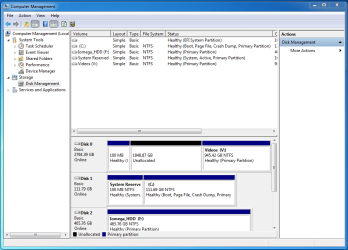
Okay here's my disk management screenshot. I right clicked on the V: drive and went through the extender wizard and at the end it said doing so would convert it to a dynamic disk. Is that what I want?
 

Attachments

  • Capture.PNG
    Capture.PNG
    31.3 KB · Views: 8

My Computer My Computer

At a glance

Windows 7 Home Premium x64Intel i3-32252x4GB G.Skill Ripjaws
Computer type
PC/Desktop
Computer Manufacturer/Model Number
custom build
OS
Windows 7 Home Premium x64
CPU
Intel i3-3225
Motherboard
ASRock Z77 Pro4-M
Memory
2x4GB G.Skill Ripjaws
Hard Drives
3TB Seagate Barracuda HDD
120GB Samsung 840 SSD
Antivirus
MSE + MalwareBytes
Browser
Chome
No you DO NOT want your disk dynamic. NO NO NO NO NO

What exactly are you trying to do now ?
 

My Computer My Computer

At a glance

Windows 10 Pro x64Intel Core i7 6700KGSkill TridentZ RGB 16GB 3600 16-16-16-36EVGA GTX 980 Ti SC x2
Computer type
PC/Desktop
Computer Manufacturer/Model Number
Skylake Special #666
OS
Windows 10 Pro x64
CPU
Intel Core i7 6700K
Motherboard
Asus Sabertooth Z170 Mark 1
Memory
GSkill TridentZ RGB 16GB 3600 16-16-16-36
Graphics Card(s)
EVGA GTX 980 Ti SC x2
Sound Card
Realtek High Definition
Monitor(s) Displays
AOC G2460PG
Screen Resolution
1920 x 1080 144Hz
Hard Drives
Samsung 860 Pro 256GB, Seagate Barracuda 4TB x2
PSU
EVGA 1000 P2, EVGA White Custom Braided Cables
Case
Corsair Vengeance C70 Gunmetal Black
Cooling
Corsair H100i v2, Corsair ML120 x2, Thermal Grizzly Kryonaut
Keyboard
Logitech G910 Orion Spectrum
Mouse
Logitech G700s
Internet Speed
Verizon Fios Quantum Gateway 75/75
Antivirus
Windows Defender, Malwarebytes Free 3.8.3
Browser
Chrome
Other Info
Corsair SP120 x4, LG Blu-ray Drive, Durabrand HT-395 100 Watt Dolby Digital Amp, Corsair H2100 Wireless 7.1 Headset
I was pretty sure that was the case, which is why I stopped and posted. All I'm trying to do is make that disk all one volume/partition/whatever again. V: has the data
 

My Computer My Computer

At a glance

Windows 7 Home Premium x64Intel i3-32252x4GB G.Skill Ripjaws
Computer type
PC/Desktop
Computer Manufacturer/Model Number
custom build
OS
Windows 7 Home Premium x64
CPU
Intel i3-3225
Motherboard
ASRock Z77 Pro4-M
Memory
2x4GB G.Skill Ripjaws
Hard Drives
3TB Seagate Barracuda HDD
120GB Samsung 840 SSD
Antivirus
MSE + MalwareBytes
Browser
Chome
I see that 100mb System partition on Disk0 is an EFI partition. This is only issued when you install in UEFI mode instead of Legacy BIOS. Is this what you had done for the install which was previously on Disk0?

If so then may I ask how you ended up with a Legacy BIOS install to the SSD on Disk1, which we know is the case since it has a System partition marked Active (which UEFI cannot have). So did you enable Legacy BIOS in BIOS setup or set CSM to Legacy or Dual mode to install to a normal MBR disk?

If so then you can delete the UEFI partition on Disk 0 from Partition Wizard,

then Resize V to the left using Partition Wizard Resize Partition - Video Help.

There is no way this will convert the disk to Dynamic since you'll only have one partition and it requires four to cause Dynamic conversion which you don't want. I don't know why it warned of this except it may be an issue with PW's new Extend feature. Use Resize instead which we have years' experience with.

I have one other suggestion which is to swap the cables between Disk 0 and 1 so that Win7 is in Disk0 position so that the System boot files cannot be derailed to a preceding partition during any future reinstall or repairs. Make sure Win7 HD remains set first HD to boot in BIOS setup.

If this is not possible due to SATA port considerations, then besides extending V to the left, I would also then rightclick it to Modify>Set to Logical since Logical data partitions cannot have the boot files derailed onto them.

I am here all night to help you further.
 
I see that 100mb System partition on Disk0 is an EFI partition. This is only issued when you install in UEFI mode instead of Legacy BIOS. Is this what you had done for the install which was previously on Disk0?

If so then may I ask how you ended up with a Legacy BIOS install to the SSD on Disk1, which we know is the case since it has a System partition marked Active (which UEFI cannot have). So did you enable Legacy BIOS in BIOS setup or set CSM to Legacy or Dual mode to install to a normal MBR disk?

I'not entirely sure what that means, but I didn't do anything (intentionally) different when installing to the SSD than to the HDD. So your guess is as good as mine lol. Will that cause any issues? I'm not opposed to deleting/redoing anything on either drive so long as it preserves the data on V. Sorry for my lack of knowledge here, but if you could dumb down that second paragraph a little I could give you some more useful information.

Also, not sure if this is relevant but may be worth mentioning, in order to use all 3TB of space on my HDD, before installing windows i had to go into diskpart and format it to gpt or something.
 

My Computer My Computer

At a glance

Windows 7 Home Premium x64Intel i3-32252x4GB G.Skill Ripjaws
Computer type
PC/Desktop
Computer Manufacturer/Model Number
custom build
OS
Windows 7 Home Premium x64
CPU
Intel i3-3225
Motherboard
ASRock Z77 Pro4-M
Memory
2x4GB G.Skill Ripjaws
Hard Drives
3TB Seagate Barracuda HDD
120GB Samsung 840 SSD
Antivirus
MSE + MalwareBytes
Browser
Chome
Was there a UEFI DVD choice that you booted into to install Win7 to the SSD, as shown in UEFI (Unified Extensible Firmware Interface) - Install Windows 7 with - Windows 7 Forums. A UEFI install can only be done to GPT disk.

It's strange you had apparently installed in UEFI mode to the HD, but not to the SSD.

Do you have a UEFI BIOS? Could that UEFI boot partition on HD have been left over from previous install?

This is only important to ascertain with absolute certainty that UEFI partition is not being used now to boot the SSD. To determine this I would power down to unplug the HD, reboot to see that SSD boots correctly. Then you know you can delete the UEFI boot partition on HD and resize V to the left.
 
Okay things are coming back to me now. Yes I have UEFI BIOS, and yes, that 100mb partition on my HDD is definitely from the install I did to the HDD. I think I was initially too paranoid to delete it and then just put it out of my mind. On my first install to the HDD, prior to owning the SSD, after converting it to GPT, I created one partition out of the entire Unallocated Space, installed Windows, and moved on. For the SSD, I just plugged it in and installed (with the HDD unplugged). I ran Windows for a few hours with only the SSD plugged in so it definitely does not need the HDD to boot. I'm not sure though if that explains the Legacy BIOS install? Also, I can unplug and rearrange SATA as necessary, though I will most certainly need to review the manual to figure out which ports are which.
 

My Computer My Computer

At a glance

Windows 7 Home Premium x64Intel i3-32252x4GB G.Skill Ripjaws
Computer type
PC/Desktop
Computer Manufacturer/Model Number
custom build
OS
Windows 7 Home Premium x64
CPU
Intel i3-3225
Motherboard
ASRock Z77 Pro4-M
Memory
2x4GB G.Skill Ripjaws
Hard Drives
3TB Seagate Barracuda HDD
120GB Samsung 840 SSD
Antivirus
MSE + MalwareBytes
Browser
Chome
In that case to make it simpler:

from Partition Wizard rightclick 100mb partition EFI on HD to Delete, click OK

rightclick V to Resize, drag left border to the left to take up all space, click OK.

Rightclick V to Modify>Set to Logical, click OK, Apply.

This precludes the need to change SSD to DIsk0 unless you want to.

I would burn the Partition Wizard CD ISO using Windows Image Burner, boot it to do these operations as its safer.
 
If I don't have any blank discs on me, is it safe to move forward without that wizard or should I find one to burn it to
 

My Computer My Computer

At a glance

Windows 7 Home Premium x64Intel i3-32252x4GB G.Skill Ripjaws
Computer type
PC/Desktop
Computer Manufacturer/Model Number
custom build
OS
Windows 7 Home Premium x64
CPU
Intel i3-3225
Motherboard
ASRock Z77 Pro4-M
Memory
2x4GB G.Skill Ripjaws
Hard Drives
3TB Seagate Barracuda HDD
120GB Samsung 840 SSD
Antivirus
MSE + MalwareBytes
Browser
Chome
I would wait since we have never had a failure using the PW boot disk, but the installed versions as well as all other managers except Disk Mgmt can fail.

There really isn't any hurry and you could even consider creating a second data partition in the space: Partition Wizard Create Partition - Video Help
 
Okay well better safe than sorry! I'll report back once I scrounge up a blank disc. Thanks for all your help gregrocker!
 

My Computer My Computer

At a glance

Windows 7 Home Premium x64Intel i3-32252x4GB G.Skill Ripjaws
Computer type
PC/Desktop
Computer Manufacturer/Model Number
custom build
OS
Windows 7 Home Premium x64
CPU
Intel i3-3225
Motherboard
ASRock Z77 Pro4-M
Memory
2x4GB G.Skill Ripjaws
Hard Drives
3TB Seagate Barracuda HDD
120GB Samsung 840 SSD
Antivirus
MSE + MalwareBytes
Browser
Chome
Back
Top