Cloned OS hdd to ssd, now ssd will NOT boot

Modifyinc

New member
Local time
4:40 AM
Messages
38
I have tried to cloned my old hdd from my laptop to a SSD using the clone feature in EaseUS Todo Backup Free and also EaseUS Partition Master (paid version), yet after it completes, the SSD always fails to boot.

The error is "Operating System not found"

When running the Windows 7 Repair disc, it does not even detect my OS [FONT=&quot]in the System Recovery Options window.

[/FONT]System Recovery Options reports "Windows found problems with your computer startup options. Do you want to apply repairs and restart your pc."

The details of the fix show that it will repair the {bootmgr}

And the following startup options will be added:
Name: Windows 7 Home Premium (recovered)
Path: Windows
Windows Device: Partition=D: (122001 MB)

Name: Windows Recovery Environment (recovered)
Path: Recovery\..long guid name..\Winre.wim
Windows Device: Partition=D: (122001 MB)
Copy of the current boot configuration data will be saved as C:\Boot\BCD.Backup.0001

Of course, I select yes for the repair, but then I get this error: Failed to save startup options.

I'm certain this error is because no OS is detected in the Recovery Options window; it's just blank. Yet when I run bootrec /rebuildbcd, it finds [1] D:\Windows installation, but it fails with this error: "The requested system device cannot be found."

I'm confident most, if not all, of these errors are a direct result of the Recovery Options not seeing my OS. Why would it not see it though if /rebuildbcd is able to detect it?

In diskpart, it shows boot is NOT enabled for the SSD, though the C drive (partition 1) is active and does contain the Boot folder and BCD store data. Windows is on the D drive (partition 2).

Not sure if this is important, but it was bugging me during both clone attempts. The System Reserved is 100MB on the original drive, yet every time it cloned or created that partition on the SSD, it would change it to 101. Wouldn't that partition need to match precisely so the starting sectors line up correctly? If so, I tried to change it, but it always rounded up what ever I typed in the box.

Also, there is a hidden recovery partition on the original drive, but it's not copied because using the Migrate OS to HDD/SDD in EaseUS Partition Master only copies the OS portion (partition 1 and 2).

Any suggestions why a simple clone would fail twice like this? Hope I provided enough details, if not, just let me know.

Mike
 

My Computer My Computer

At a glance

Windows 7AMD Athlon 64 X2 Dual Core Processor 5000 2.6...4GBRadeon 3200
Computer Manufacturer/Model Number
Custom Built
OS
Windows 7
CPU
AMD Athlon 64 X2 Dual Core Processor 5000 2.6 Ghz
Motherboard
Gigabyte MA78GM
Memory
4GB
Graphics Card(s)
Radeon 3200
Sound Card
RealTek HD
Monitor(s) Displays
Samsung LCD
Hard Drives
1TB WD
600GB WD
320GB WD
320GB WD
Try Macrium Reflect, many success stories with it here.

Macrium Reflect Free

Are you shrinking the OS partition so it fits on the ssd ?

Not sure if it matters as some programs do it automatically, but just asking.

Your repair disc may not find it because it`s not on the same drive anymore, that`s a downside I found to windows imaging, even though you did not use it.
 

My Computer My Computer

At a glance

Windows 10 Pro x64Intel Core i7 6700KGSkill TridentZ RGB 16GB 3600 16-16-16-36EVGA GTX 980 Ti SC x2
Computer type
PC/Desktop
Computer Manufacturer/Model Number
Skylake Special #666
OS
Windows 10 Pro x64
CPU
Intel Core i7 6700K
Motherboard
Asus Sabertooth Z170 Mark 1
Memory
GSkill TridentZ RGB 16GB 3600 16-16-16-36
Graphics Card(s)
EVGA GTX 980 Ti SC x2
Sound Card
Realtek High Definition
Monitor(s) Displays
AOC G2460PG
Screen Resolution
1920 x 1080 144Hz
Hard Drives
Samsung 860 Pro 256GB, Seagate Barracuda 4TB x2
PSU
EVGA 1000 P2, EVGA White Custom Braided Cables
Case
Corsair Vengeance C70 Gunmetal Black
Cooling
Corsair H100i v2, Corsair ML120 x2, Thermal Grizzly Kryonaut
Keyboard
Logitech G910 Orion Spectrum
Mouse
Logitech G700s
Internet Speed
Verizon Fios Quantum Gateway 75/75
Antivirus
Windows Defender, Malwarebytes Free 3.8.3
Browser
Chrome
Other Info
Corsair SP120 x4, LG Blu-ray Drive, Durabrand HT-395 100 Watt Dolby Digital Amp, Corsair H2100 Wireless 7.1 Headset
Try Macrium Reflect, many success stories with it here.

Macrium Reflect Free

Are you shrinking the OS partition so it fits on the ssd ?

Not sure if it matters as some programs do it automatically, but just asking.

Your repair disc may not find it because it`s not on the same drive anymore, that`s a downside I found to windows imaging, even though you did not use it.

I'm trying Macrium currently. One thing I noticed right away is it kept the same system partition size of 100MB from the source drive rather than 101.94 with EaseUS. No, I'm not shrinking my data, because the data used on the source drive is less than the destination drive.

I'm not sure if I follow you on why the repair disc isn't likely detecting my OS on the new ssd. Shouldn't the repair disk detect the OS regardless of what hdd/ssd is in the pc?
 

My Computer My Computer

At a glance

Windows 7AMD Athlon 64 X2 Dual Core Processor 5000 2.6...4GBRadeon 3200
Computer Manufacturer/Model Number
Custom Built
OS
Windows 7
CPU
AMD Athlon 64 X2 Dual Core Processor 5000 2.6 Ghz
Motherboard
Gigabyte MA78GM
Memory
4GB
Graphics Card(s)
Radeon 3200
Sound Card
RealTek HD
Monitor(s) Displays
Samsung LCD
Hard Drives
1TB WD
600GB WD
320GB WD
320GB WD
I've tried now three times, using different software and setups and still the same error message when I boot with the SSD: Operating System Not Found

What I really don't understand is why when running the System Repair disc, the System Recovery Options does not detect the OS, so the first window is empty and I can't select an OS. Yet, it detects problems have been found, and the details clearly show the issue, yet because the OS is NOT detected, it can't apply the repairs. The error: Failed to save startup options.

If it would only detect the OS, I feel the boot issue could be resolved. I'm lost to what could be causing this bizarre behavior.

Could the Recovery partition have anything to do with it? I am not copying the Recovery partition during any of this. Isn't the system reserved partition the boot partition since it holds the Boot folder and the BCD store?
 

My Computer My Computer

At a glance

Windows 7AMD Athlon 64 X2 Dual Core Processor 5000 2.6...4GBRadeon 3200
Computer Manufacturer/Model Number
Custom Built
OS
Windows 7
CPU
AMD Athlon 64 X2 Dual Core Processor 5000 2.6 Ghz
Motherboard
Gigabyte MA78GM
Memory
4GB
Graphics Card(s)
Radeon 3200
Sound Card
RealTek HD
Monitor(s) Displays
Samsung LCD
Hard Drives
1TB WD
600GB WD
320GB WD
320GB WD
Post a shot of disk management from the functioning OS.
 

My Computer My Computer

At a glance

Windows 10 Pro x64Intel Core i7 6700KGSkill TridentZ RGB 16GB 3600 16-16-16-36EVGA GTX 980 Ti SC x2
Computer type
PC/Desktop
Computer Manufacturer/Model Number
Skylake Special #666
OS
Windows 10 Pro x64
CPU
Intel Core i7 6700K
Motherboard
Asus Sabertooth Z170 Mark 1
Memory
GSkill TridentZ RGB 16GB 3600 16-16-16-36
Graphics Card(s)
EVGA GTX 980 Ti SC x2
Sound Card
Realtek High Definition
Monitor(s) Displays
AOC G2460PG
Screen Resolution
1920 x 1080 144Hz
Hard Drives
Samsung 860 Pro 256GB, Seagate Barracuda 4TB x2
PSU
EVGA 1000 P2, EVGA White Custom Braided Cables
Case
Corsair Vengeance C70 Gunmetal Black
Cooling
Corsair H100i v2, Corsair ML120 x2, Thermal Grizzly Kryonaut
Keyboard
Logitech G910 Orion Spectrum
Mouse
Logitech G700s
Internet Speed
Verizon Fios Quantum Gateway 75/75
Antivirus
Windows Defender, Malwarebytes Free 3.8.3
Browser
Chrome
Other Info
Corsair SP120 x4, LG Blu-ray Drive, Durabrand HT-395 100 Watt Dolby Digital Amp, Corsair H2100 Wireless 7.1 Headset
I see that Adram is barking up the right tree.

It would appear that you are only cloning the C: drive and you are leaving out the 100 Mb System Reserved.
You need to highlight the whole HDD to clone to the SSD.
The 100 Mb System Reserved is the Boot Manager and tells BIOS where the OS is located.
With out it or corrupt no booty wooty Windows.
 

My Computer My Computer

At a glance

Windows 7 Ultimate x64 SP1 OEMIntel i7 3930KKingston Genesis KHX2133C11D3K4/32GAsus RTX 2070 Ti Turbo fan series
Computer type
PC/Desktop
Computer Manufacturer/Model Number
Owner Builder
OS
Windows 7 Ultimate x64 SP1 OEM
CPU
Intel i7 3930K
Motherboard
Asus X79 Deluxe
Memory
Kingston Genesis KHX2133C11D3K4/32G
Graphics Card(s)
Asus RTX 2070 Ti Turbo fan series
Sound Card
Creative Sound Blaster ZXR
Monitor(s) Displays
Samsung U32J39 UHD
Screen Resolution
3840 x 2160
Hard Drives
Samsung 860 Pro 256 GB
OCZ Vertex 4 512GB
Western Digital Black 4TB
PSU
Corsair AX850
Case
Gigabyte
Cooling
Push - Pull 120 mm Noctua PWM, Scythe Big Shuriken 2 Rev. B
Keyboard
Logitech K800 Backlit
Mouse
Logitech MX2 Master
Internet Speed
NBN 25 Mbps
Antivirus
Kaspersky Internet Security
Browser
Mozilla FireFox
Other Info
TP-Link Archer VR600v
Sennheiser TR220 WiFi Head Phones.
I see that Adram is barking up the right tree.

It would appear that you are only cloning the C: drive and you are leaving out the 100 Mb System Reserved.
You need to highlight the whole HDD to clone to the SSD.
The 100 Mb System Reserved is the Boot Manager and tells BIOS where the OS is located.
With out it or corrupt no booty wooty Windows.

The 100MB System Reserved is included. I think you misunderstood me when I said the Recovery partition was not included. I'm referring to the Manufacturer Recovery partition that is at the end of the disk. I found out by using EasyBCD that it had the BCD store on it (I guess Samsung is being like Dell in this case). So I moved it to the C drive (Windows partition) using EasyBCD. Note, I did not delete the System Reserved partition, though I would assume it would be safe now since the BCD store was moved to the C drive. But, if the BCD store was on the Manufacturer Recovery partition, then why was the System Reserved even necessary? Anyhow, I rebooted to make sure it would still boot. It did, so I proceeded to re-clone the drive again using Macrium, minus the Manufacturer Recovery partition (18GB) since it shouldn't be required anymore, and b/c I really needed the additional 18GB for my small OCZ Vertex 4 128GB SSD.

After swapping the drives out and powering up the laptop, I still received the same dreaded error message that I always get:
"Operating System Not Found!"

Can you or anyone explain why when I detail the SSD disk in diskpart, the flag "Boot Drive" always says "No". If this drive was cloned from the working Windows drive and the working Windows drive reports the "Boot Drive" flag as enabled (Yes), then why when I use the SSD would the Boot Drive flag always say No? I'm certain this is what is causing the redundant error message "Operating System Not Found!" after every attempt or change I have made to the drive. Seriously, how hard is it to enable the Boot Drive flag? What must I do!?
 

My Computer My Computer

At a glance

Windows 7AMD Athlon 64 X2 Dual Core Processor 5000 2.6...4GBRadeon 3200
Computer Manufacturer/Model Number
Custom Built
OS
Windows 7
CPU
AMD Athlon 64 X2 Dual Core Processor 5000 2.6 Ghz
Motherboard
Gigabyte MA78GM
Memory
4GB
Graphics Card(s)
Radeon 3200
Sound Card
RealTek HD
Monitor(s) Displays
Samsung LCD
Hard Drives
1TB WD
600GB WD
320GB WD
320GB WD
There is two things I find unique about this issue that seem to NEVER change no matter what I do to this drive:

1. The "Boot Drive" flag in diskpart is always set to No.

2. Running the startup repair disc while at the System Recovery window where it automatically scans for Windows Installations; it always comes up empty. No OS is display, so I can't select one to work with. Yet, it always reports "Windows found problems with your computer startup options. Do you want to apply repairs and restart your PC." and thus fails with "Failed to save startup options." when I click Yes to apply the repairs.

I find it odd but somewhat significant that these patterns of events never change.

Do I need to load a driver for my OCZ Vertex 4 SSD while in the System Recovery Options for my OS to be detected?
Is there something in the BIOS of this Samsung NP-RV510 laptop that could make my SSD incompatible as a boot drive?
 

My Computer My Computer

At a glance

Windows 7AMD Athlon 64 X2 Dual Core Processor 5000 2.6...4GBRadeon 3200
Computer Manufacturer/Model Number
Custom Built
OS
Windows 7
CPU
AMD Athlon 64 X2 Dual Core Processor 5000 2.6 Ghz
Motherboard
Gigabyte MA78GM
Memory
4GB
Graphics Card(s)
Radeon 3200
Sound Card
RealTek HD
Monitor(s) Displays
Samsung LCD
Hard Drives
1TB WD
600GB WD
320GB WD
320GB WD
In diskpart, the "Boot Disk" represents the disk that you booted from. You may have multiple bootable disks connected, but only one will be tagged as the Boot Disk.

OTOH, the MBR partition scheme allows for one partition to be flagged as bootable. In Windows terminology, a partition being 'active' means it is flagged as such. In your first post you seemed to indicate that the System Reserved partition on the SSD was 'active'. If that's the case, I think the problem lies elsewhere. But as AddRAM indicated, a screenie of Disk Management when booted to the HDD (and the SSD plugged in) is the bare minimum necessary to make sure we're all on the same page.
 

My Computer My Computer

At a glance

Windows 7 Professional x64, Arch Linux
Computer type
PC/Desktop
OS
Windows 7 Professional x64, Arch Linux

My Computer My Computer

At a glance

Vista, Windows7, Mint Mate, Zorin, Windows 8from 1.6GHz Duo to i7
Computer Manufacturer/Model Number
HP, Dell, Gateway, Toshiba - 4 laptops and 2 desktops
OS
Vista, Windows7, Mint Mate, Zorin, Windows 8
CPU
from 1.6GHz Duo to i7
Monitor(s) Displays
2x HP w2207
Hard Drives
5x HDD, 7x SSD, 12x Externals
Keyboard
with trackball - no mices
Mouse
Trackball mice
Internet Speed
DSL 6000
In diskpart, the "Boot Disk" represents the disk that you booted from. You may have multiple bootable disks connected, but only one will be tagged as the Boot Disk.

OTOH, the MBR partition scheme allows for one partition to be flagged as bootable. In Windows terminology, a partition being 'active' means it is flagged as such. In your first post you seemed to indicate that the System Reserved partition on the SSD was 'active'. If that's the case, I think the problem lies elsewhere. But as AddRAM indicated, a screenie of Disk Management when booted to the HDD (and the SSD plugged in) is the bare minimum necessary to make sure we're all on the same page.

There is only one drive connected at all times since this laptop only has one interface for a HDD.

The original drive has 3 partitions, in this order: System Reserved (100MB), Windows (146GB), and Samsung Recovery (18.49GB).

Originally, I assumed the System Reserved was the Boot partition, but thanks to EasyBCD, I found out it was the Samsung Recovery. So, I figured that was my issue, since I was not cloning the Samsung Recovery partition. With EasyBCD, I made System Reserved the Boot partition. I verified the original drive would still boot after the changes and then proceeded to clone the drive using Macrium, minus the Samsung Recovery since it wasn't required anymore. Same error: "Operating System Not Found" when trying to boot with the SSD.

I tried re-cloning it again, though this time I made the Windows partition the Boot partition. I still selected the System Reserved in the clone process and left out the Samsung Recovery. Same error: "Operating System Not Found" when trying to boot with the SSD.

Finally, I decided, maybe for whatever reason, the Samsung Recovery partition must be included in the clone. So, this time I used Acronis True Image, which I was really impressed with compared to EaseUS and Macrium. Mainly b/c it was the only one that actually had the correct partition sizes for the System Reserved and Samsung Recovery partitions. I thought for certain this would work now...Not!
Same error: "Operating System Not Found" when trying to boot with the SSD.
 

My Computer My Computer

At a glance

Windows 7AMD Athlon 64 X2 Dual Core Processor 5000 2.6...4GBRadeon 3200
Computer Manufacturer/Model Number
Custom Built
OS
Windows 7
CPU
AMD Athlon 64 X2 Dual Core Processor 5000 2.6 Ghz
Motherboard
Gigabyte MA78GM
Memory
4GB
Graphics Card(s)
Radeon 3200
Sound Card
RealTek HD
Monitor(s) Displays
Samsung LCD
Hard Drives
1TB WD
600GB WD
320GB WD
320GB WD

My Computer My Computer

At a glance

Windows 7AMD Athlon 64 X2 Dual Core Processor 5000 2.6...4GBRadeon 3200
Computer Manufacturer/Model Number
Custom Built
OS
Windows 7
CPU
AMD Athlon 64 X2 Dual Core Processor 5000 2.6 Ghz
Motherboard
Gigabyte MA78GM
Memory
4GB
Graphics Card(s)
Radeon 3200
Sound Card
RealTek HD
Monitor(s) Displays
Samsung LCD
Hard Drives
1TB WD
600GB WD
320GB WD
320GB WD
Should the partition data be different between the two drives if it was an identical clone as Acronis showed that it was?

Comparing the hex values of the MBR (sector 0) between the two drives, I have 16 bytes that are different. Four of them are related to the disk signature, so that's seems acceptable, but the other twelve are with partition 1, 2, 3. In partition 1, I believe the three differences relate to the Ending Head, Ending Sector, and Ending Cylinder based on the offset 0x1C4, 0x1C5, 0x1C6 respectfully. Could any of this be a cause of concern or is this considered acceptable for a clone?
 

My Computer My Computer

At a glance

Windows 7AMD Athlon 64 X2 Dual Core Processor 5000 2.6...4GBRadeon 3200
Computer Manufacturer/Model Number
Custom Built
OS
Windows 7
CPU
AMD Athlon 64 X2 Dual Core Processor 5000 2.6 Ghz
Motherboard
Gigabyte MA78GM
Memory
4GB
Graphics Card(s)
Radeon 3200
Sound Card
RealTek HD
Monitor(s) Displays
Samsung LCD
Hard Drives
1TB WD
600GB WD
320GB WD
320GB WD
There is only one drive connected at all times since this laptop only has one interface for a HDD.

Except when you boot to Windows Repair Disc, assuming it's actually a disc and not a disk (ie. written to USB, in which case diskpart would flag the USB as the "Boot Disk"). I can't confirm this when booted to optical disc, but it seems natural in that case you wouldn't see anything configured as "Boot Disk".

On the other hand, diskpart could be relying on information from the BIOS to determine what to consider the "Boot Disk". If you boot to Windows Repair Disc with your HDD connected, is the HDD flagged as "Boot Disk"? If so that might indicate BIOS configuration problems when you have the SSD installed.

Speaking of which: this should have been asked earlier, but are you absolutely sure that your BIOS is actually configured to boot from the SSD when it's installed? You'd think it would happen automatically because it replaced the HDD, but not every BIOS works this way. "Operating System Not Found" and similar errors can be caused both by (1) BIOS configured to boot from an improperly configured disk and (2) BIOS not configured to boot from a properly configured disk. So far it seems like we have only considered the former.

Edit: Regarding hex values of MBR. As you say a different disk signature is normal. Based on the Wikipedia MBR page I believe you're correct about what the offsets 0x1C4, 0x1C5 and 0x1C6 represent, but I've never dug that deep into MBR layout before to know if it's cause for concern. Maybe partition alignment optimization for SSD, but I thought sane partition alignment had become the default even for HDDs since Vista.
 
Last edited:

My Computer My Computer

At a glance

Windows 7 Professional x64, Arch Linux
Computer type
PC/Desktop
OS
Windows 7 Professional x64, Arch Linux
There is only one drive connected at all times since this laptop only has one interface for a HDD.

Except when you boot to Windows Repair Disc, assuming it's actually a disc and not a disk (ie. written to USB, in which case diskpart would flag the USB as the "Boot Disk"). I can't confirm this when booted to optical disc, but it seems natural in that case you wouldn't see anything configured as "Boot Disk".

On the other hand, diskpart could be relying on information from the BIOS to determine what to consider the "Boot Disk". If you boot to Windows Repair Disc with your HDD connected, is the HDD flagged as "Boot Disk"? If so that might indicate BIOS configuration problems when you have the SSD installed.

Speaking of which: this should have been asked earlier, but are you absolutely sure that your BIOS is actually configured to boot from the SSD when it's installed? You'd think it would happen automatically because it replaced the HDD, but not every BIOS works this way. "Operating System Not Found" and similar errors can be caused both by (1) BIOS configured to boot from an improperly configured disk and (2) BIOS not configured to boot from a properly configured disk. So far it seems like we have only considered the former.

Edit: Regarding hex values of MBR. As you say a different disk signature is normal. Based on the Wikipedia MBR page I believe you're correct about what the offsets 0x1C4, 0x1C5 and 0x1C6 represent, but I've never dug that deep into MBR layout before to know if it's cause for concern. Maybe partition alignment optimization for SSD, but I thought sane partition alignment had become the default even for HDDs since Vista.

I appreciate you help thus far, but I think I have found the culprit to all this madness.

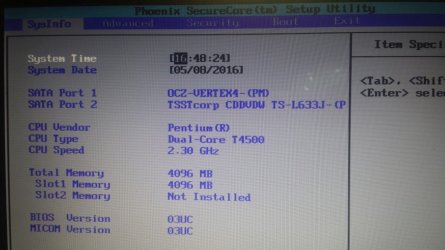
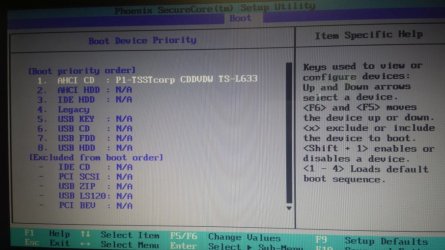
The OCZ-Vertex4-(PM) SSD is recognized on the main screen of the BIOS. But, when I check under the boot tab which has a lists of each type of item that can boot, and if it detects that specific device is attached, it will display its name out to the side of it such as the following:

1. AHCI CD : P1-TSSTcorp CDDVDW TS-L633
2. AHCI HDD : N/A
3. USB Key : N/A
4. USB CD : N/A
5. USB FDD : N/A
6. USB HDD : N/A

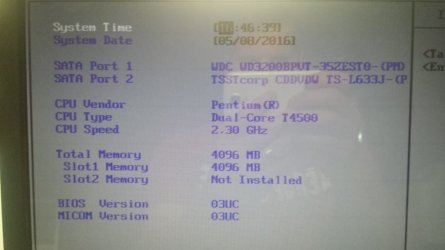
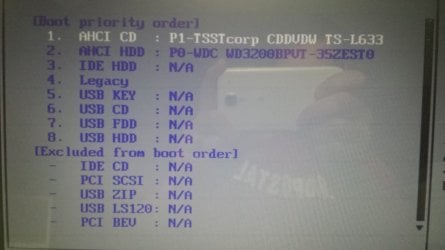
Notice that the AHCI HDD shows N/A. I compared it while the original drive was connected and it showed:
AHCI HDD : P0-WDC WD3200BPVT-35ZEST0

I also tested it with another SSD I had, a Samsung 850 EVO 250, and it correctly showed the drive:
AHCI HDD : P0-Samsung SSD 850 EVO 250

So, for some reason the BIOS is not detecting the OCZ-Vertex4-(PM) drive in the boot priority list, yet it is on the main BIOS page, which explains why I can still access it from the command prompt, but certainly possible why nothing else is working as it should be.

I have the latest FW for the BIOS, "03UC", and the latest FW is on the SSD. So, what are my options at this point? Any suggestions?
 

My Computer My Computer

At a glance

Windows 7AMD Athlon 64 X2 Dual Core Processor 5000 2.6...4GBRadeon 3200
Computer Manufacturer/Model Number
Custom Built
OS
Windows 7
CPU
AMD Athlon 64 X2 Dual Core Processor 5000 2.6 Ghz
Motherboard
Gigabyte MA78GM
Memory
4GB
Graphics Card(s)
Radeon 3200
Sound Card
RealTek HD
Monitor(s) Displays
Samsung LCD
Hard Drives
1TB WD
600GB WD
320GB WD
320GB WD
I don't know about laptops, but with desktops there's usually a menu allowing you to choose one among a number of similar devices, eg. "HDD priority" or some such, and it's possible for that menu to be configured with all devices disabled. Again, you would think this would be unnecessary with only one device - especially since you confirmed that was the case with the EVO - but it's best to be sure.
 

My Computer My Computer

At a glance

Windows 7 Professional x64, Arch Linux
Computer type
PC/Desktop
OS
Windows 7 Professional x64, Arch Linux
I don't know about laptops, but with desktops there's usually a menu allowing you to choose one among a number of similar devices, eg. "HDD priority" or some such, and it's possible for that menu to be configured with all devices disabled. Again, you would think this would be unnecessary with only one device - especially since you confirmed that was the case with the EVO - but it's best to be sure.

I attached photos that show what my options are and what I am seeing in the BIOS.
 

Attachments

  • 2016-05-08 16.49.35.jpg
    2016-05-08 16.49.35.jpg
    93.2 KB · Views: 0
  • 2016-05-08 16.49.58.jpg
    2016-05-08 16.49.58.jpg
    102.2 KB · Views: 0
  • 2016-05-08 16.47.50.jpg
    2016-05-08 16.47.50.jpg
    61.7 KB · Views: 0
  • 2016-05-08 16.46.44.jpg
    2016-05-08 16.46.44.jpg
    64.7 KB · Views: 0

My Computer My Computer

At a glance

Windows 7AMD Athlon 64 X2 Dual Core Processor 5000 2.6...4GBRadeon 3200
Computer Manufacturer/Model Number
Custom Built
OS
Windows 7
CPU
AMD Athlon 64 X2 Dual Core Processor 5000 2.6 Ghz
Motherboard
Gigabyte MA78GM
Memory
4GB
Graphics Card(s)
Radeon 3200
Sound Card
RealTek HD
Monitor(s) Displays
Samsung LCD
Hard Drives
1TB WD
600GB WD
320GB WD
320GB WD
OK, that's not the type of BIOS I'm thinking of. I'm more familiar with AMI than Phoenix. But the help at the bottom (Enter Select > Sub-menu) indicates there may be sub-menus for each type. What happens if you select AHCI HDD and press Enter?

Edit: Now that I think about it that help frame is probably generic, and indicates that an option with a ">" has a sub-menu. But it still wouldn't hurt to try.
 

My Computer My Computer

At a glance

Windows 7 Professional x64, Arch Linux
Computer type
PC/Desktop
OS
Windows 7 Professional x64, Arch Linux
Back
Top