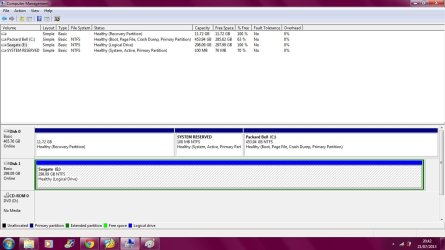
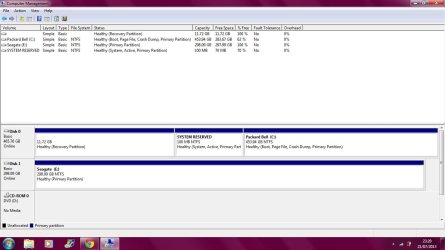
ok, I've stopped in the other thread, I had wrote in that one first because i didnt know how to make my own thread at first

Ok. Thanks. We're now all on the same one page, in the same one thread. Don't want to lose anybody's posts in case it helps someone else down the road who has a similar problem.
I bought this brand new, opened it up, it installed right away so i was able to open it from My Computer, and it came up as expansion drive (E)....so it did have a letter to start off with. This was done on my Packard Bell laptop, windows 7 64 bit.
Sounds perfect, assuming it had been factory formatted into one primary partition... probably as FAT32, but possibly as NTFS.
In either case, if it had been initialized by Seagate at the factory as one primary partition and either FAT32 or NTFS, then your results would have been exactly as expected. The drive (actually that partition) which got recognized and assigned a "drive letter" of E by Windows would have been immediately usable right out of the carton, corresponding to the results you experienced.
... so then i clicked to open the drive, made a new folder in it and put all of my files...pics, videos, music etc....just so i had a backup. I then checked to make sure they had successfully copied,
All appropriate and perfectly reasonable.
Is this a real "spinner" hard drive, or a solid-state stick or other USB device? By "eject", what do you mean exactly?
By this "eject" do you mean you right-clicked on the "safely remove hardware and eject media" icon which appeared in the System Tray when you first plugged in the new drive to a USB port, got a popup menu, and then selected the "eject" item for the drive from that menu, and then received the "it is now safe to remove hardware" message?
Again, perfect technique. This MUST be done prior to unplugging the USB cable for all removable devices which get a drive letter assigned by Windows and for which "write cache" (for performance) is in effect (i.e. has not been disabled via Explorer setting in Windows for the device), in order to guarantee that all in-memory data buffers get flushed out to the device prior to its disconnection. Failure to do this can result in corrupted file systems or data.
But if this is what you did, then that one factory-initialized partition (originally written to by your laptop during that first connection) should have been just as recognizable (and given a drive letter of E again by Windows) the second time you plugged in the drive. Clearly that didn't happen, but we still don't know yet why that happened.
, and then removed the cable from my USB port.
That is all I done....i dont even know how to make new partitions...
Fair enough.
So then today, the second time i was going to use it, I plugged it in (to the exact same laptop) and then it just didnt show up

and i havnt changed or added anything else to the laptop in between this whole process
hope that helps....i should have been a bit more clear in the first place....
Well, we still need to make the drive completely usable and recognizable, even if there's nothing there at this moment which is critical. It obviously needs a drive letter.
We don't know what those little 8MB partitions are, or how they got there. But if you didn't put them there then they must have come from Seagate that way.
But in my opinion, given what you've now gone through, if it were my drive and I wanted some "closure" before just formatting it and starting over, I'd use
free Partition Wizard to see what's actually in that 297GB partition and whether or not it can be resurrected and brought back to life.
Partition Wizard (PW) has a "partition recovery" function that can examine "raw space" like this, which say might have occurred if you accidentally deleted a partition (assuming you know how to do that) and you now wish to recover it, hopefully mostly or entirely exactly intact. On the left side of the PW GUI there is a "partition recovery wizard" which you can use, and it will guide you through its preliminary exploration and then it will tell you what it finds and recommends. Certainly the information it presents to you would be very interesting to us here, to find out what might be going on.
Thus using PW it might be possible able to just immediately bring back that partition from wherever it has gone, and that folder with files in it that you created during your first connection to the drive could well still be perfectly 100% intact. PW could bring it all back.
Or... maybe not. But only trying PW's "partition recovery" functionality will tell us.
In worst case, if that partition truly has been lost, I'd suggest using PW to initialize the entire contents of the drive as one single NTFS partition (empty originally, of course)... and now you can be sure it WILL be usable going forward. It will most likely get drive letter E from Windows again, but we'll see.
You can use the "delete all partitions" operation of PW on the left, to instantly return ALL of the drive (including those mysterious 8MB items) back to the UNALLOCATED FREE SPACE of the drive. You have to left-click on the drive "title" on the left side of the graphical representation in the upper-pane of the PW window), to select it for this "delete all partitions" operation. The lower-pane will now change its presentation for that drive to reflect everything unallocated and available (although it has not yet taken place... until you finally push the APPLY button to perform all queued operations, of which this will be the first).
Next, select that 100% unallocated drive in the lower-pane. On the left side of the PW GUI window the operations will now appear showing you "create partition" as an option. You can select that item (or, you can right-click on the drive in the lower-pane and select "create partition" from the popup menu).
And now you can just leave all the parameters default... as they will no doubt be for creating an NTFS primary partition (which is just fine for your needs) using 100% of available space. It will pre-fill a drive letter to be assigned, which will probably be E. You can optionally enter a "label" for the drive (e.g. "Seagate") but that's not required. When you push OK this second operation of creating the partition will also be queued.
Finally, push the "APPLY" button on the left side of the toolbar at the top of the PW window, to perform both of these queued operations. And when it's complete, you should now have your partition E on the Seagate drive, all freshly formatted as NTFS and all empty. And those two 8MB areas will be gone.
That's what I'd do, if it were my drive and I'd experienced this mystery.
But again... it is MANDATORY to go through the "safely remove hardware" procedure prior to pulling the USB cable, for ANY removable device which gets a Windows drive letter and which has "write cache" (for performance) enabled.
Let us know what you do, and the outcome.


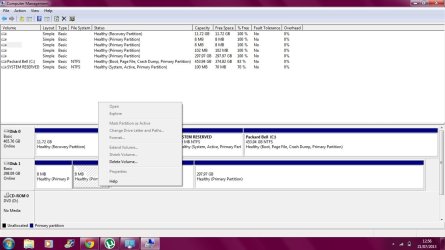
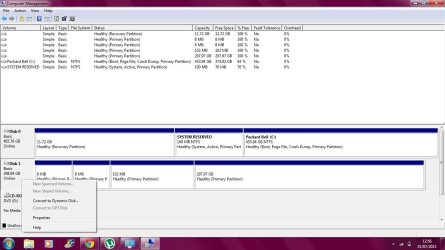


 ) the drive afterwards?
 i will try that and see what happens. I dont need to recover anything thats on it as i still have all the original files so i dont mind losing anything.