
Make Windows 7 bootable after motherboard swap, or bootable after swapping hard drive to new machine. Software described Paragon P2P Adjust OS.
This procedure describes how to do it. Procedure can be used in case of:
Just before the OS adjustment, you can additionally:
After procedure has finished succesfully and system boots fine, first check if Enable hardware auto-updating via Windows Update (Set to Automatic) is on so it will query Windows Update. After that:
You must reactivate at the Change Product Key link on System page. If it's not present you can insert Product Key and then Activate using SLMgr Commands
On some systems you see "setup is preparing your computer for first use" on every reboot. Read this to fix that issue: Fix "Setup is Preparing Your Computer for First Use" on Every Reboot
This procedure describes how to do it. Procedure can be used in case of:
- Windows 7 Installation - Transfer to a New Computer doesn't work.
- You forgot to SYSPREP.
- You can't SYSPREP because your motherboard died.
- You simply don't want to use SYSPREP.
- Download "Paragon Adaptive Restore 2010" from Paragon Adaptive Restore 2010 on my DROPBOX.
- Burn the ISO to CD/DVD using Windows Disc Image Burner or ImgBurn.
- Set CD/DVD as first boot device in BIOS.
- Boot the computer from Paragon Windows PE 3.0 based CD/DVD.
- Accept the end user license agreement, otherwise you are not able to use the tool.
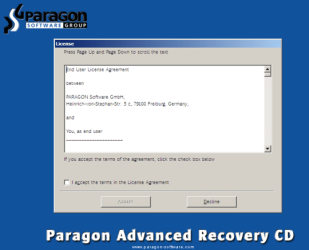
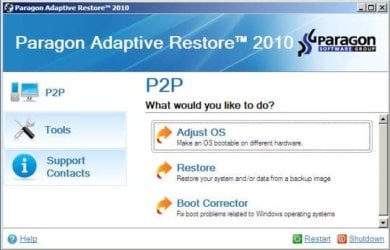
- Launch P2P Adjust OS.
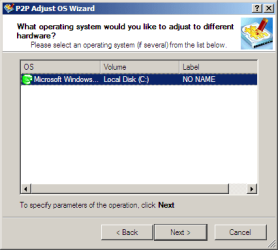
- Select the operating system you need to adjust to your new hardware.
- Choose whether you want to add third-party drivers or not, and the way to do it.
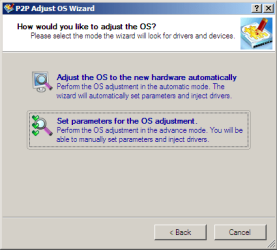
- If you chose "Adjust the OS to the new hardware automatically", the P2P Adjust OS Wizard will automatically accomplish all the necessary actions.

- The only thing that might need your interaction is to specify additional driver repository.

- At last, choose "Yes, apply the changes physically" and then restart your computer after operations are done. Do remember, you cannot interrupt the process or undo the changes.
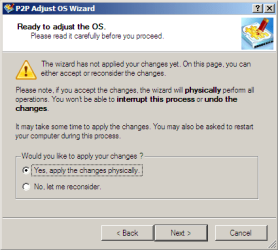
Just before the OS adjustment, you can additionally:
Warning
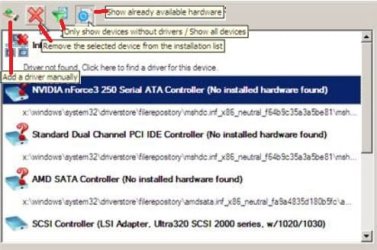
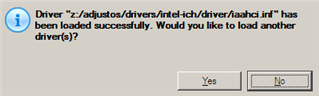
Sometimes the internal hard drive is not recognized in Paragon P2P Adjust OS due to missing SATA or RAID driver. In that case add specific drivers to Windows PE based Paragon Recovery Environment.
- Click to open Add Drivers dialog.
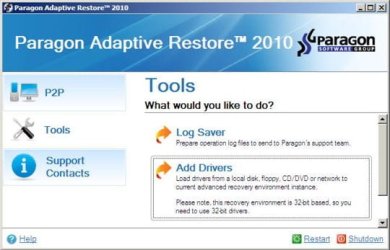
- Browse for an .INF file of the required driver, then click the Open button to initiate the process.
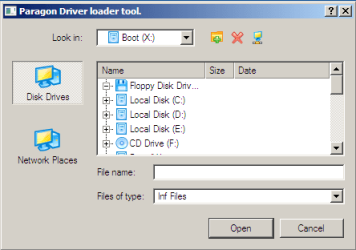
- Click Yes to confirm the operation.
Information
You can only add third-party drivers in INF file. If they are zipped, you need to unpack them before processing the steps. The Windows PE environment is 32bit-based, so you need to use 32-bit drivers for injection.
- Uninstall Device and Device Driver for devices no longer attached to system. Uninstall associated software as well.
- Install all of your device drivers, then Windows Updates.
- Refresh your Windows Experience Index (WEI) score.
- When done, all you will need to do is to activate Windows 7.
You must reactivate at the Change Product Key link on System page. If it's not present you can insert Product Key and then Activate using SLMgr Commands
On some systems you see "setup is preparing your computer for first use" on every reboot. Read this to fix that issue: Fix "Setup is Preparing Your Computer for First Use" on Every Reboot
Last edited:
 I thank you *SO* much for this guide!!!!


 grr, what a disapointment, Will still use tho, I'll just have to burn the disk


