Regain a lost drive using Test Disk - An Illustrated Guide

I am just enquiring -- running the first page test for an inexperienced user - should that be the first point of reference to regain a lost drive.

I have bookmarked most of the valuable information that people have posted. I am just not sure about some of the terms (I know I could Google them) - so unsure if it is the best option for me.

Thank you again for a great easy to follow guide
 

My Computer My Computer

Computer type
Laptop
Computer Manufacturer/Model Number
Sony VAIO / E Series VPCEB46FG
OS
Windows 7 Home Premium 64bit
CPU
Windows 7 Service Pack 1 x86 NTFS
Motherboard
AMD E-350 Processor
Memory
4 GB
Hard Drives
500GB
Other Info
1.6GHz
I am just enquiring -- running the first page test for an inexperienced user - should that be the first point of reference to regain a lost drive........

Not necessarily :).

It is pretty simple to be used by experienced users but the more inexperienced users may get intimidated with the DOS interface and may need many hours of documentation. One has to put a determined effort to get a grasp of it and the only way to do it is to do a mock trial as in my post #5.

If what is needed is just some file recovery software then PhotoRec application that comes with TestDisk should be the first choice. Much easier to use and since it is read only the user cannot give any write commands mistakenly and spoil the already spoilt broth.:)

Also in many situations Partition Wizard is easier to use.

And in respect of non-bootable drives a live Linux CD/pendrive should be the first option.

At one point one user threw up a question on how to copy the files listed by TestDisk - it is not so intuitive- and then I wrote this post Copying_files_listed_by_TestDisk_during_Recovery .

Thank you for giving me an opportunity to append it to this thread.
 

My Computer My Computer

OS
Windows 7 Home Premium 32 bit
Hi Jumanji,
Thanks for posting a great article on using Test Disc.
I have a question. I have been running Test disc (deeper search) for one week now and am only 3% through the operation. 3,920/121,596 cylinders analized. Is this normal, or should I close Test Disc and start again? The disk I am analizing is a 1Tb Western Digital in a Buffalo housing.
Thanks in advance.
 
Last edited:

My Computer My Computer

Computer type
Laptop
Computer Manufacturer/Model Number
Acer Aspire 4741G
OS
Windows 7 Home Premium 64bit
CPU
M480 @ 2.67 GHz
Memory
8.0 GB
Antivirus
McAfee
Browser
FireFox
Hi there

i've done everything. I have a trouble on step 10 (seventh window), nothing appears. So i'm gonna need you to help me a little with the TestDisk. Contact me through facebook, add me as a friend.
 

My Computer My Computer

Computer type
PC/Desktop
OS
7
I am just enquiring -- running the first page test for an inexperienced user - should that be the first point of reference to regain a lost drive........

Not necessarily :).

It is pretty simple to be used by experienced users but the more inexperienced users may get intimidated with the DOS interface and may need many hours of documentation. One has to put a determined effort to get a grasp of it and the only way to do it is to do a mock trial as in my post #5.

If what is needed is just some file recovery software then PhotoRec application that comes with TestDisk should be the first choice. Much easier to use and since it is read only the user cannot give any write commands mistakenly and spoil the already spoilt broth.:)

Also in many situations Partition Wizard is easier to use.

And in respect of non-bootable drives a live Linux CD/pendrive should be the first option.

At one point one user threw up a question on how to copy the files listed by TestDisk - it is not so intuitive- and then I wrote this post Copying_files_listed_by_TestDisk_during_Recovery .

Thank you for giving me an opportunity to append it to this thread.
i need your help on Test Disk Please
 

My Computer My Computer

Computer type
PC/Desktop
OS
7
I am just enquiring -- running the first page test for an inexperienced user - should that be the first point of reference to regain a lost drive........

Not necessarily :).

It is pretty simple to be used by experienced users but the more inexperienced users may get intimidated with the DOS interface and may need many hours of documentation. One has to put a determined effort to get a grasp of it and the only way to do it is to do a mock trial as in my post #5.

If what is needed is just some file recovery software then PhotoRec application that comes with TestDisk should be the first choice. Much easier to use and since it is read only the user cannot give any write commands mistakenly and spoil the already spoilt broth.:)

Also in many situations Partition Wizard is easier to use.

And in respect of non-bootable drives a live Linux CD/pendrive should be the first option.

At one point one user threw up a question on how to copy the files listed by TestDisk - it is not so intuitive- and then I wrote this post Copying_files_listed_by_TestDisk_during_Recovery .

Thank you for giving me an opportunity to append it to this thread.
i need your help on Test Disk Please

I am just enquiring -- running the first page test for an inexperienced user - should that be the first point of reference to regain a lost drive........

Not necessarily :).

It is pretty simple to be used by experienced users but the more inexperienced users may get intimidated with the DOS interface and may need many hours of documentation. One has to put a determined effort to get a grasp of it and the only way to do it is to do a mock trial as in my post #5.

If what is needed is just some file recovery software then PhotoRec application that comes with TestDisk should be the first choice. Much easier to use and since it is read only the user cannot give any write commands mistakenly and spoil the already spoilt broth.:)

Also in many situations Partition Wizard is easier to use.

And in respect of non-bootable drives a live Linux CD/pendrive should be the first option.

At one point one user threw up a question on how to copy the files listed by TestDisk - it is not so intuitive- and then I wrote this post Copying_files_listed_by_TestDisk_during_Recovery .

Thank you for giving me an opportunity to append it to this thread.
I have a trouble on step 10 (seventh window), nothing appears. So i'm gonna need you to help me a little with the TestDisk. Contact me through facebook, add me as a friend.
 

My Computer My Computer

Computer type
PC/Desktop
OS
7
Please define your problem clearly with all details and start a new thread in Hardware and Devices.

It is not possible to give any guidance blindly without knowing what exactly the problem is.

I do not log into any social network sites.
 

My Computer My Computer

OS
Windows 7 Home Premium 32 bit
Jumanji I can't thank you enough for helping out with this! I found ur reply to a thread about a 3TB hard disk unallocated, and followed your replies through the forum to finally reach this incredibly helpful thread!

I have a 500GB WD external HDD that somehow got unallocated sometime last year, and after combing through forums, trying out a ton of recovery softwares (PW didn't help btw, even after a full scan, and I was planning on taking this disk to a recovery specialist next week) until i found this post.

And it worked! My unallocated WD external HDD is fixed now and it was so simple!!

(i'm not sure why PW didn't find any partition on my disk, but i think it was because the partition table itself had been deleted sometime during my clumsy rambling? Because the second method listed here worked)

Thanks a lot and keep up the friendly good work!
 

My Computer My Computer

Computer type
Laptop
Computer Manufacturer/Model Number
Sony Vaio
OS
Windows 7 Home Premium 32bit
Hi

I have WD 1TB My passport drive , it is shown in the explorer but when i tried to access it , it is not accessible , asks to format the disk , it gives error e.g. incorrect parameter.

I tried with TestDisk software with the mentioned steps, i was able to see my files as well on DOS , i completed Quick Search, add new partition as suggested and rebooted my machine, but the problem remained same , i am still not able to access the drive

can someone please help me to understand if i am missing anything here?
 

My Computer My Computer

Computer type
PC/Desktop
OS
Windows 7
Welcome to SevenForums ( I don't like your ID :))

Perhaps you had gone astray somewhere using TestDisk.

There is no adding a new partition. If the partition table had been lost, it will only find the partitions and one has to rewrite the partition table.

And one more important thing - While you attempt data recovery with TestDisk, you should always start with a free external drive attached , ready to copy the data when found. If TestDisk shows all your files you must have immediately copied those files to the external drive before writing anything.

Run TestDisk again. Before you run TestDisk plug-in an external drive with adequate free space. Check whether TestDisk sees that attached external drive alongwith the system drive and your faulty drive. If TestDisk shows all your files copy those immediately to the external drive.

If not please start a new thread in the Hardware and Devices sub-forum explaining your current problem alongwith screenshots of Windows Disk Management and Partition Wizard with only your problem drive connected to the system.

Partition Wizard: Free Partition Manager for Window PC | MiniTool Partition Wizard Free Edition
 
Last edited:

My Computer My Computer

OS
Windows 7 Home Premium 32 bit
Hi Jumanji,

Great tutorial, I have used test disk many times, However, there is a danger that has been overlooked here. If there is more than one partition in an extended partition, and the partition table is corrupted, there is a very high probability that desk disk will return a finding, after running search, where the same partition is listed twice, for example, partition 2. will be listed twice. This is due to the table being corrupted and some overlap occurs. The danger here is, testdisk will by default, prefix BOTH partitions with the letter D, ie, DELETE. You must check each entry for partition 2 and check for files using the P switch. one will have no files and the other will contain your files. The one containing files must have it's prefix CHANGED to Primary or logical, using right/left arrow keys. the one with no files must remain as D for delete.

Failure to do this will result in test disk deleting both entries and subsequently the partition 2.
Something to be aware of before selecting 'write'.

Just thought I would share this,

regards,

Ron.
 

My Computer My Computer

Computer Manufacturer/Model Number
self built
OS
32 bit windows 7 professional
CPU
intel I7 960 3.2
Motherboard
X58 extreme
Memory
4gb corsair
Graphics Card(s)
ATI Radeon
Sound Card
built in
Monitor(s) Displays
24" samsung syncmaster
Hard Drives
1 tbt seagate
PSU
750 watt antec
Case
coolermaster
Cooling
standard
Thanks ronski for your valuable input. I shall check on it sometime.

It is always a good practice to check all partitions shown for the files using the P command and copy the files elsewhere before giving the write command.

I think we had been advising it all the time but will now make it mandatory.:)

Thanks again for your valuable input.
 

My Computer My Computer

OS
Windows 7 Home Premium 32 bit
Very good tutorial. Why don't you place it into the tutorial section.
 

My Computer My Computer

Computer Manufacturer/Model Number
HP, Dell, Gateway, Toshiba - 4 laptops and 2 desktops
OS
Vista, Windows7, Mint Mate, Zorin, Windows 8
CPU
from 1.6GHz Duo to i7
Monitor(s) Displays
2x HP w2207
Hard Drives
5x HDD, 7x SSD, 12x Externals
Keyboard
with trackball - no mices
Mouse
Trackball mice
Internet Speed
DSL 6000
worked like a life saver

good job mate :) appreciate it
 

My Computer My Computer

Computer type
PC/Desktop
OS
win 7 ultimate x64
Hi techfox,

Welcome onboard.

Glad it helped. :)
 

My Computer My Computer

OS
Windows 7 Home Premium 32 bit
For the limited purpose of running TestDisk or PhotoRec, one need not necessarily create a UBCD or a Live CD. ( I do not know which version of TestDisk these will have.)

The OP can create a DOS bootable pendrive using Rufus v1.1.7 without FreeDOS Support - 154 KB (only MSDOS) Rufus - Create bootable USB drives

View attachment 210167

Then download the current stable version of TestDisk 6.13 for DOS/Win9x, TestDisk Download - CGSecurity extract the contents to the root directory of the pendrive, boot from the USB pendrive (using the one-time boot menu) and at the command prompt type testdisk.exe and press ENTER to run it.

Note: If extracting the TestDisk.zip puts the contents to a folder like TestDisk6.13, all files there could be selected and moved to the root directory of the pendrive.. At the end of it the bootable DOS TestDisk pendrive should look like this:

View attachment 210168

( I have created the bootable DOS TestDisk pendrive, run it and checked it on my system. The OP should select the correct drive shown by identifying it by its capacity.)

Thanks a lot, sir! I needed help making testdisk boot from a USB. Using the above tutorial, recovered all of my 4 Deleted partitions! You saved my laptop!
 

My Computer My Computer

Computer type
PC/Desktop
OS
Windows 10 32bit
Welcome onboard, shaz.

Glad that it helped and you could find your way through successfully and a first timer at it..Good going.

Since the time that post #23 was written in May 2012, there has been some version changes. Rufus is now in version 2.3 and TestDisk stable version in 7. But the basics of using Rufus to create a bootable DOS TestDisk and using TestDisk for recovery still remain the same.
 

My Computer My Computer

OS
Windows 7 Home Premium 32 bit
Hi there all!

This tutorial was great reading to me! I'm currently having a situation with one BIG storage unit of mine (it happened to me before, so it might be the 3rd time, despite my increasing carefulness).

However, I humbly admit that my knowledge in these matters is thus limited that I still don't feel confident in rescuing with TestDisk on my own, especially given the situation seems to appear different than presented in the tutorial.

So I resort to come bothering you people, since this very nasty accident hit me and I'm in need of more knowledgeable minds than my own to make the right decisions... Here's my story so far:

I was browsing files on my external WesternDigital 3,5" HD (3 Tib) that I use for storage. It was connected via a big HUB: 13 ports, but it's backed up by it's own external power, not just USB-powered, plus only 2 ports were then switched on -- the 2nd port was for another 2,5" external HD of 750 Gib. So I thought everything would go smooth, but after some hours, suddenly for no apparent reason the 3Tib drive got disconnected on its own (no USB cable was moved or anything of the sort!). I should add that I wasn't doing any writing, copying or moving anything to nor from that hard-drive at the time. Well, what Windows was doing on its side is another matter...

Once reconnected, the result was (unfortunately as expected) that the drive was corrupt!

Here is now the state of things:
The drive when turned on reads for about a full minute (external enclosure's LED blinks and all) before Windows finally detects it. It then appears WITH ITS CORRECT LETTER (O:\) STILL ASSIGNED, but also tells me "O:\ Unknown Filesystem", and advise me to format it in order to use it.
In the disk manager, the volume appears, with its letter of course, with its space correctly allocated ("O:\2794,39 Gib - sane volume, main partition") but filesystem is listed as "RAW"!

I should also note that I'm at my parents' and all I can use here is an old laptop HP/Compaq Presario C750 with bad old Vista installed on it

I'm asked to format it. I'm all the more upset by this situation that Ihad already about 2,5 Tib filled with very valuable contents on that HD...

Using "EaseUS Data Recovery Wizard" latest version (which I bought a while ago as I've had such issues before), the software does seem to detect many things from the original NTFS filesystem on that HD, since it shows the original Label I gave it ("O:\AudioContent") and lists me all the main directories/file structure (although ther are a few odd things, like a couple folders detected that are actually from another HD I use to connect with the same external enclosure, etc.).

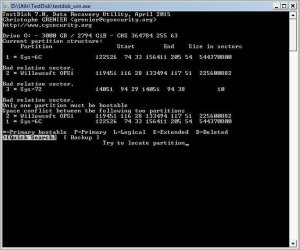
Now, using TestDisk following the indications given in Jumanji's tutorial, I get peculiar (to me anyway) results:

- Media is detected with correct space ("Drive O: - 3000GB / 2794 Gib)
I "Proceed", and gets in the bottom this Hint: "None partition table type has been detected".
I then "choose "Intel/PC partition", then "Analyse", and I get the screen I attached to this post.

That's about where I'm at right now, so as you may gather, ANY informed and skilfull help with the whole thing would be greatly appreciated! Please tell me how to proceed, what I should try, and ask me for any further information you may need to help figure what way to go with the recovery process...

Thank you so much in advance to anyone willing and able to help me!
-- Angar

 

Attachments

  • TestDiskScreenshot.jpg
    TestDiskScreenshot.jpg
    43 KB · Views: 29

My Computer My Computer

Computer type
Laptop
Computer Manufacturer/Model Number
Compaq/HP Presario C750
OS
Vista Home Premium 32bit
Memory
2 Gib
Hard Drives
Western Digital WD30EZRX
Western Digital WD40EZRX
Mmmmh, some further infos after noticing something I overlooked when writing my previous post there:

Although the TestDisk results sounded somewhat scary to me (particularly the "None partition table type has been detected" part of course), there seems to be more to it, as follows...

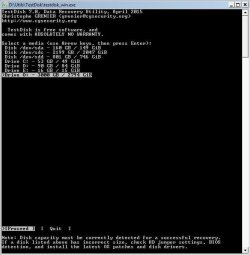
In the first TestDisk screen (ie. "Select the media", after choosing "No log"), I actually gets something confusing (once again, to me! I'm obviously posting in hope that it won't confuse you guys quite like it does me, hehe).
Please look at the new screenshot I attach to this post:

Drives C:, D: and E: are actually the same hard drive (the internal HD of the laptop I'm on, which is 160GB and divided into these 3 partitions). They correspond to the 1st line: "Disk /dev/sda - 160 GB / 149 GiB"

Now Drive O: (ie. the faulty 3 TB drive) was indeed (I totally forgot that "detail") constituted of 2 dsitinct physical disks (unless I'm mistaken, but that's how it appeared to me anyway when I originally bought and connected it): one of roughly 2 GB, which then corresponds to the 2nd TestDisk line: "Disk /dev/sdc - 2199 GB / 2047 GiB", and a second disk of 800 GB, which of course is the 3rd line: "Disk /dev/sda - 801 GB / 746 GiB" (that last one appears as "746 Gb - Unallocated" in Windows Disk Manager).

I never used (nor apparently even formatted, I don't remember but it seems likely) that 3rd disk yet. I was always only using the 2 GB (dev/sdc) disk on the drive up to now (saving the second smaller disk of the drive for later, when the first one would be filled).

Now while I get a "None partition table type has been detected" hint when I choose drive O:, if I choose "Disk /dev/sdc - 2199 GB / 2047 GiB" instead, I then get the following hint: "EFI GPT partition table type has been detected" (and indeed I remember having formatted that disk with the GPT option).


I kinda understand that both my internal (3 partitioned) and my external (made of 2 disks) 3 TB hard drives are listed as Drives with their attributed letter by the system, PLUS as Disks. And it seems that it is irrelevant to choose the "Drives" lines with attributed letter in the case of a problematic/corrupted HD like mine, so the "Disk" line is relevant.

My final question with all this then is: where to go from now? I'm ready to continue with what recovery options TestDisk will give me, but at the same time I'm concerned that any change TestDisk will do to my drive, if they fail, might make it more difficult (if not impossible) afterwards to recover data from it (if correcting the partition table/MBR/filesystem or whatever is corrupted here).
If I make the backup that TestDisk propose to do, will I then be totally safe (as in "can rollback to previous state if further actions go wrong") in letting it try to fix my HD?


Thank you so much for anyone willing to enlighten me a bit on this...
-- Angar

-- Angar
 

Attachments

  • TestDiskScreenshot0.jpg
    TestDiskScreenshot0.jpg
    38.6 KB · Views: 28

My Computer My Computer

Computer type
Laptop
Computer Manufacturer/Model Number
Compaq/HP Presario C750
OS
Vista Home Premium 32bit
Memory
2 Gib
Hard Drives
Western Digital WD30EZRX
Western Digital WD40EZRX
Hi Angar,

Welcome to Seven Forums.

I do not want to confuse you now.:)

Please start a new thread under the sub-forum Hardware and Devices. I understand you are now with your parents with a Vista computer and your 3.5 TB external connected to the USB port (Without the gigantic 13 port hub. Right?)

In the new thread

1. Briefly explain the problem.

2. Give full details of your 3 TB drive - whether it is an Elements/My Book or whatever and the model number like WDBFJK0030HBK ( I need to look into the specifications of the drive. I don't know much about WD drives for I have none.)

3. Post a screenshot of how your external drive looks in Windows Disk Management with only your problem drive connected. Please adhere to the guidelines here to present a full screenshot with all the information visible http://www.sevenforums.com/tutorials/274797-disk-management-post-screen-capture-image.html

We shall decide whether to use TestDisk or some other data recovery utility. ( You have already tried EaseUs. I wish you had not.)
 

My Computer My Computer

OS
Windows 7 Home Premium 32 bit
Back
Top