

You are using an out of date browser. It may not display this or other websites correctly.
You should upgrade or use an alternative browser.
You should upgrade or use an alternative browser.
IE11 Appears not to support gadgets. What are the alternatives ?
- Thread starter Mooly
- Start date

There are plenty of gadgets out there to replace any stock windows gadgets, and some of them look exactly the same.
My Computer
At a glance
Windows 10 Pro x64Intel Core i7 6700KGSkill TridentZ RGB 16GB 3600 16-16-16-36EVGA GTX 980 Ti SC x2
- Computer type
- PC/Desktop
- Computer Manufacturer/Model Number
- Skylake Special #666
- OS
- Windows 10 Pro x64
- CPU
- Intel Core i7 6700K
- Motherboard
- Asus Sabertooth Z170 Mark 1
- Memory
- GSkill TridentZ RGB 16GB 3600 16-16-16-36
- Graphics Card(s)
- EVGA GTX 980 Ti SC x2
- Sound Card
- Realtek High Definition
- Monitor(s) Displays
- AOC G2460PG
- Screen Resolution
- 1920 x 1080 144Hz
- Hard Drives
- Samsung 860 Pro 256GB, Seagate Barracuda 4TB x2
- PSU
- EVGA 1000 P2, EVGA White Custom Braided Cables
- Case
- Corsair Vengeance C70 Gunmetal Black
- Cooling
- Corsair H100i v2, Corsair ML120 x2, Thermal Grizzly Kryonaut
- Keyboard
- Logitech G910 Orion Spectrum
- Mouse
- Logitech G700s
- Internet Speed
- Verizon Fios Quantum Gateway 75/75
- Antivirus
- Windows Defender, Malwarebytes Free 3.8.3
- Browser
- Chrome
- Other Info
- Corsair SP120 x4, LG Blu-ray Drive, Durabrand HT-395 100 Watt Dolby Digital Amp, Corsair H2100 Wireless 7.1 Headset
There are plenty of gadgets out there to replace any stock windows gadgets, and some of them look exactly the same.
This is what I thought but the reality is knowing which are good well written gadgets which are both safe and on safe sites to download from.
It was easy to find a CPU meter and weather gadget (msn one ?) but both files installed malware, pc optimisers, toolbars, frog something or other etc etc despite there being no mention or option to not install this junk.
I use Acronis, so it didn't matter to me, I just had a good play

I'm intrigued by the earlier post where someone mentions editing the XML file. Haven't a clue how to do that but if it can be done I'm a quick learner. I know where the file lives, I can open it in notepad and see zillions of random characters so I'm assuming I need a proper editor. They seem available as freeware. Acronis again
 But what would I be looking for to alter and replace.
My Computer
At a glance
Windows 7 Professional x64Intel Core i5 2430M (2.4GHz)4096Mb 1333Mhz DDR3 SDRAMIntel Integrated HD
- Computer type
- Laptop
- Computer Manufacturer/Model Number
- Dell
- OS
- Windows 7 Professional x64
- CPU
- Intel Core i5 2430M (2.4GHz)
- Memory
- 4096Mb 1333Mhz DDR3 SDRAM
- Graphics Card(s)
- Intel Integrated HD
- Monitor(s) Displays
- 17.3 Inch HD Anti Glare
- Screen Resolution
- 1600 x 900
- Hard Drives
- 320Gb 7200rpm serial ATA
- Keyboard
- Illuminated standard
- Mouse
- Microsoft 3500
- Internet Speed
- 40Mb
- Antivirus
- Security Essentials
- Browser
- IE11 x64

DrDivan55
New member
- Local time
- 9:55 PM
- Messages
- 5
Make a backup copy of the original file. Open with notepad and delete the whole row that contains the following tag:I'm intrigued by the earlier post where someone mentions editing the XML file. Haven't a clue how to do that but if it can be done I'm a quick learner. I know where the file lives, I can open it in notepad and see zillions of random characters so I'm assuming I need a proper editor. They seem available as freeware. Acronis again
<autoscaleDPI><!--_locComment_text="{Locked}"-->true</autoscaleDPI>
Don't leave an empty row in the script, delete it entirely.
My Computer
At a glance
Windows 7 Ultimate x64 & Windows 8.1 Pro Dual...Intel i7-4770k32 GB Kingston HyperX Beast & EVO Cyclone Mem...nVidia
- Computer type
- PC/Desktop
- Computer Manufacturer/Model Number
- Custom
- OS
- Windows 7 Ultimate x64 & Windows 8.1 Pro Dual Boot
- CPU
- Intel i7-4770k
- Motherboard
- Asus Maximus VI Extreme
- Memory
- 32 GB Kingston HyperX Beast & EVO Cyclone Memory Cooling
- Graphics Card(s)
- nVidia
- Sound Card
- Asus Xonair
- Monitor(s) Displays
- SONY HS-75P
- Screen Resolution
- 1280x1024
- Hard Drives
- 2 TB Seagate HDD & Intel 240GB S3500 SSD
- PSU
- Fortron Aurum Pro 1200
- Case
- Corsair Obsidian 750D
- Cooling
- Corsair Hydro H100i
- Keyboard
- Logitech G19s
- Mouse
- Logitech G700s
- Internet Speed
- 150 mbps
- Antivirus
- Kaspersky Internet Security 2014
- Browser
- IE11, Aurora, Opera, Chrom, Safari
The problem is indeed caused by the DPI settings of the PC. Gadgets appear incorrectly if the DPI value is set above 100%, although one may use a custom value of 110% and gadgets seem to appear almost correctly. The reason for the problem is that the default gadgets in Windows 7 have a DPI-locking tag. So there are two ways to resolve this issue:
1. Set the DPI value to 100-110%.
2. The second one requires some basic XML editing skills. One has to delete the locking tag from the XML file completely as setting the value to auto will not resolve it. I am not sure, but this however, might be against Microsoft's policy. In case someone wants to try this one, please, at least make a backup copy of the original file.
Your a star
but I need helpYou gave me a clue as to what to look at and I have had some success but I'm stuck on making the gadgets bigger. I saw the word "true" in the file and changed it to "false" and lo and behold the gadgets display correctly. I tried changing the icon size numbers on the weather gadget but it always displays this size.
Attachments
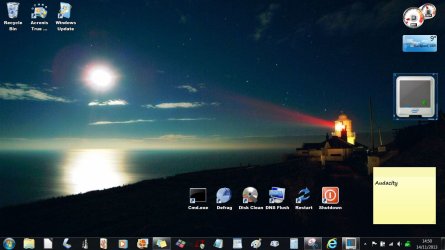

My Computer
At a glance
Windows 7 Professional x64Intel Core i5 2430M (2.4GHz)4096Mb 1333Mhz DDR3 SDRAMIntel Integrated HD
- Computer type
- Laptop
- Computer Manufacturer/Model Number
- Dell
- OS
- Windows 7 Professional x64
- CPU
- Intel Core i5 2430M (2.4GHz)
- Memory
- 4096Mb 1333Mhz DDR3 SDRAM
- Graphics Card(s)
- Intel Integrated HD
- Monitor(s) Displays
- 17.3 Inch HD Anti Glare
- Screen Resolution
- 1600 x 900
- Hard Drives
- 320Gb 7200rpm serial ATA
- Keyboard
- Illuminated standard
- Mouse
- Microsoft 3500
- Internet Speed
- 40Mb
- Antivirus
- Security Essentials
- Browser
- IE11 x64
Lol... now that's a coincidence. We posted together... hadn't seen your message.
My Computer
At a glance
Windows 7 Professional x64Intel Core i5 2430M (2.4GHz)4096Mb 1333Mhz DDR3 SDRAMIntel Integrated HD
- Computer type
- Laptop
- Computer Manufacturer/Model Number
- Dell
- OS
- Windows 7 Professional x64
- CPU
- Intel Core i5 2430M (2.4GHz)
- Memory
- 4096Mb 1333Mhz DDR3 SDRAM
- Graphics Card(s)
- Intel Integrated HD
- Monitor(s) Displays
- 17.3 Inch HD Anti Glare
- Screen Resolution
- 1600 x 900
- Hard Drives
- 320Gb 7200rpm serial ATA
- Keyboard
- Illuminated standard
- Mouse
- Microsoft 3500
- Internet Speed
- 40Mb
- Antivirus
- Security Essentials
- Browser
- IE11 x64
I'll try deleting the whole row as you say.
Any idea on how to make them a wee bit bigger ?
Any idea on how to make them a wee bit bigger ?
My Computer
At a glance
Windows 7 Professional x64Intel Core i5 2430M (2.4GHz)4096Mb 1333Mhz DDR3 SDRAMIntel Integrated HD
- Computer type
- Laptop
- Computer Manufacturer/Model Number
- Dell
- OS
- Windows 7 Professional x64
- CPU
- Intel Core i5 2430M (2.4GHz)
- Memory
- 4096Mb 1333Mhz DDR3 SDRAM
- Graphics Card(s)
- Intel Integrated HD
- Monitor(s) Displays
- 17.3 Inch HD Anti Glare
- Screen Resolution
- 1600 x 900
- Hard Drives
- 320Gb 7200rpm serial ATA
- Keyboard
- Illuminated standard
- Mouse
- Microsoft 3500
- Internet Speed
- 40Mb
- Antivirus
- Security Essentials
- Browser
- IE11 x64

i also had the problem but what I did is set the dpi to 100 and the graphic part of the gadget icons came back, and everything is back to normal. What I did do is go in and just make each item in Advanced appearance settings and configured each one to the size I wanted and this way the dpi stayed the same but each item I picked became larger using the font size
My Computer
At a glance
Windows 7 Pro 32/64 bit and Windows 10 Pro 32...4gigsAMD Radeon HD and Nvidia
- Computer type
- PC/Desktop
- Computer Manufacturer/Model Number
- Dell Computers
- OS
- Windows 7 Pro 32/64 bit and Windows 10 Pro 32 Bit/64bit
- Memory
- 4gigs
- Graphics Card(s)
- AMD Radeon HD and Nvidia
- Monitor(s) Displays
- Samsung 24". INC 19". Dell 22 ". Dell 17" & 19"
The DPI line worked for me and a specific gadget. But how do we make a gadget larger now?
My Computer
At a glance
Windows 7 Home premium x64Intel i5 520m at 2.4GHz(plus turbo mode at 2....4GB ddr3 1067Nvidia 330m
- Computer Manufacturer/Model Number
- Sony Vaio
- OS
- Windows 7 Home premium x64
- CPU
- Intel i5 520m at 2.4GHz(plus turbo mode at 2.9GHz)
- Memory
- 4GB ddr3 1067
- Graphics Card(s)
- Nvidia 330m
- Local time
- 7:55 PM
- Messages
- 332
I keep an analogue clock and a calendar gadget on my second screen and it became almost mandatory but since IE11 went in, the clock will not launch and the calendar comes and goes with start-ups. Right now the calendar is up but I really miss the clock. I haven't the faintest idea how to edit scripts however. Just to be certain; was it IE11 that did it? Because a large Windows/MS update also went in that day.
My Computer
At a glance
windows 7 premium home 64bitintel core i5 2500 3.3Ghz 6mb cache OEM8GB (2x4GB) PC10666 DDR3/1333mhz DualAMD ATI Radeon Powercolor HD5670 1GB passive ...
- Computer type
- PC/Desktop
- Computer Manufacturer/Model Number
- Cyberpower PC
- OS
- windows 7 premium home 64bit
- CPU
- intel core i5 2500 3.3Ghz 6mb cache OEM
- Motherboard
- Asus P8Z68-V LX Intel Z68 Chipset DDR3 ATX USB 3
- Memory
- 8GB (2x4GB) PC10666 DDR3/1333mhz Dual
- Graphics Card(s)
- AMD ATI Radeon Powercolor HD5670 1GB passive cooled
- Sound Card
- Creative/Soundblaster Digital Music Premium HD/X-Fi-HD
- Monitor(s) Displays
- Samsung 22; Hanns.G 19
- Screen Resolution
- 1680 x 1050
- Hard Drives
- SSD: 120 GB Intel 520 Series SATA III
HDD2:West Dig 1TB SATA III 32mb 6gb/s
Hot swap HDD3: 1tb Barracuda Sata 3 32mb 6gb/s
- PSU
- Coolermaster Elitepower 500wt
- Case
- NZXT Hush 2
- Cooling
- Coolermaster Hyper TX3
- Mouse
- Logitech M570 Trackball
- Internet Speed
- 50mbs
- Antivirus
- Malwarebytes3. cont' below:
- Browser
- IE11
- Other Info
- Windows Firewall.
Hitman-Pro.alert3.
DrDivan55
New member
- Local time
- 9:55 PM
- Messages
- 5
I had a second look and noticed that the affected gadgets use certain font. According to my opinion the problem is caused by IE11 making some fonts display incorrectly when in a higher DPI setting. This affected some other functions like disabling the Outlook spell-check in certain configurations, etc. So there should be a fix from Microsoft sometime in the future that would address these issues and hopefully that should fix the gadgets too.
As for making gadgets bigger-that's pretty difficult. You should play around first with the css file-that will enlarge the "glass" area around the gadget. Then move to the js file. The scripts that instruct how the gadget should be displayed are at the end of the file: undocked & docked state of the gadgets. I played around with that and the result was pretty ugly. So I would recommend to use the gadgets the way they are for the time being as a fix from Microsoft addressing the font issue should come eventually. If the gadgets look too small however one may click the arrow button below the close button of the gadget(if there is one-the CPU has it, but the Clock-does not) to enlarge them but now they would look unnaturally big. For the Clock-use a different clock style(the blue one seems small but the first clock style is OK for me).
As for making gadgets bigger-that's pretty difficult. You should play around first with the css file-that will enlarge the "glass" area around the gadget. Then move to the js file. The scripts that instruct how the gadget should be displayed are at the end of the file: undocked & docked state of the gadgets. I played around with that and the result was pretty ugly. So I would recommend to use the gadgets the way they are for the time being as a fix from Microsoft addressing the font issue should come eventually. If the gadgets look too small however one may click the arrow button below the close button of the gadget(if there is one-the CPU has it, but the Clock-does not) to enlarge them but now they would look unnaturally big. For the Clock-use a different clock style(the blue one seems small but the first clock style is OK for me).
My Computer
At a glance
Windows 7 Ultimate x64 & Windows 8.1 Pro Dual...Intel i7-4770k32 GB Kingston HyperX Beast & EVO Cyclone Mem...nVidia
- Computer type
- PC/Desktop
- Computer Manufacturer/Model Number
- Custom
- OS
- Windows 7 Ultimate x64 & Windows 8.1 Pro Dual Boot
- CPU
- Intel i7-4770k
- Motherboard
- Asus Maximus VI Extreme
- Memory
- 32 GB Kingston HyperX Beast & EVO Cyclone Memory Cooling
- Graphics Card(s)
- nVidia
- Sound Card
- Asus Xonair
- Monitor(s) Displays
- SONY HS-75P
- Screen Resolution
- 1280x1024
- Hard Drives
- 2 TB Seagate HDD & Intel 240GB S3500 SSD
- PSU
- Fortron Aurum Pro 1200
- Case
- Corsair Obsidian 750D
- Cooling
- Corsair Hydro H100i
- Keyboard
- Logitech G19s
- Mouse
- Logitech G700s
- Internet Speed
- 150 mbps
- Antivirus
- Kaspersky Internet Security 2014
- Browser
- IE11, Aurora, Opera, Chrom, Safari
Make a backup copy of the original file. Open with notepad and delete the whole row that contains the following tag:
<autoscaleDPI><!--_locComment_text="{Locked}"-->true</autoscaleDPI>
Don't leave an empty row in the script, delete it entirely.
I assume the XML files are those buried in the Windows\winsxs folder and that one needs to be logged in via the Administrator account to make modifications?
If those are the Gadget files' XML's, there are both 'amd64_' and 'x86_' versions of the same files. Does one need to modify both if running win7-64?
Thanks
Russell
My Computer
At a glance
Win 10 ProIntel Core i7-6900K32GB DDR4-2133Gforce GTX 750 Ti
- Computer type
- PC/Desktop
- Computer Manufacturer/Model Number
- Custom build
- OS
- Win 10 Pro
- CPU
- Intel Core i7-6900K
- Motherboard
- Asus X99-DELUXE II
- Memory
- 32GB DDR4-2133
- Graphics Card(s)
- Gforce GTX 750 Ti
- Monitor(s) Displays
- 2x Dell U2413
- Screen Resolution
- 1920 x 1200
- Hard Drives
- Samsung 850 Pro 256 GB SSD
WD600GLFS
WD300GLFS
- PSU
- Corsair AX750
- Case
- Lian Li PC-B10
- Cooling
- Nochua N1
- Keyboard
- Das Keyboard Pro (Cherry MX blue w/O-Ring Mod)
- Mouse
- Logitech MX-610 Laser w/Teflon pads

It will be in the Gadget folder in:Make a backup copy of the original file. Open with notepad and delete the whole row that contains the following tag:
<autoscaleDPI><!--_locComment_text="{Locked}"-->true</autoscaleDPI>
Don't leave an empty row in the script, delete it entirely.
I assume the XML files are those buried in the Windows\winsxs folder and that one needs to be logged in via the Administrator account to make modifications?
If those are the Gadget files' XML's, there are both 'amd64_' and 'x86_' versions of the same files. Does one need to modify both if running win7-64?
Thanks
Russell
C:\Program Files\Windows Sidebar\Gadgets
and or
C:\Program Files (x86)\Windows Sidebar\Gadgets
and or
C:\Users\YOUR USER NAME\AppData\Local\Microsoft\Windows\Sidebar\Gadgets
Jerry
My Computer
At a glance
Win 7 Pro x64 / Win 10 ProIntel(R) Core(TM) i7-3630QM CPU @ 2.40GHz12 GB(1) Intel(R) HD Graphics 4000 (2) NVIDIA GeFo...
- Computer type
- Laptop
- Computer Manufacturer/Model Number
- Sager NP9170
- OS
- Win 7 Pro x64 / Win 10 Pro
- CPU
- Intel(R) Core(TM) i7-3630QM CPU @ 2.40GHz
- Motherboard
- CLEVO P170EM
- Memory
- 12 GB
- Graphics Card(s)
- (1) Intel(R) HD Graphics 4000 (2) NVIDIA GeForce GTX 675M
- Sound Card
- (1) Realtek High Definition Audio (2) Intel(R) Display Aud
- Monitor(s) Displays
- 17.3
- Screen Resolution
- 1920x1080
- Hard Drives
- (1) Samsung 860 EVO 500GB(OS) (1) Samsung 860 EVO 500GB(Data)
- Keyboard
- Backlite
- Antivirus
- MSE, Malwarebytes Pro
- Browser
- Firefox
- Other Info
- DESKTOP: Custom-built.
OS: Win 10 Pro x64.
CASE: Rosewill R5.
CPU: Intel I5 4670K CPU @ 3.40GHz.
CPU COOLER: Cool Master Hyper 212 EVO.
MOTHERBOARD: Asus Z87-A.
MEMORY: Kingston HyperX 2x4 GB.
GPU: Nvidia Geforce 650 TI.
PSU: Corsair TX750.
DRIVES: (1) Samsung 840 120 GB SSD (2) Western Digital blue 500 GB 7200 RPM.
I had a second look and noticed that the affected gadgets use certain font. According to my opinion the problem is caused by IE11 making some fonts display incorrectly when in a higher DPI setting. This affected some other functions like disabling the Outlook spell-check in certain configurations, etc. So there should be a fix from Microsoft sometime in the future that would address these issues and hopefully that should fix the gadgets too.
As for making gadgets bigger-that's pretty difficult. You should play around first with the css file-that will enlarge the "glass" area around the gadget. Then move to the js file. The scripts that instruct how the gadget should be displayed are at the end of the file: undocked & docked state of the gadgets. I played around with that and the result was pretty ugly. So I would recommend to use the gadgets the way they are for the time being as a fix from Microsoft addressing the font issue should come eventually. If the gadgets look too small however one may click the arrow button below the close button of the gadget(if there is one-the CPU has it, but the Clock-does not) to enlarge them but now they would look unnaturally big. For the Clock-use a different clock style(the blue one seems small but the first clock style is OK for me).
I think I will leave it for the time being but thanks for the interest and thanks again for pointing me in the right direction. I had a quick play with increasing the image sizes in the files but got nowhere.
My Computer
At a glance
Windows 7 Professional x64Intel Core i5 2430M (2.4GHz)4096Mb 1333Mhz DDR3 SDRAMIntel Integrated HD
- Computer type
- Laptop
- Computer Manufacturer/Model Number
- Dell
- OS
- Windows 7 Professional x64
- CPU
- Intel Core i5 2430M (2.4GHz)
- Memory
- 4096Mb 1333Mhz DDR3 SDRAM
- Graphics Card(s)
- Intel Integrated HD
- Monitor(s) Displays
- 17.3 Inch HD Anti Glare
- Screen Resolution
- 1600 x 900
- Hard Drives
- 320Gb 7200rpm serial ATA
- Keyboard
- Illuminated standard
- Mouse
- Microsoft 3500
- Internet Speed
- 40Mb
- Antivirus
- Security Essentials
- Browser
- IE11 x64
Make a backup copy of the original file. Open with notepad and delete the whole row that contains the following tag:
<autoscaleDPI><!--_locComment_text="{Locked}"-->true</autoscaleDPI>
Don't leave an empty row in the script, delete it entirely.
I assume the XML files are those buried in the Windows\winsxs folder and that one needs to be logged in via the Administrator account to make modifications?
If those are the Gadget files' XML's, there are both 'amd64_' and 'x86_' versions of the same files. Does one need to modify both if running win7-64?
Thanks
Russell
There where Jerry and I said, in the program files
Instructions are here in one of my later posts on page 2,
IE 11 Update on Win7 corrupts gadgets - Microsoft Community
My Computer
At a glance
Windows 7 Professional x64Intel Core i5 2430M (2.4GHz)4096Mb 1333Mhz DDR3 SDRAMIntel Integrated HD
- Computer type
- Laptop
- Computer Manufacturer/Model Number
- Dell
- OS
- Windows 7 Professional x64
- CPU
- Intel Core i5 2430M (2.4GHz)
- Memory
- 4096Mb 1333Mhz DDR3 SDRAM
- Graphics Card(s)
- Intel Integrated HD
- Monitor(s) Displays
- 17.3 Inch HD Anti Glare
- Screen Resolution
- 1600 x 900
- Hard Drives
- 320Gb 7200rpm serial ATA
- Keyboard
- Illuminated standard
- Mouse
- Microsoft 3500
- Internet Speed
- 40Mb
- Antivirus
- Security Essentials
- Browser
- IE11 x64
- Local time
- 7:55 PM
- Messages
- 332
I changed my dpi to 100% and suddenly I had two screens full of clocks. Every time I had attempted to launch a clock it had been installing but I simply couldn't see it. As I'm not experienced enough to start messing with scripts and files I'll have to hope someone comes up with a 'fix-it' script for us dunces.
My Computer
At a glance
windows 7 premium home 64bitintel core i5 2500 3.3Ghz 6mb cache OEM8GB (2x4GB) PC10666 DDR3/1333mhz DualAMD ATI Radeon Powercolor HD5670 1GB passive ...
- Computer type
- PC/Desktop
- Computer Manufacturer/Model Number
- Cyberpower PC
- OS
- windows 7 premium home 64bit
- CPU
- intel core i5 2500 3.3Ghz 6mb cache OEM
- Motherboard
- Asus P8Z68-V LX Intel Z68 Chipset DDR3 ATX USB 3
- Memory
- 8GB (2x4GB) PC10666 DDR3/1333mhz Dual
- Graphics Card(s)
- AMD ATI Radeon Powercolor HD5670 1GB passive cooled
- Sound Card
- Creative/Soundblaster Digital Music Premium HD/X-Fi-HD
- Monitor(s) Displays
- Samsung 22; Hanns.G 19
- Screen Resolution
- 1680 x 1050
- Hard Drives
- SSD: 120 GB Intel 520 Series SATA III
HDD2:West Dig 1TB SATA III 32mb 6gb/s
Hot swap HDD3: 1tb Barracuda Sata 3 32mb 6gb/s
- PSU
- Coolermaster Elitepower 500wt
- Case
- NZXT Hush 2
- Cooling
- Coolermaster Hyper TX3
- Mouse
- Logitech M570 Trackball
- Internet Speed
- 50mbs
- Antivirus
- Malwarebytes3. cont' below:
- Browser
- IE11
- Other Info
- Windows Firewall.
Hitman-Pro.alert3.
There where Jerry and I said, in the program files
Instructions are here in one of my later posts on page 2,
IE 11 Update on Win7 corrupts gadgets - Microsoft Community
Ah, I see. I was thrown off by your post #25 showing a screen grab of the CPU Meter's XML file that's different from the gadget.xml one. That suggested I needed to make the true->false change in each gadget being displayed.
All's good now (haven't tried doing it - just know where to look).
Thanks for the course correction
Russell
My Computer
At a glance
Win 10 ProIntel Core i7-6900K32GB DDR4-2133Gforce GTX 750 Ti
- Computer type
- PC/Desktop
- Computer Manufacturer/Model Number
- Custom build
- OS
- Win 10 Pro
- CPU
- Intel Core i7-6900K
- Motherboard
- Asus X99-DELUXE II
- Memory
- 32GB DDR4-2133
- Graphics Card(s)
- Gforce GTX 750 Ti
- Monitor(s) Displays
- 2x Dell U2413
- Screen Resolution
- 1920 x 1200
- Hard Drives
- Samsung 850 Pro 256 GB SSD
WD600GLFS
WD300GLFS
- PSU
- Corsair AX750
- Case
- Lian Li PC-B10
- Cooling
- Nochua N1
- Keyboard
- Das Keyboard Pro (Cherry MX blue w/O-Ring Mod)
- Mouse
- Logitech MX-610 Laser w/Teflon pads
I've only altered the CPU and weather gadget. Haven't tried altering any others as I don't use them.
And I'd suggest to anyone... use a good backup program such as Acronis and then you have no worries and can play around as much as you want.
And I'd suggest to anyone... use a good backup program such as Acronis and then you have no worries and can play around as much as you want.
My Computer
At a glance
Windows 7 Professional x64Intel Core i5 2430M (2.4GHz)4096Mb 1333Mhz DDR3 SDRAMIntel Integrated HD
- Computer type
- Laptop
- Computer Manufacturer/Model Number
- Dell
- OS
- Windows 7 Professional x64
- CPU
- Intel Core i5 2430M (2.4GHz)
- Memory
- 4096Mb 1333Mhz DDR3 SDRAM
- Graphics Card(s)
- Intel Integrated HD
- Monitor(s) Displays
- 17.3 Inch HD Anti Glare
- Screen Resolution
- 1600 x 900
- Hard Drives
- 320Gb 7200rpm serial ATA
- Keyboard
- Illuminated standard
- Mouse
- Microsoft 3500
- Internet Speed
- 40Mb
- Antivirus
- Security Essentials
- Browser
- IE11 x64
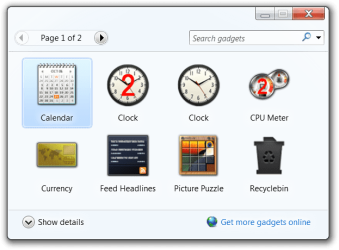
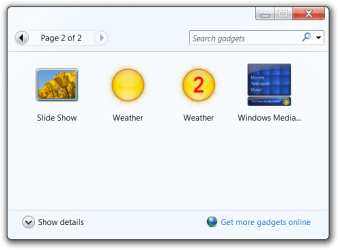
I changed the XML in the Clock, CPU, Weather Gadgets and made the into gadget installers. Download the zip folder at the bottom of this post and extract it, then double click the gadget to install it.I changed my dpi to 100% and suddenly I had two screens full of clocks. Every time I had attempted to launch a clock it had been installing but I simply couldn't see it. As I'm not experienced enough to start messing with scripts and files I'll have to hope someone comes up with a 'fix-it' script for us dunces.
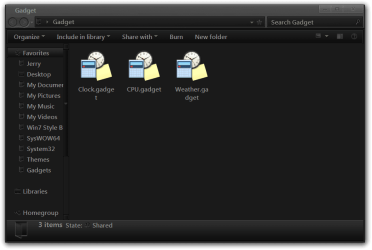
The new gadgets will have a red # 2 on them.
Jerry
Attachments
My Computer
At a glance
Win 7 Pro x64 / Win 10 ProIntel(R) Core(TM) i7-3630QM CPU @ 2.40GHz12 GB(1) Intel(R) HD Graphics 4000 (2) NVIDIA GeFo...
- Computer type
- Laptop
- Computer Manufacturer/Model Number
- Sager NP9170
- OS
- Win 7 Pro x64 / Win 10 Pro
- CPU
- Intel(R) Core(TM) i7-3630QM CPU @ 2.40GHz
- Motherboard
- CLEVO P170EM
- Memory
- 12 GB
- Graphics Card(s)
- (1) Intel(R) HD Graphics 4000 (2) NVIDIA GeForce GTX 675M
- Sound Card
- (1) Realtek High Definition Audio (2) Intel(R) Display Aud
- Monitor(s) Displays
- 17.3
- Screen Resolution
- 1920x1080
- Hard Drives
- (1) Samsung 860 EVO 500GB(OS) (1) Samsung 860 EVO 500GB(Data)
- Keyboard
- Backlite
- Antivirus
- MSE, Malwarebytes Pro
- Browser
- Firefox
- Other Info
- DESKTOP: Custom-built.
OS: Win 10 Pro x64.
CASE: Rosewill R5.
CPU: Intel I5 4670K CPU @ 3.40GHz.
CPU COOLER: Cool Master Hyper 212 EVO.
MOTHERBOARD: Asus Z87-A.
MEMORY: Kingston HyperX 2x4 GB.
GPU: Nvidia Geforce 650 TI.
PSU: Corsair TX750.
DRIVES: (1) Samsung 840 120 GB SSD (2) Western Digital blue 500 GB 7200 RPM.
That's terrific work Jerry. I'm sure it will help a lot of folks.
My Computer
At a glance
Windows 7 Professional x64Intel Core i5 2430M (2.4GHz)4096Mb 1333Mhz DDR3 SDRAMIntel Integrated HD
- Computer type
- Laptop
- Computer Manufacturer/Model Number
- Dell
- OS
- Windows 7 Professional x64
- CPU
- Intel Core i5 2430M (2.4GHz)
- Memory
- 4096Mb 1333Mhz DDR3 SDRAM
- Graphics Card(s)
- Intel Integrated HD
- Monitor(s) Displays
- 17.3 Inch HD Anti Glare
- Screen Resolution
- 1600 x 900
- Hard Drives
- 320Gb 7200rpm serial ATA
- Keyboard
- Illuminated standard
- Mouse
- Microsoft 3500
- Internet Speed
- 40Mb
- Antivirus
- Security Essentials
- Browser
- IE11 x64
Similar threads
- Replies
- 7
- Views
- 13K
