Repair Install

How to Do a Repair Install to Fix Windows 7


   Information
This will show you how to do a repair install (aka: in-place upgrade install) to fix your currently installed Windows 7 and preserve your user accounts, data, programs, and system drivers.
   Note
Do a Repair installation if:
  • A System Restore did not help fix your Windows 7.
  • There is no other easier option left that can fix your Windows 7.
  • You DO NOT want to do a Clean reinstall of Windows 7.
  • You DO want to preserve your user accounts, data, programs, and system drivers.
   Tip
ITEMS THAT WILL BE RESET TO DEFAULT OR AFFECTED:
  • Sounds
  • Services
  • Visual Effects Settings
  • Device Drivers - Be sure to have these handy to reinstall. They do not always remain after the repair (upgrade) install.
  • You may lose the ability to sign on to MSN Messenger, to solve this problem have a look at this thread Unable to sign in to WLM.
  • You may lose your custom themes due to not having permisions set on the old themes. Go to the hidden themes folder at C:/Users/(User-Name)/AppData/Local/Microsoft/Windows/Themes, then Take Ownership of the themes folder and you will now have all your themes back.
  • It has been reported that you may also lose your Media Center gadget after doing the repair install.
  • Windows Updates will need to be checked and reinstalled again.
   Warning

  • You can only do a repair install with the same edition Windows 7 installation disc for the same edition of Windows 7 that you have installed.
  • You cannot use a OEM Windows 7 "Factory" Restore/Recovery type of installation disc that came with or created from a store bought computer to do a repair install with. These can only be used do a clean install instead.
  • You can do a repair install on a factory OEM installation with the latest official Windows 7 with SP1 ISO file here: Microsoft: Windows 7 Direct Download Links, and use Windows 7 USB-DVD Download Tool to create a bootable DVD or USB flash drive with the ISO to do the repair install from within Windows 7.
  • You can use a retail OEM Windows 7 installation disc to do a repair install with.
  • You can use a retail (full or upgrade) Windows 7 installation disc to do a repair install with.
  • You cannot do a repair install with a System Repair Disc. A System Repair Disc is not a installation disc, and will only boot to the System Recovery Options screen.
  • If you have a 32-bit (x86) Windows 7 currently installed, then you must use a 32-bit Windows 7 installation disc to be able to do a repair install with.
  • If you have a 64-bit (x64) Windows 7 currently installed, then you must use a 64-bit Windows 7 installation disc to be able to do a repair install with.
  • You can use a retail Windows 7 SP1 installation disc (ex: Technet (available), MSDN (available), or retail (when available)) to do a repair install with on a currently installed Windows 7 SP1.
  • You can use a Windows 7 SP1 installation disc (ex: Technet (available), MSDN (available), or retail (when available)) to do a repair install with on a currently installed slipstream Windows 7 SP1.
  • You cannot use a slipstream Windows 7 installation disc to do a repair install with on a currently installed Windows 7 SP1.
  • You cannot use a slipstream Windows 7 installation disc to do a repair install with on a currently installed slipstream Windows 7 SP1.
  • You can only do a repair install from within Windows 7.
  • You cannot do a repair install at boot or in Safe Mode.
  • You must be logged into Windows 7 in a administrator account to be able to do a repair install.
  • You must have at least 8.87 GB + what is currently being used of free space (more if you have a larger installation) on the hard drive/partition Windows 7 is installed on to do a repair install.
  • If you changed the default location of a user account's profile folder, then you will need to change it back to the default C:\Users location first.
  • If you moved the default location of a user folder, then you will need to change it back to the default C:\Users\(user-name) location first.


Here's How:
NOTE: Be sure to back up anything that you do not want to lose first to be extra safe.1. Start Windows 7, and log on to an administrator account.

2. Disable any 3rd party firewall, antivirus, or other security program to avoid it from possibly preventing the repair in-place upgrade installation of Windows 7.

3. Do either step 4, step 5, or step 6 below depending if your retail Windows 7 installation ISO/DVD/USB has SP1 or not, and if your currently installed Windows 7 has SP1 installed or not.

4. Repair Installed Windows 7 SP1 using Windows 7 with SP1 ISO

   Note
If you do not have a Windows 7 with SP1 ISO, then you can download an official ISO with your retail product key from Microsoft at the link below.

:ar: Microsoft Software Recovery

You can also download the latest official Windows 7 SP1 Media Refresh (SP1 U) ISO file at the link below, but this link is not always available for download.

:ar: Microsoft: Windows 7 Direct Download Links

A) If you have not already, you will need to install a program like 7-Zip that supports extracting a ISO to a folder.

B) Using the program (ex: 7-Zip) from step 1, extract the Windows 7 SP1 ISO file to a folder on a partition or HDD other than the current Windows 7 partition. (see screenshot below)
NOTE: For example with 7-Zip, right click on ISO, click on 7-Zip, Extract files, browse button, select where you want to extract to, and click on OK twice.7-Zip.jpg
C) While in Windows 7 SP1, open the folder that you extracted the ISO into, and run the setup.exe file.

D) Go to step 7 below.
5. Repair Installed Windows 7 SP1 using Windows 7 with SP1 DVD/USB

   Note
If you do not have a Windows 7 with SP1 ISO, then you can download an official ISO with your retail product key from Microsoft at the link below.

:ar: http://www.microsoft.com/en-us/software-recovery

You can also download the latest official Windows 7 SP1 Media Refresh (SP1 U) ISO file at the link below, but this link is not always available for download.

:ar: Microsoft: Windows 7 Direct Download Links

Afterwards, you can use Windows 7 USB-DVD Download Tool to create a bootable DVD or USB flash drive with the ISO to do the repair install from within Windows 7 using this step.

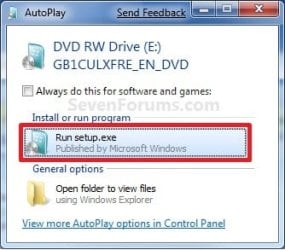
A) While in Windows 7 SP1, insert your retail Windows 7 SP1 installation DVD into the DVD drive, or connect your Windows 7 with SP1 installation USB thumb drive, and click on the Run setup.exe option in AutoPlay. (see screenshot below)
NOTE: If the AutoPlay window does not open, then open the drive folder in Computer and run the setup.exe file.AutoPlay.jpg
B) Go to Go to step 7 below.
6. Repair Installed Windows 7 without SP1 using Windows 7 without SP1 DVD/USB

   Note
If you do not have a Windows 7 without SP1 installation DVD/USB, then you can download the latest official Windows 7 Professional or Home Premium without SP1 ISO file here: Microsoft: Windows 7 Direct Download Links, and use Windows 7 USB-DVD Download Tool to create a bootable DVD or USB flash drive with the ISO to do the repair install from within Windows 7 using this step.

It is preferred to have SP1 installed on your PC and to use step 4 or step 5 above to do a repair install with instead though.

A) While in Windows 7 SP1 installed, insert your retail Windows 7 installation DVD into the DVD drive, or connect your Windows 7 installation USB thumb drive, and click on the Run setup.exe option in AutoPlay. (see screenshot below)
NOTE: If the AutoPlay window does not open, then open the drive folder in Computer and run the setup.exe file.AutoPlay.jpg
B) Go to Go to step 7 below.
7. If prompted by UAC, then click on Yes.

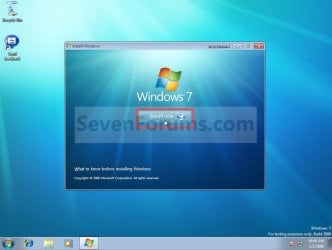
8. Click on the Install Now button to start the installation. (see screenshot below)Step1.jpg
9. If prompted, uncheck the I want to help make Windows installation better box (unless you would like to :) ), and click on the Go online to get the latest updates for installation option. (see screenshot below)Step2.jpg
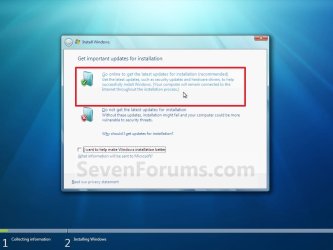
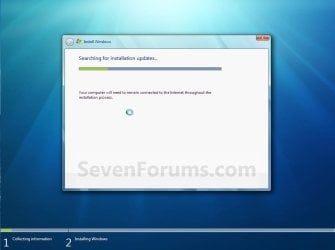
A) Windows 7 will now check online for and install any available installation updates. (see screenshots below)Step2A.jpg

Step2B.jpg

10. Check the I accept the license terms box, and click on Next. (see screenshot below)Step3.jpg
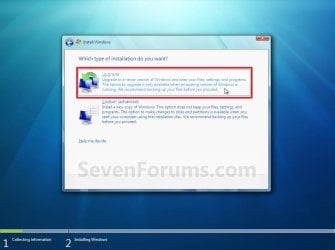
11. Click on the Upgrade option. (see screenshot below)Step4.jpg
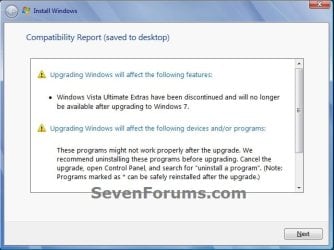
12. Windows will now check for any compatibility issues. If any are found like in the example below, click on the red X to cancel the repair install and close this "Install Windows" window, take care of any found issues (ex: uninstall any incompatible program), then restart the repair install process over again.Compatibility-Report.jpg
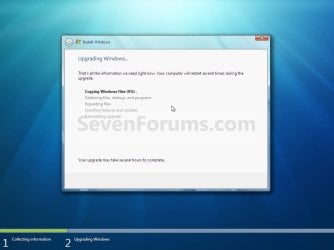
13. The installation of Windows 7 will now begin. (see screenshot below)
NOTE: During the installation process, your screen may flash and computer will restart a few times.Step5.jpg
14. After the final restart, you will see this screen for a moment. (see screenshot below)Step6.jpg
15. Type in your Windows 7 product key number. (see screenshot below step 16)

16. Uncheck the Automatically activate Windows when I'm online box unchecked, then click on the Next button. (see screenshot below)
NOTE: You can activate Windows 7 later after you make sure it is running properly. (see step 23 below)
If you chose to automatically activate Windows online when you set up your computer, automatic activation begins trying to activate your copy of Windows three days after you log on for the first time.Step7.jpg
17. Click on Use recommended settings. (see screenshot below)

:note: You will always be able to change your Windows Update settings at anytime in Windows 7.

Step8.jpg
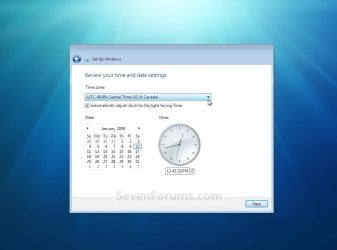
18. Select your time zone and set your time and date settings, then click on the Next button. (see screenshot below)Step9.jpg
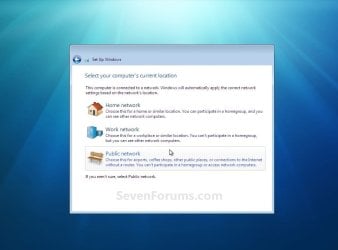
19. Click on the option for your computer's location to select the correct network location type settings to be applied for that location. (see screenshot below)
NOTE: It is best to select Public location for the best security.Step10.jpg
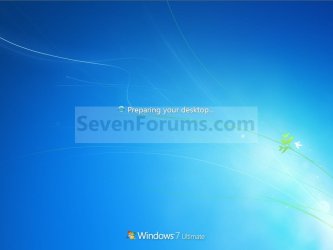
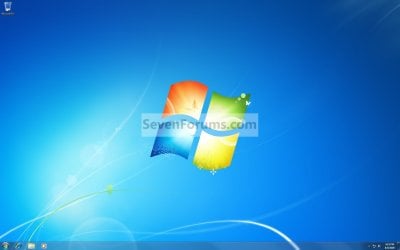
20. Windows 7 will now prepare your desktop to startup. (see screenshots below)Step11A.jpg

Desktop.jpg

21. If you used a DVD or USB to do the repair install with, then you can remove the DVD or USB when the repair install has successfully completed and you are logged in to Windows 7.

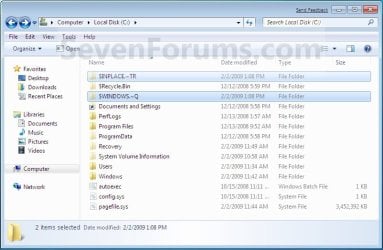
22. Check to see if you are missing any user files. If you are, then you can copy them from the C:\Windows.old or the hidden protected operating system C:\$INPLACE.~TR and C:\WINDOWS.~Q backup folders. (see screenshot below)Old_Install.jpg
23. If everything checks out in step 21, then you can run Disk Cleanup (step 5 at this link). You will need to click on the Clean up system files button first, and then could check the Files discarded by Windows upgrade, Previous Windows installations, and Windows upgrade log files boxes. (see screenshot below)
NOTE: This will delete the C:\Windows.old, C:\$INPLACE.~TR and C:\WINDOWS.~Q folders from step 21 above.Disk_Cleanup.jpg
24. Refresh your Windows Experience Index (WEI) score.

25. When finished, activate Windows 7, and make sure that your 3rd party security programs (if applicable) are enabled again.
That's it,
Shawn


Last edited:
I got a major problem. I can only run the setup.exe, and when I press the install button it tells me that I am missing WININT.dll file and also have me a second message that WinSetup.dll may be corrupted and gives me the error code: 0x7E

I'm really mad right now because this also means I can't do a clean install to fix my PC. I've tried evrything that is possible so far. What other choices do I have available please answer back.
 

My Computer

Computer type
Laptop
Computer Manufacturer/Model Number
Lenovo G470
OS
Windows 7 Home Premium x64
CPU
Intel 2nd Gen 2.30GHz
Graphics Card(s)
Intell Graphics 3000
Screen Resolution
1366x700
Internet Speed
30mbs
Antivirus
Norton 360
Browser
Google Chrome
Hello Nightdash,

What type of installation media are you using?

If you have not a already, you might download the latest ISO file from the links in the tutorial to create new installation media with instead.
 

My Computer

Computer type
PC/Desktop
Computer Manufacturer/Model Number
Self built custom
OS
64-bit Windows 11 Pro for Workstations
CPU
Intel i7-8700K OC'd to 5 GHz
Motherboard
ASUS ROG Maximus XI Formula Z390
Memory
64 GB (4x16GB) G.SKILL TridentZ RGB DDR4 3600 MHz
Graphics Card(s)
ASUS ROG-STRIX-GTX1080TI-O11G-GAMING
Sound Card
Integrated
Monitor(s) Displays
2 x Samsung Odyssey G7 27"
Screen Resolution
2560x1440
Hard Drives
1TB Samsung 990 PRO M.2,
4TB Samsung 990 PRO PRO M.2,
TerraMaster F8 SSD Plus NAS
PSU
Seasonic Prime Titanium 850W
Case
Thermaltake Core P3
Cooling
Corsair Hydro H115i
Keyboard
Logitech wireless K800
Mouse
Logitech MX Master 4
Internet Speed
2 Gb/s Download and 100 Mb/s Upload
Antivirus
Malwarebyte Anti-Malware Premium
Browser
Google Chrome
Other Info
Logitech Z625 speaker system,
Logitech BRIO 4K Pro webcam,
HP Color LaserJet Pro MFP M477fdn,
APC SMART-UPS RT 1000 XL - SURT1000XLI,
Galaxy S23 Plus phone
I'm using a PNY USB drive and I'm sure I have the latest ISO file
 

My Computer

Computer type
Laptop
Computer Manufacturer/Model Number
Lenovo G470
OS
Windows 7 Home Premium x64
CPU
Intel 2nd Gen 2.30GHz
Graphics Card(s)
Intell Graphics 3000
Screen Resolution
1366x700
Internet Speed
30mbs
Antivirus
Norton 360
Browser
Google Chrome
You might see if using the ISO on a local drive instead may work better.
 

My Computer

Computer type
PC/Desktop
Computer Manufacturer/Model Number
Self built custom
OS
64-bit Windows 11 Pro for Workstations
CPU
Intel i7-8700K OC'd to 5 GHz
Motherboard
ASUS ROG Maximus XI Formula Z390
Memory
64 GB (4x16GB) G.SKILL TridentZ RGB DDR4 3600 MHz
Graphics Card(s)
ASUS ROG-STRIX-GTX1080TI-O11G-GAMING
Sound Card
Integrated
Monitor(s) Displays
2 x Samsung Odyssey G7 27"
Screen Resolution
2560x1440
Hard Drives
1TB Samsung 990 PRO M.2,
4TB Samsung 990 PRO PRO M.2,
TerraMaster F8 SSD Plus NAS
PSU
Seasonic Prime Titanium 850W
Case
Thermaltake Core P3
Cooling
Corsair Hydro H115i
Keyboard
Logitech wireless K800
Mouse
Logitech MX Master 4
Internet Speed
2 Gb/s Download and 100 Mb/s Upload
Antivirus
Malwarebyte Anti-Malware Premium
Browser
Google Chrome
Other Info
Logitech Z625 speaker system,
Logitech BRIO 4K Pro webcam,
HP Color LaserJet Pro MFP M477fdn,
APC SMART-UPS RT 1000 XL - SURT1000XLI,
Galaxy S23 Plus phone
What is a .vhd file?

Then, I would try booting from that different DVD,
hit the Shift_F10 trick for Admin Cmd prompt, then make a ".vhd" on either C: or preferably on another partition -if- its on a separate -physical- HDD.

If your other partitions are on the same physical HDD, it won't make any difference where it goes.

If your C: HDD is big enough, I'd make the .vhd 30 GB, and install into that.
There's an excellent Tutorial for "Creating and Installing to a VHD", on this board.

It's gonna take a while, so be prepared for a long coffee break while he's formatting the .vhd (file).

Things can still go wrong using this technique, but it seems like a "possible" option (to me). Maybe this can save your data, depending upon what Win_7 Setup does with the boot-sector, BCD-store, etc. Win_7 Setup/Install just might 'get it right' and give you a bootable machine, from the .vhd...

Good luck.
Last edited by chuckr; 31 Jul 2009 at 08:01 PM..
My System SpecsSystem Spec
.
 

My Computer

Computer type
PC/Desktop
Computer Manufacturer/Model Number
custom build
OS
Microsoft Windows 7 Professional 64-bit 7601 Multiprocessor Free Service Pack 1
CPU
AMD Athlon(tm) 64 X2 Dual Core Processor 4800+
Motherboard
Gigabyte Technology Co., Ltd. M61P-S3
Memory
8.00 GB
Graphics Card(s)
NVIDIA GeForce 8400GS
Sound Card
(1) NVIDIA High Definition Audio (2) NVIDIA High Definitio
Monitor(s) Displays
HP L1750 LCD F/W VERSION STM049 60HZ
Screen Resolution
1280 x 1024 x 32 bits (4294967296 colors) @ 60 Hz
Hard Drives
(1) WDC WD2500JB-00REA0 ATA Device (2) SAMSUNG SP2004C SCSI Disk Device
Keyboard
Dell USB entry
Mouse
Dell Optical USB MOuse
Antivirus
Microsoft Security Essentials
Browser
IE11, Chrome, Google
Hello Brink,

I have what I hope is an easy and fast question. I'll admit up front I haven't read all 145 pages of replies to your original "How to do a Repair Install to fix Windows 7" post. I did a search within it but didn't seem to find an answer.

The question: Will the repair install restore the original file and folder permissions and ownership for the entire drive, including other software installations?

The background: My system got hit with some ransomware over a year ago. I used another computer to research and determine how to get rid of it. However, I don't believe I got all of it out. Then, I got hit with another version of ransomware again earlier this year. After getting rid of it, I found I couldn't download items to my Downloads folder but I could save many items to the desktop. I'd get an error message saying the file couldn't be downloaded or saved, after the security scan message popped up at the end of the download. However, I'd see the item on my desktop. Some MS patches refuse to save regardless of the location I specify.

In researching the downloading/saving problem, I ended up taking ownership and changing permissions on various folders. So, I've made my problem worse.

In looking through the General Discussion thread, I saw a couple Jan 2012 posts from "greenmountain" about reformatting and reinstalling Windows 7 for the same basic reason. He said he backed up his old files using WinRAR and there was a setting that allowed the files to be restored without their permissions. He also mentioned a product called RollBack which appears to be RollBack RX that may or may not do the same thing.

I wanted to ask my question before I go too far down a path that goes nowhere. My goal is to try and save reinstalling everything that's on the hard drive, if possible. Thanks for your time and patience - regards! v/r, Jim in MD
 

My Computer

Computer type
PC/Desktop
Computer Manufacturer/Model Number
Custom build (Alienware chassis, different MB)
OS
Windows 7 Ultimate 32 bit
CPU
Intel Core2 Duo E8400 @ 3.00 GHz
Motherboard
EVGA nForce 790i Ultra SLI
Memory
4 GB
Graphics Card(s)
NVIDIA GeForce 9600 GT
Hard Drives
Several - WD and Maxtor, IDE and SATA
Antivirus
AVG Premium Security 2013
Browser
MS IE 11
Hello desantj, and welcome to Seven Forums.

I'm afraid that I do not believe that a repair install will help with this, but it won't hurt anything to try if you like. Just be sure to back up anything that you do not want to lose first to be extra safe.
 

My Computer

Computer type
PC/Desktop
Computer Manufacturer/Model Number
Self built custom
OS
64-bit Windows 11 Pro for Workstations
CPU
Intel i7-8700K OC'd to 5 GHz
Motherboard
ASUS ROG Maximus XI Formula Z390
Memory
64 GB (4x16GB) G.SKILL TridentZ RGB DDR4 3600 MHz
Graphics Card(s)
ASUS ROG-STRIX-GTX1080TI-O11G-GAMING
Sound Card
Integrated
Monitor(s) Displays
2 x Samsung Odyssey G7 27"
Screen Resolution
2560x1440
Hard Drives
1TB Samsung 990 PRO M.2,
4TB Samsung 990 PRO PRO M.2,
TerraMaster F8 SSD Plus NAS
PSU
Seasonic Prime Titanium 850W
Case
Thermaltake Core P3
Cooling
Corsair Hydro H115i
Keyboard
Logitech wireless K800
Mouse
Logitech MX Master 4
Internet Speed
2 Gb/s Download and 100 Mb/s Upload
Antivirus
Malwarebyte Anti-Malware Premium
Browser
Google Chrome
Other Info
Logitech Z625 speaker system,
Logitech BRIO 4K Pro webcam,
HP Color LaserJet Pro MFP M477fdn,
APC SMART-UPS RT 1000 XL - SURT1000XLI,
Galaxy S23 Plus phone
Hello Brink,

Thanks for the reply! I'll go ahead and try the repair install after doing a backup. It may be a couple weeks before I can have the uninterrupted time to do everything. I'll post back to let you know what happened. Regards! v/r, Jim in MD
 

My Computer

Computer type
PC/Desktop
Computer Manufacturer/Model Number
Custom build (Alienware chassis, different MB)
OS
Windows 7 Ultimate 32 bit
CPU
Intel Core2 Duo E8400 @ 3.00 GHz
Motherboard
EVGA nForce 790i Ultra SLI
Memory
4 GB
Graphics Card(s)
NVIDIA GeForce 9600 GT
Hard Drives
Several - WD and Maxtor, IDE and SATA
Antivirus
AVG Premium Security 2013
Browser
MS IE 11
Ok Jim. I hope it goes well, and will be here when ready. :)
 

My Computer

Computer type
PC/Desktop
Computer Manufacturer/Model Number
Self built custom
OS
64-bit Windows 11 Pro for Workstations
CPU
Intel i7-8700K OC'd to 5 GHz
Motherboard
ASUS ROG Maximus XI Formula Z390
Memory
64 GB (4x16GB) G.SKILL TridentZ RGB DDR4 3600 MHz
Graphics Card(s)
ASUS ROG-STRIX-GTX1080TI-O11G-GAMING
Sound Card
Integrated
Monitor(s) Displays
2 x Samsung Odyssey G7 27"
Screen Resolution
2560x1440
Hard Drives
1TB Samsung 990 PRO M.2,
4TB Samsung 990 PRO PRO M.2,
TerraMaster F8 SSD Plus NAS
PSU
Seasonic Prime Titanium 850W
Case
Thermaltake Core P3
Cooling
Corsair Hydro H115i
Keyboard
Logitech wireless K800
Mouse
Logitech MX Master 4
Internet Speed
2 Gb/s Download and 100 Mb/s Upload
Antivirus
Malwarebyte Anti-Malware Premium
Browser
Google Chrome
Other Info
Logitech Z625 speaker system,
Logitech BRIO 4K Pro webcam,
HP Color LaserJet Pro MFP M477fdn,
APC SMART-UPS RT 1000 XL - SURT1000XLI,
Galaxy S23 Plus phone
Hello Brink,

Thanks for your time and patience! I ended up not pursuing the in-place repair action. I did try something else suggested by a MS MVP in another forum but it didn't help either. I tried using the SubInACL tool. It did appear to help me regain ownership and permissions for some folders, but I think my OS and hard drive were already on the steep descent to crashing.

I made a complete hard drive backup, then I reformatted the hard drive and used a supplemental program to "wipe" the clear space left after formatting. After that, I reinstalled my OS and have slowly been reinstalling my programs. I wrote down everything I had installed to help me decide not to reinstall some programs I haven't used in ages. (Example: TaxCut 2004-2008 - I'm well past any possible IRS audits for those tax years and I have soft copies of the returns.)

Following other advice from "greenmountain," I've installed a roll back program that loads at system startup and takes the place of System Restore. It gives me the option to restore an earlier system snapshot before the OS loads. It also takes a snapshot of the system before the OS loads. And, once the computer's up and running, I can take a snapshot any time I want. I've been taking them after I reinstall each program, just in case I encounter problems.

One other unrelated question for you - what's your thought about registry cleaner programs that purport to remove bad registry entries? My first in-place repair action came about from using the registry cleaner portion of a well-known software program a little too religiously. It apparently removed valid entries as well as bad ones. While troubleshooting the problems and before I did the in-place repair, the person helping me advised normal installation and uninstallation of software should not create registry problems. He advised against using any sort of registry cleaner. But, anti-virus and other programs now seem to include these registry cleaners that run and report problems, almost like "nagware." I welcome your thoughts on the use of these programs and any recommendations you have for them.

Thanks, regards, and I hope you and yours enjoy a safe and relaxing Holiday Season! JRD

v/r,

Jim in MD
 

My Computer

Computer type
PC/Desktop
Computer Manufacturer/Model Number
Custom build (Alienware chassis, different MB)
OS
Windows 7 Ultimate 32 bit
CPU
Intel Core2 Duo E8400 @ 3.00 GHz
Motherboard
EVGA nForce 790i Ultra SLI
Memory
4 GB
Graphics Card(s)
NVIDIA GeForce 9600 GT
Hard Drives
Several - WD and Maxtor, IDE and SATA
Antivirus
AVG Premium Security 2013
Browser
MS IE 11
Hello Jim,

I'm happy to hear that you are back up and running again without losing anything, but sorry it took a clean install.

I agree with the other person that helped you. Registry cleaning programs are to be avoided at all cost. There are just to many out there that are nothing more than snake oil that claim to fix everything including the kitchen sing that only cause damage to Windows usually leading to have to reinstall.

Registry cleaners that are over aggressive in reporting what should be removed from the registry is often the problem. The next problem is the user allowing these results to be deleted from the registry without knowing what is safe or not safe to allow to delete. The program doesn't really help to let the user know what is safe or not, and the ones that do may not always be correct. We all know what happens if you delete something from the registry that shouldn't have been deleted. You'll find yourself with an unstable/crashing Windows and/or other programs.
 

My Computer

Computer type
PC/Desktop
Computer Manufacturer/Model Number
Self built custom
OS
64-bit Windows 11 Pro for Workstations
CPU
Intel i7-8700K OC'd to 5 GHz
Motherboard
ASUS ROG Maximus XI Formula Z390
Memory
64 GB (4x16GB) G.SKILL TridentZ RGB DDR4 3600 MHz
Graphics Card(s)
ASUS ROG-STRIX-GTX1080TI-O11G-GAMING
Sound Card
Integrated
Monitor(s) Displays
2 x Samsung Odyssey G7 27"
Screen Resolution
2560x1440
Hard Drives
1TB Samsung 990 PRO M.2,
4TB Samsung 990 PRO PRO M.2,
TerraMaster F8 SSD Plus NAS
PSU
Seasonic Prime Titanium 850W
Case
Thermaltake Core P3
Cooling
Corsair Hydro H115i
Keyboard
Logitech wireless K800
Mouse
Logitech MX Master 4
Internet Speed
2 Gb/s Download and 100 Mb/s Upload
Antivirus
Malwarebyte Anti-Malware Premium
Browser
Google Chrome
Other Info
Logitech Z625 speaker system,
Logitech BRIO 4K Pro webcam,
HP Color LaserJet Pro MFP M477fdn,
APC SMART-UPS RT 1000 XL - SURT1000XLI,
Galaxy S23 Plus phone
I have run scannow numerous times and each time it tells me it could not repair all the files...

The only Windows 7 disc set I have is the one I just received from HP....it does not allow for repair.

Appreciate your help.
 

My Computer

OS
Windows 7
Hello Barnum,

Yeah, that disc set would only allow you to do a factory install of Windows 7.

You could see if doing the items listed in the blue Note box under step 4 in OPTION TWO if the tutorial below may be able to allow SFC to repair the files afterwards.

If not, then please post back with your sfcdetails.txt file from OPTION THREE to see what SFC says it cannot repair, and if it's anything to worry about. Are you having any other issues?

http://www.sevenforums.com/tutorials/1538-sfc-scannow-command-system-file-checker.html
 

My Computer

Computer type
PC/Desktop
Computer Manufacturer/Model Number
Self built custom
OS
64-bit Windows 11 Pro for Workstations
CPU
Intel i7-8700K OC'd to 5 GHz
Motherboard
ASUS ROG Maximus XI Formula Z390
Memory
64 GB (4x16GB) G.SKILL TridentZ RGB DDR4 3600 MHz
Graphics Card(s)
ASUS ROG-STRIX-GTX1080TI-O11G-GAMING
Sound Card
Integrated
Monitor(s) Displays
2 x Samsung Odyssey G7 27"
Screen Resolution
2560x1440
Hard Drives
1TB Samsung 990 PRO M.2,
4TB Samsung 990 PRO PRO M.2,
TerraMaster F8 SSD Plus NAS
PSU
Seasonic Prime Titanium 850W
Case
Thermaltake Core P3
Cooling
Corsair Hydro H115i
Keyboard
Logitech wireless K800
Mouse
Logitech MX Master 4
Internet Speed
2 Gb/s Download and 100 Mb/s Upload
Antivirus
Malwarebyte Anti-Malware Premium
Browser
Google Chrome
Other Info
Logitech Z625 speaker system,
Logitech BRIO 4K Pro webcam,
HP Color LaserJet Pro MFP M477fdn,
APC SMART-UPS RT 1000 XL - SURT1000XLI,
Galaxy S23 Plus phone
No other problems...just this long startup.

This is the message I got when I ran sfc/verify


Microsoft Windows [Version 6.1.7601]
Copyright (c) 2009 Microsoft Corporation. All rights reserved.
C:\Windows\system32> sfc /verifyonly
Beginning system scan. This process will take some time.
Beginning verification phase of system scan.
Verification 100% complete.
Windows Resource Protection found integrity violations. Details are included in
the CBS.Log windir\Logs\CBS\CBS.log. For example C:\Windows\Logs\CBS\CBS.log
C:\Windows\system32>
 

My Computer

OS
Windows 7
If you like, go ahead and post back with a sfcdetails.txt file after running a sfc /scannow command, and I'll be happy to see what it says it cannot repair.
 

My Computer

Computer type
PC/Desktop
Computer Manufacturer/Model Number
Self built custom
OS
64-bit Windows 11 Pro for Workstations
CPU
Intel i7-8700K OC'd to 5 GHz
Motherboard
ASUS ROG Maximus XI Formula Z390
Memory
64 GB (4x16GB) G.SKILL TridentZ RGB DDR4 3600 MHz
Graphics Card(s)
ASUS ROG-STRIX-GTX1080TI-O11G-GAMING
Sound Card
Integrated
Monitor(s) Displays
2 x Samsung Odyssey G7 27"
Screen Resolution
2560x1440
Hard Drives
1TB Samsung 990 PRO M.2,
4TB Samsung 990 PRO PRO M.2,
TerraMaster F8 SSD Plus NAS
PSU
Seasonic Prime Titanium 850W
Case
Thermaltake Core P3
Cooling
Corsair Hydro H115i
Keyboard
Logitech wireless K800
Mouse
Logitech MX Master 4
Internet Speed
2 Gb/s Download and 100 Mb/s Upload
Antivirus
Malwarebyte Anti-Malware Premium
Browser
Google Chrome
Other Info
Logitech Z625 speaker system,
Logitech BRIO 4K Pro webcam,
HP Color LaserJet Pro MFP M477fdn,
APC SMART-UPS RT 1000 XL - SURT1000XLI,
Galaxy S23 Plus phone
I have a Toshiba C660D but when booting the laptop it gets passed the welcome screen but it then says "windows explorer crashed" and prevents me from doing anything else i.e. No desktop icons load

It seems like someone turned off the laptop half way through a windows update.

Spec:

Toshiba C660D
Windows 7 64Bit

Do you recommend a repair install?
 

My Computer

OS
Windows 7 Professional 64bit
Can you boot into Safe Mode and while there, initiate System Restore?

Lesson #1: Never interrupt Windows Updates, or any update for that matter.
 
Last edited:

My Computer

Computer type
PC/Desktop
Computer Manufacturer/Model Number
Alienware® ALX X58
OS
Win 7 Ult SP1/Win 10 Pro (all x64)
CPU
Intel® Core™ i7-975 Extreme O/C to 4.02 GHz, 8MB Cache
Motherboard
Asus® P6T Deluxe V2 X58 LGA1366
Memory
24GB Corsair Vengeance DDR3 SDRAM at 1600MHz - 6 x 4096MB
Graphics Card(s)
1792 MB NVIDIA® GeForce® GTX 295 Dual Core
Sound Card
Onboard Soundmax® High-Definition 7.1 Performance Audio
Monitor(s) Displays
Samsung XL2370 LED backlit 23" W/S 2ms response time
Screen Resolution
1920 X 1080
Hard Drives
2 x 500gb SATA II
1 x 1TB SATA II
1 external eSATA LaCie 3TB
(Non-RAID)
PSU
Alienware® 1200 Watt Multi-GPU
Case
Alienware® P2 ALX Chassis with AlienIce™ 3.0 Video Cooling
Cooling
Alienware® High-Perf. Liquid Cooling + Acoustic Dampening
Keyboard
Microsoft® Wireless Entertainment 8000 + Logitech® G15 Wired
Mouse
Microsoft® Wireless Laser 8000 + Logitech® G9 Wired
Internet Speed
1Gb/s
Antivirus
McAfee LiveSafe
Browser
Firefox - latest
Other Info
Using non-RAID on purpose as I find RAID to be too temperamental.
Now set to AHCI
I have a Toshiba C660D but when booting the laptop it gets passed the welcome screen but it then says "windows explorer crashed" and prevents me from doing anything else i.e. No desktop icons load

It seems like someone turned off the laptop half way through a windows update.

Spec:

Toshiba C660D
Windows 7 64Bit

Do you recommend a repair install?
Do a "system restore" ... eventually from "win7 recovery environment"

http://www.sevenforums.com/tutorials/700-system-restore.html
 

My Computer

Computer type
Laptop
Computer Manufacturer/Model Number
ACER ASPIRE 5742G
OS
Microsoft Windows 7 Home Premium 64-bits 7601 Multiprocessor Free Service Pack 1
CPU
Intel(R) Core(TM) i3 CPU M 370 @ 2.40GHz
Motherboard
Acer Aspire 5742G
Memory
4,00 GB
Graphics Card(s)
ATI Mobility Radeon HD 5400 Series
Sound Card
(1) AMD High Definition Audio Device (2) Realtek High Defi
Screen Resolution
1366 x 768 x 32 bits (4294967296 colors) @ 60 Hz
Hard Drives
WDC WD5000BEVT-22ZAT0
Try booting up in safe mode and restoring to a previous restore point.
 

My Computer

OS
Windows 7 Home Premium 64bit
Could not retrieve information

Going to do an Install/Repair on a HP Slimline Desktop
Getting BSOD, with IRQL and others
Clean of malware
Could only boot to Safe Mode

Had to resort to Selective startup settings with nothing checked to boot normal.
Now boots OK.
When I go to the install part, get temporary files loaded then:
"Windows could not retrieve information about the discs on this computer"
I assume there's some service that needs to be checked but I don't know which.

Pete
 

My Computer

Computer Manufacturer/Model Number
Home Built
OS
Windows 7 Professional
CPU
AMD 64 Athlon X2 Dual Core
Motherboard
Asus M3A
Memory
6 Gig
Graphics Card(s)
Nvidia GeForce 8800GTS
Hard Drives
500GB Seagate (2)
Other Info
Laptop is Gateway NV52 with Windows 7 Home Premium
Back
Top