
4TB Drive Backup and Restore Compatibility?

charkzilla20

New member
Member
Local time
4:19 PM
Messages
78
Hi everyone.
I was just about to go out and get myself a nice big 4TB WD MyBook External Hard drive to use for my PC backups and data backups, until I read somewhere that Windows 7 Backup and Restore has issues with large drives. Something to do with 4k sectors or something...
Is there a way I can get the 4tb drive to work with it reliably and easily?
Or the other thing I was thinking was getting something smaller that Backup and Restore can manage (maybe 2tb? what's the limit for the thing?), and another drive for my drag-and-drop files.
Or could the 4tb one work with it partitioned into 2 smaller ones that Backup and Restore can work with and use the other for other files? or will that not work because of the sector thing?

Or if the stock Windows Backup and Restore sucks, and I should use something else, what should I use? What should I do? I want the process to be as smooth and reliable as possible.

Thanks for all of your help peoples :)
 

My Computer My Computer

Computer type
PC/Desktop
Computer Manufacturer/Model Number
I made her myself :)
OS
Windows 7 Professional
CPU
Intel i5-4670k
Motherboard
Asus Z87-Pro
Memory
G.SKILL Ripjaws X Series 16GB 1600mhz (F3-1600C9D-16GXM)
Graphics Card(s)
EVGA GTX770 SC ACX 2gb
Monitor(s) Displays
Acer H236HLbid 23" ips 5ms GTG
Screen Resolution
1080p
Hard Drives
-128gb Samsung 840 Pro (C drive with OS)
-1tb WD Black 7200rpm 64mb WD1002FAEX (music, programs, files, etc.)
-120gb Samsung 840 evo (games)
PSU
SeaSonic M12II 750watt
Case
Coolermaster HAF 922 all black, usb 3.0
Cooling
CPU: CM hyper 212 evo with push-pull Cougar Vortex fans
Keyboard
CM Storm QuickFire TK (brown switch mechanical)
Mouse
perixx mx-2000
Internet Speed
21Mb/s down, 2Mb/s up (on a good day)
Antivirus
Malwarebytes and Microsoft Security Essentials
Browser
Chrome
Other Info
Fans on case: front 200mm in, top 200mm out, x2 side 120mm in (cougar vortex), rear 120mm out

I've never seen my cpu go above 40c and my card above 60c even with intense games or benchmarks
I don't overclock anything, as I rely on this machine too much for other things to risk it getting fried.
Not sure about the 4 GB issue with Backup and Restore, but most here would tell you to use another program. It works, but isn't polished, flexible, and easily understood.

You'll have to initialize the drive as a GPT disk if you want to utilize all 4 GB. I don't see any reason to chop it up into multiple partitions for most purposes.

You could look at Macrium Reflect or Aomei Backupper to make images of Windows. Both free. I think Paragon may have a free imaging program too? Macrium is probably the favorite here.

You might want to consider something other than imaging to back up your personal files. There's a bunch of free applications that do a pretty good job of that.
 

My Computer My Computer

Computer type
PC/Desktop
Computer Manufacturer/Model Number
Ignatz Special; 4 speed manual gearbox; factory air conditioning; one of one
OS
Windows 7 Home Premium SP1, 64-bit
CPU
Intel Skylake i5-6600K, not overclocked
Motherboard
AsRock Z170M Extreme 4, micro ATX
Memory
8 GB HyperX DDR4-2666 (2 x 4 GB)
Graphics Card(s)
none; graphics are integrated on CPU
Sound Card
onboard: Realtek ALC1150; external: USB Behringer UF0-202
Monitor(s) Displays
Dell S2340M 23 inch IPS
Screen Resolution
1600 x 900
Hard Drives
System: Crucial MX100 series SSD, 128 GB;
Data: Samsung Spinpoint 103SJ, 1 TB;
Backup: WD Caviar Green WD30EZRX-00D8PB0, 3 TB
PSU
Rosewill SilentNight 500 watt fanless, semi-modular
Case
Antec Solo II
Cooling
Noctua NH-U12S; Noctua F12 intake, Noctua S12A exhaust
Keyboard
Microsoft 200 6JH-00001 USB
Mouse
Dell or Microsoft optical wired; USB
Antivirus
Microsoft Security Essentials and Malwarebytes Premium
Browser
Pale Moon
Other Info
All fans PWM; speeds at idle: CPU circa 500 rpm; intake circa 600 rpm; exhaust circa 600 rpm; CPU temps 27 idle and 47 C load in a warm room (27 C/81 F) when running Intel Extreme Tuning Utility stress test.
Not sure about the 4 GB issue with Backup and Restore, but most here would tell you to use another program. It works, but isn't polished, flexible, and easily understood.

You'll have to initialize the drive as a GPT disk if you want to utilize all 4 GB. I don't see any reason to chop it up into multiple partitions for most purposes.

You could look at Macrium Reflect or Aomei Backupper to make images of Windows. Both free. I think Paragon may have a free imaging program too? Macrium is probably the favorite here.

You might want to consider something other than imaging to back up your personal files. There's a bunch of free applications that do a pretty good job of that.

Thanks for the info :)
I guess I would be willing to try other software for my backups. I'm just worried about the possibility of if I encounter a problem where the PC can't boot, and I want to restore it to a previous date. It looks like windows only works with it's own Restore software in the system restore menu area before a boot in the system repair thing (sorry I don't remember what it's called) (i've had to do it once before), and if the backup is done by other software, then I'll be SOL. I might be completely wrong though. Is this the case?

I guess I'll look around for some popular backup software.
I liked using Time Machine back when I had a Mac, so something similar to it would be great.
But for things like photos, music, and videos, I've gotten used to and prefer a simple drag and drop copy, so I won't have to include them in any system file backup process (otherwise it would take days!)
Thanks again
 

My Computer My Computer

Computer type
PC/Desktop
Computer Manufacturer/Model Number
I made her myself :)
OS
Windows 7 Professional
CPU
Intel i5-4670k
Motherboard
Asus Z87-Pro
Memory
G.SKILL Ripjaws X Series 16GB 1600mhz (F3-1600C9D-16GXM)
Graphics Card(s)
EVGA GTX770 SC ACX 2gb
Monitor(s) Displays
Acer H236HLbid 23" ips 5ms GTG
Screen Resolution
1080p
Hard Drives
-128gb Samsung 840 Pro (C drive with OS)
-1tb WD Black 7200rpm 64mb WD1002FAEX (music, programs, files, etc.)
-120gb Samsung 840 evo (games)
PSU
SeaSonic M12II 750watt
Case
Coolermaster HAF 922 all black, usb 3.0
Cooling
CPU: CM hyper 212 evo with push-pull Cougar Vortex fans
Keyboard
CM Storm QuickFire TK (brown switch mechanical)
Mouse
perixx mx-2000
Internet Speed
21Mb/s down, 2Mb/s up (on a good day)
Antivirus
Malwarebytes and Microsoft Security Essentials
Browser
Chrome
Other Info
Fans on case: front 200mm in, top 200mm out, x2 side 120mm in (cougar vortex), rear 120mm out

I've never seen my cpu go above 40c and my card above 60c even with intense games or benchmarks
I don't overclock anything, as I rely on this machine too much for other things to risk it getting fried.
I'm just worried about the possibility of if I encounter a problem where the PC can't boot, and I want to restore it to a previous date. It looks like windows only works with it's own Restore software in the system restore menu area (i've had to do it once before), and if the backup is done by other software, then I'll be SOL. I might be completely wrong though. Is this the case?

I guess I'll look around for some popular backup software.
I liked using Time Machine back when I had a Mac, so something similar to it would be great.
But for things like photos, music, and videos, I've gotten used to and prefer a simple drag and drop copy, so I won't have to include them in any system file backup process (otherwise it would take days!)

With Macrium, you make a bootable rescue disk within it. Either Linux-based or Windows-based. The latter is preferred as it is more reliable. You boot from that disc, not from your hard drive. Then navigate in the interface to a previously made image file and restore it to your chosen destination.

For data files (not Windows), I use a backup program (FreeFileSync) and drag and drop. I run the backup programs 2 or 3 times a day and do a drag and drop every 2 or 3 months. The program is handy as it runs with a single click and typically takes less than 60 seconds to back up about 90,000 files. My drag and drop is really a last-resort backup that I have to use maybe once or twice a year.

You can get FreeFileSync at sourceforge.net. Other similar programs are Karen's Replicator, Syncback, FolderClone, and Allway Sync. They work pretty much the same way and differ mostly in the interface. You can usually set them up to delete files on the destination if they are deleted from the source, or to retain files on the destination even though they have been deleted from the source. I use the former, which FreeFileSync calls "mirroring".
 

My Computer My Computer

Computer type
PC/Desktop
Computer Manufacturer/Model Number
Ignatz Special; 4 speed manual gearbox; factory air conditioning; one of one
OS
Windows 7 Home Premium SP1, 64-bit
CPU
Intel Skylake i5-6600K, not overclocked
Motherboard
AsRock Z170M Extreme 4, micro ATX
Memory
8 GB HyperX DDR4-2666 (2 x 4 GB)
Graphics Card(s)
none; graphics are integrated on CPU
Sound Card
onboard: Realtek ALC1150; external: USB Behringer UF0-202
Monitor(s) Displays
Dell S2340M 23 inch IPS
Screen Resolution
1600 x 900
Hard Drives
System: Crucial MX100 series SSD, 128 GB;
Data: Samsung Spinpoint 103SJ, 1 TB;
Backup: WD Caviar Green WD30EZRX-00D8PB0, 3 TB
PSU
Rosewill SilentNight 500 watt fanless, semi-modular
Case
Antec Solo II
Cooling
Noctua NH-U12S; Noctua F12 intake, Noctua S12A exhaust
Keyboard
Microsoft 200 6JH-00001 USB
Mouse
Dell or Microsoft optical wired; USB
Antivirus
Microsoft Security Essentials and Malwarebytes Premium
Browser
Pale Moon
Other Info
All fans PWM; speeds at idle: CPU circa 500 rpm; intake circa 600 rpm; exhaust circa 600 rpm; CPU temps 27 idle and 47 C load in a warm room (27 C/81 F) when running Intel Extreme Tuning Utility stress test.
I'm just worried about the possibility of if I encounter a problem where the PC can't boot, and I want to restore it to a previous date. It looks like windows only works with it's own Restore software in the system restore menu area (i've had to do it once before), and if the backup is done by other software, then I'll be SOL. I might be completely wrong though. Is this the case?

I guess I'll look around for some popular backup software.
I liked using Time Machine back when I had a Mac, so something similar to it would be great.
But for things like photos, music, and videos, I've gotten used to and prefer a simple drag and drop copy, so I won't have to include them in any system file backup process (otherwise it would take days!)

With Macrium, you make a bootable rescue disk within it. Either Linux-based or Windows-based. The latter is preferred as it is more reliable. You boot from that disc, not from your hard drive. Then navigate in the interface to a previously made image file and restore it to your chosen destination.

For data files (not Windows), I use a backup program (FreeFileSync) and drag and drop. I run the backup programs 2 or 3 times a day and do a drag and drop every 2 or 3 months. The program is handy as it runs with a single click and typically takes less than 60 seconds to back up about 90,000 files. My drag and drop is really a last-resort backup that I have to use maybe once or twice a year.

You can get FreeFileSync at sourceforge.net. Other similar programs are Karen's Replicator, Syncback, FolderClone, and Allway Sync. They work pretty much the same way and differ mostly in the interface. You can usually set them up to delete files on the destination if they are deleted from the source, or to retain files on the destination even though they have been deleted from the source. I use the former, which FreeFileSync calls "mirroring".

Wow. That sounds pretty great. :) I'll definitely be looking into those. Would those be compatible with a GPT 4TB drive?
Thanks :)

(I'm off to sleep...2am 0_0)
 

My Computer My Computer

Computer type
PC/Desktop
Computer Manufacturer/Model Number
I made her myself :)
OS
Windows 7 Professional
CPU
Intel i5-4670k
Motherboard
Asus Z87-Pro
Memory
G.SKILL Ripjaws X Series 16GB 1600mhz (F3-1600C9D-16GXM)
Graphics Card(s)
EVGA GTX770 SC ACX 2gb
Monitor(s) Displays
Acer H236HLbid 23" ips 5ms GTG
Screen Resolution
1080p
Hard Drives
-128gb Samsung 840 Pro (C drive with OS)
-1tb WD Black 7200rpm 64mb WD1002FAEX (music, programs, files, etc.)
-120gb Samsung 840 evo (games)
PSU
SeaSonic M12II 750watt
Case
Coolermaster HAF 922 all black, usb 3.0
Cooling
CPU: CM hyper 212 evo with push-pull Cougar Vortex fans
Keyboard
CM Storm QuickFire TK (brown switch mechanical)
Mouse
perixx mx-2000
Internet Speed
21Mb/s down, 2Mb/s up (on a good day)
Antivirus
Malwarebytes and Microsoft Security Essentials
Browser
Chrome
Other Info
Fans on case: front 200mm in, top 200mm out, x2 side 120mm in (cougar vortex), rear 120mm out

I've never seen my cpu go above 40c and my card above 60c even with intense games or benchmarks
I don't overclock anything, as I rely on this machine too much for other things to risk it getting fried.
Wow. That sounds pretty great. :) I'll definitely be looking into those. Would those be compatible with a GPT 4TB drive?

I haven't read anything specifically about those programs and 4 TB drives. Macrium and FreeFileSync both have forums where I'm sure you can find out. Maybe someone here has used them with a 4 TB drive?

There's a good Macrium tutorial on this site.

I have a 3 TB GPT internal drive that I use as a backup destination. My source drives are C, an 80 GB SSD, and D, my primary 1 TB data drive. I don't have any issues at all with those programs and using the 3 TB drive as a backup destination. It's a single partition.

External drives can have their own set of issues regardless of size, so you ought to research 4 TB GPT externals as a destination as best you can.
 

My Computer My Computer

Computer type
PC/Desktop
Computer Manufacturer/Model Number
Ignatz Special; 4 speed manual gearbox; factory air conditioning; one of one
OS
Windows 7 Home Premium SP1, 64-bit
CPU
Intel Skylake i5-6600K, not overclocked
Motherboard
AsRock Z170M Extreme 4, micro ATX
Memory
8 GB HyperX DDR4-2666 (2 x 4 GB)
Graphics Card(s)
none; graphics are integrated on CPU
Sound Card
onboard: Realtek ALC1150; external: USB Behringer UF0-202
Monitor(s) Displays
Dell S2340M 23 inch IPS
Screen Resolution
1600 x 900
Hard Drives
System: Crucial MX100 series SSD, 128 GB;
Data: Samsung Spinpoint 103SJ, 1 TB;
Backup: WD Caviar Green WD30EZRX-00D8PB0, 3 TB
PSU
Rosewill SilentNight 500 watt fanless, semi-modular
Case
Antec Solo II
Cooling
Noctua NH-U12S; Noctua F12 intake, Noctua S12A exhaust
Keyboard
Microsoft 200 6JH-00001 USB
Mouse
Dell or Microsoft optical wired; USB
Antivirus
Microsoft Security Essentials and Malwarebytes Premium
Browser
Pale Moon
Other Info
All fans PWM; speeds at idle: CPU circa 500 rpm; intake circa 600 rpm; exhaust circa 600 rpm; CPU temps 27 idle and 47 C load in a warm room (27 C/81 F) when running Intel Extreme Tuning Utility stress test.
I don't know if Macrium Reflect Free (here is a good tutorial on how to use Macrium Reflect) and FreeFileSync are compatible with 4TB drives although I'm pretty sure they are (both programs are free, btw). I'll know for certain in the not too distant future when I get my first 4TB drive, unless someone chimes in first (that's an invitation, btw).

My desktop computer has the OS and programs installed on separate drive and the data on two other drives. My notebooks have the OS and programs on their own partition and the data on another partition. I use Macrium Reflect to image my OS and program drive/partitions since images can be used to restore the drive/partition to the state it was in when the image was made. I save the images to a data drive/partition so, when the drive/partition gets backed up, the images get backed up at the same time.

Imaging is too slow and inefficient for data backups. A folder/file syncing program, such as FreeFileSync, is much faster and efficient. I have FreeFileSync set to Mirror. When running a backup, it compares the source drive with the destination drive, then copies missing and changed files from the source drive to destination drive and deletes files on the destination drive that are no longer on the source drive. This results in the destination drive being a functional copy of the source drive, One handy feature is FFS can be set to send files it deletes to a versioning folder; I have mine on a separate drive in my computer but it could be anywhere.

Syncing is so fast, I backup my data at least once a day on my desktop computer. I image my OS and program drive once a week and just before making changes to the OS or a program.

I only use my notebooks (actually, just one of them; the other is a spare) when traveling so I only back them up after updating them before a trip and after I get back from the trip.
 

My Computer My Computer

Computer type
PC/Desktop
Computer Manufacturer/Model Number
Custom Build
OS
Win 7 Ultimate 64 bit
CPU
Intel i7-3930K
Motherboard
ASUS P9X79 WS
Memory
Kingston HyperX Genesis 32GB Kit (8x4GB Modules) 1600MHz DDR
Graphics Card(s)
MSI R7850 Twin Frozr 2GD5/OC Radeon HD 7850 2GB 256-bit GDDR
Sound Card
Asus Xonar Essence STX
Monitor(s) Displays
3x Asus VG248QE 24", Vizio 32" TV
Screen Resolution
1920 x 1080, ?
Hard Drives
Samsung 128GB 840 Pro SSD (1),
Samsung 4TB 850 EVO SSDs (4)
Samsung 4TB 850 EVO SSDs (16) external backup drives used in 2.5" hot swap bays in the computer.
PSU
Corsair HX750w
Case
Antec Two Hundred v2 (modified)
Cooling
Cooler Master GeminII S524 120mm (fan replaced with a 140mm)
Keyboard
Logitech G510s
Mouse
Logitech M525 (two in use)
Internet Speed
=< 32Mbps down, 8Mbps up
Antivirus
AVAST!, MBAM, SAS, Spybot S&D (all but MBAM free) Glary Util
Browser
IE11
Other Info
LSI 9211-8i HBA card (8 SATA III ports), 2.5" & 3.5" Hot Swap Bays, HooToo HT-CR001 PCI-E to USB 3.0 Internal Hub + 6 Slot Card Reader, and LG Model CH12LS28 BD-ROM Optical Drive. Also, ScanSnap S1500 ADF duplexing scanner, Canon 9000F flat bed scanner, Corsair SP2500 2.1 speakers, Samsung CLP 415nw laser color printer, Cyberpower PP2200SW UPS
I don't know if Macrium Reflect Free (here is a good tutorial on how to use Macrium Reflect) and FreeFileSync are compatible with 4TB drives although I'm pretty sure they are (both programs are free, btw). I'll know for certain in the not too distant future when I get my first 4TB drive, unless someone chimes in first (that's an invitation, btw).

My desktop computer has the OS and programs installed on separate drive and the data on two other drives. My notebooks have the OS and programs on their own partition and the data on another partition. I use Macrium Reflect to image my OS and program drive/partitions since images can be used to restore the drive/partition to the state it was in when the image was made. I save the images to a data drive/partition so, when the drive/partition gets backed up, the images get backed up at the same time.

Imaging is too slow and inefficient for data backups. A folder/file syncing program, such as FreeFileSync, is much faster and efficient. I have FreeFileSync set to Mirror. When running a backup, it compares the source drive with the destination drive, then copies missing and changed files from the source drive to destination drive and deletes files on the destination drive that are no longer on the source drive. This results in the destination drive being a functional copy of the source drive, One handy feature is FFS can be set to send files it deletes to a versioning folder; I have mine on a separate drive in my computer but it could be anywhere.

Syncing is so fast, I backup my data at least once a day on my desktop computer. I image my OS and program drive once a week and just before making changes to the OS or a program.

I only use my notebooks (actually, just one of them; the other is a spare) when traveling so I only back them up after updating them before a trip and after I get back from the trip.

With a little looking around, It seems like Macrium and FreeFileSync will work with a 4TB drive as long as they are GTP formatted... I think.
I found This on their support site.
If I'm not missing anything, does that mean that I could get a 4TB drive, format it as a single partition ntfs GTP, and use Macrium to image both my C and 2 data drives, and be able to boot from the 4tb drive to restore other drives with macrium? All the drives in my PC are MBR NTFS.
I thought I should also mention, my mobo is an Asus z87-pro which apparently has uefi, and can use gtp drives. I haven't decided yet between external or internal. Leaning towards external just because it's more familiar.
Thanks again.
:)

Wow. That sounds pretty great. :) I'll definitely be looking into those. Would those be compatible with a GPT 4TB drive?

I haven't read anything specifically about those programs and 4 TB drives. Macrium and FreeFileSync both have forums where I'm sure you can find out. Maybe someone here has used them with a 4 TB drive?

There's a good Macrium tutorial on this site.

I have a 3 TB GPT internal drive that I use as a backup destination. My source drives are C, an 80 GB SSD, and D, my primary 1 TB data drive. I don't have any issues at all with those programs and using the 3 TB drive as a backup destination. It's a single partition.

External drives can have their own set of issues regardless of size, so you ought to research 4 TB GPT externals as a destination as best you can.

From what I've read, if your GTP 3TB drive works with Macrium, then it should be the same for a GTP 4TB. The limit of MBR seems to be 2TB, and GTP works above that. My only concern now is that I've heard that it takes some configuration and a UEFI motherboard to be able to boot from a GTP backup drive when restoring.
I might be also completely wrong with how I think Macrium works. Is it booting from the drive with the drive images on it, or something else?
 

My Computer My Computer

Computer type
PC/Desktop
Computer Manufacturer/Model Number
I made her myself :)
OS
Windows 7 Professional
CPU
Intel i5-4670k
Motherboard
Asus Z87-Pro
Memory
G.SKILL Ripjaws X Series 16GB 1600mhz (F3-1600C9D-16GXM)
Graphics Card(s)
EVGA GTX770 SC ACX 2gb
Monitor(s) Displays
Acer H236HLbid 23" ips 5ms GTG
Screen Resolution
1080p
Hard Drives
-128gb Samsung 840 Pro (C drive with OS)
-1tb WD Black 7200rpm 64mb WD1002FAEX (music, programs, files, etc.)
-120gb Samsung 840 evo (games)
PSU
SeaSonic M12II 750watt
Case
Coolermaster HAF 922 all black, usb 3.0
Cooling
CPU: CM hyper 212 evo with push-pull Cougar Vortex fans
Keyboard
CM Storm QuickFire TK (brown switch mechanical)
Mouse
perixx mx-2000
Internet Speed
21Mb/s down, 2Mb/s up (on a good day)
Antivirus
Malwarebytes and Microsoft Security Essentials
Browser
Chrome
Other Info
Fans on case: front 200mm in, top 200mm out, x2 side 120mm in (cougar vortex), rear 120mm out

I've never seen my cpu go above 40c and my card above 60c even with intense games or benchmarks
I don't overclock anything, as I rely on this machine too much for other things to risk it getting fried.
Yeah, you've got it wrong.

You DON'T boot from the drive containing the images. You boot from the rescue CD disk you make with Macrium. It's an ordinary CD burn like you've probably done many times. I think you can use a USB stick as the rescue media if your PC can boot from USB. I've never tried it and just use CDs.

Your image files would be stored on your data drive, just like any other data file. The image files would presumably be backed up, just like any other data file.

If you have a "System Reserved" partition, you must make a Macrium image of it as well as C. It contains your boot files and Windows won't boot without it. You could make a single image file containing both System Reserved and C or you could make separate image files of each. I don't have a System Reserved, so I just image C.

To recover from a bad situation, you'd boot from the rescue disk, which lands you in an interface. You navigate in that interface to locate the previously made image file. You then issue commands in the interface to restore that image file to your desired destination.

You can make a Linux recovery disk or a WinPE recovery disk. The latter is much preferred. Both are made within Macrium itself. You CAN'T restore an image file if this recovery disk does not boot. So you must test it after making it.

The Linux based disc would land you in a text-based interface, somewhat slow and cryptic.

The WinPE based disc lands you in the very same Macrium interface you would see if you opened Macrium from your hard drive. Full graphics, navigated by mouse and keyboard. Quick and easily understood.

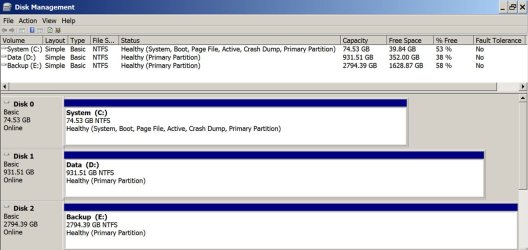
Here's an example with my PC.

I have 3 internal drives, each with a single partition.

C, an SSD containing Windows and all applications.

D, an HDD containing all of my data

E, a 3 TB GPT disc containing backups of both C and D.

So: I make image files of C and store them on D. Those image files get backed up to E, just like any other bit of data.

My FreeFileSync data backups copy 100% of what is on D to E, in ordinary form--no images, no compression, just like a drag and drop. Run daily or more often; typically takes 50 or 60 seconds.

If I have a bad Windows crash and need to restore an image of C, I boot from my burned WinPE recovery disk made with Macrium. I navigate to D, find my original image file, and restore it to C. I could just as easily navigate to the backed up image file on E and restore it to C.

Macrium image files have an mrimg extension. Each single file is a compressed representation of the partitions contained in the image. An image file could contain 1 or more partitions. All of mine contain just 1 partition. I make an image file every month and keep the 2 most recent files. Each file is roughly 40% of the size of the occupied space of the partitions it represents--my C drive has about 35 GB occupied and the last image I made of it was about 14 GB in size.

Macrium lets you drill into an image file (without restoring it) with an Explorer type interface and recover individual files if needed, but I never use that function.

You can also use Macrium to "clone" your operating system to another drive--as you might if you bought a new hard drive and wanted to move Windows to it. This is NOT a backup, but is instead a real-time operation. You could also use the imaging capability (rather than cloning) to move Windows to a new hard drive.

See attached pic of my Windows Disk Management.
 

Attachments

  • Untitled-1.jpg
    Untitled-1.jpg
    89.7 KB · Views: 1

My Computer My Computer

Computer type
PC/Desktop
Computer Manufacturer/Model Number
Ignatz Special; 4 speed manual gearbox; factory air conditioning; one of one
OS
Windows 7 Home Premium SP1, 64-bit
CPU
Intel Skylake i5-6600K, not overclocked
Motherboard
AsRock Z170M Extreme 4, micro ATX
Memory
8 GB HyperX DDR4-2666 (2 x 4 GB)
Graphics Card(s)
none; graphics are integrated on CPU
Sound Card
onboard: Realtek ALC1150; external: USB Behringer UF0-202
Monitor(s) Displays
Dell S2340M 23 inch IPS
Screen Resolution
1600 x 900
Hard Drives
System: Crucial MX100 series SSD, 128 GB;
Data: Samsung Spinpoint 103SJ, 1 TB;
Backup: WD Caviar Green WD30EZRX-00D8PB0, 3 TB
PSU
Rosewill SilentNight 500 watt fanless, semi-modular
Case
Antec Solo II
Cooling
Noctua NH-U12S; Noctua F12 intake, Noctua S12A exhaust
Keyboard
Microsoft 200 6JH-00001 USB
Mouse
Dell or Microsoft optical wired; USB
Antivirus
Microsoft Security Essentials and Malwarebytes Premium
Browser
Pale Moon
Other Info
All fans PWM; speeds at idle: CPU circa 500 rpm; intake circa 600 rpm; exhaust circa 600 rpm; CPU temps 27 idle and 47 C load in a warm room (27 C/81 F) when running Intel Extreme Tuning Utility stress test.
Hi there

These days I'd go for a COMMERCIAL backup product like Acronis (cost around 45 - 55 USD). Then if you need to backup the whole 4TB at once the backup program can make an image that spans several media -- If the backup image size was say 2TB then you could back this up to 4 X 500GB external drives or a 2TB space on a network drive. You can also specify the size of each "chunk" if you want to split the backup image into say 50 GB pieces for example. The system will prompt for new media when required.

The free programs usually don't have this capability built in. A better way IMO would be to backup the 4TB in sections -- say Music, Video, Documents, Photos etc or use some sort of Alphabetical system -- directories A-F, G-R, S-Z for example.

You also need to distinguish between BACKUP and ARCHIVE. Things like music don't probably change that often so back it up ONCE and then simply take what's known as INCREMENTAL backups -- you only backup what's changed. The commercial backup programs all have these facilities built in.

This topic is not so easy to answer in a few posts - but with larger and larger HDD's available it needs to be addressed sooner or later.

I can say in my case paying 45 USD for a decent backup program has definitely been one of the best 45 USD that I've ever spent --imagine re-ripping several thousand CD's again / retrieving lost music from torrents !! (sh!!) / iTunes etc to say nothing of scans of income tax / other business documents.

Keeping your OS on a separate partition / HDD too is also sensible - then it will take you only a few minutes to backup / restore an OS if you need to get rid of a virus / uninstall stuff that doesn't work properly or undo some change you made to the OS.

While there obviously can't be sections for everything I would suggest the whole subject of Backup / Archiving perhaps should be treated in a different section -- and the difference between a backup and an archive clearly explained as with these large HDD's becoming cheaply available this topic assumes more importance than ever.

To recover an OS image from your backup using Acronis (or similar) - the best way is simply to create a bootable USB version of the program -- Acronis has this as an option on the menu ==>create bootable media==>ISO/DVD/USB. Simply boot from the media you've made, ensure the HDD containing the backup image is available and online and just follow the screen instructions to restore.

(When backing up the OS - you need to backup the "System partition" if it exists as well -- on restore this needs to be restored too).

Cheers
jimbo
 

My Computer My Computer

Computer type
PC/Desktop
Computer Manufacturer/Model Number
Custom built, several laptops HP/ASUS
OS
Linux CENTOS 7 / various Windows OS'es and servers
CPU
Intel i7 Intel i5
Memory
8GB, 16GB
Graphics Card(s)
On Motherboard
Sound Card
Realtek HD audio
Monitor(s) Displays
Apple Cinema display, Samsung LCD
Screen Resolution
1920 X 1080
Hard Drives
4 X 1TB SATA
Mouse
Toshiba wireless laser
Internet Speed
> 20MB up
Yeah, you've got it wrong.

You DON'T boot from the drive containing the images. You boot from the rescue CD disk you make with Macrium. It's an ordinary CD burn like you've probably done many times. I think you can use a USB stick as the rescue media if your PC can boot from USB. I've never tried it and just use CDs.

Your image files would be stored on your data drive, just like any other data file. The image files would presumably be backed up, just like any other data file.

If you have a "System Reserved" partition, you must make a Macrium image of it as well as C. It contains your boot files and Windows won't boot without it. You could make a single image file containing both System Reserved and C or you could make separate image files of each. I don't have a System Reserved, so I just image C.

To recover from a bad situation, you'd boot from the rescue disk, which lands you in an interface. You navigate in that interface to locate the previously made image file. You then issue commands in the interface to restore that image file to your desired destination.

You can make a Linux recovery disk or a WinPE recovery disk. The latter is much preferred. Both are made within Macrium itself. You CAN'T restore an image file if this recovery disk does not boot. So you must test it after making it.

The Linux based disc would land you in a text-based interface, somewhat slow and cryptic.

The WinPE based disc lands you in the very same Macrium interface you would see if you opened Macrium from your hard drive. Full graphics, navigated by mouse and keyboard. Quick and easily understood.

Here's an example with my PC.

I have 3 internal drives, each with a single partition.

C, an SSD containing Windows and all applications.

D, an HDD containing all of my data

E, a 3 TB GPT disc containing backups of both C and D.

So: I make image files of C and store them on D. Those image files get backed up to E, just like any other bit of data.

My FreeFileSync data backups copy 100% of what is on D to E, in ordinary form--no images, no compression, just like a drag and drop. Run daily or more often; typically takes 50 or 60 seconds.

If I have a bad Windows crash and need to restore an image of C, I boot from my burned WinPE recovery disk made with Macrium. I navigate to D, find my original image file, and restore it to C. I could just as easily navigate to the backed up image file on E and restore it to C.

Macrium image files have an mrimg extension. Each single file is a compressed representation of the partitions contained in the image. An image file could contain 1 or more partitions. All of mine contain just 1 partition. I make an image file every month and keep the 2 most recent files. Each file is roughly 40% of the size of the occupied space of the partitions it represents--my C drive has about 35 GB occupied and the last image I made of it was about 14 GB in size.

Macrium lets you drill into an image file (without restoring it) with an Explorer type interface and recover individual files if needed, but I never use that function.

You can also use Macrium to "clone" your operating system to another drive--as you might if you bought a new hard drive and wanted to move Windows to it. This is NOT a backup, but is instead a real-time operation. You could also use the imaging capability (rather than cloning) to move Windows to a new hard drive.

See attached pic of my Windows Disk Management.

Wow thank you so much for all this :). You cleared up any and all questions I have.

I ended up going with a simple external 3tb drive (wd mybook) to do data and macrium backup on. It's speeds are pretty decent too. Some 150MB/s sequential read/write, compared to my old backup drive of about 25-40MB/s.
My computer and BIOS recognize the drive in its full capacity after a gpt format. And so far it's working great.
I have yet to get into macrium, but I'll follow your advice and guides here on sevenforums and hopefully do it this weekend if I have time.
Thank you everyone :)
 

My Computer My Computer

Computer type
PC/Desktop
Computer Manufacturer/Model Number
I made her myself :)
OS
Windows 7 Professional
CPU
Intel i5-4670k
Motherboard
Asus Z87-Pro
Memory
G.SKILL Ripjaws X Series 16GB 1600mhz (F3-1600C9D-16GXM)
Graphics Card(s)
EVGA GTX770 SC ACX 2gb
Monitor(s) Displays
Acer H236HLbid 23" ips 5ms GTG
Screen Resolution
1080p
Hard Drives
-128gb Samsung 840 Pro (C drive with OS)
-1tb WD Black 7200rpm 64mb WD1002FAEX (music, programs, files, etc.)
-120gb Samsung 840 evo (games)
PSU
SeaSonic M12II 750watt
Case
Coolermaster HAF 922 all black, usb 3.0
Cooling
CPU: CM hyper 212 evo with push-pull Cougar Vortex fans
Keyboard
CM Storm QuickFire TK (brown switch mechanical)
Mouse
perixx mx-2000
Internet Speed
21Mb/s down, 2Mb/s up (on a good day)
Antivirus
Malwarebytes and Microsoft Security Essentials
Browser
Chrome
Other Info
Fans on case: front 200mm in, top 200mm out, x2 side 120mm in (cougar vortex), rear 120mm out

I've never seen my cpu go above 40c and my card above 60c even with intense games or benchmarks
I don't overclock anything, as I rely on this machine too much for other things to risk it getting fried.
Here is a tutorial I made using the WinPE recovery disk to complement WHS's backup one.


and another I made on FreeFileSync. It's a bit out of date but the principle still holds.


My Computer My Computer

Computer type
Laptop
Computer Manufacturer/Model Number
Hewlett-Packard/G62-107SA Notebook
OS
Microsoft Windows 7 Home Premium 64-bit Service Pack 1
CPU
Intel(R) Core(TM) i3 CPU M 330 @ 2.13GHz
Motherboard
Hewlett-Packard 1425
Memory
8 GB DDR3
Graphics Card(s)
Intel(R) HD Graphics
Sound Card
Realtek High Definition Audio
Monitor(s) Displays
Builtin
Screen Resolution
1366 x 768 x 32 bits (4294967296 colors) @ 60 Hz
Hard Drives
250 GB SATA Hard Disk Drive 7200 rpm
2TB Seagate GoFlex USB 2 Drive
1TB Iomega Prestige USB 2 Drive
1.5TB Iomega Prestige USB 2 Drive (Samsung)
2TB WD MyBook Live NAS.
Mouse
Logitech Anywhere MX
Internet Speed
152 Mbs download 10 Mbs upload
Antivirus
Norton 360
Browser
Chrome
Small point - The tutorial itself refers to WinRE it should be WinPE.
 
Last edited:

My Computer My Computer

Computer type
PC/Desktop
Computer Manufacturer/Model Number
Own build
OS
Windows 7x64 Home Premium SP1
CPU
Intel i7 2600k
Motherboard
ASUS P8Z68 Deluxe
Memory
G.Skill Ripjaws (DDR3-1600) 2x4GB
Graphics Card(s)
Nvidia GeForce GTS 450; Intel HD Graphics 3000(GT2+)
Monitor(s) Displays
Dell Ultrasharp IPS panel U2311H, Samsung SyncMaster P2350
Screen Resolution
1920x1080
Hard Drives
Samsung 850 Pro SSD 256GB, Samsung SSD 840 120GB, Seagates 1TB Barracuda ST31000528AS x2
PSU
Seasonic M12II 520W
Case
Lian Li Lancool PC-K60
Cooling
Case: 1x120mm, 3x140mm CPU: Hyper 212+
Keyboard
Logitech MK520 (wireless)
Mouse
Logitech MK520
Internet Speed
6-7 Mbps
Antivirus
Norton Security Premium, Malwarebytes on 2 (MSE on 3rd PC)
Browser
FireFox
Other Info
Audio: Logitech Z523 2.1
I guess so. Strictly speaking WinRE is the Windows recovery environment. It is a version of WinPE with Windows recovery tools. I'm not going to change it after all this time.
 

My Computer My Computer

Computer type
Laptop
Computer Manufacturer/Model Number
Hewlett-Packard/G62-107SA Notebook
OS
Microsoft Windows 7 Home Premium 64-bit Service Pack 1
CPU
Intel(R) Core(TM) i3 CPU M 330 @ 2.13GHz
Motherboard
Hewlett-Packard 1425
Memory
8 GB DDR3
Graphics Card(s)
Intel(R) HD Graphics
Sound Card
Realtek High Definition Audio
Monitor(s) Displays
Builtin
Screen Resolution
1366 x 768 x 32 bits (4294967296 colors) @ 60 Hz
Hard Drives
250 GB SATA Hard Disk Drive 7200 rpm
2TB Seagate GoFlex USB 2 Drive
1TB Iomega Prestige USB 2 Drive
1.5TB Iomega Prestige USB 2 Drive (Samsung)
2TB WD MyBook Live NAS.
Mouse
Logitech Anywhere MX
Internet Speed
152 Mbs download 10 Mbs upload
Antivirus
Norton 360
Browser
Chrome
Back
Top