Custom Install Windows 7

How to Do a Custom Installation of Windows 7

   Information
This will show you how to do custom installation of Windows 7 to have a new clean install of Windows 7, but with everything from your current Windows installation backed up into the Windows.old folder during this custom installation. After the custom installation, you can copy any files you wanted back from within the C:\Windows.old folder back into your new installation of Windows 7 and delete the Windows.old folder when finished.

Like with a clean install, you will need to install all of your drivers and programs again after doing a custom install of Windows 7.
   Warning
Windows 7 Minimum Hardware Requirements:

NOTE: See also: Windows 7 system requirements
  • 1 GHz 32-bit or 64-bit processor
  • 1 GB RAM for 32-bit Windows 7 OR 2 GB RAM for 64-bit Windows 7
  • 16 GB available disk space 32-bit Windows 7 OR 20 GB for 64-bit Windows 7
  • Support for DirectX 9 graphics with 128 MB memory (in order to enable Aero theme)
  • DVD-R/W Drive, or bootable USB port with Windows 7 USB flash drive
  • Internet access (to download the Beta and get updates)


Here's How:


1. To Install from Within Current Windows Installation
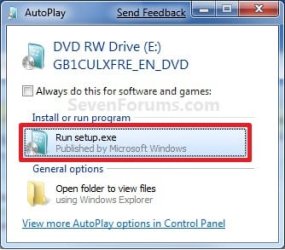
A) Place your Windows 7 installation DVD into the DVD drive and click on the Run setup.exe option in the AutoPlay window from within Vista SP1. (See screenshot below)
NOTE: If the AutoPlay window does not open, then open the drive folder in Computer and run the setup.exe file. AutoPlay.jpg
B) Go to step 3 below.
2. To Install from Boot A) Boot the computer from your Windows 7 installation DVD.
NOTE: Make sure that the CD/DVD drive is selected first in the boot order in the BIOS.

B) When prompted, press any key to boot from the installation DVD. (See screenshot below)
NOTE: You will only have about 8 seconds to press this key. If you miss it, you will have to restart the computer. Step1.jpg

C) Select your language preferences and click on the Next button. (See screeshot below). Step3.jpg
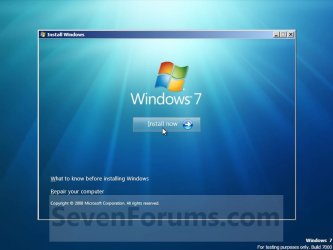
3. Click on the Install Now button to start the installation. (See screenshot below) Step4.jpg
4. If you did step 1, then uncheck the I want to help make Windows installation better box (unless you want to), and click on the Go online to get the latest updates for installation option. (See screenshot below) Step4A.jpg
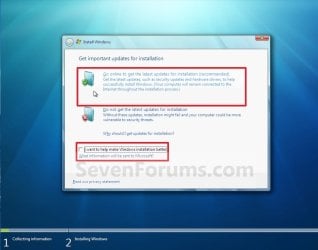
5. If you did step 1, Windows 7 will now check online for and install any available installation updates. (See screenshot below) Step4B.jpg
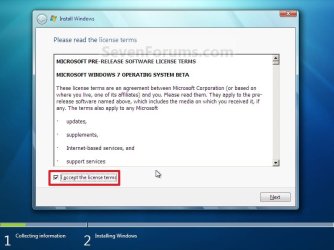
6. Check the I accept the license terms box and click on Next. (See screenshot below) Step5.jpg
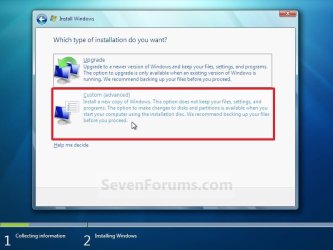
7. Click on the Custom (advanced) option. (See screenshot below) Step6.jpg
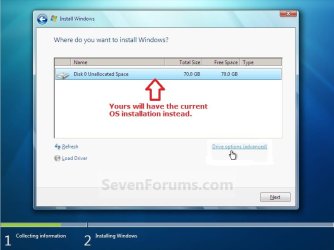
8. Select the hard drive or partition for the currently installed Windows installation that you want to install Windows 7 on and click on the Next button. (See screenshot below)
NOTE: If you have a RAID setup, then connect your USB key with the RAID drivers on it, click on Load Driver, select the folder on the USB key that contains the RAID drivers to install them. Afterwards, your RAID drives will be available to select from to install Windows 7 on.

   Warning
DO NOT click on the Drive options (advanced) link and Format or Delete this partition. That would be for a clean install of Windows 7 instead of a custom install for what this tutorial is for.
Step7.jpg
9. Click on OK. (See screenshot below) Step7A.jpg
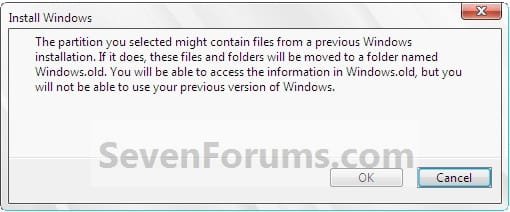
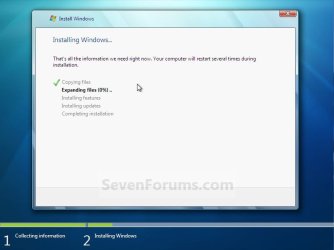
10. The installation of Windows 7 will now begin. (See screenshot below)
NOTE: During the installation process, your screen may flash and computer will restart a few times. Step9.jpg
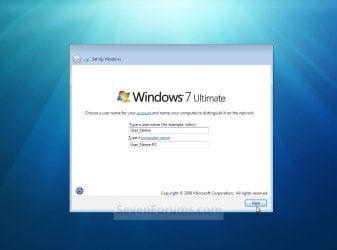
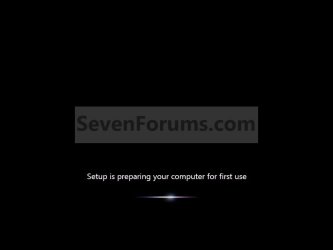
11. After the final restart, you will see this screen for a moment. (See screenshot below) step10.jpg
12. Type in any user name that you want for your default administrator account and any computer name, then click on the Next button. (See screenshot below) Step12A.jpg
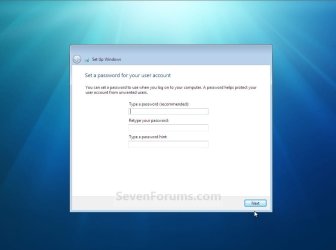
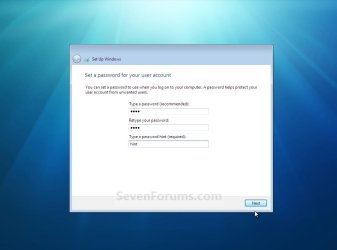
13. Type in a password you want for your default administrator account. Type it in again to confirm it, then type in a hint for your password. Click on the Next button. (See screenshots below)
WARNING: The password will be case sensitive. The hint will be seen by all users on the computer, so do not type your password as the hint.
NOTE: If you do not want your your user account password protected at this time or do not want to have to type in a hint, then leave this blank and click on the Next button. You can create a password later for your user account in the Control Panel User Accounts after installing Windows 7 without having to type in a hint. Step12B.jpg
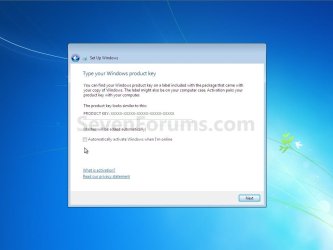
14. Type in your Windows 7 product key number. (See screenshot below step 15)

15. Uncheck the Automatically activate Windows when I'm online box unchecked, then click on the Next button. (See screenshot below)
NOTE: You can activate Windows 7 later after you make sure it is running properly. (See step 23 below)
If you chose to automatically activate Windows 7 online when you set up your computer, automatic activation begins trying to activate your copy of Windows three days after you log on for the first time. Step13.jpg
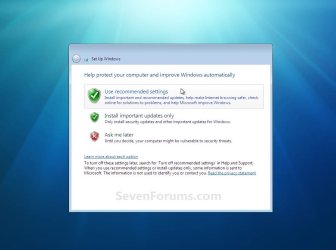
16. Click on Use recommended settings to allow automatic Windows Updates and proper security settings. (See screenshot below)
NOTE: For more information about these recommended settings, click on the Learn more about each option link in this window. Step14.jpg
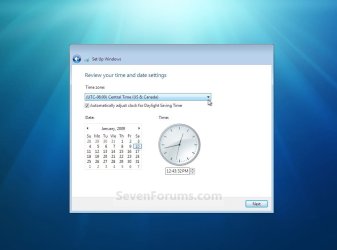
17. Select your time zone and set your time and date settings, then click on the Next button. (See screenshot below) Step15.jpg
18. Click on your computer's correct network location type location to select it and have the settings for that location automatically applied. (See screenshot below) Step16.jpg
19. Windows 7 will now prepare your desktop to startup. (See screenshots below) Step17.jpg
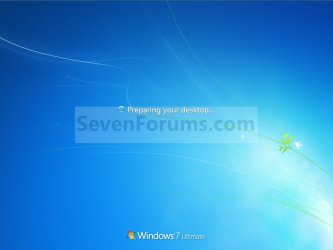
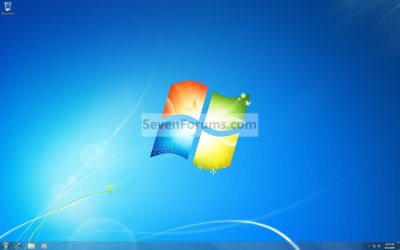
Desktop.jpg

20. Install all of your device drivers, Windows Updates, and programs.

21. Refresh your Windows Experience Index (WEI) score.

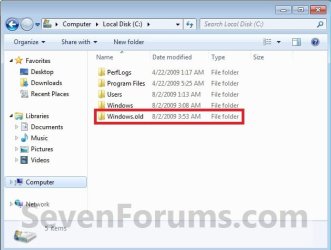
22. Copy anything you want back from inside the C:\Windows.old folder back into the new installation. (See screenshot below)
NOTE: When done, you can delete the Windows.old folder to save hard drive space. Step19.jpg
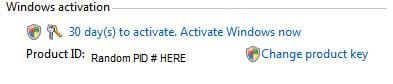
23. When done, all you will need to do is to activate Windows 7. (See screenshot below) Activate.jpg
That's it,
Shawn


Attachments

  • Step11.jpg
    Step11.jpg
    179.7 KB · Views: 64
Last edited:
I have gotten into a situation where,

The computer can only run in Safe Mode:(
The winBio.dll is corrupted:(

Is it possible to do a fdisk (recalling from my memory) and run the files from a command prompt?

Little history of the computer:

Windows 7 Ultimate (x32)
The computer[Aspire 4810TZ-4011] got corrupted and one of the user profile files was over 12.5GB. Started normally it will just hang for days. It can only start in the safe mode. It does start in safe mode with network support. I obtained a copy of the Windows 7 software from Microsoft store which came in the form of a download of some three files listed here:

Windows7_Ultimate_2011_sp1x86exe_v2setup2.box
Windows7_Ultimate_2011_sp1x86exe_v2setup1.box
Windows7_Ultimate_2011_sp1x86exe_v2

I copied them to a DVD and tried to run from my laptop but the bios is corrupted (I did try to set to boot from DVD). The exe cannot install from safe mode.

What other options are there? I just want to flatten this laptop.

Windows 7 presented various problems during the time it was used:
Cursor jumping
erratic search behavior
absense of language configuration in control panel, etc.

Hello Mysorian, and welcome to Seven Forums.

This tutorial is only to be used with a retail copy of Windows 7.

Since you have a Acer computer. You would need to do a factory recovery instead since you have a OEM (Acer) factory copy.

Acer Support: Frequently Asked Questions list for Recovery media and Restoring a system to factory load

Hope this helps,
Shawn
 
Last edited:

My Computer

Computer type
PC/Desktop
Computer Manufacturer/Model Number
Self built custom
OS
64-bit Windows 11 Pro for Workstations
CPU
Intel i7-8700K OC'd to 5 GHz
Motherboard
ASUS ROG Maximus XI Formula Z390
Memory
64 GB (4x16GB) G.SKILL TridentZ RGB DDR4 3600 MHz
Graphics Card(s)
ASUS ROG-STRIX-GTX1080TI-O11G-GAMING
Sound Card
Integrated
Monitor(s) Displays
2 x Samsung Odyssey G7 27"
Screen Resolution
2560x1440
Hard Drives
1TB Samsung 990 PRO M.2,
4TB Samsung 990 PRO PRO M.2,
TerraMaster F8 SSD Plus NAS
PSU
Seasonic Prime Titanium 850W
Case
Thermaltake Core P3
Cooling
Corsair Hydro H115i
Keyboard
Logitech wireless K800
Mouse
Logitech MX Master 4
Internet Speed
2 Gb/s Download and 100 Mb/s Upload
Antivirus
Malwarebyte Anti-Malware Premium
Browser
Google Chrome
Other Info
Logitech Z625 speaker system,
Logitech BRIO 4K Pro webcam,
HP Color LaserJet Pro MFP M477fdn,
APC SMART-UPS RT 1000 XL - SURT1000XLI,
Galaxy S23 Plus phone
This is a little tough, your options 1 and 2 does not work(continued)

Thanks for the kind reply and the ACER links.

The Windows 7 Ultimate did not come with the laptop. It came with Windows 7 Home Premium. I purchased Windows 7 Ultimate from Microsoft and installed it. It was also a download from Microsoft and it installed without a problem.

During usage it got corrupted and I got a replacement from Microsoft and I am trying to install.
Per my previous post there is a problem with the BIO's (winbio.dll is corrupted). I cannot install from DVD.

However when I install it from the DVD while in the safe mode, I get two options.
If I choose the Custom Option I see three partitions:
Name Total Size Free Space Type
Disk 0 postion 1: PQSERVICE 9.8GB 2.0GB OEM(Reserved)
Disk 0 Position 2:Acer C: 288.3GB 195.9GB Primary
Disk o position 3: (F:) 1.0MB 0.0 MB System

However I get an error message that it cannot install on the selected location(primary) and I get an error code: 0x8007045d

All I need is to install the OS. I am not interested in saving the other programs/data on the laptop.

Is there a solution?
 

My Computer

OS
Windows 7 (x32) Umltimate

My Computer

Computer type
PC/Desktop
Computer Manufacturer/Model Number
Self built custom
OS
64-bit Windows 11 Pro for Workstations
CPU
Intel i7-8700K OC'd to 5 GHz
Motherboard
ASUS ROG Maximus XI Formula Z390
Memory
64 GB (4x16GB) G.SKILL TridentZ RGB DDR4 3600 MHz
Graphics Card(s)
ASUS ROG-STRIX-GTX1080TI-O11G-GAMING
Sound Card
Integrated
Monitor(s) Displays
2 x Samsung Odyssey G7 27"
Screen Resolution
2560x1440
Hard Drives
1TB Samsung 990 PRO M.2,
4TB Samsung 990 PRO PRO M.2,
TerraMaster F8 SSD Plus NAS
PSU
Seasonic Prime Titanium 850W
Case
Thermaltake Core P3
Cooling
Corsair Hydro H115i
Keyboard
Logitech wireless K800
Mouse
Logitech MX Master 4
Internet Speed
2 Gb/s Download and 100 Mb/s Upload
Antivirus
Malwarebyte Anti-Malware Premium
Browser
Google Chrome
Other Info
Logitech Z625 speaker system,
Logitech BRIO 4K Pro webcam,
HP Color LaserJet Pro MFP M477fdn,
APC SMART-UPS RT 1000 XL - SURT1000XLI,
Galaxy S23 Plus phone
Thank you, Brink for the reply.
I have not tried your fix as yet, but I will.
In the mean time I want to continue with my Windows 7 Ultimate reinstall experience (so that it may be useful to others):

Finally I managed to bring the computer back to load windows normally (as against the safe mode). I tried with F8 and a old repair disc I had.

Now that I have it working I tried to use the files sent by Microsoft support (the three files I mentioned in my previous post) by clicking on the executable on the DVD.

The process started and there were two options:
Upgrade and Custom Install.

Upgrade did not work and I got a message that the present OS cannot be upgraded. Then I tried the Custom Install.
It seemed to work:
First I was asked to remove Windows Mobile 6.1 before it can proceed.
I removed the Windows Mobile Device Center from my add/remove programs window.
The copying of the files from the two box files took a long time and some where in the middle I got a error message that
Winpeshl.exe application error.(The applicaiton Errror 0xc0000142)
I proceeded further disregarding the message.
Then finally after deactivating the Norton porgram, it started installing. Since the program appeared to stall, I hard booted the computer and started the computer with F8.

Then I got two optiosn to boot, windows setup or windows 7(existing OS).
The Windows setup lead me to a very strange situation. The login screen came up with the login picture empty. I tried all three users (I am a developer and I usually create three users) to login. I got the login error that there is no such domain.

Finally I got the message that the software did not install and the system returned to initial state.

Right now I am ready to test your suggestion and hope it works. I have spent considerable time fixing this laptop. If this is so difficult to a microsoft developer I do not know how much more it would be for a normal user. I concede that my cerification is not current(has been retired), but it was really difficult.
 
Last edited:

My Computer

OS
Windows 7 (x32) Umltimate
I was faced with a new problem, totally unanticipated. I decided to go the way you suggested in your email. I downloaded a copy of Windows 7 Ultimate(x32) from the site you suggested and also the Microsoft helper file to create a bootable DVD. When I ran the Microsoft Helper file somehow the virus Live Security Platinum 3.5.4 program also got into the Program Data folder as well as the Notification area. It did not allow me to create a bootable DVD. I tried to clean it with ARO2012 utility that I downloaded and install. The Live Security Platinum program did not allow any of the executables to run. It is interesting that Norton did not find the virus.

Finally I created the bootable DVD per your suggestion on another laptop and then booted the infected computer. Now a brand new copy of Windows 7 Ultimate is installed and working.

Thanks
 

My Computer

OS
Windows 7 (x32) Umltimate
Mysorian,

That's great news. Just to be on the safe side to help make sure your system is clean, you might also do a full scan of your system with MalwareBytes free .
 

My Computer

Computer type
PC/Desktop
Computer Manufacturer/Model Number
Self built custom
OS
64-bit Windows 11 Pro for Workstations
CPU
Intel i7-8700K OC'd to 5 GHz
Motherboard
ASUS ROG Maximus XI Formula Z390
Memory
64 GB (4x16GB) G.SKILL TridentZ RGB DDR4 3600 MHz
Graphics Card(s)
ASUS ROG-STRIX-GTX1080TI-O11G-GAMING
Sound Card
Integrated
Monitor(s) Displays
2 x Samsung Odyssey G7 27"
Screen Resolution
2560x1440
Hard Drives
1TB Samsung 990 PRO M.2,
4TB Samsung 990 PRO PRO M.2,
TerraMaster F8 SSD Plus NAS
PSU
Seasonic Prime Titanium 850W
Case
Thermaltake Core P3
Cooling
Corsair Hydro H115i
Keyboard
Logitech wireless K800
Mouse
Logitech MX Master 4
Internet Speed
2 Gb/s Download and 100 Mb/s Upload
Antivirus
Malwarebyte Anti-Malware Premium
Browser
Google Chrome
Other Info
Logitech Z625 speaker system,
Logitech BRIO 4K Pro webcam,
HP Color LaserJet Pro MFP M477fdn,
APC SMART-UPS RT 1000 XL - SURT1000XLI,
Galaxy S23 Plus phone
I have a setup with an SSD (C: )that acts as my system drive and an HDD (D: ) that acts as my data drive. I used one of kari's tutorials and used sysprep to move the Users and ProgramData folders to D: and everything worked fine for years. I recently ran into some issues and as part of troubleshooting have used sysprep to move the Users and ProgramData folders back to C: but I copied everything out of the Users folder before doing so, so that it's all still safe on D:. sfc /scannow is still finding corrupt files and Repair Install fails to complete.

I'm trying to determine what benefit is gained by doing a custom install at this point vs a clean install. Either way I have to reinstall all programs and drivers. My data files are on a separate drive. I don't see any files on C: that I would need to transfer out of windows.old. Would I be able to transfer my steamapps folder? What else (other than personal data files) would normally be transferred out of windows.old?
 

My Computer

OS
Windows 7 64-bit Home Premium
CPU
Intel Core i7 920 D0
Motherboard
EVGA X58 3X SLI E758
Memory
OCZ3X1600R2LV6GK 6GB
Graphics Card(s)
EVGA GTX 260
Hard Drives
OCZ Agility2 120GB; WD Caviar Black 1TB
PSU
Rosewill Bronze 1000W
Case
Antec Nine Hundred
Cooling
Zalman CNPS 9900
Monumental,

The only problem with moving your user folders and such to another drive like that is that it's hard to move them back to C: without breaking things.

At this point, you may be better off doing a clean install to start fresh. :(
 

My Computer

Computer type
PC/Desktop
Computer Manufacturer/Model Number
Self built custom
OS
64-bit Windows 11 Pro for Workstations
CPU
Intel i7-8700K OC'd to 5 GHz
Motherboard
ASUS ROG Maximus XI Formula Z390
Memory
64 GB (4x16GB) G.SKILL TridentZ RGB DDR4 3600 MHz
Graphics Card(s)
ASUS ROG-STRIX-GTX1080TI-O11G-GAMING
Sound Card
Integrated
Monitor(s) Displays
2 x Samsung Odyssey G7 27"
Screen Resolution
2560x1440
Hard Drives
1TB Samsung 990 PRO M.2,
4TB Samsung 990 PRO PRO M.2,
TerraMaster F8 SSD Plus NAS
PSU
Seasonic Prime Titanium 850W
Case
Thermaltake Core P3
Cooling
Corsair Hydro H115i
Keyboard
Logitech wireless K800
Mouse
Logitech MX Master 4
Internet Speed
2 Gb/s Download and 100 Mb/s Upload
Antivirus
Malwarebyte Anti-Malware Premium
Browser
Google Chrome
Other Info
Logitech Z625 speaker system,
Logitech BRIO 4K Pro webcam,
HP Color LaserJet Pro MFP M477fdn,
APC SMART-UPS RT 1000 XL - SURT1000XLI,
Galaxy S23 Plus phone
Monumental,

The only problem with moving your user folders and such to another drive like that is that it's hard to move them back to C: without breaking things.

At this point, you may be better off doing a clean install to start fresh. :(

To be clear, the issues began before I moved them back. I moved them back to C: as part of the troubleshooting process. It appears to be running fine other than the /scannow results.

But just consider it a general question then- other than personal files, what files would someone move out of Windows.old?
 

My Computer

OS
Windows 7 64-bit Home Premium
CPU
Intel Core i7 920 D0
Motherboard
EVGA X58 3X SLI E758
Memory
OCZ3X1600R2LV6GK 6GB
Graphics Card(s)
EVGA GTX 260
Hard Drives
OCZ Agility2 120GB; WD Caviar Black 1TB
PSU
Rosewill Bronze 1000W
Case
Antec Nine Hundred
Cooling
Zalman CNPS 9900
Back
Top