Quick Installation & Configuration Guide:
Further to our previous discussion, you may better follow the instant guide for your convenience:
Configuration
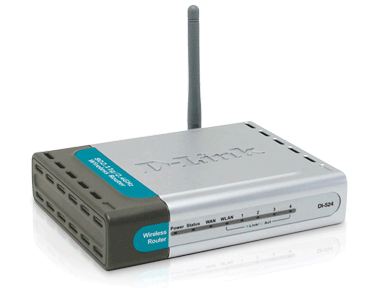
1. Using the "Quick Installation Guide", follow the instructions in step 1 to set up your new wireless router. You may also need to restart your computer in order to see the router.
Note
If you normally use a static IP address, you will have to reconfigure your internet connection to use DHCP. Go into the control panel and open your network connections. Edit the properties of your current network connection, and make sure that "Obtain an IP address automatically" is enabled.
2. Connect to the router using your web browser by typing "http://192.168.0.1" into the URL address box.
3. Enter the Username "admin" and leave the password field blank when the login prompt appears.
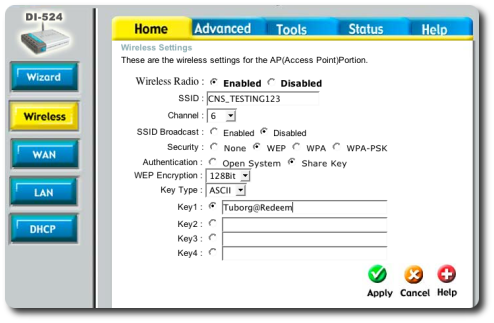
4. You will be redirected to a page that asks you to "Run the Wizard". We will not use this method, but instead set things up manually. Click on the "Wireless" link on the left-hand menu. You should be taken to a screen that looks something like:
You should set all the values the same as in the screenshot, with the exception of the following ones:
SSID This will be assigned to you when you register your access point
Channel You will be told which channel you should run on in order to avoid interfering with other networks in the area
Key 1 A 13 character string that you will distribute to your users as the password to access your network. Obviously, you should not use the same string as in the example given here!
Make sure you write down the Key that you have chosen, and then click the "Apply" button.
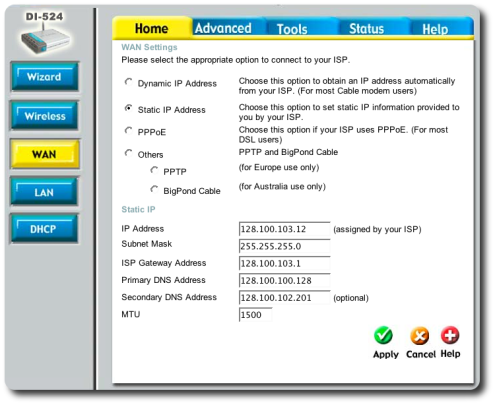
5. Next, go to the "Wan" section on the left menu:
Choose to set a static IP address for your router, and enter the information needed in the form (this will differ from what appears in this example).
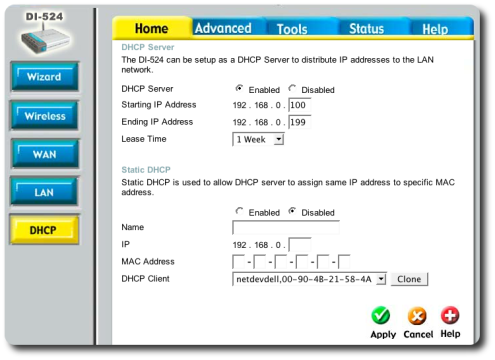
6. You don't have to make any changes in the "LAN" section on the left menu, so click instead on "DHCP":
You shouldn't need to configure much in this screen, although you can choose to give out a different set of addresses in the first section. If you would like to assign IP addresses according to the MAC address of the connecting user, use the "Static DHCP" section to do this.
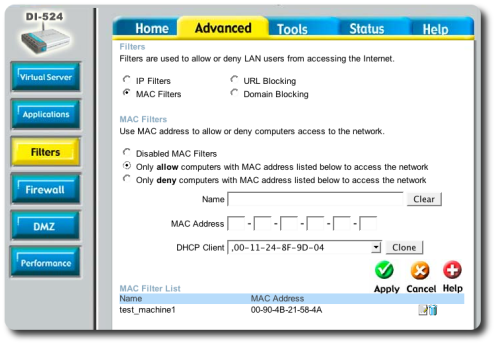
7. Now click on the "Advanced" tab on the top of the screen and choose "Filters":
Click the "Mac Filters" checkbox and the page will refresh to display what you see above. We recommend that you use this section to limit the users that are allowed to connect to your network by the MAC address of their computer.
Note
Make sure that you add the MAC address of the computer you are using to set up your router first, before enabling this filter. Otherwise you will be unable to access the router and will have to reset the router. If you do have to reset the router because you have locked yourself out, there is a small hole on the back of the router that can be pressed using a paper clip.
Add all the necessary MAC addresses in this section, and click "Apply" to save your changes.
8. Change to the "Tools" tab at the top of the screen, and click on the "Time" section on the left menu:
Enter the "Customized NTP" address of 128.100.100.128, select your Time Zone and enable daylight savings time.
9. Finally, click the "Admin" button on the left menu:
Reset your Administrator password to something other than a blank password. You can use Remote Management to be able to access the router from the WAN, but this is a security hole, and we strongly discourage such use. It is better to just connect a computer to the router when it needs to be configured.
10. That's it! You should be on the air!
Log Reporting
If you visit the "Status" tab on the top of the page, you will find that the D-Link router has a number of facilities for logging and statistics reporting. If you would like to be sent logs of your router's activity, use the following procedure:
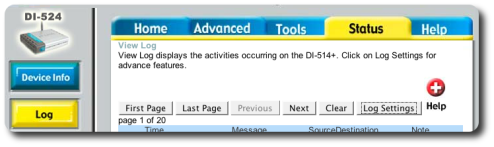
1. Click on the Log button on the left menu. You will be taken to a screen that looks something like this:
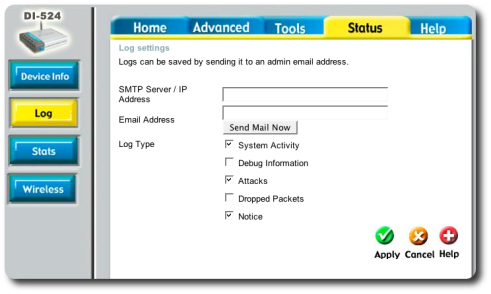
2. Click on the "Log Settings" button to set up your logging reporting, and you will be taken here:
If you enter an SMTP server and your email address, you will receive updates via email with the most current logs.
Courtesy: The University of Toronto campus wireless network (UTORcwn)