MKLINK – Create and Use Links in Windows

MKLINK – Create and Use Links in Windows

How to Create and Use Links with MKLINK in Windows

   Information
As so many other things in computing, Windows Links seem more complicated to understand and use than what they really are in reality.

This tutorial will tell you how to create and use links using MKLINK to redirect system queries made to a local or network storage location to another location.

In this tutorial we will concentrate on the most important link type, a Directory Junction. A junction is a very practical way to customize your file handling and procedures.


A Link is basically nothing more than a shortcut. Its purpose is to get Windows to think that a file or folder which is physically located in folder Real on drive A is in fact in folder Fake on drive B by creating a link between B:\Fake (a link or junction) and A:\Real (a target folder). Opening the link for instance in Explorer shows contents of target, saving a document to link actually saves it on target.

As Windows now gets a query from user to open B:\Fake this query is sent to A:\Real. In reality the location B:\Fake does not exist but system answers this query as it was a real folder instead of just a symbolic link and presents user the contents of A:\Real as if it was contents of B:\Fake. Sounds complicated? Don’t worry, it’s quite easy in fact.


Part 1: What is a Link?

   Note
A Link in Windows is a virtual object that points to a real physical location. It can be compared to Windows desktop shortcut, doing essentially the same thing in redirecting user to a physical storage location.


A Link can be so called Hard Link linking one file to a target file, or a Soft Link linking a folder to a target folder. Soft Links are also called Symbolic Links. Third link type is Junction, basically a hard link but as hard links can only link files we need to use junctions to link folders.

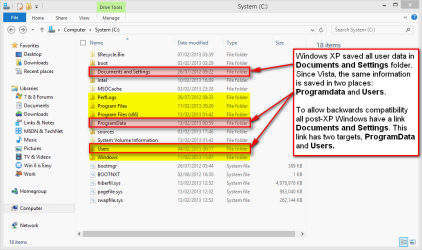
If you are using Windows Vista or later you have most probably used links without ever noticing it. In Windows XP all user data was saved in a folder called C:\Documents and Settings (default name and location). Windows Vista changed this; instead of Documents and Settings the data was divided between two system folders, C:\Users for user specific application data and personal files and folders, and C:\ProgramData for all users shared application data. To allow backwards compatibility all Windows versions since Vista have a link C:\Documents and Settings with two target folders, ProgramData and Users.

You can check this by yourself by allowing protected system files and folders to be shown and opening C: drive on Explorer:
mklink_01.png
(Please notice, screenshots from Windows 8 but links work the same way on Windows 7. Highlighted with yellow = visible system folders created by Windows installation, red = hidden or protected system folders.)

If you try to open Documents and Settings you get an "Access Denied" message. It does not exist, there is no such folder on your C: drive but it is needed for legacy software.

An example: You want to install Microsoft Office XP on your Windows 7. As Office XP was published for Windows XP long before Vista it uses the XP system folder Documents and Settings to store user data. Vista and later Windows do no longer have this folder so a link is needed. Office XP setup thinks it is creating files and folders normally in Documents and Settings but actually your Windows 7 is lying ;) to Office XP setup, not telling it those files and folders are in fact created in Users and ProgramData. Office XP setup does not notice this deception, installation works and later when user works with Office XP it still thinks the Documents and Settings folder is there, never learning the fact that all queries to that folder are sent further and returned as if they really came from Documents and Settings.


Part 2: Working with Directory Junctions

(1.) Command Syntax

Links are created wit command mklink, short from Make Link. Typing mklink /? on Command Prompt you get the command syntax and options:
Code:
[B]MKLINK [/B][[/D] | [/H] | [/J]] [B]Link [/B][B]Target[/B]
 
        [B]/D[/B]      Creates a directory symbolic link.  Default is a file symbolic link.
       [B]/H[/B]      Creates a hard link instead of a symbolic link.
        [B]/J [/B]  Creates a Directory Junction.
        [B]Link    [/B]specifies the new symbolic link name.
        [B]Target  [/B]specifies the path (relative or absolute) that the new link refers to.

(2.) Use an Elevated Command Prompt

You must use elevated command prompt to work with links.

(3.) Create a Link or a Junction

Creating a directory junction D:\Docs with target E:\Users\Kari\Documents:
Code:
mklink /j D:\Docs E:\Users\Kari\Documents
Windows tells you clearly if the creating of junction has succeeded:
mklink_02.png
(4.) Main principles when creating a link or a junction

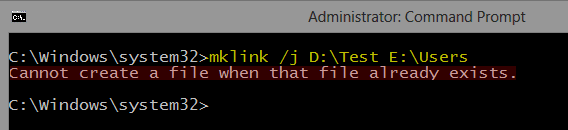
  1. A file or a folder with the name of the intended Link name may not exist. The link file or folder name must be free to use, not reserved by an existing file or folder. If the name is reserved you get an error message. My D: drive already has a folder Test, this is what happens when trying to create a junction with D:\Test (already an existing folder) as link and E:\Users as target:
    mklink_03.png
    Notice that command prompt is telling about a file already existing instead of a folder. This is because the system sees links as shortcuts (files) and not as folders.
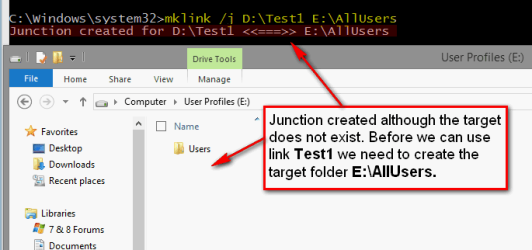
  2. Target folder may but must not exist. If it does not exist at the time when a link is created it must be created before you can use the link:
    mklink_04.png
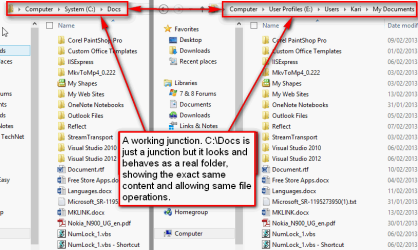
  3. Target can be another Link. Above in (3.) we created a junction D:\Docs with target E:\Users\Kari\Documents. Following command would now create a link C:\Docs with target D:\Docs:
    Code:
    mklink /j C:\Docs D:\Docs
    In fact Windows sees no difference if the target is a real physical folder location or just another link. In this case all queries to C:\Docs would be sent to D:\Docs which would send them further to E:\Users\Kari\Documents. If a user now opens C:\Docs in Explorer, it shows the contents of E:\Users\Kari\Documents:
    mklink_05.png
    Noticed something interesting in screenshot above? The target folder is called Documents but Explorer shows it as My Documents. This is because those "My ..." folders in your user profile folder are actually not real folders. They are directory links: My Videos is simply a link with target Videos and so on.
(5.) Remove or rename a link

Links and junctions can be renamed and removed as any real folders. System automatically modifies registry and sets the target to be the same for a renamed link as it was on the original link.

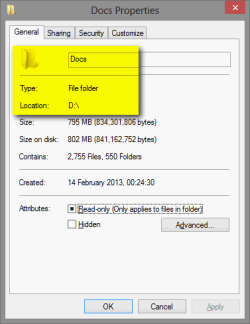
This is because even not really existing, the system handles links as if they were real existing folders. This is what Explorer shows when asked for Properties for our example junction D:\Docs:
mklink_07.png
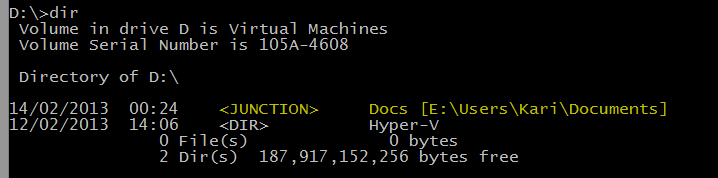
Only way to really see it is in fact a junction is to get directory listing in command prompt:
mklink_06.png
The listing not only shows it is a junction but also its target folder.


Part 3: Practical Examples

A typical situation: You have bought a game that must be installed on root level folder C:\Games. Your C: drive is becoming full, so you decide to move the whole C:\Games folder to D:, delete now empty C:\Games (remember, link folder may not exist) and create a junction:
Code:
mklink /j C:\Games D:\Games
When launching the game it still assumes it is located on C: although you, me and Windows know better ;): it's "secretly" residing on D: but still using the old address on C:.

Another situation: You want to work with some pics from last Christmas, to edit them to be ready to be published on that website of yours. Pics are currently located in X:\Backups\Pictures\My Pictures\Holidays\Christmas 2012.

You can create a junction X:\Pics, and now whenever you want to work with those pics you just type X:\Pics to Run dialog to open the correct folder:
Code:
mklink /j X:\Pics "X:\Backups\Pictures\My Pictures\Holidays\Christmas 2012"
Notice that if a path contains spaces it must be set in between quotation marks as in above target path.

That's about it. Any feedback welcome.

Kari
 
Last edited:
Hi,

Is there a way to create a link (or something that works the same way) that will be accessible through the network neighbourhood. Basically - on one computer I've created a link that links to a folder inside this computer. When I access this computer through the network and I need to be able to click this link and go where it should take me. Instead when I click it I got an error message that it links to a place that is unaccessible (even though it is accessible, and its also shared, so there shouldn't be any problems accessing it this way). Any ideas?

!>
 

My Computer

OS
Windows 7
I hope to be able to help a little bit, but I'm really hoping someone more familiar with networks than I in general will reply ; it's something of a weak area for me in terms of knowledge.

But if I were to try it I would first give the folder on the remote system the correct sharing permissions, which I understand you have done … only because of my lack of experience in this regard I can't tell you "but check this" or "make sure of that" with that first step. Like I don't know if the sharing permission has to be all the way up to the parent folder, which it might.

Then when setting up the symbolic link ( see post prior to yours for syntax  ) I would use full path designations that specify the names of both systems, like …

  \\[server_name]\[drive]:\[folder_path]

… and I would expect that's all there is to it, but I'm probably forgetting something. :sarc:

For what it's worth, I accomplish what you want to do all the time but with Dropbox. The sharing permissions are set up in the Dropbox executable itself, and it pretty much takes care of the rest. So in your case you'd have a Dropbox folder at both locations, and all you would need to do to make a file ( or folder ) visible at both spots is drag it into the Dropbox folder, same as you would if you were copying it into any other folder. Dropbox takes care of the rest—when you access the other computer you'll see it in that system's Dropbox folder. I have 50  GB but you can open a 2  GB acct for free to start. Only problem with the free accts is there's a max size limitation on individual files ( don't know what it is ), a limitation which is removed in pay accts.
 

My Computer

OS
Windows® 7 (64-bit)
CPU
intel® Core™ i5-4690 @ 3.50 GHz
Motherboard
GIGABYTE™ H97-D3H
Memory
8 GB DDR3
Hey,

Thanks for reply, but this doesn't want to work for me either:( Does it work on your computer? One question though - in the path should I specify the drive letter, or the share name? For example my computer network name is "office" and I'm sharing disk d: as "library", so should it be \\office\d\[folder_path] or \\office\library\[folder_path]?

As for Dropbox - I really don't want to install any additional software, and I'm already using Google Drive, so I want to try to do it 'normal' way first;)

Thanks!
!>
 

My Computer

OS
Windows 7
> . . . this doesn't want to work for me
> either*Does it work on your computer?


I can't tell you … as of the night before last, my desktop has been out of commission with an electrical h/w problem of some sort and I only have my phone right now, otherwise I likely would've experimented a bit. Nothing like the smell of burning wires while you're typing away, trying to get shit done.:rolleyes:


> in the path should I specify the drive letter
> or the share name? . . . . . . should it be
> \\office\d\[folder_path] or
> \\office\library\[folder_path]?


Same answer as above. I'm thinking also there might be a permissions issue with accessing your office computer from home even if your syntax is right. Your network admin can answer that, and could also be a good source to help resolve your problem altogether.


> As for Dropbox . . . . . . I'm already using
> Google Drive, so I want to try to do it
> 'normal' way first


Didn't know you already had something like Dropbox … I take it you already know you can do the same thing with Google Drive? The specifics might be a bit different, but its purpose is the same.
 

My Computer

OS
Windows® 7 (64-bit)
CPU
intel® Core™ i5-4690 @ 3.50 GHz
Motherboard
GIGABYTE™ H97-D3H
Memory
8 GB DDR3

> in the path should I specify the drive letter
> or the share name? . . . . . . should it be
> \\office\d\[folder_path] or
> \\office\library\[folder_path]?


Same answer as above. I'm thinking also there might be a permissions issue with accessing your office computer from home even if your syntax is right. Your network admin can answer that, and could also be a good source to help resolve your problem altogether.

Well, I'm my network admin, its just a home network with 3 computers, nothing fancy;) Anyone else could take a look on this?


> As for Dropbox . . . . . . I'm already using
> Google Drive, so I want to try to do it
> 'normal' way first


Didn't know you already had something like Dropbox … I take it you already know you can do the same thing with Google Drive? The specifics might be a bit different, but its purpose is the same.

Well, not exactly. I don't want data to be copied anywhere, I just want a link:)

!>
 

My Computer

OS
Windows 7
I have no issues in creating a symlink with a network share.

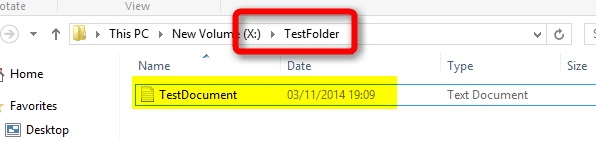
The way I do it, in this example the folder X:\TestFolder on computer SERVER is the target, D:\MyLink on my computer LOCALPC the link I want to create:
  • Map \\SERVER\X:\ drive as a network drive on LOCALPC using drive letter W:
  • Create the link with mklink /D D:\MyLink W:\TestFolder\
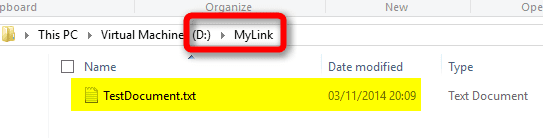
That's it. Now I can open D:\MyLink on LOCALPC in Explorer...
2014-11-04_15h05_08.png
... to see contents of X:\TestFolder on SERVER.
2014-11-04_15h06_27.png
(The exactly one hour time difference in file details on above screenshots is because of different Timezone settings on these two computers.)

Of course in this example I would not need the symlink as the \\SERVER\X:\ is already shown and can be accessed as a mapped network drive W: on LOCALPC. Personally I see no reason to use symlinks with network shares.

Kari
 

My Computer

Computer type
Laptop
Computer Manufacturer/Model Number
HP ENVY 17-1150eg
OS
Windows 10 Pro x64 EN-GB
CPU
1.6 GHz Intel Core i7-720QM Processor
Memory
6 GB
Graphics Card(s)
ATI Mobility Radeon HD 5850 Graphics
Sound Card
Beats sound system with integrated subwoofer
Monitor(s) Displays
17" laptop display, 22" LED and 32" Full HD TV through HDMI
Screen Resolution
1600*900 (1), 1920*1080 (2&3)
Hard Drives
Internal: 2 x 500 GB SATA Hard Disk Drive 7200 rpm
External: 2TB for backups, 3TB USB3 network drive for media
Cooling
As Envy runs a bit warm, I have it on a Cooler Master pad
Keyboard
Logitech diNovo Media Desktop Laser (bluetooth)
Mouse
Logitech Performance Mouse MX
Internet Speed
50/10 Mbps VDSL
Antivirus
Windows Defender 4.3.9431.0
Browser
Maxthon 3.5.2., IE11
I have no issues in creating a symlink with a network share.

This not what I want to accomplish. What I need to do, is to create a normal symlink between two folders on my computer, and this part works ok. Than, when I access this computer through my LAN network, I want to be able to click this link and follow where it leads me, but it doesn't work. Both the target and the source folders of the link are shared and accessible normally through LAN (actually - all disks on this computer are shared), but when I click the link I've got an error message. So this is a problem.
 

My Computer

OS
Windows 7
using a link with a SSD

I am not certain that this post strictly belongs in this thread but, since creating a hard link is an important step in my process, I post it here.

By the way, the tutorial on creating a link is fantastic and by far the best I have seen after having read several.

I am in the process of adding a SSD to my computer and using it as the system drive (Win7x64). In order to reduce the space needed on the SSD when migrating my system files I decided to copy (backup) the C:\Users folder and all subfolders (to an external drive), then delete the \Users folder on the C:\ drive prior to cloning the system files to the SSD.

After booting the system from the SSD I would wipe the C:\ partition on the old system HDD, rename that partition, and create a \Users folder. I would then transfer the backed-up Users folder to that drive.

The next step would be to create a Users folder on the SSD as a link and make the Users folder on the HDD as the target.

Before I actually start the process, I will much appreciate any comments on what I have described.

However my first step did not go as desired. When attempting to backup the C:\Users folder the backup software (SyncBack) reported that it was not able to copy several files because "The process cannot access the file because it is being used by another process." I tried several workarounds to solve this problem, but no joy. I list the files here:

\mrb\AppData\Local\Microsoft\Windows\UsrClass.dat
\mrb\AppData\Local\Microsoft\Windows\UsrClass.dat.LOG1
\mrb\AppData\Local\Microsoft\Windows\UsrClass.dat.LOG2
\mrb\AppData\Local\Microsoft\Windows\WebCacheLock.dat
\mrb\AppData\Local\Microsoft\Windows\WebCache\V01.log
\mrb\AppData\Local\Microsoft\Windows\WebCache\WebCacheV01.dat
\mrb\AppData\Local\Microsoft\Windows\WebCache\WebCacheV01.tmp
\mrb\ntuser.dat
\mrb\ntuser.dat.LOG1
\mrb\ntuser.dat.LOG2

So my question is: How much trouble am I inviting by simply ignoring the fact that these files will not be available in the transferred Users folder? Is it possible that windows will create these files later, as needed?


My Computer

Computer type
PC/Desktop
Computer Manufacturer/Model Number
custom build
OS
Win 7 x64
CPU
Intel i7
Motherboard
Asus P6TD-Deluxe
Memory
16GB
Graphics Card(s)
Radeon HD4670
Monitor(s) Displays
HP LP2475w
Hard Drives
2x WDC WD7501AALD
Browser
IE
So my question is: How much trouble am I inviting by simply ignoring the fact that these files will not be available in the transferred Users folder? Is it possible that windows will create these files later, as needed?

Your situation is a stereotype example of an situation where you should in my opinion not use MKLINK. I recommend that you take a look of this tutorial first: http://www.sevenforums.com/tutorial...reate-move-during-windows-7-installation.html

If you after reading the tutorial still think you'd rather do this with MKLINK, come back and we'll find a solution for you.

Kari
 

My Computer

Computer type
Laptop
Computer Manufacturer/Model Number
HP ENVY 17-1150eg
OS
Windows 10 Pro x64 EN-GB
CPU
1.6 GHz Intel Core i7-720QM Processor
Memory
6 GB
Graphics Card(s)
ATI Mobility Radeon HD 5850 Graphics
Sound Card
Beats sound system with integrated subwoofer
Monitor(s) Displays
17" laptop display, 22" LED and 32" Full HD TV through HDMI
Screen Resolution
1600*900 (1), 1920*1080 (2&3)
Hard Drives
Internal: 2 x 500 GB SATA Hard Disk Drive 7200 rpm
External: 2TB for backups, 3TB USB3 network drive for media
Cooling
As Envy runs a bit warm, I have it on a Cooler Master pad
Keyboard
Logitech diNovo Media Desktop Laser (bluetooth)
Mouse
Logitech Performance Mouse MX
Internet Speed
50/10 Mbps VDSL
Antivirus
Windows Defender 4.3.9431.0
Browser
Maxthon 3.5.2., IE11
Kari-
Many thanks for your reply. I am a bit confused:

On the first page of your tutorial you WARN: "Notice that a repair install is also an upgrade install, so if you have ever done a repair install (= in-place upgrade to same edition), you cannot sysprep." I have at one time done such a repair.

In post #22 (for those of us who have already installed Seven) the process clearly requires use of sysprep. So where does that leave me?

Meanwhile I would very much appreciate your comments on my basic question concerning the listed User files that could not be backed-up or copied. Can these be ignored?
 

My Computer

Computer type
PC/Desktop
Computer Manufacturer/Model Number
custom build
OS
Win 7 x64
CPU
Intel i7
Motherboard
Asus P6TD-Deluxe
Memory
16GB
Graphics Card(s)
Radeon HD4670
Monitor(s) Displays
HP LP2475w
Hard Drives
2x WDC WD7501AALD
Browser
IE
Many thanks for your reply. I am a bit confused:
...
...

About your original question, it will be messy and I cannot guarantee the outcome but as some files cannot be copied when they are used by the system, the only option as far as I can see it is to boot PC with a so called Live CD (a Linux Live CD or a WinPE disk) and then copy the files.

I read your posts again and I must say I would never do what you are thinking to do; doing this with MKLINK involves too much risks and might cause an unstable OS. That's of course only my very subjective opinion, the Live CD method should work and get you one step further in this.

About using the method I told you in an upgrade or repair installed system, here's a workaround, works like a charm. You just "lie" to Windows, tell it that contrary to what it thinks it has never been upgraded or repaired ;). Here's how:

   Information

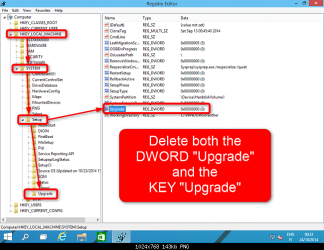
Open the Registry Editor (WIN + R, type regedit, hit Enter), browse to key HKEY_LOCAL_MACHINE\SYSTEM\Setup

Delete both the DWORD Upgrade (right pane) and KEY Upgrade (left pane), see screenshot. The system warns you that skies can fall down if you delete these items, just laugh loud and accept the deletion:
7861d1415046982-users-folder-move-location-windows-10-a-7387d1414118859t-esd-iso-create-bootable.png
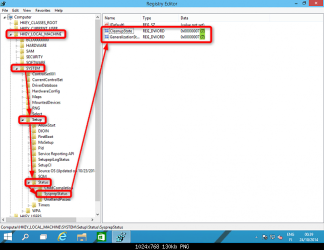
Still in Registry Editor, browse to key HKEY_LOCAL_MACHINE\SYSTEM\Setup\Status\SysprepStatus, if either DWORD CleanupState or DWORD GeneralizationState has any other value than 7, change it to 7 by double clicking the DWORD in question and entering the new value:
7862d1415047084-users-folder-move-location-windows-10-a-7388d1414118861t-esd-iso-create-bootable.png
Close the Registry Editor. Open Command Prompt, type slmgr /dli and hit Enter to open Software License Manager. Close it as soon as it opens, close Command Prompt.

Now you can sysprep, Windows thinks it has never been upgraded or sysprepped.


Kari
 

My Computer

Computer type
Laptop
Computer Manufacturer/Model Number
HP ENVY 17-1150eg
OS
Windows 10 Pro x64 EN-GB
CPU
1.6 GHz Intel Core i7-720QM Processor
Memory
6 GB
Graphics Card(s)
ATI Mobility Radeon HD 5850 Graphics
Sound Card
Beats sound system with integrated subwoofer
Monitor(s) Displays
17" laptop display, 22" LED and 32" Full HD TV through HDMI
Screen Resolution
1600*900 (1), 1920*1080 (2&3)
Hard Drives
Internal: 2 x 500 GB SATA Hard Disk Drive 7200 rpm
External: 2TB for backups, 3TB USB3 network drive for media
Cooling
As Envy runs a bit warm, I have it on a Cooler Master pad
Keyboard
Logitech diNovo Media Desktop Laser (bluetooth)
Mouse
Logitech Performance Mouse MX
Internet Speed
50/10 Mbps VDSL
Antivirus
Windows Defender 4.3.9431.0
Browser
Maxthon 3.5.2., IE11
Kari,
Many thanks for your reply and for taking the time to help me out.
After rethinking the issue I have come up with a simpler solution which may work.

First migrate the system partition as it exists to the SSD. This should not be a problem because the current C:\ partition is only 120GB and the SSD is 250GB. After this is done I can simply move the largest sub-folders in the Users folder to a new folder created on an internal HDD. Then I can create a link (junction) on the SSD using the name of the moved sub-folder (Link) and the moved subfolder on the HDD as the target.

How does this sound?

P.S. What happens when one creates a Link to a Target folder containing several sub-folders? Does a reference to the Link gain access to all the sub-folders?
 

My Computer

Computer type
PC/Desktop
Computer Manufacturer/Model Number
custom build
OS
Win 7 x64
CPU
Intel i7
Motherboard
Asus P6TD-Deluxe
Memory
16GB
Graphics Card(s)
Radeon HD4670
Monitor(s) Displays
HP LP2475w
Hard Drives
2x WDC WD7501AALD
Browser
IE

My Computer

Computer type
Laptop
Computer Manufacturer/Model Number
HP ENVY 17-1150eg
OS
Windows 10 Pro x64 EN-GB
CPU
1.6 GHz Intel Core i7-720QM Processor
Memory
6 GB
Graphics Card(s)
ATI Mobility Radeon HD 5850 Graphics
Sound Card
Beats sound system with integrated subwoofer
Monitor(s) Displays
17" laptop display, 22" LED and 32" Full HD TV through HDMI
Screen Resolution
1600*900 (1), 1920*1080 (2&3)
Hard Drives
Internal: 2 x 500 GB SATA Hard Disk Drive 7200 rpm
External: 2TB for backups, 3TB USB3 network drive for media
Cooling
As Envy runs a bit warm, I have it on a Cooler Master pad
Keyboard
Logitech diNovo Media Desktop Laser (bluetooth)
Mouse
Logitech Performance Mouse MX
Internet Speed
50/10 Mbps VDSL
Antivirus
Windows Defender 4.3.9431.0
Browser
Maxthon 3.5.2., IE11
Instead of MKLINK you might also consider including the migrated folders in appropriate libraries. That's what I do.
 

My Computer

Computer type
Laptop
Computer Manufacturer/Model Number
Hewlett-Packard/G62-107SA Notebook
OS
Microsoft Windows 7 Home Premium 64-bit Service Pack 1
CPU
Intel(R) Core(TM) i3 CPU M 330 @ 2.13GHz
Motherboard
Hewlett-Packard 1425
Memory
8 GB DDR3
Graphics Card(s)
Intel(R) HD Graphics
Sound Card
Realtek High Definition Audio
Monitor(s) Displays
Builtin
Screen Resolution
1366 x 768 x 32 bits (4294967296 colors) @ 60 Hz
Hard Drives
250 GB SATA Hard Disk Drive 7200 rpm
2TB Seagate GoFlex USB 2 Drive
1TB Iomega Prestige USB 2 Drive
1.5TB Iomega Prestige USB 2 Drive (Samsung)
2TB WD MyBook Live NAS.
Mouse
Logitech Anywhere MX
Internet Speed
152 Mbs download 10 Mbs upload
Antivirus
Norton 360
Browser
Chrome

My Computer

Computer type
Laptop
Computer Manufacturer/Model Number
HP ENVY 17-1150eg
OS
Windows 10 Pro x64 EN-GB
CPU
1.6 GHz Intel Core i7-720QM Processor
Memory
6 GB
Graphics Card(s)
ATI Mobility Radeon HD 5850 Graphics
Sound Card
Beats sound system with integrated subwoofer
Monitor(s) Displays
17" laptop display, 22" LED and 32" Full HD TV through HDMI
Screen Resolution
1600*900 (1), 1920*1080 (2&3)
Hard Drives
Internal: 2 x 500 GB SATA Hard Disk Drive 7200 rpm
External: 2TB for backups, 3TB USB3 network drive for media
Cooling
As Envy runs a bit warm, I have it on a Cooler Master pad
Keyboard
Logitech diNovo Media Desktop Laser (bluetooth)
Mouse
Logitech Performance Mouse MX
Internet Speed
50/10 Mbps VDSL
Antivirus
Windows Defender 4.3.9431.0
Browser
Maxthon 3.5.2., IE11

My Computer

Computer type
PC/Desktop
Computer Manufacturer/Model Number
custom build
OS
Win 7 x64
CPU
Intel i7
Motherboard
Asus P6TD-Deluxe
Memory
16GB
Graphics Card(s)
Radeon HD4670
Monitor(s) Displays
HP LP2475w
Hard Drives
2x WDC WD7501AALD
Browser
IE
To get AppData and even ProgramData folders to another drive, you really need the sysprep method. It is the only method to completely relocate Users (and ProgramData) which works without issues, fail safe.
 

My Computer

Computer type
Laptop
Computer Manufacturer/Model Number
HP ENVY 17-1150eg
OS
Windows 10 Pro x64 EN-GB
CPU
1.6 GHz Intel Core i7-720QM Processor
Memory
6 GB
Graphics Card(s)
ATI Mobility Radeon HD 5850 Graphics
Sound Card
Beats sound system with integrated subwoofer
Monitor(s) Displays
17" laptop display, 22" LED and 32" Full HD TV through HDMI
Screen Resolution
1600*900 (1), 1920*1080 (2&3)
Hard Drives
Internal: 2 x 500 GB SATA Hard Disk Drive 7200 rpm
External: 2TB for backups, 3TB USB3 network drive for media
Cooling
As Envy runs a bit warm, I have it on a Cooler Master pad
Keyboard
Logitech diNovo Media Desktop Laser (bluetooth)
Mouse
Logitech Performance Mouse MX
Internet Speed
50/10 Mbps VDSL
Antivirus
Windows Defender 4.3.9431.0
Browser
Maxthon 3.5.2., IE11
Kari,

You have been a great help; thank you.
A check of my User profile shows that full half of the space is occupied by folders that can easily be relocated using the procedure you reference. The AppData and Programs can stay where they are.
 

My Computer

Computer type
PC/Desktop
Computer Manufacturer/Model Number
custom build
OS
Win 7 x64
CPU
Intel i7
Motherboard
Asus P6TD-Deluxe
Memory
16GB
Graphics Card(s)
Radeon HD4670
Monitor(s) Displays
HP LP2475w
Hard Drives
2x WDC WD7501AALD
Browser
IE
Very good tutorial! Even though I am an advanced PC user, I always had a hard time understanding the difference between Links/Junctions etc. This one is nice!!!
Thanks for it!
 

My Computer

OS
Windows 7 Ultimate x64
Back
Top