Solved Preventing a specific app from being uninstalled

on3ofak1nd

New member
Local time
11:10 AM
Messages
11
Hello all,

This is my first time posting here so thanks in advance for any help!

I am letting a friend barrow a laptop... it is running Windows 7 Pro. This friend has a history of doing bad things to computers so I would like to safe guard it best as possible while still giving them enough control so that the computer fits their needs. My plan is to setup a standard user account for them to use regularly... that being said I would like to allow them to install new software as needed so I plan to provide them with a password to a local admin account and tell them to never log in as the local admin... but they can use the password to install software when prompted.

With that being said I would like to install TeamViewer or some other remote desktop app so that I can log in and trouble shoot any issues they have. Multiple people (children included) may use this computer and I would like to password protect the remote desktop app so that it can NOT be uninstalled even if they have local admin rights... is this possible? Are there any remote desktop apps that have this feature built in?

If I can't password protect a specific app, is it possible to restrict the ability to uninstall all programs but still allow a user to install new programs?

Thanks,
on3ofak1nd
 

My Computer

Computer type
PC/Desktop
Computer Manufacturer/Model Number
Custom build
OS
Windows 10 Home Premium, 64bit
CPU
Intel Core i7 2600K @ 3.40GHz
Motherboard
SUSTeK Computer INC. P8Z68-V PRO GEN3 (LGA1155)
Memory
24.0GB Dual-Channel DDR3 @ 1600MHz (9-9-9-24)
Graphics Card(s)
1279MB NVIDIA GeForce GTX 570 (EVGA)
Hard Drives
111GB INTEL SSDSA2CW120G3 (SSD),298GB Seagate ST3320620AS (SATA), 931GB Western Digital WDC WD1001FALS-00E3A0 (SATA), 2794GB Seagate Backup+ Desk USB Device (USB (SATA),465GB Western Digital WD My Book 1110 USB Device (USB (SATA)), 29GB Mass Storage
Antivirus
Windows Defender
Browser
Firefox, Chrome, Edge when I have to...
Hello all,

This is my first time posting here so thanks in advance for any help!

I am letting a friend barrow a laptop... it is running Windows 7 Pro. This friend has a history of doing bad things to computers so I would like to safe guard it best as possible while still giving them enough control so that the computer fits their needs. My plan is to setup a standard user account for them to use regularly... that being said I would like to allow them to install new software as needed so I plan to provide them with a password to a local admin account and tell them to never log in as the local admin... but they can use the password to install software when prompted.

With that being said I would like to install TeamViewer or some other remote desktop app so that I can log in and trouble shoot any issues they have. Multiple people (children included) may use this computer and I would like to password protect the remote desktop app so that it can NOT be uninstalled even if they have local admin rights... is this possible? Are there any remote desktop apps that have this feature built in?

If I can't password protect a specific app, is it possible to restrict the ability to uninstall all programs but still allow a user to install new programs?

Thanks,
on3ofak1nd

The above should tell you all you need to know. Don't lend it to him.
 

My Computer

Computer type
PC/Desktop
Computer Manufacturer/Model Number
Custom Build
OS
Windows 7 Home Premium 32-Bit - Build 7600 SP1
CPU
Intel Core i3-2120 3.30Ghz
Motherboard
Asus P8Z68-V LX Intel Z68 Socket H2 ATX
Memory
Kingston 4 GB DDR3 1333 mhz
Graphics Card(s)
AMD Radeon HD6670
Sound Card
Sound Blaster Audigy SE 24-Bit
Monitor(s) Displays
Asus VE228
Screen Resolution
1440 X 900
Hard Drives
OCZ Vertex 3 120 GB Sata 3 SSD ==
Kingston SH103/S3 120 G Hyper X 120 GB SSD ==
Western Digital 500 GB Caviar Green 7200 RPM ==
PSU
Corsair CX600M == 600 Watt
Case
NZXT Apollo - Silver with Clear Side Panel
Cooling
Three 120 mm Fans
Keyboard
Microsoft Natural 4000
Mouse
Microsoft Custom Optical 3000
Internet Speed
AT&T Fiber Optic Wireless Network
Antivirus
Microsoft Security Essentials
Browser
Chrome
Other Info
120 mm Blue LED Fan -- Three Blue LED Lazer Light Sticks
The requiriments are contradictory. Giving him administrator access lets him do literaly anything, including installing/uninstalling anything he wants, intentionally or accidentally. He also can manipulate every data file in the disk with administrator access.
If he is not tech-saavy he can also fall victim of malware, infecting the computer and giving you back a compromised machine (and viruses do not need administrator access to do damage).
Giving that background, I would think twice before giving him the computer :confused:

But if you really want to lend it I would have a good backup beforehand.
This is a good fit for an image backup. Take one just before giving the computer and immediately after receiving it back restore it no matter what. Another option would be to remove the hard disk and replace it with a secondary one, with a clean Windows install, that you would swap again after recovering the computer.
 

My Computer

Computer type
Laptop
Computer Manufacturer/Model Number
Toshiba Sattelite A665-S6092
OS
Windows 7 Ultimate x64
CPU
Intel Core i7-740QM
Memory
8 GB DDR3
Graphics Card(s)
NVIDIA GeForce 330GT
Screen Resolution
1366x768
Hard Drives
Samsung 840 SSD 500GB
1TB USB3 external HD
Cooling
Coolermaster Notepal U3 notebook cooling pad
Internet Speed
3mbps ASDL
Antivirus
ClamWin 0.98.7
Browser
Opera 12.17 x86 (main), Firefox 38 (sec), IE11 (last resort)
The above should tell you all you need to know. Don't lend it to him.


Not to be rude, but this is not a very constructive comment... I am aware of the risks and I am just trying to take some preventative measures to lessen the hassle of having to fix issues in the future and to keep the system running smoothly for them as long as possible.

Thank you kindly none the less,
on3
 

My Computer

Computer type
PC/Desktop
Computer Manufacturer/Model Number
Custom build
OS
Windows 10 Home Premium, 64bit
CPU
Intel Core i7 2600K @ 3.40GHz
Motherboard
SUSTeK Computer INC. P8Z68-V PRO GEN3 (LGA1155)
Memory
24.0GB Dual-Channel DDR3 @ 1600MHz (9-9-9-24)
Graphics Card(s)
1279MB NVIDIA GeForce GTX 570 (EVGA)
Hard Drives
111GB INTEL SSDSA2CW120G3 (SSD),298GB Seagate ST3320620AS (SATA), 931GB Western Digital WDC WD1001FALS-00E3A0 (SATA), 2794GB Seagate Backup+ Desk USB Device (USB (SATA),465GB Western Digital WD My Book 1110 USB Device (USB (SATA)), 29GB Mass Storage
Antivirus
Windows Defender
Browser
Firefox, Chrome, Edge when I have to...
The requiriments are contradictory. Giving him administrator access lets him do literaly anything, including installing/uninstalling anything he wants, intentionally or accidentally. He also can manipulate every data file in the disk with administrator access.
If he is not tech-saavy he can also fall victim of malware, infecting the computer and giving you back a compromised machine (and viruses do not need administrator access to do damage).
Giving that background, I would think twice before giving him the computer :confused:

But if you really want to lend it I would have a good backup beforehand.
This is a good fit for an image backup. Take one just before giving the computer and immediately after receiving it back restore it no matter what. Another option would be to remove the hard disk and replace it with a secondary one, with a clean Windows install, that you would swap again after recovering the computer.

I do agree that it seems contradictory... and perhaps providing local admin privileges is not the correct solution but I am just rolling around ideas on how to achieve the desired setup... so perhaps I should simplify my question down to the last sentence in the OP... whether it be with direct admin privileges or not...

"Is it possible to restrict the ability to uninstall all programs but still allow a user to install new programs?"

Is there any local GPO that can do this? I have searched but my google fu is not coming through for me.

I do understand that with admin rights he can manipulate the file system and that viruses are still a risk with or without admin rights... however being logged into a standard account during use will help to prevent unwanted toolbars and the like from being "over looked" while installing things such as Java, Flash, etc etc... I don't expect him to go intentionally delete files however my main goal is to make sure that the RDP I choose to install can not be removed accidentally/intentionally through the control panel while still allowing them to install new software intentionally.

I have already imaged the computer but thank you for that suggestion... none the less I'd like to take these extra steps as preventative measures so that I might avoid extra hassle in the future if possible. I understand I still may have to re-image the computer in the future regardless.

Thanks again,
on3
 

My Computer

Computer type
PC/Desktop
Computer Manufacturer/Model Number
Custom build
OS
Windows 10 Home Premium, 64bit
CPU
Intel Core i7 2600K @ 3.40GHz
Motherboard
SUSTeK Computer INC. P8Z68-V PRO GEN3 (LGA1155)
Memory
24.0GB Dual-Channel DDR3 @ 1600MHz (9-9-9-24)
Graphics Card(s)
1279MB NVIDIA GeForce GTX 570 (EVGA)
Hard Drives
111GB INTEL SSDSA2CW120G3 (SSD),298GB Seagate ST3320620AS (SATA), 931GB Western Digital WDC WD1001FALS-00E3A0 (SATA), 2794GB Seagate Backup+ Desk USB Device (USB (SATA),465GB Western Digital WD My Book 1110 USB Device (USB (SATA)), 29GB Mass Storage
Antivirus
Windows Defender
Browser
Firefox, Chrome, Edge when I have to...
I you have your heart set on loaning your computer please do so.

I would never loan a computer but if I ever did I would not loan a computer that had anything of mine one it except the operating system and a anti virus programs.

I like Alejandro85 idea in post #3.

Another option would be to remove the hard disk and replace it with a secondary one, with a clean Windows install, that you would swap again after recovering the computer.
 

My Computer

Computer type
PC/Desktop
Computer Manufacturer/Model Number
Home made Desktop
OS
Windows 10 Pro. 64/ version 1709 Windows 7 Pro/64
CPU
Intel i7-6800K @ 4.3
Motherboard
ASUS X-99 Deluxe II
Memory
Corsair Platinum 16 gig @2400
Graphics Card(s)
EVGA GTX 1070 OC
Monitor(s) Displays
Asus 27" LED LCD/VE278Q
Screen Resolution
1920-1080 or 1280-720 HDMI
Hard Drives
INTEL SSD 730-240 Gb Sata 3.0/
PSU
EVGA Platium 1200W
Case
Phanteks Luxe Tempered Glass 8 fans/ one radiator
Cooling
XSPC/ Water Cooled CPU
Keyboard
Das 4 Professional
Mouse
Logitech M705/MX Anywhere 2-S
Internet Speed
100 mbits
Antivirus
Microsoft Security Essentials/ Malwarebytes Premium 3.0/ SAS
Browser
I.E. 11 default/Firefox/ ISP Time Warner Cable/Spectrum
Other Info
LG BluRay Burner/
Sound system-KLipsch-THX/
Icy Dock ssd Hot Swap bays.
...I plan to provide them with a password to a local admin account and tell them to never log in as the local admin... but they can use the password to install software when prompted....
Hiding that account from the logon screen should help prevent them from logging onto that special admin account.

https://social.technet.microsoft.co...71648d3/hide-user-accounts-on-windows-7-logon

There are ways around that simple hiding method, but it should work for most users.

Before you hide that special admin account, look at the rest of this post.


...I would like to password protect the remote desktop app so that it can NOT be uninstalled even if they have local admin rights... is this possible? Are there any remote desktop apps that have this feature built in?...
While it is true that an admin can do lots of things, there are apps that require a password to uninstall. Symantec Endpoint Protection is one such app that even an admin would find it hard to uninstall without the password. TeamViewer does not happen to have that feature built in :-(

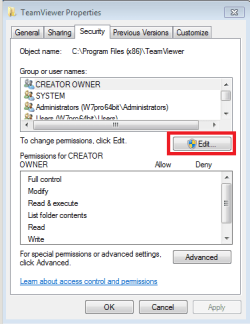
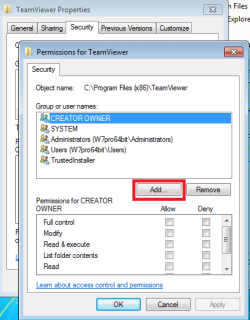
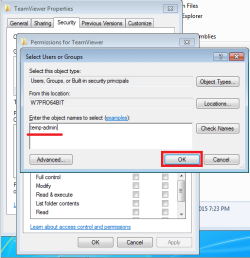
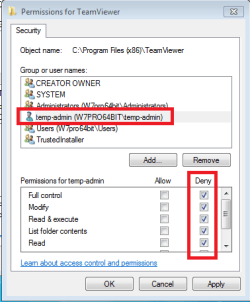
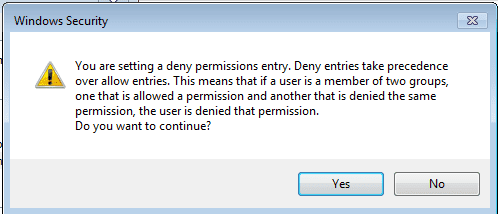
You can use NTFS file permissions to deny all access to the TeamViewer folder for that special admin account. Then log on to that special admin account and try to uninstall TeamViewer. The uninstall will fail and then you can remove TeamViewer from the list of installed apps.

You can set TeamViewer to not shutdown and to require a password to make settings changes.

Yes, any admin (including that special admin account) can remove the NTFS file permissions to deny access. I doubt that most users will know to try that. Reinstalling TeamViewer or updating it should add it back to the list of installed apps.

You can remove any mention of TeamViewer from the start menu - if desired.


Taking a system image or swapping hard drives is a good idea too.
 

My Computer

Computer type
Laptop
Computer Manufacturer/Model Number
Employer provided Dell Latitude
OS
W7 Pro SP1 64bit
CPU
i7
Memory
8GB
Graphics Card(s)
Intel HD Graphics
Hard Drives
crappy SSD
Antivirus
Employer mandated Symantec Endpoint Protection
Browser
Pale Moon 64bit, IE11 64bit & Chrome 64bit
These are some great ideas, I should have thought of a couple of them... I guess I just needed some brainstorming power!

Thanks I will give it a try, I don't need it to be bullet proof... just some simple deterrence really so I think these suggestions will fit the bill.

on3

...I plan to provide them with a password to a local admin account and tell them to never log in as the local admin... but they can use the password to install software when prompted....
Hiding that account from the logon screen should help prevent them from logging onto that special admin account.

https://social.technet.microsoft.co...71648d3/hide-user-accounts-on-windows-7-logon

There are ways around that simple hiding method, but it should work for most users.

Before you hide that special admin account, look at the rest of this post.


...I would like to password protect the remote desktop app so that it can NOT be uninstalled even if they have local admin rights... is this possible? Are there any remote desktop apps that have this feature built in?...
While it is true that an admin can do lots of things, there are apps that require a password to uninstall. Symantec Endpoint Protection is one such app that even an admin would find it hard to uninstall without the password. TeamViewer does not happen to have that feature built in :-(

You can use NTFS file permissions to deny all access to the TeamViewer folder for that special admin account. Then log on to that special admin account and try to uninstall TeamViewer. The uninstall will fail and then you can remove TeamViewer from the list of installed apps.

You can set TeamViewer to not shutdown and to require a password to make settings changes.

Yes, any admin (including that special admin account) can remove the NTFS file permissions to deny access. I doubt that most users will know to try that. Reinstalling TeamViewer or updating it should add it back to the list of installed apps.

You can remove any mention of TeamViewer from the start menu - if desired.


Taking a system image or swapping hard drives is a good idea too.
 

My Computer

Computer type
PC/Desktop
Computer Manufacturer/Model Number
Custom build
OS
Windows 10 Home Premium, 64bit
CPU
Intel Core i7 2600K @ 3.40GHz
Motherboard
SUSTeK Computer INC. P8Z68-V PRO GEN3 (LGA1155)
Memory
24.0GB Dual-Channel DDR3 @ 1600MHz (9-9-9-24)
Graphics Card(s)
1279MB NVIDIA GeForce GTX 570 (EVGA)
Hard Drives
111GB INTEL SSDSA2CW120G3 (SSD),298GB Seagate ST3320620AS (SATA), 931GB Western Digital WDC WD1001FALS-00E3A0 (SATA), 2794GB Seagate Backup+ Desk USB Device (USB (SATA),465GB Western Digital WD My Book 1110 USB Device (USB (SATA)), 29GB Mass Storage
Antivirus
Windows Defender
Browser
Firefox, Chrome, Edge when I have to...
This laptop has a fresh windows install with some software pre-installed that my friend requested... I have taken an image of it as well. The laptop itself is a spare and not something that will be detrimental if it goes the way of the dinosaurs... none the less I'd like to preserve it for as long as possible...

Thanks,
on3

I you have your heart set on loaning your computer please do so.

I would never loan a computer but if I ever did I would not loan a computer that had anything of mine one it except the operating system and a anti virus programs.

I like Alejandro85 idea in post #3.

Another option would be to remove the hard disk and replace it with a secondary one, with a clean Windows install, that you would swap again after recovering the computer.
 

My Computer

Computer type
PC/Desktop
Computer Manufacturer/Model Number
Custom build
OS
Windows 10 Home Premium, 64bit
CPU
Intel Core i7 2600K @ 3.40GHz
Motherboard
SUSTeK Computer INC. P8Z68-V PRO GEN3 (LGA1155)
Memory
24.0GB Dual-Channel DDR3 @ 1600MHz (9-9-9-24)
Graphics Card(s)
1279MB NVIDIA GeForce GTX 570 (EVGA)
Hard Drives
111GB INTEL SSDSA2CW120G3 (SSD),298GB Seagate ST3320620AS (SATA), 931GB Western Digital WDC WD1001FALS-00E3A0 (SATA), 2794GB Seagate Backup+ Desk USB Device (USB (SATA),465GB Western Digital WD My Book 1110 USB Device (USB (SATA)), 29GB Mass Storage
Antivirus
Windows Defender
Browser
Firefox, Chrome, Edge when I have to...
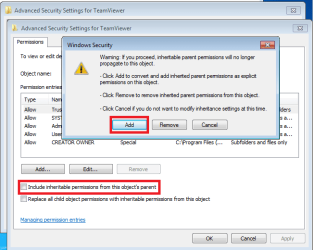
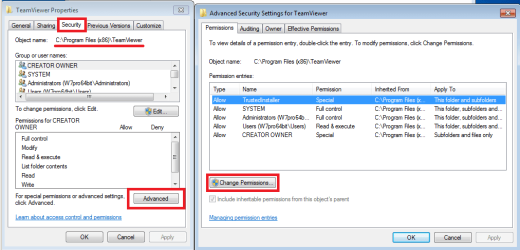
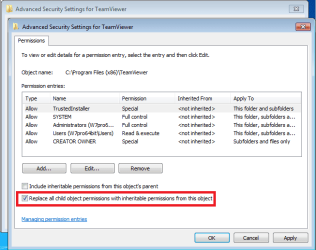
If you opt to try the NTFS changes, this is how I would do it.
(Not every action is described - but enough to convey the concept.)

tv1.png


Uncheck the option highlighted below and then select Add:

tv2.png


I'm not sure if tis next setting is needed - but it won't hurt.

tv3.png

tv4.png

tv5.png

tv6.png

tv7.png

tv8.png


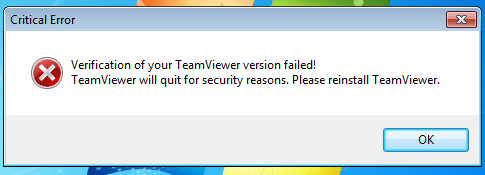
Once you log onto the special admin account, you should see this error. It is safe to ignore.

tv9.png


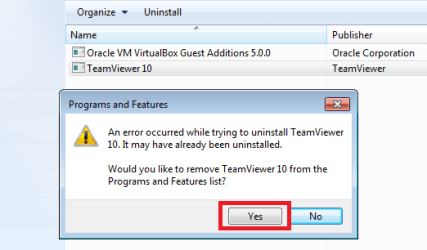
After the uninstall fails, you can take advantage of the offer to remove the entry from the list of installed apps.

tv10.png
 

My Computer

Computer type
Laptop
Computer Manufacturer/Model Number
Employer provided Dell Latitude
OS
W7 Pro SP1 64bit
CPU
i7
Memory
8GB
Graphics Card(s)
Intel HD Graphics
Hard Drives
crappy SSD
Antivirus
Employer mandated Symantec Endpoint Protection
Browser
Pale Moon 64bit, IE11 64bit & Chrome 64bit
Sorry I did not get a chance to reply earlier, but thank you very much for the detailed explanation (screenshots). Very kind of you to take the time!

on3

If you opt to try the NTFS changes, this is how I would do it.
(Not every action is described - but enough to convey the concept.)
 

My Computer

Computer type
PC/Desktop
Computer Manufacturer/Model Number
Custom build
OS
Windows 10 Home Premium, 64bit
CPU
Intel Core i7 2600K @ 3.40GHz
Motherboard
SUSTeK Computer INC. P8Z68-V PRO GEN3 (LGA1155)
Memory
24.0GB Dual-Channel DDR3 @ 1600MHz (9-9-9-24)
Graphics Card(s)
1279MB NVIDIA GeForce GTX 570 (EVGA)
Hard Drives
111GB INTEL SSDSA2CW120G3 (SSD),298GB Seagate ST3320620AS (SATA), 931GB Western Digital WDC WD1001FALS-00E3A0 (SATA), 2794GB Seagate Backup+ Desk USB Device (USB (SATA),465GB Western Digital WD My Book 1110 USB Device (USB (SATA)), 29GB Mass Storage
Antivirus
Windows Defender
Browser
Firefox, Chrome, Edge when I have to...
Back
Top