Solved Is it possible to have icons of 32px and their name BELOW?

Refreshing the folder view will also revert the labels to the bottom. This is kind of an annoyance though.

Only from pull-down menu. From context menu does not work.
 

My Computer My Computer

At a glance

Windows 7
Computer type
PC/Desktop
OS
Windows 7

My Computer My Computer

At a glance

Windows 7
Computer type
PC/Desktop
OS
Windows 7
Thanks, Anixx! It works this way but Auto Arrange is disabled now (obviously).

P.S.: replace 1124073476 with 1124073473 in the .bat file and Auto Arrange is back.

I think I achieved what I wanted :) Without using 3rd party software too!

If I could only figure out how to turn off automatic sort in Windows Explorer...
 
Last edited:

My Computer My Computer

At a glance

Windows 7 Pro x64
Computer type
PC/Desktop
OS
Windows 7 Pro x64
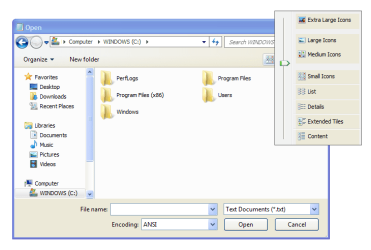
Anixx, the script doesn't correct the position of the text in Open/Load, Save As... menus.

Start Notepad >> File >> Open... to replicate this issue.

Do you know how to modify the ahk script to have a "List" / "Details" folder view in these menus?
 

Attachments

  • Open Menu.png
    Open Menu.png
    19.8 KB · Views: 18

My Computer My Computer

At a glance

Windows 7 Pro x64
Computer type
PC/Desktop
OS
Windows 7 Pro x64
Now I wish there was a javascript or something to set the icon size to 32x32. This would be useful for people like me who have the explorer command bar hidden, and rely on Classic Shell/CTRL + Mouse Wheel to set the icon size. It would be nice to just add a shortcut to whatever Javascript to Classic Shell's explorer toolbar, or even in the right-click menu (probably not in 'View' though, just because that seems to be more internal).
 

My Computer My Computer

At a glance

Windows 7 Professional x64Intel Core i7-4510U CPU8 GB RAMIntel(R) HD Graphics (I so wish I could upgra...
Computer type
Laptop
Computer Manufacturer/Model Number
Dell Inspiron 15 7000 Series
OS
Windows 7 Professional x64
CPU
Intel Core i7-4510U CPU
Memory
8 GB RAM
Graphics Card(s)
Intel(R) HD Graphics (I so wish I could upgrade this)
Screen Resolution
1920x1080
Keyboard
Laptop keyboard
Mouse
Microsoft Mouse
Internet Speed
Nothing to write home about
Antivirus
Malwarebytes Anti Malware
Browser
Pale Moon (Firefox fork)
Other Info
My primary laptop has Windows 10 on it, and my shared desktop (which is actually a laptop being used as a desktop) has Windows 7 Professional on it. I still use both, but I would say I use my laptop a bit more now.
Now I wish there was a javascript or something to set the icon size to 32x32. This would be useful for people like me who have the explorer command bar hidden, and rely on Classic Shell/CTRL + Mouse Wheel to set the icon size. It would be nice to just add a shortcut to whatever Javascript to Classic Shell's explorer toolbar, or even in the right-click menu (probably not in 'View' though, just because that seems to be more internal).
Nobody knows how MS does change the icon size smoothly. All AHK scripts I have seen use emulation of mouse wheel for the purpose.
 

My Computer My Computer

At a glance

Windows 7
Computer type
PC/Desktop
OS
Windows 7
Anixx, your tweak works in Win8.1 but the 32px icons are blurred. On the desktop everything is crisper sharp. Everywhere else the icons are blurred. Do you have any idea why?
 

My Computer My Computer

At a glance

Windows 7 Pro x64
Computer type
PC/Desktop
OS
Windows 7 Pro x64
They can be blurred only if they are NOT 32px. Are you sure you made them exactly 32px?
 

My Computer My Computer

At a glance

Windows 7
Computer type
PC/Desktop
OS
Windows 7
Oh, I'm sorry. I had to scroll one more time to make them 32px. I think the icon sharpness is OK now.

P.S.: to be honest it still doesn't look as sharp as in Win7.

Medium Icons > scrolling 6 times = 32px?

P.S.2: Win8.1 doesn't have a slider like that. I will try to change it via the registry.
 

My Computer My Computer

At a glance

Windows 7 Pro x64
Computer type
PC/Desktop
OS
Windows 7 Pro x64
If you are using mouse scroll, it can skip some positions, like 32px. To adjust the size more precisely either use the slider as on the screenshot above or directly edit registry.

If you still want to use mouse wheel for this purpose, then change the scroll resolution in mouse properties (change scroll 3 lines to scroll 1 line).
 

My Computer My Computer

At a glance

Windows 7
Computer type
PC/Desktop
OS
Windows 7
If you still want to use mouse wheel for this purpose, then change the scroll resolution in mouse properties (change scroll 3 lines to scroll 1 line).
It looks like 3 lines or 1 line doesn't matter when you hold CTRL and scroll down in Windows Explorer. It works exactly the same either way.

I set all icons to Medium and then hold CTRL and scroll down 6 times. The icons are blurry.
Then I tried to scroll down 7 times and the icons are blurry again. Desktop icons are crisper sharp.

In Win7 I was able to configure it. Win8.1 is giving me a hard time.
 

My Computer My Computer

At a glance

Windows 7 Pro x64
Computer type
PC/Desktop
OS
Windows 7 Pro x64
It looks like 3 lines or 1 line doesn't matter when you hold CTRL and scroll down in Windows Explorer.

You are wrong, it matters.

I set all icons to Medium and then hold CTRL and scroll down 6 times. The icons are blurry.
Then I tried to scroll down 7 times and the icons are blurry again. Desktop icons are crisper sharp.
It skips 32px. You cannot set 32px using only mouce wheel.
 

My Computer My Computer

At a glance

Windows 7
Computer type
PC/Desktop
OS
Windows 7
It skips 32px. You cannot set 32px using only mouce wheel.
Thanks, that explains everything! I will try to find out how to change the icon size via the registry.

I guess, it's not this:

  1. Move to HKEY_CURRENT_USER\Control Panel\Desktop\WindowMetrics
  2. Double click on "Shell Icon Size"
because mine is already 32px.
 

My Computer My Computer

At a glance

Windows 7 Pro x64
Computer type
PC/Desktop
OS
Windows 7 Pro x64
In registry it is in bags, you have to change it for each folder separately. Then you can apply the setting to all folders. The ShellBagsView utility will tell you where in registry the settings for each folder are located.
 

My Computer My Computer

At a glance

Windows 7
Computer type
PC/Desktop
OS
Windows 7
In registry it is in bags, you have to change it for each folder separately. Then you can apply the setting to all folders. The ShellBagsView utility will tell you where in registry the settings for each folder are located.
OMG it works! Thanks a lot, Anixx! You're the best!

Now let me try this .reg :)

Code:
Windows Registry Editor Version 5.00

[HKEY_CURRENT_USER\Control Panel\Desktop\WindowMetrics]
"IconFont"=hex:f5,ff,ff,ff,00,00,00,00,00,00,00,00,00,00,00,00,90,01,00,00,00,\
  00,00,cc,00,00,00,00,54,00,61,00,68,00,6f,00,6d,00,61,00,00,00,00,00,00,00,\
  00,00,00,00,00,00,00,00,00,00,00,00,00,00,00,00,00,00,00,00,00,00,00,00,00,\
  00,00,00,00,00,00,00,00,00,00,00,00,00,00,00,00,00,00,00,00,00
"CaptionFont"=hex:f3,ff,ff,ff,00,00,00,00,00,00,00,00,00,00,00,00,bc,02,00,00,\
  00,00,00,cc,00,00,00,00,54,00,72,00,65,00,62,00,75,00,63,00,68,00,65,00,74,\
  00,20,00,4d,00,53,00,00,00,00,00,00,00,00,00,00,00,00,00,00,00,00,00,00,00,\
  00,00,00,00,00,00,00,00,00,00,00,00,00,00,00,00,00,00,00,00,00,00
"MenuFont"=hex:f5,ff,ff,ff,00,00,00,00,00,00,00,00,00,00,00,00,90,01,00,00,00,\
  00,00,cc,00,00,00,00,54,00,61,00,68,00,6f,00,6d,00,61,00,00,00,00,00,00,00,\
  00,00,00,00,00,00,00,00,00,00,00,00,00,00,00,00,00,00,00,00,00,00,00,00,00,\
  00,00,00,00,00,00,00,00,00,00,00,00,00,00,00,00,00,00,00,00,00
"MessageFont"=hex:f5,ff,ff,ff,00,00,00,00,00,00,00,00,00,00,00,00,90,01,00,00,00,\
  00,00,cc,00,00,00,00,54,00,61,00,68,00,6f,00,6d,00,61,00,00,00,00,00,00,00,\
  00,00,00,00,00,00,00,00,00,00,00,00,00,00,00,00,00,00,00,00,00,00,00,00,00,\
  00,00,00,00,00,00,00,00,00,00,00,00,00,00,00,00,00,00,00,00,00
"SmCaptionFont"=hex:f5,ff,ff,ff,00,00,00,00,00,00,00,00,00,00,00,00,90,01,00,00,00,\
  00,00,cc,00,00,00,00,54,00,61,00,68,00,6f,00,6d,00,61,00,00,00,00,00,00,00,\
  00,00,00,00,00,00,00,00,00,00,00,00,00,00,00,00,00,00,00,00,00,00,00,00,00,\
  00,00,00,00,00,00,00,00,00,00,00,00,00,00,00,00,00,00,00,00,00
"StatusFont"=hex:f5,ff,ff,ff,00,00,00,00,00,00,00,00,00,00,00,00,90,01,00,00,00,\
  00,00,cc,00,00,00,00,54,00,61,00,68,00,6f,00,6d,00,61,00,00,00,00,00,00,00,\
  00,00,00,00,00,00,00,00,00,00,00,00,00,00,00,00,00,00,00,00,00,00,00,00,00,\
  00,00,00,00,00,00,00,00,00,00,00,00,00,00,00,00,00,00,00,00,00
It works too! No more Sugoi, good old Tahoma & Trebuchet MS :party:
 

My Computer My Computer

At a glance

Windows 7 Pro x64
Computer type
PC/Desktop
OS
Windows 7 Pro x64
I usually replace sagoeui with tahoma.

Code:
Windows Registry Editor Version 5.00

;Remove Segoe UI
[HKEY_LOCAL_MACHINE\SOFTWARE\Microsoft\Windows NT\CurrentVersion\Fonts]

"Segoe UI (TrueType)"=""
"Segoe UI Bold (TrueType)"=""
"Segoe UI Italic (TrueType)"=""
"Segoe UI Bold Italic (TrueType)"=""
"Segoe UI Semibold (TrueType)"=""
"Segoe UI Light (TrueType)"=""


;Font Substitution
[HKEY_LOCAL_MACHINE\SOFTWARE\Microsoft\Windows NT\CurrentVersion\FontSubstitutes]

"Segoe UI"="Tahoma"
 
Last edited:

My Computer My Computer

At a glance

Windows 7
Computer type
PC/Desktop
OS
Windows 7
I meant Tahoma, not Verdana. Your .reg is pretty clever but if I'm not mistaken my .reg changes the size of the text too ;)

I stole the fonts & sizes from WinXP :)
 

My Computer My Computer

At a glance

Windows 7 Pro x64
Computer type
PC/Desktop
OS
Windows 7 Pro x64
Back
Top