
ROBOCOPY - Create Backup Script

How to Create a Backup Script using ROBOCOPY Command


   Information
There are many paid and free software solutions available to backup critical data and files on a computer system. Many users, however, are unaware of an inbuilt Windows 7 command called ROBOCOPY (Robust File Copy) that allows users to create simple or highly advanced backup strategies.


In its simplist form, ROBOCOPY can be likened to an extension of XCOPY on steroids. Some of the more important features that make ROBOCOPY an attractive backup alternative are:
  • multi-threaded copying
  • mirroring or synchronisation mode between the destination and source
  • automatic retry and copy resumption
The examples shown below are primarily geared towards less experienced users, especially those that are unfamilar with batch file creation and running. More experienced users, however, are welcome to explore some of the advanced functionality offered by ROBOCOPY here:

http://technet.microsoft.com/en-us/library/cc733145(WS.10).aspx

and also here:

http://www.theether.net/download/Microsoft/Utilities/robocopy.pdf

or by simply typing robocopy /? at a cmd window prompt.


   Note
ROBOCOPY is a FOLDER copier, not a FILE copier - the source and destination syntax arguments in ROBOCOPY can only be folder names.


:note: Creating a BACKUP strategy

The easiest way to use the ROBOCOPY command to create a backup strategy is by creating a batch (.BAT) file. A batch file is a simple text file, that when executed, runs several commands one after the other.

Step 1

Click :orb: and in the search box, type notepad. Select Notepad to open up a new blank Notepad document.


Step 2

Type the ROBOCOPY commands into the Notepad document, save it as a .BAT file, and then execute it.

In the example below, I have 3 folders (Data1, Data2, and Data3) containing some data that I wish to backup. One folder is located on E: drive and the other two are located on F: drive. I wish to back these up as follows:

Data1 folder on E: backup to a folder called Backups on G: (external USB drive)
Data2 folder on F: backup to a folder called Backups on G: (external USB drive)
Data3 folder on F: backup to a folder called Backups on Q: (network storage drive)

The general format of the ROBOCOPY command is:

Code:
robocopy <source> <destination> <options>
In the empty Notepad document, the simplist form of the command would look like this:

Code:
robocopy E:\Data1 G:\Backups\Data1
robocopy F:\Data2 G:\Backups\Data2
robocopy F:\Data3 Q:\Backups\Data3
pause
   Tip
If source or destination paths contain spaces in them, enclose these in double quotes e.g. "C:\My Data\My Music"


Only the source
  • E:\Data1
  • F:\Data2
  • F:\Data3
and the destination
  • G:\Backups\Data1
  • G:\Backups\Data2
  • Q:\Backups\Data3
are mandatory inputs into the ROBOCOPY command.

   Tip
The PAUSE command at the bottom of the .BAT file allows the cmd window to stay open after it has completed to allow me to see the output from ROBOCOPY.


If I save the .BAT file to my Desktop, and run it by double-clicking it, then a cmd window is opened and the .BAT file executes the three ROBOCOPY commands as shown below.
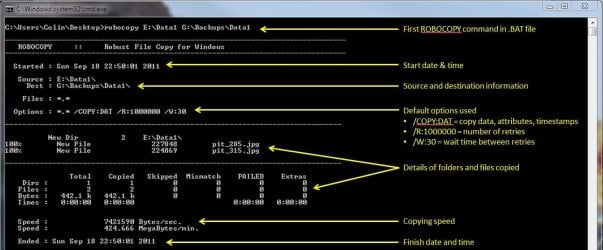
R1.JPG

The same information is repeated for every ROBOCOPY line in the .BAT file.


In order to utilise some of the powerful functionality in ROBOCOPY, I need to utilise some options in the ROBOCOPY command line. In this next example I want to edit my existing backup strategy such that:
  1. All sub-folders within my data folders are backed up, even if they are empty.
  2. The backup only copies newer files to my existing backup - this means a faster backup time.
  3. The percentage progress counter for copying is not shown - this neatens the overall appearance of the ROBOCOPY information, and creates a smaller log file.
  4. The information normally echoed to the cmd window is saved to a log file that I can examine at a later stage.
In order to do this, I need to specify some additional options in my ROBOCOPY commands like this:

Code:
robocopy E:\Data1 G:\Backups\Data1 [B][COLOR=red]/e /mir /np /log:backup_log.txt[/COLOR][/B]
robocopy F:\Data2 G:\Backups\Data2 [B][COLOR=red]/e /mir /np /log+:backup_log.txt[/COLOR][/B]
robocopy F:\Data3 Q:\Backups\Data3 [B][COLOR=red]/e /mir /np /log+:backup_log.txt[/COLOR][/B]
pause
Where:
/e = copy all sub-folders, even empty ones
/mir = mirror (check the files in the destination, and only copy newer files)
/np = no progress counter
/log: = create a logfile

   Tip

Note the use of the /log+: option in the 2nd and 3rd line of the .BAT file. This option ensures that the results of the 2nd and 3rd ROBOCOPY are appended to the log file created in the 1st ROBOCOPY line, meaning I only need one log file to capture all the information I backup.

The log file is always saved to the same folder as the .BAT file - in my case, the folder is saved to my Desktop.


Since the output from ROBOCOPY is written to the log file, the cmd window will not display the output from ROBOCOPY. If I wish to have this information written to both the log file and the cmd window for visual tracking of the backup process, then I can add the /tee option to each line in the .BAT file, as shown below.

Code:
robocopy E:\Data1 G:\Backups\Data1 /e /mir /np [B][COLOR=red]/te[/COLOR][COLOR=red]e[/COLOR][/B] /log:backup_log.txt
robocopy F:\Data2 G:\Backups\Data2 /e /mir /np [COLOR=red][B]/tee[/B][/COLOR] /log+:backup_log.txt
robocopy F:\Data3 Q:\Backups\Data3 /e /mir /np[COLOR=red][B] /tee[/B][/COLOR] /log+:backup_log.txt
pause
This is an example of the typical output to the the log file - it looks exactly the same as what is echoed to the cmd window.

Code:
-------------------------------------------------------------------------------
   ROBOCOPY     ::     Robust File Copy for Windows                              
-------------------------------------------------------------------------------
  Started : Sun Sep 18 23:35:01 2011
   Source : E:\Data1\
     Dest : G:\Backups\Data1\
    Files : *.*
 
  Options : *.* /S /E /COPY:DAT /PURGE /MIR /R:1000000 /W:30 
------------------------------------------------------------------------------
                    2 E:\Data1\
------------------------------------------------------------------------------
               Total    Copied   Skipped  Mismatch    FAILED    Extras
    Dirs :         1         0         1         0         0         0
   Files :         2         0         2         0         0         0
   Bytes :   442.1 k         0   442.1 k         0         0         0
   Times :   0:00:00   0:00:00                       0:00:00   0:00:00
   Ended : Sun Sep 18 23:35:01 2011
Since one of the data folders I am backing up is being copied across a network, I want to ensure that any possible network outages do not cause some critical files to be skipped in the backup. To do this, I can make use of the /z option in the 3rd line of my .BAT file (backup to my network storage) as shown below.

Code:
robocopy E:\Data1 G:\Backups\Data1 /e /mir /np /tee /log:backup_log.txt
robocopy F:\Data2 G:\Backups\Data2 /e /mir /np /tee /log+:backup_log.txt
robocopy F:\Data3 Q:\Backups\Data3 /e /mir /np [B][COLOR=red]/z[/COLOR][/B] /tee /log+:backup_log.txt
This option implements a "retry" for the copying. If I were part way through the copying process, and I lost connection with the network, then ROBOCOPY would automatically restart the copying at the point of failure once the network connection was re-established. It would retrying a million times every 30 seconds (the default settings shown in the image above). The only drawback with this option, is that it can significantly increase the backup time.

ROBOCOPY also has the ability to perform faster multi-threaded copying by simply using the option /mt. I can choose the number of threads to use by specifying a number between 1 and 128 after the /mt option, or if I just specify /mt without a number then the it will use 8 threads by default. In the example below, I use 4 threads to copy to my USB drive, and 8 threads (no number) to copy to my network drive.

Code:
robocopy E:\Data1 G:\Backups\Data1 /e /mir /np /tee [B][COLOR=red]/mt:4[/COLOR][/B] /log:backup_log.txt
robocopy F:\Data2 G:\Backups\Data2 /e /mir /np /tee [COLOR=red][B]/mt:4[/B][/COLOR] /log+:backup_log.txt
robocopy F:\Data3 Q:\Backups\Data3 /e /mir /np [COLOR=black]/z[/COLOR] /tee [COLOR=red][B]/mt[/B][/COLOR] /log+:backup_log.txt
Below is a template that you can use to create your own backup strategy using ROBOCOPY. Simply copy and paste the lines into a blank text document, and then edit as appropriate.

Code:
rem --- Edit the lines below to create your own backup strategy
rem --- The /mir option has been left out for safety sake
rem --- Add more lines for each new folder requiring backup
rem --- Specified 4 threads to use for multi-threaded copying
rem --- The results of the backup can be found in my_backup_log.txt 
robocopy <source> <destination> /e /np /tee /mt:4 /log:my_backup_log.txt
robocopy <source> <destination> /e /np /tee /mt:4 /log+:my_backup_log.txt
pause
   Tip

The can automate your backup's by using the Windows 7 Task Scheduler to run the .BAT file at specific times.

For more information please refer to this tutorial by Orbital Shark:
http://www.sevenforums.com/tutorials/12444-task-scheduler-create-new-task.html


I hope this brief tutorial helps you access the power and simplicity of ROBOCOPY to create some effective backup strategies.

Regards,
Golden
 
Last edited by a moderator:
Hi,

I was looking for a simple backup programm, utility, ... to backup my files. The program should be portable. I like to backup one time all files (full backup) and then for the next seven times the difference (differential or incremental backup).

I tried to tweak robocopy to make differential backups. With the option /MAXAGE I think I found a solution even if it's not a real differential backup because it's based only on date and not on date and time.

I took the script from Post 13 and modified it.

Some explanations:

  • robocopy didn't work correctly without administrator privileges. So I check that with fsutil.
  • I would like to use TARGETDIR as a variable in for example TARGETFULL. But that didn't work. So I wrote the target directory in all other TARGET variables.
  • The first time a full backup is made the delete command fails.
Can anybody have a look on my modified script?

Code:
echo off
mode con lines=45 cols=125

:Start
call :isAdmin
if %errorlevel% == 0 (
GOTO Menu
) else (
echo Error: No administrator privileges.
GOTO Quit
)

:isAdmin
fsutil dirty query %systemdrive% >nul
exit /b

:Menu
cls
echo.
echo ******************************
echo *** Robocopy Backup Script ***
echo ******************************
echo.
echo 1 - Run ROBO #1 - Full
echo 2 - Run ROBO #2 - Diff
echo 3 - Exit
echo.
echo ******************************
echo.

set day=%date:~-10,2%
set month=%date:~-7,2%
set year=%date:~-4%

set hour=%time:~-11,2%
set minute=%time:~-8,2%
set second=%time:~-5,2%

set source="<put_source_dir_here>"
set targetdir="<put_target_dir_here>"
set targetfull="<put_target_dir_here>\Full\%year%.%month%.%day%-%hour%.%minute%.%second%"
set targetdiff="<put_target_dir_here>\Diff\%year%.%month%.%day%-%hour%.%minute%.%second%"
set logfilefull="<put_target_dir_here>\%year%.%month%.%day%-%hour%.%minute%.%second%.full.log"
set logfilediff="<put_target_dir_here>\%year%.%month%.%day%-%hour%.%minute%.%second%.diff.log"

SET /P M=Type 1, 2 or 3 then press ENTER: 
IF %M%==1 GOTO Full
IF %M%==2 GOTO Diff
IF %M%==3 GOTO Quit

:Full
del "%targetdir%\*.last_full"
robocopy "%source%" "%targetfull%" /MIR /R:3 /W:3 /V /LOG+:"%logfilefull%" /TEE
type NUL > "%targetdir%\%year%%month%%day%.last_full"
pause
GOTO MENU

:Diff
For /F %%i in ('dir /B %targetdir%\*.last_full') do set last_full=%%~ni
robocopy "%source%" "%targetdiff%" /MAXAGE:%last_full% /R:3 /W:3 /V /LOG+:"%logfilediff%"
pause
GOTO MENU

:Quit
pause
Best regards, Frank
 

My Computer

Computer type
Laptop
Computer Manufacturer/Model Number
Dell Vostro 1320
OS
Windows 7 Home Premium 32bit
Watch out for "/MIR"

Nice article! A couple of suggestions:

1. "/MIR" will delete unmatched files and directories on the destination - this may or may not be what you want. It is defined as:
/MIR :: MIRror a directory tree (equivalent to /E plus /PURGE).
(/PURGE :: delete dest files/dirs that no longer exist in source.
/E :: copy subdirectories, including Empty ones.)
2. You may need to use "/XJ" if you are copying certain directories or files based on windows junction points. This will often be needed when you are copying from system-managed directory trees.

David
 

My Computer

Computer type
PC/Desktop
OS
Windows 7 Enterprise
I've got a successful batch file using robocopy to back up certain files to an external hard drive and it needs to back up as often as possible. The source is a LONG path on the C drive and the destination is on the D drive.

We have about 12 users who upload their files throughout the day (24/7) and these files are uploaded to the source parent folder. The users then drag and drop their files through a maze of folders about six levels beyond the parent folder.

The problem I'm running into is that Task Scheduler is set to run the batch file every five minutes (the closest thing I could find to an instantaneous backup), which copies the files to whatever folder it happens to be in while users are moving them throughout the directory tree. This creates a lot of clutter. Does anyone know whether you can exclude any files from being copied from those folders until they get to their final destination other than writing a script for each specific folder?

The reason I don't want to do this is because the folders are organized by year, then month, then user ID, then by purpose. This means that I would need to write hundreds of robocopy commands and then update them at least every year. I'd like to avoid that, if at all possible.

EDIT: I have stayed away from /mir because deleting anything is a policy violation and, depending on what is deleted, possibly a violation of law.

EDIT 2: Also, it is against policy to download third party software as well, so that idea is most likely not an option before it gets mentioned. However, admin might bend the rules depending on the software. So if anyone has some good suggestions, that would be great too.

Thanks guys!
 

My Computer

Computer type
PC/Desktop
Computer Manufacturer/Model Number
Dell
OS
Windows 7 Pro x64 SP 1
CPU
Intel Xeon W3530 @ 2.80 GHz, 2800 MHz
Memory
6.00 GB
Hard Drives
(OS) C: 232.11 GB
(Backup) D:: 1.82 TB
RoboCopy with a Western Digital MyBookLiveDuo

I have tried the simple copy command to test a backup .bat file but i keep getting this error.

ERROR : Invalid Parameter #3 : "\\Z:\[FOLDER NAME]

The MyBookLiveDuo drive is mapped with a public share (Z:\) and a folder that i want to use to back up to. I think that it has something to do with type of drive, i think it uses a different operating system than windows but works with windows, mac, etc.

i am not too versed in all of this type of stuff so I may not even be describing my problem correctly. I am just hoping that someone has run across this before.

Thanks
 

My Computer

Computer type
Laptop
Computer Manufacturer/Model Number
HP
OS
Windows 7 Enterprise Service Pack 1 64-Bit
CPU
Intel Cor I7
Memory
16
Hard Drives
1
Antivirus
Symantec
I've got a successful batch file using robocopy to back up certain files to an external hard drive and it needs to back up as often as possible. The source is a LONG path on the C drive and the destination is on the D drive.

We have about 12 users who upload their files throughout the day (24/7) and these files are uploaded to the source parent folder. The users then drag and drop their files through a maze of folders about six levels beyond the parent folder.

The problem I'm running into is that Task Scheduler is set to run the batch file every five minutes (the closest thing I could find to an instantaneous backup), which copies the files to whatever folder it happens to be in while users are moving them throughout the directory tree. This creates a lot of clutter. Does anyone know whether you can exclude any files from being copied from those folders until they get to their final destination other than writing a script for each specific folder?

The reason I don't want to do this is because the folders are organized by year, then month, then user ID, then by purpose. This means that I would need to write hundreds of robocopy commands and then update them at least every year. I'd like to avoid that, if at all possible.

EDIT: I have stayed away from /mir because deleting anything is a policy violation and, depending on what is deleted, possibly a violation of law.

EDIT 2: Also, it is against policy to download third party software as well, so that idea is most likely not an option before it gets mentioned. However, admin might bend the rules depending on the software. So if anyone has some good suggestions, that would be great too.

Thanks guys!


Disregard. I wrote commands for each final destination folder to solve this problem. Works like a charm. I was hoping to avoid that, but it needed to be done ASAP and other options were limited. If anyone knows an answer to this, it might still help someone else.
 

My Computer

Computer type
PC/Desktop
Computer Manufacturer/Model Number
Dell
OS
Windows 7 Pro x64 SP 1
CPU
Intel Xeon W3530 @ 2.80 GHz, 2800 MHz
Memory
6.00 GB
Hard Drives
(OS) C: 232.11 GB
(Backup) D:: 1.82 TB
Something wrong?

Here is my robocopy script I created that "worked" to backup user data to the server but I started it on Friday at around noon and it was still not done when the user came in this morning:

Code:
robocopy "c:\Users\Lamar" "\\grantserver09\Backup\LFowler12" /E /V /XO /XA:H /LOG:"Backup_Log.txt" /FFT /ZB /R:1 /W:1 /tee

So I fixed up a quick XCopy script, emptied the folder on the server so it was a fair comparison, and that finished in about an hour:

Code:
xcopy "c:\Users\Lamar" "\\grantserver09\Backup\LFowler12" /c /d /e /g /i /r /s /y

Is there something wrong with my robocopy script that would cause it to be so slow? I tried it with and without the /MT and it actually seemed to make it slower with it?
 

My Computer

Computer type
PC/Desktop
OS
Windows 7 Enterprise 32bit
Chmcke01, can you tell me exactly what you are wanting to do? I am no expert with robocopy although I do use it. I am unfamiliar with some of the switches you are using and have not been able to find them. This can give you an idea of the switches and what they do http://social.technet.microsoft.com/wiki/contents/articles/1073.robocopy-and-a-few-examples.aspx

You can also, in the command window use robocopy /? to get all of the options available. The MT command sets the number of threads to be used in the operation, the default being 8. Obviously, the amount of time it takes depends on how much data and they type of files you are copying.

The quotation marks are not necessary unless to folders have spaces in the name. ie., LFowler needs no quotation marks, but L Fowler does need quotation marks.

If we knew exactly what you are trying to do, it may help us. I am sure Golden will be around later this evening and be much better help than I am.
 

My Computers

System One System Two

  • Computer type
    PC/Desktop
    Computer Manufacturer/Model Number
    ALWAYS UNDER CONSTRUCTION
    OS
    Windows 11 Pro
    CPU
    Ryzen 9 5900X
    Motherboard
    Asus X570 Crosshair Viii Hero
    Memory
    32GB G Skill DDR4-3600
    Graphics Card(s)
    EVGA RTX 3080 FTW 3 Ultra
    Sound Card
    On Board/Sennheiser PC37X Headset
    Monitor(s) Displays
    3 X Asus 27"
    Screen Resolution
    2560x1440
    Hard Drives
    2 X 1 TB NVME drives
    PSU
    EVGA 850
    Case
    Phanteks Eclipse P400A
    Cooling
    EVGA 280 AIO
    Keyboard
    Logitech G510s/ Logitech G13
    Mouse
    Logitech G502
    Internet Speed
    24/1
    Antivirus
    ESET/MBAM Pro/SAS Pro
    Browser
    Chrome/ Firefox/ Edge
  • Computer type
    Laptop
    System Manufacturer/Model Number
    Dell 16 Plus
    OS
    Windows 11 Pro
    CPU
    Intel Ultra 9 288V
    Memory
    32 GB LPDDR5X 8533
    Monitor(s) Displays
    16" Mini-LED HDR600 Touch 90 Hz
    Screen Resolution
    2560X1600
    Hard Drives
    1 TB NVME
Script

Chmcke01, can you tell me exactly what you are wanting to do? I am no expert with robocopy although I do use it. I am unfamiliar with some of the switches you are using and have not been able to find them. This can give you an idea of the switches and what they do Robocopy and a Few Examples - TechNet Articles - United States (English) - TechNet Wiki

You can also, in the command window use robocopy /? to get all of the options available. The MT command sets the number of threads to be used in the operation, the default being 8. Obviously, the amount of time it takes depends on how much data and they type of files you are copying.

The quotation marks are not necessary unless to folders have spaces in the name. ie., LFowler needs no quotation marks, but L Fowler does need quotation marks.

If we knew exactly what you are trying to do, it may help us. I am sure Golden will be around later this evening and be much better help than I am.

I provide IT support for a small business with about 5 users each with their own computer. Their last IT guy setup Retrospect backup backing up the user folder to the server and then CrashPlan Pro was installed on the server to backup to their cloud service (because they let you backup an unlimited amount of data on a single computer for $10 per month).

The first problem was that Retrospect doesn't save the data in a format that can be easily viewed to compare the backed up copy to the copy still on the original drive. The next problem was that one of the users got a message that their computer hadn't backed up in a few days so they uninstalled it from the server and reinstalled it but now it is asking for the key which nobody knows.

So, I figured for so few users I could make a basic xcopy script set to run at login and I did and it worked...but several people have told me that robocopy is worlds better than xcopy.

Which switches are you not familiar with? /XA:H excludes hidden files, /fft is Fat File Timing which several sites recommended for transfers over the network, /tee displays output to the cmd window in addition to the log. Without it if you have the log turned on then it looks like nothing is happening in the window and I feared the users would close it out if it didn't look like it was doing anything.
 

My Computer

Computer type
PC/Desktop
OS
Windows 7 Enterprise 32bit
I am hoping Golden will help with your problem, but for what it's worth, I use the following for my backups

robocopy <source> <destination> /e /mir /np /tee /mt:10 /log:backup_log.txt For your purposes I would add the z switch.
 

My Computers

System One System Two

  • Computer type
    PC/Desktop
    Computer Manufacturer/Model Number
    ALWAYS UNDER CONSTRUCTION
    OS
    Windows 11 Pro
    CPU
    Ryzen 9 5900X
    Motherboard
    Asus X570 Crosshair Viii Hero
    Memory
    32GB G Skill DDR4-3600
    Graphics Card(s)
    EVGA RTX 3080 FTW 3 Ultra
    Sound Card
    On Board/Sennheiser PC37X Headset
    Monitor(s) Displays
    3 X Asus 27"
    Screen Resolution
    2560x1440
    Hard Drives
    2 X 1 TB NVME drives
    PSU
    EVGA 850
    Case
    Phanteks Eclipse P400A
    Cooling
    EVGA 280 AIO
    Keyboard
    Logitech G510s/ Logitech G13
    Mouse
    Logitech G502
    Internet Speed
    24/1
    Antivirus
    ESET/MBAM Pro/SAS Pro
    Browser
    Chrome/ Firefox/ Edge
  • Computer type
    Laptop
    System Manufacturer/Model Number
    Dell 16 Plus
    OS
    Windows 11 Pro
    CPU
    Intel Ultra 9 288V
    Memory
    32 GB LPDDR5X 8533
    Monitor(s) Displays
    16" Mini-LED HDR600 Touch 90 Hz
    Screen Resolution
    2560X1600
    Hard Drives
    1 TB NVME
Thanks for all the info.

I am curious however why it states the following:

ROBOCOPY is a FOLDER copier, not a FILE copier - the source and destination syntax arguments in ROBOCOPY can only be folder names.
This is totally false and ROBOCOPY can absoltutely copy single files.

To copy files you simply add the source file after the desination folder. For Example:

ROBOCOPY "source folder" "destination folder" "file from source folder" /DCOPY:T /COPY:DAT /E

It's also easy to batch copy many files by creating a .bat with each line one after the other. Don't call the file robocopy though or it will just run an endless loop.

BTW is /DCOPY:T redundant when using /COPY:DAT ? I assume it is, but it's never caused ant issues so I've always just used them both.

Regards,

Alan.
 

My Computer

Computer type
Laptop
Computer Manufacturer/Model Number
MSI GT683 Gaming Laptop
OS
Windows 7 Home Premium 64bit / Windows 10 Pro 64bit
CPU
Intel® Core™ i7-2820QM
Motherboard
MS-16F2
Memory
8GB DDR3
Graphics Card(s)
NVIDIA GeForce GTX 560M 1.5GB GDDR5
Sound Card
Sound by Dynaudio -NVIDIA HD Audio + THX TrueStudio PRO
Monitor(s) Displays
16:9 LED Laptop Display
Screen Resolution
1366x768
Hard Drives
2x 750GB RAID-0
PSU
180W Power Unit
Case
N/A
Cooling
N/A
Browser
Firefox + Chrome
Alan, robocopy is a folder copier. It copies one folder to another folder. The switches allow you to determine what is copied. In your post above
ROBOCOPY "source folder" "destination folder"
You are copying "Source Folder" to "Destination Folder", both being folders. The switches determine what is copied. a /mir switch will copy the folder and all contents ie. mirror. Of course it copies the files inside the folder. It would make little sense to copy an empty folder without the files and folders inside too.

The default copy flags is DAT, DCOPY:T copies the directory time stamps. Whether it also copies the Security and attributes, I don't know as I don't use them. My guess is that they would be somewhat different. Every command seems to be somewhat different.
 

My Computers

System One System Two

  • Computer type
    PC/Desktop
    Computer Manufacturer/Model Number
    ALWAYS UNDER CONSTRUCTION
    OS
    Windows 11 Pro
    CPU
    Ryzen 9 5900X
    Motherboard
    Asus X570 Crosshair Viii Hero
    Memory
    32GB G Skill DDR4-3600
    Graphics Card(s)
    EVGA RTX 3080 FTW 3 Ultra
    Sound Card
    On Board/Sennheiser PC37X Headset
    Monitor(s) Displays
    3 X Asus 27"
    Screen Resolution
    2560x1440
    Hard Drives
    2 X 1 TB NVME drives
    PSU
    EVGA 850
    Case
    Phanteks Eclipse P400A
    Cooling
    EVGA 280 AIO
    Keyboard
    Logitech G510s/ Logitech G13
    Mouse
    Logitech G502
    Internet Speed
    24/1
    Antivirus
    ESET/MBAM Pro/SAS Pro
    Browser
    Chrome/ Firefox/ Edge
  • Computer type
    Laptop
    System Manufacturer/Model Number
    Dell 16 Plus
    OS
    Windows 11 Pro
    CPU
    Intel Ultra 9 288V
    Memory
    32 GB LPDDR5X 8533
    Monitor(s) Displays
    16" Mini-LED HDR600 Touch 90 Hz
    Screen Resolution
    2560X1600
    Hard Drives
    1 TB NVME
Thank you for your reply. I am quite aware of this, however I am simply pointing out that the NOTE is wrong. It plainly states that "the source and destination syntax arguments in ROBOCOPY can only be folder names." which is wrong, you can also add a syntax for a specific file.

There is other uses to ROBOCOPY than just copying the entire flolder, sometimes its useful to copy specific files only and also use ROBOCOPY's features, it's syntaxes.

Regards,

Alan
 

My Computer

Computer type
Laptop
Computer Manufacturer/Model Number
MSI GT683 Gaming Laptop
OS
Windows 7 Home Premium 64bit / Windows 10 Pro 64bit
CPU
Intel® Core™ i7-2820QM
Motherboard
MS-16F2
Memory
8GB DDR3
Graphics Card(s)
NVIDIA GeForce GTX 560M 1.5GB GDDR5
Sound Card
Sound by Dynaudio -NVIDIA HD Audio + THX TrueStudio PRO
Monitor(s) Displays
16:9 LED Laptop Display
Screen Resolution
1366x768
Hard Drives
2x 750GB RAID-0
PSU
180W Power Unit
Case
N/A
Cooling
N/A
Browser
Firefox + Chrome
Thank you for your reply. I am quite aware of this, however I am simply pointing out that the NOTE is wrong. It plainly states that "the source and destination syntax arguments in ROBOCOPY can only be folder names." which is wrong, you can also add a syntax for a specific file.

There is other uses to ROBOCOPY than just copying the entire flolder, sometimes its useful to copy specific files only and also use ROBOCOPY's features, it's syntaxes.

Regards,

Alan

Correct, that's why I said
The switches determine what is copied
It is still copied one folder to another folder, the switches determined what type files are or are not copied.
 

My Computers

System One System Two

  • Computer type
    PC/Desktop
    Computer Manufacturer/Model Number
    ALWAYS UNDER CONSTRUCTION
    OS
    Windows 11 Pro
    CPU
    Ryzen 9 5900X
    Motherboard
    Asus X570 Crosshair Viii Hero
    Memory
    32GB G Skill DDR4-3600
    Graphics Card(s)
    EVGA RTX 3080 FTW 3 Ultra
    Sound Card
    On Board/Sennheiser PC37X Headset
    Monitor(s) Displays
    3 X Asus 27"
    Screen Resolution
    2560x1440
    Hard Drives
    2 X 1 TB NVME drives
    PSU
    EVGA 850
    Case
    Phanteks Eclipse P400A
    Cooling
    EVGA 280 AIO
    Keyboard
    Logitech G510s/ Logitech G13
    Mouse
    Logitech G502
    Internet Speed
    24/1
    Antivirus
    ESET/MBAM Pro/SAS Pro
    Browser
    Chrome/ Firefox/ Edge
  • Computer type
    Laptop
    System Manufacturer/Model Number
    Dell 16 Plus
    OS
    Windows 11 Pro
    CPU
    Intel Ultra 9 288V
    Memory
    32 GB LPDDR5X 8533
    Monitor(s) Displays
    16" Mini-LED HDR600 Touch 90 Hz
    Screen Resolution
    2560X1600
    Hard Drives
    1 TB NVME
Fair enough. I am only pointing out that it can be used to copy specific files instead of whole folders. I use this sometimes to copy multiple specific files (for example files I want to keep data on i.e. using the DAT).
 

My Computer

Computer type
Laptop
Computer Manufacturer/Model Number
MSI GT683 Gaming Laptop
OS
Windows 7 Home Premium 64bit / Windows 10 Pro 64bit
CPU
Intel® Core™ i7-2820QM
Motherboard
MS-16F2
Memory
8GB DDR3
Graphics Card(s)
NVIDIA GeForce GTX 560M 1.5GB GDDR5
Sound Card
Sound by Dynaudio -NVIDIA HD Audio + THX TrueStudio PRO
Monitor(s) Displays
16:9 LED Laptop Display
Screen Resolution
1366x768
Hard Drives
2x 750GB RAID-0
PSU
180W Power Unit
Case
N/A
Cooling
N/A
Browser
Firefox + Chrome
Cry for help ..... and I know I should go through all 28 pages again as I think the answer is probably here, but having had a skim through, I cannot see it.

Looking to use Robocopy to backup c:\SOURCE to :d:\SOURCE with date

I would want a different folder for each night, either in dd/mm/yy format or even just day of the week "Monday, Tuesday, etc" on a 4 week cycle.

I have tried various things but all seem to fail, as the data is critical and I am up against the clock, I thought I would just ask the question and see what comes back.


Many thanks
 

My Computer

Computer type
Laptop
Computer Manufacturer/Model Number
Lenovo T530 HD
OS
Windows 7 Enterprise 64 bits
CPU
i5-2520
Memory
16Gb
Graphics Card(s)
Intel HD 3000
Hard Drives
480Gb SSD (x2)
Antivirus
NOD32
Browser
Mozilla
D95gas,

Your batch file can do that. All you need to get the script to do is create a folder with the desired date, then perform a Robocopy to that folder.

Here’s something you may modify to your liking.
Code:
@echo off
setlocal EnableDelayedExpansion

set "source=C:\SOURCE"
set "destination=D:\SOURCE"
set "destination_new_foldername=`YEAR-`MONTH-`DAY"

goto :main
:GetUTCDateTime
setlocal EnableDelayedExpansion
	for /f "delims=" %%D in (' wmic OS get LocalDateTime ^| find "." ') do (
		set "dt=%%~D"
		set "DATETIME.YEAR=!DT:~0,4!"
		set "DATETIME.MONTH=!DT:~4,2!"
		set "DATETIME.DAY=!DT:~6,2!"
		set "DATETIME.HOUR=!DT:~8,2!"
		set "DATETIME.MINUTE=!DT:~10,2!"
		set "DATETIME.SECOND=!DT:~12,2!"
		set "DATETIME.FRACTIONS=!DT:~15,6!"
		set "DATETIME.OFFSET=!DT:~21,4!"
		if "%DATETIME.HOUR%" gtr "11" (set DATETIME.PERIOD=PM) else set "DATETIME.PERIOD=AM"
	)
	for /f "delims=" %%I in (' date /t ') do (
		set "dayofweek=%%~I"
		set "DATETIME.DAYOFWEEK=!DAYOFWEEK:~0,3!"
	)
endlocal & (
	set "DATETIME.YEAR=%DATETIME.YEAR%"
	set "DATETIME.MONTH=%DATETIME.MONTH%"
	set "DATETIME.DAY=%DATETIME.DAY%"
	set "DATETIME.HOUR=%DATETIME.HOUR%"
	set "DATETIME.MINUTE=%DATETIME.MINUTE%"
	set "DATETIME.SECOND=%DATETIME.SECOND%"
	set "DATETIME.FRACTIONS=%DATETIME.FRACTIONS%"
	set "DATETIME.OFFSET=%DATETIME.OFFSET%"
	set "DATETIME.PERIOD=%DATETIME.PERIOD%"
	set "DATETIME.DAYOFWEEK=%DATETIME.DAYOFWEEK%"
)
goto :eof

:main

if not exist "%SOURCE%"\* echo Source location not found& exit /b 1
if not exist "%DESTIN%"\* echo Destination location not found& exit /b 1

call :GetUTCDateTime
for %%I in (`YEAR `MONTH `DAY `HOUR `MINUTE `SECOND `FRACTIONS `OFFSET `PERIOD) do (
	set "timeunit=%%~I"
	call call set "destination_new_foldername=!DESTINATION_NEW_FOLDERNAME:%%~I=%%%%DATETIME.%%TIMEUNIT:~1%%%%%%!"
)

if exist "%DESTINATION%\%DESTINATION_NEW_FOLDERNAME%"\* (
	echo Destination folder already contains a folder with name "%DESTINATION_NEW_FOLDERNAME%"
	exit /b 1
)

robocopy "%SOURCE%" "%DESTINATION%\%DESTINATION_NEW_FOLDERNAME%"


I am curious however why it states the following:

ROBOCOPY is a FOLDER copier, not a FILE copier - the source and destination syntax arguments in ROBOCOPY can only be folder names.
This is totally false and ROBOCOPY can absoltutely copy single files.
Good catch of detail. While the text in blue is a correct statement, I agree that calling Robocopy a folder copier is not right. Robocopy most definitely has the capability to copy single files, so calling the tool a folder copier would certainly be misleading.
 

My Computer

Computer type
PC/Desktop
OS
Windows 10, Windows 8.1 Pro, Windows 7 Professional, OS X El Capitan
Robocopy & Nas to External USB 2tb HDD

First of all thanks so much for an excellent tutorial - I'm wondering if there is a way of using robocopy or another batch file to run backups from a NAS to an external USB

Let me explain... (long winded I apologise)

Recently a friend has been hit with locky variant .odin - and like a jack*ss backups never get done :sick:

The old excuse 'no time' or 'I'll do it tomorrow' :party: (I think he's a party animal) He uses a programme to backup the systems weekly to the NAS - (came free with the device) but relies on him plugging in the external drive and dragging/dropping files onto said external system...

I would assume that robocopy would (if the network drive was mapped) be able to find the files and then back them up without him having to do a lot of stuff

Now herein lies a problem - the only batch file I have ever edited was a simple one line affair that listed contents of a directory (you had to drop the bat into the file you wanted to list - then it would run alphabetical list and add filelist.txt and a few other things to the directory) and the only programming skill he has is the microwave oven

I'm not asking for a custom script (though it would be appreciated) but I do want to have a go at doing it myself as then I can also use it with a few alterations for myself

:huh:

I swear if I ever meet the b*stards I'd rip them a few more holes :devil::devil::devil::devil::devil::devil:

I forgot one important detail - the NAS is used by computers in almost every room ( i dont think he has one in the loo) and needs to be seen on the network
 
Last edited:

My Computer

Computer type
PC/Desktop
Computer Manufacturer/Model Number
Custom
OS
Win7 Ult x64
CPU
I7 3770k
Motherboard
Gigavyte x77
Memory
32gb
Graphics Card(s)
On Board Intel 4000
Hard Drives
250 Samsung 850 Evo SSD
1TB Seagate Spinner

---
Other system same spec but Radeon 7800 x2
PSU
750 Corsair
Case
Custom
Cooling
Non Stock
Keyboard
Microsoft Wired 600
Mouse
Microsoft Wired Wheel Mouse
Internet Speed
Crap
Antivirus
ESET Smart Security MBAM (Pro) MBAE (Pro)
Browser
Firefox, Chrome
Other Info
These specs are only 2 of the multiple systems i have
Now herein lies a problem - the only batch file I have ever edited was a simple one line affair that listed contents of a directory (you had to drop the bat into the file you wanted to list - then it would run alphabetical list and add filelist.txt and a few other things to the directory) and the only programming skill he has is the microwave oven
Lucky you, the Robocopy command requires only one line by default.

So what’s the problem? :sarc:
 

My Computer

Computer type
PC/Desktop
OS
Windows 10, Windows 8.1 Pro, Windows 7 Professional, OS X El Capitan
This may help for the batch file or command

Code:
rem --- Edit the lines below to create your own backup strategy
rem --- Add more lines for each new folder requiring backup
rem --- Specified 4 threads to use for multi-threaded copying
rem --- The results of the backup can be found in my_backup_log.txt 
robocopy <source> <destination> /e /np /tee /mt:4 /log:my_backup_log.txt
robocopy <source> <destination> /e /np /tee /mt:4 /log+:my_backup_log.txt
pause

You can save the command to notepad and give it a name with the .bat extension and it will create a batch file. This one of my data backup files I use.

Code:
echo
robocopy E:\users X:\Robocopy_W10_Data /e /mir /np /tee /mt:10 /log:backup_log.txt
pause

Name it Robocopy.bat and it will be a batch file. Just click it and it will run. You can automate it if you want by adding a nw Task in Task Scheduler Task Scheduler - Create New Task
 

My Computers

System One System Two

  • Computer type
    PC/Desktop
    Computer Manufacturer/Model Number
    ALWAYS UNDER CONSTRUCTION
    OS
    Windows 11 Pro
    CPU
    Ryzen 9 5900X
    Motherboard
    Asus X570 Crosshair Viii Hero
    Memory
    32GB G Skill DDR4-3600
    Graphics Card(s)
    EVGA RTX 3080 FTW 3 Ultra
    Sound Card
    On Board/Sennheiser PC37X Headset
    Monitor(s) Displays
    3 X Asus 27"
    Screen Resolution
    2560x1440
    Hard Drives
    2 X 1 TB NVME drives
    PSU
    EVGA 850
    Case
    Phanteks Eclipse P400A
    Cooling
    EVGA 280 AIO
    Keyboard
    Logitech G510s/ Logitech G13
    Mouse
    Logitech G502
    Internet Speed
    24/1
    Antivirus
    ESET/MBAM Pro/SAS Pro
    Browser
    Chrome/ Firefox/ Edge
  • Computer type
    Laptop
    System Manufacturer/Model Number
    Dell 16 Plus
    OS
    Windows 11 Pro
    CPU
    Intel Ultra 9 288V
    Memory
    32 GB LPDDR5X 8533
    Monitor(s) Displays
    16" Mini-LED HDR600 Touch 90 Hz
    Screen Resolution
    2560X1600
    Hard Drives
    1 TB NVME
Name it Robocopy.bat and it will be a batch file. Just click it and it will run.
Except don’t name it “Robocopy” or big problems.
 

My Computer

Computer type
PC/Desktop
OS
Windows 10, Windows 8.1 Pro, Windows 7 Professional, OS X El Capitan
Back
Top