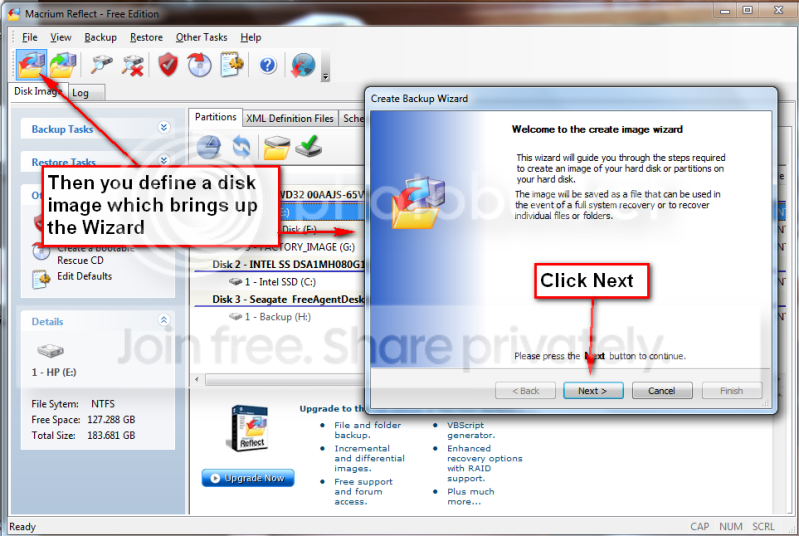
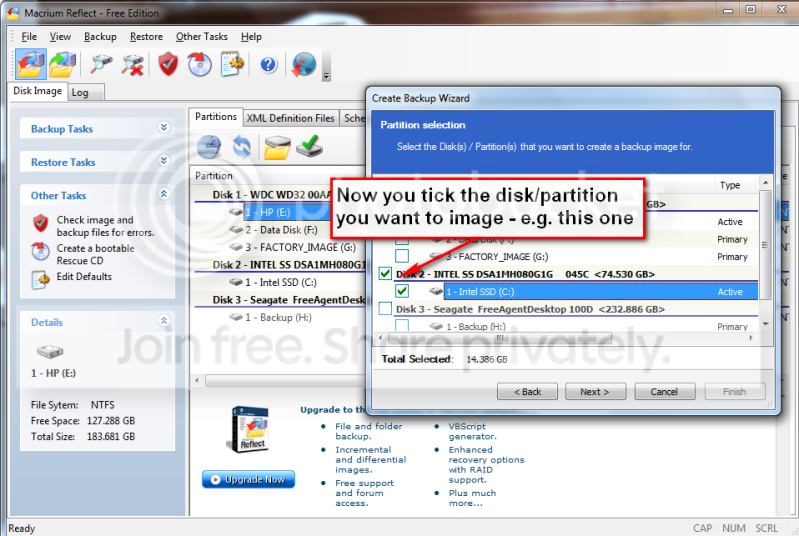
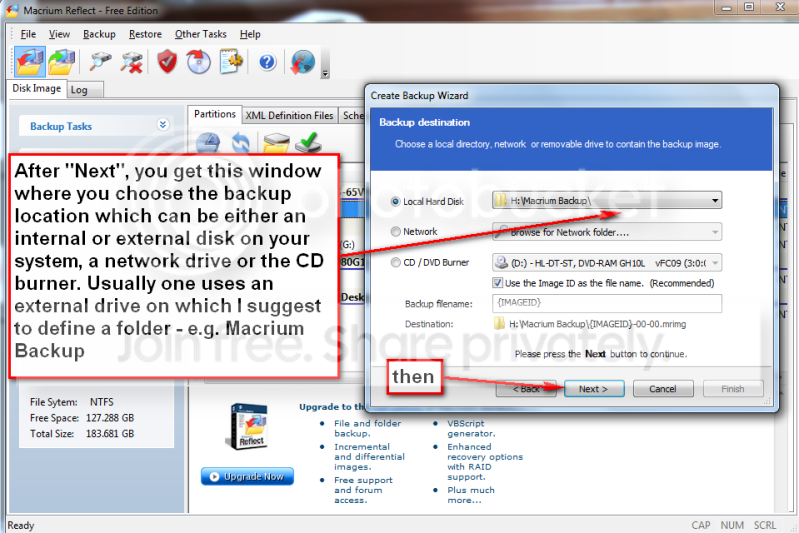
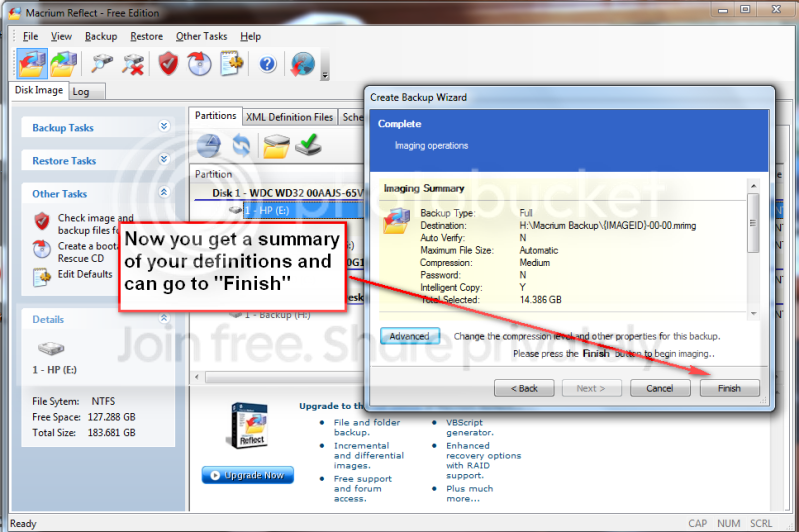
I cloned an old laptop hard disk of C and D partitions (total 75 GB) to an external 250 GB disk in a USB enclosure (USB 2). This external disk was partitioned before and it was used for back ups, in other words it was full of data. I threw it in there without reformatting/repartitioning it to see how Macrium would handle it.
Macrium took about 50 minutes to complete cloning (intelligent sector copy), probably longer than I expected.
It took that long because you were using a USB 2.0 external enclosure. USB 2.0 is slow, compared to USB 3.0 which is probably 4-5 times faster.
Cloning is effectively "copying", and it just takes that long to copy maybe 80GB of partitions to a USB 2.0 target, no matter whether it's your SATA-3 spinner drive installed in a USB 2.0 enclosure, or using a USB 2.0 key drive inserted into a USB 2.0 port. The copy speed is a function of the USB 2.0 interface speed, not the speed of the HDD spinner being used.
It did clone perfectly the original C and D partitions to, respectively, H and F partitions on the external disk (yes, strange drive letter sequence)
The new partition letters are simply for the new partitions suddenly visible while still booted to your existing Windows (on current C) under which you are running Macrium Reflect to do the cloning.
But once you re-boot to the new drive (after performing appropriate "surgery" to swap drives and install the external one inside your machine, thus accomplishing the replacement/upgrade), those partitions will once again be C and D. The booted Windows is always C, and any additional partitions get lettered starting with D, E, etc. You can then use DISKMGMT.MSC to change the letters of any partitions you want to, other than C which cannot be re-lettered since operational indows is running from it.
it left an unallocated space of about 82 GB and, most strangely of all, it left a partition (I) with data that was in the external disk before the cloning.
Unless you first deleted all partitions on the target drive, nothing there would be deleted by the cloning process. Cloning means copying, and it is FROM the source partitions on the source drive, TO UNALLOCATED FREE SPACE ON THE TARGET DRIVE. That's where the cloned partitions get located, in whatever unallocated free space exists... having nothing to do with where those partitions lived on the source drive.
You're copying data (i.e. in-use space in the source partitions) when you clone. You're creating a new partition on the target drive out of free space available, and then copying FROM source partition TO this new target partition. Anything else already on that drive remains untouched as a byproduct of the cloning, unless you delete it yourself before or after.
Obviously this external disk needs some repartitioning now with Disk Management. I already double-checked with disk management and the sequence of drives is correct and "partitionable".
I recommend you give
Partition Wizard Free a try. I feel it to be much more user-friendly with a much superior GUI and much richer functionality than DISKMGMT.MSC. But of course you're free to use whatever you're comfortable with and that accomplishes the objective.
The only question I have now is, do I need a Rescue Media to boot (as Macrium correctly keeps reminding me when I start the program)? I am under the impression that, WITH CLONING, I don't.
It's just good to have any way?
You're misunderstanding the terminology here, which is a bit poorly worded by Macrium.
The so-called "rescue media" is actually a standalone boot CD/DVD version of Macrium Reflect. It is actually a WinPE disk, bootable directly, with Macrium Reflect auto-launched (instead of getting a WinPE desktop). It is to be used if/when you say replace your internal hard drive (maybe to a larger one, or to replace one that crashed) and you now want to restore a latest copy "system image" (of all the partitions on your internal hard drive) that you've got on an external backup drive, to to brand new replacement hard drive. This gets you back up and running after installing a new blank drive, without needing a running operational Windows on the hard drive. You run Macrium Reflect via WinPE from the optical disk, to perform the restore of the "system image".
Normally, you would add Macrium Reflect as a "boot manager menu item" (so that it appears at machine boot time along with your Win7 and/or Win10 partition). This gives you the option of restoring a "system image" from your backup drive, should some irreparable corruption occur in your operational Windows and you decide to just restore last weekend's "system image" of your C-partition which you know to have been perfectly operational. So for this type of operation, where the current hard drive is operational and you just want to restore C to a backup version, you would re-boot the machine and choose Macrium Reflect via Boot Manager. Or, you could also boot to your optical disk "rescue media" and accomplish the same result, but at least the Boot Manager option also exists. In the case of new hard drive you don't have the Boot Manager and MUST use the standalone optical boot CD/DVD "rescue media" to run Macrium Reflect.
Edit: With Windows Disk Management I deleted that Partition (I), which now gave me Unallocated space of 158 GB, which I can only create a new primary partition out of it, as "Extend Volume" is not available on external USB disks.
Perhaps Partition Wizard can Extend Volume, I haven't tried it.
I guess I don't understand why you are copying C/D to a second drive unless you planned to use it as a new internal drive, perhaps replacing a smaller one with this larger one. As to whether Partition Wizard can manipulate partitions on external USB, the answer is yes. It can do anything, anywhere... move, delete, create, resize, copy, merge, etc.
I never use DISKMGMT.MSC for anything. No reason to, and PW's GUI and functionality is far superior.



 and data (D