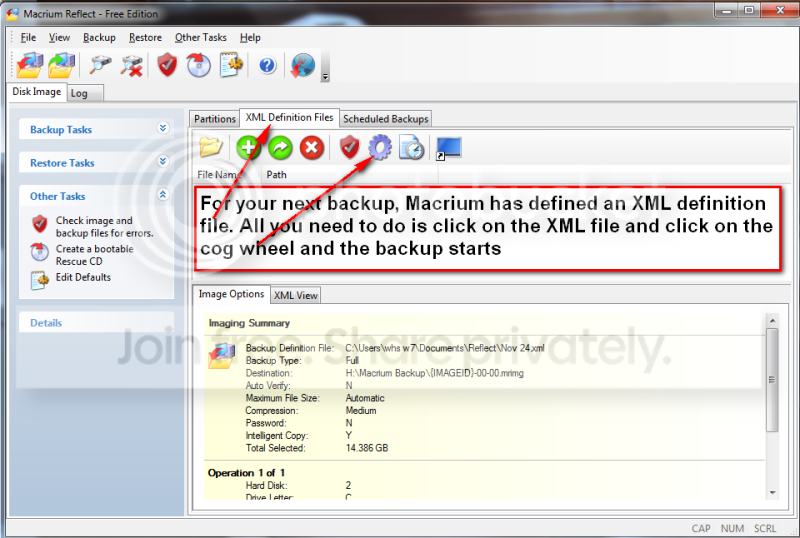
Solved Image your system with free Macrium

(1) No. You don't need to do anything to pre-format your new drive in any way. Just use the WinPE "rescue media" (i.e. standalone WinPE boot with Macrium Reflect auto-started) and begin your image restores to the new drive. That restore process of the partition images you select will accomplish the formatting required.

(2) No. You select those two partitions (system reserved and C) for restore, and that accomplishes the formatting.

(3) No. After you restore these two partitions (both are required in order to boot to Windows as you've seen, because Boot Manager lives in "system reserved" which is the "active' partition that the BIOS goes to in order to begin the machine boot process) you then boot to the restored Windows are now you can create your other additional partitions on the new drive. I always use Partition Wizard Free for all of my partitioning needs, but you can do whatever you want.

Thanks for helping.

Sorry I have a few more questions.

1. The backup is from a WD HDD. Will restoring it to a Seagate HDD cause any problems?

2. After the Windows is restored, would I be able to use Windows Disk Management to create the partitions or is a third party software required?
 

My Computer My Computer

Computer type
PC/Desktop
OS
Win7 Ultimate 32bit
(1) No. Brand of target drive for the restore is not relevant, nor is size of the target drive. You can use Macrium Reflect to restore an image to the same size or smaller or larger target drive, with the expected responses from the program if available space on the target drive is smaller than the source partition(s). Also, you can reduce the size of the restored target partition as compared to the actual original size of the partition that got backed up in the image, of course as long as it's not smaller than the absolute minimum space required.

Reflect knows how much actual non-empty space was in the original partition, and clearly that is the absolute minimum you must have available in the target. But beyond that, you can restore to a larger target drive which will leave free space on the drive after the restore, and you can then do whatever you want with it. You can create new partition(s), you can enlarge adjacent partitions utilizing some/all of the free space, etc. And you can even make the restored partition larger than the original was at the time of the restore using Reflect, if you want.

You can even restore an image to an SSD although the original drive which produced the partition image was HDD spinner.

Macrium Reflect is very very smart.

(2) Once the restore is finished you can use whatever tool you'd like to do partitioning, including DISKMGMT.MSC. I just happen to prefer Partition Wizard and its whole range of flexibility and functionality, and superior GUI (in my opinion).
 

My Computer My Computer

Computer type
PC/Desktop
Computer Manufacturer/Model Number
Home-built, two systems (1) and (2)
OS
Windows 7 Pro x64 (1), Win7 Pro X64 (2)
CPU
i5-3350p 3.1Ghz/6MB-cache (1); E8400 3.0Ghz/6MB-cache (2)
Motherboard
ASUS P8Z77-V Pro (1); ASUS P5Q3 (2)
Memory
8GB PC3-12800 DDR3 (1); 4GB PC3-10600 DDR3 (2)
Graphics Card(s)
ATI HD7750 (1), (see TV cards); ATI R7 250 (2)
Sound Card
Realtek ALC892 HD Audio (1); Realtek ALC1200 HD Audio (2)
Monitor(s) Displays
Eizo HD2441W LCD, Eizo S2433W (1); Eizo 24" S2433W (2)
Screen Resolution
1920x1200, 1920x1200 (1); 1920x1200 (2)
Hard Drives
(1) 1TB SATA-II (7200RPM), 2x2TB SATA-III (7200RPM), 250GB SATA-III (10000RPM) for OS; 2x2TB external USB 3.0

(2) 320GB SATA-II (7200RPM), 750GB SATA-II (7200RPM), 150GB SATA-II (10000RPM) for OS; 2TB external USB 3.0
PSU
Nesteq ECS-6001 600W (1); Nesteq ECS-5001 500W (2)
Case
Acousti-Case 360 (1) and (2)
Cooling
Noctua NH-U12P SE2 for CPU, 2x120mm case fans (1) and (2)
Keyboard
IBM PS/2 (1) and (2)
Mouse
Logitech MX Revolution wireless (1); Microsoft wired (2)
Internet Speed
100mbps down / 10mbps up
Antivirus
Microsoft Security Essentials; Malwarebyte Anti-Malware Pro
Browser
Firefox
Other Info
Ceton InfiniTV 4-tuner cablecard-enabled TV card as well as Hauppauge HVR-2250 OTA/ATSC 2-tuner TV card in (1), running under Win7 WMC
Hi all,
I just used "Clone this disk" and I wanted to report the findings so to speak, as I think most people use this program for imaging.

I cloned an old laptop hard disk of C and D partitions (total 75 GB) to an external 250 GB disk in a USB enclosure (USB 2). This external disk was partitioned before and it was used for back ups, in other words it was full of data. I threw it in there without reformatting/repartitioning it to see how Macrium would handle it.

Macrium took about 50 minutes to complete cloning (intelligent sector copy), probably longer than I expected. It did clone perfectly the original C and D partitions to, respectively, H and F partitions on the external disk (yes, strange drive letter sequence), it left an unallocated space of about 82 GB and, most strangely of all, it left a partition (I) with data that was in the external disk before the cloning.

Obviously this external disk needs some repartitioning now with Disk Management. I already double-checked with disk management and the sequence of drives is correct and "partitionable".

So, all in all this is a great program.

The only question I have now is, do I need a Rescue Media to boot (as Macrium correctly keeps reminding me when I start the program)? I am under the impression that, WITH CLONING, I don't.
It's just good to have any way?

Thank you.

Edit: With Windows Disk Management I deleted that Partition (I), which now gave me Unallocated space of 158 GB, which I can only create a new primary partition out of it, as "Extend Volume" is not available on external USB disks.
Perhaps Partition Wizard can Extend Volume, I haven't tried it.
 
Last edited:

My Computer My Computer

Computer type
Laptop
OS
Win 7 Ultimate 32-bit
You don't need the Rescue media for a cloned disc, it should start straight up after you have disconnected the parent disc.

If you do regular images as I & most sensible users do on a regular basis, you will need the Rescue Media in the event of a major system failure. So set up your Rescue Media & be sure to test it, as you don't want to find it wont work in an emergency. After you have imaged your normal OS drive run the Verify option to check the integrity of the image.
 

My Computer My Computer

Computer type
PC/Desktop
Computer Manufacturer/Model Number
Self built using existing case
OS
Windows 7 Home Premium 64 bit sp1
CPU
Intel i5 3570 3.4Ghz Ivy Bridge SKT 1155 quad core
Motherboard
Gigabyte Z77-HD3 SKT 1155 2xSata 3, 4x USB 3.0
Memory
G-Skill Rip Jaws 16Gb (8x2) DDR3 -1600 PC3 12800 CL 10 red
Graphics Card(s)
Gigabyte NVIDIA GT610 1Gb DDR3 810/1200 PCI-E 2.0 Silent
Sound Card
NVIDIA High Definition & Realtech High Definition Audio
Monitor(s) Displays
2 x Philips 226V4L 16:9 aspect ratio
Screen Resolution
1920 x 1080 HD
Hard Drives
Samsung 840 Pro 256gb SSD, SATA 3.
Hitachi Touro Portable 1tb, USB 3.0 HDD used for image b/ups.
PSU
Corsair VS450
Case
Codeng
Cooling
PSU fan & CPU fan
Keyboard
Logitech
Mouse
Logitech Wireless trackball M570
Internet Speed
Wireless 3G. 3mg down & 550kb up.
Antivirus
Bitdefender Internet Security 2020
Browser
Opera (Current Version) & Firefox
Other Info
MS Office 2013 Pro. Davis weather station software. MGE Nova 600 avr UPS.
I cloned an old laptop hard disk of C and D partitions (total 75 GB) to an external 250 GB disk in a USB enclosure (USB 2). This external disk was partitioned before and it was used for back ups, in other words it was full of data. I threw it in there without reformatting/repartitioning it to see how Macrium would handle it.

Macrium took about 50 minutes to complete cloning (intelligent sector copy), probably longer than I expected.
It took that long because you were using a USB 2.0 external enclosure. USB 2.0 is slow, compared to USB 3.0 which is probably 4-5 times faster.

Cloning is effectively "copying", and it just takes that long to copy maybe 80GB of partitions to a USB 2.0 target, no matter whether it's your SATA-3 spinner drive installed in a USB 2.0 enclosure, or using a USB 2.0 key drive inserted into a USB 2.0 port. The copy speed is a function of the USB 2.0 interface speed, not the speed of the HDD spinner being used.


It did clone perfectly the original C and D partitions to, respectively, H and F partitions on the external disk (yes, strange drive letter sequence)
The new partition letters are simply for the new partitions suddenly visible while still booted to your existing Windows (on current C) under which you are running Macrium Reflect to do the cloning.

But once you re-boot to the new drive (after performing appropriate "surgery" to swap drives and install the external one inside your machine, thus accomplishing the replacement/upgrade), those partitions will once again be C and D. The booted Windows is always C, and any additional partitions get lettered starting with D, E, etc. You can then use DISKMGMT.MSC to change the letters of any partitions you want to, other than C which cannot be re-lettered since operational indows is running from it.


it left an unallocated space of about 82 GB and, most strangely of all, it left a partition (I) with data that was in the external disk before the cloning.
Unless you first deleted all partitions on the target drive, nothing there would be deleted by the cloning process. Cloning means copying, and it is FROM the source partitions on the source drive, TO UNALLOCATED FREE SPACE ON THE TARGET DRIVE. That's where the cloned partitions get located, in whatever unallocated free space exists... having nothing to do with where those partitions lived on the source drive.

You're copying data (i.e. in-use space in the source partitions) when you clone. You're creating a new partition on the target drive out of free space available, and then copying FROM source partition TO this new target partition. Anything else already on that drive remains untouched as a byproduct of the cloning, unless you delete it yourself before or after.


Obviously this external disk needs some repartitioning now with Disk Management. I already double-checked with disk management and the sequence of drives is correct and "partitionable".
I recommend you give Partition Wizard Free a try. I feel it to be much more user-friendly with a much superior GUI and much richer functionality than DISKMGMT.MSC. But of course you're free to use whatever you're comfortable with and that accomplishes the objective.


The only question I have now is, do I need a Rescue Media to boot (as Macrium correctly keeps reminding me when I start the program)? I am under the impression that, WITH CLONING, I don't.
It's just good to have any way?
You're misunderstanding the terminology here, which is a bit poorly worded by Macrium.

The so-called "rescue media" is actually a standalone boot CD/DVD version of Macrium Reflect. It is actually a WinPE disk, bootable directly, with Macrium Reflect auto-launched (instead of getting a WinPE desktop). It is to be used if/when you say replace your internal hard drive (maybe to a larger one, or to replace one that crashed) and you now want to restore a latest copy "system image" (of all the partitions on your internal hard drive) that you've got on an external backup drive, to to brand new replacement hard drive. This gets you back up and running after installing a new blank drive, without needing a running operational Windows on the hard drive. You run Macrium Reflect via WinPE from the optical disk, to perform the restore of the "system image".

Normally, you would add Macrium Reflect as a "boot manager menu item" (so that it appears at machine boot time along with your Win7 and/or Win10 partition). This gives you the option of restoring a "system image" from your backup drive, should some irreparable corruption occur in your operational Windows and you decide to just restore last weekend's "system image" of your C-partition which you know to have been perfectly operational. So for this type of operation, where the current hard drive is operational and you just want to restore C to a backup version, you would re-boot the machine and choose Macrium Reflect via Boot Manager. Or, you could also boot to your optical disk "rescue media" and accomplish the same result, but at least the Boot Manager option also exists. In the case of new hard drive you don't have the Boot Manager and MUST use the standalone optical boot CD/DVD "rescue media" to run Macrium Reflect.


Edit: With Windows Disk Management I deleted that Partition (I), which now gave me Unallocated space of 158 GB, which I can only create a new primary partition out of it, as "Extend Volume" is not available on external USB disks.

Perhaps Partition Wizard can Extend Volume, I haven't tried it.
I guess I don't understand why you are copying C/D to a second drive unless you planned to use it as a new internal drive, perhaps replacing a smaller one with this larger one. As to whether Partition Wizard can manipulate partitions on external USB, the answer is yes. It can do anything, anywhere... move, delete, create, resize, copy, merge, etc.

I never use DISKMGMT.MSC for anything. No reason to, and PW's GUI and functionality is far superior.

 

My Computer My Computer

Computer type
PC/Desktop
Computer Manufacturer/Model Number
Home-built, two systems (1) and (2)
OS
Windows 7 Pro x64 (1), Win7 Pro X64 (2)
CPU
i5-3350p 3.1Ghz/6MB-cache (1); E8400 3.0Ghz/6MB-cache (2)
Motherboard
ASUS P8Z77-V Pro (1); ASUS P5Q3 (2)
Memory
8GB PC3-12800 DDR3 (1); 4GB PC3-10600 DDR3 (2)
Graphics Card(s)
ATI HD7750 (1), (see TV cards); ATI R7 250 (2)
Sound Card
Realtek ALC892 HD Audio (1); Realtek ALC1200 HD Audio (2)
Monitor(s) Displays
Eizo HD2441W LCD, Eizo S2433W (1); Eizo 24" S2433W (2)
Screen Resolution
1920x1200, 1920x1200 (1); 1920x1200 (2)
Hard Drives
(1) 1TB SATA-II (7200RPM), 2x2TB SATA-III (7200RPM), 250GB SATA-III (10000RPM) for OS; 2x2TB external USB 3.0

(2) 320GB SATA-II (7200RPM), 750GB SATA-II (7200RPM), 150GB SATA-II (10000RPM) for OS; 2TB external USB 3.0
PSU
Nesteq ECS-6001 600W (1); Nesteq ECS-5001 500W (2)
Case
Acousti-Case 360 (1) and (2)
Cooling
Noctua NH-U12P SE2 for CPU, 2x120mm case fans (1) and (2)
Keyboard
IBM PS/2 (1) and (2)
Mouse
Logitech MX Revolution wireless (1); Microsoft wired (2)
Internet Speed
100mbps down / 10mbps up
Antivirus
Microsoft Security Essentials; Malwarebyte Anti-Malware Pro
Browser
Firefox
Other Info
Ceton InfiniTV 4-tuner cablecard-enabled TV card as well as Hauppauge HVR-2250 OTA/ATSC 2-tuner TV card in (1), running under Win7 WMC
I still have an unknown device,
ACPI\PNP0A0A\2&DABA3FF&0
ASUSTeK Computer Inc.-Forum- ACPI\AWY0001\2&DABA3FF&0

Unless, you found a fix, here is an idea Thrashzone.


I don't know if this will work, try temporary enabling windows 7 to check windows update for drivers. I actually choose no let me choose what to do. Then I select Install driver software from windows update if it is not found on my computer. Then I right click on the driver, the select windows update.
 

My Computer My Computer

Computer type
PC/Desktop
Computer Manufacturer/Model Number
Dell All in one Inspiron 2020
OS
W10 32 bit, XUbuntu 18.xx 64 bit
CPU
Intel(R) Celeron(R) CPU G1620T @ 2.40GHz, 2400 Mhz
Motherboard
Dell
Memory
4GB
Graphics Card(s)
Intel HD graphics
Sound Card
High Definition Audio Device
Monitor(s) Displays
20 inch Screen
Screen Resolution
W7=1280 x 720 & Linux Mint Xfce=1360 x 768
Hard Drives
500 GB hard drive
Keyboard
Usb
Mouse
Usb
Internet Speed
High-Speed
Antivirus
MSE
Browser
Main Browser Firefox
Other Info
I have done a clean install of Windows 7 using Dell re-installation disk (Dell sent me one). I also use Free Macrium reflect backup and restore.
Hi, I've been using Macrium Reflect Free for a wile now, for full system images (backups).

Now I'm planning to buy a SSD and clone my HDD to it (for my laptop). Will I be able to do this properly with a Rescue disk made with the Macrium Reflect Free? Will the cloning from HDD to SSD take care of enabling trim and aligning the partitions properly on the SSD?

A sub-question. On the HDD I have 2 partitions C and D (3 actually, if I count the reserved partition which doesn't have a letter as well). I'd like to merge C and D together into single big partition before cloning to the SSD. How can I do that properly?

Thank you!
 

My Computer My Computer

OS
Windows 7 Ultimate x64 SP1
Hi, I've been using Macrium Reflect Free for a wile now, for full system images (backups).

Now I'm planning to buy a SSD and clone my HDD to it (for my laptop). Will I be able to do this properly with a Rescue disk made with the Macrium Reflect Free? Will the cloning from HDD to SSD take care of enabling trim and aligning the partitions properly on the SSD?

A sub-question. On the HDD I have 2 partitions C and D (3 actually, if I count the reserved partition which doesn't have a letter as well). I'd like to merge C and D together into single big partition before cloning to the SSD. How can I do that properly?

Thank you!

First, I do not recommend merging your System (C:) and data (D:) partitions. Backing up is easier and more efficient if you keep your System files (OS and programs) and data files segregated from each other (imaging is best for backing up System files and a folder/file syncing program is best for data). That is the way I have my notebooks set up.

When I put the SSDs into my two notebooks, all I had to do was set up the stock HDD the way I wanted it (I added a partition for data), then use the Macrium Reflect installation on each notebook to clone the HDD to the new SSD, using an external dock to hold the SSD during the cloning. After cloning the HDD and swapping the SSD into the notebook, the OS partition automatically reverted to C:. I had to reletter the data partition back to the original drive letter. There was no need to use the rescue media.
 

My Computer My Computer

Computer type
PC/Desktop
Computer Manufacturer/Model Number
Custom Build
OS
Win 7 Ultimate 64 bit
CPU
Intel i7-3930K
Motherboard
ASUS P9X79 WS
Memory
Kingston HyperX Genesis 32GB Kit (8x4GB Modules) 1600MHz DDR
Graphics Card(s)
MSI R7850 Twin Frozr 2GD5/OC Radeon HD 7850 2GB 256-bit GDDR
Sound Card
Asus Xonar Essence STX
Monitor(s) Displays
3x Asus VG248QE 24", Vizio 32" TV
Screen Resolution
1920 x 1080, ?
Hard Drives
Samsung 128GB 840 Pro SSD (1),
Samsung 4TB 850 EVO SSDs (4)
Samsung 4TB 850 EVO SSDs (16) external backup drives used in 2.5" hot swap bays in the computer.
PSU
Corsair HX750w
Case
Antec Two Hundred v2 (modified)
Cooling
Cooler Master GeminII S524 120mm (fan replaced with a 140mm)
Keyboard
Logitech G510s
Mouse
Logitech M525 (two in use)
Internet Speed
=< 32Mbps down, 8Mbps up
Antivirus
AVAST!, MBAM, SAS, Spybot S&D (all but MBAM free) Glary Util
Browser
IE11
Other Info
LSI 9211-8i HBA card (8 SATA III ports), 2.5" & 3.5" Hot Swap Bays, HooToo HT-CR001 PCI-E to USB 3.0 Internal Hub + 6 Slot Card Reader, and LG Model CH12LS28 BD-ROM Optical Drive. Also, ScanSnap S1500 ADF duplexing scanner, Canon 9000F flat bed scanner, Corsair SP2500 2.1 speakers, Samsung CLP 415nw laser color printer, Cyberpower PP2200SW UPS
As far as I know, cloning and imaging should always be done via boot USB/CD, rather than in the system itself (the one you're cloning). Regarding my questions, Windows 7 will take care of enabling trim of course, I'm concerned about partition aligning. Will Macrium Rescue CD take care of that? Will it align the partitions properly when cloning HDD to SSD? Is there a tick I have to put somewhere in the settings?

Regarding subquestion - I am aware of what you are saying and I've been using that method so far (having system on a separate partition and then another partition for data). But I have different needs now and would like to merge it all into one partition - but only if it's possible to do it properly, meaning having no problems whatsoever afterwards. :)
 

My Computer My Computer

OS
Windows 7 Ultimate x64 SP1
As far as I know, cloning and imaging should always be done via boot USB/CD, rather than in the system itself (the one you're cloning). Regarding my questions, Windows 7 will take care of enabling trim of course, I'm concerned about partition aligning. Will Macrium Rescue CD take care of that? Will it align the partitions properly when cloning HDD to SSD? Is there a tick I have to put somewhere in the settings?

Regarding subquestion - I am aware of what you are saying and I've been using that method so far (having system on a separate partition and then another partition for data). But I have different needs now and would like to merge it all into one partition - but only if it's possible to do it properly, meaning having no problems whatsoever afterwards. :)

Every time I've cloned an HDD to an SSD, as long as it was MBR to MBR (MBR to GPT is another story), the partition alignment was fine and TRIM was enabled. I have no idea if that would happen when using Rescue Media because I've never done that.

When imaging from the computer, make sure Auto Verify Image has been turned on (Click on Other Tasks at the top of the screen, click on Edit Defaults, then click on Auto Verify Image). Also Click on Cloning and make sure all options for Intelligent Sector Copy are checked.

Again, I've cloned the HDD to an SSD on two different notebooks without problems. It's not necessary to clone or image using the rescue media even though you can (although I don't know why you would want to since it is much, much slower). Also, I cloned all the partitions at once. I've never cloned or imaged a drive or partition using the rescue media and I have restored images many times on all three machines I have in service.

Why do you want to merge your System and data partitions? I know of no advantage to that.
 

My Computer My Computer

Computer type
PC/Desktop
Computer Manufacturer/Model Number
Custom Build
OS
Win 7 Ultimate 64 bit
CPU
Intel i7-3930K
Motherboard
ASUS P9X79 WS
Memory
Kingston HyperX Genesis 32GB Kit (8x4GB Modules) 1600MHz DDR
Graphics Card(s)
MSI R7850 Twin Frozr 2GD5/OC Radeon HD 7850 2GB 256-bit GDDR
Sound Card
Asus Xonar Essence STX
Monitor(s) Displays
3x Asus VG248QE 24", Vizio 32" TV
Screen Resolution
1920 x 1080, ?
Hard Drives
Samsung 128GB 840 Pro SSD (1),
Samsung 4TB 850 EVO SSDs (4)
Samsung 4TB 850 EVO SSDs (16) external backup drives used in 2.5" hot swap bays in the computer.
PSU
Corsair HX750w
Case
Antec Two Hundred v2 (modified)
Cooling
Cooler Master GeminII S524 120mm (fan replaced with a 140mm)
Keyboard
Logitech G510s
Mouse
Logitech M525 (two in use)
Internet Speed
=< 32Mbps down, 8Mbps up
Antivirus
AVAST!, MBAM, SAS, Spybot S&D (all but MBAM free) Glary Util
Browser
IE11
Other Info
LSI 9211-8i HBA card (8 SATA III ports), 2.5" & 3.5" Hot Swap Bays, HooToo HT-CR001 PCI-E to USB 3.0 Internal Hub + 6 Slot Card Reader, and LG Model CH12LS28 BD-ROM Optical Drive. Also, ScanSnap S1500 ADF duplexing scanner, Canon 9000F flat bed scanner, Corsair SP2500 2.1 speakers, Samsung CLP 415nw laser color printer, Cyberpower PP2200SW UPS
As LF has stated you want to keep your OS/installed programs partition separate from your large data partitions. The reason is that you mainly image your OS partition and you want to limit its size (say ~60GB or less) so that system imaging takes ~10 min or less. This way you can easily make regular system images and restore them in a reasonable time. I keep numerous system images and if things go bad (eg. malware or a bad update) I can go back as far as I like until I get a stable image.

I've always used Macrium system imaging to transfer HDD to SSD. Cloning is ok but you should use the drag and drop method to maintain alignment:
Understanding partition alignment - KnowledgeBase - Macrium Reflect Knowledgebase
You probably can use the rescue boot CD for this purpose but I would probably just use the installed Macrium.

In any transfer if alignment is out the the free Partition Wizard software will fix it for you.
 

My Computer My Computer

Computer type
PC/Desktop
Computer Manufacturer/Model Number
Own build
OS
Windows 7x64 Home Premium SP1
CPU
Intel i7 2600k
Motherboard
ASUS P8Z68 Deluxe
Memory
G.Skill Ripjaws (DDR3-1600) 2x4GB
Graphics Card(s)
Nvidia GeForce GTS 450; Intel HD Graphics 3000(GT2+)
Monitor(s) Displays
Dell Ultrasharp IPS panel U2311H, Samsung SyncMaster P2350
Screen Resolution
1920x1080
Hard Drives
Samsung 850 Pro SSD 256GB, Samsung SSD 840 120GB, Seagates 1TB Barracuda ST31000528AS x2
PSU
Seasonic M12II 520W
Case
Lian Li Lancool PC-K60
Cooling
Case: 1x120mm, 3x140mm CPU: Hyper 212+
Keyboard
Logitech MK520 (wireless)
Mouse
Logitech MK520
Internet Speed
6-7 Mbps
Antivirus
Norton Security Premium, Malwarebytes on 2 (MSE on 3rd PC)
Browser
FireFox
Other Info
Audio: Logitech Z523 2.1
My HDD is MBR, I guess that the new out of the box SSD I'll buy will be MBR as well, when I clone the HDD to it. If that means alignment and triw will be fine I'm happy. I will use Rescue media and am guessing it will work exactly as if I'd do it in the program itself. I always chack the Auto Verify option and Intelligent Sector Copy, thanx.

I always clone/image the whole drive too. But yes, I'd like to merge both partitions because my OS partition is too small and I don't need two partitions. I want one single C partition for OS and data.
 

My Computer My Computer

OS
Windows 7 Ultimate x64 SP1
I'm pretty sure that you can't use Macrium to merge partitions. There is however a function to do that with Minitool Partition Wizard.

Caveat I have never used this feature myself so cannot say how good it is.
 

My Computer My Computer

Computer type
Laptop
Computer Manufacturer/Model Number
Hewlett-Packard/G62-107SA Notebook
OS
Microsoft Windows 7 Home Premium 64-bit Service Pack 1
CPU
Intel(R) Core(TM) i3 CPU M 330 @ 2.13GHz
Motherboard
Hewlett-Packard 1425
Memory
8 GB DDR3
Graphics Card(s)
Intel(R) HD Graphics
Sound Card
Realtek High Definition Audio
Monitor(s) Displays
Builtin
Screen Resolution
1366 x 768 x 32 bits (4294967296 colors) @ 60 Hz
Hard Drives
250 GB SATA Hard Disk Drive 7200 rpm
2TB Seagate GoFlex USB 2 Drive
1TB Iomega Prestige USB 2 Drive
1.5TB Iomega Prestige USB 2 Drive (Samsung)
2TB WD MyBook Live NAS.
Mouse
Logitech Anywhere MX
Internet Speed
152 Mbs download 10 Mbs upload
Antivirus
Norton 360
Browser
Chrome
Hi,
Had fun yesterday setting up reflect and using the winpe recovery cd on my mom's dell win-8 now 10 machine
Boot cd was the funnest boot order was whack and of course secure boot had to be changed before the press any key to boot to the cd would work :)
 

My Computer My Computer

Computer type
PC/Desktop
Computer Manufacturer/Model Number
Custom assembled by me :}
OS
Win-7-Pro64bit 7-H-Prem-64bit
CPU
i7-5930K 2nd i9-9940x both water blocked VRM's too
Motherboard
ASUS SABERTOOTH X99 2nd ASUS x299 Apex
Memory
Trident-z 3200C14 2nd Trident-z 3600C16
Graphics Card(s)
EVGA 1080ti ftw3 2nd Titan Xp both water blocked
Sound Card
Built-in Realtek
Monitor(s) Displays
1-AOC G2460PG 24"G-Sync 144Hz/ 2nd 1-ASUS VG248QE 24" 144Hz
Screen Resolution
1920 x 1080 144Hz
Hard Drives
2-Samsung M.2 Evo & Evo Plus
2-Samsung 850 EVO 500GB SSD's/ 3-2.5 W.D. Black 1tb-&3-1tb/3-3.5 WD Black 1tb hdd's
PSU
EVGA SuperNOVA 1000-P2 2nd 1200-P2
Case
2-Corsair Obsidian Series 450D Black ATX Mid Tower
Cooling
Custom water loops
Keyboard
Logitech G710+/ 2nd Logitech G910
Mouse
2-RedDragon M901 Perdition 16400 dpi Gaming mouse = wired
Internet Speed
Comcast Ping 19ms 89.31mbps download speed 6.12mbps upload
Antivirus
Malwarebytes Pro/ Superantispyware Pro
Browser
FireFox & Pale moon
Other Info
2nd ASUS X299 Apex/Intel i9-9940x with Custom water loop/7H-Prem-x64/Corsair 450D case/Ram Trident-z 3600C16 4x8gb / Samsung970Evo plus 500gb SSD/Dual ssd EZ swap evo/PSU EVGA SuperNova 1200w-P2 80+Platinum/GPU Titan Xp /8-ML-140 on push-pull on 2-280GTX rads
My HDD is MBR, I guess that the new out of the box SSD I'll buy will be MBR as well, when I clone the HDD to it. If that means alignment and triw will be fine I'm happy. I will use Rescue media and am guessing it will work exactly as if I'd do it in the program itself. I always chack the Auto Verify option and Intelligent Sector Copy, thanx.

I always clone/image the whole drive too. But yes, I'd like to merge both partitions because my OS partition is too small and I don't need two partitions. I want one single C partition for OS and data.

The new out of the box SSD will not be initialized and formatted. Before you can clone it, you will have to initialize and format it. During formatting, you can choose either MBR or GPT. Since your HDD is MBR, that's what you need to format the SSD to.

Why are you insisting on using the rescue media to clone the HDD to the SSD? Do you just like doing things the hard way? I can't think of reason to use the rescue media for anything other than restoring an image to a drive that is too messed up to boot or to a drive that is replacing one that has died.

You still haven't told us why you want to combine your OS and data partitions. If you have both your data and OS on the same drive/partition, you will be wasting a lot of time and storage space when you image the drive, reducing the number of previous images that you can keep. There are only two ways to backup System (OS and programs) files; imaging and cloning. Cloning takes longer and you can have only one clone on a drive or partition, severely limiting the number of backups you can have. Imaging is a little faster and you can store multiple images on a drive or partition.

For data, however, other than for replicating a drive (such as moving data from a smaller drive to a larger one; for that cloning is ideal), cloning and imaging is too time consuming and wastes too much space since you are repeatedly backing up data that you have already backed up before. It is much faster to use a folder/file syncing programs such as SyncToy or FreeFileSync (I personally prefer the latter although SyncToy has a good reputation) set to Mirror mode (not the same as RAID 1). Once you make the initial backup (that will take time since it is basically a copy of the data drive/partition), every time you update your backup, a folder/file syncing program will examine both your data drive/partition and the backup drive, then copy, paste and delete files as necessary (without touching the original drive/partition) to make the backup essentially an exact copy of the drive/partition being backed up. Since only folders and files that have been added, changed, or deleted since the previous backups, the process is much faster and involves far less writing to the backup drive. FreeFileSync also has an optional provision that will allow you to send deleted files to a versioning folder or drive. That way, you can retrieve earlier versions of files or ones you accidentally deleted (we have all done it at one time or another).

My notebooks are little one drive wonders so I have to use the same drive for my System and data files. Both of them have 500GB SSDs in them. Each one has a small partition (100GB) for the OS and programs. My data is kept on another partition. Since my System and data files are segregated, I can use Macrium Reflect to image my System partition. I keep a few images in the data partition for convenience (normally, it is a bad idea to keep images on the same drive with the System but I get away with it since the data partition, including the images, gets backed up). It takes less than ten minutes to image and verify the image. I use FreeFileSync to backup the data partition to a backup drive I keep in my notebook case.

In the case of my desktop computer, I have a 128GB SSD for my boot drive. Up to recently, I had two 2TB and one 4TB HDDs in the computer I kept my data on (I've since replaced the HDDs with four 4TB SSDs). It takes about 10-12 minutes to image the boot drive. I make an image only when I make a change to the System, such as updating the OS or programs, installing a new program, changing settings, etc. (I make the image prior to the change so I can go back if something goes horribly wrong). I have Macrium Reflect set to delete any images that are older than eight weeks.

I use FreeFileSync to update my data backups once a week and any time I add or change data that I can't afford to lose. If I used imaging or cloning, each update would take hours instead just minutes. I would also lose any previously deleted files and earlier versions of files. Considering I have three data drives I'm backing up (I haven't put any data on the fourth drive...yet), it would take me all day instead of less than an hour or (rarely) two to backup the computer, even if each drive and only a few KB of new, changed, or deleted data (keep in mind I use my computer to record OTA TV shows so I have quite a few large video files to backup as well as my images).
 
Last edited:

My Computer My Computer

Computer type
PC/Desktop
Computer Manufacturer/Model Number
Custom Build
OS
Win 7 Ultimate 64 bit
CPU
Intel i7-3930K
Motherboard
ASUS P9X79 WS
Memory
Kingston HyperX Genesis 32GB Kit (8x4GB Modules) 1600MHz DDR
Graphics Card(s)
MSI R7850 Twin Frozr 2GD5/OC Radeon HD 7850 2GB 256-bit GDDR
Sound Card
Asus Xonar Essence STX
Monitor(s) Displays
3x Asus VG248QE 24", Vizio 32" TV
Screen Resolution
1920 x 1080, ?
Hard Drives
Samsung 128GB 840 Pro SSD (1),
Samsung 4TB 850 EVO SSDs (4)
Samsung 4TB 850 EVO SSDs (16) external backup drives used in 2.5" hot swap bays in the computer.
PSU
Corsair HX750w
Case
Antec Two Hundred v2 (modified)
Cooling
Cooler Master GeminII S524 120mm (fan replaced with a 140mm)
Keyboard
Logitech G510s
Mouse
Logitech M525 (two in use)
Internet Speed
=< 32Mbps down, 8Mbps up
Antivirus
AVAST!, MBAM, SAS, Spybot S&D (all but MBAM free) Glary Util
Browser
IE11
Other Info
LSI 9211-8i HBA card (8 SATA III ports), 2.5" & 3.5" Hot Swap Bays, HooToo HT-CR001 PCI-E to USB 3.0 Internal Hub + 6 Slot Card Reader, and LG Model CH12LS28 BD-ROM Optical Drive. Also, ScanSnap S1500 ADF duplexing scanner, Canon 9000F flat bed scanner, Corsair SP2500 2.1 speakers, Samsung CLP 415nw laser color printer, Cyberpower PP2200SW UPS
The new out of the box SSD will not be initialized and formatted. Before you can clone it, you will have to initialize and format it. During formatting, you can choose either MBR or GPT. Since your HDD is MBR, that's what you need to format the SSD to.

Why are you insisting on using the rescue media to clone the HDD to the SSD? Do you just like doing things the hard way? I can't think of reason to use the rescue media for anything other than restoring an image to a drive that is too messed up to boot or to a drive that is replacing one that has died.

You still haven't told us why you want to combine your OS and data partitions. If you have both your data and OS on the same drive/partition, you will be wasting a lot of time and storage space when you image the drive, reducing the number of previous images that you can keep. There are only two ways to backup System (OS and programs) files; imaging and cloning. Cloning takes longer and you can have only one clone on a drive or partition, severely limiting the number of backups you can have. Imaging is a little faster and you can store multiple images on a drive or partition.

For data, however, other than for replicating a drive (such as moving data from a smaller drive to a larger one; for that cloning is ideal), cloning and imaging is too time consuming and wastes too much space since you are repeatedly backing up data that you have already backed up before. It is much faster to use a folder/file syncing programs such as SyncToy or FreeFileSync (I personally prefer the latter although SyncToy has a good reputation) set to Mirror mode (not the same as RAID 1). Once you make the initial backup (that will take time since it is basically a copy of the data drive/partition), every time you update your backup, a folder/file syncing program will examine both your data drive/partition and the backup drive, then copy, paste and delete files as necessary (without touching the original drive/partition) to make the backup essentially an exact copy of the drive/partition being backed up. Since only folders and files that have been added, changed, or deleted since the previous backups, the process is much faster and involves far less writing to the backup drive. FreeFileSync also has an optional provision that will allow you to send deleted files to a versioning folder or drive. That way, you can retrieve earlier versions of files or ones you accidentally deleted (we have all done it at one time or another).

I agree totally with LF on FreeFileSync. I have 300,000+ data files and it scans and backs up the changes in just a few minutes when run daily.
 

My Computer My Computer

Computer type
Laptop
Computer Manufacturer/Model Number
Hewlett-Packard/G62-107SA Notebook
OS
Microsoft Windows 7 Home Premium 64-bit Service Pack 1
CPU
Intel(R) Core(TM) i3 CPU M 330 @ 2.13GHz
Motherboard
Hewlett-Packard 1425
Memory
8 GB DDR3
Graphics Card(s)
Intel(R) HD Graphics
Sound Card
Realtek High Definition Audio
Monitor(s) Displays
Builtin
Screen Resolution
1366 x 768 x 32 bits (4294967296 colors) @ 60 Hz
Hard Drives
250 GB SATA Hard Disk Drive 7200 rpm
2TB Seagate GoFlex USB 2 Drive
1TB Iomega Prestige USB 2 Drive
1.5TB Iomega Prestige USB 2 Drive (Samsung)
2TB WD MyBook Live NAS.
Mouse
Logitech Anywhere MX
Internet Speed
152 Mbs download 10 Mbs upload
Antivirus
Norton 360
Browser
Chrome
But yes, I'd like to merge both partitions because my OS partition is too small ...
A disk management screenshot may help with further advice.
Disk Management - Post a Screen Capture Image
There may be a good reason to increase the size of your OS partition and (free) Partition Wizard is your best tool - MiniTool is the installed version and there is also a bootable CD version.
You have been advised that storing large amounts of data on your OS partition generally doesn't make any sense.
 

My Computer My Computer

Computer type
PC/Desktop
Computer Manufacturer/Model Number
Own build
OS
Windows 7x64 Home Premium SP1
CPU
Intel i7 2600k
Motherboard
ASUS P8Z68 Deluxe
Memory
G.Skill Ripjaws (DDR3-1600) 2x4GB
Graphics Card(s)
Nvidia GeForce GTS 450; Intel HD Graphics 3000(GT2+)
Monitor(s) Displays
Dell Ultrasharp IPS panel U2311H, Samsung SyncMaster P2350
Screen Resolution
1920x1080
Hard Drives
Samsung 850 Pro SSD 256GB, Samsung SSD 840 120GB, Seagates 1TB Barracuda ST31000528AS x2
PSU
Seasonic M12II 520W
Case
Lian Li Lancool PC-K60
Cooling
Case: 1x120mm, 3x140mm CPU: Hyper 212+
Keyboard
Logitech MK520 (wireless)
Mouse
Logitech MK520
Internet Speed
6-7 Mbps
Antivirus
Norton Security Premium, Malwarebytes on 2 (MSE on 3rd PC)
Browser
FireFox
Other Info
Audio: Logitech Z523 2.1
Several people have reported success with the Windows backup and restore utility in 7. Unfortunately, it gave an error for me when I tried to restore an image I made with it which made me hesitant to rely on it. But if one tests it by attempting to restore an image made with it and the restore works, and if one is satisfied with the feature set and options available, then it's probably a great way to go.

I have saved a backup image of my hard drive on my secondary (D:) and external drive and would like to test it, how can I do that? I am also in the process of using Macrium as a backup to the 7 backup.
 

My Computer My Computer

Computer type
Laptop
Computer Manufacturer/Model Number
DELL LATTITUDE E6520
OS
Windows 7 Pro, 64-bit, SP1
CPU
intel Core i7-2760QM @ 2.40 GHz - Sandy Bridge 32nm
Motherboard
Dell Inc. 0J4TFW (CPU 1)
Memory
8.00GB Dual-Channel DDR3 @ 665MHz (9-9-9-24)
Graphics Card(s)
511MB NVIDIA NVS 4200M (Dell)
Sound Card
NVIDIA High Definition Audio
Monitor(s) Displays
Panasonic 55"
Screen Resolution
1920 x 1080@ 60Hz
Hard Drives
465GB WD WDC WD50000BKPT-75PK4 (SATA)
558GB INTEL 320 SERIES VO0600EC HPP (SATA)
556GB MAXTOR ONETOUCH USB DEVICE (SATA)
Antivirus
MalwareBytes
Browser
Firefox
I posted this on the Vista forum. But since it works just as well on Windows7, I post it here too.

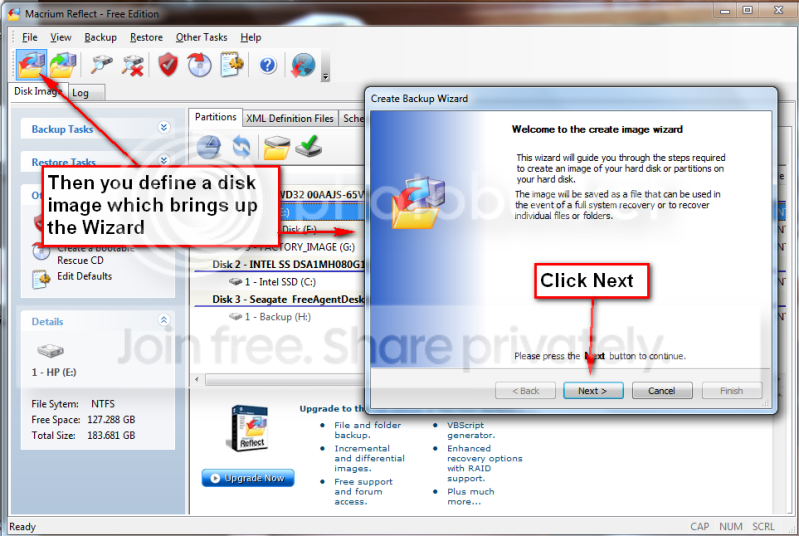
Image your system with free Macrium

Over the years I have experimented with different imaging programs. I started out with Norton Ghost which works very well, but is quite heavy handed. Backup and restore cycles are usually approximately one hour and it takes quite some time before you understand the intricacies of the product. I have also used Paragon and Acronis true Image. Both of those are in the same league as Ghost. They do provide though a large collection of function – which, I guess, is part of the reason why they are complex and slow.
One that is easy is the Maxtor One Touch Manager that comes with the Maxtor One Touch Disks. My wife loves it because once it is set up, all you have to do is push the button on the One Touch Disk and off it goes.
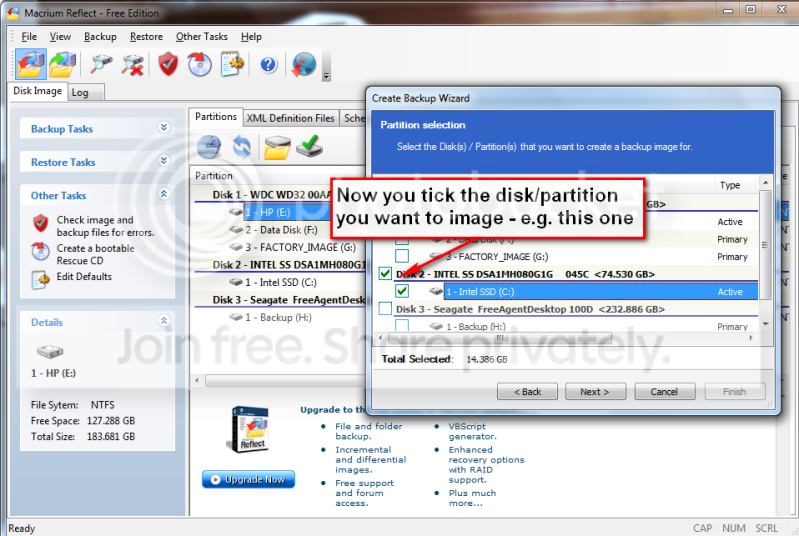
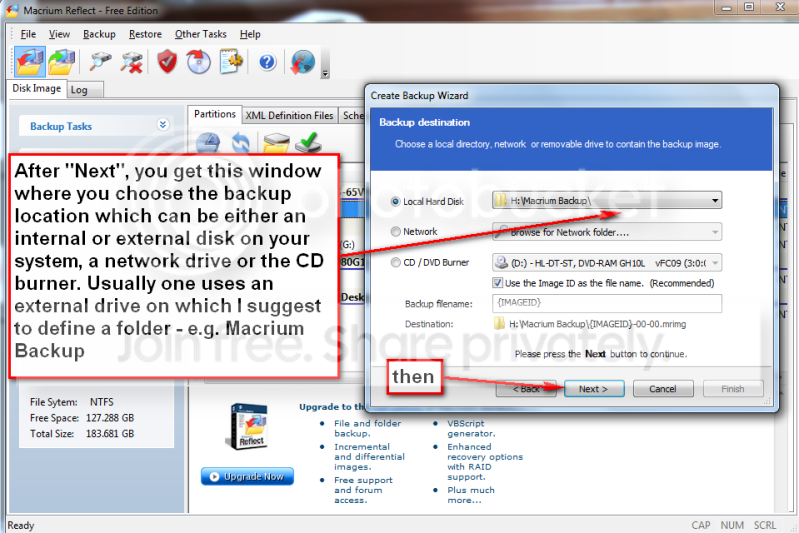
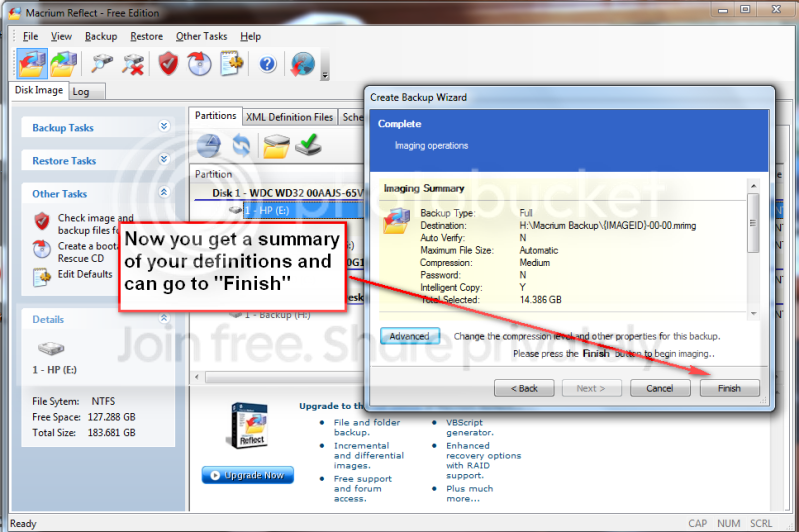
Not quite the same but very easy is Macrium. Below you find the four steps to set it up and the one step to run it thereafter. You will notice that the handling of Macrium is as easy as can be. To download the free Macrium, you go to this site:

http://www.macrium.com/reflectfree.asp

There is also a paid version with more functions. But for the normal backup/restore, the free version is sufficient.
I did not document the restore function, in part, because I cannot take any screenshots during that phase. But it is very simple and self explanatory. All you need to do is set your BIOS boot sequence to boot from your CD reader, put the CD in (the one you burnt – see the first picture) and off it goes. The CD loads a Linux based Wizard that will guide you thru a few simple questions.
Performance when you take the image should be in the 10 minute range for an average system. Restore is about 20 minutes without prior image verification and twice as long with prior image verification


p1.png


p2.png


p3.png


p4.png


p5.png


p6.png


I just burned Rescue Media via Macrium Reflect to a CD, not DVD and to my external HD, is this just one part of the process and requires more on my part to have everything I need to restore later? Also, before I copied it to an external, it said 'target USB disk has a non-standard sector size, this device may not be bootable". Then "Rescue Media was successfully created, please boot this new rescue media to ensure it works". How can I do that?
 

My Computer My Computer

Computer type
Laptop
Computer Manufacturer/Model Number
DELL LATTITUDE E6520
OS
Windows 7 Pro, 64-bit, SP1
CPU
intel Core i7-2760QM @ 2.40 GHz - Sandy Bridge 32nm
Motherboard
Dell Inc. 0J4TFW (CPU 1)
Memory
8.00GB Dual-Channel DDR3 @ 665MHz (9-9-9-24)
Graphics Card(s)
511MB NVIDIA NVS 4200M (Dell)
Sound Card
NVIDIA High Definition Audio
Monitor(s) Displays
Panasonic 55"
Screen Resolution
1920 x 1080@ 60Hz
Hard Drives
465GB WD WDC WD50000BKPT-75PK4 (SATA)
558GB INTEL 320 SERIES VO0600EC HPP (SATA)
556GB MAXTOR ONETOUCH USB DEVICE (SATA)
Antivirus
MalwareBytes
Browser
Firefox
I just burned Rescue Media via Macrium Reflect to a CD, not DVD and to my external HD, is this just one part of the process and requires more on my part to have everything I need to restore later? Also, before I copied it to an external, it said 'target USB disk has a non-standard sector size, this device may not be bootable". Then "Rescue Media was successfully created, please boot this new rescue media to ensure it works". How can I do that?

You don't need the rescue media on your external hard drive only on a CD. The CD is necessary to be able to boot the computer in the event of a major recovery. However, it is essential that you test it.

To do that shut down the computer, plug in the external hard drive, load the CD & restart the computer, hitting F8 or whatever key is necessary on the laptop to get to the boot menu & select the CD. After a short while it will display a menu & you should be able to find your external hard drive & also the particular image you wish to install. Don't install it unless you have a problem.
 

My Computer My Computer

Computer type
PC/Desktop
Computer Manufacturer/Model Number
Self built using existing case
OS
Windows 7 Home Premium 64 bit sp1
CPU
Intel i5 3570 3.4Ghz Ivy Bridge SKT 1155 quad core
Motherboard
Gigabyte Z77-HD3 SKT 1155 2xSata 3, 4x USB 3.0
Memory
G-Skill Rip Jaws 16Gb (8x2) DDR3 -1600 PC3 12800 CL 10 red
Graphics Card(s)
Gigabyte NVIDIA GT610 1Gb DDR3 810/1200 PCI-E 2.0 Silent
Sound Card
NVIDIA High Definition & Realtech High Definition Audio
Monitor(s) Displays
2 x Philips 226V4L 16:9 aspect ratio
Screen Resolution
1920 x 1080 HD
Hard Drives
Samsung 840 Pro 256gb SSD, SATA 3.
Hitachi Touro Portable 1tb, USB 3.0 HDD used for image b/ups.
PSU
Corsair VS450
Case
Codeng
Cooling
PSU fan & CPU fan
Keyboard
Logitech
Mouse
Logitech Wireless trackball M570
Internet Speed
Wireless 3G. 3mg down & 550kb up.
Antivirus
Bitdefender Internet Security 2020
Browser
Opera (Current Version) & Firefox
Other Info
MS Office 2013 Pro. Davis weather station software. MGE Nova 600 avr UPS.
Back
Top