Task - Create to Run a Program at Startup and Log On

How to Create a Task to Run a Program at Startup and Log On in Windows 7

   Information
This will show you how to create a task in Windows 7 Task Scheduler to run a program of your choice at the Startup and/or Log On of any user account.

   Note
By default, you cannot run a elevated (Run as administrator) program that requires UAC permission at startup using the normal Windows 7 startup programs.

For a Administrator User Account:
You are able to have Run as administrator (elevated) programs run at startup or at log on for a administrator account in a task in Task Scheduler.

For a Standard User Account:
You will not be able to run elevated programs at startup or at log on for a standard user account though. Only unelevated programs (ex: Notepad).


Here's How:
1. Log on to the user account that you want to create this task to run for.

2. Open the Start Menu, then type taskschd.msc in the search box and press enter.

3. If prompted by UAC, click on Yes.

4. In the left pane of Task Scheduler, click on the Task Scheduler Library folder, then click on New Folder in the far right pane. (see screenshot below)
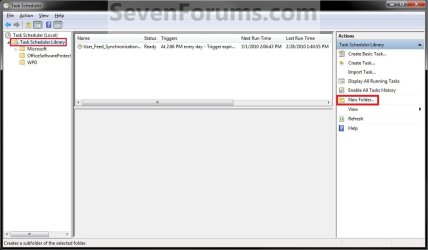
Step1.jpg
5. Type in a name (ex: program name "Core Temp") you want for the new task folder to make finding the task easier, then click on OK. (see screenshot below)
Step2.jpg
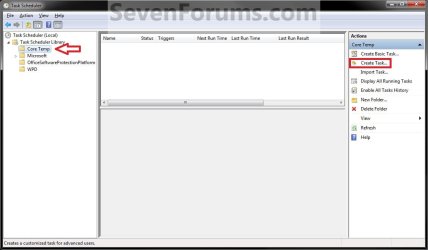
6. In the left pane of Task Scheduler, click on the new task folder (ex: Core Temp), and click on Create Task in the far right pane. (see screenshot below)
Step3.jpg
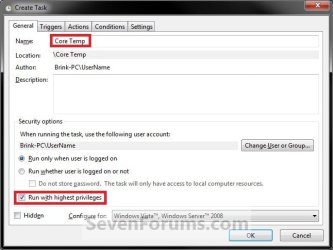
7. Under the General tab, type in a name for the task (ex: Program Name "Core Temp"). (see screenshot below)
Step4.jpg

8. Under the General tab,
  • If Used in a Administrator User Account
    • Check the Run with highest Privileges box. (see screenshot above)
  • If Used in a Standard User Account
    • Leave the Run with highest Privileges box unchecked. (see screenshot above)
9. Click on the Configure for drop down box to open it, and select Windows® 7, Windows Server™ 2008 R2. (see screenshot above and below)
NOTE: This is like compatibility mode. If the program does not support running in Windows 7 normally, then you can select the OS that is does support running in instead to have it run in compatibility mode as if it was running in that OS instead of Windows 7.

Drop_Down_Box.jpg
10. Do steps 11 and/or 12 below for when you would like to have this task run.

11. To Have the Task Run "At startup"
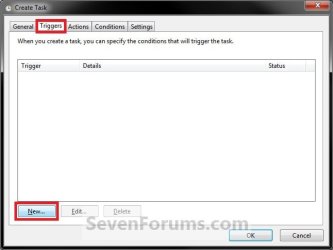
A) Click on the Triggers tab and New button. (see screenshot below)
Step5.jpg
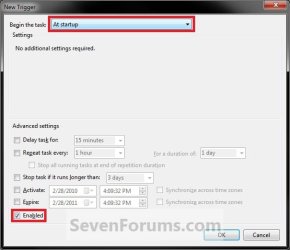
B) In the Begin the task drop down menu list, select At startup. Next, make sure that Enabled is checked, and click on OK. (see screenshot below)
Step6.jpg
C) Do step 12 as well. It is required for the "At startup" to work.
12. To Have the Task Run "At log on"
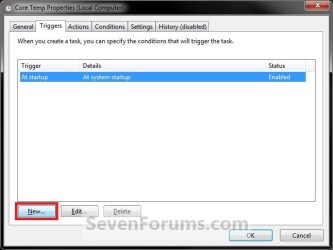
A) Under the Triggers tab, click on the New button. (see screenshot below)
Step6A.jpg
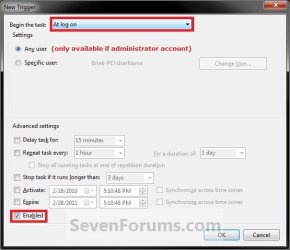
B) In the Begin the task drop down menu list, select At log on. Next, make sure that Enabled is checked, and click on OK. (see screenshot below)
Step6B.jpg
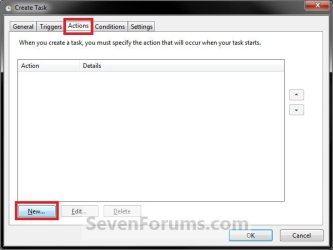
13. Click on the Actions tab and New button. (see screenshot below)
Step7.jpg
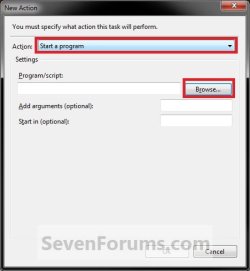
14. In the Action drop down menu list, select Start a program, then click on the Browse button. (see screenshot below)
Step8.jpg
15. Navigate to and select the program's EXE file or shortcut to the EXE file, then click on Open. (see screenshot below)
NOTE: Remember that a standard user account cannot run a elevated program at startup or log on. See NOTE at top of tutorial for more information.

   Tip
If you created an elevated program shortcut and wanted to run it at startup and/or log in, you would enter the full path of the elevated program shortcut here.
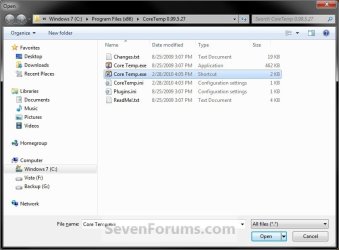
Step9.jpg
16. Click on OK. (see screenshot below)
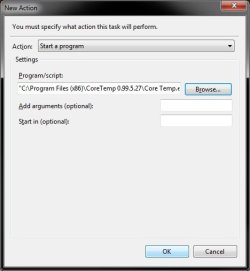
Step10.jpg
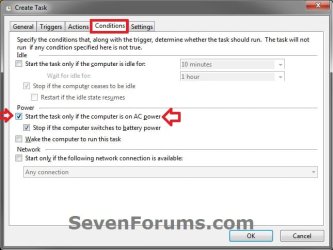
17. Click on the Conditions tab, and uncheck the Stop if the computer switches to battery power box first, then uncheck the Start the task only if the computer is on AC power box. (see screenshots below)
NOTE: This step is mostly for laptops, so that you will be able to run the program when the laptop is running on battery power.
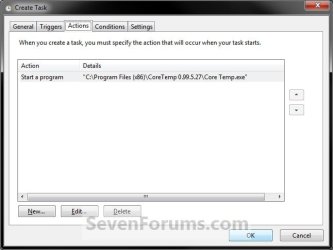
Step11.jpg

Conditions.jpg

18. Click on the Settings tab, and check the If the task fails, restart every box. (see screenshot below)
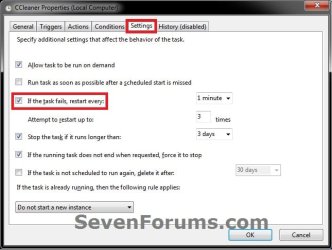
Settings.jpg
19. Click on OK. (see screenshot above)

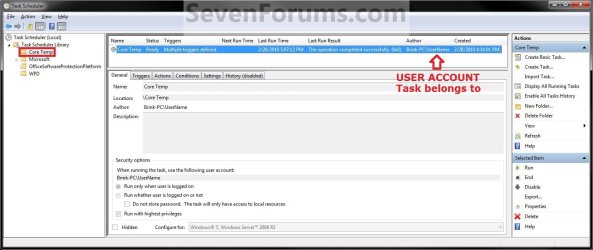
20. You can now close Task Scheduler. (see screenshot below)
NOTE: If you look in the middle pane under the Author column for the task that you just created, you will be able to tell what user account the task is for.
Step12.jpg
21. Log off and log on this user account, or restart the computer to test you new task.

   Tip
To Delete the Task:

If you decide you would like to delete the task later, then you can right click on the task (step 8) in the middle pane and click on Delete and Yes. Next, you can delete the task folder (step 5) when empty the same way. (see screenshot above)

That's it,
Shawn


Last edited:
You're most welcome [MENTION=517430]GrayO[/MENTION], and welcome to Seven Forums. :)

I'm glad it could help.
 

My Computer

Computer type
PC/Desktop
Computer Manufacturer/Model Number
Self built custom
OS
64-bit Windows 11 Pro for Workstations
CPU
Intel i7-8700K OC'd to 5 GHz
Motherboard
ASUS ROG Maximus XI Formula Z390
Memory
64 GB (4x16GB) G.SKILL TridentZ RGB DDR4 3600 MHz
Graphics Card(s)
ASUS ROG-STRIX-GTX1080TI-O11G-GAMING
Sound Card
Integrated
Monitor(s) Displays
2 x Samsung Odyssey G7 27"
Screen Resolution
2560x1440
Hard Drives
1TB Samsung 990 PRO M.2,
4TB Samsung 990 PRO PRO M.2,
TerraMaster F8 SSD Plus NAS
PSU
Seasonic Prime Titanium 850W
Case
Thermaltake Core P3
Cooling
Corsair Hydro H115i
Keyboard
Logitech wireless K800
Mouse
Logitech MX Master 4
Internet Speed
2 Gb/s Download and 100 Mb/s Upload
Antivirus
Malwarebyte Anti-Malware Premium
Browser
Google Chrome
Other Info
Logitech Z625 speaker system,
Logitech BRIO 4K Pro webcam,
HP Color LaserJet Pro MFP M477fdn,
APC SMART-UPS RT 1000 XL - SURT1000XLI,
Galaxy S23 Plus phone
Set xpadder to administer still not working in game. But works in note pad
 

My Computer

Computer type
PC/Desktop
Computer Manufacturer/Model Number
Custom built
OS
Windows 10
Set xpadder to administer still not working in game. But works in note pad

Hello Tim, and welcome to Seven Forums. :-)

This will not always work with games since they often call to load other files when started.
 

My Computer

Computer type
PC/Desktop
Computer Manufacturer/Model Number
Self built custom
OS
64-bit Windows 11 Pro for Workstations
CPU
Intel i7-8700K OC'd to 5 GHz
Motherboard
ASUS ROG Maximus XI Formula Z390
Memory
64 GB (4x16GB) G.SKILL TridentZ RGB DDR4 3600 MHz
Graphics Card(s)
ASUS ROG-STRIX-GTX1080TI-O11G-GAMING
Sound Card
Integrated
Monitor(s) Displays
2 x Samsung Odyssey G7 27"
Screen Resolution
2560x1440
Hard Drives
1TB Samsung 990 PRO M.2,
4TB Samsung 990 PRO PRO M.2,
TerraMaster F8 SSD Plus NAS
PSU
Seasonic Prime Titanium 850W
Case
Thermaltake Core P3
Cooling
Corsair Hydro H115i
Keyboard
Logitech wireless K800
Mouse
Logitech MX Master 4
Internet Speed
2 Gb/s Download and 100 Mb/s Upload
Antivirus
Malwarebyte Anti-Malware Premium
Browser
Google Chrome
Other Info
Logitech Z625 speaker system,
Logitech BRIO 4K Pro webcam,
HP Color LaserJet Pro MFP M477fdn,
APC SMART-UPS RT 1000 XL - SURT1000XLI,
Galaxy S23 Plus phone
You're most welcome @GrayO, and welcome to Seven Forums. :)

I'm glad it could help.

Hello Tim, and welcome to Seven Forums. :-)

This will not always work with games since they often call to load other files when started.
What about me? I'm still waiting for a fix since last year and a few months.......:confused::rolleyes:
 

My Computer

Computer type
PC/Desktop
Computer Manufacturer/Model Number
custom build
OS
The one I am using to register is my Windows 7 Professional x64 one.
CPU
Intel Core i7-3970x
Motherboard
Asus Rampage 4 Extreme
Memory
Cosair Dominator Platinum
Graphics Card(s)
2x eVGA GTX 770 4GB CLassified with ACX cooler
Antivirus
I have KIS 2016 which is an internet security suite....?
Browser
Fiefox
What about me? I'm still waiting for a fix since last year and a few months.......:confused::rolleyes:

Hello Win7fuser, :-)

If this is a program that requires UAC elevation (Run as administrator), you could try creating an elevated shortcut using the method in the tutorial below, and place the elevated shortcut in your Startup folder to have it run at startup.

:ar: Elevated Program Shortcut without UAC Prompt - Create
 

My Computer

Computer type
PC/Desktop
Computer Manufacturer/Model Number
Self built custom
OS
64-bit Windows 11 Pro for Workstations
CPU
Intel i7-8700K OC'd to 5 GHz
Motherboard
ASUS ROG Maximus XI Formula Z390
Memory
64 GB (4x16GB) G.SKILL TridentZ RGB DDR4 3600 MHz
Graphics Card(s)
ASUS ROG-STRIX-GTX1080TI-O11G-GAMING
Sound Card
Integrated
Monitor(s) Displays
2 x Samsung Odyssey G7 27"
Screen Resolution
2560x1440
Hard Drives
1TB Samsung 990 PRO M.2,
4TB Samsung 990 PRO PRO M.2,
TerraMaster F8 SSD Plus NAS
PSU
Seasonic Prime Titanium 850W
Case
Thermaltake Core P3
Cooling
Corsair Hydro H115i
Keyboard
Logitech wireless K800
Mouse
Logitech MX Master 4
Internet Speed
2 Gb/s Download and 100 Mb/s Upload
Antivirus
Malwarebyte Anti-Malware Premium
Browser
Google Chrome
Other Info
Logitech Z625 speaker system,
Logitech BRIO 4K Pro webcam,
HP Color LaserJet Pro MFP M477fdn,
APC SMART-UPS RT 1000 XL - SURT1000XLI,
Galaxy S23 Plus phone
Hello Win7fuser, :-)

If this is a program that requires UAC elevation (Run as administrator), you could try creating an elevated shortcut using the method in the tutorial below, and place the elevated shortcut in your Startup folder to have it run at startup.

:ar: Elevated Program Shortcut without UAC Prompt - Create
Hi Brink, thanks for the reply; that only works if you're using the computer as the sole admin and only that admin account. If you're like me or and other security minded people, they would be using a standard account for the principle of least privileges as their daily beater logged in account for windows 7, and this work around unfortunately does not work for standard accounts. It works perfectly fine though if you log into an admin account....otherwise nope.....:cry:

Any other bright ideas?:p
 

My Computer

Computer type
PC/Desktop
Computer Manufacturer/Model Number
custom build
OS
The one I am using to register is my Windows 7 Professional x64 one.
CPU
Intel Core i7-3970x
Motherboard
Asus Rampage 4 Extreme
Memory
Cosair Dominator Platinum
Graphics Card(s)
2x eVGA GTX 770 4GB CLassified with ACX cooler
Antivirus
I have KIS 2016 which is an internet security suite....?
Browser
Fiefox
Hi Brink, thanks for the reply; that only works if you're using the computer as the sole admin and only that admin account. If you're like me or and other security minded people, they would be using a standard account for the principle of least privileges as their daily beater logged in account for windows 7, and this work around unfortunately does not work for standard accounts. It works perfectly fine though if you log into an admin account....otherwise nope.....:cry:

Any other bright ideas?:p

You might see if this below may work for the standard user accounts.

:ar: Elevated Program Shortcut - Create for Standard User
 

My Computer

Computer type
PC/Desktop
Computer Manufacturer/Model Number
Self built custom
OS
64-bit Windows 11 Pro for Workstations
CPU
Intel i7-8700K OC'd to 5 GHz
Motherboard
ASUS ROG Maximus XI Formula Z390
Memory
64 GB (4x16GB) G.SKILL TridentZ RGB DDR4 3600 MHz
Graphics Card(s)
ASUS ROG-STRIX-GTX1080TI-O11G-GAMING
Sound Card
Integrated
Monitor(s) Displays
2 x Samsung Odyssey G7 27"
Screen Resolution
2560x1440
Hard Drives
1TB Samsung 990 PRO M.2,
4TB Samsung 990 PRO PRO M.2,
TerraMaster F8 SSD Plus NAS
PSU
Seasonic Prime Titanium 850W
Case
Thermaltake Core P3
Cooling
Corsair Hydro H115i
Keyboard
Logitech wireless K800
Mouse
Logitech MX Master 4
Internet Speed
2 Gb/s Download and 100 Mb/s Upload
Antivirus
Malwarebyte Anti-Malware Premium
Browser
Google Chrome
Other Info
Logitech Z625 speaker system,
Logitech BRIO 4K Pro webcam,
HP Color LaserJet Pro MFP M477fdn,
APC SMART-UPS RT 1000 XL - SURT1000XLI,
Galaxy S23 Plus phone
You might see if this below may work for the standard user accounts.

:ar: Elevated Program Shortcut - Create for Standard User
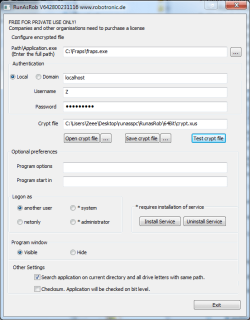
It works! ....but have to use RunAsRob program and install the service:
Untitled.png
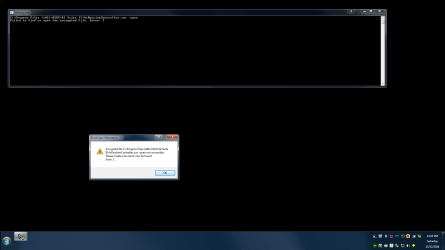
and...for some things it doesn't work......
Untitled1.png

Method Two also works but you now then have the "Administrator" account show on the welcome screen each time you boot the computer up.......if there was a way to hide that account on the welcome screen, that'd be nice....:confused:
 

My Computer

Computer type
PC/Desktop
Computer Manufacturer/Model Number
custom build
OS
The one I am using to register is my Windows 7 Professional x64 one.
CPU
Intel Core i7-3970x
Motherboard
Asus Rampage 4 Extreme
Memory
Cosair Dominator Platinum
Graphics Card(s)
2x eVGA GTX 770 4GB CLassified with ACX cooler
Antivirus
I have KIS 2016 which is an internet security suite....?
Browser
Fiefox
Back
Top