Can't Win 7 burn MP3 files to CD?

peytontodd

New member
Local time
9:22 AM
Messages
3
I tried to burn some MP3 audio files to a CD (having chosen the "for CD player" option), and was told it could not be done, and that I should check the icon next to the file to learn the reason why. But there was no such icon.

Then I converted the MP3 file to a WAV file. It took up much more space (110 KB for the WAV vs. 14 KB for the MP3 file), but at least it worked.

It would be so much easier if I could write MP3 files to a CD without having to first convert all my MP3 files to WAV.

Can this be done?

Thanks for your help.

Peyton
 

My Computer My Computer

At a glance

Georgia Windows 7 64-bit - Service Pack 1Intel i716 GB
Computer type
PC/Desktop
Computer Manufacturer/Model Number
Cyberpower PC
OS
Georgia Windows 7 64-bit - Service Pack 1
CPU
Intel i7
Memory
16 GB
Hard Drives
Disc 1: Western Digital 1 TB
Disc 2: Western Digital 1 TB
Browser
Chrome
I know many 3rd party utilities that will write whatever you want onto DVDs or CDs. Are you making audio CDs, if yes, you have to find free or fee utility that will write MP3s into an audio CD. I'm in school, sorry for the weird typing.
 

My Computer My Computer

At a glance

Windows 7 Professional 64-bitDesktop i5; Acers i5 & i7desktop 16GB; 1 Acer 8GB & 1 Acer 16GB
Computer type
PC/Desktop
Computer Manufacturer/Model Number
Antec desktop; Acer Aspire laptops
OS
Windows 7 Professional 64-bit
CPU
Desktop i5; Acers i5 & i7
Memory
desktop 16GB; 1 Acer 8GB & 1 Acer 16GB
Hard Drives
1TB split into 2 equal partitions [OS and data] usable by RJS
Internet Speed
AT&T DSL
Browser
FF, GChrome, msIE
Other Info
Windows 7 Firewall, Emsisoft AM/AV, MSE [scan-only], SpywareBlaster, Ruiware/BillP combine
Win7 is capable of doing it, but it doesn't want to. I use BurnAwareFree, very intuitive.
 

My Computer My Computer

At a glance

Win 7 Ult 64-bitG620 2.6GHZ Pentium R6 GB
Computer type
PC/Desktop
Computer Manufacturer/Model Number
HP p6-2020t
OS
Win 7 Ult 64-bit
CPU
G620 2.6GHZ Pentium R
Memory
6 GB
Monitor(s) Displays
25" HPLV2311
Screen Resolution
1920 x 1200
Hard Drives
1 SATA, 1 exterior SATA
Case
HP
Cooling
PSU
Antivirus
Glasswire
Browser
Waterfox; Firefox; Chrome for work
Other Info
Firewall--Glasswire
Similar specs in Gateway DX4200
Verizon FIOS Wired network

1 other Win7 computer-- has SSD
personally I like Burrrn, freeware available from major geeks.
 

My Computer My Computer

At a glance

Win7 Home Premium x64Intel Core i7 Extreme 990X @ 3.47GHz x616GB DDR3NVidia GeForce GTX460
Computer type
PC/Desktop
Computer Manufacturer/Model Number
HP Pavillion Elite HPE-590t
OS
Win7 Home Premium x64
CPU
Intel Core i7 Extreme 990X @ 3.47GHz x6
Motherboard
PEGATRON CORPORATION 2A86
Memory
16GB DDR3
Graphics Card(s)
NVidia GeForce GTX460
Monitor(s) Displays
Samsung SyncMaster 2443ewx
Screen Resolution
1920x1200
Hard Drives
160 GB SSD @ 2 TB 7200 Internal
750 GB HP, 2 TB WD, 2 TB Samsung External & 3 TB G-Tech firewire external
I tried to burn some MP3 audio files to a CD (having chosen the "for CD player" option), and was told it could not be done, and that I should check the icon next to the file to learn the reason why. But there was no such icon.

Then I converted the MP3 file to a WAV file. It took up much more space (110 KB for the WAV vs. 14 KB for the MP3 file), but at least it worked.

It would be so much easier if I could write MP3 files to a CD without having to first convert all my MP3 files to WAV.
You SHOULD NOT CONVERT MP3 TO WAV, for any purpose! Actually, MP3 was created from WAV, as a lossy smaller file format that "sounds very much like the original WAV".

WAV is essentially the format used to create true original CD-quality sound, and depending on the "audio quality" vs. file size of your desired conversion from original "holy-grail 100% perfect" CD original sound (i.e. WAV), your encoding parameters to produce lossy MP3 from WAV can produce an MP3 file of varying size. The "best" quality MP3 is about 1/8-1/5 the size of the original WAV, depending on the actual amount of "sound" in the WAV file. You can produce much smaller MP3 files from WAV originals, and they also would sound worse than larger MP3 files. The encoding of WAV-to-MP3 has parameters defining resulting audio sound quality vs. file size.

Remember, MP3 is a lossy format, and is NOT a bit-perfect "duplicate" of the original WAV. By "bit-perfect duplicate" I mean you cannot recreate the original WAV file from an MP3. However FLAC is a lossless format, and IS a 100% bit-perfect "duplicate" of the original WAV, except smaller (actually it is just a better more efficient compression format of the original WAV than WAV, but containing exactly the same data bits).

FLAC is like a better ZIP of the WAV original, and also has an encoding parameter that determines file size (vs. the amount of CPU time required to produce the FLAC file from the WAV file), but today's computers can produce a FLAC from a WAV in just seconds, so you might as well make smaller FLAC files (i.e. higher compression). ALL FLAC FILES ARE BIT-PERFECT, NO MATTER WHAT THEIR FILE SIZE!! You can ALWAYS RECREATE THE ORIGINAL WAV FROM A FLAC, NO MATTER WHAT COMPRESSION WAS USED TO PRODUCE THE FLAC. FLAC files with "compression 6" (with compression 8 being the absolute smallest) are about 1/4-40% the size of the original WAV. So if you wanted to recreate the original WAV files from the smaller bit-perfect FLAC copies you could and then you could create an audio CD of those WAV files and you'd genuinely truly have back the real original CD from which the FLAC files were ripped in the first place.

Anyway, I use IMGBURN for many years as my free "burner" software. It can copy data to CD/DVD (including copying MP3 files or anything else). It can also create true audio CD's from WAV files. Remember that an audio CD actually" plays when you insert it into a "player" (i.e. CD/DVD optical drive on your computer, or mechanical CD player in your car or home entertainment system, etc.), and potentially has information about album/artist/track written to the optical disc so that it can be displayed on a screen of the car or player, etc. That's why creating a self-playing audio CD is different than just copying data onto an optical disc (which is simply like writing files to a USB flash drive). IMGBURN can do it all.

The only issue with IMGBURN is that its installer file currently has OpenCandy included, which needs to be opted out of when you run the install. This is really unfortunate, but your anti-virus anti-malware will automatically strip it out as well when you run the installer. Nevertheless once you actually get it installed it is a terrific product, and can handle all types of optical discs, to/from ISO for data files, create audio CD, etc.

Anyway, there is no point in going backwards from MP3 to WAV from an audio quality point of view, as the MP3 is already lossy and not the original WAV. Your converted WAV-from-MP3 is only much larger than the original MP3, but is not the original WAV. Playing this WAV file will sound just like the MP3, not the original WAV from which the MP3 was ripped. Your only objective was to copy your MP3 files to CD, and for that any "burner" software can be used, such as IMGBURN or others.
 

My Computer My Computer

At a glance

Windows 7 Pro x64 (1), Win7 Pro X64 (2)i5-3350p 3.1Ghz/6MB-cache (1); E8400 3.0Ghz/6...8GB PC3-12800 DDR3 (1); 4GB PC3-10600 DDR3 (2)ATI HD7750 (1), (see TV cards); ATI R7 250 (2)
Computer type
PC/Desktop
Computer Manufacturer/Model Number
Home-built, two systems (1) and (2)
OS
Windows 7 Pro x64 (1), Win7 Pro X64 (2)
CPU
i5-3350p 3.1Ghz/6MB-cache (1); E8400 3.0Ghz/6MB-cache (2)
Motherboard
ASUS P8Z77-V Pro (1); ASUS P5Q3 (2)
Memory
8GB PC3-12800 DDR3 (1); 4GB PC3-10600 DDR3 (2)
Graphics Card(s)
ATI HD7750 (1), (see TV cards); ATI R7 250 (2)
Sound Card
Realtek ALC892 HD Audio (1); Realtek ALC1200 HD Audio (2)
Monitor(s) Displays
Eizo HD2441W LCD, Eizo S2433W (1); Eizo 24" S2433W (2)
Screen Resolution
1920x1200, 1920x1200 (1); 1920x1200 (2)
Hard Drives
(1) 1TB SATA-II (7200RPM), 2x2TB SATA-III (7200RPM), 250GB SATA-III (10000RPM) for OS; 2x2TB external USB 3.0

(2) 320GB SATA-II (7200RPM), 750GB SATA-II (7200RPM), 150GB SATA-II (10000RPM) for OS; 2TB external USB 3.0
PSU
Nesteq ECS-6001 600W (1); Nesteq ECS-5001 500W (2)
Case
Acousti-Case 360 (1) and (2)
Cooling
Noctua NH-U12P SE2 for CPU, 2x120mm case fans (1) and (2)
Keyboard
IBM PS/2 (1) and (2)
Mouse
Logitech MX Revolution wireless (1); Microsoft wired (2)
Internet Speed
100mbps down / 10mbps up
Antivirus
Microsoft Security Essentials; Malwarebyte Anti-Malware Pro
Browser
Firefox
Other Info
Ceton InfiniTV 4-tuner cablecard-enabled TV card as well as Hauppauge HVR-2250 OTA/ATSC 2-tuner TV card in (1), running under Win7 WMC

My Computer My Computer

At a glance

Win 10 x64, Linux Lite, Win 7 x64, BlackArch,...
Computer type
PC/Desktop
Computer Manufacturer/Model Number
HP Desktop & Compaq Laptop
OS
Win 10 x64, Linux Lite, Win 7 x64, BlackArch, & Kali
Hard Drives
Samsung 850 Pro 256Gb,
Hitachi HDD 1Tb,
Crucial MX SSD 250Gb
Segate 3Tb USB 3.0 Ext. Backup HDD
Internet Speed
150Mbps dn, 20Mbps up
Antivirus
Avast Free, Malwarebytes Anti-Exploit & Anti-Ransomware
Browser
Firefox, Chrome, Opera, & VPN
Thanks so much, guys, for all your replies, and special thanks to dsperber for the long explanation. (Also, my apologies for taking so long to get back to you.) I tried the process first with ImgBurn, which I can see is a very sophisticated app, but it never presented me with the option that Win 7 does as to which kind of CD I want (for a CD player vs. like an regular disc drive). So I just went with what I was offered, and it turned out to be the latter. Does ImgBurn not write regular audio CDs? It does at least skip to the next song on the resulting CD as a playlist should but you have to start it by double-clicking the first song when viewing the list on the computer. If I put it into a standard CD player, it reads it, then reports "no Disc". Also, unless I'm missing something, you have to exit and re-open ImgBurn to get back to its main menu. Sorry for all the knocks against a sophisticated app that this obviously is.

Next I tried BurnAwareFree, which worked fine. It does have a separate choice for Burn an Audio CD, and when I chose that, it burned a CD that the standard CD player recognized and played perfectly, skipping to each next song just as it should. The same CD built by BurnAwareFree plays in Win10, skipping to each next song appropriately, but not in Win 7 unless you double-click the first song, in which case it does skip to each next song after that. :-)
 

My Computer My Computer

At a glance

Georgia Windows 7 64-bit - Service Pack 1Intel i716 GB
Computer type
PC/Desktop
Computer Manufacturer/Model Number
Cyberpower PC
OS
Georgia Windows 7 64-bit - Service Pack 1
CPU
Intel i7
Memory
16 GB
Hard Drives
Disc 1: Western Digital 1 TB
Disc 2: Western Digital 1 TB
Browser
Chrome

My Computer My Computer

At a glance

Win 10 x64, Linux Lite, Win 7 x64, BlackArch,...
Computer type
PC/Desktop
Computer Manufacturer/Model Number
HP Desktop & Compaq Laptop
OS
Win 10 x64, Linux Lite, Win 7 x64, BlackArch, & Kali
Hard Drives
Samsung 850 Pro 256Gb,
Hitachi HDD 1Tb,
Crucial MX SSD 250Gb
Segate 3Tb USB 3.0 Ext. Backup HDD
Internet Speed
150Mbps dn, 20Mbps up
Antivirus
Avast Free, Malwarebytes Anti-Exploit & Anti-Ransomware
Browser
Firefox, Chrome, Opera, & VPN
Is CUE the name of some app I should use for this instead of ImgBurn? Or is it a file type? (I notice that when I do an image copy, the image copy results in a BIN file and a CUE file, and I point at the CUE file in order to copy the image back to another CD.) If so, how exactly would that work? It sounds like it would involve a two-step process.

Yes, I notice that the files on an audio disk have a .cda file extension. But with BurnAwareFree I can start with mp3 files and write them to .cda's in a single step.
 

My Computer My Computer

At a glance

Georgia Windows 7 64-bit - Service Pack 1Intel i716 GB
Computer type
PC/Desktop
Computer Manufacturer/Model Number
Cyberpower PC
OS
Georgia Windows 7 64-bit - Service Pack 1
CPU
Intel i7
Memory
16 GB
Hard Drives
Disc 1: Western Digital 1 TB
Disc 2: Western Digital 1 TB
Browser
Chrome
Click on the links I researched and provided. Answer most questions about subject-matter.
Burn an audio CD with ImgBurn?
How to Burn a Audio CD with Imgburn - Britec YouTube Video
A CUE file is a text file that defines the way tracks are organized on compact discs and super-audio CDs (SACDs). It may contain the song name, performer, and length of each track on the disc. CUE files are written in a standard format and therefore are recognized by most CD playback and editing programs.
 

My Computer My Computer

At a glance

Win 10 x64, Linux Lite, Win 7 x64, BlackArch,...
Computer type
PC/Desktop
Computer Manufacturer/Model Number
HP Desktop & Compaq Laptop
OS
Win 10 x64, Linux Lite, Win 7 x64, BlackArch, & Kali
Hard Drives
Samsung 850 Pro 256Gb,
Hitachi HDD 1Tb,
Crucial MX SSD 250Gb
Segate 3Tb USB 3.0 Ext. Backup HDD
Internet Speed
150Mbps dn, 20Mbps up
Antivirus
Avast Free, Malwarebytes Anti-Exploit & Anti-Ransomware
Browser
Firefox, Chrome, Opera, & VPN
Does ImgBurn not write regular audio CDs?
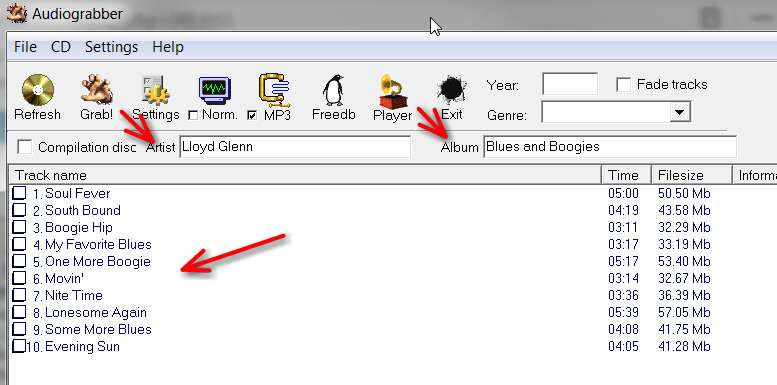
Yes, it can. As was mentioned it is through the creation of a CUE file, which results in CD-TEXT written to the burned CD. And then the result will be playable by ordinary mechanical CD players (or computer software CD players) that move automatically from one track to the next. With the CD-TEXT written to the CD most players (including your car's CD player/screen, if you have one) will present that text (instead of going to the Internet for FreeDB, GraceNote, etc., to obtain info for commercial retail CD's).

The technique to use IMGBurn for creating audio CD's is more than just a single-click, and is well documented on various YouTube videos, but these go pretty quickly and you'll probably want to write things down. I'll present what actually is the approach, below, including pictures.

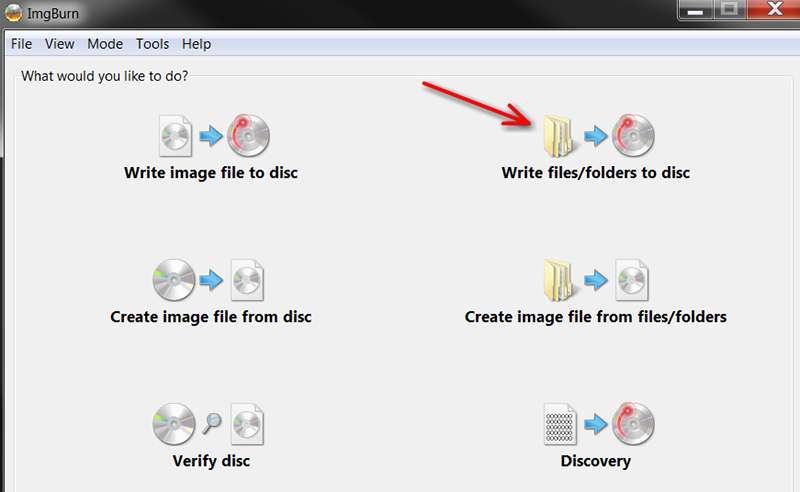
(1) Open IMGBurn, to see two windows (upper and lower). Push the "write files/folders to disk" button, upper-right in the upper window.

Csy310.jpg


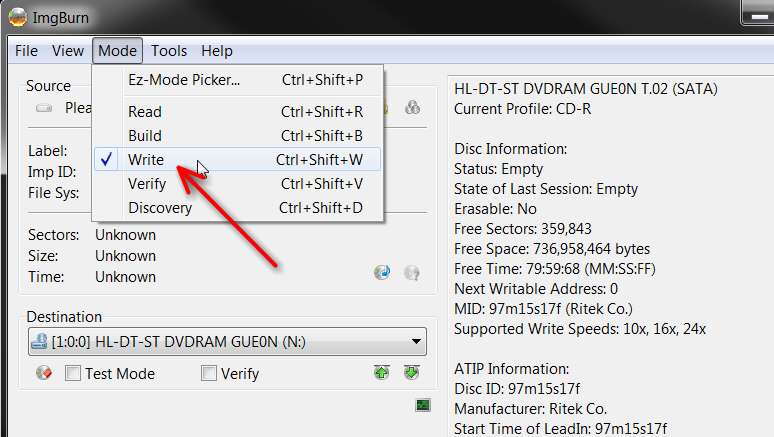
(2) From the Menu bar of the next screen presented, select Mode -> Write.

mvE0mn.jpg


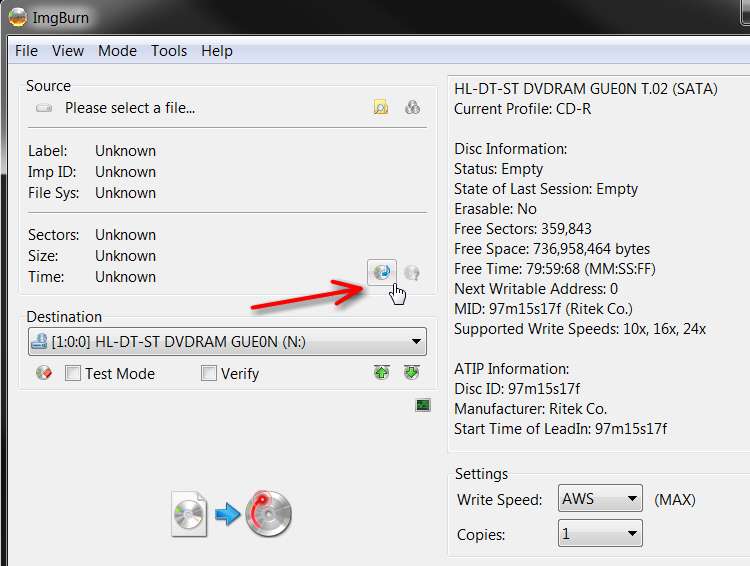
(3) On the next screen presented, push the "create CUE file" button

E82yLO.jpg


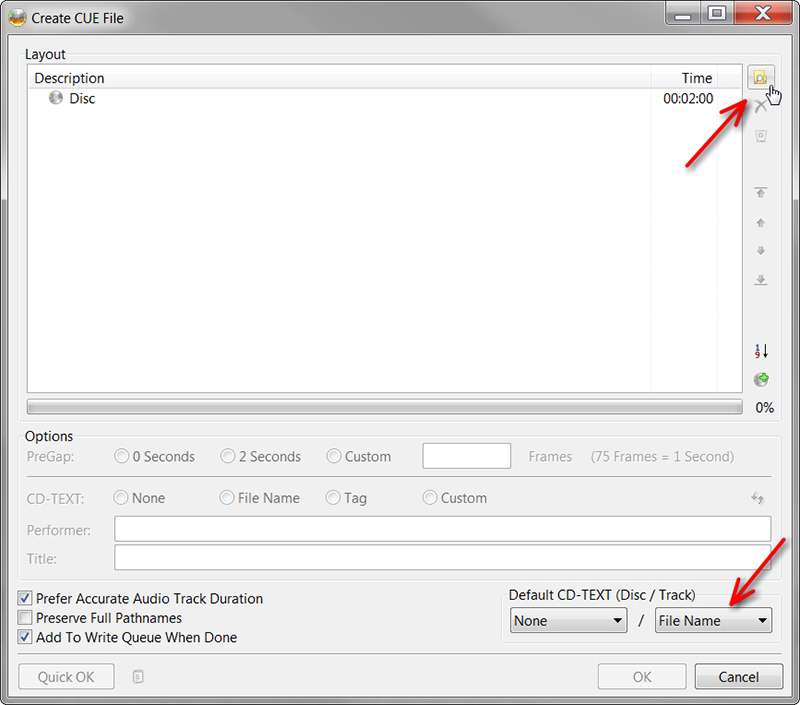
(4) On the next screen presented, push the "browse for a file..." button, to trigger an OPEN dialog window where you will be able to navigate to a filder and select one or more WAV files to be added to the CUE file under construction

FargYC.jpg


Note that on this screen you should change "none" to "file name" for the track name option from the drop-down list in the "Default CD-TEXT (Disc/Track)" area. This will result in the WAV file name being used (by default, to pre-populate the area, which you can sitll change if you want to) the track name in the CUE file being constructed.

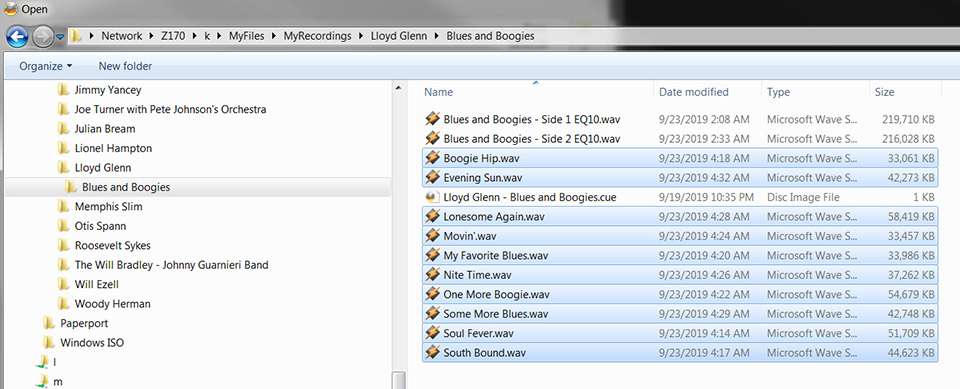
(5) From the OPEN dialog that results, select the one or more WAV files you want to pick from that folder for including into the CUE file being constructed. Note that the dialog will probably show the WAV files in alphabetical order (unless you've named the WAV files to have a numeric track number at the front). No matter what this initial assembly of WAV files is, you can still later rearrange them using IMGBurn into whatever order you want (e.g. track sequence, like the original CD, but without a numeric track number in the front of each track name so that it looks just like the original true retail CD).
PUrMvS.jpg


(6) When you've pushed the Open button (on the OPEN navigation/selection dialog window) the one or more selected WAV files will be added to the list of files in the CUE file being constructed. You can continue adding additional WAV files by repeating step (5) and navigating/selecting as many times as you want. Each newly selected file(s) will be appended to the CUE list under construction, in whatever order you added them. Again, you will next be able to rearrange things to produce your desired track sequence in the burned CD.
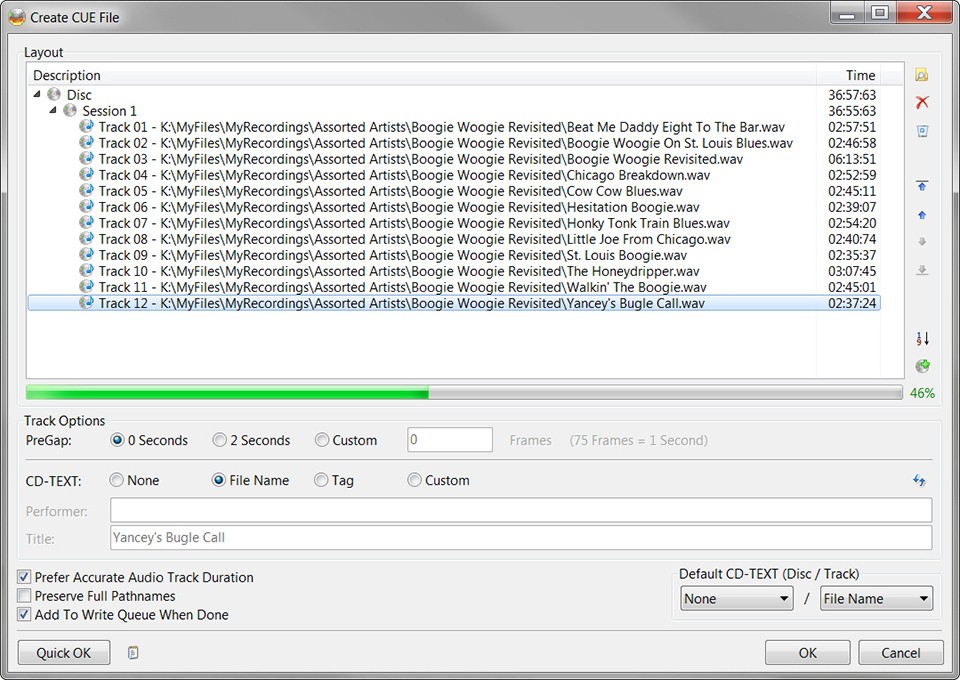
xMJGDW.jpg


(7) You will now proceed to modify the default pre-populated CUE file fields. First, select the "Disc" line at the top, in order to enter the Album Artist (i.e. "Performer") and Album Title (i.e. "Title") down below, after pushing the "Custom" button which will open up those data entry fields. Note that whatever you type in (for this instructions and subsequent ones) is automatically absorbed by IMGBurn. There is no need to press ENTER or push an OK button (until you're really done with all your customizations, since OK will terminate this CUE file customization process and move on to the next step... which you don't want to really do until you're really finished customizing.
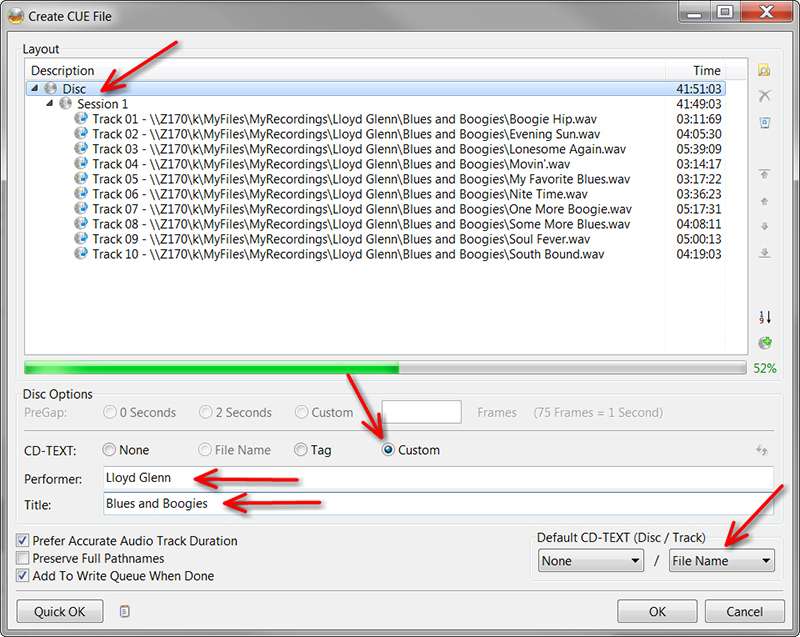
U7gGum.jpg


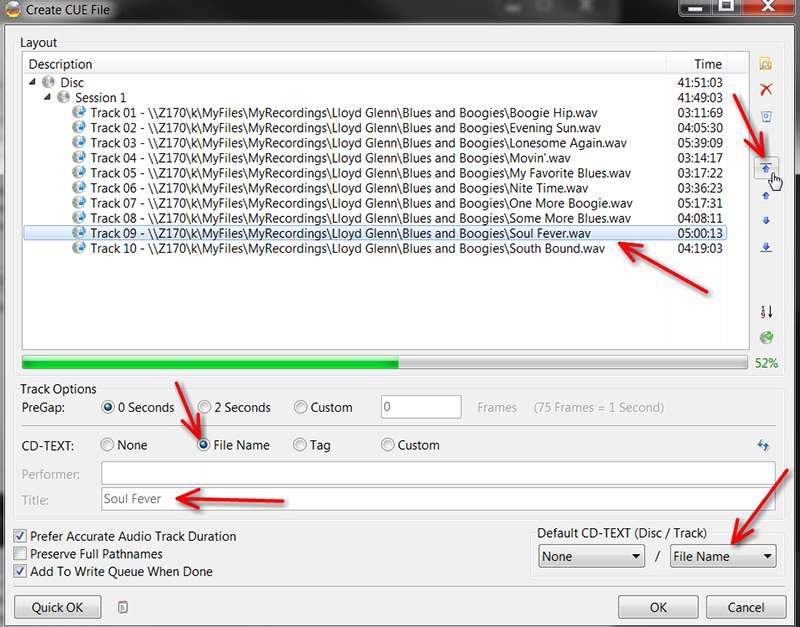
(8) Now you're going to select each track, one by one, to accomplish several objectives. You're going to rearrange them into the track order you want, using the UP/DOWN/TOP/BOTTOM buttons over on the right. As you select each track since you set "File Name" as the default track title, the WAV file name will be pre-populated into the "Title" field (which will also be grayed-out and unmodifiable sine the "File Name" radio button will also be pre-checked by default).

I usually start by selecting what I want to be the FIRST track, and push the "Top" button to immediately move it to position "Track 01".

DJZu4e.jpg


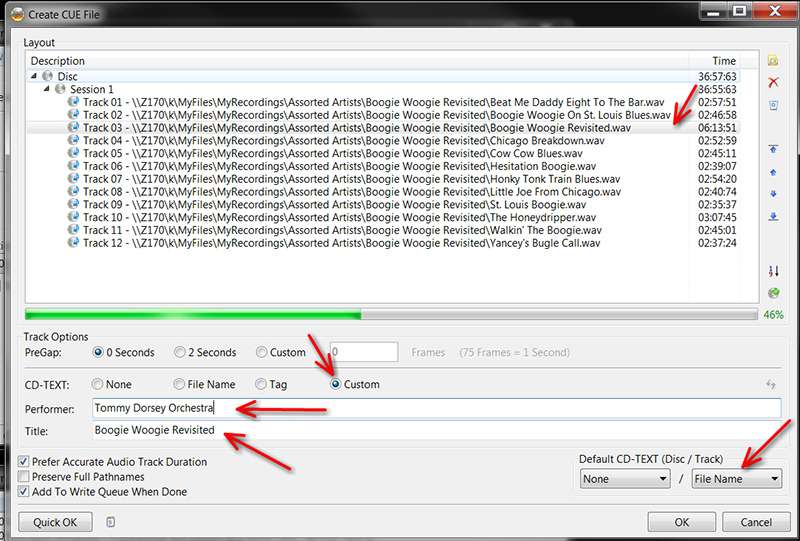
Note that if you want to change this file name or add a specific Performer (e.g. if you are creating a compilation CD, with unique artists for each track), push the "Custom" radio button which will open up both Performer and Title fields which you can then change as you like.

6fQu0o.jpg


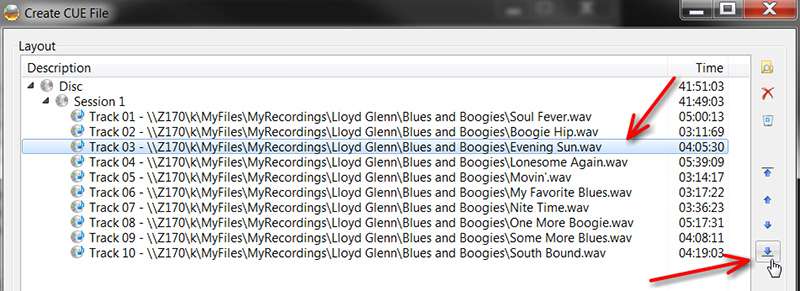
(9) I then usually select the track I want to be the LAST track, and push the "Bottom" button to immediately move it to the very bottom of the track list.

a2m92i.jpg


(10) Now you will continue rearranging tracks (and customizing title/performer if required) by selecting tracks and moving up or down through the UP and DOWN buttons on the right.

KIqGTx.jpg


(11) Eventually you will now have your desired track sequence properly and completely arranged. Only now should you push the OK button to indicate you're finished building your CUE file that describes the precise track sequence (and CD-TEXT contents) you are going to burn.

NOTE 1: IMGBurn has a major deficiency in that you cannot use IMGBurn to "edit" an existing CUE file you've previously built (using IMGBurn itself, or edited with Notepad, etc.). So you need to proceed from the previous step only when you are truly finished. I'm not sure you can even re-use a previously created CUE file to re-write the audio CD again and again. Major deficiency.

NOTE 2: If you plan to burn multiple copies of the same CD, you should instead create an ISO output rather than writing the folder/files to CD. Use the "Create image file from files/folders" button on the initial screen. This can still be an audio CD image, but you will be creating an ISO file from which you can then just burn the ISO to CD (using the "Write image file to disc" button on the initial screen). That way you can produce as many CD duplicates as you want without having to recreate the audio CD CUE file for each one.
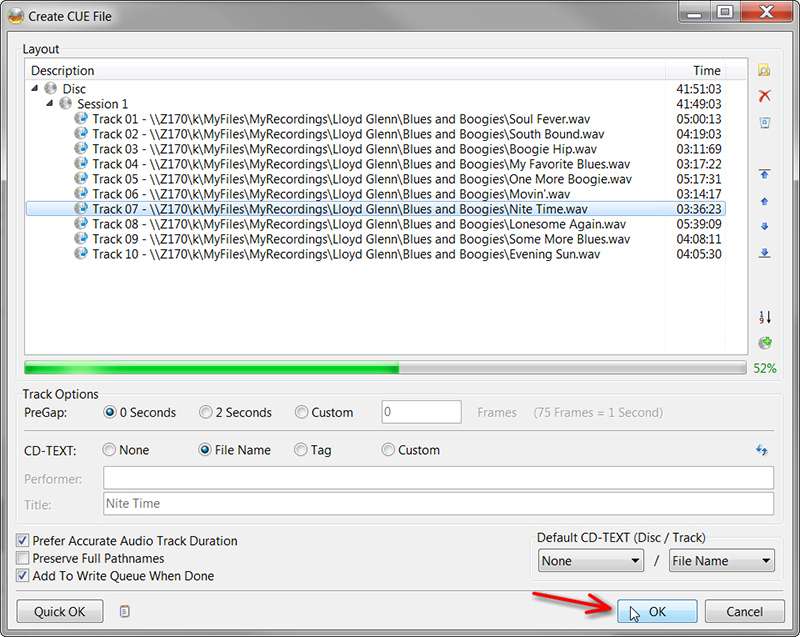
riWGSE.jpg


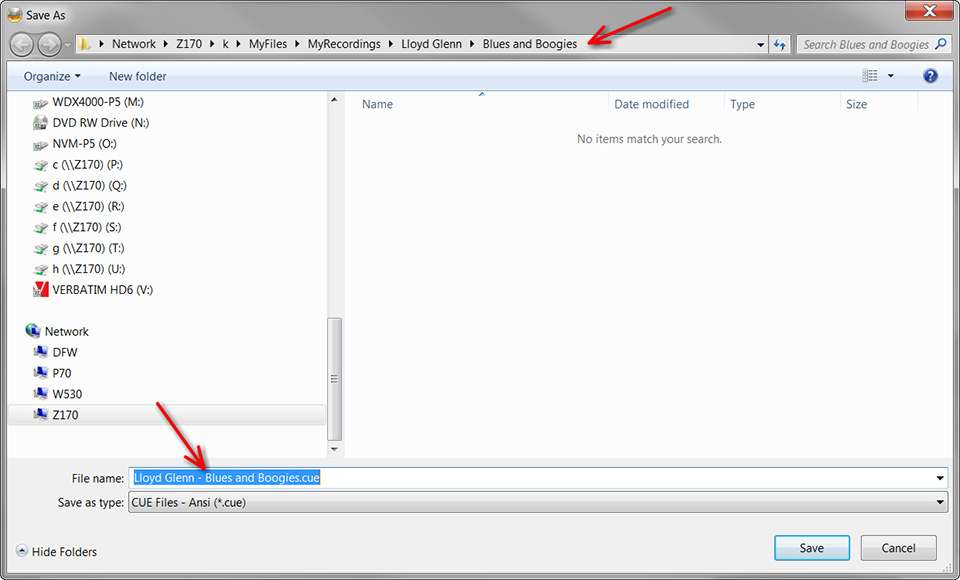
(12) After you push the OK button you will get a SAVE AS... dialog, allowing you to save the CUE file just constructed. By default the CUE file name will be a concatenation of album artist and album title (with a .CUE extension). And by default the folder pre-selected will be the last (or only) folder you browsed into to select WAV files from. This is typically fine, and you can just push the SAVE button to perform saving the CUE file which IMGBurn will next use to actually control the audio CD burning itself.

GxZgaJ.jpg


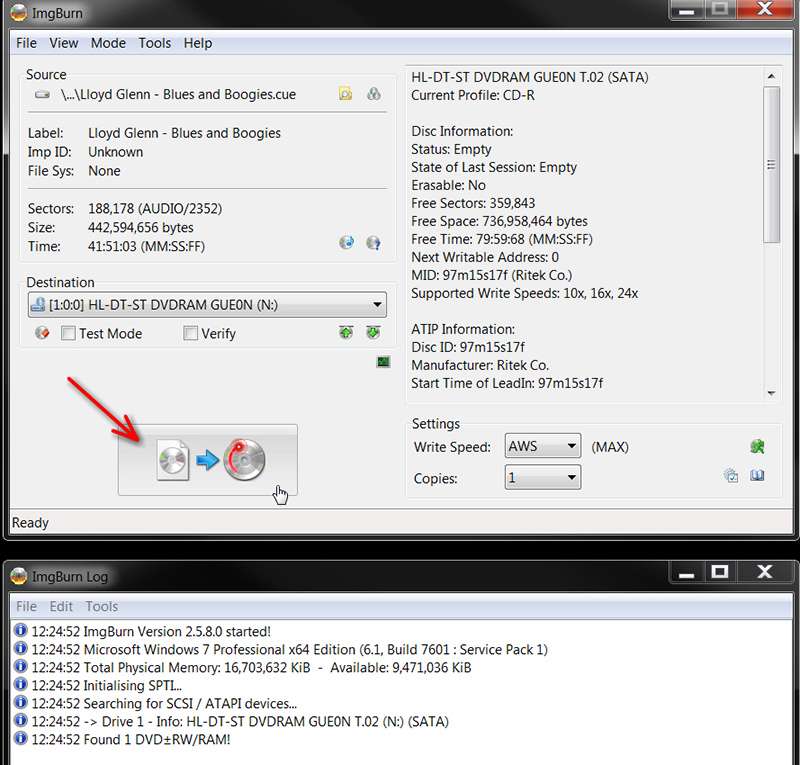
(13) You will now be brought back to the screen allowing you to push the BURN TO CD button

cxvjLd.jpg


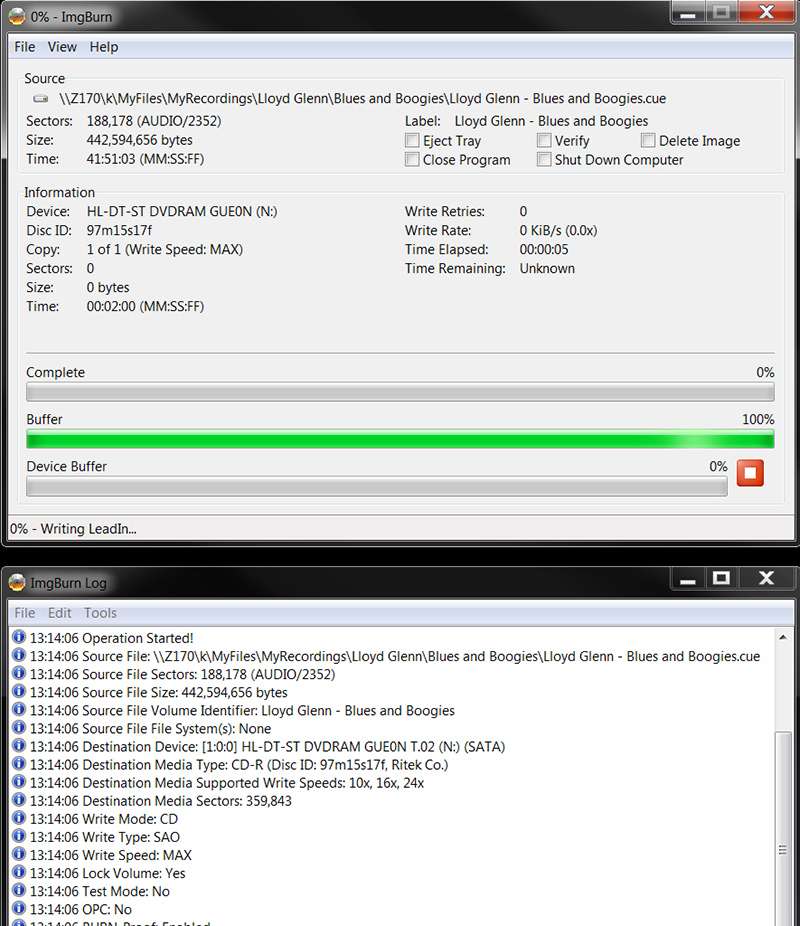
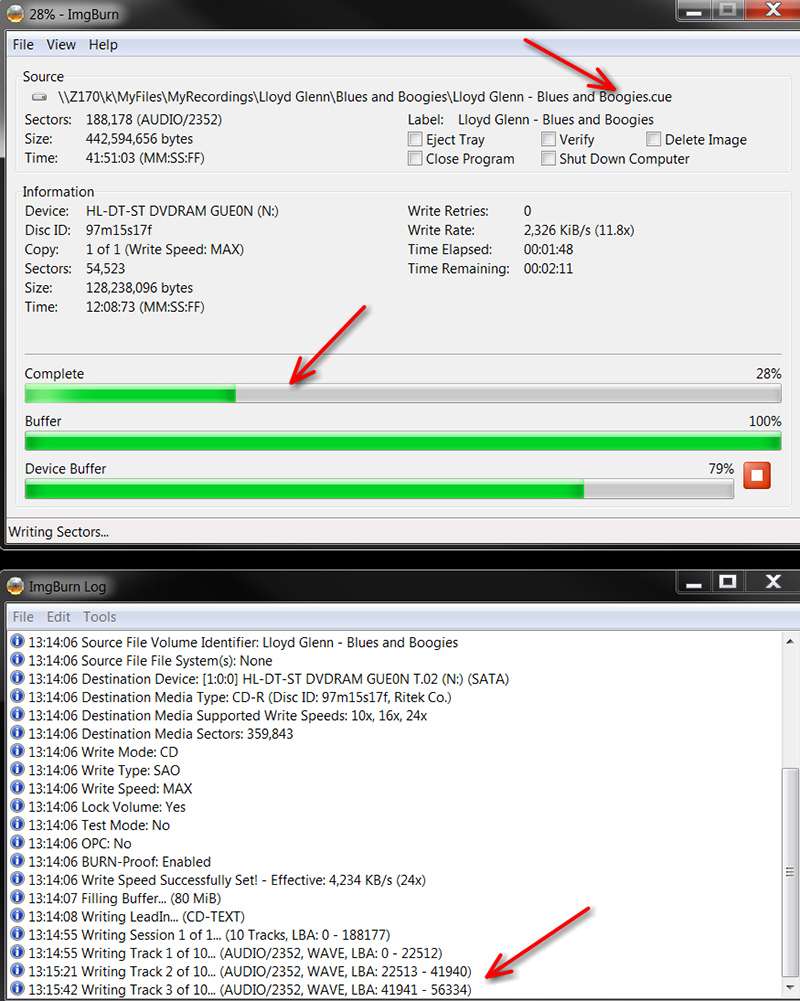
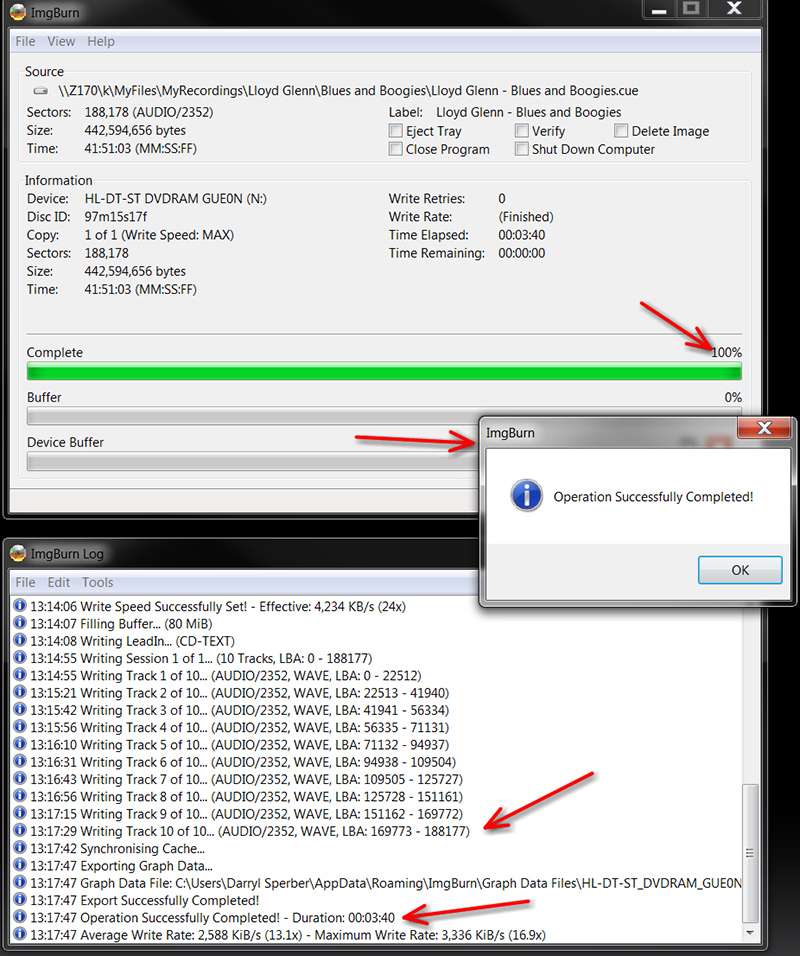
(14) IMGBurn will now begin the writing process, first formatting the "lead-in" data, then writing the individual tracks one at a time, and then finally closing out the session.

3aLNYA.jpg


8DxULo.jpg


mEFMbp.jpg


(15) The resulting CD, when played by software/hardware that is CD-TEXT aware, will present the information from the CUE file.

ABzZ6W.jpg


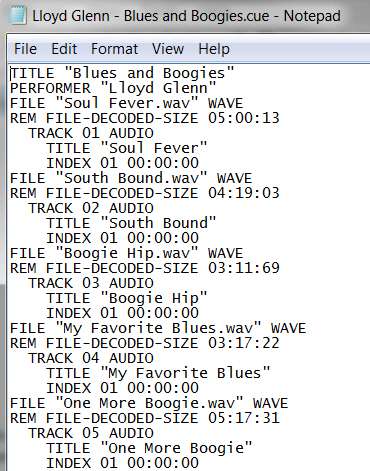
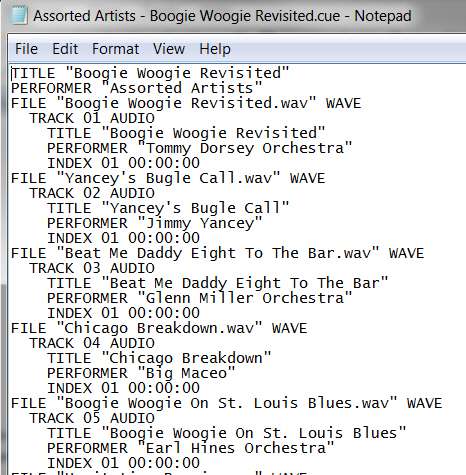
(16) The CUE file itself can be reviewed and edited with Notepad. Note that the CD-TEXT format will be slightly different depending on whether the CD represents a collection of tracks all by a single-artist or a compilation CD with tracks by assorted artists.

JExLvO.jpg


MQVCtc.jpg


Note that CUE file format is rather "primitive" as it was invented and implemented a long time ago. It really has never been upgraded and modernized to reflect all of the other metadata fields now supported by ID3 tags associated with modern digital audio file formats (e.g. for MP3, FLAC, etc.) and which are supported by cloud-based services like FreeDB and GraceNote. So unfortunately there is no way to provide things like Year, Genre, etc. In fact mechanical players may not even display the "track artist" field properly when you've built a "compilation" CD.

Anyway, at least you can create an audio CD that plays properly.

 

My Computer My Computer

At a glance

Windows 7 Pro x64 (1), Win7 Pro X64 (2)i5-3350p 3.1Ghz/6MB-cache (1); E8400 3.0Ghz/6...8GB PC3-12800 DDR3 (1); 4GB PC3-10600 DDR3 (2)ATI HD7750 (1), (see TV cards); ATI R7 250 (2)
Computer type
PC/Desktop
Computer Manufacturer/Model Number
Home-built, two systems (1) and (2)
OS
Windows 7 Pro x64 (1), Win7 Pro X64 (2)
CPU
i5-3350p 3.1Ghz/6MB-cache (1); E8400 3.0Ghz/6MB-cache (2)
Motherboard
ASUS P8Z77-V Pro (1); ASUS P5Q3 (2)
Memory
8GB PC3-12800 DDR3 (1); 4GB PC3-10600 DDR3 (2)
Graphics Card(s)
ATI HD7750 (1), (see TV cards); ATI R7 250 (2)
Sound Card
Realtek ALC892 HD Audio (1); Realtek ALC1200 HD Audio (2)
Monitor(s) Displays
Eizo HD2441W LCD, Eizo S2433W (1); Eizo 24" S2433W (2)
Screen Resolution
1920x1200, 1920x1200 (1); 1920x1200 (2)
Hard Drives
(1) 1TB SATA-II (7200RPM), 2x2TB SATA-III (7200RPM), 250GB SATA-III (10000RPM) for OS; 2x2TB external USB 3.0

(2) 320GB SATA-II (7200RPM), 750GB SATA-II (7200RPM), 150GB SATA-II (10000RPM) for OS; 2TB external USB 3.0
PSU
Nesteq ECS-6001 600W (1); Nesteq ECS-5001 500W (2)
Case
Acousti-Case 360 (1) and (2)
Cooling
Noctua NH-U12P SE2 for CPU, 2x120mm case fans (1) and (2)
Keyboard
IBM PS/2 (1) and (2)
Mouse
Logitech MX Revolution wireless (1); Microsoft wired (2)
Internet Speed
100mbps down / 10mbps up
Antivirus
Microsoft Security Essentials; Malwarebyte Anti-Malware Pro
Browser
Firefox
Other Info
Ceton InfiniTV 4-tuner cablecard-enabled TV card as well as Hauppauge HVR-2250 OTA/ATSC 2-tuner TV card in (1), running under Win7 WMC
Back
Top