Solved My stupid error -.- Blue Screen after change MSConfig 0xc000000e

jonnas

New member
Local time
10:28 AM
Messages
7
HELP!!!!!:cry:
Just curious, after changing MSCONFIG from "Selective startup" to "Normal startup" and restarting the computer, now I get a blue screen with the error below:
"Error Code: 0xc000000e
Boot selection failed because a required device is inaccessible."
*I only have 1 SSD
*I didn't change options in msconfig, I just changed the "selective startup" option to "Normal startup"
*I already tried boot repair with the CD = it didn't work
*I'm writing in this forum using another SSD that I had stored with Windows 7 Ultimate x64 installed.


Can I return to "Normal startup" by command in CMD? because if there is how am I going to do it....
But if this is not possible, I will need to recreate the bcd manually using cmd correct?
282245d1591501886t-problem-boot-up-menu-image.png


Can anyone help me, thanks!
 

My Computers My Computers

  • At a glance

    Windows 7 Ultimate x64
    OS
    Windows 7 Ultimate x64
  • Computer type
    PC/Desktop
how did you uncheck "use original boot configuration" ? Fiddling around with safe boot under the boot tab can do that.

you can try fixing it by :

1. put the ssd back in the original machine

2. boot your installation media or "repair cd" (in the same mode as your os - either bios mode or efi mode )

3. then at cmd prompt type:

bcdboot os-partition-letter:\windows

e.g.

bcdboot c:\windows
or
bcdboot d:\windows

(then press enter)

you will have to check what letter is assigned to your os partition from the booted media ( it is not necessarily the same as the assignments in your windows installation)
 

My Computers My Computers

  • At a glance

    7 X64i5 84002x8gb 3200mhz
    Computer type
    PC/Desktop
    OS
    7 X64
    CPU
    i5 8400
    Motherboard
    gigabyte b365m ds3h
    Memory
    2x8gb 3200mhz
    Hard Drives
    various
    PSU
    pure power 11 400w cm
    Case
    Coolermaster
    Cooling
    cryorig m9i
  • At a glance

    7x64g54008gb ddr4 2400
    Computer type
    PC/Desktop
    OS
    7x64
    CPU
    g5400
    Motherboard
    ga b365m ds3h
    Memory
    8gb ddr4 2400
    PSU
    xfx pro 450w
how did you uncheck "use original boot configuration" ? Fiddling around with safe boot under the boot tab can do that.

you can try fixing it by :

1. put the ssd back in the original machine

2. boot your installation media or "repair cd" (in the same mode as your os - either bios mode or efi mode )

3. then at cmd prompt type:

bcdboot os-partition-letter:\windows

e.g.

bcdboot c:\windows
or
bcdboot d:\windows

(then press enter)

you will have to check what letter is assigned to your os partition from the booted media ( it is not necessarily the same as the assignments in your windows installation)

Hello Thank you for your interaction and help ,
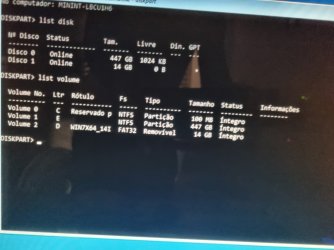
For a better understanding of my problem.. see this SS, and now what should I do?
SS it's written in Portuguesexxxxxxxxxxxxxxx.jpg
note :
*I only booted with 1 pendrive and the SSD
*Volume 0 and Volume 1 is the SSD with boot problem
*Volume 2 is the pendrive
*Something strange is that the SSD has the letter "E" and another part of the SSD has the letter "C" originally this SSD belongs to the letter "C" so I don't understand why it is divided, maybe this is the source of the problem.
*I tried to select volume 1 and then use the command "assign letter=C" to assign the letter "C" to volume 1 and it didn't accept it.
I haven't tested your suggestion yet because I wanted to show you this image first...to see if I really should proceed with your previous suggestion or a new one...

thank you very much
 

My Computers My Computers

  • At a glance

    Windows 7 Ultimate x64
    OS
    Windows 7 Ultimate x64
  • Computer type
    PC/Desktop
It is normal for drive letter assignments to look different from booted media.

to exit diskpart type:
exit
(then press enter)

then at command prompt type:

bcdboot e:\windows
 

My Computers My Computers

  • At a glance

    7 X64i5 84002x8gb 3200mhz
    Computer type
    PC/Desktop
    OS
    7 X64
    CPU
    i5 8400
    Motherboard
    gigabyte b365m ds3h
    Memory
    2x8gb 3200mhz
    Hard Drives
    various
    PSU
    pure power 11 400w cm
    Case
    Coolermaster
    Cooling
    cryorig m9i
  • At a glance

    7x64g54008gb ddr4 2400
    Computer type
    PC/Desktop
    OS
    7x64
    CPU
    g5400
    Motherboard
    ga b365m ds3h
    Memory
    8gb ddr4 2400
    PSU
    xfx pro 450w
It is normal for drive letter assignments to look different from booted media.

to exit diskpart type:
exit
(then press enter)

then at command prompt type:

bcdboot e:\windows
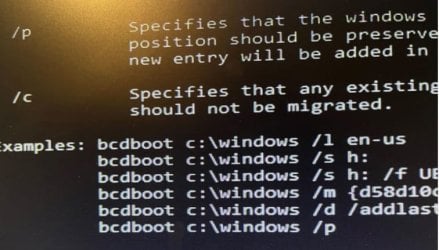
Hello, I tried "bcdboot e:\windows" and received "Failure when trying to copy boot files" and an image appeared with a large guide below, "making it clear that I typed an invalid command perhaps" from which I took an SS from a piece Final
122112.jpg
While researching a little, I came across this tutorial:

diskpart
list disk
select disk 0
list partition (Here it showed two partitions "partition 1 = 100mb" and "partition 2 = 447gb")
select partition 2
active

Then I did the reboot and started getting an error that the system did not exist, so I redid the tutorial and marked active for partition 1 and did the reboot..it went back to "normal" currently with the same error as it already was.
Reading a little about this, I came across this command similar to the one you sent "bcdboot c:\windows /s c", but I haven't run it yet.
Should I use this command "bcdboot c:\windows /s c" or this "bcdboot e: \windows /s e" ? or some other..
Thanks


My Computers My Computers

  • At a glance

    Windows 7 Ultimate x64
    OS
    Windows 7 Ultimate x64
  • Computer type
    PC/Desktop
If the system partition was not already active it needs to be marked active on an mbr style disk.


in you screenshot the 100mb system partition has letter c

the large windows partition has letter e

therefore

bcdboot e:\windows /s c:
 

My Computers My Computers

  • At a glance

    7 X64i5 84002x8gb 3200mhz
    Computer type
    PC/Desktop
    OS
    7 X64
    CPU
    i5 8400
    Motherboard
    gigabyte b365m ds3h
    Memory
    2x8gb 3200mhz
    Hard Drives
    various
    PSU
    pure power 11 400w cm
    Case
    Coolermaster
    Cooling
    cryorig m9i
  • At a glance

    7x64g54008gb ddr4 2400
    Computer type
    PC/Desktop
    OS
    7x64
    CPU
    g5400
    Motherboard
    ga b365m ds3h
    Memory
    8gb ddr4 2400
    PSU
    xfx pro 450w
If the system partition was not already active it needs to be marked active on an mbr style disk.


in you screenshot the 100mb system partition has letter c

the large windows partition has letter e

therefore

bcdboot e:\windows /s c:


When I use "bcdboot e:\windows /s c:" it returns "success" but the problem continues..

So researching more about I was testing:
bootrec /fixmbr -->success
bootrec /fixboot -->success
bootrec /rebuildbcd -->"Cannot find the requested system device"

what do you suggest..
thank you very much

- - - Updated - - -

I decided to format the 100MB partition and then run "bcdboot e:\windows /s c:" but now I get a new error when restarting "Bootmgr is missing", I'm looking for solutions, if you have any tips...If anything, if I need to, I can format the 100mb partition again and start from the beginning.

- - - Updated - - -

I did the following, I entered Windows with two HDs, my current one and the one with a boot problem, so I formatted the 100MB partition in NTFS mode (default).
So now we have the volume with the Windows System and another formatted where the Boot was.
I turned on the computer with just the HD and recovery pendrive, opened CMD and typed bcdboot e:\windows /s c:, it returned success.
However, in some videos I saw that the person then typed /bcdedit (just to check if everything is ok), but when I tried this command it returned that it could not be found.
In my partition where there is Boot (100mb) there are now these files:
E:\EFI E:\EFI\Boot E:\EFI\Microsoft E:\EFI\Boot\bootx64.efi E:\EFI\Microsoft\Boot E:\EFI\Microsoft\Recovery E:\EFI\Microsoft\Boot\BCD E:\EFI\Microsoft\Boot\bootmgfw.efi E:\EFI\Microsoft\Boot\bootmgr.efi E:\EFI\Microsoft\Boot\cs-CZ E:\EFI\Microsoft\Boot\da-DK E:\EFI\Microsoft\Boot\de-DE E:\EFI\Microsoft\Boot\el-GR E:\EFI\Microsoft\Boot\en-US E:\EFI\Microsoft\Boot\es-ES E:\EFI\Microsoft\Boot\fi-FI E:\EFI\Microsoft\Boot\Fonts E:\EFI\Microsoft\Boot\fr-FR E:\EFI\Microsoft\Boot\hu-HU E:\EFI\Microsoft\Boot\it-IT E:\EFI\Microsoft\Boot\ja-JP E:\EFI\Microsoft\Boot\ko-KR E:\EFI\Microsoft\Boot\memtest.efi E:\EFI\Microsoft\Boot\nb-NO E:\EFI\Microsoft\Boot\nl-NL E:\EFI\Microsoft\Boot\pl-PL E:\EFI\Microsoft\Boot\pt-BR E:\EFI\Microsoft\Boot\pt-PT E:\EFI\Microsoft\Boot\ru-RU E:\EFI\Microsoft\Boot\sv-SE E:\EFI\Microsoft\Boot\tr-TR E:\EFI\Microsoft\Boot\zh-CN E:\EFI\Microsoft\Boot\zh-HK E:\EFI\Microsoft\Boot\zh-TW E:\EFI\Microsoft\Boot\cs-CZ\bootmgfw.efi.mui E:\EFI\Microsoft\Boot\cs-CZ\bootmgr.efi.mui E:\EFI\Microsoft\Boot\da-DK\bootmgfw.efi.mui E:\EFI\Microsoft\Boot\da-DK\bootmgr.efi.mui E:\EFI\Microsoft\Boot\de-DE\bootmgfw.efi.mui E:\EFI\Microsoft\Boot\de-DE\bootmgr.efi.mui E:\EFI\Microsoft\Boot\el-GR\bootmgfw.efi.mui E:\EFI\Microsoft\Boot\el-GR\bootmgr.efi.mui E:\EFI\Microsoft\Boot\en-US\bootmgfw.efi.mui E:\EFI\Microsoft\Boot\en-US\bootmgr.efi.mui E:\EFI\Microsoft\Boot\en-US\memtest.efi.mui E:\EFI\Microsoft\Boot\es-ES\bootmgfw.efi.mui E:\EFI\Microsoft\Boot\es-ES\bootmgr.efi.mui E:\EFI\Microsoft\Boot\fi-FI\bootmgfw.efi.mui E:\EFI\Microsoft\Boot\fi-FI\bootmgr.efi.mui E:\EFI\Microsoft\Boot\Fonts\chs_boot.ttf E:\EFI\Microsoft\Boot\Fonts\cht_boot.ttf E:\EFI\Microsoft\Boot\Fonts\jpn_boot.ttf E:\EFI\Microsoft\Boot\Fonts\kor_boot.ttf E:\EFI\Microsoft\Boot\Fonts\wgl4_boot.ttf E:\EFI\Microsoft\Boot\fr-FR\bootmgfw.efi.mui E:\EFI\Microsoft\Boot\fr-FR\bootmgr.efi.mui E:\EFI\Microsoft\Boot\hu-HU\bootmgfw.efi.mui E:\EFI\Microsoft\Boot\hu-HU\bootmgr.efi.mui E:\EFI\Microsoft\Boot\it-IT\bootmgfw.efi.mui E:\EFI\Microsoft\Boot\it-IT\bootmgr.efi.mui E:\EFI\Microsoft\Boot\ja-JP\bootmgfw.efi.mui E:\EFI\Microsoft\Boot\ja-JP\bootmgr.efi.mui E:\EFI\Microsoft\Boot\ko-KR\bootmgfw.efi.mui E:\EFI\Microsoft\Boot\ko-KR\bootmgr.efi.mui E:\EFI\Microsoft\Boot\nb-NO\bootmgfw.efi.mui E:\EFI\Microsoft\Boot\nb-NO\bootmgr.efi.mui E:\EFI\Microsoft\Boot\nl-NL\bootmgfw.efi.mui E:\EFI\Microsoft\Boot\nl-NL\bootmgr.efi.mui E:\EFI\Microsoft\Boot\pl-PL\bootmgfw.efi.mui E:\EFI\Microsoft\Boot\pl-PL\bootmgr.efi.mui E:\EFI\Microsoft\Boot\pt-BR\bootmgfw.efi.mui E:\EFI\Microsoft\Boot\pt-BR\bootmgr.efi.mui E:\EFI\Microsoft\Boot\pt-BR\memtest.efi.mui E:\EFI\Microsoft\Boot\pt-PT\bootmgfw.efi.mui E:\EFI\Microsoft\Boot\pt-PT\bootmgr.efi.mui E:\EFI\Microsoft\Boot\ru-RU\bootmgfw.efi.mui E:\EFI\Microsoft\Boot\ru-RU\bootmgr.efi.mui E:\EFI\Microsoft\Boot\sv-SE\bootmgfw.efi.mui E:\EFI\Microsoft\Boot\sv-SE\bootmgr.efi.mui E:\EFI\Microsoft\Boot\tr-TR\bootmgfw.efi.mui E:\EFI\Microsoft\Boot\tr-TR\bootmgr.efi.mui E:\EFI\Microsoft\Boot\zh-CN\bootmgfw.efi.mui E:\EFI\Microsoft\Boot\zh-CN\bootmgr.efi.mui E:\EFI\Microsoft\Boot\zh-HK\bootmgfw.efi.mui E:\EFI\Microsoft\Boot\zh-HK\bootmgr.efi.mui E:\EFI\Microsoft\Boot\zh-TW\bootmgfw.efi.mui E:\EFI\Microsoft\Boot\zh-TW\bootmgr.efi.mui E:\EFI\Microsoft\Recovery\BCD
It appears to be missing: (These files were before formatting and recreating the bot)
The files below are no longer present after formatting and recreating the bot partition (100mb)
BOOT\EFI BOOT\Boot\cs-CZ BOOT\Boot\da-DK BOOT\Boot\de-DE BOOT\Boot\el-GR BOOT\Boot\en-US BOOT\Boot\es-ES BOOT\Boot\fi-FI BOOT\Boot\Fonts BOOT\Boot\fr-FR BOOT\Boot\hu-HU BOOT\Boot\it-IT BOOT\Boot\ja-JP BOOT\Boot\ko-KR BOOT\Boot\memtest.exe BOOT\Boot\nb-NO BOOT\Boot\nl-NL BOOT\Boot\pl-PL BOOT\Boot\pt-BR BOOT\Boot\pt-PT BOOT\Boot\ru-RU BOOT\Boot\sv-SE BOOT\Boot\tr-TR BOOT\Boot\zh-CN BOOT\Boot\zh-HK BOOT\Boot\zh-TW BOOT\Boot\cs-CZ\bootmgr.exe.mui BOOT\Boot\da-DK\bootmgr.exe.mui BOOT\Boot\de-DE\bootmgr.exe.mui BOOT\Boot\el-GR\bootmgr.exe.mui BOOT\Boot\en-US\bootmgr.exe.mui BOOT\Boot\en-US\memtest.exe.mui BOOT\Boot\es-ES\bootmgr.exe.mui BOOT\Boot\fi-FI\bootmgr.exe.mui BOOT\Boot\Fonts\chs_boot.ttf BOOT\Boot\Fonts\cht_boot.ttf BOOT\Boot\Fonts\jpn_boot.ttf BOOT\Boot\Fonts\kor_boot.ttf BOOT\Boot\Fonts\wgl4_boot.ttf BOOT\Boot\fr-FR\bootmgr.exe.mui BOOT\Boot\hu-HU\bootmgr.exe.mui BOOT\Boot\it-IT\bootmgr.exe.mui BOOT\Boot\ja-JP\bootmgr.exe.mui BOOT\Boot\ko-KR\bootmgr.exe.mui BOOT\Boot\nb-NO\bootmgr.exe.mui BOOT\Boot\nl-NL\bootmgr.exe.mui BOOT\Boot\pl-PL\bootmgr.exe.mui BOOT\Boot\pt-BR\bootmgr.exe.mui BOOT\Boot\pt-BR\memtest.exe.mui BOOT\Boot\pt-PT\bootmgr.exe.mui BOOT\Boot\ru-RU\bootmgr.exe.mui BOOT\Boot\sv-SE\bootmgr.exe.mui BOOT\Boot\tr-TR\bootmgr.exe.mui BOOT\Boot\zh-CN\bootmgr.exe.mui BOOT\Boot\zh-HK\bootmgr.exe.mui BOOT\Boot\zh-TW\bootmgr.exe.mui BOOT\Recovery\Logs\BootUX (1).sqml BOOT\Recovery\Logs\BootUX (2).sqml BOOT\Recovery\Logs\Reload.xml
*When I post something on this forum, the line wrap doesn't work properly and the text gets messed up, so it gets a little jumbled.
I've been dedicating all day today to solving this problem, I'm creating VMS and testing things but its hard.If you or anyone has any tips please post in this thread, thank you

 

My Computers My Computers

  • At a glance

    Windows 7 Ultimate x64
    OS
    Windows 7 Ultimate x64
  • Computer type
    PC/Desktop
Havent got time to read all that,

If it an mbr disk, it needs the files for bios boot.
 

My Computers My Computers

  • At a glance

    7 X64i5 84002x8gb 3200mhz
    Computer type
    PC/Desktop
    OS
    7 X64
    CPU
    i5 8400
    Motherboard
    gigabyte b365m ds3h
    Memory
    2x8gb 3200mhz
    Hard Drives
    various
    PSU
    pure power 11 400w cm
    Case
    Coolermaster
    Cooling
    cryorig m9i
  • At a glance

    7x64g54008gb ddr4 2400
    Computer type
    PC/Desktop
    OS
    7x64
    CPU
    g5400
    Motherboard
    ga b365m ds3h
    Memory
    8gb ddr4 2400
    PSU
    xfx pro 450w
Havent got time to read all that,

If it an mbr disk, it needs the files for bios boot.
Yes, it's a Mbr HD, the problem is that when I format the 100MB boot partition and try to recreate it, it doesn't recreate it with all the necessary files.For example use bcdboot e:\windows /s c:e=where is windows, c:=where is the boot, I do this and it returns success but when I try to use /bcdedit immediately (it returns that it was not found)I also tried bootrec /rebuildbcd and it finds the system [1] so I click "Y" for Yes, and it says system not found,... without much sense.
 

My Computers My Computers

  • At a glance

    Windows 7 Ultimate x64
    OS
    Windows 7 Ultimate x64
  • Computer type
    PC/Desktop
Are you booting the media in bios mode?

Ther are some things you could try:

1. It is not necessary to have a separate system partition. You could mark the windows partition active and create the boot critical files on the windows partition.

2. If you use win8/10/11 bcdboot you can specify the mode with /f switch

e.g. bcdboot e:\windows /s c: /f bios

or after marking e: active

bcdboot e:\windows /s e: /f bios

:ar: View attachment bcdboot-selection.zip
 

My Computers My Computers

  • At a glance

    7 X64i5 84002x8gb 3200mhz
    Computer type
    PC/Desktop
    OS
    7 X64
    CPU
    i5 8400
    Motherboard
    gigabyte b365m ds3h
    Memory
    2x8gb 3200mhz
    Hard Drives
    various
    PSU
    pure power 11 400w cm
    Case
    Coolermaster
    Cooling
    cryorig m9i
  • At a glance

    7x64g54008gb ddr4 2400
    Computer type
    PC/Desktop
    OS
    7x64
    CPU
    g5400
    Motherboard
    ga b365m ds3h
    Memory
    8gb ddr4 2400
    PSU
    xfx pro 450w
Are you booting the media in bios mode?

Ther are some things you could try:

1. It is not necessary to have a separate system partition. You could mark the windows partition active and create the boot critical files on the windows partition.

2. If you use win8/10/11 bcdboot you can specify the mode with /f switch

e.g. bcdboot e:\windows /s c: /f bios

or after marking e: active

bcdboot e:\windows /s e: /f bios

:ar: View attachment 423267

I believe Bios Legacy because I've had this Windows installed for a long time and my stuff is old.
I was looking at setupact.log but I didn't find anything searching for "detected boot environment" inside the setupact.log
files I looked at them all.
My Bios is enabled to support "UEFI and Legacy"Windows 7 Ultimate 64-bit SP1
Intel Core i7 3770 @ 3.40GHz
32.0GB Dual-Channel DDR3 @ 798MHz (11-11-11-28)
Gigabyte Technology Co. Ltd. B75M-D3H (Intel Core i7-3770 CPU @ 3.40GHz)
2047MB NVIDIA GeForce GTX 760 (Gigabyte)
447GB KINGSTON SA400S37480G ATA Device (SATA-2 (SSD))
My windows is "Windows 7 Ultimate x64" (Partition in MBR).
Now I was reading a little about Bios legacy and UEFI... and I realized that the pendrive I have with Windows 7 that I'm using to create/arrange the bot is GPT..., from what I've been reading, the pendrive would have to be in MBR, is that it? ..
So I have to download a new image and save it to a pendrive in MBR...?
I downloaded the file you posted but I need it for win7..

thanks
 

My Computers My Computers

  • At a glance

    Windows 7 Ultimate x64
    OS
    Windows 7 Ultimate x64
  • Computer type
    PC/Desktop
You need to boot from the pendrive in bios mode (not efi) if you want to use win7 bcdboot.exe for an mbr system.

Newer versions of bcdboot have the /f switch which can be used when booted in the the wrong mode.

******************************

I have a b75m d3h,

booting nvme disk via pcie adapter on older machines
 

My Computers My Computers

  • At a glance

    7 X64i5 84002x8gb 3200mhz
    Computer type
    PC/Desktop
    OS
    7 X64
    CPU
    i5 8400
    Motherboard
    gigabyte b365m ds3h
    Memory
    2x8gb 3200mhz
    Hard Drives
    various
    PSU
    pure power 11 400w cm
    Case
    Coolermaster
    Cooling
    cryorig m9i
  • At a glance

    7x64g54008gb ddr4 2400
    Computer type
    PC/Desktop
    OS
    7x64
    CPU
    g5400
    Motherboard
    ga b365m ds3h
    Memory
    8gb ddr4 2400
    PSU
    xfx pro 450w
You need to boot from the pendrive in bios mode (not efi) if you want to use win7 bcdboot.exe for an mbr system.

Newer versions of bcdboot have the /f switch which can be used when booted in the the wrong mode.

******************************

I have a b75m d3h,

booting nvme disk via pcie adapter on older machines

Ooooooooownnnnnnnnnnnnnnnnnnnnnnnnnnnnnnnnnnnnn
finally after several hours trying to resolve it :party:.

I formatted the pendrive where the iso was
I downloaded a new original iso only with Windows 7 Ultimate x64
I created the Bios MBR image on the pendrive using rufus
I formatted the 100mb partition (again, I think I formatted this partition about 50 times hehe)
I turned on the computer to boot from the pendrive, right at the beginning I noticed changes in the layout..
So I tested bootrec /rebuildbcd (but it didn't even find a system, strange because it used to find it... )
Then I used bcdboot e:\windows /s c: "command completed successfully." (e=where windows is installed,c=100mb partition where the boot is)
Then I also ran the restart fix tool twice. (I don't know if it helped but as it was there I took the opportunity to run it)
And then I restarted and it worked! I wasn't believing it.

If I had known about this issue with the GPT EFI boot and bios legacy mbr I wouldn't have wasted so many days trying to install an efi boot -.-
People talk a lot about GPT MBR etc but forget to say that the ISO needs to be written to one of these two to rebuild the boot!
I thought that when recording the ISO, both were recorded and the system would automatically include the correct one in the boot reconstruction, in the end I learned a lesson.
I'm not one to install Windows all the time, in fact I've been using mine for over 10 years without formatting, whenever I need to change HD/SDD I clone it and any problem that arises over the years I've always fixed it.
Note: While my main one was having a problem, I was using another SSD that has Windows 7 x64 ultimate installed in GPT with EFI boot, this helped to confuse me, I knew about recording the disk but I didn't know the boot issue.

Thank you very much:thumbsup: for your interactions and help in the topic helped to resolve.
 

My Computers My Computers

  • At a glance

    Windows 7 Ultimate x64
    OS
    Windows 7 Ultimate x64
  • Computer type
    PC/Desktop
It is easy to create a usb that can boot in either mode.

then select which mode to boot the usb from by using the F12 one time boot menu.
 

My Computers My Computers

  • At a glance

    7 X64i5 84002x8gb 3200mhz
    Computer type
    PC/Desktop
    OS
    7 X64
    CPU
    i5 8400
    Motherboard
    gigabyte b365m ds3h
    Memory
    2x8gb 3200mhz
    Hard Drives
    various
    PSU
    pure power 11 400w cm
    Case
    Coolermaster
    Cooling
    cryorig m9i
  • At a glance

    7x64g54008gb ddr4 2400
    Computer type
    PC/Desktop
    OS
    7x64
    CPU
    g5400
    Motherboard
    ga b365m ds3h
    Memory
    8gb ddr4 2400
    PSU
    xfx pro 450w
Back
Top