Setting up dual boot/dual drive Win 7 + Win 10/11 (or Linux)

WinOwl

New member
Local time
4:13 PM
Messages
14
Like many others, I’m trying to find a way to continue using Win 7. I want to continue to use Office 2003 in Win 7. (I’m a writer, have tried later versions of Office, they didn't work for my needs, and am "Biblically committed" to remaining with Office 2003 -- one way or t’other!)

I’m humbly on a low tech level compared to the majority of this forum’s contributors! So please don’t assume that I know much!

I’d like to set up a dual boot, dual hard drive system on a new PC – or on my old PC, if I can’t do this on the new one. My goal is to dual boot Win 7 + Win 10/11 (or Linux).

My old PC (Intel G630 processor) is 12 years old.

According to Intel, my new PC’s 12[SUP]th[/SUP] generation i5-12400 processor won’t run Win 7, but is there a way? Right now, Win 11 Home (22H2) is installed. (The latest Win 11 update, KB5032190, made Office 2003 unusable. I had been able to install Office 2003 and run it for some months OK, with minor loss of functionality, but not any more.)

So I can use my existing hardware (printer, scanner, etc.) from Win 7, I’m not thinking (yet) of installing Win 7 as a virtual OS. (I’ve read that running Win 7 virtually means giving up direct access from Win 7 to my hardware – but again, I don’t know if that’s true.) And, if possible, I'd like to avoid the complexities (for me) of VMWare or VirtualBox (for example), and stick with a straight dual boot system.

To dual boot on my old PC, there are conflicting reports that its Intel G630 processor won’t run Win 10 or 11. I believe I could dual boot Win 7 and Linux on the old PC, but I’d rather not be forced to use that aging machine if I can set up a Win7 + Win 10/11 (or Linux) dual boot on the new one.

Can anyone offer suggestions so I can set up a dual boot system as described on the new PC so I can keep Office 2003 running in Windows 7 and have Windows 10/11 for internet use (or, I’m very willing to leave Win 10/11 behind and replace it with Linux Wine, for example).

Thank you!
 

My Computers My Computers

  • At a glance

    Windows 11 Home and Windows 7 Pro x64i5-1240012GB
    Computer type
    PC/Desktop
    Computer Manufacturer/Model Number
    Dell
    OS
    Windows 11 Home and Windows 7 Pro x64
    CPU
    i5-12400
    Memory
    12GB
    Antivirus
    Windows Defender
    Browser
    Firefox 120.0
  • Computer type
    PC/Desktop
Have you considered using a 2 PC system - old one running Windows 7 and new one running Windows 10/11?

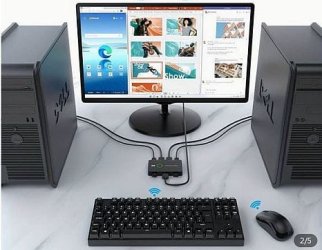
Adding a 2-port KVM switch would allow you to use 2 PC's with one monitor, keyboard, and mouse.

This is an example of what the setup would look like with a wireless keyboard and mouse.

Depending on which type of connections you use and whether you use a wired or wireless keyboard and mouse would determine which type KVM switch you would need.
 

Attachments

  • Capture.JPG
    Capture.JPG
    37.3 KB · Views: 6

My Computer My Computer

At a glance

Windows 7 Professional SP1 64-bitIntel Core i7-4790 3.60 GHz32 GB DDR3-1600 MHzIntegrated Intel HD Graphics 4600
Computer type
PC/Desktop
Computer Manufacturer/Model Number
Dell OptiPlex 9020
OS
Windows 7 Professional SP1 64-bit
CPU
Intel Core i7-4790 3.60 GHz
Memory
32 GB DDR3-1600 MHz
Graphics Card(s)
Integrated Intel HD Graphics 4600
Monitor(s) Displays
Viewsonic 32" LCD
Hard Drives
Kingston SATA 3 240 GB SSD
Internet Speed
Spectrum Internet 1000 Mbps
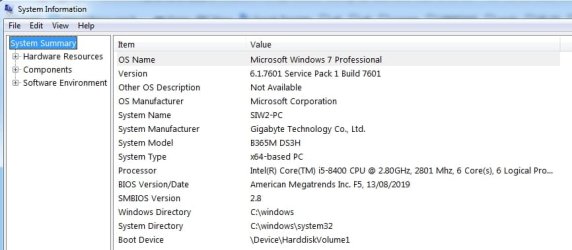
300 series consumer motherboards and 8th gen cpu work well for both win7 and 11. I am typing from one now.
 

My Computers My Computers

  • At a glance

    7 X64i5 84002x8gb 3200mhz
    Computer type
    PC/Desktop
    OS
    7 X64
    CPU
    i5 8400
    Motherboard
    gigabyte b365m ds3h
    Memory
    2x8gb 3200mhz
    Hard Drives
    various
    PSU
    pure power 11 400w cm
    Case
    Coolermaster
    Cooling
    cryorig m9i
  • At a glance

    7x64g54008gb ddr4 2400
    Computer type
    PC/Desktop
    OS
    7x64
    CPU
    g5400
    Motherboard
    ga b365m ds3h
    Memory
    8gb ddr4 2400
    PSU
    xfx pro 450w
Flavallee - Thank you very much for your prompt suggestion. Yes, I've thought of using a KVM switch. I tried one a few years ago (with other PCs). I don't remember the brand of the switch, and can search for it.

The problem I had -- and I don't know if this would be the way all KVM switches work -- is that I had to turn off one PC before switching, and then turn on and boot the other PC (and vice-versa to get back to the first PC).

Other than this time-consuming inconvenience, which maybe a more current switch wouldn't require, I'd really like not to need to have two PCs running at the same time (with one PC being pretty ancient now, 12 years).

If I did what you suggest, and if I replace the HDD in my old Win 7 PC with an SSD (there's an SSD in my new PC), do you think switching back and forth between the PCs would be fairly fast? Here a main reason for this question: For my work, I often copy material online and then paste it to notes that I take in Word 2003. If I were to need to use two PCs (one for online use, and the other running Word in Win 7), this would get cumbersome.

I definitely am willing to think about using 2 PCs with a switch if I simply can't find a way to dual boot with two drives in my new PC. So any thoughts from you would be most welcome!

- - - Updated - - -

S1W2 - Many thanks for your reply.

I think my old PC that runs Win 7 well has only a 2nd generation processor (G630), and my new PC's processor is 12th generation.

Do you think your experience running both Win 7 and 11 using an 8th generation processor is likely to mean that I could do this with a 12 generation processor?

That's what I'd really like to do from my new PC: dual booting on two drives (Win 7 + Win 11, or Linus). -- Thanks again for any suggestions!
 

My Computers My Computers

  • At a glance

    Windows 11 Home and Windows 7 Pro x64i5-1240012GB
    Computer type
    PC/Desktop
    Computer Manufacturer/Model Number
    Dell
    OS
    Windows 11 Home and Windows 7 Pro x64
    CPU
    i5-12400
    Memory
    12GB
    Antivirus
    Windows Defender
    Browser
    Firefox 120.0
  • Computer type
    PC/Desktop
Do you think your experience running both Win 7 and 11 using an 8th generation processor is likely to mean that I could do this with a 12 generation processor?

No. Some enthusiasts have win7 running on 12th gen but it not recommeded for anyone else. Win7 doesnt know what the e cores are for. It thinks there are 2 cpus. It functions but is probably not using the cores efficiently. Maybe ok with a 12th gen cpu that doesnt have e cores.
Unlikely there will be win7 drivers for wifi card that comes with 600/700 motherboards and other potential issues. Some manufacturers ( if I remember correctly Asrock ) have all sorts of isues acpi and so on. So mobo needs to be carefully selected for win7.

*****************************************************

My suggestion is anyone wanting to run win 7 and win11 on the same machine should look at getting 300 series consumer mobo and 8th gen cpu.

The gigabyte b365 work great, I have heard the b360 z370 and z390 work fine. 8th gen cpu and 2 x8gb ddr4 ram is not expensive second hand.

I also tried an asus h310 r2.0 which worked too.

Apparently can be done with am4 motherboards and ryzen 3/5 but I havent tried that.

gigabyte b365 win7

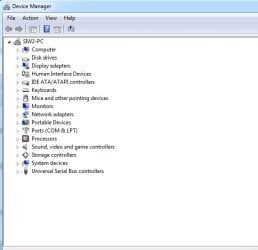
win7-gigabyte-b365-ds3h.jpg

wn7-b365-msinfo32.jpg
 
Last edited:

My Computers My Computers

  • At a glance

    7 X64i5 84002x8gb 3200mhz
    Computer type
    PC/Desktop
    OS
    7 X64
    CPU
    i5 8400
    Motherboard
    gigabyte b365m ds3h
    Memory
    2x8gb 3200mhz
    Hard Drives
    various
    PSU
    pure power 11 400w cm
    Case
    Coolermaster
    Cooling
    cryorig m9i
  • At a glance

    7x64g54008gb ddr4 2400
    Computer type
    PC/Desktop
    OS
    7x64
    CPU
    g5400
    Motherboard
    ga b365m ds3h
    Memory
    8gb ddr4 2400
    PSU
    xfx pro 450w
Like many others, I’m trying to find a way to continue using Win 7. I want to continue to use Office 2003 in Win 7. (I’m a writer, have tried later versions of Office, they didn't work for my needs, and am "Biblically committed" to remaining with Office 2003 -- one way or t’other!)
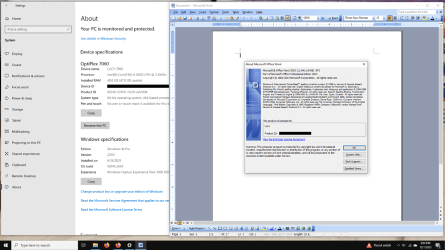
Have you established that you can't run Office 2003 on Win 10? My wife's Win 10 computer is running Word/Excel/Publisher 2003 without any issues. AFAIK, the only component of Office 2003 that doesn't work is Outlook (due to mail protocol changes over the years). Perhaps somebody somewhere has figured out a workaround, but we don't use Outlook so I wasn't interested in investigating that further.

She's using an old volume license key, though. I suppose it's possible other license types may have activation issues, so I don't want to make a blanket statement about all Office 2003 versions. But it seems worth the effort to make sure.

720p.png
 

My Computer My Computer

At a glance

Windows 7/8.1/10 multibootIntel Core i7-770048GB (2x16GB Crucial DDR4-3200 + 2x8GB Hynix ...Intel HD630 + AMD Radeon R7 450 PCIe
Computer type
PC/Desktop
Computer Manufacturer/Model Number
Dell Optiplex 7050
OS
Windows 7/8.1/10 multiboot
CPU
Intel Core i7-7700
Motherboard
Dell, Intel Q270 chipset
Memory
48GB (2x16GB Crucial DDR4-3200 + 2x8GB Hynix DDR4-2400)
Graphics Card(s)
Intel HD630 + AMD Radeon R7 450 PCIe
Monitor(s) Displays
Asus VC279 (27")
Screen Resolution
1920x1080
Hard Drives
Toshiba M.2 NVMe (256GB),
Samsung 960 Evo (500GB),
WD Red Plus 80EFBX (8TB)
S1W2 - Thank you so much for your suggestions.

I looked up the specs for the 12th generation i5-12400 processor my newer PC has. From what I see online, it doesn't have any e cores. Have you heard of anyone being able to install Win7 with a processor like this? --But the other potential issues you mentioned (wifi card driver, asci problems) sound discouraging.

Since the Win7 version that I have is OEM installed on my old PC, I'd need to buy an ISO for Win7 to try installing it on my newer PC, just to try to make it dual boot with Win 10/11 (or Linux). I'm certainly willing to shell out some money to stay with Win7 and the Office version I want to keep using.

Changing the motherboard, for me, would be a challenge. Even if I have to try going the route of something like VirtualBox, that might be easier. But I will definitely keep the motherboard specs you pointed me to, much appreciated!

- - - Updated - - -

Have you established that you can't run Office 2003 on Win 10? My wife's Win 10 computer is running Word/Excel/Publisher 2003 without any issues. AFAIK, the only component of Office 2003 that doesn't work is Outlook (due to mail protocol changes over the years). Perhaps somebody somewhere has figured out a workaround, but we don't use Outlook so I wasn't interested in investigating that further.

She's using an old volume license key, though. I suppose it's possible other license types may have activation issues, so I don't want to make a blanket statement about all Office 2003 versions. But it seems worth the effort to make sure.

Yes, I do have Office 2003 installed on Win 11, and it's been a disaster ever since Windows automatically updated with an update called KB5032190 on 11/14/2023.

Word 2003 now crashes, and Outlook is barely works. I uninstalled KB5032190 and did everything I could find online to prevent Win 11 from automatically updating (I could list this methods, but all were futile). Despite these blocks, MS again installed the same problematic update. I even did a system restore to a point before KB5032190 was installed, but when the restore process completed (this took 2.5 hours), the same destructive update was there again, installed.

This is why I've been searching for a solution through this forum. My work is at a complete standstill thanks to MS's dictatorial updating.

So if you're able to run Office 2003 on Win 10, my advice is do all you can to prevent upgrading to Win 11! I wish I were in your position!!

- - - Updated - - -

Have you considered using a 2 PC system - old one running Windows 7 and new one running Windows 10/11?

Adding a 2-port KVM switch would allow you to use 2 PC's with one monitor, keyboard, and mouse.

This is an example of what the setup would look like with a wireless keyboard and mouse.

Depending on which type of connections you use and whether you use a wired or wireless keyboard and mouse would determine which type KVM switch you would need.
Flavalle, I'm getting desperate because a recent automatic update from MS has made my installation of Office 2003 unusable, so my work has come to a screeching halt. (And no matter what I try, I haven't been able to uninstall that update.)

So I'm thinking of trying your setup. What brand/model KVM switch do you use? And does it allow you to switch back and forth between your two PCs while both are running? Is there any way to copy information you get online with one PC to the other PC, without, say, copying to a flash drive as an intermediary?

Thanks for your help!
 

My Computers My Computers

  • At a glance

    Windows 11 Home and Windows 7 Pro x64i5-1240012GB
    Computer type
    PC/Desktop
    Computer Manufacturer/Model Number
    Dell
    OS
    Windows 11 Home and Windows 7 Pro x64
    CPU
    i5-12400
    Memory
    12GB
    Antivirus
    Windows Defender
    Browser
    Firefox 120.0
  • Computer type
    PC/Desktop
You could run 7 as a virtual pc on the 11 pc its a lot safer
 

My Computer My Computer

At a glance

win 8 32 bit
Computer type
PC/Desktop
OS
win 8 32 bit
You could run 7 as a virtual pc on the 11 pc its a lot safer

Samuria - Thanks very much for your reply. I'm definitely open to any solution that will work!

I know next to nothing about running an OS as a virtual PC. I found Wolfgang Schroeder three videos on this forum about VMWare Player, which I appreciated very much as an introduction.

Could I ask you a couple of questions?

If I install Win 7 as a virtual machine on my Win 11 PC, is it possible then to open Office 2003 since it's already installed in Win 11, or would I reinsall Office 2003 within the virtual Win 7?

From the virtual Win 7, is it possible to use hardware (printer, scanner, etc.) that is presently usable from my Win 11 installation of Office 2003, or would that hardware likely no longer run from the Win 7 virtual machine?

Would you recommend the free VMWare Player which, I think, Wolfgang presented?

I'd be grateful for any suggestions/advice! Many thanks!
 

My Computers My Computers

  • At a glance

    Windows 11 Home and Windows 7 Pro x64i5-1240012GB
    Computer type
    PC/Desktop
    Computer Manufacturer/Model Number
    Dell
    OS
    Windows 11 Home and Windows 7 Pro x64
    CPU
    i5-12400
    Memory
    12GB
    Antivirus
    Windows Defender
    Browser
    Firefox 120.0
  • Computer type
    PC/Desktop
I've used KVM switches frequently in the past and they've worked well, allowing me to run two separate systems (towers) simultaneously and switch from one to the other with a few key strokes, namely Ctrl-Ctrl-1 and Ctrl-Ctrl-2. I'll check the KVM brand - I think I still have one or two units somewhere, seeing as I rarely throw old PC parts away :-)
Re dual booting W7 and W10\W11, I've done that too and it's also easy to set up. Someone else here might comment on that? If not, I can probably find my notes about it.
 
Last edited:

My Computer My Computer

At a glance

Win7 Ultimate SP1Intel Core i5 9400 Coffee Lake 14nm16G DDR4NVidia GeForce GTX 960
Computer type
PC/Desktop
Computer Manufacturer/Model Number
My build
OS
Win7 Ultimate SP1
CPU
Intel Core i5 9400 Coffee Lake 14nm
Motherboard
Asus Prime H310M-E R2.0 (LGA1151)
Memory
16G DDR4
Graphics Card(s)
NVidia GeForce GTX 960
Sound Card
Realtek High Definition Audio (mobo)
Monitor(s) Displays
Asus PA248 24" 16:10 format
Screen Resolution
1920x1200@59Hz
Hard Drives
1863GB Seagate ST2000DM
3726GB Seagate ST4000DM
1863GB Seagate ST2000DM
6TB Seagate
465GB NVMe Samsung SSD 970
PSU
750G2
Case
Tower
Cooling
Standard
Keyboard
USB
Mouse
USB
Internet Speed
920Mbs/480Mbs
Antivirus
Malwarebytes
Browser
Firefox
I've used KVM switches frequently in the past and they've worked well, allowing me to run two separate systems (towers) simultaneously and switch from one to the other with a few key strokes, like ctrl\space\space. I'm not saying that's the correct combo, I'll have to look up my records and see if I can find the right one. I'll also check the KVM brand, I think I still have one or two units somewhere, seeing as I rarely throw old PC parts away :-)
Re dual booting W7 and W10\W11, I've done that too and it's also easy to set up. Someone else here might comment on that? If not, I can probably find my notes about it.
Hi teckneeculler - Thanks for posting!

When you've used KVM switches, is there any way to copy (text, for example) from one PC to the other? (I need to copy research info I find online to my old Office Word; I'd use my W11 PC for internet, and my W7 PC for Word.)

I'd like very much to hear how you set up dual booting W7 and W10/11 -- if it's not too much trouble. I'd want to do this on my Win11 PC, but some people believe its 12th generation processor (i5-12400) won't run W7, which is stopping me from considering the dual booting solution to my problem. (Am I right that I'd need a licensed W7 ISO with key to do this?)

Many thanks for your help!
 

My Computers My Computers

  • At a glance

    Windows 11 Home and Windows 7 Pro x64i5-1240012GB
    Computer type
    PC/Desktop
    Computer Manufacturer/Model Number
    Dell
    OS
    Windows 11 Home and Windows 7 Pro x64
    CPU
    i5-12400
    Memory
    12GB
    Antivirus
    Windows Defender
    Browser
    Firefox 120.0
  • Computer type
    PC/Desktop
When you've used KVM switches, is there any way to copy (text, for example) from one PC to the other? (I need to copy research info I find online to my old Office Word; I'd use my W11 PC for internet, and my W7 PC for Word.)
[...]
... some people believe its 12th generation processor (i5-12400) won't run W7, which is stopping me from considering the dual booting solution to my problem. (Am I right that I'd need a licensed W7 ISO with key to do this?)
Yes, you'll need a valid product key to install W7 on the W11 machine, regardless of whether you choose dualbooting or virtualization. Remember, it's the product key that's crucial -- the ISO is generic and easy to come by, but it's the product key that licenses you to use the OS installed by that ISO.

Re: dualbooting, bear in mind that you're running one OS or the other at any given moment; you're not running them simultaneously. So that will obviously prevent copy/paste via the clipboard from a webpage in one OS to Word in the other OS. You're alternative there would be to copy and save to a file (e.g., via Notepad) that is on a USB stick.

Re: KVM, remember that the cut/paste clipboard is a function of the OS. The KVM allows you to switch the keyboard from one machine to the other, but what happens in one OS is independent from the other. Again, the solution is to copy/paste to a USB stick. Since you'll have two separate machines, it's also possible to network them together and copy/paste to a shared file in a network location accessible to both machines.

Re: virtualization, copy/paste is facilitated to varying degrees depending on your choice of virtualization platform. Copy/paste and even drag/drop worked seamlessly in the old Microsoft Virtual PC, but that program is no longer available. I haven't used VMWare in years, but IIRC copy/pasting between the host OS and the guest OS worked well. In VirtualBox copy/paste works sometimes but it's clunky.

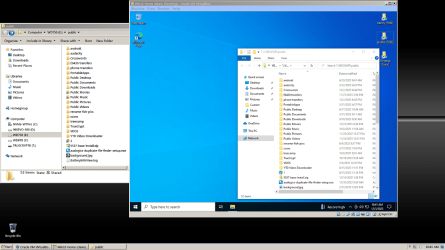
Personally, my platform of choice is VirtualBox, but in lieu of the Windows clipboard I copy/paste to a shared text file on my network. On my home network I have a shared folder, "E:\public", to make it easy for friends and family to share files back and forth when they're here. Since a virtual machine is effectively a separate machine it can also connect to my home network, and a VM and my host machine can trade text back and forth via a shared text file.

This screenshot shows a Win10 virtual machine running inside my Win7 host machine, with the shared E:\public folder accessible to both. (In your case, you'd reverse that and have a Win7 VM running on a Win10/11 host.)

vbox-w10-vm-on-w7-720p.png

If you've never used virtualization before, perhaps this video I made several years ago will help you get your head around how it's done. This is with VirtualBox, though it will be the same general idea with VMWare.

Another plus for virtualization is you can avoid a lot of driver issues. With dualbooting, installing Win7 on a new machine will require Win7 drivers for the new hardware. That's unlikely to happen, these days. In contrast, with virtualization Win7 is being installed on the VM's virtual hardware, not on your W11 host machine's real hardware. As such, Win7 will require drivers for the virtualized hardware, not the real hardware. And fortunately, the various virtualization platforms make sure their VMs emulate old enough hardware to still support Win7.
 

My Computer My Computer

At a glance

Windows 7/8.1/10 multibootIntel Core i7-770048GB (2x16GB Crucial DDR4-3200 + 2x8GB Hynix ...Intel HD630 + AMD Radeon R7 450 PCIe
Computer type
PC/Desktop
Computer Manufacturer/Model Number
Dell Optiplex 7050
OS
Windows 7/8.1/10 multiboot
CPU
Intel Core i7-7700
Motherboard
Dell, Intel Q270 chipset
Memory
48GB (2x16GB Crucial DDR4-3200 + 2x8GB Hynix DDR4-2400)
Graphics Card(s)
Intel HD630 + AMD Radeon R7 450 PCIe
Monitor(s) Displays
Asus VC279 (27")
Screen Resolution
1920x1080
Hard Drives
Toshiba M.2 NVMe (256GB),
Samsung 960 Evo (500GB),
WD Red Plus 80EFBX (8TB)
Hi teckneeculler - Thanks for posting!

When you've used KVM switches, is there any way to copy (text, for example) from one PC to the other? (I need to copy research info I find online to my old Office Word; I'd use my W11 PC for internet, and my W7 PC for Word.)

I'd like very much to hear how you set up dual booting W7 and W10/11 -- if it's not too much trouble. I'd want to do this on my Win11 PC, but some people believe its 12th generation processor (i5-12400) won't run W7, which is stopping me from considering the dual booting solution to my problem. (Am I right that I'd need a licensed W7 ISO with key to do this?)
Many thanks for your help!
When you're dual-booting and both your OS's are on one HDD or SSD that's split into two partitions, you can see the other OS's folders from the OS you're in. And vice versa, of course. So all you need do is drag and drop your doc or txt file wherever you like.

KVM - Keyboard, Video, Mouse. Google 'MyPico2' and you'll find quite a few links to various types. I've attached a pdf for the type I used back when. That model was for PS2 keyboard and mouse plus VGA for video. However, there seems to be plenty of new switches with more modern options, like HDMI and USB.

EDIT: That may be right about W7 not running on the latest hardware. My own W7 system's motherboard is an Asus 310M-E R.2 which is both elderly and probably unobtainable now, but it works OK with an Intel Core i5 9400 32g ram.

Of course, as well as the KVM solution you can also network\share two (or many) towers. That's what I do now, it's very flexible. Then there's Team Viewer that allows you to 'physically' manipulate neighboring or remote systems.

EDIT: Just found the key combo that switches the KVM from one pc to the other. It's Ctrl-Ctrl-1 and Ctrl-Ctrl-2
 

Attachments

Last edited:

My Computer My Computer

At a glance

Win7 Ultimate SP1Intel Core i5 9400 Coffee Lake 14nm16G DDR4NVidia GeForce GTX 960
Computer type
PC/Desktop
Computer Manufacturer/Model Number
My build
OS
Win7 Ultimate SP1
CPU
Intel Core i5 9400 Coffee Lake 14nm
Motherboard
Asus Prime H310M-E R2.0 (LGA1151)
Memory
16G DDR4
Graphics Card(s)
NVidia GeForce GTX 960
Sound Card
Realtek High Definition Audio (mobo)
Monitor(s) Displays
Asus PA248 24" 16:10 format
Screen Resolution
1920x1200@59Hz
Hard Drives
1863GB Seagate ST2000DM
3726GB Seagate ST4000DM
1863GB Seagate ST2000DM
6TB Seagate
465GB NVMe Samsung SSD 970
PSU
750G2
Case
Tower
Cooling
Standard
Keyboard
USB
Mouse
USB
Internet Speed
920Mbs/480Mbs
Antivirus
Malwarebytes
Browser
Firefox
Yes, you'll need a valid product key to install W7 on the W11 machine, regardless of whether you choose dualbooting or virtualization. Remember, it's the product key that's crucial -- the ISO is generic and easy to come by, but it's the product key that licenses you to use the OS installed by that ISO.
. . . [condensed]
Another plus for virtualization is you can avoid a lot of driver issues. With dualbooting, installing Win7 on a new machine will require Win7 drivers for the new hardware. That's unlikely to happen, these days. In contrast, with virtualization Win7 is being installed on the VM's virtual hardware, not on your W11 host machine's real hardware. As such, Win7 will require drivers for the virtualized hardware, not the real hardware. And fortunately, the various virtualization platforms make sure their VMs emulate old enough hardware to still support Win7.
Hi Dan - Thank you so very much for taking the time to explain clearly what I needed to understand! Your video on VirtualBox is top-notch! I appreciate your clarity and logical organization, which I miss in so many videos. I'm now watching others of your videos ("Principles of Cloning and Imaging" is also excellent!).

I need to weigh the pros and cons of the different approaches that generous contributors to this thread have helped me to become aware of. I'll learn more about virtualization before I start out on a path that seems promising for someone with my very modest technical know-how.

Could you answer this question virtualization: If I install Win 7 virtually on my Win 11 PC, and then install virtually the 2003 edition of Office that I'd like to continue using, based on your experience, do you think it's likely that I'd then be able to print and scan with my currently installed hardware from within the Win 7 virtual machine?

Again, a multitude of thanks for taking the time to help me!

- - - Updated - - -

When you're dual-booting and both your OS's are on one HDD or SSD that's split into two partitions, you can see the other OS's folders from the OS you're in. And vice versa, of course. So all you need do is drag and drop your doc or txt file wherever you like.
. . . [condensed]
Of course, as well as the KVM solution you can also network\share two (or many) towers. That's what I do now, it's very flexible. Then there's Team Viewer that allows you to 'physically' manipulate neighboring or remote systems.

EDIT: Just found the key combo that switches the KVM from one pc to the other. It's Ctrl-Ctrl-1 and Ctrl-Ctrl-2
Hi techneeculler,

I really appreciate your helpful reply! Thank you for taking the time to explain things so clearly and for attaching the PDF about the MyPico 2 KVM switch.

At this point, I'm trying to decide between trying (emphasis on 'trying') to install Win 7 on my Win 11 PC (given that its processor may not run Win 7 at all, or well) and then dual boot, or whether to use a KVM switch (and hope that my old Win 7 PC will continue its long life), or whether to try virtualization with Win 7 + Office 2003. -- Three alternatives (it's great to have some options), but also, for my tech level, a combination of overwhelming and intimidating. I need to let sink in what you and others have so generously explained. Then I'll take a leap of faith and try one of the alternatives with my fingers crossed!

Thank you again for your great help!
 

My Computers My Computers

  • At a glance

    Windows 11 Home and Windows 7 Pro x64i5-1240012GB
    Computer type
    PC/Desktop
    Computer Manufacturer/Model Number
    Dell
    OS
    Windows 11 Home and Windows 7 Pro x64
    CPU
    i5-12400
    Memory
    12GB
    Antivirus
    Windows Defender
    Browser
    Firefox 120.0
  • Computer type
    PC/Desktop
Hi techneeculler, I really appreciate your helpful reply! Thank you for taking the time to explain things so clearly and for attaching the PDF about the MyPico 2 KVM switch. At this point, I'm trying to decide between trying (emphasis on 'trying') to install Win 7 on my Win 11 PC (given that its processor may not run Win 7 at all, or well) and then dual boot, or whether to use a KVM switch (and hope that my old Win 7 PC will continue its long life), or whether to try virtualization with Win 7 + Office 2003. -- Three alternatives (it's great to have some options), but also, for my tech level, a combination of overwhelming and intimidating. I need to let sink in what you and others have so generously explained. Then I'll take a leap of faith and try one of the alternatives with my fingers crossed! Thank you again for your great help!

You're most welcome. Thanks for supporting one of the best operating systems ever made :-)
Re VM, I've had little - actually nothing - to do with it. Except for 'mounting' a game file so it looks like it's running on a new drive. Very useful. But - and others here will correct me if I'm wrong - my understanding about VM is that if your system hardware won't support W7, then a VM running on the same system will have the same problem. I mean, the VM doesn't suddenly (and magically) become able to do something that the main system couldn't. As I said, I may be wrong...

PS: I do quite a bit of writing myself and I will NOT use anything else except Word 2003. Even then, I have it trimmed down to it's basics. Works extremely well :-)

PPS: On re-reading your previous comments, I believe your best bet would be to keep both systems (towers) and use a KVM switch, if you can find one that will handle your current mouse, keyboard and monitor. The model of MyPico2 I used was set up for VGA video and two connections for mouse and keyboard (the purple and green plugs shown in the PDF) called 'PS2'. Mind you, your current W11 computer might well have PS2 sockets - check on the back. That's if it's a 'tower' of course; I doubt any modern laptop would have PS2 sockets. And most new computers, whether laptop or tower, may likely have only HDMI video-out.
Is your W11 machine a desktop (tower) or laptop?
 
Last edited:

My Computer My Computer

At a glance

Win7 Ultimate SP1Intel Core i5 9400 Coffee Lake 14nm16G DDR4NVidia GeForce GTX 960
Computer type
PC/Desktop
Computer Manufacturer/Model Number
My build
OS
Win7 Ultimate SP1
CPU
Intel Core i5 9400 Coffee Lake 14nm
Motherboard
Asus Prime H310M-E R2.0 (LGA1151)
Memory
16G DDR4
Graphics Card(s)
NVidia GeForce GTX 960
Sound Card
Realtek High Definition Audio (mobo)
Monitor(s) Displays
Asus PA248 24" 16:10 format
Screen Resolution
1920x1200@59Hz
Hard Drives
1863GB Seagate ST2000DM
3726GB Seagate ST4000DM
1863GB Seagate ST2000DM
6TB Seagate
465GB NVMe Samsung SSD 970
PSU
750G2
Case
Tower
Cooling
Standard
Keyboard
USB
Mouse
USB
Internet Speed
920Mbs/480Mbs
Antivirus
Malwarebytes
Browser
Firefox
If I install Win 7 virtually on my Win 11 PC, and then install virtually the 2003 edition of Office that I'd like to continue using, based on your experience, do you think it's likely that I'd then be able to print and scan with my currently installed hardware from within the Win 7 virtual machine?

That could be a fly in the ointment, depending on your equipment and how you're set up.

The key to understanding virtualization is to treat each virtual machine as though it is a separate physical machine. Whatever you can do with two physical machines, you should be able to do with two VMs (or a VM and the host). Whatever you can't do, you can't. There are some overlapping areas that may be facilitated by the virtualization software (keyboard/mouse/video being obvious examples), but that's a general rule of thumb that will help you make sense of a lot of what you can do with the technology.

For instance, if you can network and share files between two physical machines, you can use exactly the same techniques to network a VM with the host or another VM.

If you can create an image backup (think, Macrium or Acronis, et al) to another drive or network location, you can do the same with a VM -- provided you run the backup software *in the VM*, not from the host.

OTOH, a physical machine normally cannot use a scanner or card reader plugged into a different physical machine. On the surface, that would normally be the same with a VM.

But here's where the makers of the various VM platforms can come in, by designing tricks unique to their respective platforms -- and to varying degrees of success. For instance, the old Microsoft Virtual PC was utterly frustrating to use with USB connected printers and scanners, to the point of being unusable.

VirtualBox, OTOH, can use USB devices connected to the host, but only by grabbing the device away from the host. IOW, if a VM grabs a USB scanner, the host can't use it. And vice versa, if the host is using it, the VM can't grab it. Grabbing and releasing is done via a VirtualBox menu option, but it's not always straight-forward. That's the kind of techie detail that can be off-putting to non-techies.

I haven't used VMWare in years, so can't comment on their facility handling USB printers and scanners.

Now, if you're reading between the lines here, you'll notice a relatively simple solution: use network printers and scanners, not USB-connected devices! But if you only have USB devices, that would involve additional cost.

My network laser printer can be used to print from my computer, my wife's computer, or from VMs on either machine. Her USB color printer, however, only prints from her computer. My USB scanner can scan either to my computer or to a VirtualBox VM on my computer, but only one or the other at a time.
 

My Computer My Computer

At a glance

Windows 7/8.1/10 multibootIntel Core i7-770048GB (2x16GB Crucial DDR4-3200 + 2x8GB Hynix ...Intel HD630 + AMD Radeon R7 450 PCIe
Computer type
PC/Desktop
Computer Manufacturer/Model Number
Dell Optiplex 7050
OS
Windows 7/8.1/10 multiboot
CPU
Intel Core i7-7700
Motherboard
Dell, Intel Q270 chipset
Memory
48GB (2x16GB Crucial DDR4-3200 + 2x8GB Hynix DDR4-2400)
Graphics Card(s)
Intel HD630 + AMD Radeon R7 450 PCIe
Monitor(s) Displays
Asus VC279 (27")
Screen Resolution
1920x1080
Hard Drives
Toshiba M.2 NVMe (256GB),
Samsung 960 Evo (500GB),
WD Red Plus 80EFBX (8TB)
Hi techneeculler, I really appreciate your helpful reply! Thank you for taking the time to explain things so clearly and for attaching the PDF about the MyPico 2 KVM switch. At this point, I'm trying to decide between trying (emphasis on 'trying') to install Win 7 on my Win 11 PC (given that its processor may not run Win 7 at all, or well) and then dual boot, or whether to use a KVM switch (and hope that my old Win 7 PC will continue its long life), or whether to try virtualization with Win 7 + Office 2003. -- Three alternatives (it's great to have some options), but also, for my tech level, a combination of overwhelming and intimidating. I need to let sink in what you and others have so generously explained. Then I'll take a leap of faith and try one of the alternatives with my fingers crossed! Thank you again for your great help!

You're most welcome. Thanks for supporting one of the best operating systems ever made :-)
Re VM, I've had little - actually nothing - to do with it. Except for 'mounting' a game file so it looks like it's running on a new drive. Very useful. But - and others here will correct me if I'm wrong - my understanding about VM is that if your system hardware won't support W7, then a VM running on the same system will have the same problem. I mean, the VM doesn't suddenly (and magically) become able to do something that the main system couldn't. As I said, I may be wrong...

PS: I do quite a bit of writing myself and I will NOT use anything else except Word 2003. Even then, I have it trimmed down to it's basics. Works extremely well :-)

PPS: On re-reading your previous comments, I believe your best bet would be to keep both systems (towers) and use a KVM switch, if you can find one that will handle your current mouse, keyboard and monitor. The model of MyPico2 I used was set up for VGA video and two connections for mouse and keyboard (the purple and green plugs shown in the PDF) called 'PS2'. Mind you, your current W11 computer might well have PS2 sockets - check on the back. That's if it's a 'tower' of course; I doubt any modern laptop would have PS2 sockets. And most new computers, whether laptop or tower, may likely have only HDMI video-out.
Is your W11 machine a desktop (tower) or laptop?
teckneeculler -

Again, a multitude of thanks!... Because of the incredible generosity of you, as well as others on this forum, who have shared some of their gray matter with me, solutions for my humble level of computer knowledge are beginning to narrow down. It's become clearer to me what virtualization means in practice, and some of its limitations re running hardware.

I always appreciate directive recommendations. I think you're right that a KVM switch may be the most practical for me to try to implement. I've begun searching for a switch that will work with my two (tower) PCs, keyboard, mouse, and monitor. Easier said than done!! Once again, I'm floored by how complex so many things have become.

My old Win 7 PC has PS2 sockets; my Win 11 PC doesn't. Like most of my hardware, my trusty keyboard is old, a PS2, so I use a PS2-to-USB adaptor for my keyboard, which works well with my Win 11 PC. Both PCs have HDMI out, but my monitor (an HP LA2205wg, which I use in portrait mode for writing) has only DVI, DP, and VGA inputs. It's connected to my Win 11 PC with an HDMI cable + DVI adaptor, and this works fine.

Whether I can find a KVM that will handle these may be just a matter of my shopping endurance. I've already spent hours on Amazon, until KVMs are coming out of my ears! :zip:

I had to laugh with pleasure when I read that you, too, are a writer and prefer Word 2003! Nice to know there are others who "have good taste"! ;)

How do you manage to continue to use Word 2003 yourself? Do you still use a KVM, or have you been able to keep Word 2003 functioning well on an up-to-date PC?

- - - Updated - - -

That could be a fly in the ointment, depending on your equipment and how you're set up.

The key to understanding virtualization is to treat each virtual machine as though it is a separate physical machine. Whatever you can do with two physical machines, you should be able to do with two VMs (or a VM and the host). Whatever you can't do, you can't. There are some overlapping areas that may be facilitated by the virtualization software (keyboard/mouse/video being obvious examples), but that's a general rule of thumb that will help you make sense of a lot of what you can do with the technology.
... [condensed]

Now, if you're reading between the lines here, you'll notice a relatively simple solution: use network printers and scanners, not USB-connected devices! But if you only have USB devices, that would involve additional cost.

My network laser printer can be used to print from my computer, my wife's computer, or from VMs on either machine. Her USB color printer, however, only prints from her computer. My USB scanner can scan either to my computer or to a VirtualBox VM on my computer, but only one or the other at a time.
DG -

I hope the series of thanks from me doesn't feel too repetitive! I really appreciate the clarity of your explanations, and the time you've given to do do this. What you've told me about virtualization has been very helpful, esp. in understanding a little more about its hardware limitations.

My hardware includes two laser printers (one is a multi-function machine) and a scanner. One printer and the scanner are USB-connected and don't have networking capability. The MFM works sometimes through wifi, but isn't reliable.

I do need to set up a local network, another area that is new for me. As I understand it (may be questionable!), that would make it possible to copy from one PC to the other if I'm using a KVM switch.

As I wrote to teckneeculler, I'm now leaning toward a KVM switch because I think I can dimly see some of the anticipatable challenges I'd have in working with VirtualBox.

But I do hate to have to rely on my 12-year-old Win 7 PC for my writing with Word 2003. If I can find a KVM switch that will handle my PCs and monitor, I think I'd then replace the old PC's hard drive with an SSD. At least that would reduce one main source of breakdown concern.

Thank you again -- and again! :-)
 

My Computers My Computers

  • At a glance

    Windows 11 Home and Windows 7 Pro x64i5-1240012GB
    Computer type
    PC/Desktop
    Computer Manufacturer/Model Number
    Dell
    OS
    Windows 11 Home and Windows 7 Pro x64
    CPU
    i5-12400
    Memory
    12GB
    Antivirus
    Windows Defender
    Browser
    Firefox 120.0
  • Computer type
    PC/Desktop
WinOwl hi. Thanks for the info about your system, it helps us understand what fixes might work for users' problems. So both PCs are towers, that makes it a little easier. Had to laugh about your keyboard - my wife's PC is running W10 but her keyboard might be older than yours - it has a DIN plug that I've adapted to PS2. I just can not persuade her to part with it. Still, I can't talk - I won't part with the W7 system I use every day, though I have other rigs running W10 and W11 that I experiment on.
No, I'm not running KVM switches now. When I was more active building and repairing PCs, I ran two sets of KVMs so I could service\tune one or two customer machines alongside two workshop PCs.
It's just occurred to me that it may be possible convert the KVM switch pictured in the PDF to run with your W11 tower. You'd need PS2 to USB adapters for the mouse\keyboard and if the tower has no VGA-out, a VGA to HDMI adapter. The W7 machine would be no problem to connect.

Setting up a local network is a great idea, makes it much simpler to access other machines and swap files. And shifting your system\systems onto SSD drives is a quantum leap you'll never regret :-) The difference in speed is astounding.

Re backup protection against breakdown, there's some excellent backup software available. I use Macrium Reflect and, unlike many users who use backup software but never test it, I have actually used it to back up AND recover many systems, many times. That way I can make major changes to operating systems and software, and if the change goes bad, revert to the original state.

Can you take pics of the rears of your towers? Being able to see your various ports and sockets would be helpful.
Cheers :-)
 

My Computer My Computer

At a glance

Win7 Ultimate SP1Intel Core i5 9400 Coffee Lake 14nm16G DDR4NVidia GeForce GTX 960
Computer type
PC/Desktop
Computer Manufacturer/Model Number
My build
OS
Win7 Ultimate SP1
CPU
Intel Core i5 9400 Coffee Lake 14nm
Motherboard
Asus Prime H310M-E R2.0 (LGA1151)
Memory
16G DDR4
Graphics Card(s)
NVidia GeForce GTX 960
Sound Card
Realtek High Definition Audio (mobo)
Monitor(s) Displays
Asus PA248 24" 16:10 format
Screen Resolution
1920x1200@59Hz
Hard Drives
1863GB Seagate ST2000DM
3726GB Seagate ST4000DM
1863GB Seagate ST2000DM
6TB Seagate
465GB NVMe Samsung SSD 970
PSU
750G2
Case
Tower
Cooling
Standard
Keyboard
USB
Mouse
USB
Internet Speed
920Mbs/480Mbs
Antivirus
Malwarebytes
Browser
Firefox
You're doing a sensible job evaluating your options, WinOwl.

KVM with new W11 tower and old W7 tower:

Pros: This is the easiest to set up. You'll of course have to configure the new computer to your liking, but the second system (the W7 tower) is already set up and requires no changes. You can use a USB stick to transfer data back and forth until you get around to getting your network up and running.

Cons: This is ultimately just a stop-gap solution; it buys you time. When your W7 tower eventually dies, you'll be forced to move to another solution anyway.

VM on a new W11 tower:

Pros: Easily transfer data back and forth between VM and host system (once your network is configured). No worries about when the W7 tower will eventually die because you'll have retired it. Also, a VM lives entirely in a file on your hard disk, so it can be backed up just by copying it. If even your new tower fails, you just buy another one, install the virtualization platform again, recopy the pre-existing VM files, and your VM is back up and running in no time.

Cons: Takes time to set up the virtualization platform, time to install W7 in the VM (which will be easier than dualbooting, but still involves time), time to configure your networking for easy data and printer sharing. And though you may ultimately find virtualization worth the effort, it nevertheless requires more of a learning curve than using a KVM, so isn't as immediate a solution as the KVM.​

Dual-Boot on a new W11 tower:

Pros: None, that I can think of, that make it any better than virtualization.

Cons: You'll have to wrestle with repartioning and configuring a dualboot. (In contrast, a VM is nothing more than a very large file, so the VM solution does not require any repartitioning.) And with Microsoft actively trying to prohibit installing W7 on new hardware, you'll have trouble finding drivers and even installing W7 at all. It's also more difficult to move data back and forth because you can run only one OS at a time -- which also means the two OSes cannot be networked together, so no advantages from that.​

I like the idea of starting with a KVM, but gradually learning more about home networking with an eye toward eventually adopting VMs for selected purposes. Virtualization has so many benefits it's become a staple of my everyday computing. (I touched on a few of those uses in this very old Virtual PC tutorial.)

As for your laser printer, you may also want to be aware that it's not hard to convert it to a network printer. I became a big fan of network printing 20 years ago, and converted all my parallel port and USB printers to network use. I even wrote a tutorial on the use of these "pocket printservers" back then.

Unfortunately, the tiny printservers don't work well for scanners or MFC devices. They work for the printing function, but not the scanning function. OTOH, network MFCs are becoming cheap and affordable, so next time you upgrade make sure it's a network model.


I had to laugh with pleasure when I read that you, [teckneeculler], are a writer and prefer Word 2003! Nice to know there are others who "have good taste"!
I also continue to use Word and Excel 2003. I just never could get used to that dopey "ribbon" menu Microsoft insisted on using for everything from Office 2007 onward.
 

My Computer My Computer

At a glance

Windows 7/8.1/10 multibootIntel Core i7-770048GB (2x16GB Crucial DDR4-3200 + 2x8GB Hynix ...Intel HD630 + AMD Radeon R7 450 PCIe
Computer type
PC/Desktop
Computer Manufacturer/Model Number
Dell Optiplex 7050
OS
Windows 7/8.1/10 multiboot
CPU
Intel Core i7-7700
Motherboard
Dell, Intel Q270 chipset
Memory
48GB (2x16GB Crucial DDR4-3200 + 2x8GB Hynix DDR4-2400)
Graphics Card(s)
Intel HD630 + AMD Radeon R7 450 PCIe
Monitor(s) Displays
Asus VC279 (27")
Screen Resolution
1920x1080
Hard Drives
Toshiba M.2 NVMe (256GB),
Samsung 960 Evo (500GB),
WD Red Plus 80EFBX (8TB)
WinOwl hi. Thanks for the info about your system, it helps us understand what fixes might work for users' problems. So both PCs are towers, that makes it a little easier. Had to laugh about your keyboard - my wife's PC is running W10 but her keyboard might be older than yours - it has a DIN plug that I've adapted to PS2. I just can not persuade her to part with it. Still, I can't talk - I won't part with the W7 system I use every day, though I have other rigs running W10 and W11 that I experiment on.
... [condensed]
Can you take pics of the rears of your towers? Being able to see your various ports and sockets would be helpful.
Cheers :-)
Hi techneeculler,

Your so helpful postings make me realize that my stock of earnest thank you expressions needs more than English provides, but to keep to English: Thank you again!!! :cool:

I loved your mention of your wife's preferred keyboard! I faithfully put a dust cover on mine every day, vacuum between the keys, and even have used a Dremel tool, accompanied by vacuum, to engrave the 'm' and 'n' letters that I wear off from typing too many books! I then paint white enamel in the engaved letters. -- There's no end to being a stubborn maintainer of relics!

I think I may have narrowed down some KVM switches that look like they would work with my PCs + monitor. At least for me, it's a brain-draining experience going through dozens of Amazon descriptions. Wish someone would develop a search algorithm in which you could check off the specifications you need to satisfy! Someday, I imagine....

I'll post when I've decided on a switch and have hopefully managed to get it to work. -- And I do definitely plan to learn now how to set up a local network. Finding time for these projects is the challenge, as you may know!

I've read a little about Macrium Reflect, but haven't been in touch with anyone with personal experience with it. I'll keep it in mind. I think I remember that maybe they used to offer a free edition with some limitations, but no more, but perhaps it's still available.

When I pull out my PC towers from under my desk, if I can remember to take photos of their backs, I will and will post them. You're good to think of this (and to be willing to look at them!).

Mil de gracias, otra vez!

- - - Updated - - -

You're doing a sensible job evaluating your options, WinOwl.

KVM with new W11 tower and old W7 tower:
... [condensed] As for your laser printer, you may also want to be aware that it's not hard to convert it to a network printer. I became a big fan of network printing 20 years ago, and converted all my parallel port and USB printers to network use. I even wrote a tutorial on the use of these "pocket printservers" back then.

I also continue to use Word and Excel 2003. I just never could get used to that dopey "ribbon" menu Microsoft insisted on using for everything from Office 2007 onward.
DG - You are, to use a badly over-used word today, amazing! Thank you for the pros and cons summary, which is the type of thinking I find very helpful. Now that I've read a little about your professional background on Goodells Net, I can see why your clarity and logical thinking stand out.

Your comment -- that using a KVM switch buys some time with the old hardware -- sums it up. If I didn't have so many demands on what time I have, I'd be exploring virtualization immediately. I'd like to do this in the future.

Thank you for the links to your virtual PC and "pocket" printservers tutorials, which I will definitely read with pleasure.

That you also use Word and Excel 2003 came as another enjoyable surprise to hear of someone with outstanding taste! ;)

Speaking of pleasure, I have very much enjoyed a beginning exploration of your Goodells website! I live in Oregon and also have great memories of that total solar eclipse! The world became even smaller when I saw that your daughter Kim attended Willamette Univ., where I also am (Steven James Bartlett homepage), thankfully retired and able to devote as much time as is available to writing more books!

I see you're in California. My wife and I do sometimes think with nostalgia of returning to California (we're both UC graduates): too many years of enduring Oregon's 9 months of rain!
 

My Computers My Computers

  • At a glance

    Windows 11 Home and Windows 7 Pro x64i5-1240012GB
    Computer type
    PC/Desktop
    Computer Manufacturer/Model Number
    Dell
    OS
    Windows 11 Home and Windows 7 Pro x64
    CPU
    i5-12400
    Memory
    12GB
    Antivirus
    Windows Defender
    Browser
    Firefox 120.0
  • Computer type
    PC/Desktop
Back
Top