Can't add the windows 7 bootloader to a windows XP/7 dualboot

PWnS2009

New member
Local time
7:12 AM
Messages
8
Here's the problem: windows XP overwrote the bootloader and i can't put the win7 bootloader back, either with bootrec or with easybcd (i'm even writing this on my windows XP partition!)
 

My Computers My Computers

  • At a glance

    Windows 7 Home Premium x64, Windows XPCore 2 Duo T64004GBGeforce 9300M GS
    Computer type
    Laptop
    Computer Manufacturer/Model Number
    Lenovo Ideapad y530
    OS
    Windows 7 Home Premium x64, Windows XP
    CPU
    Core 2 Duo T6400
    Memory
    4GB
    Graphics Card(s)
    Geforce 9300M GS
    Screen Resolution
    1280x800, 1366x768
    Hard Drives
    1 (yes i have no idea sorry)
    Antivirus
    Microsoft Security Essentials
    Browser
    Firefox ESR 115
    Other Info
    im an idiot be nice ;w;
  • Computer type
    PC/Desktop
To add an entry to a Windows XP boot loader, you need to edit the "boot.ini" file located on your system drive's root directory, which can be accessed by booting into the Recovery Console and using a text editor to manually add the new operating system entry with the correct parameters; however, be cautious as incorrect edits can prevent your system from booting properly.


Key points about adding to a Windows XP boot loader:


  • Access method: Access the "boot.ini" file by booting into the Recovery Console, which can be accessed by pressing F8 during startup and selecting the appropriate option.
  • File location: The "boot.ini" file is located on the root directory of your system drive.
  • Editing with caution: Editing the "boot.ini" file requires precise syntax, so be very careful when adding new entries.


Steps to add a new entry to the Windows XP boot loader:


  1. 1. Boot into Recovery Console:
    Restart your computer and press F8 repeatedly during the boot process to access the Advanced Boot Options menu. Select "Recovery Console".


2. Navigate to "boot.ini":
Once in the Recovery Console, use the command prompt to navigate to the root directory of your system drive (usually "C:") by typing `cd \`.


3. Open "boot.ini":
Use the command type boot.ini to view the current boot entries.


  1. 4. Add new entry:
    To add a new entry, append a new line to the "boot.ini" file following the format:


Code


[operating system]

default=0

timeout=30

title=Operating System Name

root=(drive letter):\windows


  • Replace "Operating System Name" with the name you want displayed in the boot menu


Replace "(drive letter)" with the drive letter where your new operating system is installed


  1. Save changes: Once the new entry is added, type exit to close the Recovery Console and reboot your computer.


Important considerations:


  • Backup "boot.ini":
    Before making any changes, consider creating a backup of your "boot.ini" file in case you need to revert to the original settings.


  • Syntax accuracy:
    Ensure you use the correct syntax when adding new entries to the "boot.ini" file.


  • Advanced users:
    If you are not comfortable editing the "boot.ini" file manually, consider using third-party boot manager tools that provide a more user-friendly interface



My Computer My Computer

At a glance

win 8 32 bit
Computer type
PC/Desktop
OS
win 8 32 bit
It is the other way round. Use bdcdboot command from booted media to create the win7 boot critical files on the Active partition. Use bootsect.exe to make sure the mbr and pbr bootcode is set for nt6 .

From memory, startup repair from win7 installation should do the above if you dont want to use the commands. I think vista startup repair used to add xp if found, but win7 startup repair doesnt. It can be done manually afterwards.


If I remember correctly the bcdedit commands to add xp entry to bcd go like this
bcdedit /create {ntldr} /d "Windows XP"
bcdedit /set {ntldr} device partition=Z:
( replace Z above with the letter of the xp partition as seen from win7 )
bcdedit /set {ntldr} path \ntldr
 
Last edited:

My Computers My Computers

  • At a glance

    7 X64i5 84002x8gb 3200mhz
    Computer type
    PC/Desktop
    OS
    7 X64
    CPU
    i5 8400
    Motherboard
    gigabyte b365m ds3h
    Memory
    2x8gb 3200mhz
    Hard Drives
    various
    PSU
    pure power 11 400w cm
    Case
    Coolermaster
    Cooling
    cryorig m9i
  • At a glance

    7x64g54008gb ddr4 2400
    Computer type
    PC/Desktop
    OS
    7x64
    CPU
    g5400
    Motherboard
    ga b365m ds3h
    Memory
    8gb ddr4 2400
    PSU
    xfx pro 450w
From memory, startup repair from win7 installation should do the above if you dont want to use the commands. I think vista startup repair used to add xp if found, but win7 startup repair doesnt. It can be done manually afterwards.

startup repair "doesn't" see a problem with the startup configuration, even after i delete the entire system reserved partition.
(on an unrelated note, does anybody know how to make XP stop whining about a "corrupted file"? the file it claims to be "corrupted" does not matter and i just want it to shut up.)

- - - Updated - - -

To add an entry to a Windows XP boot loader, you need to edit the "boot.ini" file located on your system drive's root directory, which can be accessed by booting into the Recovery Console and using a text editor to manually add the new operating system entry with the correct parameters; however, be cautious as incorrect edits can prevent your system from booting properly.


Key points about adding to a Windows XP boot loader:


  • Access method: Access the "boot.ini" file by booting into the Recovery Console, which can be accessed by pressing F8 during startup and selecting the appropriate option.
  • File location: The "boot.ini" file is located on the root directory of your system drive.
  • Editing with caution: Editing the "boot.ini" file requires precise syntax, so be very careful when adding new entries.


Steps to add a new entry to the Windows XP boot loader:


  1. 1. Boot into Recovery Console:
    Restart your computer and press F8 repeatedly during the boot process to access the Advanced Boot Options menu. Select "Recovery Console".


2. Navigate to "boot.ini":
Once in the Recovery Console, use the command prompt to navigate to the root directory of your system drive (usually "C:") by typing `cd \`.


3. Open "boot.ini":
Use the command type boot.ini to view the current boot entries.


  1. 4. Add new entry:
    To add a new entry, append a new line to the "boot.ini" file following the format:


Code


[operating system]

default=0

timeout=30

title=Operating System Name

root=(drive letter):\windows


  • Replace "Operating System Name" with the name you want displayed in the boot menu


Replace "(drive letter)" with the drive letter where your new operating system is installed


  1. Save changes: Once the new entry is added, type exit to close the Recovery Console and reboot your computer.


Important considerations:


  • Backup "boot.ini":
    Before making any changes, consider creating a backup of your "boot.ini" file in case you need to revert to the original settings.
  • Syntax accuracy:
    Ensure you use the correct syntax when adding new entries to the "boot.ini" file.
  • Advanced users:
    If you are not comfortable editing the "boot.ini" file manually, consider using third-party boot manager tools that provide a more user-friendly interface
NTLDR can't actually boot to windows 7 when i tried this. (okay, maybe windows 7/whatever i was booting into was complaining about one of it's files being corrupted, but startup repair didn't fix that either.)
 

My Computers My Computers

  • At a glance

    Windows 7 Home Premium x64, Windows XPCore 2 Duo T64004GBGeforce 9300M GS
    Computer type
    Laptop
    Computer Manufacturer/Model Number
    Lenovo Ideapad y530
    OS
    Windows 7 Home Premium x64, Windows XP
    CPU
    Core 2 Duo T6400
    Memory
    4GB
    Graphics Card(s)
    Geforce 9300M GS
    Screen Resolution
    1280x800, 1366x768
    Hard Drives
    1 (yes i have no idea sorry)
    Antivirus
    Microsoft Security Essentials
    Browser
    Firefox ESR 115
    Other Info
    im an idiot be nice ;w;
  • Computer type
    PC/Desktop
even after i delete the entire system reserved partition.

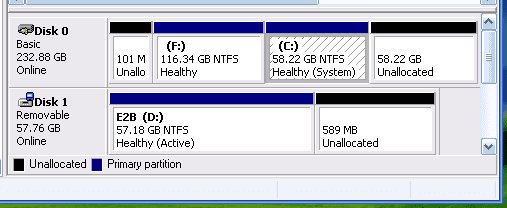
Does anything at all boot after this? If so, provide an image of disk management.
 

My Computer My Computer

At a glance

Windows 7 Home Premium
Computer type
PC/Desktop
OS
Windows 7 Home Premium
Does anything at all boot after this? If so, provide an image of disk management.

Windows XP uses a different kind of boot manager, so of course it boots.
image.png
 

My Computers My Computers

  • At a glance

    Windows 7 Home Premium x64, Windows XPCore 2 Duo T64004GBGeforce 9300M GS
    Computer type
    Laptop
    Computer Manufacturer/Model Number
    Lenovo Ideapad y530
    OS
    Windows 7 Home Premium x64, Windows XP
    CPU
    Core 2 Duo T6400
    Memory
    4GB
    Graphics Card(s)
    Geforce 9300M GS
    Screen Resolution
    1280x800, 1366x768
    Hard Drives
    1 (yes i have no idea sorry)
    Antivirus
    Microsoft Security Essentials
    Browser
    Firefox ESR 115
    Other Info
    im an idiot be nice ;w;
  • Computer type
    PC/Desktop
Okay, you actually marked the Windows XP partition as active before installing. Run the Windows 7 startup repair some more times. If all else fails, run

bcdboot F:\Windows

in command prompt.
 

My Computer My Computer

At a glance

Windows 7 Home Premium
Computer type
PC/Desktop
OS
Windows 7 Home Premium
Your post doesnt show all the details at the top so we cant see which disk is active but the external drive is set active does it work any better if you remove the external as it may try to boot that disk
 

My Computer My Computer

At a glance

win 8 32 bit
Computer type
PC/Desktop
OS
win 8 32 bit
Your post doesnt show all the details at the top so we cant see which disk is active

The top won't show it either. It's going to show System as well. We know that Unallocated, Healthy and Unallocated are not Active, so System is. It's the simplicity of the pre-Vista MBR environment.
 

My Computer My Computer

At a glance

Windows 7 Home Premium
Computer type
PC/Desktop
OS
Windows 7 Home Premium
Back
Top