Quick Launch - Enable or Disable

How to Enable or Disable Quick Launch in Windows 7

   Information
By default Quick Launch is disabled in Windows 7. This will show you how to enable or disable Quick Launch as a taskbar toolbar using small or large icons in Windows 7.

   Note
Quick Launch is a toolbar on the taskbar. Quick Launch is used to open a program quickly from a shortcut from within it separate from the pinned programs on the taskbar.

The Quick Launch folder is located at the hidden system folder location below to add shortcuts to.

C:\Users\(user-name)\AppData\Roaming\Microsoft\Internet Explorer\Quick Launch

   Tip
Microsoft has made available a hotfix that will resolve a problem where the taskbar customizations are lost and reset to defaults when automatic logon is enabled in Windows 7 and Windows Server 2008 R2. More details are available at FIX: The Taskbar is reset to the default settings when you use the "Automatically Log On" feature in Windows 7 and in Windows Server 2008 R2.


If you still have the issue of where the pinned Quick Launch used in this tutorial disappears on you after logging off and on or restarting the computer, then a workaround for this issue is to either:
EXAMPLE: Default Windows 7 Taskbar
1441d1234757806-quick-launch-enable-disable-disabled.jpg


EXAMPLE: Quick Launch Enabled on Right Side of Taskbar
NOTE: This is the new Quick Launch toolbar with text and title, small icons, or large icons.
2048d1234327806-quick-launch-enable-disable-quick_launch_toolbar.jpg


4733d1234757607-quick-launch-enable-disable-small_quick_launch.jpg


4732d1234757607-quick-launch-enable-disable-large_quick_launch.jpg


EXAMPLE: Quick Launch Enabled on Left Side of Taskbar
NOTE: This is the new Quick Launch toolbar without text and title, and with small icons or large icons.

Right_Example-1.jpg

Right_Example-2.jpg


OPTION ONE

To Add Quick Launch to Taskbar


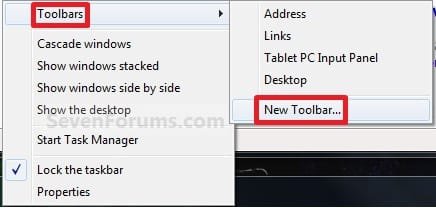
1. Right click on a empty space on the taskbar, then select (hover on) Taskbar and click on New Toolbar. (See screenshot below)
Right_Click_Taskbar.jpg
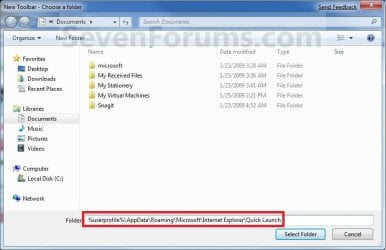
2. In the Folder line, type or copy the location below. (See screenshot below)
%userprofile%\AppData\Roaming\Microsoft\Internet Explorer\Quick Launch
Select_Folder.jpg
3. Click on the Select Folder button. (See screenshot above)

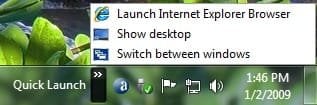
4. You now have a Quick Launch toolbar on the taskbar. (See screenshot below)
NOTE: Click on the arrow to see your Quick Launch shortcuts.
Quick_Launch_Toolbar.jpg
5. To Expand the Quick Launch Toolbar
A) Unlock the taskbar.

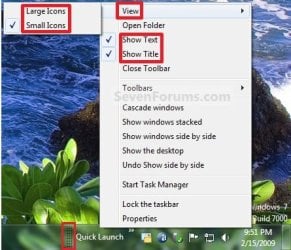
B) Left click and hold on the dotted separator line just to the left of Quick Launch, then drag it to the left or right to adjust to unhide all of the icons. Release the left click when done. (See screenshot below)
Right_Click_Toolbar.jpg
C) Lock the taskbar.
6. To Remove Quick Launch Toolbar Icon Text or Title
A) Unlock the taskbar.

B) Right click on the dotted separator line just to the left of Quick Launch, then uncheck the Show Text and Show Title by clicking on them. (See screenshot below step 5B)

C) Lock the taskbar.
7. To Have Small or Large Icons for Quick Launch Toolbar
A) Unlock the taskbar.

B) Right click on the dotted separator line just to the left of Quick Launch, then click on View and select to have Large Icons or Small Icons. (See screenshot below step 5B)

C) Lock the taskbar.
8. To Have Quick Launch Toolbar on Left Side of Taskbar
A) Unlock the taskbar.

B) Left click and hold on the dotted separator line just to the left of Quick Launch, then drag Quick Launch as far to the left on the taskbar as you are able to and release.

C) If you still have any pinned program icons to the left of Quick Launch, then left click and hold on the dotted separator line just to the left of the icons and hold, and drag it to the right past Quick Launch and release. (See screenshot below)

RightSide_1.jpg
D) The Quick Launch toolbar is now on the far left side of the taskbar. (See screenshot below)

RightSide_2.jpg
E) Left click and hold on the dotted separator line for the other icons and drag them left or right to make any adjustments to how you want them placed on the taskbar. (See screenshot above)

F) Lock the taskbar.


OPTION TWO

To Remove Quick Launch from Taskbar


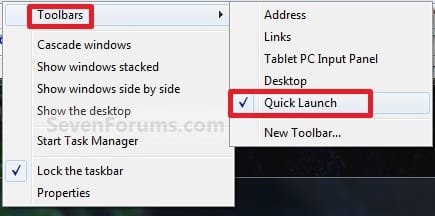
1. Right click on a empty space on the taskbar and click on Toolbars and Quick Launch to uncheck and remove it from the taskbar. (See screenshot below)
Remove.jpg
That's it,
Shawn


Attachments

  • Small_Quick_Launch.jpg
    Small_Quick_Launch.jpg
    17.5 KB · Views: 1,657,225
  • Large_Quick_Launch.jpg
    Large_Quick_Launch.jpg
    17.6 KB · Views: 1,656,917
  • Disabled.jpg
    Disabled.jpg
    18.9 KB · Views: 1,677,290
Last edited:
Strange. I just cannot get QL to dissappear for me when I restart.

I haven't tested this because I'm only using the 32bit Ultimate, but perhaps the problems with the disappearing QL is the bit version of Win7 (32bit vs 64bit)? Maybe even the version, Ultimate vs whatever?

It would be interesting to know the stats if a poll could be taken.
 

My Computers

System One System Two

  • Computer type
    Laptop
    Computer Manufacturer/Model Number
    Dell Precision 7510
    OS
    W7PRO
    CPU
    Intel i7-6820HQ @ 2.7GHz
    Memory
    16GB
  • Computer type
    Laptop
    OS
    W7Pro
Strange. I just cannot get QL to dissappear for me when I restart.

I haven't tested this because I'm only using the 32bit Ultimate, but perhaps the problems with the disappearing QL is the bit version of Win7 (32bit vs 64bit)? Maybe even the version, Ultimate vs whatever?

It would be interesting to know the stats if a poll could be taken.
Here's my stats using my four machines: The QL dissappearance problem was solved by saving the theme for the three W7 Ultimate x64 machines but was not for the one W7 Ultimate x86 machine.
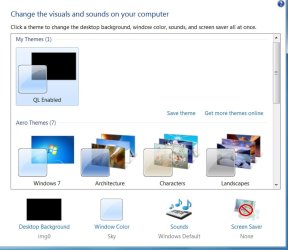
There observed something abnormal about the saved Personal Theme after rebooting the 32bit machine: Wall paper as displayed on the desktop was unchanged but the Personalization changed as the attached image. Note the background colour of the theme labeled as "QL Enabled" is black which was W7 theme before rebooting.
Untitled.jpg
 

My Computer

Computer type
PC/Desktop
OS
W7 Ult x64, W8 Pro x64 and W10 Pro x64
CPU
Phenom FX6300
Motherboard
Gigabyte GA-970A-UD3 rev. 1.2
Memory
16GB DDR3 1866 G.Skill F3-1866C9D-16GWM x2
Graphics Card(s)
Radeon R7 360
Sound Card
Asus Xonar DS
Monitor(s) Displays
27" x2, Dell P2715Q
Screen Resolution
3840 x 2160
Hard Drives
Samsung 850Pro 1TB SSD - system
Samsung 4TB SSD - Data
PSU
Corsair CX450M
Case
Corsair 200R
Cooling
Zalman CNPS5X Performa
Internet Speed
400Mbps/12Mbps
Other Info
2nd machine: Same as above
3rd machine: Apple MacAir with W7 Ult installed
Strange. I just cannot get QL to dissappear for me when I restart.

I haven't tested this because I'm only using the 32bit Ultimate, but perhaps the problems with the disappearing QL is the bit version of Win7 (32bit vs 64bit)? Maybe even the version, Ultimate vs whatever?

It would be interesting to know the stats if a poll could be taken.
Here's my stats using my four machines: The QL dissappearance problem was solved by saving the theme for the three W7 Ultimate x64 machines but was not for the one W7 Ultimate x86 machine.
There observed something abnormal about the saved Personal Theme after rebooting the 32bit machine: Wall paper as displayed on the desktop was unchanged but the Personalization changed as the attached image. Note the background colour of the theme labeled as "QL Enabled" is black which was W7 theme before rebooting.
View attachment 36011

Yes I am running on x86 architecture...Perhaps that's the problem? What did you mean by "Personalization changed as the attached image"?
 

My Computer

Computer type
PC/Desktop
Computer Manufacturer/Model Number
Custom build
OS
Microsoft Windows 7 Ultimate 64-bit 7601 Multiprocessor Free Service Pack 1
CPU
Intel(R) Core(TM) i5 CPU 650 @ 3.20GHz
Motherboard
Gigabyte Technology Co., Ltd. P55A-UD3
Memory
12.00 GB
Graphics Card(s)
NVIDIA GeForce GTX 570
Sound Card
(1) High Definition Audio Device (2) High Definition Audio
Monitor(s) Displays
BenQ 21"
Screen Resolution
1920 x 1080 x 32 bits (4294967296 colors) @ 60 Hz
Hard Drives
(1) WDC WD15EARS-00S8B1 ATA Device (2) WDC WD20EARS-00MVWB0 ATA Device (3) Samsung SSD 840 Series SCSI Disk Device
Yes I am running on x86 architecture...Perhaps that's the problem? What did you mean by "Personalization changed as the attached image"?

What he is talking about is the theme he saved as QL Enabled in the left top corner of the image under My Themes(1) and the bottom left corner of the image that says "Desktop Background" (img0). Both are black. Basically he says the 32bit is not saving the theme correctly or something is corrupting the system and the theme is not being displayed properly upon a reboot.

I also pointed out in an earlier post, that if I turn off UAC I can save the theme and have QL do whatever I want.

Edit: I am unable to test 64bit at this time.
 
Last edited:

My Computers

System One System Two

  • Computer type
    Laptop
    Computer Manufacturer/Model Number
    Dell Precision 7510
    OS
    W7PRO
    CPU
    Intel i7-6820HQ @ 2.7GHz
    Memory
    16GB
  • Computer type
    Laptop
    OS
    W7Pro
I have Windows 7 Home Premium 64 bit and after restarting my QL is still there. So you can use that towards your statistics
 

My Computer

OS
Windows 7 Home Premium
CPU
Intel Core i7 920
Motherboard
X58
Memory
6GB DDR3 1066
Graphics Card(s)
Nvidia GTS 250
Monitor(s) Displays
Asus 23" 1080p 16x9
Yes I am running on x86 architecture...Perhaps that's the problem? What did you mean by "Personalization changed as the attached image"?

What he is talking about is the theme he saved as QL Enabled in the left top corner of the image under My Themes(1) and the bottom left corner of the image that says "Desktop Background" (img0). Both are black. Basically he says the 32bit is not saving the theme correctly or something is corrupting the system and the theme is not being displayed properly upon a reboot.

I also pointed out in an earlier post, that if I turn off UAC I can save the theme and have QL do whatever I want.

Edit: I am unable to test 64bit at this time.

How do you turn off UAC?
 

My Computer

Computer type
PC/Desktop
Computer Manufacturer/Model Number
Custom build
OS
Microsoft Windows 7 Ultimate 64-bit 7601 Multiprocessor Free Service Pack 1
CPU
Intel(R) Core(TM) i5 CPU 650 @ 3.20GHz
Motherboard
Gigabyte Technology Co., Ltd. P55A-UD3
Memory
12.00 GB
Graphics Card(s)
NVIDIA GeForce GTX 570
Sound Card
(1) High Definition Audio Device (2) High Definition Audio
Monitor(s) Displays
BenQ 21"
Screen Resolution
1920 x 1080 x 32 bits (4294967296 colors) @ 60 Hz
Hard Drives
(1) WDC WD15EARS-00S8B1 ATA Device (2) WDC WD20EARS-00MVWB0 ATA Device (3) Samsung SSD 840 Series SCSI Disk Device
Yes I am running on x86 architecture...Perhaps that's the problem? What did you mean by "Personalization changed as the attached image"?

What he is talking about is the theme he saved as QL Enabled in the left top corner of the image under My Themes(1) and the bottom left corner of the image that says "Desktop Background" (img0). Both are black. Basically he says the 32bit is not saving the theme correctly or something is corrupting the system and the theme is not being displayed properly upon a reboot.

I also pointed out in an earlier post, that if I turn off UAC I can save the theme and have QL do whatever I want.

Edit: I am unable to test 64bit at this time.
I have done further experiment on 32bit machine which has QL disappearance problem:
The first thing I did after installing the W7 was disabling UAC. The way I did it was changing for Admin user to having it automatically elevated from prompting credentials. This appears to set the slider at the bottom end for "Never Notify". So, this was the condition under which the QL was previously implemented.
This time I set three UAC entries on gpedit.msc/Windows Settings/Security Settings/Local Policies/Seculity Options, which were set as "Enabled" by default to "Disabled". "Prompt for credentials" for the standard user was left as was since there was no option for "Disabled". "Elevate without prompting" for admin users was also left as was. So, all UACs were set as "Disabled" except the above two.
Then, I added QL and saved the theme.
The result was that the QL still disappeared after rebooting but the colour of the wall paper as shown on the Personalization did not turn to black as was previously reported.
The above seems to indicate the UAC has something to do with saving the theme and possibley the QL problem.
 

My Computer

Computer type
PC/Desktop
OS
W7 Ult x64, W8 Pro x64 and W10 Pro x64
CPU
Phenom FX6300
Motherboard
Gigabyte GA-970A-UD3 rev. 1.2
Memory
16GB DDR3 1866 G.Skill F3-1866C9D-16GWM x2
Graphics Card(s)
Radeon R7 360
Sound Card
Asus Xonar DS
Monitor(s) Displays
27" x2, Dell P2715Q
Screen Resolution
3840 x 2160
Hard Drives
Samsung 850Pro 1TB SSD - system
Samsung 4TB SSD - Data
PSU
Corsair CX450M
Case
Corsair 200R
Cooling
Zalman CNPS5X Performa
Internet Speed
400Mbps/12Mbps
Other Info
2nd machine: Same as above
3rd machine: Apple MacAir with W7 Ult installed
I would like to know if i can get my quicklaunch bar vertically on the side of the screen. I know i can put it on the right or left, yet still on the task bar. I want to keep the taskbar on the bottom and have my QL on the side, independant of the taskbar and always visible.

Can this be done by Windows 7 or third party app? I want the icons to be normal and small instead of massive like i've seen some apps do for me.

Happy day
Mo
 

My Computer

Computer Manufacturer/Model Number
home made
OS
7
CPU
amd x2 3000+
Motherboard
asus
Memory
2 gigs
Graphics Card(s)
8800 gt
Sound Card
onboard
Monitor(s) Displays
22 inch samsung flat screen
Hard Drives
640 gig samsung
250 gig maxtor
Case
antic
Cooling
ice cubes
Hello Mo, and welcome to Seven Forums.

Sorry, but no QL cannot be used like that in Windows 7. You might see if using something like RocketDock or Nexus may work for you instead.

Hope this helps,
Shawn
 

My Computer

Computer type
PC/Desktop
Computer Manufacturer/Model Number
Self built custom
OS
64-bit Windows 11 Pro for Workstations
CPU
Intel i7-8700K OC'd to 5 GHz
Motherboard
ASUS ROG Maximus XI Formula Z390
Memory
64 GB (4x16GB) G.SKILL TridentZ RGB DDR4 3600 MHz
Graphics Card(s)
ASUS ROG-STRIX-GTX1080TI-O11G-GAMING
Sound Card
Integrated
Monitor(s) Displays
2 x Samsung Odyssey G7 27"
Screen Resolution
2560x1440
Hard Drives
1TB Samsung 990 PRO M.2,
4TB Samsung 990 PRO PRO M.2,
TerraMaster F8 SSD Plus NAS
PSU
Seasonic Prime Titanium 850W
Case
Thermaltake Core P3
Cooling
Corsair Hydro H115i
Keyboard
Logitech wireless K800
Mouse
Logitech MX Master 4
Internet Speed
2 Gb/s Download and 100 Mb/s Upload
Antivirus
Malwarebyte Anti-Malware Premium
Browser
Google Chrome
Other Info
Logitech Z625 speaker system,
Logitech BRIO 4K Pro webcam,
HP Color LaserJet Pro MFP M477fdn,
APC SMART-UPS RT 1000 XL - SURT1000XLI,
Galaxy S23 Plus phone
I'm having the same issue under x86. The quick launch bar would disappear on reboot. However, if you terminate explorer.exe and then relaunch it, it appears again.
 

My Computer

OS
W7
Yeah, it looks like pinned icons on the taskbar will be the future with Windows 7.

As for the other questions, you should post them in the appropriate General Discussion and Network & Internet forums for them so this tutorial can stay on topic, and so you can get more replies to them. ;)

:mad: That is absolutely idiotic. I have 40-50 QL items. That WILL NOT FIT on the task bar as pinned items.

I have no trouble with QL disappearing. When I installed W7 the first time, I noticed immediately that QL was missing. The VERY FIRST THING I did on W7 was Google QL and find a way to get it back.

However, I still have a serious problem. When I arrange the QL buttons as I want them, I lose the order whenever I reboot. How do I get them to stay put?

This is incredibly annoying. I use pinning for the 3-4 apps that I always run. It's convenient to always have them in the same place. The 2 states of the buttons are confusing, but I'll probably get used to that.

You have provided no substitute for the QL bar. Removing it was just dumb.
 
Last edited by a moderator:

My Computer

Computer Manufacturer/Model Number
HP DV5z
OS
Win 7
CPU
Athlon
Memory
4GB
Graphics Card(s)
ATI
Hello RJ, and welcome to Seven Forums.

As a workaround, you can pin a folder to the taskbar and place your shortcuts in it instead.
 

My Computer

Computer type
PC/Desktop
Computer Manufacturer/Model Number
Self built custom
OS
64-bit Windows 11 Pro for Workstations
CPU
Intel i7-8700K OC'd to 5 GHz
Motherboard
ASUS ROG Maximus XI Formula Z390
Memory
64 GB (4x16GB) G.SKILL TridentZ RGB DDR4 3600 MHz
Graphics Card(s)
ASUS ROG-STRIX-GTX1080TI-O11G-GAMING
Sound Card
Integrated
Monitor(s) Displays
2 x Samsung Odyssey G7 27"
Screen Resolution
2560x1440
Hard Drives
1TB Samsung 990 PRO M.2,
4TB Samsung 990 PRO PRO M.2,
TerraMaster F8 SSD Plus NAS
PSU
Seasonic Prime Titanium 850W
Case
Thermaltake Core P3
Cooling
Corsair Hydro H115i
Keyboard
Logitech wireless K800
Mouse
Logitech MX Master 4
Internet Speed
2 Gb/s Download and 100 Mb/s Upload
Antivirus
Malwarebyte Anti-Malware Premium
Browser
Google Chrome
Other Info
Logitech Z625 speaker system,
Logitech BRIO 4K Pro webcam,
HP Color LaserJet Pro MFP M477fdn,
APC SMART-UPS RT 1000 XL - SURT1000XLI,
Galaxy S23 Plus phone
Hey guys I have a problem. From time to time my quick launch toolbar dissappears. I haven't noticed if it dissappear after restart but i does. Can anyone help?
 

My Computer

OS
Windows 7
Yeah, it looks like pinned icons on the taskbar will be the future with Windows 7.

As for the other questions, you should post them in the appropriate General Discussion and Network & Internet forums for them so this tutorial can stay on topic, and so you can get more replies to them. ;)

:mad: That is absolutely idiotic. I have 40-50 QL items. That WILL NOT FIT on the task bar as pinned items.

I have no trouble with QL disappearing. When I installed W7 the first time, I noticed immediately that QL was missing. The VERY FIRST THING I did on W7 was Google QL and find a way to get it back.

However, I still have a serious problem. When I arrange the QL buttons as I want them, I lose the order whenever I reboot. How do I get them to stay put?

This is incredibly annoying. I use pinning for the 3-4 apps that I always run. It's convenient to always have them in the same place. The 2 states of the buttons are confusing, but I'll probably get used to that.

You have provided no substitute for the QL bar. Removing it was just dumb.

IMO the QL bar is for 6 or so items, why not use the start menu for the rest of the programs. If you organize the programs it works pretty well. That is what it was designed to do.
I use the QL for 6 or so most often used programs (daily) everything else is desktop or start menu.
I cant imagine you use 40+ items daily??

To each his own I guess :P
 

My Computer

Computer Manufacturer/Model Number
Custom
OS
Windows 7 Pro
CPU
Q9650 @ 4.05ghz
Motherboard
Asus Striker II Extreme
Memory
Kingston DDR3 @1800mhz 8GB
Graphics Card(s)
BFG GTX 285SC
Sound Card
Audigy Fatal1ty
Monitor(s) Displays
Dell 24" 1920x 1200
Hard Drives
Raid 0 1TB Windows 7-64
Raid 0 800GB XP-32
PSU
Zalman 950-HP
Case
Cooler Master 690
Cooling
Zalman Pure Copper
Hey guys I have a problem. From time to time my quick launch toolbar dissappears. I haven't noticed if it dissappear after restart but i does. Can anyone help?

Hello Mlad,

Double check to see if step 9 or 10 in OPTION ONE may be able to help you with this.

Hope this helps,
Shawn
 

My Computer

Computer type
PC/Desktop
Computer Manufacturer/Model Number
Self built custom
OS
64-bit Windows 11 Pro for Workstations
CPU
Intel i7-8700K OC'd to 5 GHz
Motherboard
ASUS ROG Maximus XI Formula Z390
Memory
64 GB (4x16GB) G.SKILL TridentZ RGB DDR4 3600 MHz
Graphics Card(s)
ASUS ROG-STRIX-GTX1080TI-O11G-GAMING
Sound Card
Integrated
Monitor(s) Displays
2 x Samsung Odyssey G7 27"
Screen Resolution
2560x1440
Hard Drives
1TB Samsung 990 PRO M.2,
4TB Samsung 990 PRO PRO M.2,
TerraMaster F8 SSD Plus NAS
PSU
Seasonic Prime Titanium 850W
Case
Thermaltake Core P3
Cooling
Corsair Hydro H115i
Keyboard
Logitech wireless K800
Mouse
Logitech MX Master 4
Internet Speed
2 Gb/s Download and 100 Mb/s Upload
Antivirus
Malwarebyte Anti-Malware Premium
Browser
Google Chrome
Other Info
Logitech Z625 speaker system,
Logitech BRIO 4K Pro webcam,
HP Color LaserJet Pro MFP M477fdn,
APC SMART-UPS RT 1000 XL - SURT1000XLI,
Galaxy S23 Plus phone
I also pointed out in an earlier post, that if I turn off UAC I can save the theme and have QL do whatever I want.

Edit: I am unable to test 64bit at this time.

Turning off UAC didn't help. It is still disappearing. The User Account Control Setting is already set to the lowest...
 

My Computer

Computer type
PC/Desktop
Computer Manufacturer/Model Number
Custom build
OS
Microsoft Windows 7 Ultimate 64-bit 7601 Multiprocessor Free Service Pack 1
CPU
Intel(R) Core(TM) i5 CPU 650 @ 3.20GHz
Motherboard
Gigabyte Technology Co., Ltd. P55A-UD3
Memory
12.00 GB
Graphics Card(s)
NVIDIA GeForce GTX 570
Sound Card
(1) High Definition Audio Device (2) High Definition Audio
Monitor(s) Displays
BenQ 21"
Screen Resolution
1920 x 1080 x 32 bits (4294967296 colors) @ 60 Hz
Hard Drives
(1) WDC WD15EARS-00S8B1 ATA Device (2) WDC WD20EARS-00MVWB0 ATA Device (3) Samsung SSD 840 Series SCSI Disk Device
Hey guys I have a problem. From time to time my quick launch toolbar dissappears. I haven't noticed if it dissappear after restart but i does. Can anyone help?

If you read earlier post it is discussed but still it is NOT solved yet.

I'm having the same issue under x86. The quick launch bar would disappear on reboot. However, if you terminate explorer.exe and then relaunch it, it appears again.

Thanks for the tips, I will surely give that a try.
 

My Computer

Computer type
PC/Desktop
Computer Manufacturer/Model Number
Custom build
OS
Microsoft Windows 7 Ultimate 64-bit 7601 Multiprocessor Free Service Pack 1
CPU
Intel(R) Core(TM) i5 CPU 650 @ 3.20GHz
Motherboard
Gigabyte Technology Co., Ltd. P55A-UD3
Memory
12.00 GB
Graphics Card(s)
NVIDIA GeForce GTX 570
Sound Card
(1) High Definition Audio Device (2) High Definition Audio
Monitor(s) Displays
BenQ 21"
Screen Resolution
1920 x 1080 x 32 bits (4294967296 colors) @ 60 Hz
Hard Drives
(1) WDC WD15EARS-00S8B1 ATA Device (2) WDC WD20EARS-00MVWB0 ATA Device (3) Samsung SSD 840 Series SCSI Disk Device
Yeah, it looks like pinned icons on the taskbar will be the future with Windows 7.

As for the other questions, you should post them in the appropriate General Discussion and Network & Internet forums for them so this tutorial can stay on topic, and so you can get more replies to them. ;)

:mad: That is absolutely idiotic. I have 40-50 QL items. That WILL NOT FIT on the task bar as pinned items.

Have you tried checking the "Use small icons" box in Properties? Changing the icons that way makes them the same size as the old QL icons on my system.

Tom L
 

My Computer

Computer Manufacturer/Model Number
Homebrew
OS
Windows 7 Ultimate (64-bit)
CPU
Intel Core 2 Duo E6700 (2.66 GHz)
Motherboard
Intel DG965WH
Memory
8 GB
Graphics Card(s)
ATI 2600 XT
Sound Card
SigmaTel 9271
Monitor(s) Displays
Dell SE198WFP 19" Widescreen LCD
Screen Resolution
1440 x 900
Hard Drives
3 Maxtor 500 GB SATA II
PSU
Thermaltake 750 W
Cooling
2-80 mm, 1-120 mm
Keyboard
Microsoft Digital Media Pro
Mouse
Microsoft Wheel Mouse Optical
Internet Speed
Cable 1.5 Mbps
Hey guys I have a problem. From time to time my quick launch toolbar dissappears. I haven't noticed if it dissappear after restart but i does. Can anyone help?

If you read earlier post it is discussed but still it is NOT solved yet.

I'm having the same issue under x86. The quick launch bar would disappear on reboot. However, if you terminate explorer.exe and then relaunch it, it appears again.

Thanks for the tips, I will surely give that a try.

Disable the language bar.
Control Panel / Region and Language tab keyboards and language
Or right-click on US, DE or what else.

For german user: deskmodder-Wiki
 

My Computer

OS
Win 7
Back
Top