How to rearrange the items in toolbar of windows explor

nscnpc

New member
Local time
9:07 AM
Messages
10
Can anyone please help me in rearranging items in the toolbar of the windows explorer.
I want to move the "burn" option to right side and "change view" item to left side.

Thanks...
 

My Computer My Computer

Computer Manufacturer/Model Number
Lenovo Ideapad Y450
OS
Windows 7
Motherboard
Intel Core 2 duo
Memory
4GB
Right click on bar, then cusomize.
 

My Computer My Computer

Computer type
PC/Desktop
Computer Manufacturer/Model Number
Dell XPS 420
OS
Windows 10, Home Clean Install
CPU
Intel Core2 processsor Q8200(2.33Ghz 1333FSB) Quad Core Tech
Motherboard
Dell
Memory
6 gb
Graphics Card(s)
ATI Radeon 256MB HD3650
Sound Card
Intergrated 7.1 Channel Audio
Monitor(s) Displays
Dell SP2009W 20"
Hard Drives
640 GB Serial ATA Hard drive
Cooling
Fan
Keyboard
Dell USB Keyboard
Mouse
Dell Premium Optical USB
Internet Speed
DSL 2.85
I am not getting any customization for right click.....I didn't get any menu when I did right click on it...It looks like right click disabled......
 

My Computer My Computer

Computer Manufacturer/Model Number
Lenovo Ideapad Y450
OS
Windows 7
Motherboard
Intel Core 2 duo
Memory
4GB
On mine, the last caption is customize. Put your cursor and wait a drop down will appear.
 

My Computer My Computer

Computer type
PC/Desktop
Computer Manufacturer/Model Number
Dell XPS 420
OS
Windows 10, Home Clean Install
CPU
Intel Core2 processsor Q8200(2.33Ghz 1333FSB) Quad Core Tech
Motherboard
Dell
Memory
6 gb
Graphics Card(s)
ATI Radeon 256MB HD3650
Sound Card
Intergrated 7.1 Channel Audio
Monitor(s) Displays
Dell SP2009W 20"
Hard Drives
640 GB Serial ATA Hard drive
Cooling
Fan
Keyboard
Dell USB Keyboard
Mouse
Dell Premium Optical USB
Internet Speed
DSL 2.85
Nop...I didn't get any thing....Is there any other way to enable that...mine is Win 7 64 bit professional...

Can we get it by doing some thing in registry or gpedit.msc.......
 

My Computer My Computer

Computer Manufacturer/Model Number
Lenovo Ideapad Y450
OS
Windows 7
Motherboard
Intel Core 2 duo
Memory
4GB
I think we may have a bit of confusion here - I think the OP is talking about Windows Explorer and not Internet Explorer.

As far as I am aware there is no simple tweak to adjust the toolbar in Windows Explorer without editing the coding and components as is done for changing the Theme.

Internet explorer does contain the customisation option on the right click
 

My Computers My Computers

System One System Two

  • Computer type
    PC/Desktop
    Computer Manufacturer/Model Number
    ChillBlast - Custom to my design
    OS
    Windows 11 Pro x64 [Latest Release and Release Preview]
    CPU
    Ryzen 9 5950X, 3.8 - 5.2 MHz
    Motherboard
    Asus Prime X570-Pro
    Memory
    64GB [2 x 32GB] DDR4 3200MHz
    Graphics Card(s)
    4GB NVIDIA GEFORCE GTX 1650 Ti
    Sound Card
    On-board SPDIF to 5.1 System + HDMI [5.1 system]
    Monitor(s) Displays
    32" UHD 32 Bit HDR Monitor + 43" UHD 4K 32Bit HDR TV
    Screen Resolution
    2 x 3840 x 2160 @60Hz
    Hard Drives
    1TB M2 SSD OS, 500GB Fast Access SSD, 2 x 8TB Data + Various Externals from 1TB to 4TB, 10TB NAS
    PSU
    NZXT C750 80 PLUS Gold 750W Modular PSU
    Case
    Workstation Case [Matt Black]
    Cooling
    NZXT Kraken X63 280mm CPU Cooler +2x Quiet Case fans
    Keyboard
    Logitech Wireless MX Keys & K400 + others
    Mouse
    Logitech Wireless MX Master 3S
    Internet Speed
    920 MB Down 50 MB Up
    Antivirus
    BitDefender Total Security Pro
    Browser
    Chrome (always run latest Non-Beta)
    Other Info
    Also run ...
    Laptop - Quad 8GB - Windows 10 Pro x64
    Nexus 7 Android tablet x2
    Samsung 10.2" tablet
    Blackview TAB 8 4G Android Tablet c/w Keyboard
    Wacom Intuos Pro Medium Pen Pad
    Wacom Intuos Pro Small Pen Pad
    Wacom Expresskeys Remote
    Loopdeck+ Graphics Controller
    Shuttle Pro v2 Control
  • Computer type
    Laptop
    System Manufacturer/Model Number
    Dell XPS 17 10750H
    OS
    Windows 11 Pro x64 Latest RP
    CPU
    Intel I7 10750H 5.0GHz
    Motherboard
    Dell XPS
    Memory
    32GB [2x16GB] DDR4 2933 MHz
    Graphics Card(s)
    nVidia GTX1650Ti 4 GB GDDR6
    Sound Card
    Stock [Realtek] 4 Speaker
    Monitor(s) Displays
    17" IPS UHD+ Infinity Edge Touchscreen
    Screen Resolution
    3840 x 2400
    Hard Drives
    2TB M2 NVMe, 4TB External + various 500GB & 1TB External NVMe (also have access to spinner HDD from
    PSU
    Stock
    Case
    Stock XPS Aluminium & Carbon Fibre
    Cooling
    Stock - Active Fan Control
    Keyboard
    Backlit + Various Logitech
    Mouse
    Stock Track Pad + Logitech MX Trackball
    Internet Speed
    72 MB Down 18MB Up
    Browser
    Chrome
    Other Info
    Also run ...
    Laptop - Quad 8GB - Windows 10 Pro x64
    Nexus 7 Android tablet x2
    10.2" tablet
    Sony Z3 Android Smartphone
    Wacom Intuos Pro Medium Pen Pad
    Wacom Intuos Pro Small Pen Pad
    Wacom Expresskeys Remote
    Loopdeck+ Graphics Controller
    Shuttle Pro v2 Control Pad
    10TB NAS
I just saw the above post and must apologize. I was referring to IE, sorry.
 

My Computer My Computer

Computer type
PC/Desktop
Computer Manufacturer/Model Number
Dell XPS 420
OS
Windows 10, Home Clean Install
CPU
Intel Core2 processsor Q8200(2.33Ghz 1333FSB) Quad Core Tech
Motherboard
Dell
Memory
6 gb
Graphics Card(s)
ATI Radeon 256MB HD3650
Sound Card
Intergrated 7.1 Channel Audio
Monitor(s) Displays
Dell SP2009W 20"
Hard Drives
640 GB Serial ATA Hard drive
Cooling
Fan
Keyboard
Dell USB Keyboard
Mouse
Dell Premium Optical USB
Internet Speed
DSL 2.85
The amount of confusion the naming of those two Microsoft major components have caused over the years is legendary. ;)

I always try to answer the "which explorer" question now before I even think of an answer.

I may of course be wrong in my assumption but the reference to "Burn" would suggest Windows Explorer
 

My Computers My Computers

System One System Two

  • Computer type
    PC/Desktop
    Computer Manufacturer/Model Number
    ChillBlast - Custom to my design
    OS
    Windows 11 Pro x64 [Latest Release and Release Preview]
    CPU
    Ryzen 9 5950X, 3.8 - 5.2 MHz
    Motherboard
    Asus Prime X570-Pro
    Memory
    64GB [2 x 32GB] DDR4 3200MHz
    Graphics Card(s)
    4GB NVIDIA GEFORCE GTX 1650 Ti
    Sound Card
    On-board SPDIF to 5.1 System + HDMI [5.1 system]
    Monitor(s) Displays
    32" UHD 32 Bit HDR Monitor + 43" UHD 4K 32Bit HDR TV
    Screen Resolution
    2 x 3840 x 2160 @60Hz
    Hard Drives
    1TB M2 SSD OS, 500GB Fast Access SSD, 2 x 8TB Data + Various Externals from 1TB to 4TB, 10TB NAS
    PSU
    NZXT C750 80 PLUS Gold 750W Modular PSU
    Case
    Workstation Case [Matt Black]
    Cooling
    NZXT Kraken X63 280mm CPU Cooler +2x Quiet Case fans
    Keyboard
    Logitech Wireless MX Keys & K400 + others
    Mouse
    Logitech Wireless MX Master 3S
    Internet Speed
    920 MB Down 50 MB Up
    Antivirus
    BitDefender Total Security Pro
    Browser
    Chrome (always run latest Non-Beta)
    Other Info
    Also run ...
    Laptop - Quad 8GB - Windows 10 Pro x64
    Nexus 7 Android tablet x2
    Samsung 10.2" tablet
    Blackview TAB 8 4G Android Tablet c/w Keyboard
    Wacom Intuos Pro Medium Pen Pad
    Wacom Intuos Pro Small Pen Pad
    Wacom Expresskeys Remote
    Loopdeck+ Graphics Controller
    Shuttle Pro v2 Control
  • Computer type
    Laptop
    System Manufacturer/Model Number
    Dell XPS 17 10750H
    OS
    Windows 11 Pro x64 Latest RP
    CPU
    Intel I7 10750H 5.0GHz
    Motherboard
    Dell XPS
    Memory
    32GB [2x16GB] DDR4 2933 MHz
    Graphics Card(s)
    nVidia GTX1650Ti 4 GB GDDR6
    Sound Card
    Stock [Realtek] 4 Speaker
    Monitor(s) Displays
    17" IPS UHD+ Infinity Edge Touchscreen
    Screen Resolution
    3840 x 2400
    Hard Drives
    2TB M2 NVMe, 4TB External + various 500GB & 1TB External NVMe (also have access to spinner HDD from
    PSU
    Stock
    Case
    Stock XPS Aluminium & Carbon Fibre
    Cooling
    Stock - Active Fan Control
    Keyboard
    Backlit + Various Logitech
    Mouse
    Stock Track Pad + Logitech MX Trackball
    Internet Speed
    72 MB Down 18MB Up
    Browser
    Chrome
    Other Info
    Also run ...
    Laptop - Quad 8GB - Windows 10 Pro x64
    Nexus 7 Android tablet x2
    10.2" tablet
    Sony Z3 Android Smartphone
    Wacom Intuos Pro Medium Pen Pad
    Wacom Intuos Pro Small Pen Pad
    Wacom Expresskeys Remote
    Loopdeck+ Graphics Controller
    Shuttle Pro v2 Control Pad
    10TB NAS
It is possible to reorder the buttons but requires heavy registry editing. Including changing permissions of several keys before the edits can be made.

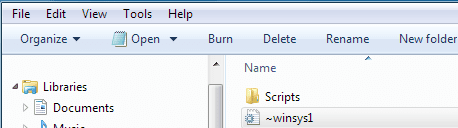
You can re-arrange the order of the buttons, remove buttons and add additional buttons (such as delete, rename, select all).

The only thing is I cant locate the view button. Only the buttons that are on the left side of the toolbar (burn, share etc).

I can post the steps if anyone is interested?
 

Attachments

  • ToolbarButtons1.PNG
    ToolbarButtons1.PNG
    6.8 KB · Views: 69

My Computer My Computer

Computer Manufacturer/Model Number
Dell Dimension E520
OS
Windows 7 Ultimate (x86)
CPU
Intel 2.20 Dual Core
Memory
4 GB
Graphics Card(s)
nVidia 9400 GT (512 MB)
Sound Card
Sigmatel C Major HD
Monitor(s) Displays
22" Samsung 2232 bw
Screen Resolution
1680x1050
Mouse
Microsoft Arc
Other Info
Wacom Graphire 4 (6x8) Tablet
Thank you every one for you great support and suggestions....


Hello,
Disk4mat

if possible please send those steps...I will try those...I love to customize these kind of stuff....

Thanks once again....
 

My Computer My Computer

Computer Manufacturer/Model Number
Lenovo Ideapad Y450
OS
Windows 7
Motherboard
Intel Core 2 duo
Memory
4GB
Part 1: The Permissions

Ok here goes...

Open regedit and navigate to: HKLM\SOFTWARE\Microsoft\Windows\CurrentVersion\Explorer\FolderTypes
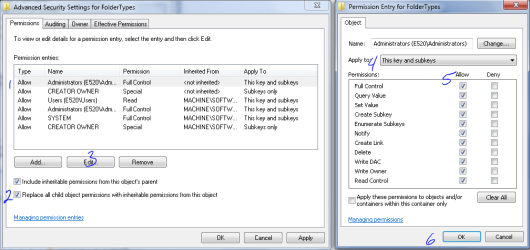
Right click 'FolderTypes' in the left pane and select Permissions. Click the advanced button.

Goto the Owner tab and select Administrators. Check the box Replace owner on subcontainers and objects. Click Apply.

Goto the Permissions tab (see attached screenshot below). Select Administrators and check the box 'Replace all child object permissions with inheritible permissions from this object'.

Click the Edit button and for the 'apply to' drop down select: This key and subkeys. Check Full Control (if its not already). Click Ok followed by Apply.

You should now be back at the original permissions dialog. Select Administrators and check the Full control box (if its not already checked).

Next post... Adding & removing buttons
 

Attachments

  • Permissions.PNG
    Permissions.PNG
    20.8 KB · Views: 403

My Computer My Computer

Computer Manufacturer/Model Number
Dell Dimension E520
OS
Windows 7 Ultimate (x86)
CPU
Intel 2.20 Dual Core
Memory
4 GB
Graphics Card(s)
nVidia 9400 GT (512 MB)
Sound Card
Sigmatel C Major HD
Monitor(s) Displays
22" Samsung 2232 bw
Screen Resolution
1680x1050
Mouse
Microsoft Arc
Other Info
Wacom Graphire 4 (6x8) Tablet
Part 2: Adding & Removing Buttons

Now that you have access to the registry keys you can add, remove and reorder toolbar buttons. Some background info before we get started.

There are different folder templates represented in the registry. Everything from Pictures to Videos and even search results. For this reason you'll need to edit several registry keys so that your buttons will be visible regardless of which folder your browsing.

I'll start with one folder type as an example and list the other reg keys you'll want to edit. Its a good idea to export the FolderTypes key in case you need to restore it.

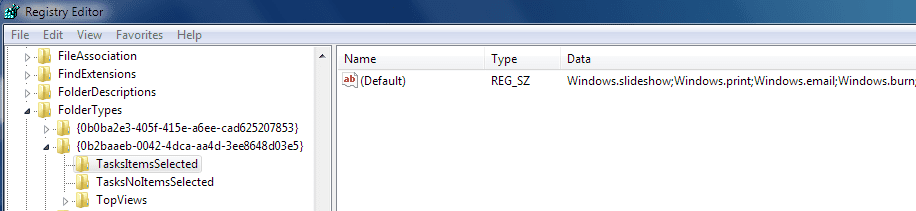
Goto: HKEY_LOCAL_MACHINE\SOFTWARE\Microsoft\Windows\CurrentVersion\Explorer\FolderTypes\{0b2baaeb-0042-4dca-aa4d-3ee8648d03e5}

Underneath that key create the following keys if they do not exist:
TasksItemsSelected
TasksNoItemsSelected

Most of the folder types you'll be editing will have these keys, but some do not.

The toolbar buttons are defined in the default value of both the keys mentioned above. To modify double click the default value in the right hand pane.

The Buttons
All buttons are prefixed with Windows. and are separated by a semicolon ;
There are no spaces.

Available Buttons
Possible toolbar buttons can be found in the registry under the key:
HKLM\SOFTWARE\Microsoft\Windows\CurrentVersion\Explorer\CommandStore\shell

I have not tested all the avail buttons, so I will list the ones I know that do work.

Windows.Copy
Windows.Paste
Windows.Delete
Windows.Rename
Windows.Selectall

So here is a sample of what the default value might look like:
Windows.slideshow;Windows.print;Windows.email

You can re-order these buttons as you like. Or add/remove buttons. Example:
Windows.Burn;Windows.email;Windows.slideshow;Windows.print;Windows.Delete

Tip: Use Notepad to work with the value. It will allow you to have a good overview of the entire string of text.

After editing a value and your done changing buttons, you only need to restart the Explorer shell to see the effects. So let me name the folder types you'll want to edit...

{0b2baaeb-0042-4dca-aa4d-3ee8648d03e5} Pictures Library
{36011842-dccc-40fe-aa3d-6177ea401788} Documents Search Results
{3f2a72a7-99fa-4ddb-a5a8-c604edf61d6b} Music Library
{4dcafe13-e6a7-4c28-be02-ca8c2126280d} Pictures Search Results
{5c4f28b5-f869-4e84-8e60-f11db97c5cc7} Generic (All folder items)
{5f4eab9a-6833-4f61-899d-31cf46979d49} Generic Library
{5fa96407-7e77-483c-ac93-691d05850de8} Videos
{631958a6-ad0f-4035-a745-28ac066dc6ed} Videos Library
{71689ac1-cc88-45d0-8a22-2943c3e7dfb3} Music Search Results
{7d49d726-3c21-4f05-99aa-fdc2c9474656} Documents
{7fde1a1e-8b31-49a5-93b8-6be14cfa4943} Generic Search Results
{80213e82-bcfd-4c4f-8817-bb27601267a9} Compressed Folder (zip folder)
{94d6ddcc-4a68-4175-a374-bd584a510b78} Music
{b3690e58-e961-423b-b687-386ebfd83239} Pictures
{ea25fbd7-3bf7-409e-b97f-3352240903f4} Videos Search Results
{fbb3477e-c9e4-4b3b-a2ba-d3f5d3cd46f9} Documents Library

I know its a long list. After your done editing your buttons, you should export the foldertypes registry branch so you can restore it in the event of a OS reload.

Hopefully this will get you started. Sorry for the long post.
 

Attachments

  • The Buttons.PNG
    The Buttons.PNG
    11.6 KB · Views: 331

My Computer My Computer

Computer Manufacturer/Model Number
Dell Dimension E520
OS
Windows 7 Ultimate (x86)
CPU
Intel 2.20 Dual Core
Memory
4 GB
Graphics Card(s)
nVidia 9400 GT (512 MB)
Sound Card
Sigmatel C Major HD
Monitor(s) Displays
22" Samsung 2232 bw
Screen Resolution
1680x1050
Mouse
Microsoft Arc
Other Info
Wacom Graphire 4 (6x8) Tablet
Thank you..........
 

My Computer My Computer

Computer Manufacturer/Model Number
Lenovo Ideapad Y450
OS
Windows 7
Motherboard
Intel Core 2 duo
Memory
4GB
Thanks its great.
aiwant_2thumbsup.gif
 

My Computer My Computer

OS
Win 7
Im happy you guys found it usefull. Myself, I cant live without the delete and rename button since I use those tasks often.
 

My Computer My Computer

Computer Manufacturer/Model Number
Dell Dimension E520
OS
Windows 7 Ultimate (x86)
CPU
Intel 2.20 Dual Core
Memory
4 GB
Graphics Card(s)
nVidia 9400 GT (512 MB)
Sound Card
Sigmatel C Major HD
Monitor(s) Displays
22" Samsung 2232 bw
Screen Resolution
1680x1050
Mouse
Microsoft Arc
Other Info
Wacom Graphire 4 (6x8) Tablet
It is possible to reorder the buttons but requires heavy registry editing. Including changing permissions of several keys before the edits can be made.

You can re-arrange the order of the buttons, remove buttons and add additional buttons (such as delete, rename, select all).

The only thing is I cant locate the view button. Only the buttons that are on the left side of the toolbar (burn, share etc).

I can post the steps if anyone is interested?


If this works in Vista yes please.

Somone had an app to add the Red "X" for delete but his sites down now (same peep that had the 3D spinning Picture in the Start Menu) and both do not work since SP1.
 

My Computer My Computer

OS
Vista (Hate Win 7)
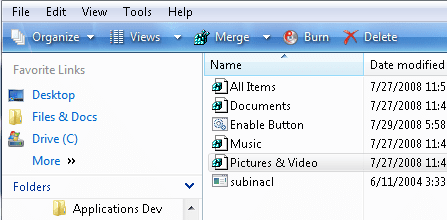
It works in vista but with a few changes. I had wrote a batch file to modify the registry so that you didnt need an application.

Unzip the 2 files to any folder and run the bat file (Enable Button.bat). Afterwards you can delete the files as they arent needed any longer. Save the zip for future use.

Be sure to run the file as an admin ;)

*For 32 bit only
 

Attachments

My Computer My Computer

Computer Manufacturer/Model Number
Dell Dimension E520
OS
Windows 7 Ultimate (x86)
CPU
Intel 2.20 Dual Core
Memory
4 GB
Graphics Card(s)
nVidia 9400 GT (512 MB)
Sound Card
Sigmatel C Major HD
Monitor(s) Displays
22" Samsung 2232 bw
Screen Resolution
1680x1050
Mouse
Microsoft Arc
Other Info
Wacom Graphire 4 (6x8) Tablet
helmutcheese... For x64 Vista follow the steps in post #11 to change the registry permissions. Once that is complete, import the attached reg file to add the Delete button (works for 32 or 64 bit).
 

Attachments

My Computer My Computer

Computer Manufacturer/Model Number
Dell Dimension E520
OS
Windows 7 Ultimate (x86)
CPU
Intel 2.20 Dual Core
Memory
4 GB
Graphics Card(s)
nVidia 9400 GT (512 MB)
Sound Card
Sigmatel C Major HD
Monitor(s) Displays
22" Samsung 2232 bw
Screen Resolution
1680x1050
Mouse
Microsoft Arc
Other Info
Wacom Graphire 4 (6x8) Tablet
Back
Top