installing x64pro after formatting the 100 mb partition

manamana

New member
Local time
2:10 PM
Messages
10
hi all,
I have just bought a new laptop which came with a lousy 32 bit win 7 basic and loads of unnecessary software crap, besides I have an x64 pro license available so I'd like to make use of it.

when I looked at the partition table I saw the famous 100mb boot partition which comfortably occupies one of the four valuable primary partitions which I may need as I am planning to go dual-boot with a linux distro. so, my question is, if i delete the 100mb partition as well as the old 32 bit windows partition, would that cause any problem during the installation of the x64 pro?

I am asking this because I had this horrible installation experience with my previous computer, in which I have mysteriously deleted the SATA drivers and ended up windows 7 installation seeing to harddisk to install on. would deleting the 100mb partition cause a similar (or the same) problem? thanks in advance.
 

My Computer My Computer

At a glance

windows 7
OS
windows 7
The only time I have seen the 100mb partition put on a drive using the RTM was duirng a dual boot situation. I do not know why, so it is hard to say if you can delete it. But if you are basically going to wipe the drive, it will be replaced if needed. That is assuming it was not put there as a recovery type partition my the computer maker.

Is the x64 license an upgrade version so that you need a prior OS installed?

Are you sure the computer will do x64?

I have no experience with the Linux dual boot, but I assume you do.
 

My Computer My Computer

At a glance

Windows 7 x64i7-2600K8 GGTX 480
Computer Manufacturer/Model Number
Homebuilt
OS
Windows 7 x64
CPU
i7-2600K
Motherboard
Asus P8Z77-v Pro
Memory
8 G
Graphics Card(s)
GTX 480
Sound Card
Onboard
Monitor(s) Displays
LG W2753V
Screen Resolution
1920x1080
Hard Drives
Crucial M4 128 G SSD
That might be the manufacturer's recovery partition. I would make the recovery disks to keep and then delete it.

The 100 mb contains the boot as well as the repair console accessed during bootup at F8 which is a convenience to consider.

Basically, you can remove the 100mb and recover boot to Win7 by running Startup Repair from the booted Win7 installer, which automates all previous boot commands including rewriting the MBR. It may need to be run up to 3 times.
 
Last edited:
hi all,
I have just bought a new laptop which came with a lousy 32 bit win 7 basic and loads of unnecessary software crap, besides I have an x64 pro license available so I'd like to make use of it.

when I looked at the partition table I saw the famous 100mb boot partition which comfortably occupies one of the four valuable primary partitions which I may need as I am planning to go dual-boot with a linux distro. so, my question is, if i delete the 100mb partition as well as the old 32 bit windows partition, would that cause any problem during the installation of the x64 pro?

I am asking this because I had this horrible installation experience with my previous computer, in which I have mysteriously deleted the SATA drivers and ended up windows 7 installation seeing to harddisk to install on. would deleting the 100mb partition cause a similar (or the same) problem? thanks in advance.
Hello manamana, and welcome to Windows Seven Forums!

I recommend you keep the 100 MB partition and use it for your boot menu instead of Linux's Grub. However, if you prefer Grub, you can do without the 100 MB partition.

When you boot to your 7 pro DVD to install it, you can use the hard drive utility to delete all the existing partitions before 7 installs. However, 7 will automatically add the 100 MB partition at that time to accommodate features like bitlocker. I believe you can create your 7 pro partition at the front of the hard drive, mark it active, and 7 will install there without the 100 MB partition. The boot code is placed in the 7 partition instead of the 100 MB partition.

When you install Linux it will offer to install the Grub (or LILO) boot loader into the MBR of the hard drive. If you OK this, you will use Grub to boot to either Linux or Windows 7. If you ever decide to remove Linux, most likely you will want to replace Grub with the Windows boot code. See this tutorial for information: http://www.sevenforums.com/tutorials/20864-mbr-restore-windows-7-master-boot-record.html

You can skip the Grub installation and use any number of Windows utilities to easily add Linux to the Windows boot menu as part of the 100 MB partition.

In my opinion, the advantage of keeping the 100 MB partition is that you can change and replace the other partitions with different OSs and still maintain the ability to boot to the OSs left behind. Adding new OSs is just a matter of editing the boot menu.

If you let us know what you decide to do, we can try to help out.

Cheers!
Robert
 

My Computer My Computer

At a glance

...
OS
...
first off, thanks for your suggestions and i've looked up and it turns out my school does not have any licences for x64 so i'll go for x86 pro version which is a lot better than my current basic version.

of course I don't mind allocating a tiny little space for useful recovery tools, but what's bugging me is that the partition is a primary one, with this current setup, i have WinRE+100mb+C+D=4 primary partitions, which is the limit so i cannot format an ext4 partition to install linux on.

besides I am gonna do a clean install for sure (for the reason stated in the first paragraph), so i think that it may be actually better for me to delete the 100mb partition at the installation and let the x86 pro installer do whatever it does. My experience shows that windows will not create any 100mb partition once installed on a newly formatted partition. If not so, I figured reformatting D as a logical partition instead of a primary one may do the trick for me without hurting the 100mb partition and allow me to install linux. do u see any problems with this plan A and B? thanks in advance.
 

My Computer My Computer

At a glance

windows 7
OS
windows 7
first off, thanks for your suggestions and i've looked up and it turns out my school does not have any licences for x64 so i'll go for x86 pro version which is a lot better than my current basic version.

of course I don't mind allocating a tiny little space for useful recovery tools, but what's bugging me is that the partition is a primary one, with this current setup, i have WinRE+100mb+C+D=4 primary partitions, which is the limit so i cannot format an ext4 partition to install linux on.

besides I am gonna do a clean install for sure (for the reason stated in the first paragraph), so i think that it may be actually better for me to delete the 100mb partition at the installation and let the x86 pro installer do whatever it does. My experience shows that windows will not create any 100mb partition once installed on a newly formatted partition. If not so, I figured reformatting D as a logical partition instead of a primary one may do the trick for me without hurting the 100mb partition and allow me to install linux. do u see any problems with this plan A and B? thanks in advance.
Sounds like you have everything well thought out in advance.

Note: Windows 7 can also reside on a logical partition. I have not tried this yet, but I believe this is because of the boot manager in the 100 MB partition. Like the Linux boot manager, Grub or LILO, as long as the windows boot manager is at the front of the hard drive it can find logical partitions as well.

You have peeked my curiosity though. I am wondering why a WinRE partition and the 100 MB partition? If you would identify the make and model of your laptop, I would like to see what there is to read about this setup?

Cheers!
Robert
 

My Computer My Computer

At a glance

...
OS
...
well i had assumed that the partition's name ought to be winRE (it was a vista) like my previous laptop but now, i've looked it up and saw that the name is not winRE and it occupies about 15Gbs of space. so i think that it is the image that samsung recovery tool took at the initial startup. so, i think it is not related to windows.

anyway, i will execute the plan tomorrow and post you the results. wish me luck:)
 

My Computer My Computer

At a glance

windows 7
OS
windows 7
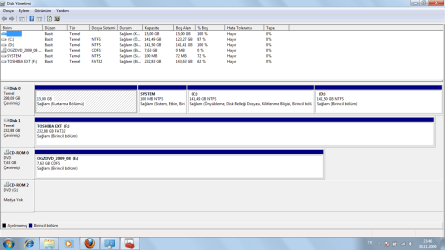
Post a Disk Management screenshot.

You might be able to run that part if it is an image by marking active and restarting. Decide then if you want the functionality.

Our moderator Barman recently explained it this way:

Barman58 said:
What tends to happen is that the recovery partition is an encrypted or otherwise non readable format, but it contains boot files. the Fkey press actually just sets the partition as active and reboots - often from an "are you sure" type screen maybe with a link to the actual OS recovery tools - held on the original small boot partition - like Microsoft's own 100MB partition.

If you want to build your own recovery system, Paragon software do a form of this available with their higher end suites, called the backup capsule - others may too.

Windows image backups rely on the bootable recovery options either on the hard disk or install disk rather than make the image bootable.
 
here is the disc management sc. i noticed that the first partition is the recovery one, where is the mbr then? anyways, i am wondering, in my previous experience, how could i manage to erase the sata drivers and ended up the installer not finding any harddisk to install on. i mean, i used the very same cd and successfully installed win7 on a newly formatted partition. you guys have any explanation for that?
 

Attachments

  • dscmg.png
    dscmg.png
    37.7 KB · Views: 68

My Computer My Computer

At a glance

windows 7
OS
windows 7
The MBR is in the System partition 100mb, which also makes the same Repair tools located on Installer/Repair disk avaiable at F8 during bootup.

I like your plan to boot from Win7 DVD and wipe the entire HD then let Win7 decide on 100mb. But iseeuu gives a way to avoid it above if you choose.

If you are worried about the SATA drivers needing to be available for the installer in the future, just back them up. It is rare for the Win7 installer not to have them already.

As far as the first partition goes, I cannot translate it from screenie, but it is surely a recov partition. Your best move would be to recover that valuable real estate by deleting from the DVD tools during install, and then later create a system image of your finished installation stored externally.

If you can make Recovery disks from that recov partition, I would as might want to restore to factory condition to sell the computer and migrate your 64 bit Upgrade elsewhere. In rare circumstances, makers can also require factory restore to service hardware warranty; you can ask them.
 
to clear things up, i don't plan to delete the 15Gb recovery partition, i think (although i'm not sure) it contains the data needed to reset back to factory settings, i might need them, so i'd like to keep it for warranty and stuff.
 

My Computer My Computer

At a glance

windows 7
OS
windows 7
to clear things up, i don't plan to delete the 15Gb recovery partition, i think (although i'm not sure) it contains the data needed to reset back to factory settings, i might need them, so i'd like to keep it for warranty and stuff.

Be aware that most recov partitions become disabled when a new OS is installed.

Therefore their value is to generate the recovery disks if possible, then delete and recover the prime disk space.

If it will not generate working recov disks, contact manufacturer to ask how exactly it works and whether it will work with a new install. When I did this recently, Acer offered to send me free recov disks since I called within 90 days of purchase. So I was free to delete their EISA partition.
 
By disabled you mean it is disabled such that it cannot even be booted from or you mean that it cannot be used by the recovery program my manufacturer provides in the windows environment?
 

My Computer My Computer

At a glance

windows 7
OS
windows 7
The way to know if it will boot independently is to look for the F-key to trigger (mark active) it and see if it boots on its own. Most I have seen will not function at all when you install a new OS, however you can ask your manufacturer if you want to be sure.

Does it produce Recovery Disks? Because if it does then you have already exported it to back up and don't need it any longer anyway so consider recovering that prime HD space for new Win7 installation?
 
Back
Top