Relocating User profile

prroots

New member
Local time
7:50 PM
Messages
46
I've been researching how to relocate the User profile to a different partition. I've actually tried 3 different methods I discovered online. So far, none of them has worked despite repeated attempts. I would like to hear from anyone who has actually done it under Windows 7.

I start by restoring from an Acronis True Image backup that was made just after OS installation without applications. That gives me a very clean starting point which is totally reproducible. Thanks
Pete
 

My Computer

OS
Windows 7 Professional
I right-click on one of the folders (Documents, Music...) one by one change the location in the "Location" tab. Then I log out after I enabled the hidden administrator account. I then copy "AppData" to the other partition after that opening Command Prompt I create a junction point in the old location: "mklink /J C:\Users\[username]\AppData D:\User\AppData" Done deal. Oh I leave the ntuser stuff where it is at. No point in messing with the Registry portions.
 

My Computer

Computer type
PC/Desktop
Computer Manufacturer/Model Number
Alienware Aurora ALX R4
OS
Windows 10 Pro (x64)
CPU
Intel Core i7-3930K (3.2GHz - 4.5GHz)
Motherboard
Alienware Aurora-R4 x79
Memory
4x Samsung 4GB PC3-12800 DDR3 (16GB 1600MHz)
Graphics Card(s)
Nvidia Geforce GTX 690
Sound Card
SteelSeries Siberia Elite
Monitor(s) Displays
Dell UltraSharp U3011
Screen Resolution
2560x1600
Hard Drives
Samsung 850 Pro 256 GB, Seagate 1TB Desktop Hybrid HDD, 2x Western Digital 4TB Green HDD
PSU
875W Some Dell PSU <.<
Case
Alienware Aurora ALX
Cooling
Custom Liquid Cooling (EK CPU & GPU blocks) dual EK 480RAD
Keyboard
Logitech G710+ Mechanical
Mouse
Logitech G700s
Internet Speed
Verizon Fios (50 mbps average)
Other Info
Server: Intel NUC D54250WYK: i5-4250U, 16GB, 256 GB mSATA, Windows Server 2012 R2
If you're talking about moving the User folders (Documents, Pictures, etc) to another partition all I've ever done with Windows 7 and past versions is select all the folders I wish to move in one drive and then using the right mouse key drag and drop them to the desired drive or partition.

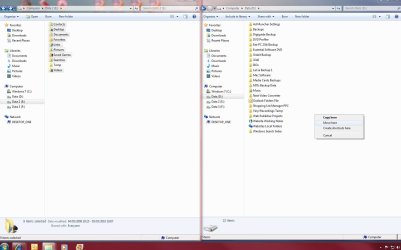
For example in my screenshots: if I wanted to move the 9 selected folders in Drive E: onto Drive D: I would select them, drag them across with the right mouse button and upon releasing the button I get a context menu from which I select "Move here".

move user1.jpg

move user2.jpg

The only thing I stick to is that I've found that the actual User folder itself (Windows/Users/yourname) must remain on the C: or Boot Drive.
 

My Computer

Computer Manufacturer/Model Number
Self Build
OS
Windows 7 Home Premium x64
CPU
Intel Core 2 Quad Q6600 @ 2.40GHz
Motherboard
Asus P5B-E
Memory
4Gb (2x Corsair CM2X2048-6400C5)
Graphics Card(s)
NVIDIA GeForce 9600 GT 512Mb
Sound Card
Realtek High Definition Audio Device
Monitor(s) Displays
Mirai 22" Widescreen and LG 19" Standard
Screen Resolution
1680 x 1050 and 1280 x 1024
Hard Drives
Western Digital 500Gb SATA x 2
Samsung 1Tb SATA
PSU
Hiper Modular 530W
Case
Akasa Ecplise 62 Midi
Cooling
Artic Cooling Freezer Pro 7
Keyboard
Advent Standard with Hotkeys
Mouse
PC Line PCL-FL1 Wired Laser
Internet Speed
ISP: Fast.co.uk up to 8Mb
Other Info
Netgear Router plus 5 Way LAN Switch, Samsung Ethernet Laser Printer, Epson PX650 Colour PSC, plus 2 more Desktop PCs, 3 Laptops and 2 Netbooks in same Home Network.
I did the same as "Tiffer"
Does anyone knows a better way?
 

My Computer

OS
windows 7
CPU
t3200
Memory
3gb
Screen Resolution
1366x768
Hard Drives
230gb
Internet Speed
6mb

My Computer

Computer Manufacturer/Model Number
* BFK Customs *
OS
W 7 64-bit Ultimate
CPU
Intel Q9550 Yorkfield
Motherboard
ASUS P5Q Pro
Memory
8GB Dominator 8500C5D
Graphics Card(s)
ATI : XFX 5870
Sound Card
Realtek HD Audio 7-1
Monitor(s) Displays
1x 47" LCD HDMI & 3x 26" LCD HDMI
Screen Resolution
1920x1080P & 1920x1200
Hard Drives
1x 80GB Intel X25-M G2 SSD : 1x 500GB & 1x 640GB WD Caviar Black(s)
PSU
Corsair 620HX
Case
Cooler Master RC-690
Cooling
Tuniq Tower 120, 2x 140mm and 3x 120mm case fans
Keyboard
Microsoft 500
Mouse
Razer Diamondback 3G
Internet Speed
14 Mb/s
Other Info
1x Koutech 3Gb/s SATA HDD Hot Swap Rack

My Computer

Computer Manufacturer/Model Number
* BFK Customs *
OS
W 7 64-bit Ultimate
CPU
Intel Q9550 Yorkfield
Motherboard
ASUS P5Q Pro
Memory
8GB Dominator 8500C5D
Graphics Card(s)
ATI : XFX 5870
Sound Card
Realtek HD Audio 7-1
Monitor(s) Displays
1x 47" LCD HDMI & 3x 26" LCD HDMI
Screen Resolution
1920x1080P & 1920x1200
Hard Drives
1x 80GB Intel X25-M G2 SSD : 1x 500GB & 1x 640GB WD Caviar Black(s)
PSU
Corsair 620HX
Case
Cooler Master RC-690
Cooling
Tuniq Tower 120, 2x 140mm and 3x 120mm case fans
Keyboard
Microsoft 500
Mouse
Razer Diamondback 3G
Internet Speed
14 Mb/s
Other Info
1x Koutech 3Gb/s SATA HDD Hot Swap Rack
I succeeded in creating a new User profile on my E:\ partition. I was guided by this article:
Change User Profile Folder Location in Vista Joshua Mouch

My job was considerably simpler than the author's since I was starting with a new Windows 7 install and had no applications to deal with.

Here are the steps I used:
1. Copy the original Default Profile directory to the new location (ie C:\Users\Default to E:\Users\Default)
2. Copy the original Public Profile directory to the new location (ie, C:\Users\Public to E:\Users\Public)
3. Navigate to HKEY_LOCAL_MACHINE\SOFTWARE\Microsoft\Windows NT\CurrentVersion\ProfileList
4. Change the value of the Default key to the new user profile location (ie, E:\Users\Default)
5. Change the value of the Public key to the new user profile location (ie, E:\Users\Public)
6. Change the value of the ProfilesDirectory to the new user profile location (ie, E:\Users)
7. Enable the administrator account:

  • a. Activate 'administrative tools' in Start Menu
  • b. Start Computer Management
  • c. Click on Local Users & Groups / Users
  • d. Right click on Administrator and select properties
  • e. Uncheck the box labeled 'Account is disabled'
8. Reboot and log into Administrator account
9. Profile should now be located in E:\
10. Reboot and then delete Orig_Account account created during Windows install (Control Panel/User Accounts)
11. Delete folder C:\Users\Orig_Account
12. Configure password and picture for Administrator account
 
Last edited:

My Computer

OS
Windows 7 Professional
Hello prroots, did you not see my post above for Windows 7 instructions?
 

My Computer

Computer Manufacturer/Model Number
* BFK Customs *
OS
W 7 64-bit Ultimate
CPU
Intel Q9550 Yorkfield
Motherboard
ASUS P5Q Pro
Memory
8GB Dominator 8500C5D
Graphics Card(s)
ATI : XFX 5870
Sound Card
Realtek HD Audio 7-1
Monitor(s) Displays
1x 47" LCD HDMI & 3x 26" LCD HDMI
Screen Resolution
1920x1080P & 1920x1200
Hard Drives
1x 80GB Intel X25-M G2 SSD : 1x 500GB & 1x 640GB WD Caviar Black(s)
PSU
Corsair 620HX
Case
Cooler Master RC-690
Cooling
Tuniq Tower 120, 2x 140mm and 3x 120mm case fans
Keyboard
Microsoft 500
Mouse
Razer Diamondback 3G
Internet Speed
14 Mb/s
Other Info
1x Koutech 3Gb/s SATA HDD Hot Swap Rack
Hello prroots, did you not see my post above for Windows 7 instructions?
If I understood your link, that is for moving individual folders and does not cover the entire User profile. I noticed that some folders do not offer the Location tab. I wanted to give a try at moving the entire User profile. I have actually followed the instructions from at least 4 other articles which didn't work for me before hitting on the referenced one. In my case, it was simple since it was a new installation without apps. This allowed me to create a new User profile on the E:\ partition and delete the original account created with the Windows install. Very simple. Time will tell if this proves to be worthwhile. Thanks for your help
Pete
 

My Computer

OS
Windows 7 Professional
Hello prroots, you're very welcome; we're glad you found a solution that worked for you.
 

My Computer

Computer Manufacturer/Model Number
* BFK Customs *
OS
W 7 64-bit Ultimate
CPU
Intel Q9550 Yorkfield
Motherboard
ASUS P5Q Pro
Memory
8GB Dominator 8500C5D
Graphics Card(s)
ATI : XFX 5870
Sound Card
Realtek HD Audio 7-1
Monitor(s) Displays
1x 47" LCD HDMI & 3x 26" LCD HDMI
Screen Resolution
1920x1080P & 1920x1200
Hard Drives
1x 80GB Intel X25-M G2 SSD : 1x 500GB & 1x 640GB WD Caviar Black(s)
PSU
Corsair 620HX
Case
Cooler Master RC-690
Cooling
Tuniq Tower 120, 2x 140mm and 3x 120mm case fans
Keyboard
Microsoft 500
Mouse
Razer Diamondback 3G
Internet Speed
14 Mb/s
Other Info
1x Koutech 3Gb/s SATA HDD Hot Swap Rack
I succeeded in creating a new User profile on my E:\ partition. I was guided by this article:
Change User Profile Folder Location in Vista Joshua Mouch

My job was considerably simpler than the author's since I was starting with a new Windows 7 install and had no applications to deal with.

Here are the steps I used:
1. Copy the original Default Profile directory to the new location (ie C:\Users\Default to E:\Users\Default)
2. Copy the original Public Profile directory to the new location (ie, C:\Users\Public to E:\Users\Public)
3. Navigate to HKEY_LOCAL_MACHINE\SOFTWARE\Microsoft\Windows NT\CurrentVersion\ProfileList
4. Change the value of the Default key to the new user profile location (ie, E:\Users\Default)
5. Change the value of the Public key to the new user profile location (ie, E:\Users\Public)
6. Change the value of the ProfilesDirectory to the new user profile location (ie, E:\Users)
7. Enable the administrator account:

  • a. Activate 'administrative tools' in Start Menu
  • b. Start Computer Management
  • c. Click on Local Users & Groups / Users
  • d. Right click on Administrator and select properties
  • e. Uncheck the box labeled 'Account is disabled'
8. Reboot and log into Administrator account
9. Profile should now be located in E:\
10. Reboot and then delete Orig_Account account created during Windows install (Control Panel/User Accounts)
11. Delete folder C:\Users\Orig_Account
12. Configure password and picture for Administrator account


Glad you got it worked out...don't forget to give some REP.
 

My Computer

Computer type
PC/Desktop
Computer Manufacturer/Model Number
Dell OP7010
OS
Windows 7 Enterprise (x64); Windows Server 2008 R2 (x64)
Memory
16GB
Monitor(s) Displays
4 Dell 24" LCD
Screen Resolution
1280x1024
Keyboard
Dell
Mouse
Dell Optical
Internet Speed
40meg
I have now taken the next step which is to create a Standard user account called Visitor without a password, but with Parental controls on which programs can be run. Unfortunately, when I try to log onto this new account I get the following error message:
The User Profile Service failed the logon.
User Profile cannot be loaded.

Any idea how to correct? Thanks
Pete
 

My Computer

OS
Windows 7 Professional

My Computer

Computer Manufacturer/Model Number
* BFK Customs *
OS
W 7 64-bit Ultimate
CPU
Intel Q9550 Yorkfield
Motherboard
ASUS P5Q Pro
Memory
8GB Dominator 8500C5D
Graphics Card(s)
ATI : XFX 5870
Sound Card
Realtek HD Audio 7-1
Monitor(s) Displays
1x 47" LCD HDMI & 3x 26" LCD HDMI
Screen Resolution
1920x1080P & 1920x1200
Hard Drives
1x 80GB Intel X25-M G2 SSD : 1x 500GB & 1x 640GB WD Caviar Black(s)
PSU
Corsair 620HX
Case
Cooler Master RC-690
Cooling
Tuniq Tower 120, 2x 140mm and 3x 120mm case fans
Keyboard
Microsoft 500
Mouse
Razer Diamondback 3G
Internet Speed
14 Mb/s
Other Info
1x Koutech 3Gb/s SATA HDD Hot Swap Rack
Hello prroots.


Have a look at the tutorial at the link below even though it was written for Windows Vista, it'll be the same principle for Windows 7.


Be sure to keep us informed as to how it sorts out.

The User Profile Service failed the logon. User profile cannot be loaded. - Vista Forums
Thanks. I studied the link and tried a suggested procedure located at:
Rob Brooks-Bilson's Blog: Fix for Vista's: The User Profile Service service failed the logon. User profile cannot be loaded

A reply by By Dawn Walker | 1/24/09 12:13 PM seemed to almost work since it eliminated the error message, but it created a new error. It seems this error has many possible causes and the correct fix may depend on what's causing it. I'm afraid that I'm in over my head; I've started to wonder whether I should revert back to the non-relocated User profile.
 

My Computer

OS
Windows 7 Professional

My Computer

Computer Manufacturer/Model Number
* BFK Customs *
OS
W 7 64-bit Ultimate
CPU
Intel Q9550 Yorkfield
Motherboard
ASUS P5Q Pro
Memory
8GB Dominator 8500C5D
Graphics Card(s)
ATI : XFX 5870
Sound Card
Realtek HD Audio 7-1
Monitor(s) Displays
1x 47" LCD HDMI & 3x 26" LCD HDMI
Screen Resolution
1920x1080P & 1920x1200
Hard Drives
1x 80GB Intel X25-M G2 SSD : 1x 500GB & 1x 640GB WD Caviar Black(s)
PSU
Corsair 620HX
Case
Cooler Master RC-690
Cooling
Tuniq Tower 120, 2x 140mm and 3x 120mm case fans
Keyboard
Microsoft 500
Mouse
Razer Diamondback 3G
Internet Speed
14 Mb/s
Other Info
1x Koutech 3Gb/s SATA HDD Hot Swap Rack
Well if you do that have a look at the tutorial at the link below, it may help.


http://www.sevenforums.com/tutorial...t-using-system-restore-windows-7-a.html?ltr=P

Thanks for the feedback. I have no problems in that regard since I make complete image backups of C:\ using Acronis True Image. When I wish to test relocate user profile ideas I simply restore from a backup made just after Windows 7 was installed and before any apps or updates were installed. I do not use restore points since I have no need of them. I keep my data on E:\ and use SyncBackSE to make daily backups. My only problem with this scheme is that SyncBackSE insists on placing logs and profiles in the user profile folder which can't be relocated without moving the entire user profile. In the overall scheme of things this has been more of an annoyance than a serious problem since SyncBackSE has an option to copy all profiles to a folder of my choosing on exit. Basically, I just lose the log files when restoring my C:\ drive.
 

My Computer

OS
Windows 7 Professional
At least you have a fallback strategy, unlike the majority of users that visit Seven Forums! ;)
 

My Computer

Computer Manufacturer/Model Number
* BFK Customs *
OS
W 7 64-bit Ultimate
CPU
Intel Q9550 Yorkfield
Motherboard
ASUS P5Q Pro
Memory
8GB Dominator 8500C5D
Graphics Card(s)
ATI : XFX 5870
Sound Card
Realtek HD Audio 7-1
Monitor(s) Displays
1x 47" LCD HDMI & 3x 26" LCD HDMI
Screen Resolution
1920x1080P & 1920x1200
Hard Drives
1x 80GB Intel X25-M G2 SSD : 1x 500GB & 1x 640GB WD Caviar Black(s)
PSU
Corsair 620HX
Case
Cooler Master RC-690
Cooling
Tuniq Tower 120, 2x 140mm and 3x 120mm case fans
Keyboard
Microsoft 500
Mouse
Razer Diamondback 3G
Internet Speed
14 Mb/s
Other Info
1x Koutech 3Gb/s SATA HDD Hot Swap Rack
At least you have a fallback strategy, unlike the majority of users that visit Seven Forums! ;)
Yes, I swear by Acronis True Image! It's been a life saver and as mentioned, allows me to bravely try new things without risk of getting into trouble:D
 

My Computer

OS
Windows 7 Professional
Back
Top